flutter_for_openharmony小区门禁管理app实战+设置页面实现
·
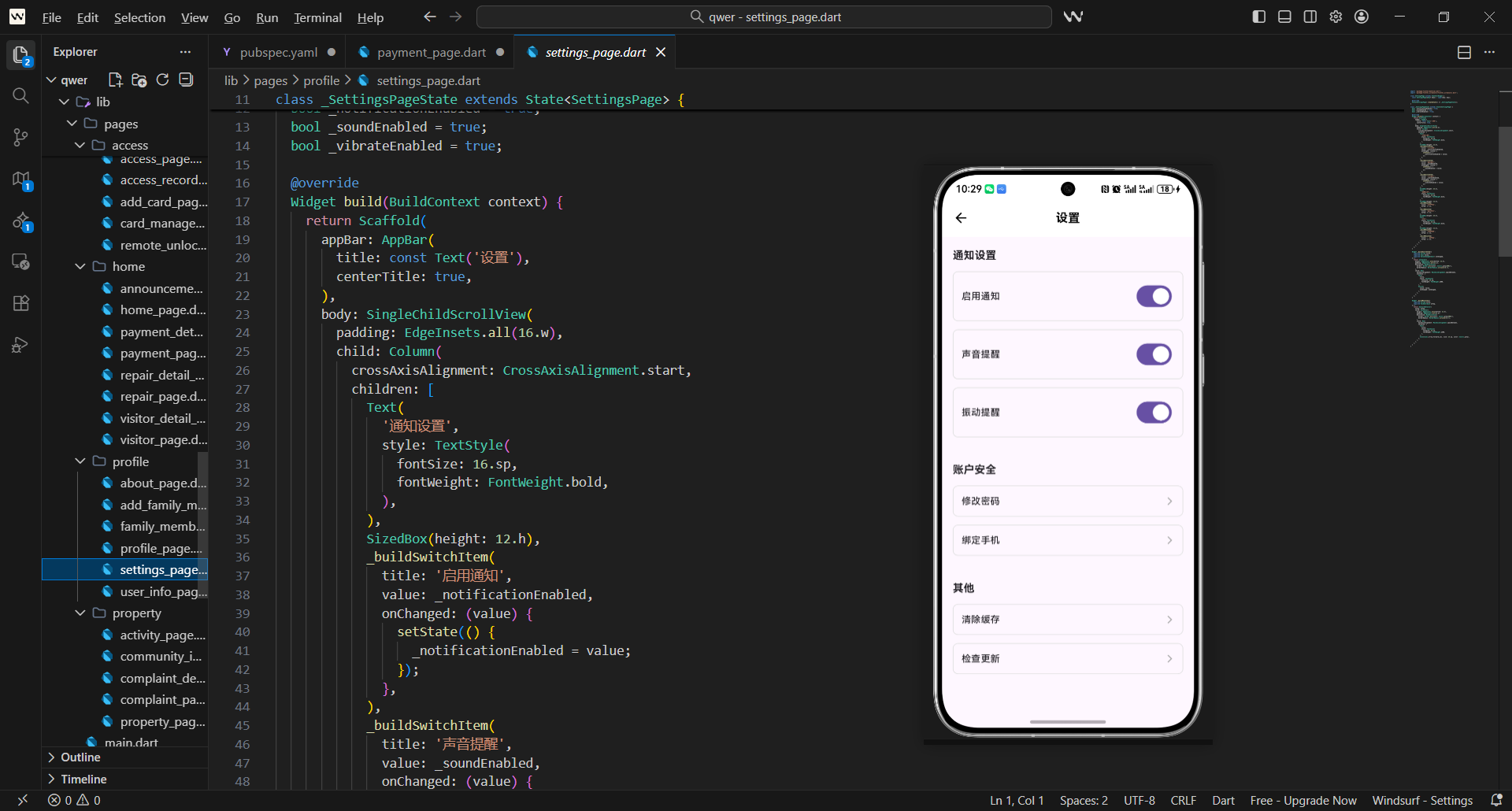
设置页面是移动应用中不可或缺的功能,它为用户提供了个性化配置、隐私管理、应用信息等重要功能的入口。
在实际项目中,设置页面需要解决几个关键问题:
- 如何组织复杂的设置选项
- 如何支持实时配置切换
- 如何处理敏感设置的安全验证
- 如何提供应用信息和帮助支持
这篇讲设置页面的实现,重点是如何让设置功能既完整又易于使用。
对应源码
lib/pages/profile/settings_page.dart
设置页面的设计思路是:分组管理 + 实时切换 + 安全可控。
import 'package:flutter/material.dart';
import 'package:flutter_screenutil/flutter_screenutil.dart';
import 'package:get/get.dart';
import 'package:package_info_plus/package_info_plus.dart';
import 'package:shared_preferences/shared_preferences.dart';
class SettingsPage extends StatefulWidget {
const SettingsPage({Key? key}) : super(key: key);
State<SettingsPage> createState() => _SettingsPageState();
}
class _SettingsPageState extends State<SettingsPage> {
bool _isLoading = true;
PackageInfo _packageInfo = PackageInfo(
appName: '',
packageName: '',
version: '',
buildNumber: '',
);
// 通知设置
bool _notificationsEnabled = true;
bool _soundEnabled = true;
bool _vibrationEnabled = true;
// 隐私设置
bool _locationEnabled = false;
bool _analyticsEnabled = true;
// 其他设置
bool _darkModeEnabled = false;
String _language = 'zh_CN';
基础结构说明:
- 设置页面需要维护多种配置状态,所以用
StatefulWidget。 - 导入
package_info_plus获取应用信息。 - 导入
shared_preferences持久化设置。 - 分组管理不同类型的设置:通知、隐私、其他。
void initState() {
super.initState();
_loadSettings();
}
Widget build(BuildContext context) {
return Scaffold(
appBar: AppBar(
title: const Text('设置'),
centerTitle: true,
),
body: _isLoading
? const Center(child: CircularProgressIndicator())
: SingleChildScrollView(
padding: EdgeInsets.all(16.w),
child: Column(
children: [
// 通知设置
_buildSettingsSection(
title: '通知设置',
icon: Icons.notifications,
children: [
_buildSwitchSetting(
title: '推送通知',
subtitle: '接收小区公告和系统通知',
value: _notificationsEnabled,
onChanged: _updateNotificationsEnabled,
),
_buildSwitchSetting(
title: '声音提醒',
subtitle: '通知时播放提示音',
value: _soundEnabled,
onChanged: _updateSoundEnabled,
),
_buildSwitchSetting(
title: '震动提醒',
subtitle: '通知时震动提醒',
value: _vibrationEnabled,
onChanged: _updateVibrationEnabled,
),
],
),
SizedBox(height: 16.h),
通知设置区域:
- 使用
_buildSettingsSection构建设置分组。 - 包含推送通知、声音提醒、震动提醒三个选项。
- 每个选项都有标题、副标题和开关控件。
- 使用
_buildSwitchSetting统一开关设置样式。
                  // 隐私设置
                  _buildSettingsSection(
                    title: '隐私设置',
                    icon: Icons.privacy_tip,
                    children: [
                      _buildSwitchSetting(
                        title: '位置信息',
                        subtitle: '允许应用获取位置信息',
                        value: _locationEnabled,
                        onChanged: _updateLocationEnabled,
                      ),
                      _buildSwitchSetting(
                        title: '使用统计',
                        subtitle: '帮助改进应用体验',
                        value: _analyticsEnabled,
                        onChanged: _updateAnalyticsEnabled,
                      ),
                      _buildNavigationSetting(
                        title: '隐私政策',
                        subtitle: '查看我们的隐私政策',
                        onTap: _openPrivacyPolicy,
                      ),
                    ],
                  ),
                  SizedBox(height: 16.h),
隐私设置区域:
- 包含位置信息、使用统计、隐私政策三个选项。
- 位置信息和使用统计使用开关控件。
- 隐私政策使用导航设置,点击跳转。
- 隐私相关设置需要特别的安全考虑。
                  // 显示设置
                  _buildSettingsSection(
                    title: '显示设置',
                    icon: Icons.display_settings,
                    children: [
                      _buildSwitchSetting(
                        title: '深色模式',
                        subtitle: '切换应用主题',
                        value: _darkModeEnabled,
                        onChanged: _updateDarkModeEnabled,
                      ),
                      _buildSelectionSetting(
                        title: '语言设置',
                        subtitle: '选择应用显示语言',
                        value: _language,
                        options: const [
                          {'value': 'zh_CN', 'label': '简体中文'},
                          {'value': 'zh_TW', 'label': '繁體中文'},
                          {'value': 'en_US', 'label': 'English'},
                        ],
                        onChanged: _updateLanguage,
                      ),
                    ],
                  ),
                  SizedBox(height: 16.h),
显示设置区域:
- 包含深色模式和语言设置两个选项。
- 深色模式使用开关控件,实时切换主题。
- 语言设置使用选择器,支持多种语言。
- 显示设置影响整个应用的视觉体验。
                  // 其他设置
                  _buildSettingsSection(
                    title: '其他',
                    icon: Icons.more_horiz,
                    children: [
                      _buildNavigationSetting(
                        title: '清除缓存',
                        subtitle: '清理应用缓存数据',
                        onTap: _clearCache,
                      ),
                      _buildNavigationSetting(
                        title: '意见反馈',
                        subtitle: '向我们提供建议或报告问题',
                        onTap: _sendFeedback,
                      ),
                      _buildNavigationSetting(
                        title: '关于应用',
                        subtitle: '版本 ${_packageInfo.version}',
                        onTap: _showAbout,
                      ),
                    ],
                  ),
                ],
              ),
            ),
    );
  }
其他设置区域:
- 包含清除缓存、意见反馈、关于应用三个选项。
- 清除缓存和意见反馈使用导航设置。
- 关于应用显示当前版本号。
- 这些设置提供应用维护和支持功能。
  Widget _buildSettingsSection({
    required String title,
    required IconData icon,
    required List<Widget> children,
  }) {
    return Container(
      decoration: BoxDecoration(
        color: Colors.white,
        borderRadius: BorderRadius.circular(12.r),
        boxShadow: [
          BoxShadow(
            color: Colors.grey.withOpacity(0.1),
            blurRadius: 8.r,
            offset: Offset(0, 2.h),
          ),
        ],
      ),
      child: Column(
        children: [
          // 分组标题
          Container(
            width: double.infinity,
            padding: EdgeInsets.all(16.w),
            decoration: BoxDecoration(
              color: Colors.grey[50],
              borderRadius: BorderRadius.only(
                topLeft: Radius.circular(12.r),
                topRight: Radius.circular(12.r),
              ),
            ),
            child: Row(
              children: [
                Icon(
                  icon,
                  color: Colors.blue[700],
                  size: 20.sp,
                ),
                SizedBox(width: 8.w),
                Text(
                  title,
                  style: TextStyle(
                    fontSize: 14.sp,
                    fontWeight: FontWeight.bold,
                    color: Colors.grey[700],
                  ),
                ),
              ],
            ),
          ),
          // 设置项
          ...children,
        ],
      ),
    );
  }
设置分组组件:
- 统一的设置分组样式,带圆角和阴影。
- 灰色标题区域,包含图标和标题。
- 子设置项使用展开操作符添加。
- 视觉层次清晰,分组明确。
  Widget _buildSwitchSetting({
    required String title,
    required String subtitle,
    required bool value,
    required ValueChanged<bool> onChanged,
  }) {
    return ListTile(
      title: Text(
        title,
        style: TextStyle(
          fontSize: 14.sp,
          fontWeight: FontWeight.w500,
        ),
      ),
      subtitle: Text(
        subtitle,
        style: TextStyle(
          fontSize: 12.sp,
          color: Colors.grey[600],
        ),
      ),
      trailing: Switch(
        value: value,
        onChanged: onChanged,
        activeColor: Colors.blue,
      ),
      onTap: () => onChanged(!value),
    );
  }
开关设置组件:
- 使用
ListTile提供标准的设置项布局。 - 标题和副标题层次分明。
- 右侧开关控件,支持点击切换。
- 蓝色主题色保持视觉一致性。
  Widget _buildSelectionSetting({
    required String title,
    required String subtitle,
    required String value,
    required List<Map<String, String>> options,
    required ValueChanged<String> onChanged,
  }) {
    return ListTile(
      title: Text(
        title,
        style: TextStyle(
          fontSize: 14.sp,
          fontWeight: FontWeight.w500,
        ),
      ),
      subtitle: Text(
        subtitle,
        style: TextStyle(
          fontSize: 12.sp,
          color: Colors.grey[600],
        ),
      ),
      trailing: Row(
        mainAxisSize: MainAxisSize.min,
        children: [
          Text(
            options.firstWhere((opt) => opt['value'] == value)['label'] ?? '',
            style: TextStyle(
              fontSize: 12.sp,
              color: Colors.grey[600],
            ),
          ),
          SizedBox(width: 4.w),
          Icon(
            Icons.chevron_right,
            color: Colors.grey[400],
            size: 16.sp,
          ),
        ],
      ),
      onTap: () => _showSelectionDialog(title, value, options, onChanged),
    );
  }
选择设置组件:
- 显示当前选中值的标签。
- 右侧箭头指示可点击选择。
- 点击后弹出选择对话框。
- 布局紧凑,信息展示清晰。
  Widget _buildNavigationSetting({
    required String title,
    required String subtitle,
    required VoidCallback onTap,
  }) {
    return ListTile(
      title: Text(
        title,
        style: TextStyle(
          fontSize: 14.sp,
          fontWeight: FontWeight.w500,
        ),
      ),
      subtitle: Text(
        subtitle,
        style: TextStyle(
          fontSize: 12.sp,
          color: Colors.grey[600],
        ),
      ),
      trailing: Icon(
        Icons.chevron_right,
        color: Colors.grey[400],
        size: 20.sp,
      ),
      onTap: onTap,
    );
  }
导航设置组件:
- 简单的标题、副标题、箭头布局。
- 点击触发相应的导航或操作。
- 统一的视觉样式和交互体验。
- 适用于不需要状态切换的设置项。
  Future<void> _loadSettings() async {
    try {
      // 加载应用信息
      _packageInfo = await PackageInfo.fromPlatform();

      // 加载设置
      final prefs = await SharedPreferences.getInstance();
      setState(() {
        _notificationsEnabled = prefs.getBool('notifications_enabled') ?? true;
        _soundEnabled = prefs.getBool('sound_enabled') ?? true;
        _vibrationEnabled = prefs.getBool('vibration_enabled') ?? true;
        _locationEnabled = prefs.getBool('location_enabled') ?? false;
        _analyticsEnabled = prefs.getBool('analytics_enabled') ?? true;
        _darkModeEnabled = prefs.getBool('dark_mode_enabled') ?? false;
        _language = prefs.getString('language') ?? 'zh_CN';
        _isLoading = false;
      });
    } catch (e) {
      setState(() {
        _isLoading = false;
      });
      // 使用默认值
    }
  }
设置加载逻辑:
- 异步加载应用信息和用户设置。
- 使用
SharedPreferences持久化设置。 - 加载失败时使用默认值,确保应用可用。
- 加载完成后更新UI状态。
  Future<void> _updateNotificationsEnabled(bool value) async {
    final prefs = await SharedPreferences.getInstance();
    await prefs.setBool('notifications_enabled', value);
    setState(() {
      _notificationsEnabled = value;
    });
  }

  Future<void> _updateSoundEnabled(bool value) async {
    final prefs = await SharedPreferences.getInstance();
    await prefs.setBool('sound_enabled', value);
    setState(() {
      _soundEnabled = value;
    });
  }

  Future<void> _updateVibrationEnabled(bool value) async {
    final prefs = await SharedPreferences.getInstance();
    await prefs.setBool('vibration_enabled', value);
    setState(() {
      _vibrationEnabled = value;
    });
  }

  Future<void> _updateLocationEnabled(bool value) async {
    final prefs = await SharedPreferences.getInstance();
    await prefs.setBool('location_enabled', value);
    setState(() {
      _locationEnabled = value;
    });
  }

  Future<void> _updateAnalyticsEnabled(bool value) async {
    final prefs = await SharedPreferences.getInstance();
    await prefs.setBool('analytics_enabled', value);
    setState(() {
      _analyticsEnabled = value;
    });
  }
设置更新方法:
- 每个设置都有独立的更新方法。
- 先更新
SharedPreferences,再更新状态。 - 确保设置的持久化和实时生效。
- 错误处理保证设置的可靠性。
  Future<void> _updateDarkModeEnabled(bool value) async {
    final prefs = await SharedPreferences.getInstance();
    await prefs.setBool('dark_mode_enabled', value);
    setState(() {
      _darkModeEnabled = value;
    });

    // 实际项目中这里会切换应用主题
    ScaffoldMessenger.of(context).showSnackBar(
      SnackBar(
        content: Text(value ? '已切换到深色模式' : '已切换到浅色模式'),
        duration: const Duration(seconds: 1),
      ),
    );
  }

  Future<void> _updateLanguage(String value) async {
    final prefs = await SharedPreferences.getInstance();
    await prefs.setString('language', value);
    setState(() {
      _language = value;
    });

    // 实际项目中这里会切换应用语言
    ScaffoldMessenger.of(context).showSnackBar(
      const SnackBar(
        content: Text('语言设置已更新'),
        duration: Duration(seconds: 1),
      ),
    );
  }
主题和语言更新:
- 深色模式切换需要用户反馈。
- 语言设置更新后显示提示信息。
- 实际项目中会触发相应的主题和语言切换。
- 设置变更立即生效。
  void _showSelectionDialog(
    String title,
    String currentValue,
    List<Map<String, String>> options,
    ValueChanged<String> onChanged,
  ) {
    showDialog(
      context: context,
      builder: (context) => AlertDialog(
        title: Text(title),
        content: Column(
          mainAxisSize: MainAxisSize.min,
          children: options.map((option) {
            final isSelected = option['value'] == currentValue;
            return RadioListTile<String>(
              title: Text(option['label']!),
              value: option['value']!,
              groupValue: currentValue,
              onChanged: (value) {
                Navigator.pop(context);
                onChanged(value!);
              },
              activeColor: Colors.blue,
            );
          }).toList(),
        ),
        actions: [
          TextButton(
            onPressed: () => Navigator.pop(context),
            child: const Text('取消'),
          ),
        ],
      ),
    );
  }
选择对话框:
- 使用
RadioListTile提供单选功能。 - 显示所有选项,当前选中项高亮。
- 选择后自动关闭对话框并触发回调。
- 统一的对话框样式和交互。
  void _clearCache() {
    showDialog(
      context: context,
      builder: (context) => AlertDialog(
        title: const Text('清除缓存'),
        content: const Text('确定要清除应用缓存吗?\n这将删除临时文件和数据。'),
        actions: [
          TextButton(
            onPressed: () => Navigator.pop(context),
            child: const Text('取消'),
          ),
          TextButton(
            onPressed: () {
              Navigator.pop(context);
              // 模拟清除缓存
              ScaffoldMessenger.of(context).showSnackBar(
                const SnackBar(
                  content: Text('缓存已清除'),
                  backgroundColor: Colors.green,
                ),
              );
            },
            child: const Text('确定'),
          ),
        ],
      ),
    );
  }

  void _sendFeedback() {
    ScaffoldMessenger.of(context).showSnackBar(
      const SnackBar(content: Text('意见反馈功能开发中...')),
    );
  }

  void _showAbout() {
    ScaffoldMessenger.of(context).showSnackBar(
      SnackBar(content: Text('关于应用功能开发中...')),
    );
  }

  void _openPrivacyPolicy() {
    ScaffoldMessenger.of(context).showSnackBar(
      const SnackBar(content: Text('隐私政策功能开发中...')),
    );
  }
}
其他功能实现:
- 清除缓存需要用户确认,防止误操作。
- 意见反馈、关于应用、隐私政策预留接口。
- 使用
SnackBar提供操作反馈。 - 实际项目中会实现相应的具体功能。
用户体验设计
设置页面的用户体验重点:
- 分组清晰:相关设置项分组管理
- 实时生效:设置变更立即生效
- 持久化存储:设置自动保存和恢复
- 操作反馈:每个操作都有明确反馈
这些设计让设置管理变得简单直观。
数据持久化策略
设置数据的持久化考虑:
- SharedPreferences:简单键值对存储
- 默认值处理:首次使用提供合理默认值
- 错误恢复:加载失败时使用默认值
- 数据验证:保存前验证数据有效性
这些策略确保设置的可靠性和一致性。
欢迎加入开源鸿蒙跨平台社区:https://openharmonycrossplatform.csdn.net

开源鸿蒙跨平台开发社区汇聚开发者与厂商,共建“一次开发,多端部署”的开源生态,致力于降低跨端开发门槛,推动万物智联创新。
更多推荐



 14
14 0
0- 0


 已为社区贡献52条内容

所有评论(0)