Flutter-OH 鸿蒙工具类应用实战 Day5:Note 记事本关键词检索与笔记搜索功能开发
欢迎加入开源鸿蒙跨平台社区: https://openharmonycrossplatform.csdn.net。
欢迎加入开源鸿蒙跨平台社区: https://openharmonycrossplatform.csdn.net
一、使用软件
DevEco Studio
鸿蒙官方集成开发环境,提供项目管理、代码编辑、模拟器调试、应用打包等全流程开发能力,是 Flutter-OH 应用开发的核心工具。

Flutter-OH SDK
面向 OpenHarmony 生态定制的 Flutter 跨平台开发工具包,支持 Dart 语言编译、鸿蒙平台适配、UI 组件渲染与应用构建
OpenHarmony 模拟器
DevEco Studio 内置的鸿蒙设备虚拟运行环境,无需物理真机即可完成 APP 界面预览、功能调试与兼容性验证。
二、核心内容
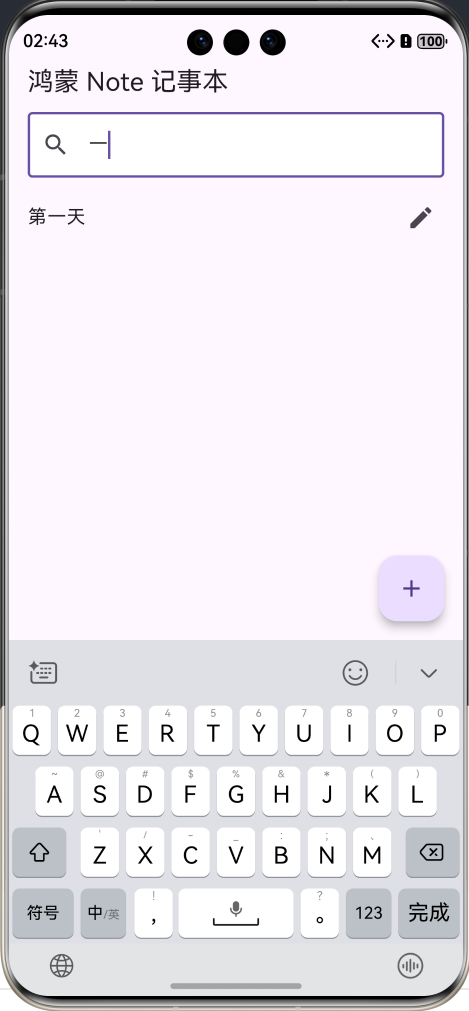
- 新增顶部搜索栏,实现关键词实时检索
- 输入文字即时过滤笔记列表,模糊匹配内容
- 无匹配内容时展示空状态友好提示
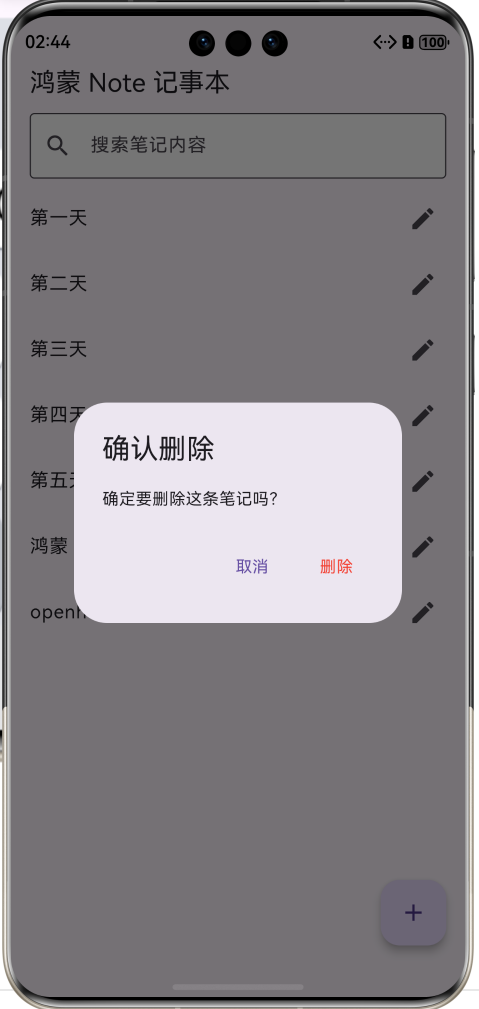
- 保留原有新增、编辑、删除、本地持久化全部功能
- 适配鸿蒙界面风格,优化搜索交互体验
三、操作步骤
步骤 1:先加搜索用到的变量
找到 _HomePageState 里面,替换成这几个变量:
// 全量原始笔记
List<String> _allNotes = [];
// 搜索过滤后展示的笔记
List<String> _showNotes = [];
// 搜索框输入控制器
final TextEditingController _searchController = TextEditingController();
步骤 2:初始化 + 监听搜索输入
替换 initState 方法:
@override
void initState() {
  super.initState();
  _loadNotes();
  // 监听搜索框输入变化
  _searchController.addListener(_searchNotes);
}
步骤 3:加载本地笔记方法
替换 _loadNotes:
Future<void> _loadNotes() async {
  final list = await NoteStorage.loadNotes();
  setState(() {
    _allNotes = list;
    // 初始默认显示全部
    _showNotes = List.from(_allNotes);
  });
}
步骤 4:保存笔记方法
Future<void> _saveNotes() async {
  await NoteStorage.saveNotes(_allNotes);
}
步骤 5:核心 —— 搜索过滤方法(新增)
单独加一个方法:
void _searchNotes() {
  String key = _searchController.text.trim();
  setState(() {
    if (key.isEmpty) {
      // 清空搜索,显示全部
      _showNotes = List.from(_allNotes);
    } else {
      // 模糊匹配包含关键词的笔记
      _showNotes = _allNotes
          .where((note) => note.contains(key))
          .toList();
    }
  });
}
步骤 6:编辑笔记方法(适配搜索后点击)
替换 _goEdit:
Future<void> _goEdit(int index) async {
  final realIndex = _allNotes.indexOf(_showNotes[index]);
  final result = await Navigator.push(
    context,
    MaterialPageRoute(
      builder: (context) => MarkdownEditPage(
        initialContent: _allNotes[realIndex],
      ),
    ),
  );
  if (result != null) {
    setState(() {
      _allNotes[realIndex] = result;
      // 编辑完重新刷新搜索列表
      _searchNotes();
    });
    await _saveNotes();
  }
}
步骤 7:删除笔记方法(适配搜索)
替换 _goDelete:
Future<void> _goDelete(int index) async {
  final realIndex = _allNotes.indexOf(_showNotes[index]);
  bool? confirm = await showDialog(
    context: context,
    builder: (context) => AlertDialog(
      title: const Text("确认删除"),
      content: const Text("确定要删除这条笔记吗?"),
      actions: [
        TextButton(
          onPressed: () => Navigator.pop(context, false),
          child: const Text("取消"),
        ),
        TextButton(
          onPressed: () => Navigator.pop(context, true),
          child: const Text("删除", style: TextStyle(color: Colors.red)),
        ),
      ],
    ),
  );
  if (confirm == true) {
    setState(() {
      _allNotes.removeAt(realIndex);
      // 删除后刷新搜索列表
      _searchNotes();
    });
    await _saveNotes();
  }
}
步骤 8:新增笔记方法
替换 _addNote:
Future<void> _addNote() async {
  final newText = await Navigator.push(
    context,
    MaterialPageRoute(builder: (context) => const MarkdownEditPage()),
  );
  if (newText != null && newText.trim().isNotEmpty) {
    setState(() {
      _allNotes.add(newText);
      // 新增后刷新搜索列表
      _searchNotes();
    });
    await _saveNotes();
  }
}
步骤 9:页面布局(AppBar 加搜索框 + 列表适配)
把 build 里的 Scaffold 整体换成这个:
@override
Widget build(BuildContext context) {
  return Scaffold(
    appBar: AppBar(
      title: const Text("鸿蒙 Note 记事本"),
      // 顶部嵌入搜索栏
      bottom: PreferredSize(
        preferredSize: const Size.fromHeight(50),
        child: Padding(
          padding: const EdgeInsets.symmetric(horizontal: 16, vertical: 6),
          child: TextField(
            controller: _searchController,
            decoration: const InputDecoration(
              hintText: "搜索笔记内容",
              filled: true,
              fillColor: Colors.white,
              border: OutlineInputBorder(),
              prefixIcon: Icon(Icons.search),
            ),
          ),
        ),
      ),
    ),
    // 判断显示空提示 还是 笔记列表
    body: _showNotes.isEmpty
        ? const Center(
            child: Text(
              "暂无笔记或无搜索结果",
              style: TextStyle(fontSize: 16, color: Colors.grey),
            ),
          )
        : ListView.builder(
            itemCount: _showNotes.length,
            itemBuilder: (context, index) => ListTile(
              title: Text(_showNotes[index]),
              onTap: () => _goEdit(index),
              onLongPress: () => _goDelete(index),
              trailing: const Icon(Icons.edit),
            ),
          ),
    floatingActionButton: FloatingActionButton(
      onPressed: _addNote,
      child: const Icon(Icons.add),
    ),
  );
}
步骤 10:模拟器运行测试
- 输入部分文字自动匹配相关笔记
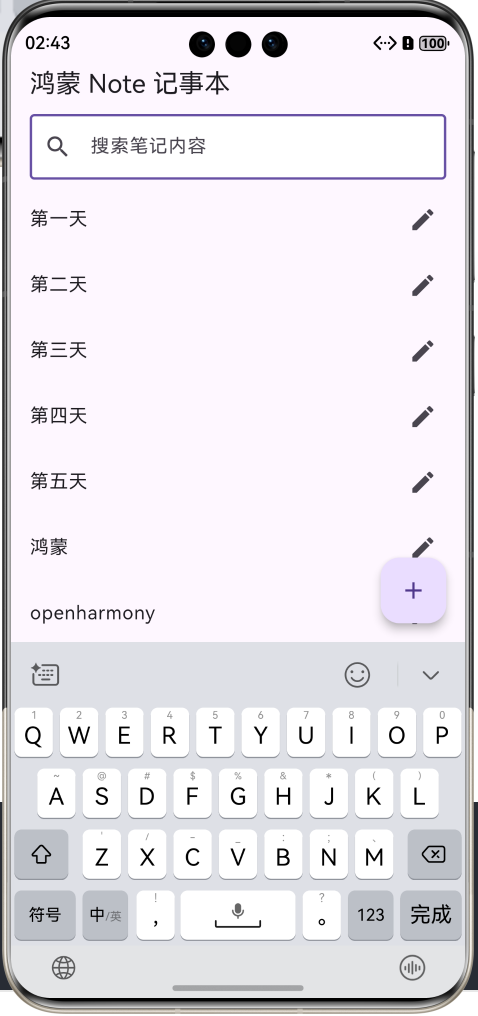
- 清空搜索恢复全部列表
- 新增、编辑、删除后搜索仍正常生效
- 重启应用搜索功能不受影响
四、总代码
import 'package:flutter/material.dart';
import 'utils/note_storage.dart';
import 'pages/markdown_edit_page.dart';

void main() {
  runApp(const NoteApp());
}

class NoteApp extends StatelessWidget {
  const NoteApp({super.key});

  @override
  Widget build(BuildContext context) {
    return MaterialApp(
      title: 'Note App',
      debugShowCheckedModeBanner: false,
      theme: ThemeData(primarySwatch: Colors.blue),
      home: const HomePage(),
    );
  }
}

class HomePage extends StatefulWidget {
  const HomePage({super.key});

  @override
  State<HomePage> createState() => _HomePageState();
}

class _HomePageState extends State<HomePage> {
  // 全量笔记(搜索用原始数据)
  List<String> _allNotes = [];
  // 页面显示笔记(搜索后结果)
  List<String> _showNotes = [];
  // 搜索框控制器
  final TextEditingController _searchController = TextEditingController();

  @override
  void initState() {
    super.initState();
    _loadNotes();
    // 监听搜索输入
    _searchController.addListener(_searchNotes);
  }

  // 加载本地笔记
  Future<void> _loadNotes() async {
    final list = await NoteStorage.loadNotes();
    setState(() {
      _allNotes = list;
      _showNotes = List.from(_allNotes);
    });
  }

  // 保存笔记
  Future<void> _saveNotes() async {
    await NoteStorage.saveNotes(_allNotes);
  }

  // 搜索功能:关键词过滤
  void _searchNotes() {
    String key = _searchController.text.trim();
    setState(() {
      if (key.isEmpty) {
        _showNotes = List.from(_allNotes);
      } else {
        _showNotes = _allNotes
            .where((note) => note.contains(key))
            .toList();
      }
    });
  }

  // 进入编辑
  Future<void> _goEdit(int index) async {
    final realIndex = _allNotes.indexOf(_showNotes[index]);
    final result = await Navigator.push(
      context,
      MaterialPageRoute(
        builder: (context) => MarkdownEditPage(
          initialContent: _allNotes[realIndex],
        ),
      ),
    );
    if (result != null) {
      setState(() {
        _allNotes[realIndex] = result;
        _searchNotes();
      });
      await _saveNotes();
    }
  }

  // 删除笔记
  Future<void> _goDelete(int index) async {
    final realIndex = _allNotes.indexOf(_showNotes[index]);
    bool? confirm = await showDialog(
      context: context,
      builder: (context) => AlertDialog(
        title: const Text("确认删除"),
        content: const Text("确定要删除这条笔记吗?"),
        actions: [
          TextButton(
            onPressed: () => Navigator.pop(context, false),
            child: const Text("取消"),
          ),
          TextButton(
            onPressed: () => Navigator.pop(context, true),
            child: const Text("删除", style: TextStyle(color: Colors.red)),
          ),
        ],
      ),
    );
    if (confirm == true) {
      setState(() {
        _allNotes.removeAt(realIndex);
        _searchNotes();
      });
      await _saveNotes();
    }
  }

  // 新增笔记
  Future<void> _addNote() async {
    final newText = await Navigator.push(
      context,
      MaterialPageRoute(builder: (context) => const MarkdownEditPage()),
    );
    if (newText != null && newText.trim().isNotEmpty) {
      setState(() {
        _allNotes.add(newText);
        _searchNotes();
      });
      await _saveNotes();
    }
  }

  @override
  Widget build(BuildContext context) {
    return Scaffold(
      appBar: AppBar(
        title: const Text("鸿蒙 Note 记事本"),
        bottom: PreferredSize(
          preferredSize: const Size.fromHeight(50),
          child: Padding(
            padding: const EdgeInsets.symmetric(horizontal: 16, vertical: 6),
            child: TextField(
              controller: _searchController,
              decoration: const InputDecoration(
                hintText: "搜索笔记内容",
                filled: true,
                fillColor: Colors.white,
                border: OutlineInputBorder(),
                prefixIcon: Icon(Icons.search),
              ),
            ),
          ),
        ),
      ),
      body: _showNotes.isEmpty
          ? const Center(
              child: Text(
                "暂无笔记或无搜索结果",
                style: TextStyle(fontSize: 16, color: Colors.grey),
              ),
            )
          : ListView.builder(
              itemCount: _showNotes.length,
              itemBuilder: (context, index) => ListTile(
                title: Text(_showNotes[index]),
                onTap: () => _goEdit(index),
                onLongPress: () => _goDelete(index),
                trailing: const Icon(Icons.edit),
              ),
            ),
      floatingActionButton: FloatingActionButton(
        onPressed: _addNote,
        child: const Icon(Icons.add),
      ),
    );
  }
}
五、小结---Flutter-OH 鸿蒙工具类应用实战 Day5:Note 记事本关键词检索与笔记搜索功能开发
在日常记事本使用场景中,随着笔记数量不断增多,依靠手动逐条查找内容效率较低,因此高效的关键词检索功能成为工具类应用不可或缺的核心模块。本篇基于已完成的鸿蒙 Note 记事本项目,在原有新增、编辑、删除与本地数据持久化基础上,开发实时关键词搜索功能,实现笔记内容模糊匹配、动态列表过滤与空状态提示,进一步提升应用实用性与使用便捷性。
本次开发采用顶部搜索输入框布局,契合鸿蒙系统常用界面设计范式,用户可随时输入关键字进行内容检索。程序维护两组笔记数据列表,一组用于存放从本地读取的原始全部笔记数据,另一组作为页面实时展示的筛选列表,既保证原始数据不被破坏,又能实现搜索动态过滤效果。通过文本输入监听机制,实时捕捉用户输入内容,即时遍历原始笔记列表,采用模糊匹配规则筛选出包含关键词的笔记并刷新界面,做到输入即检索、无需手动点击搜索按钮,交互更加流畅自然。
同时针对边界场景进行优化,当输入关键词无匹配笔记时,页面自动切换为空状态提示视图,展示友好文字提示,避免空白界面带来的体验割裂;清空搜索内容后,列表立即恢复展示全部笔记,逻辑闭环完整。整体界面布局沿用原有设计风格,搜索栏与列表衔接自然,适配鸿蒙手机屏幕尺寸与交互逻辑,兼顾美观性与实用性。
功能完成后进行多场景测试,包括普通关键词匹配、部分文字模糊检索、无内容搜索、新增笔记后即时检索、编辑删除笔记后搜索同步刷新等情况,均运行稳定、响应迅速,无卡顿和数据错乱问题。本篇搜索功能的实现,完善了记事本从创建、管理到快速查找的全流程使用体验,进一步巩固了 Flutter 状态管理、列表动态渲染与文本监听等开发技能,也为后续笔记分类、标签管理等进阶功能预留了扩展空间。

开源鸿蒙跨平台开发社区汇聚开发者与厂商,共建“一次开发,多端部署”的开源生态,致力于降低跨端开发门槛,推动万物智联创新。
更多推荐


 1
1 0
0- 0


 已为社区贡献4条内容

所有评论(0)