进阶实战 Flutter for OpenHarmony:webview_flutter 第三方库实战 - 智能内嵌浏览器系统
在移动应用开发中,WebView 是连接原生应用与 Web 技术的重要桥梁。很多场景下,我们需要在应用中嵌入网页内容,比如展示用户协议、加载 H5 活动、实现混合开发等。使用 WebView 可以让开发者充分利用 Web 技术的灵活性,同时保持原生应用的体验。想象一下这样的场景:用户打开一个电商应用,首页是原生开发的,但当用户点击活动页面时,应用加载了一个精美的 H5 活动页面。用户可以正常浏览、
欢迎加入开源鸿蒙跨平台社区:https://openharmonycrossplatform.csdn.net
🔍 一、第三方库概述与应用场景
📱 1.1 为什么需要 WebView?
在移动应用开发中,WebView 是连接原生应用与 Web 技术的重要桥梁。很多场景下,我们需要在应用中嵌入网页内容,比如展示用户协议、加载 H5 活动、实现混合开发等。使用 WebView 可以让开发者充分利用 Web 技术的灵活性,同时保持原生应用的体验。
想象一下这样的场景:用户打开一个电商应用,首页是原生开发的,但当用户点击活动页面时,应用加载了一个精美的 H5 活动页面。用户可以正常浏览、点击、滚动,体验几乎与原生页面无异。这就是 WebView 的魅力所在。
📋 1.2 webview_flutter 是什么?
webview_flutter 是 Flutter 官方维护的 WebView 插件,提供了在 Flutter 应用中嵌入网页浏览功能的能力。它支持加载 URL、加载 HTML 内容、JavaScript 双向交互、页面导航控制等功能,是 Flutter 混合开发的核心组件。
🎯 1.3 核心功能特性
| 功能特性 | 详细说明 | OpenHarmony 支持 |
|---|---|---|
| 加载 URL | 加载网络网页链接 | ✅ 完全支持 |
| 加载 HTML | 加载本地 HTML 内容 | ✅ 完全支持 |
| 页面导航 | 前进、后退、刷新 | ✅ 完全支持 |
| JavaScript 交互 | Flutter 与 JS 双向通信 | ✅ 完全支持 |
| Cookie 管理 | 设置和获取 Cookie | ✅ 完全支持 |
| UserAgent 设置 | 自定义 UserAgent | ✅ 完全支持 |
💡 1.4 典型应用场景
混合开发:在原生应用中嵌入 H5 页面,实现灵活的内容更新。
协议展示:展示用户协议、隐私政策等网页内容。
第三方登录:实现 OAuth 授权登录流程。
支付页面:加载第三方支付页面。
🏗️ 二、系统架构设计
📐 2.1 整体架构
┌─────────────────────────────────────────────────────────┐
│                    UI 层 (展示层)                        │
│  ┌─────────────┐  ┌─────────────┐  ┌─────────────┐     │
│  │  地址栏     │  │  进度条     │  │  导航按钮   │     │
│  └─────────────┘  └─────────────┘  └─────────────┘     │
├─────────────────────────────────────────────────────────┤
│                  服务层 (业务逻辑)                       │
│  ┌─────────────────────────────────────────────────┐   │
│  │            WebViewService                        │   │
│  │  • 页面加载管理                                  │   │
│  │  • 导航状态管理                                  │   │
│  │  • JS 交互处理                                  │   │
│  │  • URL 拦截处理                                  │   │
│  └─────────────────────────────────────────────────┘   │
├─────────────────────────────────────────────────────────┤
│                  基础设施层 (底层实现)                   │
│  ┌─────────────────────────────────────────────────┐   │
│  │            webview_flutter 库                    │   │
│  │  • WebViewController - 控制器                    │   │
│  │  • WebViewWidget - 视图组件                      │   │
│  │  • NavigationDelegate - 导航代理                 │   │
│  │  • JavaScriptChannel - JS 通道                   │   │
│  └─────────────────────────────────────────────────┘   │
└─────────────────────────────────────────────────────────┘
📊 2.2 数据模型设计
/// 浏览器配置模型
class WebViewConfig {
  /// 是否启用 JavaScript
  final bool javaScriptEnabled;

  /// 是否启用缩放
  final bool zoomEnabled;

  /// 自定义 UserAgent
  final String? userAgent;

  /// 是否显示进度条
  final bool showProgressBar;

  const WebViewConfig({
    this.javaScriptEnabled = true,
    this.zoomEnabled = true,
    this.userAgent,
    this.showProgressBar = true,
  });
}

/// 导航状态模型
class NavigationState {
  /// 是否可以后退
  final bool canGoBack;

  /// 是否可以前进
  final bool canGoForward;

  /// 当前 URL
  final String currentUrl;

  /// 加载进度
  final int progress;

  const NavigationState({
    this.canGoBack = false,
    this.canGoForward = false,
    this.currentUrl = '',
    this.progress = 0,
  });
}
📦 三、项目配置与依赖安装
📥 3.1 添加依赖
打开项目根目录下的 pubspec.yaml 文件,添加以下配置:
dependencies:
  flutter:
    sdk: flutter

  # webview_flutter - 内嵌浏览器插件
  webview_flutter:
    git:
      url: "https://atomgit.com/openharmony-tpc/flutter_packages.git"
      path: "packages/webview_flutter/webview_flutter"
配置说明:
- 使用 git 方式引用开源鸿蒙适配的 flutter_packages 仓库
url:指定 AtomGit 托管的仓库地址path:指定 webview_flutter 包的具体路径- 本项目基于
webview_flutter@4.13.0开发,适配 Flutter 3.27.5-ohos-1.0.4
⚠️ 重要:对于 OpenHarmony 平台,必须使用 git 方式引用适配版本,不能直接使用 pub.dev 的版本号。
🔧 3.2 下载依赖
配置完成后,需要在项目根目录执行以下命令下载依赖:
flutter pub get
🔐 3.3 权限配置
WebView 需要网络权限,在 ohos/entry/src/main/module.json5 中添加:
{
  "module": {
    "requestPermissions": [
      {
        "name": "ohos.permission.INTERNET",
        "reason": "$string:network_reason",
        "usedScene": {
          "abilities": ["EntryAbility"],
          "when": "inuse"
        }
      }
    ]
  }
}
在 ohos/entry/src/main/resources/base/element/string.json 中添加:
{
  "string": [
    {
      "name": "network_reason",
      "value": "使用网络加载网页内容"
    }
  ]
}
🛠️ 四、核心组件详解
🎬 4.1 WebViewController - 控制器
WebViewController 是 WebView 的核心控制器,提供所有控制方法。
final WebViewController controller = WebViewController()
  // 启用 JavaScript
  ..setJavaScriptMode(JavaScriptMode.unrestricted)

  // 设置导航代理
  ..setNavigationDelegate(NavigationDelegate(
    onProgress: (int progress) {
      // 页面加载进度
    },
    onPageStarted: (String url) {
      // 页面开始加载
    },
    onPageFinished: (String url) {
      // 页面加载完成
    },
    onWebResourceError: (WebResourceError error) {
      // 加载错误
    },
  ))

  // 加载 URL
  ..loadRequest(Uri.parse('https://www.example.com'));
📋 4.2 WebViewWidget - 视图组件
WebViewWidget 是显示 WebView 的组件。
WebViewWidget(controller: _controller);
🔄 4.3 JavaScript 双向交互
Flutter 调用 JavaScript:
// 执行 JavaScript 并获取返回值
final result = await _controller.runJavaScript('document.title');
print('页面标题: $result');
JavaScript 调用 Flutter:
// 注册 JavaScript 通道
_controller.addJavaScriptChannel(
  'FlutterChannel',
  onMessageReceived: (JavaScriptMessage message) {
    print('收到 JS 消息: ${message.message}');
  },
);

// JavaScript 端调用
// FlutterChannel.postMessage('Hello from JavaScript');
🚦 4.4 URL 拦截
_controller.setNavigationDelegate(NavigationDelegate(
  onNavigationRequest: (NavigationRequest request) {
    // 拦截特定 URL
    if (request.url.contains('tel:')) {
      // 处理电话链接
      return NavigationDecision.prevent;
    }
    return NavigationDecision.navigate;
  },
));
📝 五、完整示例代码
下面是一个完整的智能内嵌浏览器系统示例:
import 'package:flutter/material.dart';
import 'package:webview_flutter/webview_flutter.dart';
void main() {
runApp(const WebViewApp());
}
class WebViewApp extends StatelessWidget {
const WebViewApp({super.key});
Widget build(BuildContext context) {
return MaterialApp(
title: '智能浏览器',
debugShowCheckedModeBanner: false,
theme: ThemeData(
colorScheme: ColorScheme.fromSeed(seedColor: Colors.indigo),
useMaterial3: true,
),
home: const MainPage(),
);
}
}
class MainPage extends StatefulWidget {
const MainPage({super.key});
State<MainPage> createState() => _MainPageState();
}
class _MainPageState extends State<MainPage> {
int _currentIndex = 0;
final List<Widget> _pages = [
const BrowserPage(),
const JsInteractionPage(),
const BookmarkPage(),
];
Widget build(BuildContext context) {
return Scaffold(
body: _pages[_currentIndex],
bottomNavigationBar: NavigationBar(
selectedIndex: _currentIndex,
onDestinationSelected: (index) {
setState(() => _currentIndex = index);
},
destinations: const [
NavigationDestination(icon: Icon(Icons.language), label: '浏览器'),
NavigationDestination(icon: Icon(Icons.code), label: 'JS交互'),
NavigationDestination(icon: Icon(Icons.bookmark), label: '书签'),
],
),
);
}
}
// ============ 浏览器页面 ============
class BrowserPage extends StatefulWidget {
const BrowserPage({super.key});
State<BrowserPage> createState() => _BrowserPageState();
}
class _BrowserPageState extends State<BrowserPage> {
late final WebViewController _controller;
final TextEditingController _urlController = TextEditingController();
int _loadingProgress = 0;
bool _isLoading = false;
bool _canGoBack = false;
bool _canGoForward = false;
String _currentTitle = '';
void initState() {
super.initState();
_controller = WebViewController()
..setJavaScriptMode(JavaScriptMode.unrestricted)
..setNavigationDelegate(NavigationDelegate(
onProgress: (int progress) {
setState(() => _loadingProgress = progress);
},
onPageStarted: (String url) {
setState(() {
_isLoading = true;
_urlController.text = url;
});
},
onPageFinished: (String url) async {
setState(() => _isLoading = false);
await _updateNavigationState();
final title = await _controller.getTitle();
setState(() => _currentTitle = title ?? '');
},
onWebResourceError: (WebResourceError error) {
ScaffoldMessenger.of(context).showSnackBar(
SnackBar(content: Text('加载失败: ${error.description}')),
);
},
))
..loadRequest(Uri.parse('https://www.baidu.com'));
}
Future<void> _updateNavigationState() async {
final canGoBack = await _controller.canGoBack();
final canGoForward = await _controller.canGoForward();
setState(() {
_canGoBack = canGoBack;
_canGoForward = canGoForward;
});
}
void _loadUrl() {
String url = _urlController.text.trim();
if (!url.startsWith('http://') && !url.startsWith('https://')) {
url = 'https://$url';
}
_controller.loadRequest(Uri.parse(url));
}
Widget build(BuildContext context) {
return Scaffold(
body: SafeArea(
child: Column(
children: [
_buildUrlBar(),
if (_isLoading)
LinearProgressIndicator(
value: _loadingProgress / 100.0,
backgroundColor: Colors.grey.shade200,
valueColor: AlwaysStoppedAnimation<Color>(Colors.indigo.shade400),
),
Expanded(child: WebViewWidget(controller: _controller)),
_buildNavigationBar(),
],
),
),
);
}
Widget _buildUrlBar() {
return Container(
padding: const EdgeInsets.all(8),
decoration: BoxDecoration(
color: Colors.grey.shade100,
boxShadow: [
BoxShadow(
color: Colors.black.withOpacity(0.05),
blurRadius: 4,
offset: const Offset(0, 2),
),
],
),
child: Row(
children: [
Expanded(
child: TextField(
controller: _urlController,
decoration: InputDecoration(
hintText: '输入网址',
filled: true,
fillColor: Colors.white,
contentPadding: const EdgeInsets.symmetric(horizontal: 16, vertical: 10),
border: OutlineInputBorder(
borderRadius: BorderRadius.circular(24),
borderSide: BorderSide.none,
),
suffixIcon: IconButton(
icon: const Icon(Icons.clear, size: 18),
onPressed: () => _urlController.clear(),
),
),
onSubmitted: (_) => _loadUrl(),
),
),
const SizedBox(width: 8),
IconButton(
icon: const Icon(Icons.refresh),
onPressed: () => _controller.reload(),
),
],
),
);
}
Widget _buildNavigationBar() {
return Container(
padding: const EdgeInsets.symmetric(vertical: 8),
decoration: BoxDecoration(
color: Colors.white,
boxShadow: [
BoxShadow(
color: Colors.black.withOpacity(0.05),
blurRadius: 4,
offset: const Offset(0, -2),
),
],
),
child: Row(
mainAxisAlignment: MainAxisAlignment.spaceEvenly,
children: [
IconButton(
icon: const Icon(Icons.arrow_back),
onPressed: _canGoBack ? () => _controller.goBack() : null,
),
IconButton(
icon: const Icon(Icons.arrow_forward),
onPressed: _canGoForward ? () => _controller.goForward() : null,
),
IconButton(
icon: const Icon(Icons.home),
onPressed: () => _controller.loadRequest(Uri.parse('https://www.baidu.com')),
),
IconButton(
icon: const Icon(Icons.share),
onPressed: () {
ScaffoldMessenger.of(context).showSnackBar(
SnackBar(content: Text('分享: $_currentTitle')),
);
},
),
],
),
);
}
}
// ============ JS 交互页面 ============
class JsInteractionPage extends StatefulWidget {
const JsInteractionPage({super.key});
State<JsInteractionPage> createState() => _JsInteractionPageState();
}
class _JsInteractionPageState extends State<JsInteractionPage> {
late final WebViewController _controller;
final TextEditingController _messageController = TextEditingController();
String _receivedMessage = '';
final List<String> _messageHistory = [];
void initState() {
super.initState();
_controller = WebViewController()
..setJavaScriptMode(JavaScriptMode.unrestricted)
..addJavaScriptChannel(
'FlutterChannel',
onMessageReceived: (JavaScriptMessage message) {
setState(() {
_receivedMessage = message.message;
_messageHistory.insert(0, 'JS: ${message.message}');
});
},
)
..loadHtmlString('''
<!DOCTYPE html>
<html>
<head>
<meta name="viewport" content="width=device-width, initial-scale=1.0">
<style>
* { box-sizing: border-box; margin: 0; padding: 0; }
body {
font-family: -apple-system, BlinkMacSystemFont, 'Segoe UI', Roboto, sans-serif;
padding: 20px;
background: linear-gradient(135deg, #667eea 0%, #764ba2 100%);
min-height: 100vh;
}
.container {
background: white;
border-radius: 16px;
padding: 24px;
box-shadow: 0 10px 40px rgba(0,0,0,0.2);
}
h1 { color: #333; margin-bottom: 20px; font-size: 24px; }
.input-group { margin-bottom: 16px; }
input {
width: 100%;
padding: 12px 16px;
border: 2px solid #e0e0e0;
border-radius: 8px;
font-size: 16px;
transition: border-color 0.3s;
}
input:focus { outline: none; border-color: #667eea; }
button {
width: 100%;
padding: 14px;
background: linear-gradient(135deg, #667eea 0%, #764ba2 100%);
color: white;
border: none;
border-radius: 8px;
font-size: 16px;
font-weight: bold;
cursor: pointer;
transition: transform 0.2s, box-shadow 0.2s;
}
button:active { transform: scale(0.98); }
#result {
margin-top: 20px;
padding: 16px;
background: #f5f5f5;
border-radius: 8px;
min-height: 60px;
}
</style>
</head>
<body>
<div class="container">
<h1>📱 Flutter 与 JS 交互</h1>
<div class="input-group">
<input type="text" id="messageInput" placeholder="输入消息发送给 Flutter">
</div>
<button onclick="sendToFlutter()">发送给 Flutter</button>
<div id="result">等待 Flutter 消息...</div>
</div>
<script>
function sendToFlutter() {
var message = document.getElementById('messageInput').value;
if (message) {
FlutterChannel.postMessage(message);
document.getElementById('messageInput').value = '';
}
}
function receiveFromFlutter(message) {
document.getElementById('result').innerHTML =
'<strong>Flutter 说:</strong> ' + message;
}
</script>
</body>
</html>
''');
}
void _sendToJs() {
final message = _messageController.text.trim();
if (message.isNotEmpty) {
_controller.runJavaScript("receiveFromFlutter('$message')");
setState(() {
_messageHistory.insert(0, 'Flutter: $message');
});
_messageController.clear();
}
}
Widget build(BuildContext context) {
return Scaffold(
appBar: AppBar(
title: const Text('JavaScript 交互'),
centerTitle: true,
),
body: Column(
children: [
Expanded(
child: WebViewWidget(controller: _controller),
),
Container(
padding: const EdgeInsets.all(16),
decoration: BoxDecoration(
color: Colors.white,
boxShadow: [
BoxShadow(
color: Colors.black.withOpacity(0.1),
blurRadius: 8,
offset: const Offset(0, -2),
),
],
),
child: Column(
crossAxisAlignment: CrossAxisAlignment.start,
children: [
if (_messageHistory.isNotEmpty) ...[
Text(
'消息历史',
style: TextStyle(
color: Colors.grey.shade600,
fontSize: 12,
fontWeight: FontWeight.bold,
),
),
const SizedBox(height: 8),
Container(
height: 60,
child: ListView.builder(
scrollDirection: Axis.horizontal,
itemCount: _messageHistory.length,
itemBuilder: (context, index) {
return Container(
margin: const EdgeInsets.only(right: 8),
padding: const EdgeInsets.symmetric(horizontal: 12, vertical: 8),
decoration: BoxDecoration(
color: _messageHistory[index].startsWith('Flutter')
? Colors.indigo.shade50
: Colors.green.shade50,
borderRadius: BorderRadius.circular(8),
),
child: Center(
child: Text(
_messageHistory[index],
style: const TextStyle(fontSize: 12),
),
),
);
},
),
),
const SizedBox(height: 12),
],
Row(
children: [
Expanded(
child: TextField(
controller: _messageController,
decoration: InputDecoration(
hintText: '输入消息发送给 JS',
filled: true,
fillColor: Colors.grey.shade100,
border: OutlineInputBorder(
borderRadius: BorderRadius.circular(12),
borderSide: BorderSide.none,
),
contentPadding: const EdgeInsets.symmetric(horizontal: 16),
),
onSubmitted: (_) => _sendToJs(),
),
),
const SizedBox(width: 12),
FloatingActionButton(
onPressed: _sendToJs,
child: const Icon(Icons.send),
),
],
),
],
),
),
],
),
);
}
}
// ============ 书签页面 ============
class BookmarkPage extends StatefulWidget {
const BookmarkPage({super.key});
State<BookmarkPage> createState() => _BookmarkPageState();
}
class _BookmarkPageState extends State<BookmarkPage> {
final List<BookmarkItem> _bookmarks = [
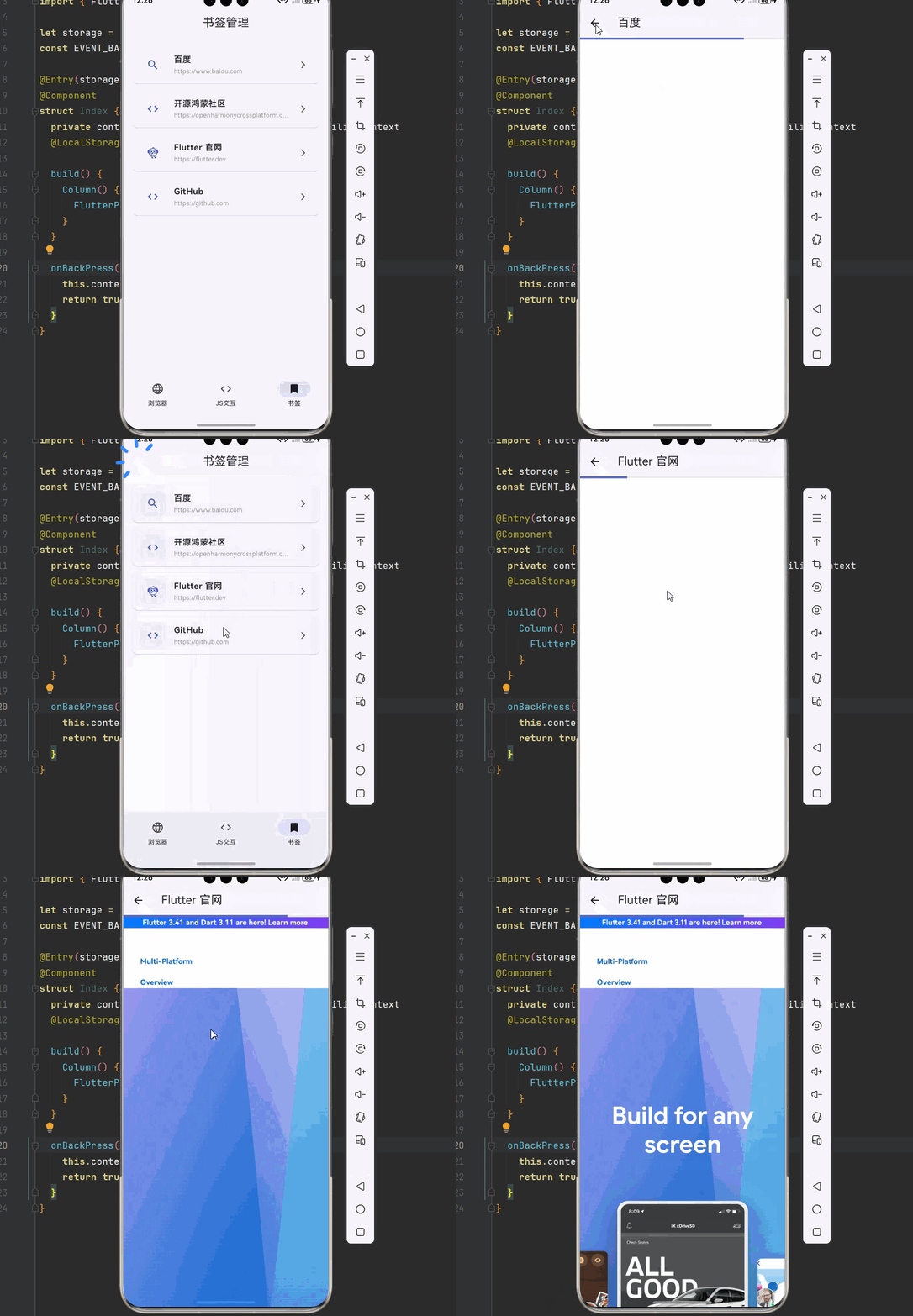
BookmarkItem(title: '百度', url: 'https://www.baidu.com', icon: Icons.search),
BookmarkItem(title: '开源鸿蒙社区', url: 'https://openharmonycrossplatform.csdn.net', icon: Icons.code),
BookmarkItem(title: 'Flutter 官网', url: 'https://flutter.dev', icon: Icons.flutter_dash),
BookmarkItem(title: 'GitHub', url: 'https://github.com', icon: Icons.code),
];
void _openBookmark(BookmarkItem bookmark) {
Navigator.push(
context,
MaterialPageRoute(
builder: (context) => BookmarkDetailPage(bookmark: bookmark),
),
);
}
Widget build(BuildContext context) {
return Scaffold(
appBar: AppBar(
title: const Text('书签管理'),
centerTitle: true,
),
body: ListView.builder(
padding: const EdgeInsets.all(16),
itemCount: _bookmarks.length,
itemBuilder: (context, index) {
final bookmark = _bookmarks[index];
return Card(
margin: const EdgeInsets.only(bottom: 12),
child: ListTile(
leading: Container(
width: 48,
height: 48,
decoration: BoxDecoration(
color: Colors.indigo.shade50,
borderRadius: BorderRadius.circular(12),
),
child: Icon(bookmark.icon, color: Colors.indigo),
),
title: Text(
bookmark.title,
style: const TextStyle(fontWeight: FontWeight.w600),
),
subtitle: Text(
bookmark.url,
style: TextStyle(color: Colors.grey.shade500, fontSize: 12),
maxLines: 1,
overflow: TextOverflow.ellipsis,
),
trailing: const Icon(Icons.arrow_forward_ios, size: 16),
onTap: () => _openBookmark(bookmark),
),
);
},
),
);
}
}
class BookmarkDetailPage extends StatefulWidget {
final BookmarkItem bookmark;
const BookmarkDetailPage({super.key, required this.bookmark});
State<BookmarkDetailPage> createState() => _BookmarkDetailPageState();
}
class _BookmarkDetailPageState extends State<BookmarkDetailPage> {
late final WebViewController _controller;
int _loadingProgress = 0;
void initState() {
super.initState();
_controller = WebViewController()
..setJavaScriptMode(JavaScriptMode.unrestricted)
..setNavigationDelegate(NavigationDelegate(
onProgress: (int progress) {
setState(() => _loadingProgress = progress);
},
))
..loadRequest(Uri.parse(widget.bookmark.url));
}
Widget build(BuildContext context) {
return Scaffold(
appBar: AppBar(
title: Text(widget.bookmark.title),
),
body: Column(
children: [
if (_loadingProgress < 100)
LinearProgressIndicator(
value: _loadingProgress / 100.0,
backgroundColor: Colors.grey.shade200,
valueColor: AlwaysStoppedAnimation<Color>(Colors.indigo.shade400),
),
Expanded(child: WebViewWidget(controller: _controller)),
],
),
);
}
}
// ============ 数据模型 ============
class BookmarkItem {
final String title;
final String url;
final IconData icon;
BookmarkItem({
required this.title,
required this.url,
required this.icon,
});
}
🏆 六、最佳实践与注意事项
⚠️ 6.1 性能优化
启用缓存:合理使用 WebView 缓存,减少重复加载。
预加载:对于常用页面,可以提前初始化 WebView。
内存管理:及时释放 WebView 资源,避免内存泄漏。
🔐 6.2 安全注意事项
HTTPS:优先使用 HTTPS 协议,确保数据安全。
JS 注入:避免直接拼接用户输入到 JavaScript 代码中。
URL 验证:对加载的 URL 进行验证,防止恶意链接。
📱 6.3 OpenHarmony 平台特殊说明
原生支持:webview_flutter 在 OpenHarmony 上完全支持。
权限配置:确保配置了网络权限。
版本兼容:使用 git 方式引用适配版本。
📌 七、总结
本文通过一个完整的智能内嵌浏览器系统案例,深入讲解了 webview_flutter 第三方库的使用方法与最佳实践:
页面加载:使用 WebViewController 加载 URL 和 HTML 内容。
导航控制:实现前进、后退、刷新等导航功能。
JS 交互:通过 JavaScriptChannel 和 runJavaScript 实现双向通信。
URL 拦截:使用 NavigationDelegate 拦截和处理特定 URL。
掌握这些技巧,你就能构建出专业级的内嵌浏览器功能,实现混合开发的需求。
参考资料

开源鸿蒙跨平台开发社区汇聚开发者与厂商,共建“一次开发,多端部署”的开源生态,致力于降低跨端开发门槛,推动万物智联创新。
更多推荐
 9
9 0
0- 0


 已为社区贡献43条内容

所有评论(0)