进阶实战 Flutter for OpenHarmony:InteractiveViewer 组件实战 - 图片手势缩放查看系统
在移动应用中,图片查看是一个非常常见的功能。当用户查看一张高清图片时,往往需要放大查看细节,或者缩小查看全貌。传统的图片查看方式通常需要点击按钮来放大缩小,操作不够直观和便捷。手势缩放查看提供了一种更加自然和直观的交互方式。用户可以使用双指手势来缩放图片,使用单指手势来平移图片,甚至可以双击快速放大到指定比例。这种交互方式符合用户的直觉,大大提升了查看体验。这就是 InteractiveViewe
欢迎加入开源鸿蒙跨平台社区:https://openharmonycrossplatform.csdn.net
🔍 一、组件概述与应用场景
📱 1.1 为什么需要手势缩放查看?
在移动应用中,图片查看是一个非常常见的功能。当用户查看一张高清图片时,往往需要放大查看细节,或者缩小查看全貌。传统的图片查看方式通常需要点击按钮来放大缩小,操作不够直观和便捷。
手势缩放查看提供了一种更加自然和直观的交互方式。用户可以使用双指手势来缩放图片,使用单指手势来平移图片,甚至可以双击快速放大到指定比例。这种交互方式符合用户的直觉,大大提升了查看体验。
这就是 InteractiveViewer 要实现的功能。它提供了一套完整的手势交互解决方案,支持缩放、平移、边界约束、手势回调等特性。
📋 1.2 InteractiveViewer 是什么?
InteractiveViewer 是 Flutter Material 库中的内置组件,用于创建可以通过手势进行缩放和平移的交互式区域。它支持多种手势操作,包括双指缩放、单指平移、双击缩放等,并且可以设置缩放范围、边界约束等参数。
🎯 1.3 核心功能特性
| 功能特性 | 详细说明 | OpenHarmony 支持 |
|---|---|---|
| 双指缩放 | 使用双指手势进行缩放 | ✅ 完全支持 |
| 单指平移 | 使用单指手势进行平移 | ✅ 完全支持 |
| 双击缩放 | 双击快速放大/缩小 | ✅ 完全支持 |
| 边界约束 | 限制内容在边界内 | ✅ 完全支持 |
| 缩放范围 | 设置最小和最大缩放比例 | ✅ 完全支持 |
💡 1.4 典型应用场景
图片查看器:查看高清图片,支持缩放和平移。
地图应用:查看地图,支持缩放和拖动。
文档阅读器:查看 PDF 或图片文档,支持缩放浏览。
图表查看:查看大型图表,支持缩放查看细节。
🏗️ 二、系统架构设计
📐 2.1 整体架构
┌─────────────────────────────────────────────────────────┐
│                    UI 层 (展示层)                        │
│  ┌─────────────┐  ┌─────────────┐  ┌─────────────┐     │
│  │  图片显示   │  │  控制按钮   │  │  信息指示   │     │
│  └─────────────┘  └─────────────┘  └─────────────┘     │
├─────────────────────────────────────────────────────────┤
│                  服务层 (业务逻辑)                       │
│  ┌─────────────────────────────────────────────────┐   │
│  │         InteractiveViewerController             │   │
│  │  • 缩放状态管理                                  │   │
│  │  • 平移状态管理                                  │   │
│  │  • 手势事件处理                                  │   │
│  │  • 动画控制                                      │   │
│  └─────────────────────────────────────────────────┘   │
├─────────────────────────────────────────────────────────┤
│                  基础设施层 (底层实现)                   │
│  ┌─────────────────────────────────────────────────┐   │
│  │         InteractiveViewer 组件                   │   │
│  │  • TransformationController - 变换控制器         │   │
│  │  • GestureDetector - 手势检测                    │   │
│  │  • ClipRect - 裁剪区域                           │   │
│  └─────────────────────────────────────────────────┘   │
└─────────────────────────────────────────────────────────┘
📊 2.2 数据模型设计
/// 缩放配置模型
class ViewerConfig {
  /// 最小缩放比例
  final double minScale;

  /// 最大缩放比例
  final double maxScale;

  /// 边界约束模式
  final Clip clipBehavior;

  /// 是否启用平移
  final bool panEnabled;

  /// 是否启用缩放
  final bool scaleEnabled;

  const ViewerConfig({
    this.minScale = 0.5,
    this.maxScale = 4.0,
    this.clipBehavior = Clip.hardEdge,
    this.panEnabled = true,
    this.scaleEnabled = true,
  });
}

/// 视图状态模型
class ViewState {
  /// 当前缩放比例
  final double scale;

  /// 当前偏移量
  final Offset offset;

  /// 是否处于交互状态
  final bool isInteracting;

  const ViewState({
    this.scale = 1.0,
    this.offset = Offset.zero,
    this.isInteracting = false,
  });
}
🛠️ 三、核心组件详解
🎬 3.1 InteractiveViewer 基本用法
InteractiveViewer(
  // 子组件
  child: Image.network('https://example.com/image.jpg'),
  // 边界约束
  boundaryMargin: const EdgeInsets.all(20),
  // 最小缩放比例
  minScale: 0.5,
  // 最大缩放比例
  maxScale: 4.0,
  // 是否启用平移
  panEnabled: true,
  // 是否启用缩放
  scaleEnabled: true,
  // 裁剪行为
  clipBehavior: Clip.hardEdge,
  // 对齐方式
  alignment: Alignment.center,
  // 约束内容
  constrained: true,
);
🔄 3.2 TransformationController - 变换控制器
TransformationController 用于控制和监听变换状态。
class _MyViewerState extends State<MyViewer> {
final TransformationController _controller = TransformationController();
void initState() {
super.initState();
// 监听变换变化
_controller.addListener(() {
final matrix = _controller.value;
// 获取缩放比例
final scale = matrix.getMaxScaleOnAxis();
// 获取偏移量
final offset = matrix.getTranslation();
print('Scale: $scale, Offset: $offset');
});
}
void _resetView() {
_controller.value = Matrix4.identity();
}
void _zoomIn() {
final matrix = _controller.value.clone();
matrix.scale(1.2);
_controller.value = matrix;
}
void _zoomOut() {
final matrix = _controller.value.clone();
matrix.scale(0.8);
_controller.value = matrix;
}
void dispose() {
_controller.dispose();
super.dispose();
}
Widget build(BuildContext context) {
return InteractiveViewer(
transformationController: _controller,
child: Image.network('https://example.com/image.jpg'),
);
}
}
✨ 3.3 双击缩放实现
class DoubleTapZoomViewer extends StatefulWidget {
final Widget child;
const DoubleTapZoomViewer({super.key, required this.child});
State<DoubleTapZoomViewer> createState() => _DoubleTapZoomViewerState();
}
class _DoubleTapZoomViewerState extends State<DoubleTapZoomViewer> {
final TransformationController _controller = TransformationController();
bool _isZoomed = false;
void _handleDoubleTap(TapDownDetails details) {
final position = details.localPosition;
if (_isZoomed) {
// 重置到原始大小
_controller.value = Matrix4.identity();
} else {
// 放大到2倍,以点击位置为中心
final matrix = Matrix4.identity()
..translate(-position.dx, -position.dy)
..scale(2.0)
..translate(position.dx / 2, position.dy / 2);
_controller.value = matrix;
}
setState(() => _isZoomed = !_isZoomed);
}
Widget build(BuildContext context) {
return GestureDetector(
onDoubleTapDown: _handleDoubleTap,
child: InteractiveViewer(
transformationController: _controller,
child: widget.child,
),
);
}
}
📝 四、完整示例代码
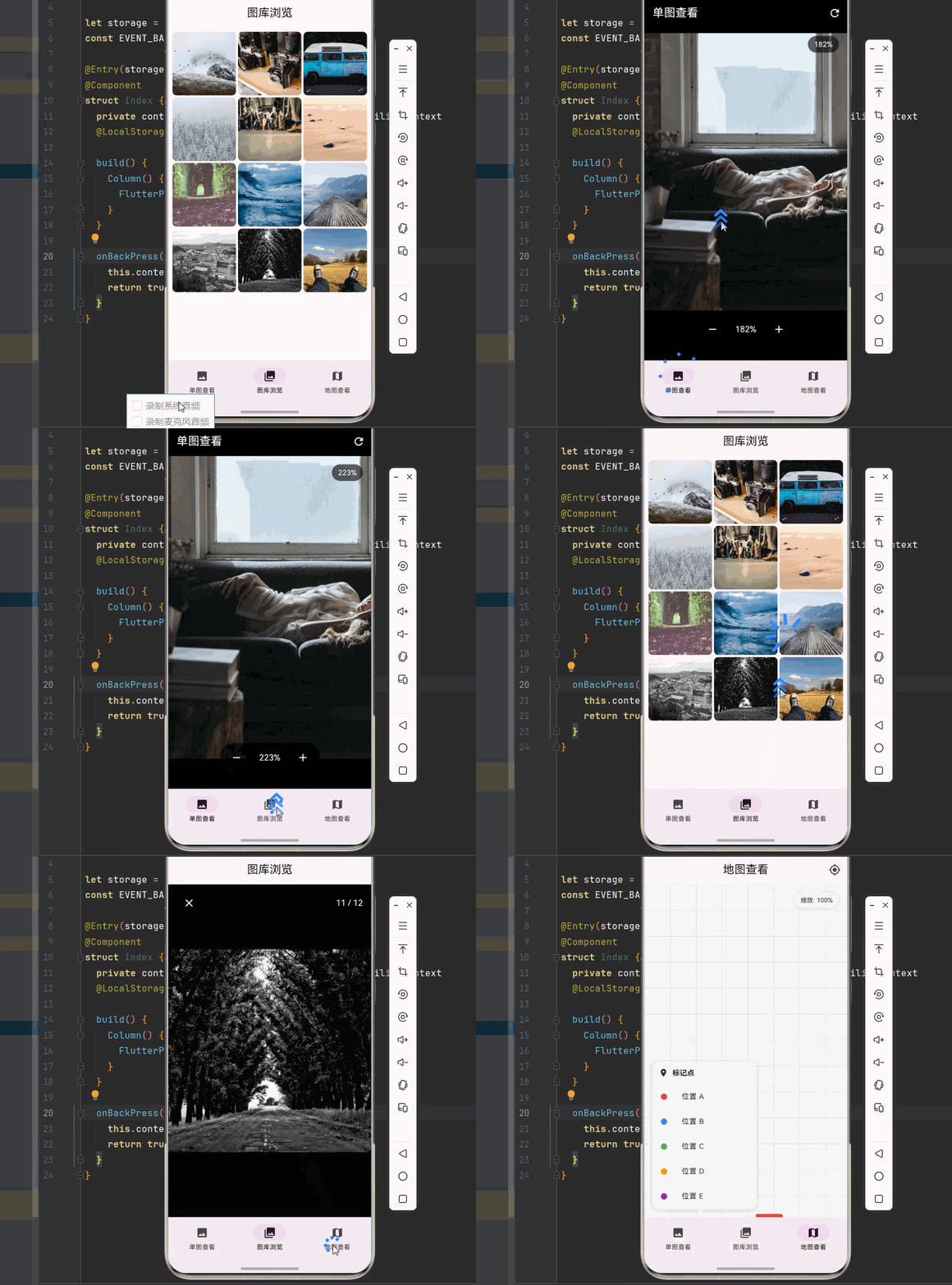
下面是一个完整的图片手势缩放查看系统示例:
import 'package:flutter/material.dart';
void main() {
runApp(const ImageViewerApp());
}
class ImageViewerApp extends StatelessWidget {
const ImageViewerApp({super.key});
Widget build(BuildContext context) {
return MaterialApp(
title: '图片缩放查看系统',
debugShowCheckedModeBanner: false,
theme: ThemeData(
colorScheme: ColorScheme.fromSeed(seedColor: Colors.purple),
useMaterial3: true,
),
home: const MainPage(),
);
}
}
class MainPage extends StatefulWidget {
const MainPage({super.key});
State<MainPage> createState() => _MainPageState();
}
class _MainPageState extends State<MainPage> {
int _currentIndex = 0;
final List<Widget> _pages = [
const SingleImagePage(),
const ImageGalleryPage(),
const MapViewPage(),
];
Widget build(BuildContext context) {
return Scaffold(
body: _pages[_currentIndex],
bottomNavigationBar: NavigationBar(
selectedIndex: _currentIndex,
onDestinationSelected: (index) {
setState(() => _currentIndex = index);
},
destinations: const [
NavigationDestination(icon: Icon(Icons.image), label: '单图查看'),
NavigationDestination(icon: Icon(Icons.photo_library), label: '图库浏览'),
NavigationDestination(icon: Icon(Icons.map), label: '地图查看'),
],
),
);
}
}
// ============ 单图查看页面 ============
class SingleImagePage extends StatefulWidget {
const SingleImagePage({super.key});
State<SingleImagePage> createState() => _SingleImagePageState();
}
class _SingleImagePageState extends State<SingleImagePage> {
final TransformationController _transformController = TransformationController();
bool _isZoomed = false;
double _currentScale = 1.0;
void _resetView() {
_transformController.value = Matrix4.identity();
setState(() {
_isZoomed = false;
_currentScale = 1.0;
});
}
void _zoomIn() {
final matrix = _transformController.value.clone();
final newScale = (_currentScale * 1.5).clamp(0.5, 4.0);
final scaleRatio = newScale / _currentScale;
matrix.scale(scaleRatio);
_transformController.value = matrix;
setState(() {
_currentScale = newScale;
_isZoomed = newScale != 1.0;
});
}
void _zoomOut() {
final matrix = _transformController.value.clone();
final newScale = (_currentScale / 1.5).clamp(0.5, 4.0);
final scaleRatio = newScale / _currentScale;
matrix.scale(scaleRatio);
_transformController.value = matrix;
setState(() {
_currentScale = newScale;
_isZoomed = newScale != 1.0;
});
}
void _handleDoubleTap(TapDownDetails details) {
if (_isZoomed) {
_resetView();
} else {
final position = details.localPosition;
final matrix = Matrix4.identity()
..translate(-position.dx * 1.5, -position.dy * 1.5)
..scale(2.5);
_transformController.value = matrix;
setState(() {
_isZoomed = true;
_currentScale = 2.5;
});
}
}
void dispose() {
_transformController.dispose();
super.dispose();
}
Widget build(BuildContext context) {
return Scaffold(
backgroundColor: Colors.black,
appBar: AppBar(
title: const Text('单图查看'),
backgroundColor: Colors.black,
foregroundColor: Colors.white,
actions: [
IconButton(
icon: const Icon(Icons.refresh),
onPressed: _resetView,
tooltip: '重置',
),
],
),
body: Stack(
children: [
GestureDetector(
onDoubleTapDown: _handleDoubleTap,
child: Center(
child: InteractiveViewer(
transformationController: _transformController,
minScale: 0.5,
maxScale: 4.0,
boundaryMargin: const EdgeInsets.all(50),
clipBehavior: Clip.none,
onInteractionUpdate: (details) {
setState(() {
_currentScale = _transformController.value.getMaxScaleOnAxis();
_isZoomed = _currentScale != 1.0;
});
},
child: Container(
constraints: BoxConstraints(
maxWidth: MediaQuery.of(context).size.width,
maxHeight: MediaQuery.of(context).size.height * 0.7,
),
child: Image.network(
'https://picsum.photos/800/600',
fit: BoxFit.contain,
loadingBuilder: (context, child, loadingProgress) {
if (loadingProgress == null) return child;
return Center(
child: CircularProgressIndicator(
value: loadingProgress.expectedTotalBytes != null
? loadingProgress.cumulativeBytesLoaded /
loadingProgress.expectedTotalBytes!
: null,
color: Colors.white,
),
);
},
errorBuilder: (context, error, stackTrace) {
return Container(
color: Colors.grey.shade800,
child: const Center(
child: Column(
mainAxisSize: MainAxisSize.min,
children: [
Icon(Icons.broken_image, color: Colors.grey, size: 48),
SizedBox(height: 8),
Text('图片加载失败', style: TextStyle(color: Colors.grey)),
],
),
),
);
},
),
),
),
),
),
_buildScaleIndicator(),
_buildBottomControls(),
],
),
);
}
Widget _buildScaleIndicator() {
return Positioned(
top: 16,
right: 16,
child: Container(
padding: const EdgeInsets.symmetric(horizontal: 12, vertical: 6),
decoration: BoxDecoration(
color: Colors.black.withOpacity(0.6),
borderRadius: BorderRadius.circular(16),
),
child: Text(
'${(_currentScale * 100).toStringAsFixed(0)}%',
style: const TextStyle(color: Colors.white, fontSize: 14),
),
),
);
}
Widget _buildBottomControls() {
return Positioned(
bottom: 32,
left: 0,
right: 0,
child: Center(
child: Container(
padding: const EdgeInsets.symmetric(horizontal: 8, vertical: 4),
decoration: BoxDecoration(
color: Colors.black.withOpacity(0.6),
borderRadius: BorderRadius.circular(24),
),
child: Row(
mainAxisSize: MainAxisSize.min,
children: [
IconButton(
icon: const Icon(Icons.remove, color: Colors.white),
onPressed: _currentScale > 0.5 ? _zoomOut : null,
),
Container(
width: 80,
alignment: Alignment.center,
child: Text(
'${(_currentScale * 100).toStringAsFixed(0)}%',
style: const TextStyle(color: Colors.white, fontSize: 16),
),
),
IconButton(
icon: const Icon(Icons.add, color: Colors.white),
onPressed: _currentScale < 4.0 ? _zoomIn : null,
),
],
),
),
),
);
}
}
// ============ 图库浏览页面 ============
class ImageGalleryPage extends StatefulWidget {
const ImageGalleryPage({super.key});
State<ImageGalleryPage> createState() => _ImageGalleryPageState();
}
class _ImageGalleryPageState extends State<ImageGalleryPage> {
final List<String> _images = List.generate(
12,
(index) => 'https://picsum.photos/400/400?random=$index',
);
int? _selectedIndex;
void _openImage(int index) {
setState(() => _selectedIndex = index);
}
void _closeImage() {
setState(() => _selectedIndex = null);
}
Widget build(BuildContext context) {
return Scaffold(
appBar: AppBar(
title: const Text('图库浏览'),
centerTitle: true,
),
body: Stack(
children: [
GridView.builder(
padding: const EdgeInsets.all(8),
gridDelegate: const SliverGridDelegateWithFixedCrossAxisCount(
crossAxisCount: 3,
crossAxisSpacing: 4,
mainAxisSpacing: 4,
),
itemCount: _images.length,
itemBuilder: (context, index) {
return GestureDetector(
onTap: () => _openImage(index),
child: Hero(
tag: 'image_$index',
child: Container(
decoration: BoxDecoration(
color: Colors.grey.shade200,
borderRadius: BorderRadius.circular(8),
),
child: ClipRRect(
borderRadius: BorderRadius.circular(8),
child: Image.network(
_images[index],
fit: BoxFit.cover,
loadingBuilder: (context, child, loadingProgress) {
if (loadingProgress == null) return child;
return Center(
child: CircularProgressIndicator(
strokeWidth: 2,
value: loadingProgress.expectedTotalBytes != null
? loadingProgress.cumulativeBytesLoaded /
loadingProgress.expectedTotalBytes!
: null,
),
);
},
),
),
),
),
);
},
),
if (_selectedIndex != null) _buildFullScreenViewer(),
],
),
);
}
Widget _buildFullScreenViewer() {
return GestureDetector(
onTap: _closeImage,
child: Container(
color: Colors.black,
child: Stack(
children: [
PageView.builder(
itemCount: _images.length,
controller: PageController(initialPage: _selectedIndex!),
onPageChanged: (index) {
setState(() => _selectedIndex = index);
},
itemBuilder: (context, index) {
return InteractiveViewer(
minScale: 0.5,
maxScale: 4.0,
child: Center(
child: Hero(
tag: 'image_$index',
child: Image.network(
_images[index],
fit: BoxFit.contain,
),
),
),
);
},
),
Positioned(
top: 0,
left: 0,
right: 0,
child: SafeArea(
child: Container(
padding: const EdgeInsets.symmetric(horizontal: 16, vertical: 12),
decoration: BoxDecoration(
gradient: LinearGradient(
begin: Alignment.topCenter,
end: Alignment.bottomCenter,
colors: [
Colors.black.withOpacity(0.7),
Colors.transparent,
],
),
),
child: Row(
children: [
IconButton(
icon: const Icon(Icons.close, color: Colors.white),
onPressed: _closeImage,
),
const Spacer(),
Text(
'${_selectedIndex! + 1} / ${_images.length}',
style: const TextStyle(color: Colors.white, fontSize: 16),
),
],
),
),
),
),
],
),
),
);
}
}
// ============ 地图查看页面 ============
class MapViewPage extends StatefulWidget {
const MapViewPage({super.key});
State<MapViewPage> createState() => _MapViewPageState();
}
class _MapViewPageState extends State<MapViewPage> {
final TransformationController _transformController = TransformationController();
double _currentScale = 1.0;
Offset _currentOffset = Offset.zero;
final List<MapMarker> _markers = [
MapMarker(id: '1', x: 0.3, y: 0.4, title: '位置 A', color: Colors.red),
MapMarker(id: '2', x: 0.6, y: 0.3, title: '位置 B', color: Colors.blue),
MapMarker(id: '3', x: 0.5, y: 0.7, title: '位置 C', color: Colors.green),
MapMarker(id: '4', x: 0.2, y: 0.6, title: '位置 D', color: Colors.orange),
MapMarker(id: '5', x: 0.8, y: 0.5, title: '位置 E', color: Colors.purple),
];
void _resetView() {
_transformController.value = Matrix4.identity();
setState(() {
_currentScale = 1.0;
_currentOffset = Offset.zero;
});
}
void _zoomToMarker(MapMarker marker) {
final size = MediaQuery.of(context).size;
final targetX = size.width / 2 - marker.x * size.width * 2;
final targetY = size.height / 2 - marker.y * size.height * 2;
final matrix = Matrix4.identity()
..translate(targetX, targetY)
..scale(2.0);
_transformController.value = matrix;
setState(() {
_currentScale = 2.0;
});
}
void dispose() {
_transformController.dispose();
super.dispose();
}
Widget build(BuildContext context) {
return Scaffold(
appBar: AppBar(
title: const Text('地图查看'),
centerTitle: true,
actions: [
IconButton(
icon: const Icon(Icons.my_location),
onPressed: _resetView,
tooltip: '重置视图',
),
],
),
body: Stack(
children: [
InteractiveViewer(
transformationController: _transformController,
minScale: 0.5,
maxScale: 4.0,
boundaryMargin: const EdgeInsets.all(double.infinity),
constrained: false,
onInteractionUpdate: (details) {
setState(() {
_currentScale = _transformController.value.getMaxScaleOnAxis();
});
},
child: Container(
width: MediaQuery.of(context).size.width * 2,
height: MediaQuery.of(context).size.height * 2,
color: Colors.grey.shade100,
child: Stack(
children: [
_buildMapGrid(),
..._markers.map((marker) => _buildMarker(marker)),
],
),
),
),
_buildMarkerList(),
_buildScaleIndicator(),
],
),
);
}
Widget _buildMapGrid() {
return CustomPaint(
size: Size(
MediaQuery.of(context).size.width * 2,
MediaQuery.of(context).size.height * 2,
),
painter: GridPainter(),
);
}
Widget _buildMarker(MapMarker marker) {
final size = MediaQuery.of(context).size;
return Positioned(
left: marker.x * size.width * 2 - 20,
top: marker.y * size.height * 2 - 40,
child: GestureDetector(
onTap: () => _showMarkerInfo(marker),
child: Column(
children: [
Container(
padding: const EdgeInsets.symmetric(horizontal: 8, vertical: 4),
decoration: BoxDecoration(
color: marker.color,
borderRadius: BorderRadius.circular(4),
),
child: Text(
marker.title,
style: const TextStyle(color: Colors.white, fontSize: 12),
),
),
CustomPaint(
size: const Size(20, 10),
painter: MarkerPointerPainter(color: marker.color),
),
],
),
),
);
}
void _showMarkerInfo(MapMarker marker) {
showModalBottomSheet(
context: context,
builder: (context) {
return Container(
padding: const EdgeInsets.all(20),
child: Column(
mainAxisSize: MainAxisSize.min,
children: [
Row(
children: [
Container(
width: 12,
height: 12,
decoration: BoxDecoration(
color: marker.color,
shape: BoxShape.circle,
),
),
const SizedBox(width: 12),
Text(
marker.title,
style: const TextStyle(
fontSize: 20,
fontWeight: FontWeight.bold,
),
),
],
),
const SizedBox(height: 16),
Text(
'位置坐标:(${(marker.x * 100).toStringAsFixed(0)}%, ${(marker.y * 100).toStringAsFixed(0)}%)',
style: TextStyle(color: Colors.grey.shade600),
),
const SizedBox(height: 16),
SizedBox(
width: double.infinity,
child: ElevatedButton.icon(
onPressed: () {
Navigator.pop(context);
_zoomToMarker(marker);
},
icon: const Icon(Icons.zoom_in),
label: const Text('放大查看'),
),
),
],
),
);
},
);
}
Widget _buildMarkerList() {
return Positioned(
bottom: 16,
left: 16,
child: Container(
constraints: const BoxConstraints(maxWidth: 200),
decoration: BoxDecoration(
color: Colors.white,
borderRadius: BorderRadius.circular(12),
boxShadow: [
BoxShadow(
color: Colors.black.withOpacity(0.1),
blurRadius: 8,
offset: const Offset(0, 2),
),
],
),
child: Column(
crossAxisAlignment: CrossAxisAlignment.start,
mainAxisSize: MainAxisSize.min,
children: [
Container(
padding: const EdgeInsets.all(12),
decoration: BoxDecoration(
color: Colors.grey.shade50,
borderRadius: const BorderRadius.vertical(top: Radius.circular(12)),
),
child: Row(
children: [
const Icon(Icons.location_on, size: 18),
const SizedBox(width: 8),
const Text('标记点', style: TextStyle(fontWeight: FontWeight.bold)),
],
),
),
..._markers.map((marker) => ListTile(
dense: true,
leading: Container(
width: 12,
height: 12,
decoration: BoxDecoration(
color: marker.color,
shape: BoxShape.circle,
),
),
title: Text(marker.title, style: const TextStyle(fontSize: 14)),
onTap: () => _zoomToMarker(marker),
)),
],
),
),
);
}
Widget _buildScaleIndicator() {
return Positioned(
top: 16,
right: 16,
child: Container(
padding: const EdgeInsets.symmetric(horizontal: 12, vertical: 6),
decoration: BoxDecoration(
color: Colors.white,
borderRadius: BorderRadius.circular(16),
boxShadow: [
BoxShadow(
color: Colors.black.withOpacity(0.1),
blurRadius: 4,
),
],
),
child: Text(
'缩放: ${(_currentScale * 100).toStringAsFixed(0)}%',
style: const TextStyle(fontSize: 12),
),
),
);
}
}
class GridPainter extends CustomPainter {
void paint(Canvas canvas, Size size) {
final paint = Paint()
..color = Colors.grey.shade300
..strokeWidth = 1;
const gridStep = 50.0;
for (double x = 0; x <= size.width; x += gridStep) {
canvas.drawLine(Offset(x, 0), Offset(x, size.height), paint);
}
for (double y = 0; y <= size.height; y += gridStep) {
canvas.drawLine(Offset(0, y), Offset(size.width, y), paint);
}
}
bool shouldRepaint(covariant CustomPainter oldDelegate) => false;
}
class MarkerPointerPainter extends CustomPainter {
final Color color;
MarkerPointerPainter({required this.color});
void paint(Canvas canvas, Size size) {
final paint = Paint()..color = color;
final path = Path()
..moveTo(size.width / 2 - 10, 0)
..lineTo(size.width / 2, size.height)
..lineTo(size.width / 2 + 10, 0)
..close();
canvas.drawPath(path, paint);
}
bool shouldRepaint(covariant CustomPainter oldDelegate) => false;
}
// ============ 数据模型 ============
class MapMarker {
final String id;
final double x;
final double y;
final String title;
final Color color;
MapMarker({
required this.id,
required this.x,
required this.y,
required this.title,
required this.color,
});
}
🏆 六、最佳实践与注意事项
⚠️ 6.1 性能优化
图片加载:使用 cacheWidth 和 cacheHeight 参数限制图片内存占用。
缩放限制:设置合理的 minScale 和 maxScale,避免过度缩放导致性能问题。
边界处理:使用 boundaryMargin 控制边界行为,避免内容无限滚动。
🔐 6.2 用户体验优化
双击缩放:实现双击手势快速缩放到指定比例。
缩放指示:显示当前缩放比例,让用户了解当前状态。
重置功能:提供重置按钮,方便用户恢复初始视图。
📱 6.3 常见问题处理
图片模糊:确保图片分辨率足够,避免过度放大后模糊。
手势冲突:在嵌套滚动组件中注意手势冲突问题。
内存溢出:大图片加载时注意内存管理,及时释放资源。
📌 七、总结
本文通过一个完整的图片手势缩放查看系统案例,深入讲解了 InteractiveViewer 组件的使用方法与最佳实践:
基础缩放:使用 minScale 和 maxScale 控制缩放范围。
平移控制:使用 boundaryMargin 和 constrained 控制边界行为。
变换控制:使用 TransformationController 精确控制变换矩阵。
手势交互:结合 GestureDetector 实现双击缩放等高级功能。
掌握这些技巧,你就能构建出专业级的图片查看和地图浏览功能,提升应用的用户体验。
参考资料

开源鸿蒙跨平台开发社区汇聚开发者与厂商,共建“一次开发,多端部署”的开源生态,致力于降低跨端开发门槛,推动万物智联创新。
更多推荐
 7
7 0
0- 0


 已为社区贡献43条内容

所有评论(0)