基础入门 Flutter for OpenHarmony:Table 表格组件详解
在移动应用开发中,表格是一种常见的数据展示方式。Flutter 提供了 Table 组件,让开发者能够创建灵活的表格布局。与 ListView 和 GridView 不同,Table 组件专注于行列结构的展示,适合展示结构化的数据。Table 是 Flutter 中用于创建表格布局的基础组件,适合展示结构化的数据。Table 的基本用法和核心概念多种列宽控制方式的区别和应用场景TableRow 和
欢迎加入开源鸿蒙跨平台社区:https://openharmonycrossplatform.csdn.net
🎯 欢迎来到 Flutter for OpenHarmony 社区!本文将深入讲解 Flutter 中 Table 表格组件的使用方法,带你从基础到精通,掌握表格布局的核心技巧。
一、Table 组件概述
在移动应用开发中,表格是一种常见的数据展示方式。Flutter 提供了 Table 组件,让开发者能够创建灵活的表格布局。与 ListView 和 GridView 不同,Table 组件专注于行列结构的展示,适合展示结构化的数据。
📋 Table 组件特点
| 特点 | 说明 |
|---|---|
| 行列结构 | 支持多行多列的表格布局 |
| 列宽控制 | 支持固定宽度、弹性宽度、比例宽度 |
| 边框控制 | 支持自定义表格边框样式 |
| 默认列宽 | 支持设置默认列宽 |
| 文字方向 | 支持从左到右或从右到左的布局 |
| 装饰支持 | 支持为行、列、单元格添加装饰 |
| 垂直对齐 | 支持设置单元格内容的垂直对齐方式 |
Table 与 DataTable 的区别
Flutter 提供了两个表格相关的组件:Table 和 DataTable。
| 特性 | Table | DataTable |
|---|---|---|
| 复杂度 | 较低 | 较高 |
| 排序功能 | 不支持 | 支持 |
| 分页功能 | 不支持 | 支持 |
| 选择功能 | 不支持 | 支持 |
| 自定义灵活性 | 高 | 较低 |
| 适用场景 | 简单表格展示 | 数据表格管理 |
💡 使用场景:Table 适合简单的表格布局,如价格表、课程表、对比表等。如果需要排序、分页、选择等功能,建议使用 DataTable 组件。
二、Table 基础用法
Table 的使用非常简单,只需要提供行数据即可。让我们从最基础的用法开始学习。
2.1 最简单的 Table
最基础的 Table 只需要设置 children 参数:
Table(
  children: [
    TableRow(
      children: [
        Text('姓名'),
        Text('年龄'),
        Text('城市'),
      ],
    ),
    TableRow(
      children: [
        Text('张三'),
        Text('25'),
        Text('北京'),
      ],
    ),
    TableRow(
      children: [
        Text('李四'),
        Text('30'),
        Text('上海'),
      ],
    ),
  ],
)
代码解析:
children:表格的行列表,每行是一个 TableRowTableRow:表格行,包含多个子组件作为单元格- 每行的子组件数量必须相同
2.2 设置边框
通过 border 参数设置表格边框:
Table(
  border: TableBorder.all(
    color: Colors.grey,
    width: 1,
  ),
  children: [
    TableRow(
      children: [
        Text('姓名'),
        Text('年龄'),
        Text('城市'),
      ],
    ),
    TableRow(
      children: [
        Text('张三'),
        Text('25'),
        Text('北京'),
      ],
    ),
  ],
)
TableBorder 参数详解:
| 参数 | 说明 |
|---|---|
| all | 统一设置所有边框 |
| horizontalInside | 水平内边框 |
| verticalInside | 垂直内边框 |
| top | 顶部边框 |
| bottom | 底部边框 |
| left | 左侧边框 |
| right | 右侧边框 |
2.3 完整示例
下面是一个完整的可运行示例,展示了 Table 的基础用法:
class TableBasicExample extends StatelessWidget {
const TableBasicExample({super.key});
Widget build(BuildContext context) {
return Scaffold(
appBar: AppBar(title: const Text('Table 基础示例')),
body: Padding(
padding: const EdgeInsets.all(16),
child: Table(
border: TableBorder.all(
color: Colors.grey,
width: 1,
borderRadius: BorderRadius.circular(8),
),
children: [
TableRow(
decoration: const BoxDecoration(
color: Colors.blue,
),
children: [
_buildHeaderCell('姓名'),
_buildHeaderCell('年龄'),
_buildHeaderCell('城市'),
],
),
TableRow(
children: [
_buildDataCell('张三'),
_buildDataCell('25'),
_buildDataCell('北京'),
],
),
TableRow(
children: [
_buildDataCell('李四'),
_buildDataCell('30'),
_buildDataCell('上海'),
],
),
TableRow(
children: [
_buildDataCell('王五'),
_buildDataCell('28'),
_buildDataCell('广州'),
],
),
],
),
),
);
}
Widget _buildHeaderCell(String text) {
return Padding(
padding: const EdgeInsets.all(12),
child: Text(
text,
style: const TextStyle(
color: Colors.white,
fontWeight: FontWeight.bold,
),
textAlign: TextAlign.center,
),
);
}
Widget _buildDataCell(String text) {
return Padding(
padding: const EdgeInsets.all(12),
child: Text(
text,
textAlign: TextAlign.center,
),
);
}
}
三、列宽控制详解
Table 提供了多种列宽控制方式,掌握列宽设置是使用 Table 的关键。
3.1 defaultColumnWidth - 默认列宽
通过 defaultColumnWidth 设置所有列的默认宽度:
Table(
  defaultColumnWidth: const FixedColumnWidth(100),
  children: [...],
)
列宽类型:
| 类型 | 说明 |
|---|---|
| FixedColumnWidth | 固定宽度 |
| FlexColumnWidth | 弹性宽度,按比例分配剩余空间 |
| FractionColumnWidth | 按比例分配总宽度 |
| IntrinsicColumnWidth | 根据内容自动计算宽度 |
| MaxColumnWidth | 最大宽度限制 |
| MinColumnWidth | 最小宽度限制 |
3.2 columnWidths - 单独设置列宽
通过 columnWidths 为每列单独设置宽度:
Table(
  columnWidths: const {
    0: FixedColumnWidth(80),
    1: FlexColumnWidth(2),
    2: FlexColumnWidth(1),
  },
  children: [...],
)
代码解析:
0: FixedColumnWidth(80):第一列固定宽度 801: FlexColumnWidth(2):第二列弹性宽度,比例为 22: FlexColumnWidth(1):第三列弹性宽度,比例为 1
3.3 列宽类型详解
固定宽度(FixedColumnWidth):
Table(
  defaultColumnWidth: const FixedColumnWidth(100),
  children: [...],
)
弹性宽度(FlexColumnWidth):
Table(
  columnWidths: const {
    0: FlexColumnWidth(1),
    1: FlexColumnWidth(2),
    2: FlexColumnWidth(1),
  },
  children: [...],
)
比例宽度(FractionColumnWidth):
Table(
  columnWidths: const {
    0: FractionColumnWidth(0.3),
    1: FractionColumnWidth(0.4),
    2: FractionColumnWidth(0.3),
  },
  children: [...],
)
内容自适应(IntrinsicColumnWidth):
Table(
  defaultColumnWidth: const IntrinsicColumnWidth(),
  children: [...],
)
📊 列宽类型对比
| 类型 | 适用场景 | 性能 |
|---|---|---|
| FixedColumnWidth | 固定尺寸的列 | 高 |
| FlexColumnWidth | 需要按比例分配空间的列 | 高 |
| FractionColumnWidth | 需要按百分比分配空间的列 | 高 |
| IntrinsicColumnWidth | 内容宽度不一致的列 | 较低 |
四、TableRow 行详解
TableRow 用于定义表格的一行,支持设置装饰和对齐方式。
4.1 基本用法
TableRow(
  children: [
    Text('单元格1'),
    Text('单元格2'),
    Text('单元格3'),
  ],
)
4.2 行装饰
通过 decoration 参数为行添加装饰:
TableRow(
  decoration: const BoxDecoration(
    color: Colors.grey,
  ),
  children: [
    Text('单元格1'),
    Text('单元格2'),
    Text('单元格3'),
  ],
)
4.3 垂直对齐
通过 defaultVerticalAlignment 设置单元格内容的垂直对齐:
Table(
  defaultVerticalAlignment: TableCellVerticalAlignment.middle,
  children: [
    TableRow(
      children: [
        Container(height: 60, color: Colors.red, child: Text('高')),
        Container(height: 30, color: Colors.green, child: Text('矮')),
      ],
    ),
  ],
)
对齐方式:
| 对齐方式 | 说明 |
|---|---|
| top | 顶部对齐 |
| middle | 居中对齐 |
| bottom | 底部对齐 |
| baseline | 基线对齐 |
| fill | 填充整个单元格 |
五、Table 实际应用场景
Table 在实际开发中有着广泛的应用,让我们通过具体示例来学习。
5.1 价格对比表
使用 Table 创建产品价格对比表:
class PriceComparisonTable extends StatelessWidget {
const PriceComparisonTable({super.key});
Widget build(BuildContext context) {
return Scaffold(
appBar: AppBar(title: const Text('价格对比')),
body: SingleChildScrollView(
padding: const EdgeInsets.all(16),
child: Table(
border: TableBorder.all(
color: Colors.grey[300]!,
borderRadius: BorderRadius.circular(8),
),
columnWidths: const {
0: FlexColumnWidth(2),
1: FlexColumnWidth(1),
2: FlexColumnWidth(1),
3: FlexColumnWidth(1),
},
children: [
TableRow(
decoration: BoxDecoration(
color: Colors.blue[700],
),
children: [
_buildHeaderCell('功能'),
_buildHeaderCell('基础版'),
_buildHeaderCell('专业版'),
_buildHeaderCell('企业版'),
],
),
_buildFeatureRow('存储空间', '5GB', '50GB', '无限'),
_buildFeatureRow('用户数量', '1人', '5人', '无限'),
_buildFeatureRow('API调用', '1000次/月', '10000次/月', '无限'),
_buildFeatureRow('技术支持', '邮件', '邮件+电话', '专属客服'),
TableRow(
decoration: BoxDecoration(
color: Colors.grey[100],
),
children: [
_buildDataCell('价格', isBold: true),
_buildPriceCell('免费'),
_buildPriceCell('¥99/月'),
_buildPriceCell('¥299/月'),
],
),
],
),
),
);
}
TableRow _buildFeatureRow(String feature, String basic, String pro, String enterprise) {
return TableRow(
children: [
_buildDataCell(feature),
_buildDataCell(basic),
_buildDataCell(pro),
_buildDataCell(enterprise),
],
);
}
Widget _buildHeaderCell(String text) {
return Padding(
padding: const EdgeInsets.all(12),
child: Text(
text,
style: const TextStyle(
color: Colors.white,
fontWeight: FontWeight.bold,
),
textAlign: TextAlign.center,
),
);
}
Widget _buildDataCell(String text, {bool isBold = false}) {
return Padding(
padding: const EdgeInsets.all(12),
child: Text(
text,
style: TextStyle(fontWeight: isBold ? FontWeight.bold : FontWeight.normal),
textAlign: TextAlign.center,
),
);
}
Widget _buildPriceCell(String text) {
return Padding(
padding: const EdgeInsets.all(12),
child: Text(
text,
style: const TextStyle(
color: Colors.blue,
fontWeight: FontWeight.bold,
),
textAlign: TextAlign.center,
),
);
}
}
5.2 课程表
使用 Table 创建课程表:
class ScheduleTable extends StatelessWidget {
const ScheduleTable({super.key});
Widget build(BuildContext context) {
return Scaffold(
appBar: AppBar(title: const Text('课程表')),
body: SingleChildScrollView(
padding: const EdgeInsets.all(8),
child: Table(
border: TableBorder.all(
color: Colors.grey[300]!,
borderRadius: BorderRadius.circular(4),
),
defaultColumnWidth: const FlexColumnWidth(1),
children: [
TableRow(
decoration: BoxDecoration(color: Colors.blue[100]),
children: [
_buildTimeCell('时间'),
_buildTimeCell('周一'),
_buildTimeCell('周二'),
_buildTimeCell('周三'),
_buildTimeCell('周四'),
_buildTimeCell('周五'),
],
),
_buildScheduleRow('08:00', '语文', '数学', '英语', '物理', '化学'),
_buildScheduleRow('09:00', '数学', '语文', '物理', '英语', '生物'),
_buildScheduleRow('10:00', '英语', '物理', '数学', '语文', '数学'),
_buildScheduleRow('14:00', '物理', '化学', '语文', '数学', '英语'),
_buildScheduleRow('15:00', '化学', '生物', '英语', '物理', '语文'),
],
),
),
);
}
TableRow _buildScheduleRow(String time, String mon, String tue, String wed, String thu, String fri) {
return TableRow(
children: [
_buildTimeCell(time),
_buildCourseCell(mon),
_buildCourseCell(tue),
_buildCourseCell(wed),
_buildCourseCell(thu),
_buildCourseCell(fri),
],
);
}
Widget _buildTimeCell(String text) {
return Container(
padding: const EdgeInsets.all(8),
child: Text(
text,
style: const TextStyle(fontWeight: FontWeight.bold, fontSize: 12),
textAlign: TextAlign.center,
),
);
}
Widget _buildCourseCell(String text) {
final colors = [
Colors.red[100],
Colors.blue[100],
Colors.green[100],
Colors.orange[100],
Colors.purple[100],
];
final color = colors[text.hashCode % colors.length];
return Container(
padding: const EdgeInsets.all(8),
color: color,
child: Text(
text,
style: const TextStyle(fontSize: 12),
textAlign: TextAlign.center,
),
);
}
}
5.3 数据统计表
使用 Table 创建数据统计表:
class StatisticsTable extends StatelessWidget {
const StatisticsTable({super.key});
Widget build(BuildContext context) {
final data = [
{'month': '一月', 'sales': '1200', 'orders': '156', 'revenue': '¥36,000'},
{'month': '二月', 'sales': '1350', 'orders': '178', 'revenue': '¥40,500'},
{'month': '三月', 'sales': '1500', 'orders': '195', 'revenue': '¥45,000'},
{'month': '四月', 'sales': '1680', 'orders': '210', 'revenue': '¥50,400'},
];
return Scaffold(
appBar: AppBar(title: const Text('销售统计')),
body: SingleChildScrollView(
scrollDirection: Axis.horizontal,
padding: const EdgeInsets.all(16),
child: Table(
border: TableBorder.all(
color: Colors.grey[300]!,
borderRadius: BorderRadius.circular(8),
),
defaultColumnWidth: const FixedColumnWidth(100),
children: [
TableRow(
decoration: BoxDecoration(color: Colors.blue[700]),
children: [
_buildHeaderCell('月份'),
_buildHeaderCell('销量'),
_buildHeaderCell('订单数'),
_buildHeaderCell('收入'),
],
),
...data.map((item) => TableRow(
children: [
_buildDataCell(item['month']!),
_buildDataCell(item['sales']!),
_buildDataCell(item['orders']!),
_buildDataCell(item['revenue']!, isHighlight: true),
],
)),
TableRow(
decoration: BoxDecoration(color: Colors.grey[100]),
children: [
_buildDataCell('合计', isBold: true),
_buildDataCell('5730', isBold: true),
_buildDataCell('739', isBold: true),
_buildDataCell('¥171,900', isBold: true, isHighlight: true),
],
),
],
),
),
);
}
Widget _buildHeaderCell(String text) {
return Padding(
padding: const EdgeInsets.all(12),
child: Text(
text,
style: const TextStyle(
color: Colors.white,
fontWeight: FontWeight.bold,
),
textAlign: TextAlign.center,
),
);
}
Widget _buildDataCell(String text, {bool isBold = false, bool isHighlight = false}) {
return Padding(
padding: const EdgeInsets.all(12),
child: Text(
text,
style: TextStyle(
fontWeight: isBold ? FontWeight.bold : FontWeight.normal,
color: isHighlight ? Colors.blue : null,
),
textAlign: TextAlign.center,
),
);
}
}
六、TableCell 单元格详解
TableCell 用于更精细地控制单元格的行为。
6.1 基本用法
TableRow(
  children: [
    TableCell(
      verticalAlignment: TableCellVerticalAlignment.middle,
      child: Text('单元格'),
    ),
  ],
)
6.2 单元格垂直对齐
TableRow(
  children: [
    TableCell(
      verticalAlignment: TableCellVerticalAlignment.top,
      child: Container(height: 60, child: Text('顶部')),
    ),
    TableCell(
      verticalAlignment: TableCellVerticalAlignment.middle,
      child: Container(height: 30, child: Text('居中')),
    ),
    TableCell(
      verticalAlignment: TableCellVerticalAlignment.bottom,
      child: Container(height: 60, child: Text('底部')),
    ),
  ],
)
七、Table 文字方向
Table 支持从右到左的文字方向,适用于阿拉伯语等语言。
7.1 设置文字方向
Table(
  textDirection: TextDirection.rtl,
  children: [
    TableRow(
      children: [
        Text('第一列'),
        Text('第二列'),
        Text('第三列'),
      ],
    ),
  ],
)
八、最佳实践
8.1 性能优化
| 建议 | 说明 |
|---|---|
| 避免过多行 | 大量数据建议使用 DataTable 或 ListView |
| 避免复杂装饰 | 简化 TableRow 的装饰 |
| 使用固定列宽 | 避免使用 IntrinsicColumnWidth |
8.2 样式设计
| 建议 | 说明 |
|---|---|
| 表头区分 | 使用不同的背景色区分表头 |
| 交替行颜色 | 使用交替颜色提高可读性 |
| 合理间距 | 为单元格添加适当的内边距 |
8.3 响应式处理
SingleChildScrollView(
  scrollDirection: Axis.horizontal,
  child: Table(
    defaultColumnWidth: const FixedColumnWidth(120),
    children: [...],
  ),
)
九、总结
Table 是 Flutter 中用于创建表格布局的基础组件,适合展示结构化的数据。通过本文的学习,你应该已经掌握了:
- Table 的基本用法和核心概念
- 多种列宽控制方式的区别和应用场景
- TableRow 和 TableCell 的详细配置
- 如何创建价格对比表、课程表、数据统计表等实际应用
- Table 的性能优化和最佳实践
在实际开发中,Table 适合简单的表格展示场景。如果需要排序、分页、选择等高级功能,建议使用 DataTable 组件。
九、完整示例代码
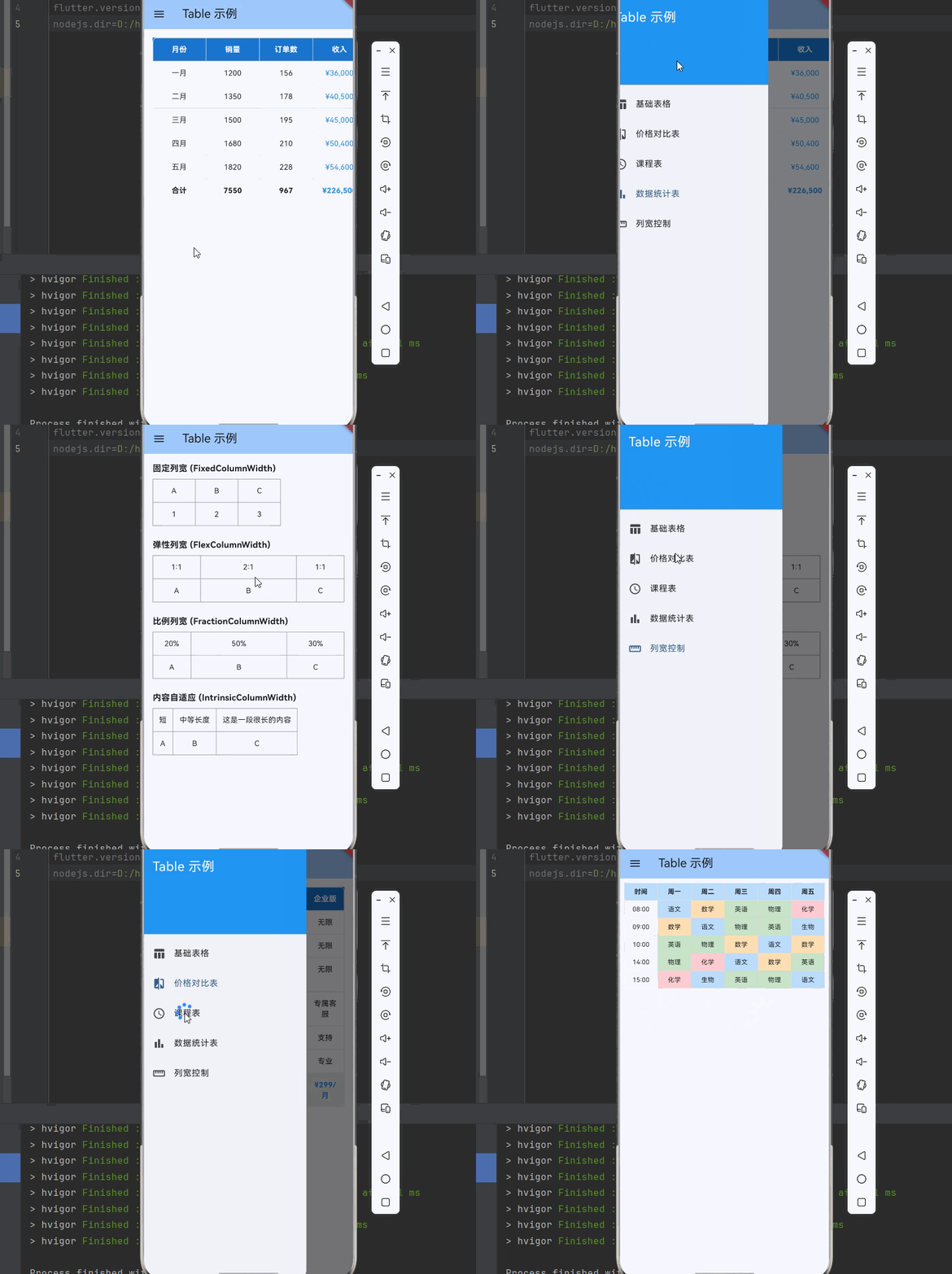
下面是一个完整的可运行示例,展示了 Table 的各种用法:
import 'package:flutter/material.dart';
void main() {
runApp(const MyApp());
}
class MyApp extends StatelessWidget {
const MyApp({super.key});
Widget build(BuildContext context) {
return MaterialApp(
title: 'Table 示例',
theme: ThemeData(
colorScheme: ColorScheme.fromSeed(seedColor: Colors.blue),
useMaterial3: true,
),
home: const TableDemoPage(),
);
}
}
class TableDemoPage extends StatefulWidget {
const TableDemoPage({super.key});
State<TableDemoPage> createState() => _TableDemoPageState();
}
class _TableDemoPageState extends State<TableDemoPage> {
int _selectedIndex = 0;
Widget build(BuildContext context) {
return Scaffold(
appBar: AppBar(
title: const Text('Table 示例'),
backgroundColor: Theme.of(context).colorScheme.inversePrimary,
),
drawer: Drawer(
child: ListView(
children: [
const DrawerHeader(
decoration: BoxDecoration(color: Colors.blue),
child: Text(
'Table 示例',
style: TextStyle(color: Colors.white, fontSize: 24),
),
),
ListTile(
leading: const Icon(Icons.table_chart),
title: const Text('基础表格'),
selected: _selectedIndex == 0,
onTap: () {
setState(() => _selectedIndex = 0);
Navigator.pop(context);
},
),
ListTile(
leading: const Icon(Icons.compare),
title: const Text('价格对比表'),
selected: _selectedIndex == 1,
onTap: () {
setState(() => _selectedIndex = 1);
Navigator.pop(context);
},
),
ListTile(
leading: const Icon(Icons.schedule),
title: const Text('课程表'),
selected: _selectedIndex == 2,
onTap: () {
setState(() => _selectedIndex = 2);
Navigator.pop(context);
},
),
ListTile(
leading: const Icon(Icons.bar_chart),
title: const Text('数据统计表'),
selected: _selectedIndex == 3,
onTap: () {
setState(() => _selectedIndex = 3);
Navigator.pop(context);
},
),
ListTile(
leading: const Icon(Icons.straighten),
title: const Text('列宽控制'),
selected: _selectedIndex == 4,
onTap: () {
setState(() => _selectedIndex = 4);
Navigator.pop(context);
},
),
],
),
),
body: _buildPage(),
);
}
Widget _buildPage() {
switch (_selectedIndex) {
case 0:
return const BasicTablePage();
case 1:
return const PriceComparisonPage();
case 2:
return const ScheduleTablePage();
case 3:
return const StatisticsTablePage();
case 4:
return const ColumnWidthDemoPage();
default:
return const BasicTablePage();
}
}
}
class BasicTablePage extends StatelessWidget {
const BasicTablePage({super.key});
Widget build(BuildContext context) {
return SingleChildScrollView(
padding: const EdgeInsets.all(16),
child: Table(
border: TableBorder.all(
color: Colors.grey,
width: 1,
borderRadius: BorderRadius.circular(8),
),
defaultVerticalAlignment: TableCellVerticalAlignment.middle,
children: [
TableRow(
decoration: BoxDecoration(color: Colors.blue[700]),
children: [
_buildHeaderCell('姓名'),
_buildHeaderCell('年龄'),
_buildHeaderCell('城市'),
_buildHeaderCell('职业'),
],
),
TableRow(
decoration: BoxDecoration(color: Colors.grey[50]),
children: [
_buildDataCell('张三'),
_buildDataCell('25'),
_buildDataCell('北京'),
_buildDataCell('工程师'),
],
),
TableRow(
children: [
_buildDataCell('李四'),
_buildDataCell('30'),
_buildDataCell('上海'),
_buildDataCell('设计师'),
],
),
TableRow(
decoration: BoxDecoration(color: Colors.grey[50]),
children: [
_buildDataCell('王五'),
_buildDataCell('28'),
_buildDataCell('广州'),
_buildDataCell('产品经理'),
],
),
TableRow(
children: [
_buildDataCell('赵六'),
_buildDataCell('22'),
_buildDataCell('深圳'),
_buildDataCell('运营'),
],
),
],
),
);
}
Widget _buildHeaderCell(String text) {
return Padding(
padding: const EdgeInsets.all(12),
child: Text(
text,
style: const TextStyle(
color: Colors.white,
fontWeight: FontWeight.bold,
),
textAlign: TextAlign.center,
),
);
}
Widget _buildDataCell(String text) {
return Padding(
padding: const EdgeInsets.all(12),
child: Text(text, textAlign: TextAlign.center),
);
}
}
class PriceComparisonPage extends StatelessWidget {
const PriceComparisonPage({super.key});
Widget build(BuildContext context) {
return SingleChildScrollView(
padding: const EdgeInsets.all(16),
child: Table(
border: TableBorder.all(
color: Colors.grey[300]!,
borderRadius: BorderRadius.circular(8),
),
columnWidths: const {
0: FlexColumnWidth(2),
1: FlexColumnWidth(1),
2: FlexColumnWidth(1),
3: FlexColumnWidth(1),
},
children: [
TableRow(
decoration: BoxDecoration(color: Colors.blue[700]),
children: [
_buildHeaderCell('功能'),
_buildHeaderCell('基础版'),
_buildHeaderCell('专业版'),
_buildHeaderCell('企业版'),
],
),
_buildFeatureRow('存储空间', '5GB', '50GB', '无限'),
_buildFeatureRow('用户数量', '1人', '5人', '无限'),
_buildFeatureRow('API调用', '1000次/月', '10000次/月', '无限'),
_buildFeatureRow('技术支持', '邮件', '邮件+电话', '专属客服'),
_buildFeatureRow('自定义域名', '不支持', '支持', '支持'),
_buildFeatureRow('数据分析', '基础', '高级', '专业'),
TableRow(
decoration: BoxDecoration(color: Colors.grey[100]),
children: [
_buildDataCell('价格', isBold: true),
_buildPriceCell('免费'),
_buildPriceCell('¥99/月'),
_buildPriceCell('¥299/月'),
],
),
],
),
);
}
TableRow _buildFeatureRow(String feature, String basic, String pro, String enterprise) {
return TableRow(
children: [
_buildDataCell(feature),
_buildDataCell(basic),
_buildDataCell(pro),
_buildDataCell(enterprise),
],
);
}
Widget _buildHeaderCell(String text) {
return Padding(
padding: const EdgeInsets.all(12),
child: Text(
text,
style: const TextStyle(
color: Colors.white,
fontWeight: FontWeight.bold,
),
textAlign: TextAlign.center,
),
);
}
Widget _buildDataCell(String text, {bool isBold = false}) {
return Padding(
padding: const EdgeInsets.all(12),
child: Text(
text,
style: TextStyle(fontWeight: isBold ? FontWeight.bold : FontWeight.normal),
textAlign: TextAlign.center,
),
);
}
Widget _buildPriceCell(String text) {
return Padding(
padding: const EdgeInsets.all(12),
child: Text(
text,
style: const TextStyle(
color: Colors.blue,
fontWeight: FontWeight.bold,
),
textAlign: TextAlign.center,
),
);
}
}
class ScheduleTablePage extends StatelessWidget {
const ScheduleTablePage({super.key});
final List<String> times = const ['08:00', '09:00', '10:00', '14:00', '15:00'];
final List<String> days = const ['周一', '周二', '周三', '周四', '周五'];
Widget build(BuildContext context) {
return SingleChildScrollView(
padding: const EdgeInsets.all(8),
child: Table(
border: TableBorder.all(
color: Colors.grey[300]!,
borderRadius: BorderRadius.circular(4),
),
defaultColumnWidth: const FlexColumnWidth(1),
children: [
TableRow(
decoration: BoxDecoration(color: Colors.blue[100]),
children: [
_buildTimeCell('时间', isHeader: true),
...days.map((day) => _buildTimeCell(day, isHeader: true)),
],
),
_buildScheduleRow('08:00', '语文', '数学', '英语', '物理', '化学'),
_buildScheduleRow('09:00', '数学', '语文', '物理', '英语', '生物'),
_buildScheduleRow('10:00', '英语', '物理', '数学', '语文', '数学'),
_buildScheduleRow('14:00', '物理', '化学', '语文', '数学', '英语'),
_buildScheduleRow('15:00', '化学', '生物', '英语', '物理', '语文'),
],
),
);
}
TableRow _buildScheduleRow(String time, String mon, String tue, String wed, String thu, String fri) {
return TableRow(
children: [
_buildTimeCell(time),
_buildCourseCell(mon),
_buildCourseCell(tue),
_buildCourseCell(wed),
_buildCourseCell(thu),
_buildCourseCell(fri),
],
);
}
Widget _buildTimeCell(String text, {bool isHeader = false}) {
return Container(
padding: const EdgeInsets.all(8),
child: Text(
text,
style: TextStyle(
fontWeight: isHeader ? FontWeight.bold : FontWeight.normal,
fontSize: 12,
),
textAlign: TextAlign.center,
),
);
}
Widget _buildCourseCell(String text) {
final colors = [
Colors.red[100],
Colors.blue[100],
Colors.green[100],
Colors.orange[100],
Colors.purple[100],
Colors.teal[100],
];
final color = colors[text.hashCode % colors.length];
return Container(
padding: const EdgeInsets.all(8),
color: color,
child: Text(
text,
style: const TextStyle(fontSize: 12),
textAlign: TextAlign.center,
),
);
}
}
class StatisticsTablePage extends StatelessWidget {
const StatisticsTablePage({super.key});
final List<Map<String, String>> data = const [
{'month': '一月', 'sales': '1200', 'orders': '156', 'revenue': '¥36,000'},
{'month': '二月', 'sales': '1350', 'orders': '178', 'revenue': '¥40,500'},
{'month': '三月', 'sales': '1500', 'orders': '195', 'revenue': '¥45,000'},
{'month': '四月', 'sales': '1680', 'orders': '210', 'revenue': '¥50,400'},
{'month': '五月', 'sales': '1820', 'orders': '228', 'revenue': '¥54,600'},
];
Widget build(BuildContext context) {
return SingleChildScrollView(
scrollDirection: Axis.horizontal,
padding: const EdgeInsets.all(16),
child: Table(
border: TableBorder.all(
color: Colors.grey[300]!,
borderRadius: BorderRadius.circular(8),
),
defaultColumnWidth: const FixedColumnWidth(100),
children: [
TableRow(
decoration: BoxDecoration(color: Colors.blue[700]),
children: [
_buildHeaderCell('月份'),
_buildHeaderCell('销量'),
_buildHeaderCell('订单数'),
_buildHeaderCell('收入'),
],
),
...data.map((item) => TableRow(
children: [
_buildDataCell(item['month']!),
_buildDataCell(item['sales']!),
_buildDataCell(item['orders']!),
_buildDataCell(item['revenue']!, isHighlight: true),
],
)),
TableRow(
decoration: BoxDecoration(color: Colors.grey[100]),
children: [
_buildDataCell('合计', isBold: true),
_buildDataCell('7550', isBold: true),
_buildDataCell('967', isBold: true),
_buildDataCell('¥226,500', isBold: true, isHighlight: true),
],
),
],
),
);
}
Widget _buildHeaderCell(String text) {
return Padding(
padding: const EdgeInsets.all(12),
child: Text(
text,
style: const TextStyle(
color: Colors.white,
fontWeight: FontWeight.bold,
),
textAlign: TextAlign.center,
),
);
}
Widget _buildDataCell(String text, {bool isBold = false, bool isHighlight = false}) {
return Padding(
padding: const EdgeInsets.all(12),
child: Text(
text,
style: TextStyle(
fontWeight: isBold ? FontWeight.bold : FontWeight.normal,
color: isHighlight ? Colors.blue : null,
),
textAlign: TextAlign.center,
),
);
}
}
class ColumnWidthDemoPage extends StatelessWidget {
const ColumnWidthDemoPage({super.key});
Widget build(BuildContext context) {
return SingleChildScrollView(
padding: const EdgeInsets.all(16),
child: Column(
crossAxisAlignment: CrossAxisAlignment.start,
children: [
const Text(
'固定列宽 (FixedColumnWidth)',
style: TextStyle(fontSize: 16, fontWeight: FontWeight.bold),
),
const SizedBox(height: 8),
Table(
border: TableBorder.all(color: Colors.grey),
defaultColumnWidth: const FixedColumnWidth(80),
children: [
TableRow(children: [
_buildCell('A'),
_buildCell('B'),
_buildCell('C'),
]),
TableRow(children: [
_buildCell('1'),
_buildCell('2'),
_buildCell('3'),
]),
],
),
const SizedBox(height: 24),
const Text(
'弹性列宽 (FlexColumnWidth)',
style: TextStyle(fontSize: 16, fontWeight: FontWeight.bold),
),
const SizedBox(height: 8),
Table(
border: TableBorder.all(color: Colors.grey),
columnWidths: const {
0: FlexColumnWidth(1),
1: FlexColumnWidth(2),
2: FlexColumnWidth(1),
},
children: [
TableRow(children: [
_buildCell('1:1'),
_buildCell('2:1'),
_buildCell('1:1'),
]),
TableRow(children: [
_buildCell('A'),
_buildCell('B'),
_buildCell('C'),
]),
],
),
const SizedBox(height: 24),
const Text(
'比例列宽 (FractionColumnWidth)',
style: TextStyle(fontSize: 16, fontWeight: FontWeight.bold),
),
const SizedBox(height: 8),
Table(
border: TableBorder.all(color: Colors.grey),
columnWidths: const {
0: FractionColumnWidth(0.2),
1: FractionColumnWidth(0.5),
2: FractionColumnWidth(0.3),
},
children: [
TableRow(children: [
_buildCell('20%'),
_buildCell('50%'),
_buildCell('30%'),
]),
TableRow(children: [
_buildCell('A'),
_buildCell('B'),
_buildCell('C'),
]),
],
),
const SizedBox(height: 24),
const Text(
'内容自适应 (IntrinsicColumnWidth)',
style: TextStyle(fontSize: 16, fontWeight: FontWeight.bold),
),
const SizedBox(height: 8),
Table(
border: TableBorder.all(color: Colors.grey),
defaultColumnWidth: const IntrinsicColumnWidth(),
children: [
TableRow(children: [
_buildCell('短'),
_buildCell('中等长度'),
_buildCell('这是一段很长的内容'),
]),
TableRow(children: [
_buildCell('A'),
_buildCell('B'),
_buildCell('C'),
]),
],
),
],
),
);
}
Widget _buildCell(String text) {
return Padding(
padding: const EdgeInsets.all(12),
child: Text(text, textAlign: TextAlign.center),
);
}
}
参考资料

开源鸿蒙跨平台开发社区汇聚开发者与厂商,共建“一次开发,多端部署”的开源生态,致力于降低跨端开发门槛,推动万物智联创新。
更多推荐

 32
32 0
0- 0


 已为社区贡献114条内容

所有评论(0)