基础入门 Flutter for OpenHarmony:animations 动画组件详解
在 Flutter for OpenHarmony 应用开发中,animations是一个非常实用的动画库,它提供了一组预构建的高质量动画效果,遵循 Material Design 运动系统规范。这些动画可以直接集成到你的应用中,无需复杂的自定义代码。使用的},),恭喜你!通过这篇文章的学习,你已经掌握了 Flutter 中 animations 动画组件的全面知识。
欢迎加入开源鸿蒙跨平台社区:https://openharmonycrossplatform.csdn.net
🎯 欢迎来到 Flutter for OpenHarmony 社区!本文将深入讲解 Flutter 中 animations 动画组件的使用方法,带你全面掌握 Material Design 运动系统的四种过渡模式,让你的应用界面更加生动流畅。
一、animations 组件概述
在 Flutter for OpenHarmony 应用开发中,animations 是一个非常实用的动画库,它提供了一组预构建的高质量动画效果,遵循 Material Design 运动系统规范。这些动画可以直接集成到你的应用中,无需复杂的自定义代码。
📋 animations 组件特点
| 特点 | 说明 |
|---|---|
| 预构建动画 | 提供常用的 Material Design 动画效果 |
| 高度可定制 | 可以根据需求调整动画参数 |
| Material Design | 遵循 Google Material Design 运动系统规范 |
| 易于集成 | 只需几行代码即可实现专业级动画效果 |
| 跨平台支持 | 支持 Android、iOS、Linux、macOS、Windows、OpenHarmony |
| 性能优化 | 使用高效的动画实现,流畅不卡顿 |
💡 使用场景:页面过渡、元素变换、淡入淡出、导航动画等需要平滑过渡效果的场景。
二、OpenHarmony 平台适配说明
2.1 兼容性信息
本项目基于 animations@2.0.7 开发,适配 Flutter 3.27.5-ohos-1.0.4。
2.2 支持的动画模式
在 OpenHarmony 平台上,animations 支持以下四种 Material Design 运动模式:
| 动画模式 | 说明 | OpenHarmony 支持 |
|---|---|---|
| ContainerTransform | 容器变换模式 | ✅ yes |
| SharedAxis | 共享轴模式 | ✅ yes |
| FadeThrough | 淡入淡出模式 | ✅ yes |
| Fade | 纯淡入淡出模式 | ✅ yes |
三、Material Design 运动系统详解
3.1 四种过渡模式
1. Container Transform(容器变换)
容器变换模式用于在包含容器的 UI 元素之间进行过渡。这种模式在两个 UI 元素之间创建可见的连接。
适用场景:
- 卡片到详情页的过渡
- 列表项到详情页的过渡
- 浮动按钮(FAB)到详情页的过渡
- 搜索栏到展开搜索的过渡
2. Shared Axis(共享轴)
共享轴模式用于在具有空间或导航关系的 UI 元素之间进行过渡。该模式使用 x、y 或 z 轴上的共享变换来强化元素之间的关系。
适用场景:
- 引导流程沿 x 轴过渡
- 步进器沿 y 轴过渡
- 父子导航沿 z 轴过渡
3. Fade Through(淡入淡出)
淡入淡出模式用于在没有强关系的 UI 元素之间进行过渡。
适用场景:
- 点击底部导航栏目标
- 点击刷新图标
- 点击账户切换器
4. Fade(纯淡入淡出)
纯淡入淡出模式用于在屏幕边界内进入或退出的 UI 元素。
适用场景:
- 对话框
- 菜单
- 提示条(Snackbar)
- 浮动按钮
四、项目配置与安装
4.1 添加依赖配置
首先,需要在你的 Flutter 项目的 pubspec.yaml 文件中添加 animations 依赖。
打开项目根目录下的 pubspec.yaml 文件,找到 dependencies 部分,添加以下配置:
dependencies:
  flutter:
    sdk: flutter

  # 添加 animations 依赖
  animations:
    git:
      url: "https://atomgit.com/openharmony-tpc/flutter_packages.git"
      path: "packages/animations"
配置说明:
- 使用 git 方式引用开源鸿蒙适配的 flutter_packages 仓库
url:指定 GitCode 托管的仓库地址path:指定 animations 包的具体路径- 本项目基于
animations@2.0.7开发,适配 Flutter 3.27.5-ohos-1.0.4
⚠️ 重要:对于 OpenHarmony 平台,必须使用 git 方式引用适配版本,不能直接使用 pub.dev 的版本号。
4.2 下载依赖
配置完成后,需要在项目根目录执行以下命令下载依赖:
flutter pub get
执行成功后,你会看到类似以下的输出:
Running "flutter pub get" in my_cross_platform_app...
Resolving dependencies...
Got dependencies!
五、animations 基础用法
5.1 导入包
在使用 animations 之前,首先需要导入相关包:
import 'package:flutter/material.dart';
import 'package:animations/animations.dart';
5.2 Container Transform - 容器变换
容器变换是用于在包含容器的 UI 元素之间进行过渡的动画效果。
OpenContainer<bool>(
  transitionType: ContainerTransitionType.fade,
  openBuilder: (BuildContext context, VoidCallback _) {
    return const DetailPage();
  },
  closedBuilder: (BuildContext context, VoidCallback openContainer) {
    return const ListTile(
      title: Text('点击查看详情'),
      leading: Icon(Icons.info),
    );
  },
)
参数说明:
| 参数 | 说明 | 类型 | 默认值 |
|---|---|---|---|
| transitionType | 过渡类型 | ContainerTransitionType | fadeInThrough |
| openBuilder | 打开状态的构建器 | Widget Function | - |
| closedBuilder | 关闭状态的构建器 | Widget Function | - |
| openColor | 打开时的颜色 | Color | Theme.cardColor |
| closedColor | 关闭时的颜色 | Color | Theme.cardColor |
| middleColor | 中间状态的颜色 | Color? | null |
| openElevation | 打开时的阴影 | double | 8.0 |
| closedElevation | 关闭时的阴影 | double | 0.0 |
| openShape | 打开时的形状 | BoxShape | RoundedRectangleBorder |
| closedShape | 关闭时的形状 | BoxShape | RoundedRectangleBorder |
| clipBehavior | 裁剪行为 | Clip | Clip.antiAlias |
| useRootNavigator | 是否使用根导航器 | bool | false |
| routeSettings | 路由设置 | RouteSettings? | null |
ContainerTransitionType 类型:
// 容器淡入淡出(默认)
ContainerTransitionType.fade

// 容器淡入淡出(带淡入效果)
ContainerTransitionType.fadeThrough
5.3 Shared Axis - 共享轴动画
共享轴动画用于在具有空间或导航关系的 UI 元素之间进行过渡。
Navigator.of(context).push(
  PageRouteBuilder(
    pageBuilder: (context, animation, secondaryAnimation) => const SecondPage(),
    transitionsBuilder: (context, animation, secondaryAnimation, child) {
      return SharedAxisTransition(
        animation: animation,
        secondaryAnimation: secondaryAnimation,
        transitionType: SharedAxisTransitionType.horizontal,
        child: child,
      );
    },
  ),
);
参数说明:
| 参数 | 说明 | 类型 | 默认值 |
|---|---|---|---|
| animation | 主动画 | Animation<double> |
- |
| secondaryAnimation | 次要动画 | Animation<double> |
- |
| transitionType | 过渡类型 | SharedAxisTransitionType | - |
| fillColor | 填充颜色 | Color | Colors.black |
SharedAxisTransitionType 类型:
// 水平共享轴(左右移动)
SharedAxisTransitionType.horizontal

// 垂直共享轴(上下移动)
SharedAxisTransitionType.vertical

// Z轴共享轴(缩放效果)
SharedAxisTransitionType.scaled
5.4 Fade Through - 淡入淡出过渡
淡入淡出过渡用于在没有强关系的 UI 元素之间进行过渡。
Navigator.of(context).push(
  PageRouteBuilder(
    pageBuilder: (context, animation, secondaryAnimation) => const SecondPage(),
    transitionsBuilder: (context, animation, secondaryAnimation, child) {
      return FadeThroughTransition(
        animation: animation,
        secondaryAnimation: secondaryAnimation,
        child: child,
      );
    },
  ),
);
参数说明:
| 参数 | 说明 | 类型 | 默认值 |
|---|---|---|---|
| animation | 主动画 | Animation<double> |
- |
| secondaryAnimation | 次要动画 | Animation<double> |
- |
| fillColor | 填充颜色 | Color | Colors.black |
5.5 Fade - 纯淡入淡出
纯淡入淡出用于在屏幕边界内进入或退出的 UI 元素。
Navigator.of(context).push(
  PageRouteBuilder(
    pageBuilder: (context, animation, secondaryAnimation) => const SecondPage(),
    transitionsBuilder: (context, animation, secondaryAnimation, child) {
      return FadeScaleTransition(
        animation: animation,
        child: child,
      );
    },
  ),
);
参数说明:
| 参数 | 说明 | 类型 | 默认值 |
|---|---|---|---|
| animation | 动画 | Animation<double> |
- |
| alignment | 对齐方式 | Alignment | Alignment.center |
六、完整示例代码
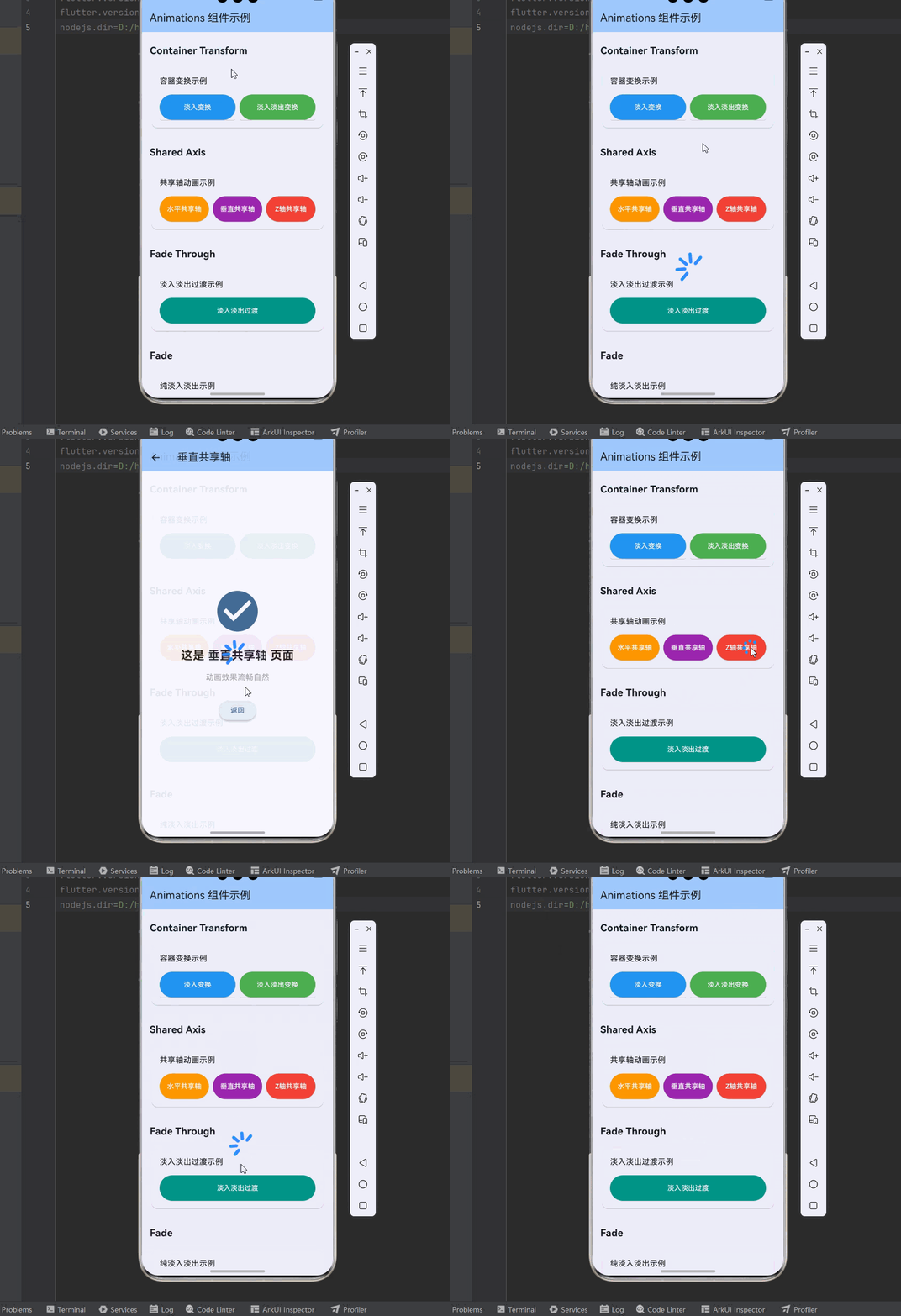
下面是一个完整的示例应用,展示了 animations 的各种用法:
import 'package:flutter/material.dart';
import 'package:animations/animations.dart';
void main() {
runApp(const AnimationsDemo());
}
class AnimationsDemo extends StatelessWidget {
const AnimationsDemo({super.key});
Widget build(BuildContext context) {
return MaterialApp(
title: 'Animations 组件示例',
debugShowCheckedModeBanner: false,
theme: ThemeData(
colorScheme: ColorScheme.fromSeed(seedColor: Colors.blue),
useMaterial3: true,
),
home: const AnimationsHomePage(),
);
}
}
class AnimationsHomePage extends StatelessWidget {
const AnimationsHomePage({super.key});
Widget build(BuildContext context) {
return Scaffold(
appBar: AppBar(
title: const Text('Animations 组件示例'),
backgroundColor: Theme.of(context).colorScheme.inversePrimary,
),
body: Container(
decoration: BoxDecoration(
gradient: LinearGradient(
begin: Alignment.topCenter,
end: Alignment.bottomCenter,
colors: [
Colors.blue.shade50,
Colors.purple.shade50,
],
),
),
child: ListView(
padding: const EdgeInsets.all(16),
children: [
_buildSectionTitle('Container Transform'),
const SizedBox(height: 8),
_buildContainerTransformExample(context),
const SizedBox(height: 24),
_buildSectionTitle('Shared Axis'),
const SizedBox(height: 8),
_buildSharedAxisExamples(context),
const SizedBox(height: 24),
_buildSectionTitle('Fade Through'),
const SizedBox(height: 8),
_buildFadeThroughExample(context),
const SizedBox(height: 24),
_buildSectionTitle('Fade'),
const SizedBox(height: 8),
_buildFadeExample(context),
const SizedBox(height: 24),
],
),
),
);
}
Widget _buildSectionTitle(String title) {
return Padding(
padding: const EdgeInsets.symmetric(vertical: 8),
child: Text(
title,
style: const TextStyle(
fontSize: 20,
fontWeight: FontWeight.bold,
),
),
);
}
Widget _buildContainerTransformExample(BuildContext context) {
return Card(
child: Padding(
padding: const EdgeInsets.all(16),
child: Column(
crossAxisAlignment: CrossAxisAlignment.start,
children: [
const Text(
'容器变换示例',
style: TextStyle(fontSize: 16, fontWeight: FontWeight.w500),
),
const SizedBox(height: 16),
Row(
children: [
Expanded(
child: OpenContainer<bool>(
transitionType: ContainerTransitionType.fade,
openBuilder: (BuildContext context, VoidCallback _) {
return const DetailPage(title: '淡入变换');
},
closedBuilder: (BuildContext context, VoidCallback openContainer) {
return _buildOpenContainerButton('淡入变换', openContainer, Colors.blue);
},
),
),
const SizedBox(width: 8),
Expanded(
child: OpenContainer<bool>(
transitionType: ContainerTransitionType.fadeThrough,
openBuilder: (BuildContext context, VoidCallback _) {
return const DetailPage(title: '淡入淡出变换');
},
closedBuilder: (BuildContext context, VoidCallback openContainer) {
return _buildOpenContainerButton('淡入淡出变换', openContainer, Colors.green);
},
),
),
],
),
],
),
),
);
}
Widget _buildOpenContainerButton(String label, VoidCallback onPressed, Color color) {
return ElevatedButton(
onPressed: onPressed,
style: ElevatedButton.styleFrom(
backgroundColor: color,
foregroundColor: Colors.white,
padding: const EdgeInsets.symmetric(vertical: 16),
),
child: Text(label),
);
}
Widget _buildSharedAxisExamples(BuildContext context) {
return Card(
child: Padding(
padding: const EdgeInsets.all(16),
child: Column(
crossAxisAlignment: CrossAxisAlignment.start,
children: [
const Text(
'共享轴动画示例',
style: TextStyle(fontSize: 16, fontWeight: FontWeight.w500),
),
const SizedBox(height: 16),
Row(
children: [
Expanded(
child: _buildAnimationButton(
context,
'水平共享轴',
SharedAxisTransitionType.horizontal,
Colors.orange,
),
),
const SizedBox(width: 8),
Expanded(
child: _buildAnimationButton(
context,
'垂直共享轴',
SharedAxisTransitionType.vertical,
Colors.purple,
),
),
const SizedBox(width: 8),
Expanded(
child: _buildAnimationButton(
context,
'Z轴共享轴',
SharedAxisTransitionType.scaled,
Colors.red,
),
),
],
),
],
),
),
);
}
Widget _buildAnimationButton(
BuildContext context,
String label,
SharedAxisTransitionType type,
Color color,
) {
return ElevatedButton(
onPressed: () {
Navigator.of(context).push(
PageRouteBuilder(
pageBuilder: (context, animation, secondaryAnimation) =>
DetailPage(title: label),
transitionsBuilder: (context, animation, secondaryAnimation, child) {
return SharedAxisTransition(
animation: animation,
secondaryAnimation: secondaryAnimation,
transitionType: type,
child: child,
);
},
),
);
},
style: ElevatedButton.styleFrom(
backgroundColor: color,
foregroundColor: Colors.white,
padding: const EdgeInsets.symmetric(vertical: 16),
),
child: Text(label),
);
}
Widget _buildFadeThroughExample(BuildContext context) {
return Card(
child: Padding(
padding: const EdgeInsets.all(16),
child: Column(
crossAxisAlignment: CrossAxisAlignment.start,
children: [
const Text(
'淡入淡出过渡示例',
style: TextStyle(fontSize: 16, fontWeight: FontWeight.w500),
),
const SizedBox(height: 16),
SizedBox(
width: double.infinity,
child: ElevatedButton(
onPressed: () {
Navigator.of(context).push(
PageRouteBuilder(
pageBuilder: (context, animation, secondaryAnimation) =>
const DetailPage(title: '淡入淡出过渡'),
transitionsBuilder: (context, animation, secondaryAnimation, child) {
return FadeThroughTransition(
animation: animation,
secondaryAnimation: secondaryAnimation,
child: child,
);
},
),
);
},
style: ElevatedButton.styleFrom(
backgroundColor: Colors.teal,
foregroundColor: Colors.white,
padding: const EdgeInsets.symmetric(vertical: 16),
),
child: const Text('淡入淡出过渡'),
),
),
],
),
),
);
}
Widget _buildFadeExample(BuildContext context) {
return Card(
child: Padding(
padding: const EdgeInsets.all(16),
child: Column(
crossAxisAlignment: CrossAxisAlignment.start,
children: [
const Text(
'纯淡入淡出示例',
style: TextStyle(fontSize: 16, fontWeight: FontWeight.w500),
),
const SizedBox(height: 16),
SizedBox(
width: double.infinity,
child: ElevatedButton(
onPressed: () {
Navigator.of(context).push(
PageRouteBuilder(
pageBuilder: (context, animation, secondaryAnimation) =>
const DetailPage(title: '纯淡入淡出'),
transitionsBuilder: (context, animation, secondaryAnimation, child) {
return FadeScaleTransition(
animation: animation,
child: child,
);
},
),
);
},
style: ElevatedButton.styleFrom(
backgroundColor: Colors.indigo,
foregroundColor: Colors.white,
padding: const EdgeInsets.symmetric(vertical: 16),
),
child: const Text('纯淡入淡出'),
),
),
],
),
),
);
}
}
class DetailPage extends StatelessWidget {
final String title;
const DetailPage({super.key, required this.title});
Widget build(BuildContext context) {
return Scaffold(
appBar: AppBar(
title: Text(title),
backgroundColor: Theme.of(context).colorScheme.inversePrimary,
),
body: Center(
child: Column(
mainAxisAlignment: MainAxisAlignment.center,
children: [
Icon(
Icons.check_circle,
size: 100,
color: Theme.of(context).colorScheme.primary,
),
const SizedBox(height: 24),
Text(
'这是 $title 页面',
style: const TextStyle(fontSize: 24, fontWeight: FontWeight.bold),
),
const SizedBox(height: 16),
const Text(
'动画效果流畅自然',
style: TextStyle(fontSize: 16, color: Colors.grey),
),
const SizedBox(height: 32),
ElevatedButton(
onPressed: () => Navigator.of(context).pop(),
child: const Text('返回'),
),
],
),
),
);
}
}
七、常见问题与最佳实践
7.1 常见问题
Q1: 为什么动画效果不明显?
A: 检查以下几点:
- 确认动画类型选择正确
- 确认动画参数设置合理
- 确认页面内容有足够的视觉差异
- 尝试调整动画时长
Q2: 如何自定义动画时长?
A: 使用 PageRouteBuilder 的 transitionDuration 参数:
Navigator.of(context).push(
  PageRouteBuilder(
    transitionDuration: const Duration(milliseconds: 500),
    pageBuilder: (context, animation, secondaryAnimation) => const SecondPage(),
    transitionsBuilder: (context, animation, secondaryAnimation, child) {
      return SharedAxisTransition(
        animation: animation,
        secondaryAnimation: secondaryAnimation,
        transitionType: SharedAxisTransitionType.horizontal,
        child: child,
      );
    },
  ),
);
Q3: 如何在不同场景选择合适的动画?
A: 根据页面关系选择:
- 容器变换:有容器的父子关系、卡片到详情页
- 共享轴:导航关系、引导流程、步骤流程
- 淡入淡出:无强关系、底部导航切换
- 纯淡入淡出:对话框、菜单、提示条
7.2 最佳实践
1. 保持动画一致性
在整个应用中使用一致的动画类型,避免混淆用户:
// 定义统一的页面路由
class AppPageRoute extends PageRouteBuilder<T> {
  final Widget child;

  AppPageRoute({required this.child})
      : super(
          pageBuilder: (context, animation, secondaryAnimation) => child,
          transitionsBuilder: (context, animation, secondaryAnimation, child) {
            return FadeThroughTransition(
              animation: animation,
              secondaryAnimation: secondaryAnimation,
              child: child,
            );
          },
        );
}

// 使用
Navigator.of(context).push(AppPageRoute(child: const DetailPage()));
2. 优化性能
避免在动画中执行复杂操作:
// ❌ 错误:在动画中执行耗时操作
transitionsBuilder: (context, animation, secondaryAnimation, child) {
final result = heavyComputation(); // 会阻塞动画
return FadeTransition(opacity: animation, child: child);
}
// ✅ 正确:动画前完成准备工作
class MyPage extends StatefulWidget {
_MyPageState createState() => _MyPageState();
}
class _MyPageState extends State<MyPage> {
void initState() {
super.initState();
// 在 initState 中完成准备工作
heavyComputation();
}
Widget build(BuildContext context) {
return Scaffold(
body: Navigator(
onGenerateRoute: (settings) {
return PageRouteBuilder(
pageBuilder: (context, animation, secondaryAnimation) => child,
transitionsBuilder: (context, animation, secondaryAnimation, child) {
return FadeTransition(opacity: animation, child: child);
},
);
},
),
);
}
}
3. 提供有意义的动画
动画应该传达信息和目的:
// ✅ 好的动画:传达导航关系
Navigator.of(context).push(
  PageRouteBuilder(
    transitionsBuilder: (context, animation, secondaryAnimation, child) {
      return SharedAxisTransition(
        transitionType: SharedAxisTransitionType.horizontal,
        child: child,
      );
    },
    // ...
  ),
);

// ✅ 好的动画:传达层级关系
OpenContainer(
  transitionType: ContainerTransitionType.fade,
  // ...
);
4. 测试不同设备
在不同设备和性能级别上测试动画效果:
// 根据设备性能调整动画
bool _isLowPerformanceDevice() {
  // 检测设备性能
  return false;
}

Duration _getTransitionDuration() {
  return _isLowPerformanceDevice()
      ? const Duration(milliseconds: 200)
      : const Duration(milliseconds: 300);
}
八、总结
恭喜你!通过这篇文章的学习,你已经掌握了 Flutter 中 animations 动画组件的全面知识。
🎯 核心要点
- 四种动画模式:Container Transform、Shared Axis、Fade Through、Fade
- Material Design:遵循 Google Material Design 运动系统规范
- 易于使用:只需几行代码即可实现专业级动画效果
- 场景适配:根据页面关系选择合适的动画类型
- 性能优化:避免在动画中执行复杂操作
📚 使用场景指南
| 场景 | 推荐动画 | 说明 |
|---|---|---|
| 卡片到详情页 | Container Transform | 有容器的父子关系 |
| 列表到详情页 | Container Transform | 有容器的父子关系 |
| 引导流程 | Shared Axis(水平) | 沿 x 轴的导航关系 |
| 步骤流程 | Shared Axis(垂直) | 沿 y 轴的导航关系 |
| 父子导航 | Shared Axis(Z轴) | 沿 z 轴的层级关系 |
| 底部导航切换 | Fade Through | 无强关系的切换 |
| 对话框 | Fade | 屏幕边界内的进入退出 |
| 菜单 | Fade | 屏幕边界内的进入退出 |
🚀 进阶方向
掌握了 animations 后,你还可以探索以下方向:
- 自定义动画:学习使用 AnimationController 和 Tween 创建自定义动画
- 隐式动画:学习使用 AnimatedContainer、AnimatedOpacity 等隐式动画
- 物理动画:学习使用 spring 模拟实现更自然的动画效果
- 复杂动画:学习使用 Staggered Animation 实现复杂组合动画
- Lottie 动画:学习使用 Lottie 播放 After Effects 动画

开源鸿蒙跨平台开发社区汇聚开发者与厂商,共建“一次开发,多端部署”的开源生态,致力于降低跨端开发门槛,推动万物智联创新。
更多推荐
 0
0 0
0- 0


 已为社区贡献47条内容

所有评论(0)