Flutter & OpenHarmony 运动App用户个人中心组件开发
本文介绍了运动应用用户个人中心的实现方案,包含Flutter与OpenHarmony平台的开发细节。主要内容包括: 用户资料模型设计,整合个人信息与运动统计数据,提供年龄和BMI计算功能 OpenHarmony用户数据存储方案,采用Preferences实现字段级存储与更新 Flutter个人中心头部组件实现,展示用户头像、基本信息及编辑入口 摘要重点突出了跨平台实现用户个人中心的关键技术点,包括
前言
用户个人中心是运动应用中管理用户信息和设置的核心模块。通过个人中心,用户可以查看自己的运动数据汇总、管理个人资料、调整应用设置。本文将详细介绍如何在Flutter与OpenHarmony平台上实现完善的用户个人中心组件,包括个人资料管理、运动数据统计、设置项配置、账户安全等功能模块的完整实现方案。
个人中心的设计需要在功能完整性和界面简洁性之间取得平衡。用户希望能够快速找到需要的功能,同时又不希望被过多的选项淹没。我们需要合理组织功能模块,提供清晰的导航结构,让用户能够高效地完成各种操作。
Flutter用户资料模型
class UserProfile {
  final String id;
  final String nickname;
  final String? avatarUrl;
  final String gender;
  final DateTime birthDate;
  final double height;
  final double weight;
  final int totalWorkouts;
  final double totalDistance;
  final Duration totalDuration;

  UserProfile({
    required this.id,
    required this.nickname,
    this.avatarUrl,
    required this.gender,
    required this.birthDate,
    required this.height,
    required this.weight,
    this.totalWorkouts = 0,
    this.totalDistance = 0,
    this.totalDuration = Duration.zero,
  });

  int get age {
    DateTime now = DateTime.now();
    int age = now.year - birthDate.year;
    if (now.month < birthDate.month || (now.month == birthDate.month && now.day < birthDate.day)) {
      age--;
    }
    return age;
  }

  double get bmi => weight / ((height / 100) * (height / 100));
}
用户资料模型定义了用户的完整信息。基本信息包括昵称、头像、性别、出生日期、身高和体重。运动统计数据包括总运动次数、总距离和总时长,这些数据从运动记录中汇总得出。age属性根据出生日期自动计算年龄,考虑了月份和日期的边界情况。bmi属性计算身体质量指数,用于健康评估。这种模型设计将用户信息和运动成就整合在一起,便于个人中心的展示。
OpenHarmony用户数据存储
import dataPreferences from '@ohos.data.preferences';

class UserProfileStorage {
  private preferences: dataPreferences.Preferences | null = null;

  async initialize(context: Context): Promise<void> {
    this.preferences = await dataPreferences.getPreferences(context, 'user_profile');
  }

  async saveProfile(profile: object): Promise<void> {
    if (this.preferences) {
      await this.preferences.put('nickname', profile['nickname']);
      await this.preferences.put('gender', profile['gender']);
      await this.preferences.put('birthDate', profile['birthDate']);
      await this.preferences.put('height', profile['height']);
      await this.preferences.put('weight', profile['weight']);
      await this.preferences.put('avatarUrl', profile['avatarUrl'] || '');
      await this.preferences.flush();
    }
  }

  async getProfile(): Promise<object> {
    if (!this.preferences) return {};

    return {
      nickname: await this.preferences.get('nickname', '用户'),
      gender: await this.preferences.get('gender', 'male'),
      birthDate: await this.preferences.get('birthDate', '1990-01-01'),
      height: await this.preferences.get('height', 170),
      weight: await this.preferences.get('weight', 65),
      avatarUrl: await this.preferences.get('avatarUrl', ''),
    };
  }

  async updateField(key: string, value: Object): Promise<void> {
    if (this.preferences) {
      await this.preferences.put(key, value);
      await this.preferences.flush();
    }
  }
}
用户数据存储服务管理用户资料的持久化。saveProfile方法保存完整的用户资料,每个字段单独存储便于后续的单独更新。getProfile方法获取用户资料,每个字段都有默认值确保首次使用时有合理的初始数据。updateField方法支持更新单个字段,避免每次修改都要保存全部数据。这种存储设计灵活高效,支持用户资料的各种操作场景。
Flutter个人中心头部组件
class ProfileHeader extends StatelessWidget {
final UserProfile profile;
final VoidCallback onEditProfile;
const ProfileHeader({
Key? key,
required this.profile,
required this.onEditProfile,
}) : super(key: key);
Widget build(BuildContext context) {
return Container(
padding: EdgeInsets.all(20),
decoration: BoxDecoration(
gradient: LinearGradient(
colors: [Colors.blue, Colors.blueAccent],
begin: Alignment.topLeft,
end: Alignment.bottomRight,
),
),
child: SafeArea(
child: Column(
children: [
Row(
children: [
GestureDetector(
onTap: onEditProfile,
child: CircleAvatar(
radius: 40,
backgroundImage: profile.avatarUrl != null ? NetworkImage(profile.avatarUrl!) : null,
child: profile.avatarUrl == null ? Icon(Icons.person, size: 40, color: Colors.white) : null,
),
),
SizedBox(width: 16),
Expanded(
child: Column(
crossAxisAlignment: CrossAxisAlignment.start,
children: [
Text(profile.nickname, style: TextStyle(fontSize: 24, fontWeight: FontWeight.bold, color: Colors.white)),
SizedBox(height: 4),
Text('${profile.age}岁 · ${profile.height.toInt()}cm · ${profile.weight.toInt()}kg', style: TextStyle(color: Colors.white70)),
],
),
),
IconButton(
icon: Icon(Icons.edit, color: Colors.white),
onPressed: onEditProfile,
),
],
),
SizedBox(height: 20),
Row(
mainAxisAlignment: MainAxisAlignment.spaceAround,
children: [
_buildStatItem('${profile.totalWorkouts}', '运动次数'),
_buildStatItem('${profile.totalDistance.toStringAsFixed(1)}', '总公里'),
_buildStatItem(_formatDuration(profile.totalDuration), '总时长'),
],
),
],
),
),
);
}
Widget _buildStatItem(String value, String label) {
return Column(
children: [
Text(value, style: TextStyle(fontSize: 24, fontWeight: FontWeight.bold, color: Colors.white)),
Text(label, style: TextStyle(color: Colors.white70, fontSize: 12)),
],
);
}
String _formatDuration(Duration d) {
int hours = d.inHours;
return '${hours}h';
}
}
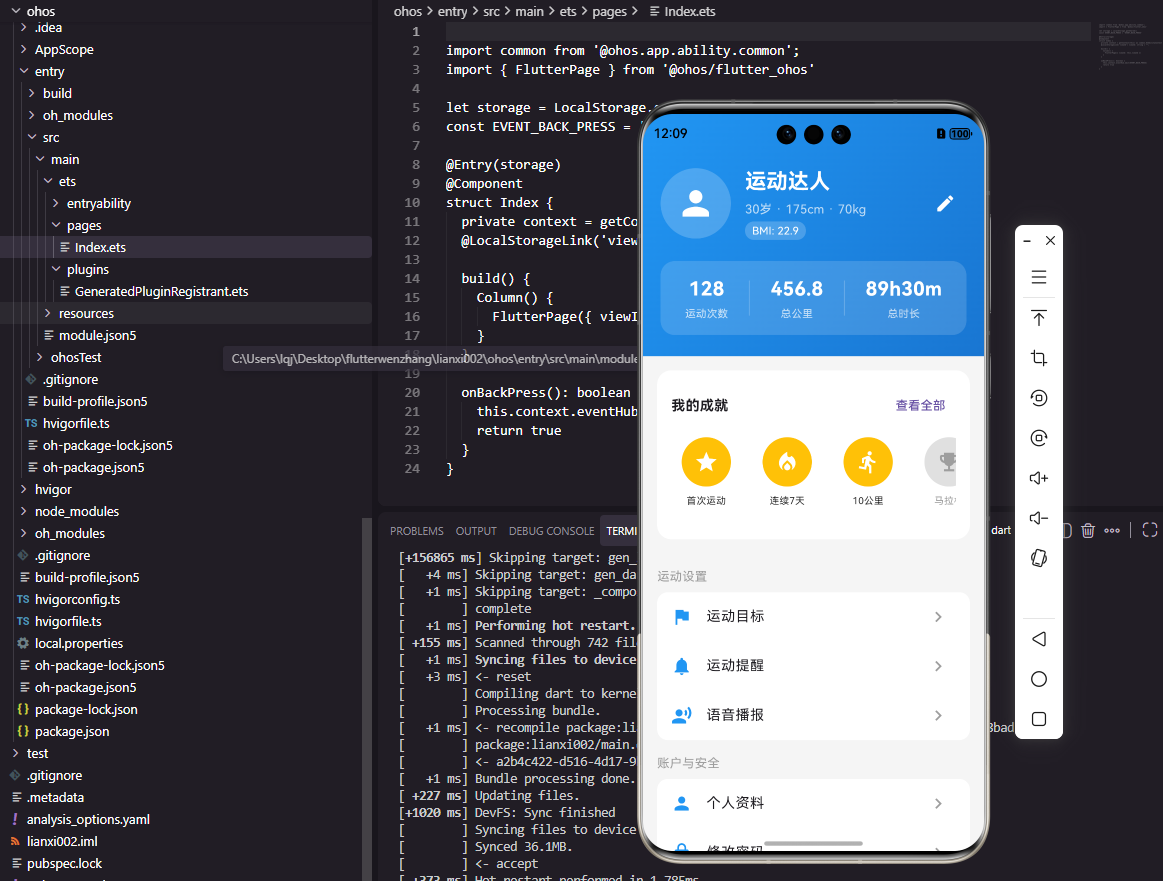
个人中心头部组件展示用户的核心信息和运动成就。使用蓝色渐变背景营造运动活力感,SafeArea确保内容不被状态栏遮挡。头像使用CircleAvatar组件,支持网络图片和默认图标两种显示方式。用户基本信息显示昵称、年龄、身高和体重。底部三列统计数据展示运动次数、总公里数和总时长,这些数据是用户运动成就的直观体现。编辑按钮让用户可以快速进入资料编辑页面。
Flutter设置列表组件
class SettingsListView extends StatelessWidget {
final Function(String) onSettingTap;
const SettingsListView({Key? key, required this.onSettingTap}) : super(key: key);
Widget build(BuildContext context) {
return ListView(
shrinkWrap: true,
physics: NeverScrollableScrollPhysics(),
children: [
_buildSection('运动设置', [
_buildSettingItem(Icons.flag, '运动目标', 'goals'),
_buildSettingItem(Icons.notifications, '运动提醒', 'reminders'),
_buildSettingItem(Icons.record_voice_over, '语音播报', 'voice'),
]),
_buildSection('账户与安全', [
_buildSettingItem(Icons.person, '个人资料', 'profile'),
_buildSettingItem(Icons.lock, '修改密码', 'password'),
_buildSettingItem(Icons.privacy_tip, '隐私设置', 'privacy'),
]),
_buildSection('通用设置', [
_buildSettingItem(Icons.language, '语言', 'language'),
_buildSettingItem(Icons.straighten, '单位设置', 'units'),
_buildSettingItem(Icons.dark_mode, '深色模式', 'theme'),
]),
_buildSection('其他', [
_buildSettingItem(Icons.help, '帮助与反馈', 'help'),
_buildSettingItem(Icons.info, '关于', 'about'),
_buildSettingItem(Icons.logout, '退出登录', 'logout'),
]),
],
);
}
Widget _buildSection(String title, List<Widget> items) {
return Column(
crossAxisAlignment: CrossAxisAlignment.start,
children: [
Padding(
padding: EdgeInsets.fromLTRB(16, 16, 16, 8),
child: Text(title, style: TextStyle(color: Colors.grey, fontSize: 14)),
),
Card(
margin: EdgeInsets.symmetric(horizontal: 16),
child: Column(children: items),
),
],
);
}
Widget _buildSettingItem(IconData icon, String title, String key) {
return ListTile(
leading: Icon(icon, color: Colors.blue),
title: Text(title),
trailing: Icon(Icons.chevron_right, color: Colors.grey),
onTap: () => onSettingTap(key),
);
}
}
设置列表组件将各种设置项分组展示。我们将设置分为运动设置、账户与安全、通用设置和其他四个分组,每个分组使用Card包裹,视觉上清晰区分。每个设置项包含图标、标题和右箭头,点击触发回调并传递设置项的key。这种分组设计让用户能够快速定位需要的设置,不会在众多选项中迷失。shrinkWrap和NeverScrollableScrollPhysics使列表适配嵌入到其他可滚动容器中。
OpenHarmony应用设置服务
import dataPreferences from '@ohos.data.preferences';

class AppSettingsService {
  private preferences: dataPreferences.Preferences | null = null;

  async initialize(context: Context): Promise<void> {
    this.preferences = await dataPreferences.getPreferences(context, 'app_settings');
  }

  async getSetting(key: string, defaultValue: Object): Promise<Object> {
    if (this.preferences) {
      return await this.preferences.get(key, defaultValue);
    }
    return defaultValue;
  }

  async setSetting(key: string, value: Object): Promise<void> {
    if (this.preferences) {
      await this.preferences.put(key, value);
      await this.preferences.flush();
    }
  }

  async getAllSettings(): Promise<object> {
    return {
      language: await this.getSetting('language', 'zh-CN'),
      units: await this.getSetting('units', 'metric'),
      darkMode: await this.getSetting('darkMode', false),
      notificationsEnabled: await this.getSetting('notificationsEnabled', true),
      voiceEnabled: await this.getSetting('voiceEnabled', true),
    };
  }

  async resetToDefaults(): Promise<void> {
    if (this.preferences) {
      await this.preferences.clear();
      await this.preferences.flush();
    }
  }
}
应用设置服务管理应用的各种配置选项。getSetting和setSetting方法提供通用的设置读写接口,支持任意类型的设置值。getAllSettings方法一次性获取所有设置,用于初始化设置页面。resetToDefaults方法清空所有设置,恢复默认值。这种服务设计灵活通用,可以轻松添加新的设置项而无需修改服务代码。每个设置都有合理的默认值,确保首次使用时应用行为正常。
Flutter资料编辑表单
class ProfileEditForm extends StatefulWidget {
final UserProfile profile;
final Function(UserProfile) onSave;
const ProfileEditForm({Key? key, required this.profile, required this.onSave}) : super(key: key);
State<ProfileEditForm> createState() => _ProfileEditFormState();
}
class _ProfileEditFormState extends State<ProfileEditForm> {
late TextEditingController _nicknameController;
late String _gender;
late DateTime _birthDate;
late double _height;
late double _weight;
void initState() {
super.initState();
_nicknameController = TextEditingController(text: widget.profile.nickname);
_gender = widget.profile.gender;
_birthDate = widget.profile.birthDate;
_height = widget.profile.height;
_weight = widget.profile.weight;
}
Widget build(BuildContext context) {
return ListView(
padding: EdgeInsets.all(16),
children: [
TextField(
controller: _nicknameController,
decoration: InputDecoration(labelText: '昵称', border: OutlineInputBorder()),
),
SizedBox(height: 16),
Text('性别', style: TextStyle(fontSize: 16)),
Row(
children: [
Radio<String>(value: 'male', groupValue: _gender, onChanged: (v) => setState(() => _gender = v!)),
Text('男'),
Radio<String>(value: 'female', groupValue: _gender, onChanged: (v) => setState(() => _gender = v!)),
Text('女'),
],
),
SizedBox(height: 16),
ListTile(
title: Text('出生日期'),
subtitle: Text('${_birthDate.year}年${_birthDate.month}月${_birthDate.day}日'),
trailing: Icon(Icons.calendar_today),
onTap: () async {
var picked = await showDatePicker(
context: context,
initialDate: _birthDate,
firstDate: DateTime(1900),
lastDate: DateTime.now(),
);
if (picked != null) setState(() => _birthDate = picked);
},
),
SizedBox(height: 16),
Text('身高: ${_height.toInt()} cm'),
Slider(value: _height, min: 100, max: 220, onChanged: (v) => setState(() => _height = v)),
SizedBox(height: 16),
Text('体重: ${_weight.toInt()} kg'),
Slider(value: _weight, min: 30, max: 150, onChanged: (v) => setState(() => _weight = v)),
SizedBox(height: 24),
ElevatedButton(onPressed: _saveProfile, child: Text('保存')),
],
);
}
void _saveProfile() {
// 保存逻辑
}
}
资料编辑表单提供完整的用户资料修改界面。昵称使用TextField输入,性别使用Radio单选按钮,出生日期点击后弹出日期选择器,身高和体重使用Slider滑动选择。这种多样化的输入方式根据数据类型选择最合适的控件,提升用户体验。表单初始化时加载当前用户资料,用户修改后点击保存按钮提交更改。Slider的范围设置考虑了实际的人体数据范围。
Flutter运动成就展示
class AchievementShowcase extends StatelessWidget {
final List<Achievement> achievements;
const AchievementShowcase({Key? key, required this.achievements}) : super(key: key);
Widget build(BuildContext context) {
return Column(
crossAxisAlignment: CrossAxisAlignment.start,
children: [
Padding(
padding: EdgeInsets.all(16),
child: Text('我的成就', style: TextStyle(fontSize: 18, fontWeight: FontWeight.bold)),
),
SizedBox(
height: 120,
child: ListView.builder(
scrollDirection: Axis.horizontal,
padding: EdgeInsets.symmetric(horizontal: 16),
itemCount: achievements.length,
itemBuilder: (context, index) {
var achievement = achievements[index];
return Container(
width: 100,
margin: EdgeInsets.only(right: 12),
child: Column(
children: [
Container(
width: 64,
height: 64,
decoration: BoxDecoration(
color: achievement.unlocked ? Colors.amber : Colors.grey[300],
shape: BoxShape.circle,
),
child: Icon(
achievement.icon,
color: achievement.unlocked ? Colors.white : Colors.grey,
size: 32,
),
),
SizedBox(height: 8),
Text(
achievement.name,
style: TextStyle(fontSize: 12, color: achievement.unlocked ? Colors.black : Colors.grey),
textAlign: TextAlign.center,
maxLines: 2,
),
],
),
);
},
),
),
],
);
}
}
class Achievement {
final String id;
final String name;
final IconData icon;
final bool unlocked;
Achievement({required this.id, required this.name, required this.icon, required this.unlocked});
}
运动成就展示组件以横向滚动列表展示用户获得的成就徽章。每个成就显示图标和名称,已解锁的成就使用金色背景,未解锁的使用灰色。这种设计既展示了用户的成就,又激励用户解锁更多徽章。横向滚动节省垂直空间,适合在个人中心页面中嵌入。成就系统是提升用户粘性的有效手段,通过游戏化的方式激励用户持续运动。
OpenHarmony头像上传服务
import request from '@ohos.request';
import fileIo from '@ohos.file.fs';

class AvatarUploadService {
  async uploadAvatar(filePath: string, userId: string): Promise<string | null> {
    try {
      let uploadConfig: request.UploadConfig = {
        url: 'https://api.fitness.com/avatar/upload',
        header: { 'Content-Type': 'multipart/form-data' },
        method: 'POST',
        files: [{
          filename: 'avatar.jpg',
          name: 'file',
          uri: 'internal://cache/' + filePath,
          type: 'image/jpeg',
        }],
        data: [{ name: 'userId', value: userId }],
      };

      let uploadTask = await request.uploadFile(globalThis.context, uploadConfig);

      return new Promise((resolve) => {
        uploadTask.on('complete', (taskStates) => {
          resolve('https://api.fitness.com/avatars/' + userId + '.jpg');
        });
        uploadTask.on('fail', () => {
          resolve(null);
        });
      });
    } catch (error) {
      console.error('上传头像失败: ' + error);
      return null;
    }
  }
}
头像上传服务将用户选择的图片上传到服务器。使用OpenHarmony的request模块进行文件上传,配置包含上传URL、文件信息和附加数据。uploadFile方法返回上传任务对象,通过事件监听获取上传结果。上传成功后返回头像的网络URL,失败则返回null。这种异步上传方式不会阻塞主线程,用户可以继续其他操作。上传完成后更新用户资料中的头像URL。
总结
本文全面介绍了Flutter与OpenHarmony平台上用户个人中心组件的实现方案。从用户资料管理到运动数据展示,从设置列表到成就系统,涵盖了个人中心功能的各个方面。通过合理的信息组织和直观的界面设计,我们可以为用户提供便捷的个人信息管理和应用设置体验,让用户能够轻松掌控自己的运动数据和应用行为。
欢迎加入开源鸿蒙跨平台社区:https://openharmonycrossplatform.csdn.net

开源鸿蒙跨平台开发社区汇聚开发者与厂商,共建“一次开发,多端部署”的开源生态,致力于降低跨端开发门槛,推动万物智联创新。
更多推荐


 17
17 0
0- 0


 已为社区贡献26条内容

所有评论(0)