Flutter与OpenHarmony帖子卡片组件设计与实现
本文介绍了在Flutter和OpenHarmony平台上实现帖子卡片组件的关键技术。Flutter部分详细讲解了卡片布局设计、用户信息展示、内容区域和互动按钮的实现方法,包括组件结构、样式处理和代码复用技巧。OpenHarmony部分展示了使用ArkTS定义组件、构建用户信息布局的实践。两种实现都注重视觉效果与功能完整性,为开发者提供了跨平台开发复杂UI组件的参考方案。通过本文的学习,开发者可以掌
前言
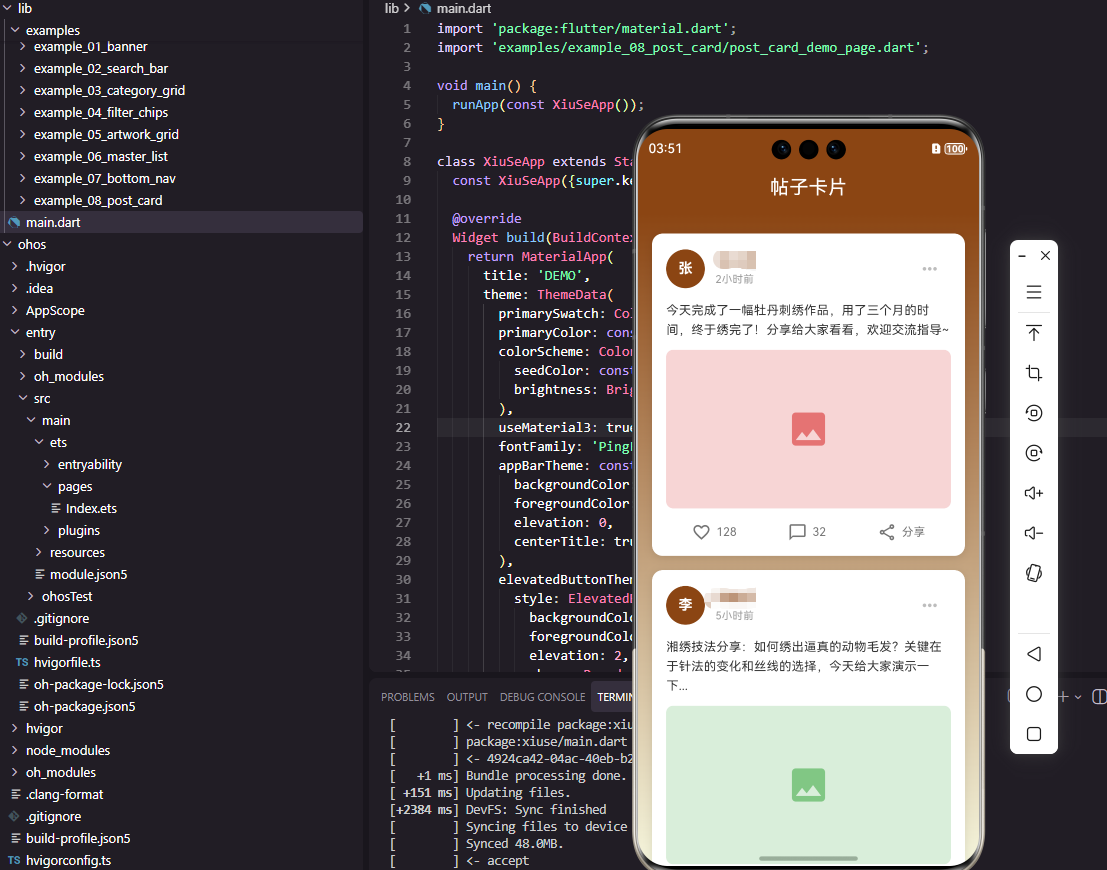
帖子卡片是社交类应用中最核心的内容展示组件。一个设计良好的帖子卡片需要展示用户信息、发布时间、内容文本、图片、以及互动按钮等多种元素。本文将详细介绍如何在Flutter和OpenHarmony平台上实现一个功能完善的帖子卡片组件,帮助开发者掌握复杂卡片布局的设计技巧。
帖子卡片的设计需要在信息密度和视觉美观之间取得平衡。过于拥挤的布局会让用户感到压迫,而过于稀疏的布局则会浪费屏幕空间。通过本文的学习,开发者将掌握在两个平台上实现专业级帖子卡片的核心技术。
Flutter帖子卡片实现
组件结构设计
帖子卡片包含多个区域,需要合理组织代码结构。
class PostCardWidget extends StatelessWidget {
const PostCardWidget({super.key});
Widget build(BuildContext context) {
return Container(
margin: const EdgeInsets.symmetric(horizontal: 16, vertical: 8),
padding: const EdgeInsets.all(16),
decoration: BoxDecoration(
color: Colors.white,
borderRadius: BorderRadius.circular(12),
boxShadow: [BoxShadow(color: Colors.black.withOpacity(0.1), blurRadius: 8)],
),
Container作为卡片的外层容器,设置外边距、内边距、圆角和阴影效果。
白色背景配合轻微阴影创造出卡片悬浮的视觉效果,这是Material Design中常用的设计模式。圆角半径12是一个适中的值,既不会显得过于圆润,也不会过于生硬。
用户信息区域
帖子顶部展示发布者的头像、名称和发布时间。
      child: Column(
        crossAxisAlignment: CrossAxisAlignment.start,
        children: [
          Row(
            children: [
              CircleAvatar(
                radius: 20,
                backgroundColor: const Color(0xFF8B4513),
                child: const Text('张', style: TextStyle(color: Colors.white, fontWeight: FontWeight.bold)),
              ),
              const SizedBox(width: 12),
              Expanded(
                child: Column(
                  crossAxisAlignment: CrossAxisAlignment.start,
                  children: [
                    const Text('张小绣', style: TextStyle(fontSize: 14, fontWeight: FontWeight.bold, color: Color(0xFF8B4513))),
                    Text('2小时前', style: TextStyle(fontSize: 12, color: Colors.grey[500])),
                  ],
                ),
              ),
              IconButton(
                onPressed: () {},
                icon: Icon(Icons.more_horiz, color: Colors.grey[400]),
              ),
            ],
          ),
Row水平排列头像、用户信息和更多按钮。CircleAvatar显示圆形头像,使用名字首字母作为占位内容。Expanded使用户信息区域占据中间的剩余空间。IconButton提供更多操作的入口,如举报、屏蔽等功能。发布时间使用相对时间格式,更加友好易读。
帖子内容区域
内容区域展示帖子的文本和图片。
          const SizedBox(height: 12),
          const Text(
            '今天完成了一幅牡丹刺绣作品,用了三个月的时间,终于绣完了!分享给大家看看,欢迎交流指导~',
            style: TextStyle(fontSize: 14, height: 1.5, color: Color(0xFF333333)),
          ),
          const SizedBox(height: 12),
          ClipRRect(
            borderRadius: BorderRadius.circular(8),
            child: Container(
              height: 200,
              width: double.infinity,
              color: Colors.grey[200],
              child: const Center(child: Icon(Icons.image, size: 50, color: Colors.grey)),
            ),
          ),
Text组件显示帖子文本内容,height属性设置行高为1.5倍,提升阅读舒适度。ClipRRect为图片区域添加圆角效果。Container作为图片占位符,实际项目中应使用Image.network加载网络图片。double.infinity使图片宽度填满可用空间。
互动按钮区域
底部展示点赞、评论、分享等互动按钮。
          const SizedBox(height: 16),
          Row(
            mainAxisAlignment: MainAxisAlignment.spaceAround,
            children: [
              _buildActionButton(Icons.favorite_border, '128', Colors.grey[600]!),
              _buildActionButton(Icons.chat_bubble_outline, '32', Colors.grey[600]!),
              _buildActionButton(Icons.share_outlined, '分享', Colors.grey[600]!),
            ],
          ),
        ],
      ),
    );
  }

  Widget _buildActionButton(IconData icon, String label, Color color) {
    return Row(
      children: [
        Icon(icon, size: 20, color: color),
        const SizedBox(width: 4),
        Text(label, style: TextStyle(fontSize: 12, color: color)),
      ],
    );
  }
}
Row配合spaceAround使三个按钮均匀分布。_buildActionButton是一个辅助方法,用于构建统一样式的互动按钮,避免代码重复。每个按钮包含图标和文字标签,点赞和评论显示数量,分享显示文字。这种抽取方法的做法是Flutter中常用的代码复用模式。
OpenHarmony鸿蒙实现
组件定义
鸿蒙平台使用ArkTS语法定义帖子卡片组件。
@Component
struct PostCardComponent {
  private postData: PostItem = {
    userName: '张小绣',
    avatar: '张',
    time: '2小时前',
    content: '今天完成了一幅牡丹刺绣作品,用了三个月的时间,终于绣完了!',
    likes: 128,
    comments: 32
  }
使用接口定义帖子数据结构,包含用户名、头像、时间、内容、点赞数和评论数。私有变量存储帖子数据,实际项目中通常通过props从父组件传入。
用户信息布局
使用Row和Column组合实现用户信息区域。
  build() {
    Column() {
      Row() {
        Text(this.postData.avatar)
          .fontSize(16)
          .fontWeight(FontWeight.Bold)
          .fontColor(Color.White)
          .width(40)
          .height(40)
          .borderRadius(20)
          .backgroundColor('#8B4513')
          .textAlign(TextAlign.Center)

        Column() {
          Text(this.postData.userName)
            .fontSize(14)
            .fontWeight(FontWeight.Bold)
            .fontColor('#8B4513')
          Text(this.postData.time)
            .fontSize(12)
            .fontColor('#999999')
            .margin({ top: 2 })
        }
        .layoutWeight(1)
        .alignItems(HorizontalAlign.Start)
        .margin({ left: 12 })

        Image($r('app.media.more'))
          .width(20)
          .height(20)
          .fillColor('#CCCCCC')
      }
      .width('100%')
Text组件配合圆角和背景色模拟头像效果。layoutWeight(1)使信息区域占据剩余空间。alignItems设置子元素左对齐。Image加载更多图标,fillColor设置图标颜色。
内容与图片区域
展示帖子文本内容和配图。
      Text(this.postData.content)
        .fontSize(14)
        .fontColor('#333333')
        .lineHeight(21)
        .margin({ top: 12 })
        .width('100%')

      Stack() {
        Image($r('app.media.placeholder'))
          .width('100%')
          .height(200)
          .objectFit(ImageFit.Cover)
          .borderRadius(8)
      }
      .width('100%')
      .height(200)
      .backgroundColor('#F0F0F0')
      .borderRadius(8)
      .margin({ top: 12 })
lineHeight设置行高,提升文本可读性。Stack包裹Image组件,便于后续添加图片加载状态或遮罩层。objectFit设为Cover使图片填充整个区域并保持比例。
互动按钮实现
底部互动按钮使用Row均匀分布。
      Row() {
        this.ActionButton($r('app.media.heart'), this.postData.likes.toString())
        this.ActionButton($r('app.media.comment'), this.postData.comments.toString())
        this.ActionButton($r('app.media.share'), '分享')
      }
      .width('100%')
      .justifyContent(FlexAlign.SpaceAround)
      .margin({ top: 16 })
    }
    .width('100%')
    .padding(16)
    .backgroundColor(Color.White)
    .borderRadius(12)
    .margin({ left: 16, right: 16, top: 8, bottom: 8 })
  }

  @Builder ActionButton(icon: Resource, label: string) {
    Row() {
      Image(icon)
        .width(20)
        .height(20)
        .fillColor('#666666')
      Text(label)
        .fontSize(12)
        .fontColor('#666666')
        .margin({ left: 4 })
    }
  }
}
@Builder装饰器定义可复用的按钮构建函数。justifyContent设为SpaceAround使按钮均匀分布。fillColor统一设置图标颜色,保持视觉一致性。
交互功能扩展
在实际项目中,帖子卡片还需要实现点赞状态切换、评论弹窗、分享功能等交互。点赞功能需要维护点赞状态和数量,点击时更新UI并发送网络请求。评论功能通常会打开一个底部弹窗或跳转到详情页。分享功能需要调用系统分享接口或自定义分享面板。这些功能的实现都需要结合状态管理和网络请求来完成。
总结
本文详细介绍了Flutter和OpenHarmony平台上帖子卡片组件的实现方法。从布局结构设计、用户信息展示、到互动按钮实现,每个环节都进行了深入讲解。帖子卡片是社交应用的核心组件,其设计质量直接影响用户的内容消费体验。欢迎加入开源鸿蒙跨平台社区:https://openharmonycrossplatform.csdn.net

开源鸿蒙跨平台开发社区汇聚开发者与厂商,共建“一次开发,多端部署”的开源生态,致力于降低跨端开发门槛,推动万物智联创新。
更多推荐


 25
25 0
0- 0


 已为社区贡献24条内容

所有评论(0)