flutter_for_openharmony口腔护理app实战+牙线记录实现
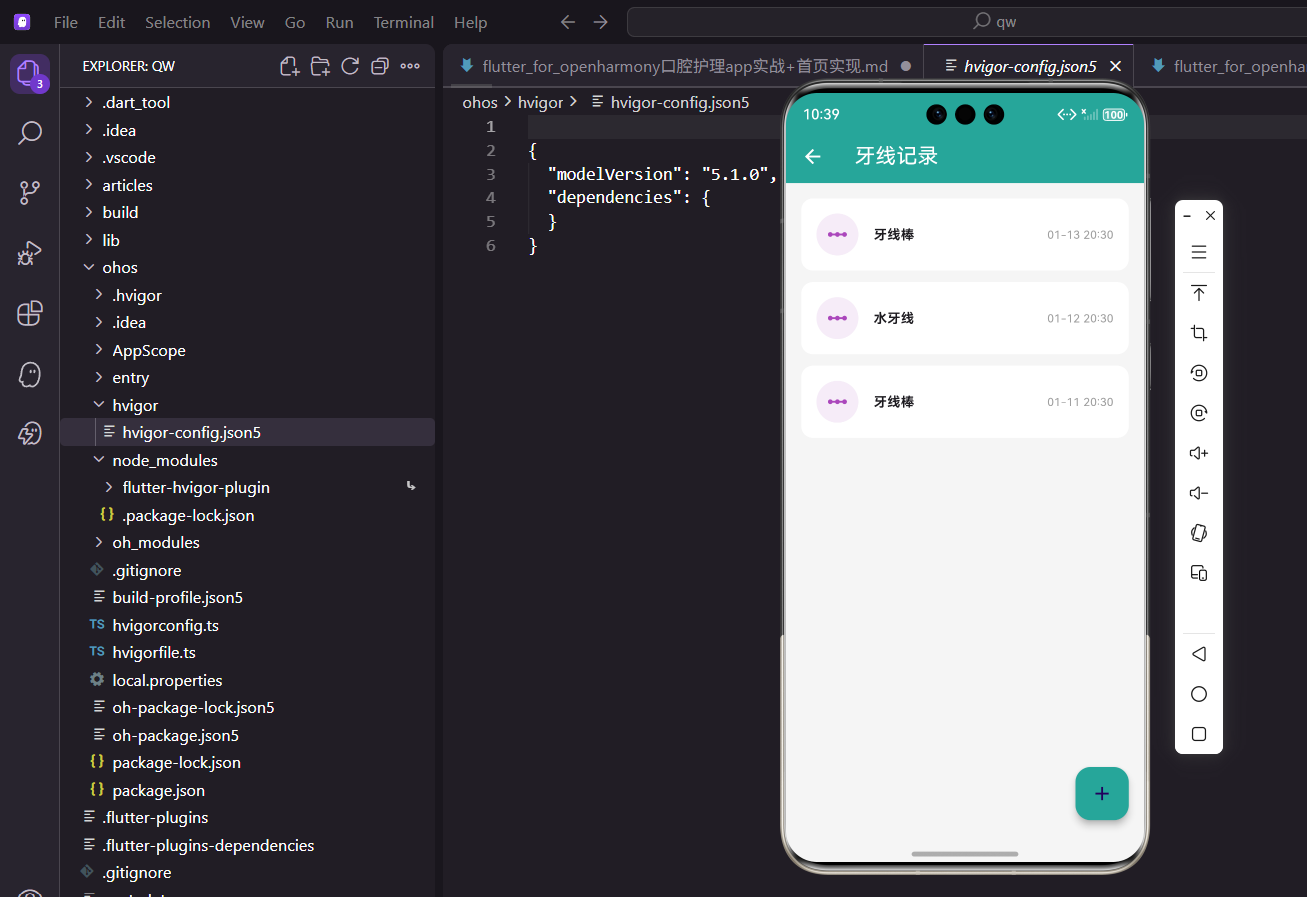
本文介绍了在Flutter中实现牙线记录功能的方法,主要包括记录列表展示和添加记录对话框。牙线记录页面采用紫色为主色调,包含记录卡片设计、类型选择(牙线棒/传统牙线/水牙线)和备注功能。通过Consumer监听数据变化,使用ListView展示记录列表,卡片包含类型、备注和时间信息。添加记录对话框提供类型下拉选择,数据模型包含时间、类型和可选备注字段,通过AppProvider统一管理记录数据。该
引言
牙线是清洁牙缝的重要工具,能够有效去除刷牙无法清除的食物残渣和牙菌斑。养成每天使用牙线的习惯,对于预防龋齿和牙周病有重要作用。在口腔护理应用中,记录牙线使用情况可以帮助用户追踪这一重要的护理习惯。
本文将介绍如何在 Flutter 中实现牙线记录功能,包括记录列表展示和添加记录对话框。
功能概述
牙线记录页面需要实现以下功能:
- 记录列表:展示所有牙线使用记录
- 类型区分:支持牙线棒、传统牙线、水牙线等不同类型
- 添加记录:通过浮动按钮快速添加新记录
- 备注功能:支持为记录添加备注信息
页面基础结构
牙线记录页面采用 StatelessWidget 实现:
class FlossPage extends StatelessWidget {
const FlossPage({super.key});
Widget build(BuildContext context) {
return Scaffold(
appBar: AppBar(title: const Text('牙线记录')),
floatingActionButton: FloatingActionButton(
onPressed: () => _showAddDialog(context),
backgroundColor: const Color(0xFF26A69A),
child: const Icon(Icons.add),
),
页面结构与漱口记录类似,包含标题栏和浮动操作按钮。保持一致的交互模式有助于用户快速上手。
记录列表构建
使用 Consumer 监听数据变化:
      body: Consumer<AppProvider>(
        builder: (context, provider, _) {
          if (provider.flossRecords.isEmpty) {
            return const Center(child: Text('暂无牙线使用记录'));
          }

          return ListView.builder(
            padding: const EdgeInsets.all(16),
            itemCount: provider.flossRecords.length,
            itemBuilder: (context, index) {
              final record = provider.flossRecords[index];
空状态检查和列表构建是标准模式,确保在没有数据时给用户友好的提示。
记录卡片设计
牙线记录卡片使用紫色作为主色调:
              return Container(
                margin: const EdgeInsets.only(bottom: 12),
                padding: const EdgeInsets.all(16),
                decoration: BoxDecoration(
                  color: Colors.white,
                  borderRadius: BorderRadius.circular(12),
                ),
                child: Row(
                  children: [
                    Container(
                      padding: const EdgeInsets.all(10),
                      decoration: BoxDecoration(
                        color: const Color(0xFFAB47BC).withOpacity(0.1),
                        shape: BoxShape.circle,
                      ),
                      child: const Icon(Icons.linear_scale, color: Color(0xFFAB47BC)),
                    ),
紫色与刷牙的绿色、漱口的蓝色形成三色体系,让用户通过颜色快速识别不同类型的护理记录。linear_scale 图标形象地表示牙线的形态。
卡片中间区域展示类型和备注:
                    const SizedBox(width: 16),
                    Expanded(
                      child: Column(
                        crossAxisAlignment: CrossAxisAlignment.start,
                        children: [
                          Text(record.type,
                               style: const TextStyle(fontWeight: FontWeight.bold)),
                          if (record.note != null)
                            Text(record.note!,
                                 style: TextStyle(color: Colors.grey.shade600)),
                        ],
                      ),
                    ),
牙线类型作为主标题,备注信息使用条件渲染,只有存在备注时才显示。
卡片右侧显示时间:
                    Text(
                      DateFormat('MM-dd HH:mm').format(record.dateTime),
                      style: TextStyle(color: Colors.grey.shade500, fontSize: 12),
                    ),
                  ],
                ),
              );
            },
          );
        },
      ),
    );
  }
时间格式与其他记录页面保持一致,便于用户理解。
添加记录对话框
添加牙线记录的对话框相对简单:
void _showAddDialog(BuildContext context) {
  String type = '牙线棒';

  showDialog(
    context: context,
    builder: (ctx) => StatefulBuilder(
      builder: (context, setState) => AlertDialog(
        title: const Text('添加牙线记录'),
        content: DropdownButtonFormField<String>(
          value: type,
          decoration: const InputDecoration(labelText: '牙线类型'),
          items: const [
            DropdownMenuItem(value: '牙线棒', child: Text('牙线棒')),
            DropdownMenuItem(value: '传统牙线', child: Text('传统牙线')),
            DropdownMenuItem(value: '水牙线', child: Text('水牙线')),
          ],
          onChanged: (v) => setState(() => type = v!),
        ),
提供三种常见的牙线类型供选择:牙线棒适合初学者,传统牙线清洁效果更好,水牙线则是电动设备。
对话框操作按钮:
        actions: [
          TextButton(
            onPressed: () => Navigator.pop(ctx),
            child: const Text('取消')
          ),
          ElevatedButton(
            onPressed: () {
              final record = FlossRecord(dateTime: DateTime.now(), type: type);
              context.read<AppProvider>().addFlossRecord(record);
              Navigator.pop(ctx);
            },
            child: const Text('保存'),
          ),
        ],
      ),
    ),
  );
}
保存时创建记录对象并添加到列表,然后关闭对话框。
数据模型定义
牙线记录的数据模型:
class FlossRecord {
  final String id;
  final DateTime dateTime;
  final String type;
  final String? note;

  FlossRecord({
    String? id,
    required this.dateTime,
    required this.type,
    this.note,
  }) : id = id ?? DateTime.now().millisecondsSinceEpoch.toString();
}
模型包含时间、类型和可选的备注字段。备注使用可空类型,允许用户不填写。
Provider 数据管理
在 AppProvider 中管理牙线记录:
List<FlossRecord> _flossRecords = [];
List<FlossRecord> get flossRecords => _flossRecords;

void addFlossRecord(FlossRecord record) {
  _flossRecords.insert(0, record);
  notifyListeners();
}
与其他记录类型保持一致的数据管理模式。
测试数据生成
生成测试数据:
void initTestData() {
  _flossRecords = [
    FlossRecord(
      dateTime: DateTime.now().subtract(const Duration(hours: 2)),
      type: '牙线棒',
    ),
    FlossRecord(
      dateTime: DateTime.now().subtract(const Duration(days: 1)),
      type: '水牙线',
      note: '清洁后牙区',
    ),
  ];
}
测试数据包含有备注和无备注的记录,便于验证条件渲染。
添加备注功能
可以在对话框中添加备注输入:
void _showAddDialog(BuildContext context) {
  String type = '牙线棒';
  final noteController = TextEditingController();

  showDialog(
    context: context,
    builder: (ctx) => StatefulBuilder(
      builder: (context, setState) => AlertDialog(
        title: const Text('添加牙线记录'),
        content: Column(
          mainAxisSize: MainAxisSize.min,
          children: [
            DropdownButtonFormField<String>(
              value: type,
              decoration: const InputDecoration(labelText: '牙线类型'),
              items: const [
                DropdownMenuItem(value: '牙线棒', child: Text('牙线棒')),
                DropdownMenuItem(value: '传统牙线', child: Text('传统牙线')),
                DropdownMenuItem(value: '水牙线', child: Text('水牙线')),
              ],
              onChanged: (v) => setState(() => type = v!),
            ),
            const SizedBox(height: 16),
            TextField(
              controller: noteController,
              decoration: const InputDecoration(
                labelText: '备注(可选)',
                hintText: '如:清洁了哪些区域',
              ),
            ),
          ],
        ),
        actions: [
          TextButton(
            onPressed: () => Navigator.pop(ctx),
            child: const Text('取消'),
          ),
          ElevatedButton(
            onPressed: () {
              final record = FlossRecord(
                dateTime: DateTime.now(),
                type: type,
                note: noteController.text.isEmpty ? null : noteController.text,
              );
              context.read<AppProvider>().addFlossRecord(record);
              Navigator.pop(ctx);
            },
            child: const Text('保存'),
          ),
        ],
      ),
    ),
  );
}
备注字段使用 TextField,提示用户可以记录清洁了哪些区域。空字符串转换为 null 存储。
牙线类型说明
可以为每种牙线类型添加说明:
Widget _buildTypeDescription(String type) {
  String description;
  switch (type) {
    case '牙线棒':
      description = '方便携带,适合初学者使用';
      break;
    case '传统牙线':
      description = '清洁效果最好,需要一定技巧';
      break;
    case '水牙线':
      description = '使用水流清洁,适合牙套佩戴者';
      break;
    default:
      description = '';
  }
  return Text(description,
      style: TextStyle(color: Colors.grey.shade600, fontSize: 12));
}
在对话框中显示类型说明,帮助用户选择合适的牙线类型。
使用频率统计
可以统计牙线使用频率:
int getWeeklyFlossCount() {
  final weekAgo = DateTime.now().subtract(const Duration(days: 7));
  return _flossRecords.where((r) => r.dateTime.isAfter(weekAgo)).length;
}

String getFlossAdvice() {
  final weeklyCount = getWeeklyFlossCount();
  if (weeklyCount >= 7) {
    return '太棒了!每天都在使用牙线,继续保持!';
  } else if (weeklyCount >= 3) {
    return '不错的开始,建议每天使用牙线效果更好';
  } else {
    return '建议增加牙线使用频率,每天至少一次';
  }
}
根据使用频率给出个性化建议,激励用户养成习惯。
类型使用统计
统计各类型牙线的使用次数:
Map<String, int> getTypeStats() {
  final stats = <String, int>{};
  for (var record in _flossRecords) {
    stats[record.type] = (stats[record.type] ?? 0) + 1;
  }
  return stats;
}
可以用于展示用户最常用的牙线类型。
页面顶部统计卡片
在列表上方添加统计信息:
Container(
  padding: const EdgeInsets.all(16),
  margin: const EdgeInsets.only(bottom: 16),
  decoration: BoxDecoration(
    gradient: LinearGradient(
      colors: [
        const Color(0xFFAB47BC).withOpacity(0.8),
        const Color(0xFFAB47BC),
      ],
    ),
    borderRadius: BorderRadius.circular(12),
  ),
  child: Row(
    mainAxisAlignment: MainAxisAlignment.spaceAround,
    children: [
      Column(
        children: [
          Text('${provider.flossRecords.length}',
               style: const TextStyle(fontSize: 28,
                   fontWeight: FontWeight.bold, color: Colors.white)),
          const Text('总次数', style: TextStyle(color: Colors.white70)),
        ],
      ),
      Column(
        children: [
          Text('$weeklyCount',
               style: const TextStyle(fontSize: 28,
                   fontWeight: FontWeight.bold, color: Colors.white)),
          const Text('本周', style: TextStyle(color: Colors.white70)),
        ],
      ),
    ],
  ),
)
使用渐变背景的统计卡片,展示总次数和本周使用次数。
快捷记录按钮
添加快捷记录功能:
Padding(
  padding: const EdgeInsets.symmetric(horizontal: 16),
  child: Row(
    children: [
      Expanded(
        child: OutlinedButton.icon(
          onPressed: () {
            final record = FlossRecord(
              dateTime: DateTime.now(),
              type: '牙线棒',
            );
            provider.addFlossRecord(record);
            ScaffoldMessenger.of(context).showSnackBar(
              const SnackBar(content: Text('已记录牙线棒使用')),
            );
          },
          icon: const Icon(Icons.flash_on),
          label: const Text('快速记录'),
        ),
      ),
    ],
  ),
)
快捷按钮使用默认类型直接添加记录,减少操作步骤。
连续使用天数
计算连续使用牙线的天数:
int get flossStreakDays {
  if (_flossRecords.isEmpty) return 0;

  int streak = 0;
  var checkDate = DateTime.now();

  while (true) {
    final hasRecord = _flossRecords.any((record) {
      return record.dateTime.year == checkDate.year &&
             record.dateTime.month == checkDate.month &&
             record.dateTime.day == checkDate.day;
    });

    if (hasRecord) {
      streak++;
      checkDate = checkDate.subtract(const Duration(days: 1));
    } else {
      break;
    }
  }

  return streak;
}
连续天数是激励用户坚持的重要指标。
提醒功能集成
可以添加牙线使用提醒:
void setFlossReminder(TimeOfDay time) {
  // 设置每日提醒
  final now = DateTime.now();
  var scheduledDate = DateTime(
    now.year, now.month, now.day,
    time.hour, time.minute,
  );

  if (scheduledDate.isBefore(now)) {
    scheduledDate = scheduledDate.add(const Duration(days: 1));
  }

  // 调用通知插件设置提醒
}
提醒功能帮助用户养成每天使用牙线的习惯。
空状态优化
为空状态添加引导:
if (provider.flossRecords.isEmpty) {
  return Center(
    child: Column(
      mainAxisAlignment: MainAxisAlignment.center,
      children: [
        Icon(Icons.linear_scale, size: 64, color: Colors.grey.shade300),
        const SizedBox(height: 16),
        Text('暂无牙线使用记录',
             style: TextStyle(color: Colors.grey.shade500)),
        const SizedBox(height: 8),
        Text('每天使用牙线可以有效预防龋齿',
             style: TextStyle(color: Colors.grey.shade400, fontSize: 12)),
        const SizedBox(height: 16),
        ElevatedButton.icon(
          onPressed: () => _showAddDialog(context),
          icon: const Icon(Icons.add),
          label: const Text('添加第一条记录'),
          style: ElevatedButton.styleFrom(
            backgroundColor: const Color(0xFFAB47BC),
          ),
        ),
      ],
    ),
  );
}
空状态页面添加健康提示和添加按钮,引导用户开始记录。
总结
本文详细介绍了口腔护理 App 中牙线记录功能的实现。通过简洁的界面设计和便捷的操作流程,我们构建了一个易于使用的牙线记录管理页面。核心技术点包括:
- 使用紫色主题区分牙线记录
- 通过
DropdownButtonFormField实现类型选择 - 支持可选的备注信息
- 条件渲染处理可空字段
牙线使用是口腔护理的重要环节,希望本文的实现能够帮助用户养成良好的护理习惯。
欢迎加入开源鸿蒙跨平台社区:https://openharmonycrossplatform.csdn.net

开源鸿蒙跨平台开发社区汇聚开发者与厂商,共建“一次开发,多端部署”的开源生态,致力于降低跨端开发门槛,推动万物智联创新。
更多推荐
 11
11 0
0- 0


 已为社区贡献30条内容

所有评论(0)