Flutter 框架跨平台鸿蒙开发——可选择文本
SelectableText允许用户选择、复制和粘贴文本,是Text组件的交互增强版。'这段文本使用自定义工具栏',cut: true,),
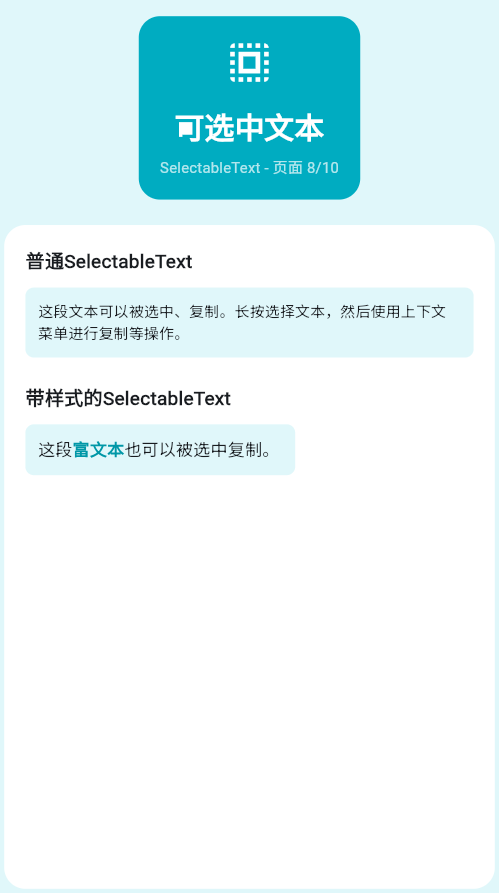
可选择文本
一、SelectableText简介与核心特性
SelectableText是Flutter中一个重要的文本组件,它允许用户选择、复制和粘贴文本,是Text组件的交互增强版。在移动应用中,文本选择功能在很多场景下都非常重要,比如代码展示、地址信息、产品编号、API密钥等,用户可能需要复制这些文本到其他地方使用。SelectableText提供了完整的文本选择功能,包括长按选择、拖动调整选择范围、复制到剪贴板、全选等操作,极大地方便了用户的使用体验。
SelectableText vs Text的对比分析:
| 特性 | Text | SelectableText |
|---|---|---|
| 文本选择 | 不支持 | 支持 |
| 复制功能 | 不支持 | 支持 |
| 工具栏 | 不显示 | 可配置 |
| 光标显示 | 不支持 | 支持 |
| 富文本 | 支持 | 支持 |
| 使用场景 | 标题、标签、静态文本 | 代码、地址、密钥等需要复制的文本 |
| 性能开销 | 低 | 稍高 |
| 交互性 | 无交互 | 支持长按、拖动等手势 |
SelectableText的核心优势在于它继承了Text的所有样式和布局能力,同时添加了文本选择功能。这意味着你可以在使用SelectableText时,像使用Text一样设置字体大小、颜色、行高、对齐方式等样式属性。SelectableText还支持TextSpan富文本,可以在同一个组件中显示多种样式的文本,并且这些文本都可以被选择和复制。
二、SelectableText基础用法与参数详解
SelectableText提供了多个构造函数和参数,满足不同的使用需求。最基本的用法是使用SelectableText(String data)构造函数,直接传入要显示的文本字符串。这种用法最简单,适合纯文本场景,文本会按照默认样式显示,支持文本选择和复制功能。
SelectableText支持与Text相同的样式属性,包括style、textAlign、maxLines、overflow等。style属性用于设置文本的样式,可以设置字体大小、颜色、字重、字体风格等。textAlign用于设置文本的对齐方式,支持左对齐、右对齐、居中对齐等。maxLines用于限制文本的最大行数,配合overflow参数可以控制文本溢出的显示方式。
showCursor参数用于控制是否显示光标,默认为false。当设置为true时,SelectableText会显示一个闪烁的光标,光标的位置和样式可以通过cursorColor、cursorWidth、cursorHeight、cursorRadius等参数自定义。光标功能主要用于编辑场景,但在SelectableText中更多是视觉提示作用,告诉用户这段文本是可以交互的。
// 简单可选择文本
SelectableText(
  '这段文本可以被选择和复制。',
  style: TextStyle(fontSize: 16),
)

// 带完整参数的可选择文本
SelectableText(
  '这是一段带样式的可选择文本,支持长按选择、拖动调整、复制到剪贴板等功能。',
  style: TextStyle(
    fontSize: 18,
    color: Colors.blue.shade800,
    fontWeight: FontWeight.w500,
    height: 1.5,
    letterSpacing: 0.5,
  ),
  textAlign: TextAlign.left,
  maxLines: null,
  overflow: TextOverflow.visible,
  showCursor: true,
  cursorColor: Colors.blue,
  cursorWidth: 2.0,
  cursorHeight: 24,
  cursorRadius: Radius.circular(2),
)
SelectableText的参数详解:
| 参数 | 类型 | 默认值 | 说明 |
|---|---|---|---|
| data | String | 必需 | 要显示的文本 |
| style | TextStyle | DefaultTextStyle | 文本样式 |
| textAlign | TextAlign | TextAlign.start | 文本对齐方式 |
| maxLines | int? | null | 最大行数 |
| overflow | TextOverflow | TextOverflow.clip | 溢出处理方式 |
| showCursor | bool | false | 是否显示光标 |
| cursorColor | Color | themeData.cursorColor | 光标颜色 |
| cursorWidth | double | 2.0 | 光标宽度 |
| cursorHeight | double? | null | 光标高度 |
| cursorRadius | Radius? | null | 光标圆角 |
| enableInteractiveSelection | bool | true | 是否启用交互选择 |
| toolbarOptions | ToolbarOptions | 默认选项 | 工具栏选项 |
三、工具栏配置与自定义操作
SelectableText提供了一个可选的上下文工具栏,在用户长按选择文本后会显示。工具栏包含复制、全选、粘贴等操作按钮,用户可以点击这些按钮快速执行相应操作。通过toolbarOptions参数,可以自定义工具栏显示哪些操作按钮,或者通过contextMenuBuilder参数完全自定义工具栏的外观和行为。
ToolbarOptions是一个类,包含四个布尔属性:copy(复制)、selectAll(全选)、paste(粘贴)、cut(剪切)。默认情况下,所有操作都是启用的。如果你只想保留部分操作,可以禁用不需要的操作。比如,在显示产品编号或API密钥时,通常只需要复制功能,可以禁用粘贴和剪切操作。
contextMenuBuilder参数允许完全自定义工具栏。它是一个函数,接收context和editableTextState作为参数,返回一个widget。你可以返回任何自定义widget,比如自定义的PopupMenu、自定义的操作按钮列表,甚至是一个完全不同的UI。如果不想要工具栏,可以返回一个空的Container来隐藏工具栏。
// 默认工具栏
SelectableText(
  '这段文本使用默认工具栏',
  style: TextStyle(fontSize: 16),
)

// 自定义工具栏选项
SelectableText(
  '这段文本只允许复制',
  style: TextStyle(fontSize: 16),
  toolbarOptions: ToolbarOptions(
    copy: true,
    selectAll: true,
    paste: false,  // 禁用粘贴
    cut: false,    // 禁用剪切
  ),
)

// 自定义工具栏外观
SelectableText(
  '这段文本使用自定义工具栏',
  style: TextStyle(fontSize: 16),
  contextMenuBuilder: (context, editableTextState) {
    return Container(
      decoration: BoxDecoration(
        color: Colors.blue,
        borderRadius: BorderRadius.circular(8),
        boxShadow: [
          BoxShadow(
            color: Colors.black26,
            blurRadius: 10,
            offset: Offset(0, 2),
          ),
        ],
      ),
      child: Row(
        mainAxisSize: MainAxisSize.min,
        children: [
          TextButton.icon(
            onPressed: () {
              editableTextState.copySelection(SelectionChangedCause.toolbar);
              Navigator.of(context).pop();
            },
            icon: Icon(Icons.copy, color: Colors.white),
            label: Text('复制', style: TextStyle(color: Colors.white)),
          ),
        ],
      ),
    );
  },
)

// 隐藏工具栏(完全禁用选择)
SelectableText(
  '这段文本可以显示但不显示工具栏',
  style: TextStyle(fontSize: 16),
  enableInteractiveSelection: false,  // 禁用选择功能
)
工具栏的响应流程:
四、SelectableText.rich富文本支持
SelectableText.rich构造函数支持使用TextSpan创建富文本。TextSpan允许在同一个文本组件中显示多种样式的文本,每个TextSpan可以独立设置颜色、字体大小、字重等样式。最重要的是,使用SelectableText.rich创建的富文本仍然支持完整的文本选择功能,用户可以选择跨越多个TextSpan的文本内容。
TextSpan可以包含一个children列表,每个子元素都是一个TextSpan或WidgetSpan。WidgetSpan允许在文本中插入任意的widget,比如图片、图标等。但是需要注意的是,WidgetSpan不支持选择,用户选择文本时会跳过WidgetSpan。这是Flutter框架的限制,因为widget的边界计算比文本复杂得多。
TextSpan还支持recognizer属性,可以添加手势识别器。最常见的用法是添加TapGestureRecognizer,实现文本的点击事件。这种技术可以创建可点击的链接、标签等交互元素。需要注意的是, recognizer会与文本选择功能冲突,如果设置了recognizer,该段文本将无法被选择。
// 基础富文本
SelectableText.rich(
  TextSpan(
    style: TextStyle(fontSize: 16, color: Colors.black87),
    children: [
      TextSpan(text: '欢迎使用'),
      TextSpan(
        text: ' Flutter ',
        style: TextStyle(
          color: Colors.blue,
          fontWeight: FontWeight.bold,
          fontSize: 20,
        ),
      ),
      TextSpan(text: '框架!\n'),
      TextSpan(
        text: '这段富文本可以被完整选择。',
        style: TextStyle(
          color: Colors.grey.shade700,
          fontStyle: FontStyle.italic,
        ),
      ),
    ],
  ),
)

// 带交互的富文本
SelectableText.rich(
  TextSpan(
    style: TextStyle(fontSize: 16),
    children: [
      TextSpan(text: '点击'),
      TextSpan(
        text: ' 这里',
        style: TextStyle(
          color: Colors.blue,
          decoration: TextDecoration.underline,
        ),
        recognizer: TapGestureRecognizer()
          ..onTap = () {
            print('这里被点击了');
            // 可以执行导航、显示对话框等操作
          },
      ),
      TextSpan(text: '会触发点击事件,'),
      TextSpan(text: '但这段文本'),
      TextSpan(
        text: ' 可以被选择。',
        style: TextStyle(
          color: Colors.green,
          fontWeight: FontWeight.bold,
        ),
      ),
    ],
  ),
)

// 带图标和不同样式的富文本
SelectableText.rich(
  TextSpan(
    style: TextStyle(fontSize: 16, height: 1.8),
    children: [
      WidgetSpan(
        child: Padding(
          padding: EdgeInsets.only(right: 8),
          child: Icon(Icons.check_circle, color: Colors.green, size: 20),
        ),
      ),
      TextSpan(
        text: 'Flutter是一个优秀的跨平台框架\n',
        style: TextStyle(fontWeight: FontWeight.bold),
      ),
      WidgetSpan(
        child: Padding(
          padding: EdgeInsets.only(right: 8),
          child: Icon(Icons.star, color: Colors.amber, size: 20),
        ),
      ),
      TextSpan(
        text: '它使用Dart语言\n',
        style: TextStyle(color: Colors.blue),
      ),
      WidgetSpan(
        child: Padding(
          padding: EdgeInsets.only(right: 8),
          child: Icon(Icons.favorite, color: Colors.red, size: 20),
        ),
      ),
      TextSpan(
        text: '热重载功能大大提高了开发效率',
        style: TextStyle(color: Colors.purple),
      ),
    ],
  ),
)
五、实际应用场景与最佳实践
SelectableText在实际应用中有许多使用场景,每个场景都有其特定的需求和最佳实践。了解这些场景和最佳实践,可以帮助开发者更好地使用SelectableText,提供更好的用户体验。
代码展示场景
在技术文档、教程应用中,代码展示是一个常见场景。代码通常需要使用等宽字体显示,并带有背景色以便于区分。使用SelectableText可以让用户轻松复制代码到编辑器中运行。代码通常比较长,应该设置maxLines为null或足够大的值,避免被截断。
地址信息场景
电商、外卖应用中,收货地址是一个常见场景。地址信息通常包含姓名、电话、详细地址、邮编等多行文本。使用SelectableText可以让用户快速复制地址到其他应用中,比如地图导航或分享给他人。地址信息应该使用合适的行高和字体大小,确保可读性。
产品编号/密钥场景
在电商、金融应用中,产品编号、订单号、API密钥等需要复制的文本是一个常见场景。这些文本通常是较长的字符串,用户很难手动输入。使用SelectableText可以大大提高用户体验,用户可以一键复制这些文本。这些文本通常使用等宽字体显示,并限制最大行数,避免占用过多空间。
日志/调试信息场景
在开发工具、系统监控应用中,日志和调试信息是一个常见场景。这些信息通常很长,包含多行文本,用户可能需要复制其中的某些部分进行分析。使用SelectableText可以让用户灵活选择需要的日志片段。日志通常使用等宽字体和深色背景,模拟终端的显示效果。
// 场景1: 代码展示
Container(
  padding: EdgeInsets.all(16),
  decoration: BoxDecoration(
    color: Colors.grey.shade900,
    borderRadius: BorderRadius.circular(8),
  ),
  child: Column(
    crossAxisAlignment: CrossAxisAlignment.start,
    children: [
      Row(
        children: [
          Icon(Icons.code, color: Colors.green, size: 20),
          SizedBox(width: 8),
          Text(
            'main.dart',
            style: TextStyle(
              color: Colors.green,
              fontFamily: 'monospace',
              fontSize: 14,
            ),
          ),
          Spacer(),
          IconButton(
            icon: Icon(Icons.copy, color: Colors.grey, size: 16),
            onPressed: () {
              // 自定义复制按钮
              Clipboard.setData(ClipboardData(text: codeSnippet));
              ScaffoldMessenger.of(context).showSnackBar(
                SnackBar(content: Text('代码已复制')),
              );
            },
          ),
        ],
      ),
      SizedBox(height: 12),
      SelectableText(
        '''void main() {
  runApp(MyApp());
}

class MyApp extends StatelessWidget {
  @override
  Widget build(BuildContext context) {
    return MaterialApp(
      home: HomePage(),
    );
  }
}''',
        style: TextStyle(
          fontFamily: 'monospace',
          color: Colors.green.shade400,
          fontSize: 13,
          height: 1.6,
        ),
      ),
    ],
  ),
)

// 场景2: 地址信息卡片
Card(
  elevation: 2,
  child: Padding(
    padding: EdgeInsets.all(16),
    child: Column(
      crossAxisAlignment: CrossAxisAlignment.start,
      children: [
        Row(
          children: [
            Icon(Icons.location_on, color: Colors.red, size: 20),
            SizedBox(width: 8),
            Text(
              '收货地址',
              style: TextStyle(
                fontWeight: FontWeight.bold,
                fontSize: 18,
              ),
            ),
            Spacer(),
            IconButton(
              icon: Icon(Icons.edit, color: Colors.blue),
              onPressed: () {
                // 编辑地址
              },
            ),
          ],
        ),
        Divider(height: 24),
        SelectableText(
          '张三\n'
          '138****8888\n'
          '北京市朝阳区xxx街道xxx号xxx小区\n'
          '邮编:100000',
          style: TextStyle(
            fontSize: 15,
            color: Colors.grey.shade800,
            height: 1.6,
            letterSpacing: 0.3,
          ),
        ),
      ],
    ),
  ),
)

// 场景3: 产品编号
Container(
  padding: EdgeInsets.symmetric(horizontal: 16, vertical: 12),
  decoration: BoxDecoration(
    color: Colors.blue.shade50,
    border: Border.all(color: Colors.blue.shade200),
    borderRadius: BorderRadius.circular(8),
  ),
  child: Row(
    children: [
      Text(
        '产品编号:',
        style: TextStyle(
          fontWeight: FontWeight.bold,
          color: Colors.grey.shade700,
        ),
      ),
      SizedBox(width: 8),
      Expanded(
        child: SelectableText(
          'SKU-2024-0012345678',
          style: TextStyle(
            color: Colors.blue,
            fontFamily: 'monospace',
            fontSize: 14,
            letterSpacing: 0.5,
          ),
          toolbarOptions: ToolbarOptions(
            copy: true,
            selectAll: true,
          ),
        ),
      ),
      IconButton(
        icon: Icon(Icons.copy, color: Colors.blue, size: 18),
        onPressed: () {
          Clipboard.setData(
            ClipboardData(text: 'SKU-2024-0012345678'),
          );
        },
        padding: EdgeInsets.zero,
        constraints: BoxConstraints(),
      ),
    ],
  ),
)

// 场景4: API密钥显示
Card(
  child: Padding(
    padding: EdgeInsets.all(16),
    child: Column(
      crossAxisAlignment: CrossAxisAlignment.start,
      children: [
        Text(
          'API密钥',
          style: TextStyle(
            fontWeight: FontWeight.bold,
            fontSize: 16,
          ),
        ),
        SizedBox(height: 12),
        Container(
          padding: EdgeInsets.all(12),
          decoration: BoxDecoration(
            color: Colors.grey.shade100,
            border: Border.all(color: Colors.grey.shade300),
            borderRadius: BorderRadius.circular(4),
          ),
          child: SelectableText(
            'sk_live_51ABC1234567890XYZabcdefg1234567890',
            style: TextStyle(
              fontFamily: 'monospace',
              fontSize: 13,
              color: Colors.grey.shade800,
            ),
            showCursor: true,
            cursorColor: Colors.blue,
          ),
        ),
        SizedBox(height: 8),
        Text(
          '请妥善保管您的密钥,不要泄露给他人',
          style: TextStyle(
            fontSize: 12,
            color: Colors.orange,
          ),
        ),
      ],
    ),
  ),
)
六、性能优化与注意事项
虽然SelectableText功能强大,但在使用时也需要注意一些性能和体验问题。合理的优化和注意事项可以让应用更加流畅,用户体验更好。
性能优化建议:
-
避免过长的文本:SelectableText对于非常长的文本(比如超过1000行)可能会有性能问题。如果需要显示超长文本,考虑使用分页、虚拟滚动或懒加载。
-
谨慎使用富文本:TextSpan嵌套过深或数量过多会增加渲染开销。保持TextSpan结构简单,避免不必要的嵌套。
-
禁用不必要的交互:如果某些文本不需要选择功能,使用Text代替SelectableText,减少性能开销。
-
控制工具栏复杂度:自定义工具栏时,避免过于复杂的widget,保持简洁轻量。
体验优化建议:
-
视觉区分:给SelectableText添加独特的样式(如背景色、边框、图标),让用户直观地知道这段文本是可以选择的。
-
提供复制按钮:除了工具栏,还可以提供一个可见的复制按钮,用户无需长按就能快速复制,提升体验。
-
显示复制成功提示:用户复制文本后,显示一个短暂的提示(如Snackbar),告知用户操作成功。
-
限制行数:对于可能很长的文本,设置maxLines参数,避免占用过多屏幕空间。如果用户需要查看完整内容,提供一个"展开"按钮。
常见问题与解决方案:
| 问题 | 原因 | 解决方案 |
|---|---|---|
| 选择文本时卡顿 | 文本过长或富文本复杂 | 减少文本长度或简化TextSpan |
| 工具栏不显示 | enableInteractiveSelection设为false | 设置为true或移除此参数 |
| 复制功能不工作 | 应用没有剪贴板权限 | 确保应用有正确权限 |
| 光标不显示 | showCursor设为false | 设置showCursor为true |
| 富文本无法选择 | TextSpan设置了recognizer | 移除recognizer或使用普通TextSpan |
七、完整示例与最佳实践总结
class SelectableTextExample extends StatelessWidget {
const SelectableTextExample({super.key});
Widget build(BuildContext context) {
return Scaffold(
appBar: AppBar(title: Text('可选择文本示例')),
body: ListView(
padding: EdgeInsets.all(16),
children: [
_buildSection('基础用法'),
_buildBasicExamples(),
SizedBox(height: 24),
_buildSection('富文本'),
_buildRichText(),
SizedBox(height: 24),
_buildSection('实际应用'),
_buildRealWorldExamples(),
],
),
);
}
Widget _buildSection(String title) {
return Padding(
padding: EdgeInsets.only(bottom: 16),
child: Text(
title,
style: TextStyle(fontSize: 20, fontWeight: FontWeight.bold),
),
);
}
Widget _buildBasicExamples() {
return Column(
children: [
_buildExampleCard(
'简单文本',
SelectableText(
'这段文本可以被选择和复制。',
style: TextStyle(fontSize: 14),
),
Colors.blue,
),
SizedBox(height: 16),
_buildExampleCard(
'带光标文本',
SelectableText(
'这段文本显示光标',
showCursor: true,
cursorColor: Colors.green,
style: TextStyle(fontSize: 14),
),
Colors.green,
),
],
);
}
Widget _buildExampleCard(String title, Widget content, Color color) {
return Container(
padding: EdgeInsets.all(16),
decoration: BoxDecoration(
color: color.withOpacity(0.1),
border: Border.all(color: color.withOpacity(0.3)),
borderRadius: BorderRadius.circular(8),
),
child: Column(
crossAxisAlignment: CrossAxisAlignment.start,
children: [
Row(
children: [
Icon(Icons.info_outline, color: color, size: 20),
SizedBox(width: 8),
Text(
title,
style: TextStyle(
fontWeight: FontWeight.bold,
color: color.shade700,
),
),
],
),
SizedBox(height: 12),
content,
],
),
);
}
Widget _buildRichText() {
return Container(
padding: EdgeInsets.all(16),
decoration: BoxDecoration(
color: Colors.orange.shade50,
border: Border.all(color: Colors.orange.shade200),
borderRadius: BorderRadius.circular(8),
),
child: Column(
crossAxisAlignment: CrossAxisAlignment.start,
children: [
Text('富文本', style: TextStyle(fontWeight: FontWeight.bold, fontSize: 16)),
SizedBox(height: 12),
SelectableText.rich(
TextSpan(
style: TextStyle(fontSize: 14, color: Colors.black87),
children: [
TextSpan(text: '欢迎使用'),
TextSpan(
text: ' Flutter ',
style: TextStyle(
color: Colors.blue,
fontWeight: FontWeight.bold,
fontSize: 18,
),
),
TextSpan(text: '框架!\n'),
TextSpan(
text: '这段富文本支持多种样式,并且可以被完整选择。',
style: TextStyle(color: Colors.grey.shade700),
),
],
),
),
],
),
);
}
Widget _buildRealWorldExamples() {
return Column(
children: [
// 代码展示
_buildCodeBlock(),
SizedBox(height: 16),
// 地址信息
_buildAddressCard(),
SizedBox(height: 16),
// 产品编号
_buildProductCode(),
],
);
}
Widget _buildCodeBlock() {
final codeSnippet = '''void main() {
runApp(MyApp());
}
class MyApp extends StatelessWidget {
@override
Widget build(BuildContext context) {
return MaterialApp(
home: HomePage(),
);
}
}''';
return Card(
elevation: 2,
child: Padding(
padding: EdgeInsets.all(16),
child: Column(
crossAxisAlignment: CrossAxisAlignment.start,
children: [
Row(
children: [
Icon(Icons.code, color: Colors.grey.shade700),
SizedBox(width: 8),
Text('代码示例', style: TextStyle(fontWeight: FontWeight.bold)),
Spacer(),
IconButton(
icon: Icon(Icons.copy, color: Colors.grey),
onPressed: () {
Clipboard.setData(ClipboardData(text: codeSnippet));
ScaffoldMessenger.of(context).showSnackBar(
SnackBar(content: Text('代码已复制')),
);
},
),
],
),
SizedBox(height: 12),
Container(
width: double.infinity,
padding: EdgeInsets.all(12),
decoration: BoxDecoration(
color: Colors.grey.shade900,
borderRadius: BorderRadius.circular(4),
),
child: SelectableText(
codeSnippet,
style: TextStyle(
fontFamily: 'monospace',
color: Colors.green.shade400,
fontSize: 12,
height: 1.5,
),
),
),
],
),
),
);
}
Widget _buildAddressCard() {
return Card(
elevation: 2,
child: Padding(
padding: EdgeInsets.all(16),
child: Column(
crossAxisAlignment: CrossAxisAlignment.start,
children: [
Row(
children: [
Icon(Icons.location_on, color: Colors.red),
SizedBox(width: 8),
Text('收货地址', style: TextStyle(fontWeight: FontWeight.bold)),
],
),
SizedBox(height: 12),
SelectableText(
'张三\n'
'138****8888\n'
'北京市朝阳区xxx街道xxx号\n'
'邮编:100000',
style: TextStyle(
fontSize: 14,
color: Colors.grey.shade700,
height: 1.6,
),
),
],
),
),
);
}
Widget _buildProductCode() {
final productCode = 'SKU-2024-0012345678';
return Card(
elevation: 2,
child: ListTile(
leading: Icon(Icons.qr_code, color: Colors.blue),
title: Text('产品编号'),
subtitle: Row(
children: [
Expanded(
child: SelectableText(
productCode,
style: TextStyle(
color: Colors.blue,
fontFamily: 'monospace',
fontSize: 13,
),
),
),
IconButton(
icon: Icon(Icons.copy, color: Colors.blue, size: 20),
onPressed: () {
Clipboard.setData(ClipboardData(text: productCode));
ScaffoldMessenger.of(context).showSnackBar(
SnackBar(content: Text('产品编号已复制')),
);
},
),
],
),
),
);
}
}
最佳实践总结:
| 实践 | 说明 | 效果 |
|---|---|---|
| 合理使用 | 只在需要时使用SelectableText | 避免误操作,节省性能 |
| 视觉区分 | 给SelectableText添加独特样式 | 提示用户可以选择 |
| 提供快捷操作 | 添加复制按钮,避免长按 | 提升用户体验 |
| 限制文本长度 | 对长文本使用maxLines或分页 | 避免性能问题和空间浪费 |
| 简化富文本 | 保持TextSpan结构简单 | 提高性能和稳定性 |
| 反馈提示 | 显示复制成功提示 | 增强用户反馈 |
| 自定义工具栏 | 根据场景自定义工具栏 | 提供更贴合场景的操作 |
欢迎加入开源鸿蒙跨平台社区:https://openharmonycrossplatform.csdn.net

开源鸿蒙跨平台开发社区汇聚开发者与厂商,共建“一次开发,多端部署”的开源生态,致力于降低跨端开发门槛,推动万物智联创新。
更多推荐

 18
18 0
0- 0



 已为社区贡献21条内容

所有评论(0)