Qt学习笔记11:基本会话框3(消息会话框类)
消息会话框类
Qt提供了QMessageBox类提供一种为用户提供一些提示或提醒。
常见的消息对话框有Question、Information、Warining、Critical、About、AboutQt、Custom(自定义)多种消息框。
其中,Question、Information、Warning和Critical消息框的用法大同小异。他们通常用来为用户提供提醒或询问用的一个图标、一条提示信息或者若干个按钮。
其中:
Question提供一个简单的询问;
Information提供提示;
Warning提醒用户发生错误;
Critical警告用户发生严重错误。
接下来,让我们用代码的形式,让各位能够更好的理解。
首先,我们在上次的项目中添加一个C++ Class,点击Choose,输入类的名称为MsgBoxDlg,在Base class下面的列表框中输入基类名QDialog。
而后,在msgboxdlg.h文件写入:
#ifndef MSGBOXDLG_H
#define MSGBOXDLG_H
#include <QLabel>
#include <QPushButton>
#include <QGridLayout>
#include <QDialog>

class MsgBoxDlg : public QDialog
{
    Q_OBJECT
public:
    MsgBoxDlg();
private slots:
    void showQuestinMsg();
    void showInformationMsg();
    void showWarningMsg();
    void showCriticalMsg();
    void showAboutMsg();
    void showAboutQtMsg();
private:
    QLabel *label;
    QLabel *questionBtn;
    QPushButton *informationBtn;
    QPushButton *warningBtn;
    QPushButton *criticalBtn;
    QPushButton *aboutBtn;
    QPushButton *aboutQtBtn;
    QGridLayout *mainLayout;
};

#endif // MSGBOXDLG_H
在msgboxdlg.cpp文件写入:
#include "msgboxdlg.h"

MsgBoxDlg::MsgBoxDlg()
{
    setWindowTitle(tr("标准信息对话框实例"));
    label = new QLabel(tr("请选择一种消息框"));
    questionBtn = new QPushButton(tr("QuestionMsg"));
    informationBtn = new QPushButton(tr("InformationMsg"));
    warningBtn = new QPushButton(tr("WarningMsg"));
    criticalBtn = new QPushButton(tr("CriticalMsg"));
    aboutBtn = new QPushButton(tr("AboutMsg"));
    aboutQtBtn = new QPushButton(tr("AboutQtMsg"));
    mainLayout = new QGridLayout(this);
    mainLayout->addWidget(label,0,0,1,2);
    mainLayout->addWidget(questionBtn,1,0);
    mainLayout->addWidget(informationBtn,1,1);
    mainLayout->addWidget(warningBtn,2,0);
    mainLayout->addWidget(criticalBtn,2,1);
    mainLayout->addWidget(aboutBtn,3,0);
    mainLayout->addWidget(aboutQtBtn,3,1);

    connect(questionBtn,SIGNAL(clicked(bool)),this,SLOT(showQuestinMsg()));
    connect(informationBtn,SIGNAL(clicked(bool)),this,SLOT(showInformationMsg()));
    connect(warningBtn,SIGNAL(clicked(bool)),this,SLOT(showWarningMsg()));
    connect(criticalBtn,SIGNAL(clicked(bool)),this,SLOT(showCriticalMsg()));
    connect(aboutBtn,SIGNAL(clicked(bool)),this,SLOT(showAboutMsg()));
    connect(aboutQtBtn,SIGNAL(clicked(bool)),this,SLOT(showAboutQtMsg()));
}

void MsgBoxDlg::showQuestinMsg()
{

}

void MsgBoxDlg::showInformationMsg()
{

}

void MsgBoxDlg::showWarningMsg()
{

}

void MsgBoxDlg::showCriticalMsg()
{

}

void MsgBoxDlg::showAboutMsg()
{

}

void MsgBoxDlg::showAboutQtMsg()
{

}
然后,在dialog.h文件加入头文件
#include "msgboxdlg.h"
添加private成员
QPushButton *MsgBtn;
MsgBoxDlg *msgDlg;
添加槽函数:
void showMsgDlg();
在dialog.cpp的构造函数后边加入以下代码:
MsgBtn = new QPushButton(tr("标准消息对话框实例"));
mainLayout->addWidget(MsgBtn,3,1);
connect(MsgBtn,SIGNAL(clicked(bool)),this,SLOT(showMsgDlg()));
而后,在下边编写showMsgDlg函数:
void dialog::showMsgDlg()
{
    msgDlg = new MsgBoxDlg();
    msgDlg->show();
}
编译运行后,显示: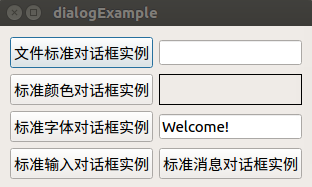
点击标准消息对话框实例后,显示: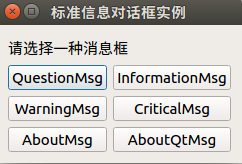
Question消息框
老规矩,先介绍它的静态函数:
StandardButton QMessageBox::question
{
	QWidget *parent,
	const QString &title,
	const QString &text,
	StandardButtons buttons = Ok,			//填写希望在消息框中出现的按钮
	StandardButton defaultButton=NoButton	//默认按钮焦点默认处于哪个按钮
};
对于上述的Ok,可以用 | 连写,QMessageBox类提供了很多标准按钮,例如:
QMessageBox::Ok、QMessageBox::Close、QMessageBox::Discard等,这些东西虽然可以选择,但不可乱选,且通常都是成对出现的,例如:
Save与Discard
Abort、Retry、Ignore一起出现
接下来,在msgboxdlg.cpp文件中添加头文件:
#include <QMessageBox>
然后补充showQuestionMsg()函数:
void MsgBoxDlg::showQuestinMsg()
{
    label->setText(tr("Question Message Box"));
    switch(QMessageBox::question(this,tr("Question 消息框"),
            tr("您现在已经修改完成,是否要结束程序?"),
             QMessageBox::Ok | QMessageBox::Cancel,QMessageBox::Ok))
    {
        case QMessageBox::Ok:
            label->setText("Question button/Ok");
            break;
        case QMessageBox::Cancel:
            label->setText("Question button\Cancel");
            break;
        default:
            break;
    }
}
编译运行后,结果显示如下:
Information消息框
首先介绍静态函数QMessageBox::Information()
StandardButton QMessageBox::information
{
	QWidget *parent,
	const QString &title,
	const QString &text,
	StandardButtons buttons = Ok,			//同上
	StandardButton defaultButton = NoButton	//同上
};
补充msgboxdlg.cpp文件的showInformationMsg()函数
 void MsgBoxDlg::showInformationMsg()
{
    label->setText(tr("Information Message Box"));
    QMessageBox::information(this,tr("Information消息框"),tr("这是Information对话框,欢迎您!"));
}
编译运行后,点击InformationMsg,显示如下:
Warning消息框
静态函数QMessageBox::warning如下:
StandardButton QMessage::warning
{
	QWidget *parent,
	const QString &title,
	const QString &text,
	StandardButtons buttons = Ok,
	StandardButton defaultButton=NoButton
};
在msgboxdlg.cpp文件补充showWarningMsg()函数:
void MsgBoxDlg::showWarningMsg()
{
    label->setText(tr("Warning Message Box"));
    switch(QMessageBox::warning(this,tr("Warning消息框"),tr("您修改的内容还未保存,是否要保存对文档的修改?"),
                                QMessageBox::Save | QMessageBox::Discard | QMessageBox::Cancel,QMessageBox::Save))
    {
        case QMessageBox::Save:
            label->setText(tr("Warning button/Save"));
            break;
        case QMessageBox::Discard:
            label->setText(tr("Warning button/Discard"));
            break;
        case QMessageBox::Cancel:
            label->setText(tr("Warning button/Cancle"));
            break;
        default:
            break;
    }
}
点击WarningMsg,显示如下:
Critical消息框
先说一下他的静态函数QMessageBox::critical().
StandardButton QMessageBox::critical()
{
	QWidget *parent,
	const QString &title,
	const QString &text,
	StandardButtons buttons = Ok,
	StandardButton defaultButton = NoButton
};
之后,完成msgboxdlg.cpp文件的showCtiticalMsg函数:
void MsgBoxDlg::showCriticalMsg()
{
    label->setText(tr("Critical Message Box"));
    QMessageBox::critical(this,tr("Critical消息框"),tr("这是一个Critical消息框!"));
}
点击CriticalMsg按钮后,显示:
About消息框
静态函数QMessageBox;:about()形式如下:
void MessageBox::about
{
	QWidget *parent,
	const QString &title,
	const QString &text
};
完成showAboutMsg函数如下:
void MsgBoxDlg::showAboutMsg()
{
    label->setText(tr("About Message Box"));
    QMessageBox::about(this,tr("About消息框"),tr("这是一个About消息框!"));
}
编译运行后,点击AboutMsg按钮,显示如下:
AboutQt消息框
静态函数aboutQt()函数如下:
void QMessageBox::aboutQt
{
	QWidget *parent,
	const QString &title = QString()
};
完成msgboxdlg.cpp文件的showAboutMsg()函数如下:
void MsgBoxDlg::showAboutQtMsg()
{
    label->setText(tr("About Qt Message Box"));
    QMessageBox::aboutQt(this,tr("About Qt 消息框"));
}
编译运行后,点击AboutQtMsg按钮,显示如下:
自定义消息框
如果以上所有的消息框都无法满足你的要求,那么Qt也允许用户自己定义消息框。
首先,我们在dialog.h中添加private成员:
QPushButton *CustomBtn;
QLabel *label;
添加槽函数:
void showCustomDlg();
在dialog.cpp文件中的构造函数加入以下代码:
CustomBtn = new QPushButton(tr("用户自定义消息对话框实例"));
label = new QLabel;
label->setFrameStyle(QFrame::Panel | QFrame::Sunken);

mainLayout->addWidget(CustomBtn,4,0);
mainLayout->addWidget(label,4,1);

connect(CustomBtn,SIGNAL(clicked(bool)),this,SLOT(showCustomDlg()));
然后在dialog.cpp文件的后边加入showCustomDlg函数:
void dialog::showCustomDlg()
{
    label->setText(tr("Custom Message Box"));
    QMessageBox customMsgBox;
    customMsgBox.setWindowTitle(tr("用户自定义消息框"));
//addButton()函数为消息框添加自定义的按钮,第一个参数为按钮名,第二个参数为按钮的类型
    QPushButton *yesBtn = customMsgBox.addButton(tr("Yes"),QMessageBox::ActionRole);
    QPushButton *noBtn = customMsgBox.addButton(tr("No"),QMessageBox::ActionRole);
    QPushButton *cancelBtn = customMsgBox.addButton(QMessageBox::Cancel);
//设置消息框中显示的提示信息内容
    customMsgBox.setText(tr("这是一个用户自定义消息框"));
//设置消息框的图标
    customMsgBox.setIconPixmap(QPixmap("0.png"));
    customMsgBox.exec();
    if(customMsgBox.clickedButton() == yesBtn)
        label->setText("Custom Message Box/Yes");
    if(customMsgBox.clickedButton() == noBtn)
        label->setText("Custom Message Box/No");
    if(customMsgBox.clickedButton() == cancelBtn)
        label->setText("Custom Message Box/Cancel");
}
编译运行后,显示如下:
这里我们可以看到,最下边多了一行用户自定义消息对话框实例。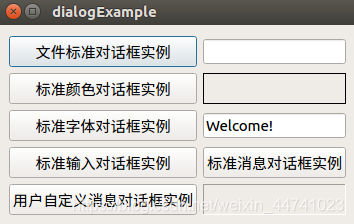
这里我没有在对应位置防止图片,所以图片没有显示哦。
点击其中的Cancel后,可以看到后边显示了Custom Message Box/Cancel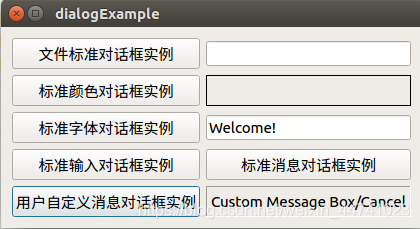

开源鸿蒙跨平台开发社区汇聚开发者与厂商,共建“一次开发,多端部署”的开源生态,致力于降低跨端开发门槛,推动万物智联创新。
更多推荐

 0
0 0
0- 0


 已为社区贡献2条内容

所有评论(0)