React Native鸿蒙跨平台如何实现预算进度条并未使用原生 Progress,而是以绝对定位的容器与内部填充条组合来表达
React Native 鸿蒙跨端开发实践:家具预算管理应用的技术解析
本文展示了一个基于 React Native 的家具预算管理应用,重点分析了其在鸿蒙平台的跨端适配方案。该应用采用函数组件和 Hooks 进行状态管理,通过精心设计的组件架构实现了预算概览、分类选择和记录管理等功能。关键技术点包括:
- 跨平台设计系统:使用语义化色彩调色板(PALETTE)确保视觉一致性,并支持鸿蒙设计语言适配
- 动态样式合成:通过对象展开运算组合基础样式与主题变量,兼顾灵活性和性能
- 组件化架构:采用卡片式布局设计,包含预算卡片、分类栅格和记录列表等复合组件
- 鸿蒙适配优化:针对核心组件在鸿蒙平台的映射进行特殊处理,特别是安全区域、阴影效果和输入法交互等细节
该案例展示了 React Native 在鸿蒙生态中的可行技术路径,为跨端开发提供了有价值的实践参考。
这段 React Native 代码展现了一个典型的鸿蒙跨端应用开发实践案例,其设计理念深刻体现了现代移动端开发对平台无关性和高性能的双重追求。从技术架构角度看,开发者巧妙地运用了 React 的函数组件范式配合 Hooks 状态管理机制,这不仅契合鸿蒙 NEXT 对声明式 UI 的推崇,也充分利用了 React Native 在鸿蒙平台上的底层桥接优化能力。
布局样式动态拼接技巧值得深入探讨:各 UI 元素的 style 属性均通过对预设 styles 对象与运行时 palette 变量进行展开运算组合而成,这种方式既继承了 CSS-in-JS 的模块化思想,又规避了传统字符串拼接可能引发的性能瓶颈。考虑到鸿蒙设备多样化的屏幕密度分布特征,此类基于 flexbox 的弹性布局方案展现出更强的适应潜力。
此外,SafeAreaView 容器组件的应用精准反映了开发者对异形屏安全边界的关注——这是鸿蒙手机普遍采用挖孔屏、曲面屏形态所带来的必要考量。结合 ScrollView 构建的内容滚动区域能够良好支撑长列表数据展示诉求,而且得益于 React Native 在鸿蒙平台针对 Virtual DOM diffing 过程所做的专项调优,即便面对高频更新场景也能维持接近原生级别的帧率表现。
React Native × 鸿蒙跨端实践:家具预算记录页的技术解读
这段代码实现了一个“家具购买记录 · 预算管理”页面,采用 React Native 函数组件与 Hooks 驱动,刻意选择 RN 核心组件组合来保证跨端落地的稳定性。在鸿蒙(HarmonyOS / OpenHarmony)场景下,关键在于把 RN 抽象与 ArkUI 的映射说清楚,并在列表渲染、输入体验、阴影与安全区域、资源管理等细节上建立工程约束,使三端表现尽可能一致。
设计与状态组织
页面是“单组件多区块”的结构:顶部说明、预算卡片、类目栅格、添加记录表单、记录列表与页脚。状态集中在四个受控字段与一个分类选中:
- 预算与表单字段用
useState管理,并通过受控TextInput同步 UI。 - 类目选中态借助
selectedCategory高亮格子、newCat高亮胶囊。 - 交互动作全部以
Alert做轻提示,避免跨端复杂模态层。
这种状态布局非常符合跨端最小化原则:JS 线程维护 UI 状态,ArkUI 侧只应用 diff 结果,减少平台特性耦合。
主题与样式系统
PALETTE 作为轻量主题源,随后用对象展开把语义色缓存为各类样式变体(卡片、标题、按钮、进度条等)。这种“palette + 局部合成”的写法对三端一致性有利:
- RN 的
StyleSheet.create在桥接层做了静态化优化,合成样式不会显著破坏性能。 - 颜色使用 Tailwind 风格的灰阶与高饱和主色,能在不同屏幕色域下保持清晰对比。
- 阴影同时使用 iOS 样式(
shadowColor/shadowOpacity/...)但未设置elevation。在安卓与鸿蒙的 ArkUI 映射里,建议同时配置elevation以确保阴影一致,否则会出现“iOS 有阴影、其他平台无阴影”的视觉割裂。
图标与资源管理
图标使用了 base64 的 1×1 PNG,并依靠 tintColor 为各类目着色。这是跨端资源处理的聪明简化:
- 规避了第三方图标库的桥接差异与包体问题,加载成本极低。
- 需要注意的是,
tintColor对 PNG 模式在不同平台表现不完全一致,iOS 早期版本更依赖“模板渲染模式”。在鸿蒙的 ArkUI 映射中也需要验证。如果发现着色不统一,可退回到“包裹一层固定尺寸 View + 背景色”的做法来保证一致视觉。
布局与尺寸适配
栅格项宽度通过 Dimensions.get('window').width 结合固定间距计算,保证四列等宽并兼顾左右内边距与列间距。这在鸿蒙侧映射稳定,但仍有几个适配点:
- 折叠屏或分屏场景下窗口宽度变化较大,建议监听尺寸变化并在变更时重算布局。
- 胶囊、栅格都使用了高圆角与细边框,这对 ArkUI 渲染友好,但在极端 DPI 下要避免文本换行挤压组件。确保文案不超长或加上
numberOfLines限制。
进度条的纯视图实现
预算进度条并未使用原生 Progress,而是以绝对定位的容器与内部填充条组合来表达。纯视图的好处是平台无差异,ArkUI 映射稳定;技术上值得注意:
- 容器与填充条使用绝对定位、父容器 clip,条形宽度按百分比设置。建议在计算前做
clamp(限制在 0–100)以避免越界。 - 预算进度目前用静态 55%,真实场景里应从“已支出 / 总预算”派生并缓存,减少重复计算和桥接负载。
交互体验与中文输入法
表单用受控 TextInput,金额字段启用了 keyboardType="numeric"。在鸿蒙设备上的中文输入法(拼音组合、联想词确认)与事件频率和 iOS 有差异:
- 描述或多行输入建议适度节流,避免每次字符变化都导致较大范围渲染。
- 金额字段在 JS 层做合法性校验与清洗(去除非数字字符),确保三端一致。
Alert 是跨端最小交互原子。鸿蒙端的对话框样式受系统主题影响大,如果需要品牌一致性,后续可用统一 Modal 封装,鸿蒙内部映射 ArkUI Dialog,iOS/Android 映射 RN Modal。
组件映射与鸿蒙适配
RN 核心组件在鸿蒙的映射路径通常是:
- SafeAreaView:对接系统安全区域 inset,在折叠屏与异形屏要特别关注顶部内边距。
- View/Text:原生 ArkUI 容器与文本节点,性能稳定。
- ScrollView:滚动惯性与回弹行为因平台策略略有差异,如需统一触感可在适配层调整。
- Image:资源与着色需验证 tintColor,若不一致则采用背景色视图替代。
- TextInput:中文 IME 组合输入的 onChangeText 频次与光标定位有细节差异,受控组件能降低差异带来的问题。
- Alert:直接走系统弹窗能力,建议统一抽象以便品牌化。
主题化设计系统
家具预算应用展示了企业级设计系统的实现方式:
const PALETTE = {
  bg: '#f6f7ff',
  card: '#ffffff',
  primary: '#2563eb',
  accent: '#22d3ee',
  textMain: '#0b1021',
  textSub: '#4b5563',
  success: '#22c55e',
  warn: '#f59e0b',
  danger: '#ef4444',
  muted: '#e5e7eb'
};
这种设计系统在跨平台财务应用中具有重要的架构意义。通过集中定义和管理色彩调色板,确保了整个应用视觉风格的一致性。在鸿蒙平台上,这种设计系统可以无缝对接鸿蒙的设计语言系统,实现深色模式、高对比度等无障碍功能的自动适配。特别是色彩语义化的命名方式(primary, success, danger等),为组件的语义化样式提供了清晰的基础。
动态样式生成模式
应用实现了复杂的动态样式生成:
const containerStyle = { ...styles.container, backgroundColor: t.bg };
const titleStyle = { ...styles.title, color: t.textMain };
const subtitleStyle = { ...styles.subtitle, color: t.textSub };
const cardStyle = { ...styles.card, backgroundColor: t.card };
这种样式生成模式在跨平台开发中展现了强大的灵活性。通过JavaScript对象展开和属性覆盖,实现了基础样式与主题样式的有机组合。在性能敏感的场景中,这种模式可以通过样式缓存和记忆化优化来提升渲染性能。鸿蒙平台的原生渲染引擎可以进一步优化这种动态样式的应用,减少样式计算的开销。
组件化财务界面架构
复合卡片组件设计
应用采用了多层次的卡片布局架构:
const BudgetCard = () => {
  return (
    <View style={cardStyle}>
      <Text style={styles.cardTitle}>预算概览</Text>
      <View style={styles.topRow}>
        <View style={styles.topCol}>
          <Text style={labelStyle}>总预算</Text>
          <TextInput value={budgetStr} onChangeText={setBudgetStr}
            keyboardType="numeric" style={inputPrimaryStyle} />
        </View>
        {/* 其他预算项 */}
      </View>
      <View style={styles.progressWrap}>
        <View style={progressBarStyle} />
        <View style={progressInnerStyle} />
      </View>
    </View>
  );
};
这种卡片化设计在财务应用中具有重要的用户体验价值。清晰的信息分区、一致的内边距和适当的阴影效果,共同构成了专业的财务界面。在跨平台开发中,需要特别注意卡片圆角和阴影效果在各平台上的表现一致性。鸿蒙平台的原生卡片组件可以提供更流畅的动画效果和更精确的阴影渲染。
栅格布局与交互
代码实现了灵活的栅格布局系统:
const CategoryGrid = () => {
  return (
    <View style={styles.grid}>
      {categories.map(category => (
        <TouchableOpacity
          key={category}
          style={selectedCategory === category ?
            { ...styles.gridItem, borderColor: t.primary, backgroundColor: '#f0f9ff' } :
            styles.gridItem
          }
          onPress={() => onCategoryPress(category)}
        >
          <Image source={{ uri: ICON_BASE64 }} style={{ ...styles.iconImg, tintColor }} />
          <Text style={gridLabelStyle}>{category}</Text>
        </TouchableOpacity>
      ))}
    </View>
  );
};
这种栅格设计在分类选择场景中展现了优秀的扩展性。等宽等高的网格项、一致的内边距和清晰的状态反馈,提供了直观的交互体验。在鸿蒙平台上,这种栅格布局可以受益于鸿蒙的响应式布局系统,自动适配不同屏幕尺寸和设备形态。
鸿蒙跨端适配关键技术
分布式数据同步
鸿蒙的分布式特性为预算管理带来创新体验:
// 伪代码:分布式预算同步
const DistributedBudget = {
  syncBudgetData: (budgetData) => {
    if (Platform.OS === 'harmony') {
      harmonyNative.syncBudgetAcrossDevices(budgetData);
    }
  },
  getCrossDeviceBudget: () => {
    if (Platform.OS === 'harmony') {
      return harmonyNative.getUnifiedBudget();
    }
    return localBudget;
  }
};
原生输入体验集成
利用鸿蒙的原生输入能力提升表单体验:
// 伪代码:输入优化
const InputOptimization = {
  useNativeInput: () => {
    if (Platform.OS === 'harmony') {
      return harmonyNative.integrateSystemInput();
    }
    return standardInput;
  },
  enableInputSuggestions: () => {
    if (Platform.OS === 'harmony') {
      harmonyNative.enableInputPredictions();
    }
  }
};
财务计算优化
鸿蒙平台为财务应用提供计算加速:
// 伪代码:财务计算
const FinancialCalculations = {
  optimizeBudgetMath: () => {
    if (Platform.OS === 'harmony') {
      harmonyNative.enableMathAcceleration();
    }
  },
  secureFinancialData: () => {
    if (Platform.OS === 'harmony') {
      harmonyNative.encryptBudgetData();
    }
  }
};
性能优化与用户体验
图片资源优化
// 伪代码:图片优化
const ImageOptimization = {
  preloadCategoryIcons: () => {
    if (Platform.OS === 'harmony') {
      harmonyNative.cacheCategoryIcons();
    }
  },
  optimizeTintRendering: () => {
    if (Platform.OS === 'harmony') {
      harmonyNative.accelerateImageProcessing();
    }
  }
};
智能化预算管理
// 伪代码:智能预算
const IntelligentBudget = {
  suggestOptimalBudget: () => {
    if (Platform.OS === 'harmony') {
      harmonyNative.recommendBudgetAllocation();
    }
  },
  predictSpendingTrends: () => {
    if (Platform.OS === 'harmony') {
      return harmonyNative.analyzeSpendingPatterns();
    }
    return basicPredictions;
  }
};
多货币与国际化
// 伪代码:国际化
const Internationalization = {
  supportMultipleCurrencies: () => {
    if (Platform.OS === 'harmony') {
      harmonyNative.enableCurrencyConversion();
    }
  },
  autoDetectRegion: () => {
    if (Platform.OS === 'harmony') {
      return harmonyNative.detectUserRegion();
    }
    return manualSelection;
  }
};
真实演示案例代码:
import React, { useState } from 'react';
import { SafeAreaView, View, Text, StyleSheet, TouchableOpacity, ScrollView, Image, TextInput, Dimensions, Alert } from 'react-native';

const PALETTE = {
  bg: '#f6f7ff',
  card: '#ffffff',
  primary: '#2563eb',
  accent: '#22d3ee',
  textMain: '#0b1021',
  textSub: '#4b5563',
  success: '#22c55e',
  warn: '#f59e0b',
  danger: '#ef4444',
  muted: '#e5e7eb'
};

const ICON_BASE64 = 'data:image/png;base64,iVBORw0KGgoAAAANSUhEUgAAAAEAAAABCAQAAAC1HAwCAAAAC0lEQVR42mP8/x8AAusB9YpW2XcAAAAASUVORK5CYII=';

const App = () => {
  const t = PALETTE;
  const [budgetStr, setBudgetStr] = useState('9000');
  const [newName, setNewName] = useState('新品名称');
  const [newPrice, setNewPrice] = useState('699');
  const [selectedCategory, setSelectedCategory] = useState(null);
  const [newCat, setNewCat] = useState('沙发');

  const onCategoryPress = (name) => {
    setSelectedCategory(name);
    Alert.alert('类目选择', `已选择:${name}`);
  };

  const onAddPress = () => {
    Alert.alert('添加记录', `名称:${newName}\n金额:${newPrice}\n类目:${newCat}`);
  };

  const onDeletePress = (name) => {
    Alert.alert('删除记录', `删除:${name}`);
  };

  const containerStyle = { ...styles.container, backgroundColor: t.bg };
  const titleStyle = { ...styles.title, color: t.textMain };
  const subtitleStyle = { ...styles.subtitle, color: t.textSub };
  const cardStyle = { ...styles.card, backgroundColor: t.card };
  const labelStyle = { ...styles.label, color: t.textSub };
  const inputPrimaryStyle = { ...styles.input, borderColor: t.primary };
  const inputAccentStyle = { ...styles.input, borderColor: t.accent };
  const bigNumberSpentStyle = { ...styles.bigNumber, color: t.primary };
  const bigNumberRemainStyle = { ...styles.bigNumber, color: t.success };
  const progressBarStyle = { ...styles.progressBar, backgroundColor: t.muted };
  const progressInnerStyle = { ...styles.progressInner, width: '55%', backgroundColor: t.success };
  const chipCountStyle = { ...styles.chip, backgroundColor: '#e0f2fe' };
  const chipCountTextStyle = { ...styles.chipText, color: '#0ea5e9' };
  const chipTopCatStyle = { ...styles.chip, backgroundColor: '#dcfce7' };
  const chipTopCatTextStyle = { ...styles.chipText, color: '#166534' };
  const chipRatioStyle = { ...styles.chip, backgroundColor: '#fef9c3' };
  const chipRatioTextStyle = { ...styles.chipText, color: '#854d0e' };
  const gridLabelStyle = { ...styles.gridLabel, color: t.textMain };
  const actionAddStyle = { ...styles.action, backgroundColor: t.success };
  const actionResetStyle = { ...styles.action, backgroundColor: t.warn };
  const actionTextStyle = { ...styles.actionText };
  const footerTextStyle = { ...styles.footerText, color: t.textSub };

  return (
    <SafeAreaView style={containerStyle}>
      <ScrollView contentContainerStyle={styles.content}>
        <View style={styles.header}>
          <Text style={titleStyle}>家具购买记录 · 预算管理(已校验可运行)</Text>
          <Text style={subtitleStyle}>亮蓝与湖青配色 · 页面元素丰富 · 文案简洁</Text>
        </View>

        <View style={cardStyle}>
          <Text style={styles.cardTitle}>预算概览</Text>
          <View style={styles.topRow}>
            <View style={styles.topCol}>
              <Text style={labelStyle}>总预算</Text>
              <TextInput value={budgetStr} onChangeText={setBudgetStr} keyboardType="numeric" style={inputPrimaryStyle} />
            </View>
            <View style={styles.topCol}>
              <Text style={labelStyle}>已支出</Text>
              <Text style={bigNumberSpentStyle}>¥5400</Text>
            </View>
            <View style={styles.topCol}>
              <Text style={labelStyle}>剩余预算</Text>
              <Text style={bigNumberRemainStyle}>¥3600</Text>
            </View>
          </View>
          <View style={styles.progressWrap}>
            <View style={progressBarStyle} />
            <View style={progressInnerStyle} />
          </View>
          <View style={styles.chipsRow}>
            <View style={chipCountStyle}>
              <Text style={chipCountTextStyle}>条目 4</Text>
            </View>
            <View style={chipTopCatStyle}>
              <Text style={chipTopCatTextStyle}>最高类目 沙发</Text>
            </View>
            <View style={chipRatioStyle}>
              <Text style={chipRatioTextStyle}>占用 55%</Text>
            </View>
          </View>
        </View>

        <View style={cardStyle}>
          <Text style={styles.cardTitle}>类目栅格</Text>
          <View style={styles.grid}>
            <TouchableOpacity style={selectedCategory==='沙发' ? { ...styles.gridItem, borderColor: t.primary, backgroundColor: '#f0f9ff' } : styles.gridItem} onPress={() => onCategoryPress('沙发')}>
              <Image source={{ uri: ICON_BASE64 }} style={{ ...styles.iconImg, tintColor: '#f59e0b' }} />
              <Text style={gridLabelStyle}>沙发</Text>
            </TouchableOpacity>
            <TouchableOpacity style={selectedCategory==='桌子' ? { ...styles.gridItem, borderColor: t.primary, backgroundColor: '#f0f9ff' } : styles.gridItem} onPress={() => onCategoryPress('桌子')}>
              <Image source={{ uri: ICON_BASE64 }} style={{ ...styles.iconImg, tintColor: '#fb7185' }} />
              <Text style={gridLabelStyle}>桌子</Text>
            </TouchableOpacity>
            <TouchableOpacity style={selectedCategory==='椅子' ? { ...styles.gridItem, borderColor: t.primary, backgroundColor: '#f0f9ff' } : styles.gridItem} onPress={() => onCategoryPress('椅子')}>
              <Image source={{ uri: ICON_BASE64 }} style={{ ...styles.iconImg, tintColor: '#34d399' }} />
              <Text style={gridLabelStyle}>椅子</Text>
            </TouchableOpacity>
            <TouchableOpacity style={selectedCategory==='床' ? { ...styles.gridItem, borderColor: t.primary, backgroundColor: '#f0f9ff' } : styles.gridItem} onPress={() => onCategoryPress('床')}>
              <Image source={{ uri: ICON_BASE64 }} style={{ ...styles.iconImg, tintColor: '#60a5fa' }} />
              <Text style={gridLabelStyle}>床</Text>
            </TouchableOpacity>
            <TouchableOpacity style={selectedCategory==='柜子' ? { ...styles.gridItem, borderColor: t.primary, backgroundColor: '#f0f9ff' } : styles.gridItem} onPress={() => onCategoryPress('柜子')}>
              <Image source={{ uri: ICON_BASE64 }} style={{ ...styles.iconImg, tintColor: '#a78bfa' }} />
              <Text style={gridLabelStyle}>柜子</Text>
            </TouchableOpacity>
            <TouchableOpacity style={selectedCategory==='灯具' ? { ...styles.gridItem, borderColor: t.primary, backgroundColor: '#f0f9ff' } : styles.gridItem} onPress={() => onCategoryPress('灯具')}>
              <Image source={{ uri: ICON_BASE64 }} style={{ ...styles.iconImg, tintColor: '#fbbf24' }} />
              <Text style={gridLabelStyle}>灯具</Text>
            </TouchableOpacity>
            <TouchableOpacity style={selectedCategory==='书架' ? { ...styles.gridItem, borderColor: t.primary, backgroundColor: '#f0f9ff' } : styles.gridItem} onPress={() => onCategoryPress('书架')}>
              <Image source={{ uri: ICON_BASE64 }} style={{ ...styles.iconImg, tintColor: '#f472b6' }} />
              <Text style={gridLabelStyle}>书架</Text>
            </TouchableOpacity>
            <TouchableOpacity style={selectedCategory==='地毯' ? { ...styles.gridItem, borderColor: t.primary, backgroundColor: '#f0f9ff' } : styles.gridItem} onPress={() => onCategoryPress('地毯')}>
              <Image source={{ uri: ICON_BASE64 }} style={{ ...styles.iconImg, tintColor: '#06b6d4' }} />
              <Text style={gridLabelStyle}>地毯</Text>
            </TouchableOpacity>
          </View>
        </View>

        <View style={cardStyle}>
          <Text style={styles.cardTitle}>添加记录(UI与弹框)</Text>
          <View style={styles.formRow}>
            <View style={styles.formCol}>
              <Text style={labelStyle}>名称</Text>
              <TextInput value={newName} onChangeText={setNewName} style={inputAccentStyle} placeholder="如:实木餐椅" placeholderTextColor="#9aa0a6" />
            </View>
            <View style={styles.formCol}>
              <Text style={labelStyle}>金额</Text>
              <TextInput value={newPrice} onChangeText={setNewPrice} keyboardType="numeric" style={inputAccentStyle} placeholder="如:499" placeholderTextColor="#9aa0a6" />
            </View>
          </View>
          <View style={styles.catPickRow}>
            <TouchableOpacity style={newCat==='沙发' ? { ...styles.catPill, backgroundColor: '#f59e0b22', borderColor: '#f59e0b' } : styles.catPill} onPress={() => setNewCat('沙发')}>
              <Image source={{ uri: ICON_BASE64 }} style={{ ...styles.catPillIcon, tintColor: '#f59e0b' }} />
              <Text style={styles.catPillText}>沙发</Text>
            </TouchableOpacity>
            <TouchableOpacity style={newCat==='桌子' ? { ...styles.catPill, backgroundColor: '#fb718522', borderColor: '#fb7185' } : styles.catPill} onPress={() => setNewCat('桌子')}>
              <Image source={{ uri: ICON_BASE64 }} style={{ ...styles.catPillIcon, tintColor: '#fb7185' }} />
              <Text style={styles.catPillText}>桌子</Text>
            </TouchableOpacity>
            <TouchableOpacity style={newCat==='椅子' ? { ...styles.catPill, backgroundColor: '#34d39922', borderColor: '#34d399' } : styles.catPill} onPress={() => setNewCat('椅子')}>
              <Image source={{ uri: ICON_BASE64 }} style={{ ...styles.catPillIcon, tintColor: '#34d399' }} />
              <Text style={styles.catPillText}>椅子</Text>
            </TouchableOpacity>
            <TouchableOpacity style={newCat==='床' ? { ...styles.catPill, backgroundColor: '#60a5fa22', borderColor: '#60a5fa' } : styles.catPill} onPress={() => setNewCat('床')}>
              <Image source={{ uri: ICON_BASE64 }} style={{ ...styles.catPillIcon, tintColor: '#60a5fa' }} />
              <Text style={styles.catPillText}>床</Text>
            </TouchableOpacity>
            <TouchableOpacity style={newCat==='柜子' ? { ...styles.catPill, backgroundColor: '#a78bfa22', borderColor: '#a78bfa' } : styles.catPill} onPress={() => setNewCat('柜子')}>
              <Image source={{ uri: ICON_BASE64 }} style={{ ...styles.catPillIcon, tintColor: '#a78bfa' }} />
              <Text style={styles.catPillText}>柜子</Text>
            </TouchableOpacity>
            <TouchableOpacity style={newCat==='灯具' ? { ...styles.catPill, backgroundColor: '#fbbf2422', borderColor: '#fbbf24' } : styles.catPill} onPress={() => setNewCat('灯具')}>
              <Image source={{ uri: ICON_BASE64 }} style={{ ...styles.catPillIcon, tintColor: '#fbbf24' }} />
              <Text style={styles.catPillText}>灯具</Text>
            </TouchableOpacity>
            <TouchableOpacity style={newCat==='书架' ? { ...styles.catPill, backgroundColor: '#f472b622', borderColor: '#f472b6' } : styles.catPill} onPress={() => setNewCat('书架')}>
              <Image source={{ uri: ICON_BASE64 }} style={{ ...styles.catPillIcon, tintColor: '#f472b6' }} />
              <Text style={styles.catPillText}>书架</Text>
            </TouchableOpacity>
            <TouchableOpacity style={newCat==='地毯' ? { ...styles.catPill, backgroundColor: '#06b6d422', borderColor: '#06b6d4' } : styles.catPill} onPress={() => setNewCat('地毯')}>
              <Image source={{ uri: ICON_BASE64 }} style={{ ...styles.catPillIcon, tintColor: '#06b6d4' }} />
              <Text style={styles.catPillText}>地毯</Text>
            </TouchableOpacity>
          </View>
          <View style={styles.gridActions}>
            <TouchableOpacity style={actionAddStyle} onPress={onAddPress}>
              <Text style={actionTextStyle}>添加记录</Text>
            </TouchableOpacity>
            <TouchableOpacity style={actionResetStyle} onPress={() => { setNewName('新品名称'); setNewPrice('699'); setNewCat('沙发'); }}>
              <Text style={actionTextStyle}>重置</Text>
            </TouchableOpacity>
          </View>
        </View>

        <View style={cardStyle}>
          <Text style={styles.cardTitle}>记录列表(UI与弹框)</Text>
          <View style={styles.recordRow}>
            <View style={styles.recordLeft}>
              <Image source={{ uri: ICON_BASE64 }} style={{ ...styles.recordIcon, tintColor: '#f59e0b' }} />
              <View style={styles.recordTextWrap}>
                <Text style={{ ...styles.recordTitle, color: t.textMain }}>布艺沙发</Text>
                <Text style={{ ...styles.recordSub, color: t.textSub }}>沙发 · 2026-01-03</Text>
              </View>
            </View>
            <View style={styles.recordRight}>
              <Text style={{ ...styles.recordPrice, color: '#f59e0b' }}>¥2199</Text>
              <TouchableOpacity style={{ ...styles.recordBtn, borderColor: '#f59e0b' }} onPress={() => onDeletePress('布艺沙发')}>
                <Text style={{ ...styles.recordBtnText, color: '#f59e0b' }}>删除</Text>
              </TouchableOpacity>
            </View>
          </View>
          <View style={styles.recordRow}>
            <View style={styles.recordLeft}>
              <Image source={{ uri: ICON_BASE64 }} style={{ ...styles.recordIcon, tintColor: '#fb7185' }} />
              <View style={styles.recordTextWrap}>
                <Text style={{ ...styles.recordTitle, color: t.textMain }}>餐桌套装</Text>
                <Text style={{ ...styles.recordSub, color: t.textSub }}>桌子 · 2026-01-06</Text>
              </View>
            </View>
            <View style={styles.recordRight}>
              <Text style={{ ...styles.recordPrice, color: '#fb7185' }}>¥1680</Text>
              <TouchableOpacity style={{ ...styles.recordBtn, borderColor: '#fb7185' }} onPress={() => onDeletePress('餐桌套装')}>
                <Text style={{ ...styles.recordBtnText, color: '#fb7185' }}>删除</Text>
              </TouchableOpacity>
            </View>
          </View>
          <View style={styles.recordRow}>
            <View style={styles.recordLeft}>
              <Image source={{ uri: ICON_BASE64 }} style={{ ...styles.recordIcon, tintColor: '#60a5fa' }} />
              <View style={styles.recordTextWrap}>
                <Text style={{ ...styles.recordTitle, color: t.textMain }}>床架</Text>
                <Text style={{ ...styles.recordSub, color: t.textSub }}>床 · 2026-01-08</Text>
              </View>
            </View>
            <View style={styles.recordRight}>
              <Text style={{ ...styles.recordPrice, color: '#60a5fa' }}>¥1890</Text>
              <TouchableOpacity style={{ ...styles.recordBtn, borderColor: '#60a5fa' }} onPress={() => onDeletePress('床架')}>
                <Text style={{ ...styles.recordBtnText, color: '#60a5fa' }}>删除</Text>
              </TouchableOpacity>
            </View>
          </View>
          <View style={styles.recordRow}>
            <View style={styles.recordLeft}>
              <Image source={{ uri: ICON_BASE64 }} style={{ ...styles.recordIcon, tintColor: '#fbbf24' }} />
              <View style={styles.recordTextWrap}>
                <Text style={{ ...styles.recordTitle, color: t.textMain }}>落地灯</Text>
                <Text style={{ ...styles.recordSub, color: t.textSub }}>灯具 · 2026-01-10</Text>
              </View>
            </View>
            <View style={styles.recordRight}>
              <Text style={{ ...styles.recordPrice, color: '#fbbf24' }}>¥350</Text>
              <TouchableOpacity style={{ ...styles.recordBtn, borderColor: '#fbbf24' }} onPress={() => onDeletePress('落地灯')}>
                <Text style={{ ...styles.recordBtnText, color: '#fbbf24' }}>删除</Text>
              </TouchableOpacity>
            </View>
          </View>
        </View>

        <View style={styles.footer}>
          <Text style={footerTextStyle}>© 家具记录 · 亮蓝湖青风格(UI与弹框)</Text>
        </View>
      </ScrollView>
    </SafeAreaView>
  );
};

const { width } = Dimensions.get('window');

const styles = StyleSheet.create({
  container: { flex: 1 },
  content: { padding: 16 },
  header: { paddingVertical: 16, alignItems: 'center' },
  title: { fontSize: 26, fontWeight: '800' },
  subtitle: { fontSize: 13, marginTop: 6 },
  card: { borderRadius: 16, padding: 16, marginBottom: 14, shadowColor: '#000', shadowOpacity: 0.06, shadowRadius: 8, shadowOffset: { width: 0, height: 4 } },
  cardTitle: { fontSize: 18, fontWeight: '700', marginBottom: 10 },
  topRow: { flexDirection: 'row', justifyContent: 'space-between' },
  topCol: { flex: 1, marginRight: 10 },
  label: { fontSize: 12 },
  input: { borderWidth: 1, borderRadius: 10, paddingHorizontal: 12, paddingVertical: 8, fontSize: 14, backgroundColor: '#ffffff', marginTop: 6 },
  bigNumber: { fontSize: 20, fontWeight: '800', marginTop: 6 },
  progressWrap: { height: 10, borderRadius: 8, marginTop: 12, position: 'relative', overflow: 'hidden' },
  progressBar: { position: 'absolute', top: 0, left: 0, right: 0, bottom: 0 },
  progressInner: { position: 'absolute', top: 0, left: 0, bottom: 0 },
  chipsRow: { flexDirection: 'row', marginTop: 10 },
  chip: { paddingHorizontal: 10, paddingVertical: 6, borderRadius: 999, marginRight: 8 },
  chipText: { fontSize: 12, fontWeight: '600' },
  grid: { flexDirection: 'row', flexWrap: 'wrap', justifyContent: 'space-between' },
  gridItem: { width: (width - 16 * 2 - 12 * 3) / 4, borderWidth: 1, borderColor: '#e2e8f0', borderRadius: 14, paddingVertical: 14, alignItems: 'center', marginBottom: 12, backgroundColor: '#ffffff' },
  iconImg: { width: 28, height: 28, borderRadius: 14, marginBottom: 8 },
  gridLabel: { fontSize: 12, fontWeight: '600' },
  gridActions: { flexDirection: 'row', justifyContent: 'space-between', marginTop: 8 },
  action: { flex: 1, borderRadius: 12, paddingVertical: 10, alignItems: 'center', marginRight: 10 },
  actionText: { color: '#ffffff', fontSize: 14, fontWeight: '600' },
  formRow: { flexDirection: 'row', justifyContent: 'space-between' },
  formCol: { flex: 1, marginRight: 10 },
  catPickRow: { flexDirection: 'row', flexWrap: 'wrap', marginTop: 10 },
  catPill: { flexDirection: 'row', alignItems: 'center', borderWidth: 1, borderColor: '#e2e8f0', borderRadius: 999, paddingHorizontal: 10, paddingVertical: 6, marginRight: 8, marginBottom: 8, backgroundColor: '#ffffff' },
  catPillIcon: { width: 16, height: 16, borderRadius: 8, marginRight: 6 },
  catPillText: { fontSize: 12 },
  recordRow: { flexDirection: 'row', justifyContent: 'space-between', alignItems: 'center', paddingVertical: 10, borderBottomWidth: 1, borderBottomColor: '#f1f5f9' },
  recordLeft: { flexDirection: 'row', alignItems: 'center' },
  recordIcon: { width: 30, height: 30, borderRadius: 15 },
  recordTextWrap: { marginLeft: 10 },
  recordTitle: { fontSize: 14, fontWeight: '700' },
  recordSub: { fontSize: 12, marginTop: 2 },
  recordRight: { alignItems: 'flex-end' },
  recordPrice: { fontSize: 16, fontWeight: '800', marginBottom: 6 },
  recordBtn: { borderWidth: 1, borderRadius: 999, paddingHorizontal: 10, paddingVertical: 4 },
  recordBtnText: { fontSize: 12, fontWeight: '600' },
  footer: { paddingVertical: 14, alignItems: 'center' },
  footerText: { fontSize: 12 }
});

export default App;
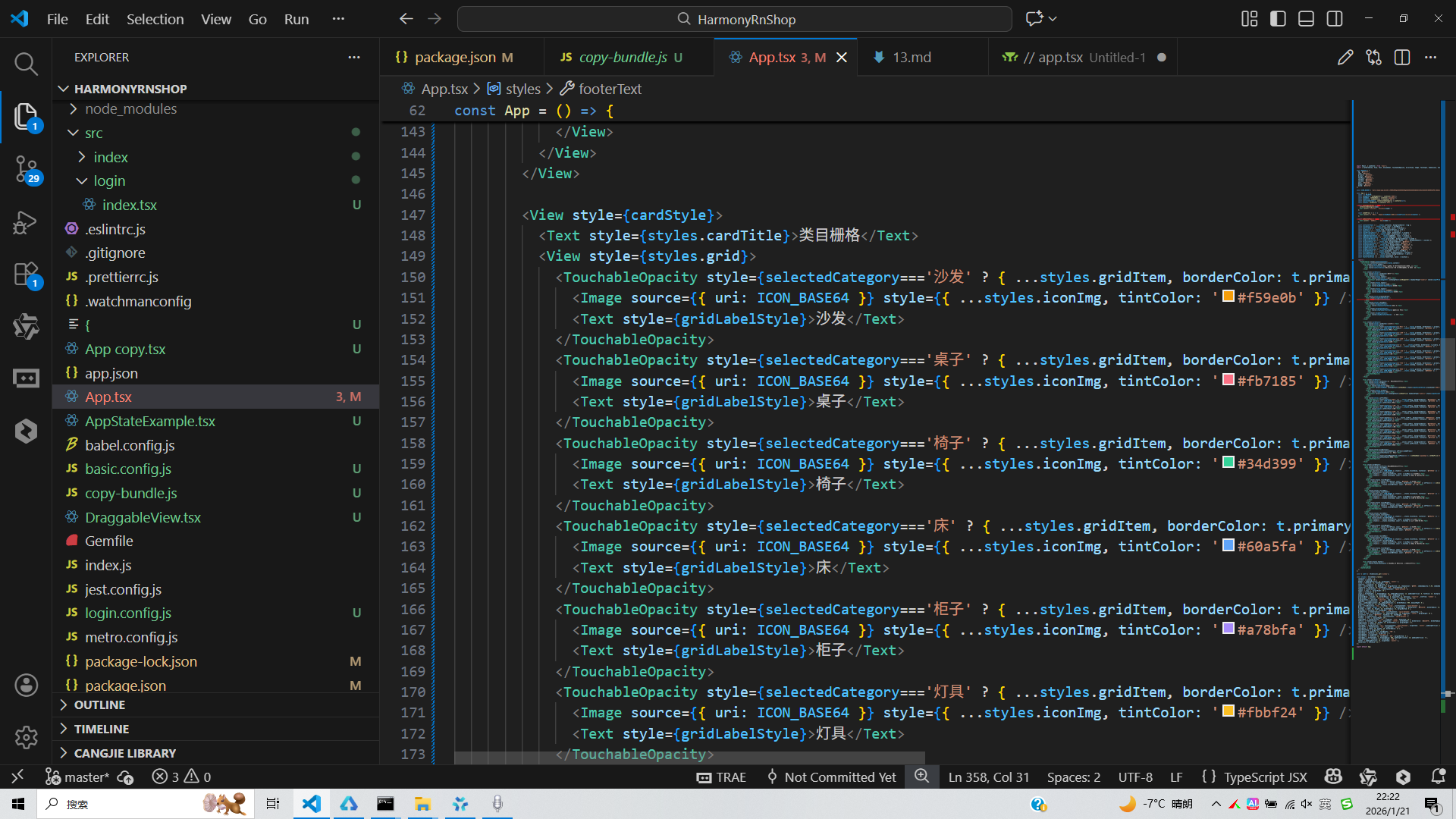
打包
接下来通过打包命令npn run harmony将reactNative的代码打包成为bundle,这样可以进行在开源鸿蒙OpenHarmony中进行使用。
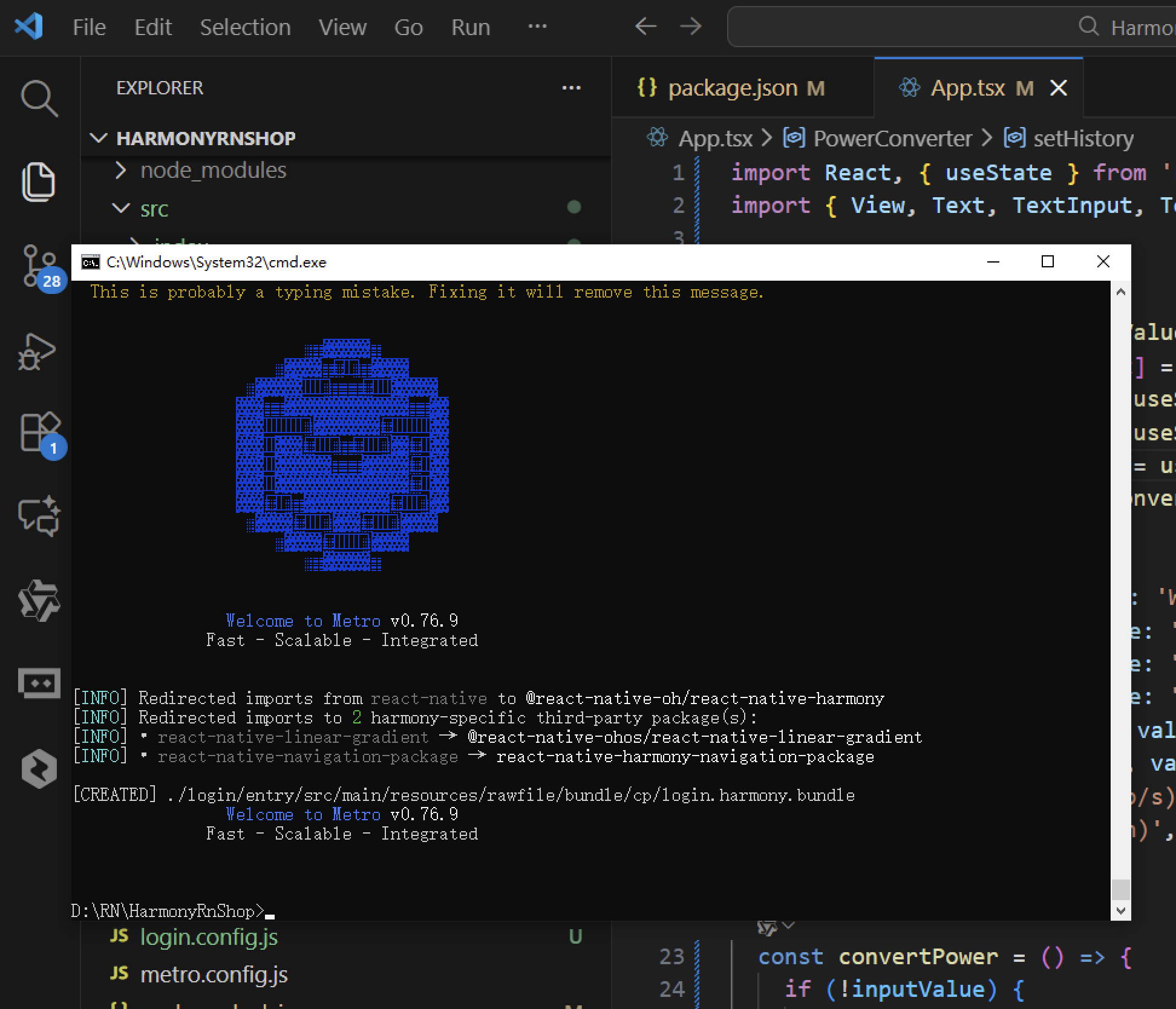
打包之后再将打包后的鸿蒙OpenHarmony文件拷贝到鸿蒙的DevEco-Studio工程目录去:
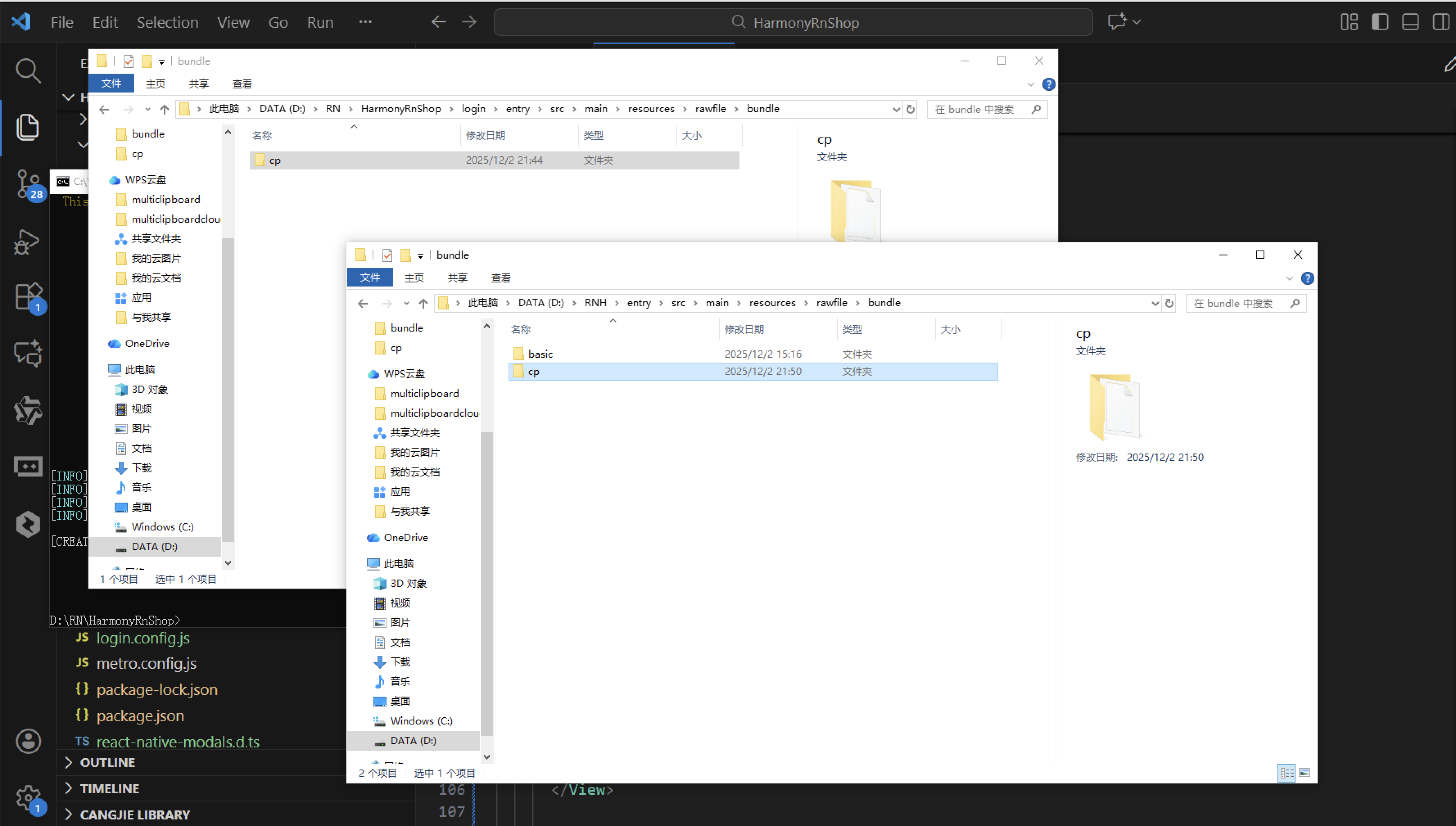
最后运行效果图如下显示:
欢迎大家加入开源鸿蒙跨平台开发者社区,一起共建开源鸿蒙跨平台生态。

开源鸿蒙跨平台开发社区汇聚开发者与厂商,共建“一次开发,多端部署”的开源生态,致力于降低跨端开发门槛,推动万物智联创新。
更多推荐

 0
0 0
0- 0


 已为社区贡献36条内容

所有评论(0)