Flutter for OpenHarmony 第三方库实战:使用 percent_indicator 构建课程学习进度仪表盘应用
欢迎加入开源鸿蒙跨平台社区:
https://openharmonycrossplatform.csdn.net
项目效果
本文实现的是一个基于 Flutter for OpenHarmony 的课程学习进度仪表盘应用。项目中使用 Flutter 第三方库 percent_indicator 实现圆形进度条和线性进度条,用于展示课程学习完成度、每日任务完成度和不同学习模块的掌握情况。
最终运行效果如下:
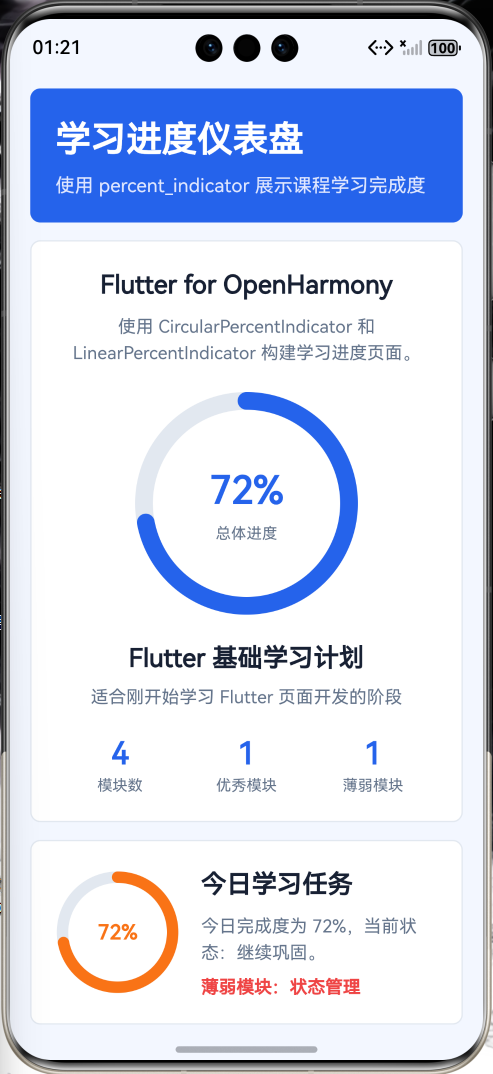
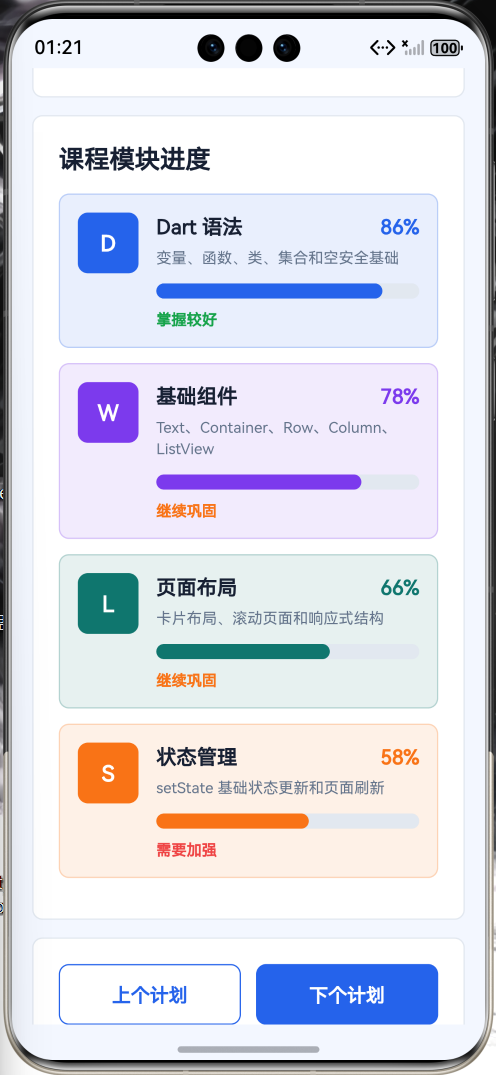
页面主要包含以下内容:
- 顶部标题栏;
- 总体学习进度圆形仪表盘;
- 今日学习任务完成度;
- 课程模块进度列表;
- 学习目标切换按钮;
- 学习数据统计卡片;
- 第三方库使用说明;
- 页面整体采用 Flutter Material 风格布局。
本文重点是演示如何在 Flutter for OpenHarmony 项目中使用 Flutter 第三方库 percent_indicator。项目代码写在 lib/main.dart 中,依赖配置写在 pubspec.yaml 中,符合 Flutter for OpenHarmony 第三方库实践方向。
前言
在学习类应用中,进度展示是一个很常见的功能。比如课程学习、考试复习、运动打卡、项目任务、阅读计划等场景,都需要告诉用户当前已经完成了多少,还剩下多少。
如果只用文字写“已完成 65%”,信息虽然有了,但视觉上不够直观。进度条可以让用户更快理解当前状态,尤其是圆形进度条和线性进度条结合使用时,整体页面会更像一个完整的仪表盘。
如果自己使用 Flutter 原生组件绘制进度条,需要处理绘制逻辑、百分比计算、动画效果、圆角样式和文字布局。为了显示一个进度条先开始手搓绘图逻辑,技术上当然可以,精神上大可不必。
因此本文选择使用 Flutter 第三方库 percent_indicator 来实现进度展示。它可以快速构建圆形百分比进度条和线性百分比进度条,适合用于学习进度、任务完成度、能力评估和项目仪表盘等页面。
一、项目目标
本次实践主要实现以下目标:
- 创建 Flutter for OpenHarmony 项目;
- 在
pubspec.yaml中添加第三方库percent_indicator; - 使用
flutter pub get获取依赖; - 在
lib/main.dart中引入percent_indicator; - 使用
CircularPercentIndicator构建圆形学习进度仪表盘; - 使用
LinearPercentIndicator构建课程模块进度条; - 实现不同学习计划之间的数据切换;
- 使用
setState()更新页面状态; - 使用 Flutter Material 组件构建完整页面;
- 将应用运行到 OpenHarmony 设备或模拟器中。
二、技术栈
| 类型 | 内容 |
|---|---|
| 开发方向 | Flutter for OpenHarmony |
| 开发语言 | Dart |
| UI 框架 | Flutter |
| 第三方库 | percent_indicator |
| 功能场景 | 学习进度 / 课程仪表盘 / 百分比进度展示 |
| 核心组件 | CircularPercentIndicator / LinearPercentIndicator |
| 项目入口 | lib/main.dart |
| 依赖配置 | pubspec.yaml |
| 运行平台 | OpenHarmony 设备或模拟器 |
三、为什么选择 percent_indicator
在实际开发中,百分比进度组件可以用于很多场景,例如:
- 课程学习进度;
- 考试复习进度;
- 每日任务完成度;
- 项目开发进度;
- 健身训练完成度;
- 阅读计划完成度;
- 文件上传进度;
- 用户等级经验值;
- 能力评估报告。
Flutter 原生虽然提供了 LinearProgressIndicator 和 CircularProgressIndicator,但如果想做出更丰富的百分比展示,例如圆形中间显示百分数、线性进度条带文字、动画进度条、不同模块单独展示,就需要写比较多的 UI 包装代码。
percent_indicator 对这类需求进行了封装,可以直接使用 CircularPercentIndicator 和 LinearPercentIndicator 构建进度展示页面。
在本项目中,percent_indicator 主要完成以下工作:
- 展示总体课程完成度;
- 展示今日任务完成度;
- 展示不同课程模块进度;
- 使用动画增强进度变化效果;
- 让学习数据展示更加直观。
四、创建 Flutter for OpenHarmony 项目
在已经配置好 Flutter for OpenHarmony 开发环境的前提下,可以创建一个 Flutter 项目。
示例项目名称:
flutter create study_progress_demo
进入项目目录:
cd study_progress_demo
项目创建完成后,主要关注两个文件:
study_progress_demo
 ├── pubspec.yaml
 └── lib
     └── main.dart
其中:
| 文件 | 作用 |
|---|---|
| pubspec.yaml | 配置 Flutter 项目依赖 |
| lib/main.dart | 编写 Flutter 页面和业务逻辑 |
五、添加 percent_indicator 第三方库
打开项目根目录下的 pubspec.yaml 文件,在 dependencies 中添加 percent_indicator。
示例配置如下:
dependencies:
  flutter:
    sdk: flutter

  percent_indicator: ^4.2.5
完整结构大致如下:
name: study_progress_demo
description: A Flutter for OpenHarmony percent indicator demo.
publish_to: 'none'

version: 1.0.0+1

environment:
  sdk: '>=3.4.0 <4.0.0'

dependencies:
  flutter:
    sdk: flutter

  percent_indicator: ^4.2.5

dev_dependencies:
  flutter_test:
    sdk: flutter

flutter:
  uses-material-design: true
添加完成后,在终端执行:
flutter pub get
执行成功后,就可以在 Dart 代码中使用 percent_indicator 了。
六、项目结构
本项目主要修改 lib/main.dart 文件:
lib
 └── main.dart
本项目不需要编写 OpenHarmony 原生 ArkTS 页面,也不需要修改 Index.ets。
因为这是 Flutter for OpenHarmony 项目,页面主体应该是 Flutter 代码。审核重点会看:
- 是否使用
pubspec.yaml添加 Flutter 第三方库; - 是否在 Dart 文件中
import package; - 是否在
lib/main.dart中实际调用第三方库; - 是否属于 Flutter for OpenHarmony 项目。
看到 pubspec.yaml、lib/main.dart、import 'package:percent_indicator/percent_indicator.dart';,这才是正确方向。别再把原生鸿蒙页面硬塞进 Flutter 文章里,代码不是换个标题就能洗白的。
七、核心实现思路
本项目的核心流程如下:
- 在
pubspec.yaml中添加percent_indicator; - 在
main.dart中引入第三方库; - 定义学习模块数据模型;
- 定义学习计划数据模型;
- 使用
CircularPercentIndicator展示总体学习进度; - 使用
LinearPercentIndicator展示模块学习进度; - 使用按钮切换不同学习计划;
- 使用
setState()刷新页面数据; - 使用 Flutter Material 组件构建完整页面。
第三方库引入代码如下:
import 'package:percent_indicator/percent_indicator.dart';
圆形进度条核心代码如下:
CircularPercentIndicator(
  radius: 86,
  lineWidth: 14,
  percent: progress,
  animation: true,
  center: Text('${(progress * 100).toStringAsFixed(0)}%'),
)
线性进度条核心代码如下:
LinearPercentIndicator(
  percent: module.progress,
  lineHeight: 12,
  animation: true,
  barRadius: const Radius.circular(10),
)
这两段代码是本文的重点,说明项目确实使用了 Flutter 第三方库实现进度展示。
八、main.dart 完整代码
打开文件:
lib/main.dart
将其中内容替换为下面代码:
import 'package:flutter/material.dart';
import 'package:percent_indicator/percent_indicator.dart';
void main() {
runApp(const StudyProgressApp());
}
class StudyProgressApp extends StatelessWidget {
const StudyProgressApp({super.key});
Widget build(BuildContext context) {
return MaterialApp(
title: 'Study Progress Demo',
debugShowCheckedModeBanner: false,
theme: ThemeData(
colorScheme: ColorScheme.fromSeed(
seedColor: Colors.blue,
brightness: Brightness.light,
),
useMaterial3: true,
),
home: const StudyProgressHomePage(),
);
}
}
class StudyModule {
const StudyModule({
required this.name,
required this.description,
required this.progress,
required this.icon,
required this.color,
});
final String name;
final String description;
final double progress;
final IconData icon;
final Color color;
}
class StudyPlan {
const StudyPlan({
required this.title,
required this.subtitle,
required this.todayProgress,
required this.modules,
});
final String title;
final String subtitle;
final double todayProgress;
final List<StudyModule> modules;
}
class StudyProgressHomePage extends StatefulWidget {
const StudyProgressHomePage({super.key});
State<StudyProgressHomePage> createState() => _StudyProgressHomePageState();
}
class _StudyProgressHomePageState extends State<StudyProgressHomePage> {
final List<StudyPlan> _plans = const [
StudyPlan(
title: 'Flutter 基础学习计划',
subtitle: '适合刚开始学习 Flutter 页面开发的阶段',
todayProgress: 0.72,
modules: [
StudyModule(
name: 'Dart 语法',
description: '变量、函数、类、集合和空安全基础',
progress: 0.86,
icon: Icons.code,
color: Colors.blue,
),
StudyModule(
name: '基础组件',
description: 'Text、Container、Row、Column、ListView',
progress: 0.78,
icon: Icons.widgets,
color: Colors.deepPurple,
),
StudyModule(
name: '页面布局',
description: '卡片布局、滚动页面和响应式结构',
progress: 0.66,
icon: Icons.dashboard_customize,
color: Colors.teal,
),
StudyModule(
name: '状态管理',
description: 'setState 基础状态更新和页面刷新',
progress: 0.58,
icon: Icons.sync,
color: Colors.orange,
),
],
),
StudyPlan(
title: 'C 语言复习计划',
subtitle: '适合期末复习和基础编程能力巩固',
todayProgress: 0.64,
modules: [
StudyModule(
name: '变量与数据类型',
description: 'int、float、char、double 和格式化输出',
progress: 0.92,
icon: Icons.memory,
color: Colors.indigo,
),
StudyModule(
name: '条件与循环',
description: 'if、switch、for、while 和循环嵌套',
progress: 0.80,
icon: Icons.repeat,
color: Colors.green,
),
StudyModule(
name: '数组',
description: '一维数组、二维数组和遍历统计题',
progress: 0.61,
icon: Icons.grid_on,
color: Colors.pink,
),
StudyModule(
name: '指针基础',
description: '地址、指针变量和函数参数传递',
progress: 0.42,
icon: Icons.alt_route,
color: Colors.redAccent,
),
],
),
StudyPlan(
title: '英语四级冲刺计划',
subtitle: '适合听力、阅读、翻译和写作综合训练',
todayProgress: 0.81,
modules: [
StudyModule(
name: '听力训练',
description: '短篇新闻、长对话和听力关键词定位',
progress: 0.74,
icon: Icons.headphones,
color: Colors.orange,
),
StudyModule(
name: '阅读理解',
description: '段落匹配、仔细阅读和长难句分析',
progress: 0.83,
icon: Icons.menu_book,
color: Colors.blue,
),
StudyModule(
name: '词汇积累',
description: '高频词、固定搭配和同义替换',
progress: 0.68,
icon: Icons.translate,
color: Colors.teal,
),
StudyModule(
name: '写作翻译',
description: '模板句型、连接词和表达升级',
progress: 0.55,
icon: Icons.edit_note,
color: Colors.deepPurple,
),
],
),
];
int _currentPlanIndex = 0;
StudyPlan get _currentPlan {
return _plans[_currentPlanIndex];
}
double get _overallProgress {
final List<StudyModule> modules = _currentPlan.modules;
if (modules.isEmpty) {
return 0;
}
double total = 0;
for (final StudyModule module in modules) {
total += module.progress;
}
return total / modules.length;
}
int get _completedModuleCount {
return _currentPlan.modules.where((module) => module.progress >= 0.8).length;
}
int get _weakModuleCount {
return _currentPlan.modules.where((module) => module.progress < 0.6).length;
}
StudyModule get _weakestModule {
StudyModule result = _currentPlan.modules.first;
for (final StudyModule module in _currentPlan.modules) {
if (module.progress < result.progress) {
result = module;
}
}
return result;
}
void _previousPlan() {
setState(() {
if (_currentPlanIndex == 0) {
_currentPlanIndex = _plans.length - 1;
} else {
_currentPlanIndex--;
}
});
}
void _nextPlan() {
setState(() {
if (_currentPlanIndex == _plans.length - 1) {
_currentPlanIndex = 0;
} else {
_currentPlanIndex++;
}
});
}
String _percentText(double value) {
return '${(value * 100).toStringAsFixed(0)}%';
}
String _levelText(double value) {
if (value >= 0.8) {
return '掌握较好';
}
if (value >= 0.6) {
return '继续巩固';
}
return '需要加强';
}
Color _levelColor(double value) {
if (value >= 0.8) {
return Colors.green;
}
if (value >= 0.6) {
return Colors.orange;
}
return Colors.redAccent;
}
Widget build(BuildContext context) {
final ThemeData theme = Theme.of(context);
final StudyPlan plan = _currentPlan;
return Scaffold(
appBar: AppBar(
title: const Text('学习进度仪表盘'),
centerTitle: true,
),
body: SafeArea(
child: ListView(
padding: const EdgeInsets.all(16),
children: [
_buildOverviewCard(theme, plan),
const SizedBox(height: 16),
_buildTodayProgressCard(theme, plan),
const SizedBox(height: 16),
_buildModuleProgressCard(theme, plan),
const SizedBox(height: 16),
_buildPlanActionCard(theme),
const SizedBox(height: 16),
_buildLibraryCard(theme),
],
),
),
);
}
Widget _buildOverviewCard(ThemeData theme, StudyPlan plan) {
final double progress = _overallProgress;
return Card(
elevation: 3,
shape: RoundedRectangleBorder(
borderRadius: BorderRadius.circular(22),
),
child: Padding(
padding: const EdgeInsets.all(24),
child: Column(
children: [
Text(
'Flutter for OpenHarmony',
style: theme.textTheme.headlineSmall?.copyWith(
fontWeight: FontWeight.bold,
),
textAlign: TextAlign.center,
),
const SizedBox(height: 8),
Text(
'使用 percent_indicator 构建学习进度圆形仪表盘和模块进度条',
style: theme.textTheme.bodyMedium?.copyWith(
color: theme.colorScheme.onSurfaceVariant,
height: 1.5,
),
textAlign: TextAlign.center,
),
const SizedBox(height: 24),
CircularPercentIndicator(
radius: 88,
lineWidth: 14,
percent: progress,
animation: true,
animationDuration: 900,
circularStrokeCap: CircularStrokeCap.round,
backgroundColor: theme.colorScheme.surfaceContainerHighest,
progressColor: theme.colorScheme.primary,
center: Column(
mainAxisAlignment: MainAxisAlignment.center,
children: [
Text(
_percentText(progress),
style: theme.textTheme.headlineMedium?.copyWith(
fontWeight: FontWeight.bold,
color: theme.colorScheme.primary,
),
),
const SizedBox(height: 4),
Text(
'总体进度',
style: theme.textTheme.bodySmall?.copyWith(
color: theme.colorScheme.onSurfaceVariant,
),
),
],
),
),
const SizedBox(height: 22),
Text(
plan.title,
style: theme.textTheme.titleLarge?.copyWith(
fontWeight: FontWeight.bold,
),
textAlign: TextAlign.center,
),
const SizedBox(height: 6),
Text(
plan.subtitle,
style: theme.textTheme.bodyMedium?.copyWith(
color: theme.colorScheme.onSurfaceVariant,
height: 1.5,
),
textAlign: TextAlign.center,
),
const SizedBox(height: 22),
Row(
children: [
_buildStatItem(
theme,
title: '模块数',
value: '${plan.modules.length}',
icon: Icons.view_module,
),
_buildStatItem(
theme,
title: '优秀模块',
value: '$_completedModuleCount',
icon: Icons.check_circle,
),
_buildStatItem(
theme,
title: '薄弱模块',
value: '$_weakModuleCount',
icon: Icons.warning,
),
],
),
],
),
),
);
}
Widget _buildStatItem(
ThemeData theme, {
required String title,
required String value,
required IconData icon,
}) {
return Expanded(
child: Column(
children: [
Icon(
icon,
color: theme.colorScheme.primary,
),
const SizedBox(height: 6),
Text(
value,
style: theme.textTheme.titleLarge?.copyWith(
fontWeight: FontWeight.bold,
color: theme.colorScheme.primary,
),
),
const SizedBox(height: 2),
Text(
title,
style: theme.textTheme.bodySmall?.copyWith(
color: theme.colorScheme.onSurfaceVariant,
),
),
],
),
);
}
Widget _buildTodayProgressCard(ThemeData theme, StudyPlan plan) {
return Card(
elevation: 2,
shape: RoundedRectangleBorder(
borderRadius: BorderRadius.circular(18),
),
child: Padding(
padding: const EdgeInsets.all(20),
child: Row(
children: [
CircularPercentIndicator(
radius: 48,
lineWidth: 9,
percent: plan.todayProgress,
animation: true,
animationDuration: 800,
circularStrokeCap: CircularStrokeCap.round,
backgroundColor: theme.colorScheme.surfaceContainerHighest,
progressColor: _levelColor(plan.todayProgress),
center: Text(
_percentText(plan.todayProgress),
style: theme.textTheme.titleMedium?.copyWith(
fontWeight: FontWeight.bold,
color: _levelColor(plan.todayProgress),
),
),
),
const SizedBox(width: 18),
Expanded(
child: Column(
crossAxisAlignment: CrossAxisAlignment.start,
children: [
Text(
'今日学习任务',
style: theme.textTheme.titleLarge?.copyWith(
fontWeight: FontWeight.bold,
),
),
const SizedBox(height: 8),
Text(
'今日完成度为 ${_percentText(plan.todayProgress)},当前状态:${_levelText(plan.todayProgress)}。',
style: theme.textTheme.bodyMedium?.copyWith(
color: theme.colorScheme.onSurfaceVariant,
height: 1.5,
),
),
const SizedBox(height: 10),
Text(
'薄弱模块:${_weakestModule.name}',
style: theme.textTheme.bodyMedium?.copyWith(
color: Colors.redAccent,
fontWeight: FontWeight.w600,
),
),
],
),
),
],
),
),
);
}
Widget _buildModuleProgressCard(ThemeData theme, StudyPlan plan) {
return Card(
elevation: 2,
shape: RoundedRectangleBorder(
borderRadius: BorderRadius.circular(18),
),
child: Padding(
padding: const EdgeInsets.fromLTRB(20, 20, 20, 8),
child: Column(
crossAxisAlignment: CrossAxisAlignment.start,
children: [
Text(
'课程模块进度',
style: theme.textTheme.titleLarge?.copyWith(
fontWeight: FontWeight.bold,
),
),
const SizedBox(height: 14),
...plan.modules.map((module) {
return Container(
margin: const EdgeInsets.only(bottom: 12),
padding: const EdgeInsets.all(14),
decoration: BoxDecoration(
color: module.color.withOpacity(0.10),
borderRadius: BorderRadius.circular(16),
border: Border.all(
color: module.color.withOpacity(0.24),
),
),
child: Row(
crossAxisAlignment: CrossAxisAlignment.start,
children: [
Container(
width: 48,
height: 48,
decoration: BoxDecoration(
color: module.color.withOpacity(0.16),
borderRadius: BorderRadius.circular(16),
),
child: Icon(
module.icon,
color: module.color,
),
),
const SizedBox(width: 14),
Expanded(
child: Column(
crossAxisAlignment: CrossAxisAlignment.start,
children: [
Row(
children: [
Expanded(
child: Text(
module.name,
style: theme.textTheme.titleMedium?.copyWith(
fontWeight: FontWeight.bold,
),
),
),
Text(
_percentText(module.progress),
style: theme.textTheme.titleMedium?.copyWith(
color: module.color,
fontWeight: FontWeight.bold,
),
),
],
),
const SizedBox(height: 5),
Text(
module.description,
style: theme.textTheme.bodySmall?.copyWith(
color: theme.colorScheme.onSurfaceVariant,
height: 1.4,
),
),
const SizedBox(height: 12),
LinearPercentIndicator(
padding: EdgeInsets.zero,
percent: module.progress,
lineHeight: 12,
animation: true,
animationDuration: 900,
barRadius: const Radius.circular(10),
backgroundColor:
theme.colorScheme.surfaceContainerHighest,
progressColor: module.color,
),
const SizedBox(height: 8),
Text(
_levelText(module.progress),
style: theme.textTheme.bodySmall?.copyWith(
color: _levelColor(module.progress),
fontWeight: FontWeight.bold,
),
),
],
),
),
],
),
);
}),
],
),
),
);
}
Widget _buildPlanActionCard(ThemeData theme) {
return Card(
elevation: 2,
shape: RoundedRectangleBorder(
borderRadius: BorderRadius.circular(18),
),
child: Padding(
padding: const EdgeInsets.all(20),
child: Row(
children: [
Expanded(
child: OutlinedButton.icon(
onPressed: _previousPlan,
icon: const Icon(Icons.arrow_back),
label: const Text('上个计划'),
),
),
const SizedBox(width: 12),
Expanded(
child: ElevatedButton.icon(
onPressed: _nextPlan,
icon: const Icon(Icons.arrow_forward),
label: const Text('下个计划'),
),
),
],
),
),
);
}
Widget _buildLibraryCard(ThemeData theme) {
return Card(
elevation: 2,
shape: RoundedRectangleBorder(
borderRadius: BorderRadius.circular(18),
),
child: Padding(
padding: const EdgeInsets.all(20),
child: Column(
crossAxisAlignment: CrossAxisAlignment.start,
children: [
Text(
'第三方库说明',
style: theme.textTheme.titleLarge?.copyWith(
fontWeight: FontWeight.bold,
),
),
const SizedBox(height: 12),
_buildInfoRow(
theme,
title: '库名称',
value: 'percent_indicator',
),
_buildInfoRow(
theme,
title: '配置文件',
value: 'pubspec.yaml',
),
_buildInfoRow(
theme,
title: '导入方式',
value: "import 'package:percent_indicator/percent_indicator.dart';",
),
_buildInfoRow(
theme,
title: '核心组件',
value: 'CircularPercentIndicator / LinearPercentIndicator',
),
_buildInfoRow(
theme,
title: '应用场景',
value: '学习进度、任务完成度、项目进度、阅读计划、能力评估',
),
],
),
),
);
}
Widget _buildInfoRow(
ThemeData theme, {
required String title,
required String value,
}) {
return Padding(
padding: const EdgeInsets.only(bottom: 10),
child: Row(
crossAxisAlignment: CrossAxisAlignment.start,
children: [
SizedBox(
width: 82,
child: Text(
title,
style: theme.textTheme.bodyMedium?.copyWith(
fontWeight: FontWeight.bold,
),
),
),
Expanded(
child: Text(
value,
style: theme.textTheme.bodyMedium?.copyWith(
color: theme.colorScheme.onSurfaceVariant,
),
),
),
],
),
);
}
}
九、代码实现说明
1. 引入 percent_indicator 第三方库
代码开头引入第三方库:
import 'package:percent_indicator/percent_indicator.dart';
这说明项目确实使用了 Flutter 第三方库,而不是 OpenHarmony 原生库。
本项目中主要使用以下组件:
CircularPercentIndicator
LinearPercentIndicator
其中:
| 组件 | 作用 |
|---|---|
| CircularPercentIndicator | 圆形百分比进度条 |
| LinearPercentIndicator | 线性百分比进度条 |
2. 定义学习模块数据模型
项目中定义了学习模块模型:
class StudyModule {
  const StudyModule({
    required this.name,
    required this.description,
    required this.progress,
    required this.icon,
    required this.color,
  });

  final String name;
  final String description;
  final double progress;
  final IconData icon;
  final Color color;
}
字段说明如下:
| 字段 | 作用 |
|---|---|
| name | 模块名称 |
| description | 模块说明 |
| progress | 模块进度 |
| icon | 模块图标 |
| color | 模块主题色 |
其中 progress 是最重要的数据,取值范围为 0.0 到 1.0。
例如:
progress: 0.86
表示该模块完成度为 86%。
3. 定义学习计划数据模型
项目中定义了学习计划模型:
class StudyPlan {
  const StudyPlan({
    required this.title,
    required this.subtitle,
    required this.todayProgress,
    required this.modules,
  });

  final String title;
  final String subtitle;
  final double todayProgress;
  final List<StudyModule> modules;
}
字段说明如下:
| 字段 | 作用 |
|---|---|
| title | 学习计划标题 |
| subtitle | 学习计划说明 |
| todayProgress | 今日任务完成度 |
| modules | 当前计划下的学习模块列表 |
这样可以把不同学习方向的数据统一管理,例如 Flutter、C 语言、英语四级等。
4. 使用 CircularPercentIndicator 构建总体进度
总体进度圆形仪表盘代码如下:
CircularPercentIndicator(
  radius: 88,
  lineWidth: 14,
  percent: progress,
  animation: true,
  animationDuration: 900,
  circularStrokeCap: CircularStrokeCap.round,
  center: Text(_percentText(progress)),
)
参数说明如下:
| 参数 | 作用 |
|---|---|
| radius | 圆形进度条半径 |
| lineWidth | 进度条宽度 |
| percent | 当前进度 |
| animation | 是否开启动画 |
| animationDuration | 动画时长 |
| circularStrokeCap | 圆形进度条端点样式 |
| center | 圆形中间显示内容 |
本项目中,圆形进度条用于展示整体学习完成度。
5. 使用 LinearPercentIndicator 构建模块进度
课程模块进度条代码如下:
LinearPercentIndicator(
  percent: module.progress,
  lineHeight: 12,
  animation: true,
  animationDuration: 900,
  barRadius: const Radius.circular(10),
  progressColor: module.color,
)
参数说明如下:
| 参数 | 作用 |
|---|---|
| percent | 当前模块进度 |
| lineHeight | 线性进度条高度 |
| animation | 是否开启动画 |
| animationDuration | 动画时长 |
| barRadius | 进度条圆角 |
| progressColor | 进度条颜色 |
不同模块使用不同颜色,页面看起来更清楚,也更容易区分每个学习方向。
6. 计算总体学习进度
总体进度通过所有模块进度平均值计算:
double get _overallProgress {
  final List<StudyModule> modules = _currentPlan.modules;

  if (modules.isEmpty) {
    return 0;
  }

  double total = 0;

  for (final StudyModule module in modules) {
    total += module.progress;
  }

  return total / modules.length;
}
这样,只要模块数据发生变化,总体进度就会自动变化。
这比手动写死一个百分比靠谱一点。写死数据然后假装动态页面,是人类软件开发史上非常常见的小型自欺行为。
7. 判断学习状态等级
项目中通过进度值判断当前模块状态:
String _levelText(double value) {
  if (value >= 0.8) {
    return '掌握较好';
  }

  if (value >= 0.6) {
    return '继续巩固';
  }

  return '需要加强';
}
判断规则如下:
| 进度范围 | 状态 |
|---|---|
| 80% 及以上 | 掌握较好 |
| 60% 到 79% | 继续巩固 |
| 60% 以下 | 需要加强 |
这样用户不仅能看到百分比,也能看到对应的学习建议。
8. 找出薄弱模块
薄弱模块通过遍历当前计划中的模块得到:
StudyModule get _weakestModule {
  StudyModule result = _currentPlan.modules.first;

  for (final StudyModule module in _currentPlan.modules) {
    if (module.progress < result.progress) {
      result = module;
    }
  }

  return result;
}
页面会显示当前最薄弱的模块,例如:
薄弱模块:指针基础
这类提示适合用于学习仪表盘,因为用户不只是想看漂亮进度条,还需要知道下一步该补哪里。不然进度条再圆,也只是一个会发光的装饰品。
9. 实现学习计划切换
页面底部提供“上个计划”和“下个计划”按钮。
上个计划:
void _previousPlan() {
  setState(() {
    if (_currentPlanIndex == 0) {
      _currentPlanIndex = _plans.length - 1;
    } else {
      _currentPlanIndex--;
    }
  });
}
下个计划:
void _nextPlan() {
  setState(() {
    if (_currentPlanIndex == _plans.length - 1) {
      _currentPlanIndex = 0;
    } else {
      _currentPlanIndex++;
    }
  });
}
切换计划后,圆形进度条、今日任务进度、模块进度列表和统计信息都会一起更新。
10. 使用 setState 刷新页面
切换计划时必须调用:
setState(() {
  _currentPlanIndex++;
});
Flutter 中,状态变化后需要通过 setState() 通知页面重新构建。
如果不调用 setState(),数据已经变了,但页面还是原来的样子。Flutter 不会读心,它只是框架,不是通灵板。
十、运行项目
完成代码后,在终端执行:
flutter pub get
然后连接 OpenHarmony 设备或启动 OpenHarmony 模拟器。
查看设备:
flutter devices
运行项目:
flutter run
如果环境配置正确,应用会运行到 OpenHarmony 设备或模拟器中。
运行成功后,页面会显示“学习进度仪表盘”。用户可以查看总体学习进度、今日任务完成度和各课程模块进度,也可以点击按钮切换不同学习计划。
十一、开发中遇到的问题
1. percent_indicator 依赖没有生效
如果代码中出现找不到 percent_indicator 的问题,可以检查 pubspec.yaml 中是否添加了:
percent_indicator: ^4.2.5
然后重新执行:
flutter pub get
如果还是不行,可以重启编辑器。编辑器有时候像刚醒,依赖装好了它还一脸“你谁啊”,经典软件行为。
2. import 导入报错
如果下面代码报错:
import 'package:percent_indicator/percent_indicator.dart';
通常有几种原因:
pubspec.yaml中没有添加依赖;- 没有执行
flutter pub get; - YAML 缩进错误;
- 包名写错;
- 编辑器没有刷新依赖。
其中 YAML 缩进最容易出问题。依赖必须写在 dependencies 下面,并且缩进要正确。一个空格能毁掉一天,编程世界真是温柔到残忍。
3. 圆形进度条没有显示
如果 CircularPercentIndicator 没有显示,可以检查:
- 是否正确引入
percent_indicator; - 是否设置了
radius; percent是否在0.0到1.0之间;- 外层布局是否给了足够空间;
- 项目是否成功运行。
注意:
percent: 0.72
表示 72%,不要写成:
percent: 72
percent 不是百分数本身,而是 0 到 1 之间的小数。写成 72,那不是进度,是数学事故。
4. 线性进度条没有显示
如果 LinearPercentIndicator 没有显示,可以检查:
- 是否设置了
percent; - 是否设置了
lineHeight; - 是否被外层组件挤压;
- 是否颜色和背景太接近;
percent是否超过 1。
基础结构如下:
LinearPercentIndicator(
  percent: 0.6,
  lineHeight: 12,
)
5. 进度条动画没有效果
如果动画不明显,可以检查是否设置:
animation: true
animationDuration: 900
如果动画时间太短,肉眼几乎看不出来。动画太长又会拖沓,用户只是看个进度,不是看一场慢动作纪录片。
6. 切换计划后进度没有变化
如果点击按钮后页面没有变化,可以检查:
setState(() {
  _currentPlanIndex++;
});
同时检查页面展示的数据是否来自:
_currentPlan
只要 _currentPlanIndex 更新,当前计划就会更新,进度条也会重新计算。
7. 进度百分比显示不正确
如果页面显示百分比错误,可以检查转换方法:
String _percentText(double value) {
  return '${(value * 100).toStringAsFixed(0)}%';
}
因为 percent_indicator 使用的是 0.0 到 1.0 的小数,所以显示成百分比时需要乘以 100。
8. 运行不到 OpenHarmony 设备
如果项目无法运行到 OpenHarmony 设备或模拟器,可以检查:
- Flutter for OpenHarmony 环境是否配置完成;
- 设备是否连接成功;
flutter devices是否能识别设备;- 是否执行了
flutter pub get; - 是否选择了正确的运行设备;
- 项目是否为 Flutter 项目,而不是原生鸿蒙项目。
如果 flutter devices 都识别不到设备,那应该先处理环境问题,而不是盯着进度条代码怀疑人生。进度条很无辜,至少这次大概率是。
十二、本文和原生鸿蒙项目的区别
本文是 Flutter for OpenHarmony 第三方库实践,不是 OpenHarmony 原生 ArkTS 项目。
主要区别如下:
| 对比项 | 本文写法 | 原生鸿蒙写法 |
|---|---|---|
| UI 技术 | Flutter | ArkUI |
| 主要语言 | Dart | ArkTS |
| 页面入口 | lib/main.dart | Index.ets |
| 依赖配置 | pubspec.yaml | oh-package.json5 |
| 依赖安装 | flutter pub get | ohpm install |
| 第三方库 | percent_indicator | OpenHarmony 原生库 |
| 页面组件 | MaterialApp / Scaffold / CircularPercentIndicator / LinearPercentIndicator | @Entry / @Component |
因此本文符合 Flutter for OpenHarmony 第三方库实践方向。
十三、总结
本篇完成了一个基于 percent_indicator 的 Flutter for OpenHarmony 课程学习进度仪表盘应用。项目通过 Flutter 第三方库实现圆形进度条和线性进度条,并结合学习计划数据展示了总体学习进度、今日任务完成度和课程模块掌握情况。
通过本次实践,我主要完成了以下内容:
- 创建 Flutter for OpenHarmony 项目;
- 在
pubspec.yaml中添加percent_indicator依赖; - 使用
flutter pub get获取第三方库; - 在
lib/main.dart中引入percent_indicator; - 使用
CircularPercentIndicator构建总体学习进度仪表盘; - 使用
LinearPercentIndicator构建课程模块进度条; - 使用数据模型管理学习计划和学习模块;
- 使用
setState()实现学习计划切换; - 使用 Flutter Material 组件构建完整页面;
- 将项目运行到 OpenHarmony 设备或模拟器中。
这个项目虽然只是一个基础学习进度页面,但完整展示了 Flutter for OpenHarmony 项目中第三方库的使用流程。
后续可以在这个基础上继续扩展,例如:
- 添加真实课程数据;
- 添加学习任务打卡;
- 添加本地数据保存;
- 添加学习时长统计;
- 添加每日目标设置;
- 添加薄弱模块提醒;
- 添加学习报告导出;
- 添加暗色主题;
- 添加云端同步;
- 添加课程复习计划。
整体来看,percent_indicator 可以帮助 Flutter 开发者快速实现百分比进度展示。通过这个项目,可以理解 Flutter for OpenHarmony 中第三方库依赖配置、圆形进度条使用、线性进度条使用和页面状态更新之间的基本关系。

开源鸿蒙跨平台开发社区汇聚开发者与厂商,共建“一次开发,多端部署”的开源生态,致力于降低跨端开发门槛,推动万物智联创新。
更多推荐


 11
11 0
0- 0


 已为社区贡献10条内容

所有评论(0)