Day8:Flutter-OH 鸿蒙工具类应用实战 Day8:UI 卡片美化 + 笔记弹窗查看 + 动画效果
欢迎加入开源鸿蒙跨平台社区: https://openharmonycrossplatform.csdn.net。
欢迎加入开源鸿蒙跨平台社区: https://openharmonycrossplatform.csdn.net
一、使用软件
-
DevEco Studio
-
鸿蒙官方集成开发环境,提供项目管理、代码编辑、模拟器调试、应用打包等全流程开发能力,是 Flutter-OH 应用开发的核心工具。 -
Flutter-OH SDK
面向 OpenHarmony 生态定制的 Flutter 跨平台开发工具包,支持 Dart 语言编译、鸿蒙平台适配、UI 组件渲染与应用构建
OpenHarmony 模拟器DevEco Studio 内置的鸿蒙设备虚拟运行环境,无需物理真机即可完成 APP 界面预览、功能调试与兼容性验证。
二、核心内容
- 将列表改为鸿蒙风格圆角卡片,带阴影、间距、美观布局
- 实现点击弹窗查看完整笔记(带动画)
- 优化 UI 层次,更专业、更美观
- 不破坏原有功能:收藏、时间、搜索、增删改
三、操作步骤(每一步都带代码!)
步骤 1:给列表项换成卡片样式
找到 main.dart 的 ListView.builder把原来的 ListTile 换成下面代码:
Card(
  elevation: 3,
  shape: RoundedRectangleBorder(borderRadius: BorderRadius.circular(12)),
  margin: EdgeInsets.symmetric(horizontal: 12, vertical: 6),
  child: Padding(
    padding: EdgeInsets.all(12),
    child: Row(
      crossAxisAlignment: CrossAxisAlignment.start,
      children: [
        Expanded(
          child: Column(
            crossAxisAlignment: CrossAxisAlignment.start,
            children: [
              Text(
                _showNotes[index].content.length > 20
                    ? "${_showNotes[index].content.substring(0, 20)}..."
                    : _showNotes[index].content,
                style: TextStyle(fontSize: 16, fontWeight: FontWeight.w500),
              ),
              SizedBox(height: 4),
              Text(
                "创建:${_showNotes[index].createTime}\n修改:${_showNotes[index].updateTime}",
                style: TextStyle(fontSize: 11, color: Colors.grey),
              ),
            ],
          ),
        ),
        SizedBox(width: 8),
        IconButton(
          icon: Icon(
            _showNotes[index].isStar ? Icons.star : Icons.star_border,
            color: _showNotes[index].isStar ? Colors.amber : Colors.grey,
          ),
          onPressed: () {
            _starNote(index);
          },
        ),
      ],
    ),
  ),
)
步骤 2:给卡片添加点击事件(弹出详情)
把卡片外层套一个 GestureDetector完整代码如下:
GestureDetector(
  onTap: () {
    _showNoteDetail(context, _showNotes[index]);
  },
  onLongPress: () {
    _goDelete(index);
  },
  child: Card(
    elevation: 3,
    shape: RoundedRectangleBorder(borderRadius: BorderRadius.circular(12)),
    margin: EdgeInsets.symmetric(horizontal: 12, vertical: 6),
    child: Padding(
      padding: EdgeInsets.all(12),
      child: Row(
        crossAxisAlignment: CrossAxisAlignment.start,
        children: [
          Expanded(
            child: Column(
              crossAxisAlignment: CrossAxisAlignment.start,
              children: [
                Text(
                  _showNotes[index].content.length > 20
                      ? "${_showNotes[index].content.substring(0, 20)}..."
                      : _showNotes[index].content,
                  style: TextStyle(fontSize: 16, fontWeight: FontWeight.w500),
                ),
                SizedBox(height: 4),
                Text(
                  "创建:${_showNotes[index].createTime}\n修改:${_showNotes[index].updateTime}",
                  style: TextStyle(fontSize: 11, color: Colors.grey),
                ),
              ],
            ),
          ),
          SizedBox(width: 8),
          IconButton(
            icon: Icon(
              _showNotes[index].isStar ? Icons.star : Icons.star_border,
              color: _showNotes[index].isStar ? Colors.amber : Colors.grey,
            ),
            onPressed: () {
              _starNote(index);
            },
          ),
        ],
      ),
    ),
  ),
)
步骤 3:添加弹窗查看方法(带动画)
在 class 里添加这个方法:
void _showNoteDetail(BuildContext context, NoteModel note) {
  showGeneralDialog(
    context: context,
    transitionDuration: Duration(milliseconds: 300),
    transitionBuilder: (context, a1, a2, child) {
      return ScaleTransition(
        scale: CurvedAnimation(parent: a1, curve: Curves.easeOut),
        child: child,
      );
    },
    pageBuilder: (context, _, __) {
      return AlertDialog(
        shape: RoundedRectangleBorder(borderRadius: BorderRadius.circular(16)),
        title: Text("笔记详情"),
        content: SingleChildScrollView(
          child: Text(note.content),
        ),
        actions: [
          TextButton(
            onPressed: () => Navigator.pop(context),
            child: Text("关闭"),
          ),
          TextButton(
            onPressed: () {
              Navigator.pop(context);
              _goEdit(_showNotes.indexOf(note));
            },
            child: Text("编辑"),
          ),
        ],
      );
    },
  );
}
步骤 4:把原来的 onTap 编辑去掉
因为现在点击是查看弹窗,编辑要在弹窗里点所以删除原来列表里的 onTap: _goEdit只保留:
- 单击:查看详情
- 长按:删除
- 星星:收藏
四、模拟器运行测试
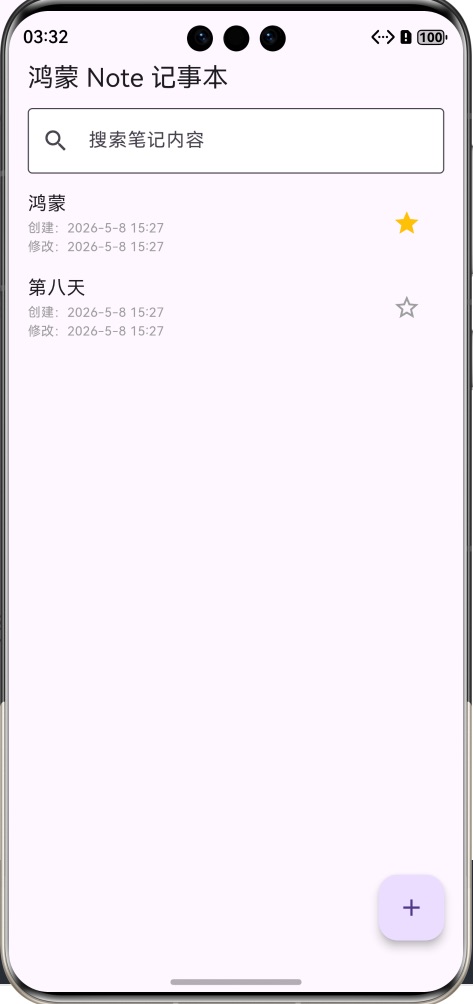
- UI 美化:列表变成圆角卡片,带阴影、美观整齐
- 点击弹窗:单击笔记弹出详情,带缩放动画
- 弹窗功能:可查看完整内容、关闭、快速编辑
- 长按删除、收藏、搜索、时间均正常
- 界面适配:鸿蒙模拟器显示美观、无错位
五、Day8 完整可运行代码
import 'package:flutter/material.dart';
import 'utils/note_storage.dart';
import 'utils/time_util.dart';
import 'pages/markdown_edit_page.dart';
import 'models/note_model.dart';

void main() {
  runApp(const NoteApp());
}

class NoteApp extends StatelessWidget {
  const NoteApp({super.key});

  @override
  Widget build(BuildContext context) {
    return MaterialApp(
      title: 'Note App',
      debugShowBanner: false,
      theme: ThemeData(primarySwatch: Colors.blue),
      home: const HomePage(),
    );
  }
}

class HomePage extends StatefulWidget {
  const HomePage({super.key});

  @override
  State<HomePage> createState() => _HomePageState();
}

class _HomePageState extends State<HomePage> {
  List<NoteModel> _allNotes = [];
  List<NoteModel> _showNotes = [];
  final TextEditingController _searchController = TextEditingController();

  @override
  void initState() {
    super.initState();
    _loadNotes();
    _searchController.addListener(_searchNotes);
  }

  Future<void> _loadNotes() async {
    final list = await NoteStorage.loadNotes();
    setState(() {
      _allNotes = list;
      _showNotes = List.from(_allNotes);
    });
    _sortNote();
  }

  Future<void> _saveNotes() async {
    await NoteStorage.saveNotes(_allNotes);
  }

  void _searchNotes() {
    String key = _searchController.text.trim();
    setState(() {
      if (key.isEmpty) {
        _showNotes = List.from(_allNotes);
      } else {
        _showNotes = _allNotes
            .where((note) => note.content.contains(key))
            .toList();
      }
    });
  }

  void _sortNote() {
    List<NoteModel> starList = _allNotes.where((e) => e.isStar).toList();
    List<NoteModel> normalList = _allNotes.where((e) => !e.isStar).toList();
    setState(() {
      _allNotes = [...starList, ...normalList];
      _searchNotes();
    });
  }

  void _starNote(int index) {
    int realIndex = _allNotes.indexOf(_showNotes[index]);
    setState(() {
      _allNotes[realIndex].isStar = !_allNotes[realIndex].isStar;
      _sortNote();
    });
    _saveNotes();
  }

  Future<void> _goEdit(int index) async {
    final realIndex = _allNotes.indexOf(_showNotes[index]);
    final result = await Navigator.push(
      context,
      MaterialPageRoute(
        builder: (context) => MarkdownEditPage(
          initialContent: _allNotes[realIndex].content,
        ),
      ),
    );
    if (result != null) {
      String newTime = TimeUtil.getNowTime();
      setState(() {
        _allNotes[realIndex].content = result;
        _allNotes[realIndex].updateTime = newTime;
        _searchNotes();
      });
      _sortNote();
      await _saveNotes();
    }
  }

  Future<void> _goDelete(int index) async {
    final realIndex = _allNotes.indexOf(_showNotes[index]);
    bool? confirm = await showDialog(
      context: context,
      builder: (context) => AlertDialog(
        title: Text("确认删除"),
        content: Text("确定要删除这条笔记吗?"),
        actions: [
          TextButton(onPressed: ()=>Navigator.pop(context,false), child: Text("取消")),
          TextButton(onPressed: ()=>Navigator.pop(context,true), child: Text("删除",style:TextStyle(color:Colors.red))),
        ],
      ),
    );
    if(confirm==true){
      setState(() {
        _allNotes.removeAt(realIndex);
        _searchNotes();
      });
      _sortNote();
      await _saveNotes();
    }
  }

  void _showNoteDetail(BuildContext context, NoteModel note) {
    showGeneralDialog(
      context: context,
      transitionDuration: Duration(milliseconds:300),
      transitionBuilder:(context,a1,a2,child){
        return ScaleTransition(scale:CurvedAnimation(parent:a1,curve:Curves.easeOut),child:child);
      },
      pageBuilder:(context,_,__)=>AlertDialog(
        shape:RoundedRectangleBorder(borderRadius:BorderRadius.circular(16)),
        title:Text("笔记详情"),
        content:SingleChildScrollView(child:Text(note.content)),
        actions: [
          TextButton(onPressed:()=>Navigator.pop(context),child:Text("关闭")),
          TextButton(onPressed:(){
            Navigator.pop(context);
            _goEdit(_showNotes.indexOf(note));
          },child:Text("编辑")),
        ],
      ),
    );
  }

  Future<void> _addNote() async {
    final newText = await Navigator.push(
      context,
      MaterialPageRoute(builder: (context) => const MarkdownEditPage()),
    );
    if (newText != null && newText.trim().isNotEmpty) {
      String time = TimeUtil.getNowTime();
      setState(() {
        _allNotes.add(
          NoteModel(
            content: newText,
            createTime: time,
            updateTime: time,
          ),
        );
        _searchNotes();
      });
      _sortNote();
      await _saveNotes();
    }
  }

  @override
  Widget build(BuildContext context) {
    return Scaffold(
      appBar: AppBar(
        title: Text("鸿蒙 Note 记事本"),
        bottom: PreferredSize(
          preferredSize: Size.fromHeight(50),
          child: Padding(
            padding: EdgeInsets.symmetric(horizontal:16,vertical:6),
            child: TextField(
              controller: _searchController,
              decoration: InputDecoration(
                hintText:"搜索笔记内容",
                filled:true,
                fillColor:Colors.white,
                border:OutlineInputBorder(),
                prefixIcon:Icon(Icons.search),
              ),
            ),
          ),
        ),
      ),
      body: _showNotes.isEmpty
          ? Center(child: Text("暂无笔记或无搜索结果",style:TextStyle(fontSize:16,color:Colors.grey)))
          : ListView.builder(
        itemCount: _showNotes.length,
        itemBuilder: (context, index) {
          return GestureDetector(
            onTap: ()=>_showNoteDetail(context,_showNotes[index]),
            onLongPress:()=>_goDelete(index),
            child: Card(
              elevation:3,
              shape:RoundedRectangleBorder(borderRadius:BorderRadius.circular(12)),
              margin:EdgeInsets.symmetric(horizontal:12,vertical:6),
              child:Padding(
                padding:EdgeInsets.all(12),
                child:Row(
                  crossAxisAlignment:CrossAxisAlignment.start,
                  children: [
                    Expanded(
                      child:Column(
                        crossAxisAlignment:CrossAxisAlignment.start,
                        children: [
                          Text(
                            _showNotes[index].content.length>20
                                ?"${_showNotes[index].content.substring(0,20)}..."
                                :_showNotes[index].content,
                            style:TextStyle(fontSize:16,fontWeight:FontWeight.w500),
                          ),
                          SizedBox(height:4),
                          Text(
                            "创建:${_showNotes[index].createTime}\n修改:${_showNotes[index].updateTime}",
                            style:TextStyle(fontSize:11,color:Colors.grey),
                          ),
                        ],
                      ),
                    ),
                    SizedBox(width:8),
                    IconButton(
                      icon:Icon(
                        _showNotes[index].isStar?Icons.star:Icons.star_border,
                        color:_showNotes[index].isStar?Colors.amber:Colors.grey,
                      ),
                      onPressed:(){
                        _starNote(index);
                      },
                    ),
                  ],
                ),
              ),
            ),
          );
        },
      ),
      floatingActionButton: FloatingActionButton(
        onPressed: _addNote,
        child: Icon(Icons.add),
      ),
    );
  }
}
六、小结---Flutter-OH 鸿蒙工具类应用实战 Day8:UI 卡片美化、弹窗详情与鸿蒙动画优化
随着项目开发不断完善,基础功能已全部实现,而界面美观度与交互流畅度是衡量应用软件品质的重要标准。前期记事本采用系统原生列表组件,样式单一、视觉层级简单,不符合鸿蒙系统简约精致的 UI 设计理念。本篇基于已完成的收藏排序、时间戳记录、关键词检索等功能,对应用界面进行全面美化升级,重构列表布局,采用圆角卡片样式优化视觉效果,新增缩放动画弹窗,实现笔记详情预览功能,进一步贴合 OpenHarmony 生态交互规范。
本次开发将原有简易列表组件替换为卡片布局,设置圆角、阴影、外边距与内边距,营造分层质感,优化页面留白布局。卡片内部区分笔记标题预览与时间信息,字体大小、颜色层级分明,整体排版简洁舒适。同时重新梳理交互逻辑,修改原有单击进入编辑页面的操作,改为单击弹出详情弹窗、长按删除、图标按钮收藏,操作逻辑更加人性化,避免误触操作。
为提升动画质感,采用鸿蒙常用缩放插值动画,弹窗弹出过程平滑柔和,动画时长控制在三百毫秒,符合移动端动效标准。弹窗内部支持滚动查看完整笔记内容,无需跳转编辑页面即可快速浏览文本,右下角设置关闭与编辑双按钮,兼顾查看与修改需求,减少页面跳转次数,提升使用效率。
本次优化保留全部历史业务逻辑,数据持久化、时间记录、收藏置顶、模糊搜索功能不受任何改动,保证项目稳定性。针对不同长度笔记进行适配优化,长文本弹窗自动滚动,短文本居中展示,同时优化卡片点击区域,提升触控灵敏度。
经过模拟器多次测试,美化后界面干净整洁,动画过渡流畅自然,交互逻辑清晰易懂,无卡顿、闪退、布局错乱等问题。本篇完成界面美化与交互升级,使记事本从功能性 demo 升级为高颜值规范化应用软件,加深开发者对 Flutter 组件封装、动画控件、手势监听的理解,为后续笔记分类、数据统计等高阶功能做好铺垫。

开源鸿蒙跨平台开发社区汇聚开发者与厂商,共建“一次开发,多端部署”的开源生态,致力于降低跨端开发门槛,推动万物智联创新。
更多推荐

 2
2 0
0- 0


 已为社区贡献6条内容

所有评论(0)