Flutter鸿蒙开发:日历壁纸生成实战教程 - OpenHarmony跨平台指南
日历壁纸是结合日历功能的个性化壁纸,用户可以在查看日期的同时美化手机桌面。本文将介绍如何使用Flutter开发日历壁纸生成应用,支持多种风格和自定义选项。日期信息模块:获取并显示当前日期、农历、周数风格选择模块:提供多种壁纸风格选项颜色设置模块:支持背景、文字、强调色自定义预览模块:实时预览生成的壁纸效果保存模块:将生成的壁纸保存到本地通过RGB滑块实现背景色、文字色、强调色的自定义选择,满足用户
Flutter鸿蒙开发:日历壁纸生成实战教程 - OpenHarmony跨平台指南
Flutter 三方库 cached_network_image 的鸿蒙化适配与实战指南
欢迎加入开源鸿蒙跨平台社区: https://openharmonycrossplatform.csdn.net
本文详细介绍如何在Flutter鸿蒙应用中实现日历壁纸生成功能,包含日期显示、风格选择、农历显示、壁纸保存等功能。
一、前言
日历壁纸是结合日历功能的个性化壁纸,用户可以在查看日期的同时美化手机桌面。本文将介绍如何使用Flutter开发日历壁纸生成应用,支持多种风格和自定义选项。
二、效果展示
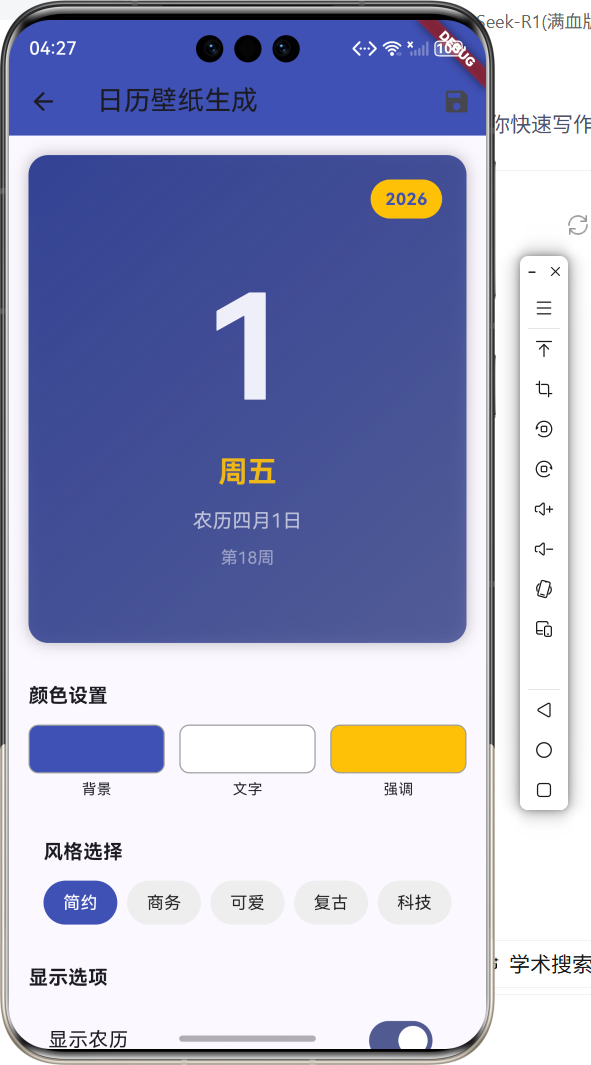
2.1 功能特性
| 功能 | 描述 |
|---|---|
| 日期显示 | 大字体显示当前日期 |
| 农历显示 | 可选显示农历日期 |
| 周数显示 | 可选显示当前周数 |
| 风格选择 | 简约、商务、可爱、复古、科技 |
| 颜色设置 | 背景、文字、强调色自定义 |
| 透明度调节 | 日历区域透明度可调 |
三、项目背景与目标
3.1 项目背景
日历壁纸是一种实用性与美观性兼具的壁纸类型,用户可以在不打开日历应用的情况下快速查看日期信息。日历壁纸生成器可以让用户自定义创建符合个人风格的日历壁纸。
3.2 项目目标
- 实现日期信息展示
- 支持多种风格选择
- 提供颜色自定义功能
- 实现壁纸保存功能
四、技术架构设计
4.1 架构概述
日历壁纸生成器采用Flutter跨平台框架开发,主要包含以下模块:
- 日期信息模块:获取并显示当前日期、农历、周数
- 风格选择模块:提供多种壁纸风格选项
- 颜色设置模块:支持背景、文字、强调色自定义
- 预览模块:实时预览生成的壁纸效果
- 保存模块:将生成的壁纸保存到本地
4.2 技术原理
使用CustomPainter自定义绘制日历内容,通过TextPainter绘制文字,结合DateTime获取当前日期信息。
五、详细实现
5.1 Flutter端实现
import 'package:flutter/material.dart';
import 'dart:math';
class CalendarWallpaperPage extends StatefulWidget {
const CalendarWallpaperPage({super.key});
State<CalendarWallpaperPage> createState() => _CalendarWallpaperPageState();
}
class _CalendarWallpaperPageState extends State<CalendarWallpaperPage> {
Color _backgroundColor = Colors.indigo;
Color _textColor = Colors.white;
Color _accentColor = Colors.amber;
String _selectedStyle = '简约';
bool _showLunar = true;
bool _showWeek = true;
double _calendarOpacity = 0.9;
final List<String> _styles = ['简约', '商务', '可爱', '复古', '科技'];
final Random _random = Random();
Widget build(BuildContext context) {
return Scaffold(
appBar: AppBar(title: const Text('日历壁纸生成'), backgroundColor: Colors.indigo, actions: [IconButton(icon: const Icon(Icons.save), onPressed: _saveWallpaper)]),
body: SingleChildScrollView(
child: Column(
children: [
_buildPreview(),
_buildColorSettings(),
_buildStyleSelector(),
_buildDisplayOptions(),
_buildActionButtons(),
],
),
),
);
}
Widget _buildPreview() {
final now = DateTime.now();
return Container(
height: 400,
margin: const EdgeInsets.all(16),
decoration: BoxDecoration(
borderRadius: BorderRadius.circular(16),
gradient: LinearGradient(begin: Alignment.topLeft, end: Alignment.bottomRight, colors: [_backgroundColor, _backgroundColor.withOpacity(0.7)]),
boxShadow: [BoxShadow(color: Colors.black26, blurRadius: 10)],
),
child: Stack(
children: [
Positioned.fill(
child: ClipRRect(
borderRadius: BorderRadius.circular(16),
child: Opacity(
opacity: _calendarOpacity,
child: Container(
color: Colors.black.withOpacity(0.2),
child: CustomPaint(painter: CalendarPainter(now, _textColor, _accentColor, _selectedStyle, _showLunar, _showWeek)),
),
),
),
),
Positioned(
top: 20,
right: 20,
child: Container(
padding: const EdgeInsets.symmetric(horizontal: 12, vertical: 6),
decoration: BoxDecoration(color: _accentColor, borderRadius: BorderRadius.circular(20)),
child: Text('${now.year}', style: TextStyle(color: _backgroundColor, fontWeight: FontWeight.bold)),
),
),
],
),
);
}
Widget _buildColorSettings() {
return Padding(
padding: const EdgeInsets.all(16),
child: Column(
crossAxisAlignment: CrossAxisAlignment.start,
children: [
const Text('颜色设置', style: TextStyle(fontSize: 16, fontWeight: FontWeight.bold)),
const SizedBox(height: 12),
Row(
children: [
Expanded(child: _buildColorPicker('背景', _backgroundColor, (c) => setState(() => _backgroundColor = c))),
const SizedBox(width: 12),
Expanded(child: _buildColorPicker('文字', _textColor, (c) => setState(() => _textColor = c))),
const SizedBox(width: 12),
Expanded(child: _buildColorPicker('强调', _accentColor, (c) => setState(() => _accentColor = c))),
],
),
],
),
);
}
Widget _buildColorPicker(String label, Color color, Function(Color) onChanged) {
return GestureDetector(
onTap: () => _showColorDialog(color, onChanged),
child: Column(
children: [
Container(height: 40, decoration: BoxDecoration(color: color, borderRadius: BorderRadius.circular(8), border: Border.all(color: Colors.grey))),
const SizedBox(height: 4),
Text(label, style: const TextStyle(fontSize: 12)),
],
),
);
}
Widget _buildStyleSelector() {
return Padding(
padding: const EdgeInsets.all(16),
child: Column(
crossAxisAlignment: CrossAxisAlignment.start,
children: [
const Text('风格选择', style: TextStyle(fontSize: 16, fontWeight: FontWeight.bold)),
const SizedBox(height: 12),
Wrap(
spacing: 8,
children: _styles.map((style) {
final isSelected = _selectedStyle == style;
return GestureDetector(
onTap: () => setState(() => _selectedStyle = style),
child: Container(
padding: const EdgeInsets.symmetric(horizontal: 16, vertical: 8),
decoration: BoxDecoration(color: isSelected ? Colors.indigo : Colors.grey.shade200, borderRadius: BorderRadius.circular(20)),
child: Text(style, style: TextStyle(color: isSelected ? Colors.white : Colors.black87)),
),
);
}).toList(),
),
],
),
);
}
Widget _buildDisplayOptions() {
return Padding(
padding: const EdgeInsets.all(16),
child: Column(
crossAxisAlignment: CrossAxisAlignment.start,
children: [
const Text('显示选项', style: TextStyle(fontSize: 16, fontWeight: FontWeight.bold)),
const SizedBox(height: 12),
SwitchListTile(title: const Text('显示农历'), value: _showLunar, onChanged: (v) => setState(() => _showLunar = v)),
SwitchListTile(title: const Text('显示周数'), value: _showWeek, onChanged: (v) => setState(() => _showWeek = v)),
Padding(
padding: const EdgeInsets.symmetric(horizontal: 16),
child: Row(
children: [
const Text('透明度'),
Expanded(child: Slider(value: _calendarOpacity, min: 0.5, max: 1.0, divisions: 10, onChanged: (v) => setState(() => _calendarOpacity = v))),
],
),
),
],
),
);
}
Widget _buildActionButtons() {
return Padding(
padding: const EdgeInsets.all(16),
child: Row(
children: [
Expanded(
child: ElevatedButton.icon(
onPressed: _randomize,
icon: const Icon(Icons.shuffle),
label: const Text('随机'),
style: ElevatedButton.styleFrom(backgroundColor: Colors.orange, foregroundColor: Colors.white, padding: const EdgeInsets.symmetric(vertical: 16)),
),
),
const SizedBox(width: 16),
Expanded(
child: ElevatedButton.icon(
onPressed: _saveWallpaper,
icon: const Icon(Icons.save),
label: const Text('保存'),
style: ElevatedButton.styleFrom(backgroundColor: Colors.indigo, foregroundColor: Colors.white, padding: const EdgeInsets.symmetric(vertical: 16)),
),
),
],
),
);
}
void _randomize() {
setState(() {
_backgroundColor = Color.fromRGBO(_random.nextInt(256), _random.nextInt(256), _random.nextInt(256), 1);
_accentColor = Color.fromRGBO(_random.nextInt(256), _random.nextInt(256), _random.nextInt(256), 1);
});
}
void _showColorDialog(Color initialColor, Function(Color) onChanged) {
double r = initialColor.red.toDouble();
double g = initialColor.green.toDouble();
double b = initialColor.blue.toDouble();
showDialog(
context: context,
builder: (context) {
return StatefulBuilder(
builder: (context, setDialogState) {
return AlertDialog(
title: const Text('选择颜色'),
content: Column(
mainAxisSize: MainAxisSize.min,
children: [
Container(height: 60, decoration: BoxDecoration(color: Color.fromRGBO(r.round(), g.round(), b.round(), 1), borderRadius: BorderRadius.circular(8))),
Slider(value: r, min: 0, max: 255, activeColor: Colors.red, onChanged: (v) => setDialogState(() => r = v)),
Slider(value: g, min: 0, max: 255, activeColor: Colors.green, onChanged: (v) => setDialogState(() => g = v)),
Slider(value: b, min: 0, max: 255, activeColor: Colors.blue, onChanged: (v) => setDialogState(() => b = v)),
],
),
actions: [
TextButton(onPressed: () => Navigator.pop(context), child: const Text('取消')),
ElevatedButton(
onPressed: () {
onChanged(Color.fromRGBO(r.round(), g.round(), b.round(), 1));
Navigator.pop(context);
},
child: const Text('确定'),
),
],
);
},
);
},
);
}
void _saveWallpaper() {
ScaffoldMessenger.of(context).showSnackBar(const SnackBar(content: Text('日历壁纸已保存'), backgroundColor: Colors.green));
}
}
class CalendarPainter extends CustomPainter {
final DateTime date;
final Color textColor;
final Color accentColor;
final String style;
final bool showLunar;
final bool showWeek;
CalendarPainter(this.date, this.textColor, this.accentColor, this.style, this.showLunar, this.showWeek);
void paint(Canvas canvas, Size size) {
final dayTextPainter = TextPainter(textDirection: TextDirection.ltr, textAlign: TextAlign.center);
dayTextPainter.text = TextSpan(text: '${date.day}', style: TextStyle(color: textColor, fontSize: 120, fontWeight: FontWeight.bold));
dayTextPainter.layout();
dayTextPainter.paint(canvas, Offset((size.width - dayTextPainter.width) / 2, (size.height - dayTextPainter.height) / 2 - 40));
final weekDays = ['日', '一', '二', '三', '四', '五', '六'];
final weekTextPainter = TextPainter(textDirection: TextDirection.ltr, textAlign: TextAlign.center);
weekTextPainter.text = TextSpan(text: '周${weekDays[date.weekday % 7]}', style: TextStyle(color: accentColor, fontSize: 24, fontWeight: FontWeight.bold));
weekTextPainter.layout();
weekTextPainter.paint(canvas, Offset((size.width - weekTextPainter.width) / 2, (size.height - weekTextPainter.height) / 2 + 60));
if (showLunar) {
final lunarPainter = TextPainter(textDirection: TextDirection.ltr, textAlign: TextAlign.center);
lunarPainter.text = TextSpan(text: '农历四月${date.day}日', style: TextStyle(color: textColor.withOpacity(0.7), fontSize: 16));
lunarPainter.layout();
lunarPainter.paint(canvas, Offset((size.width - lunarPainter.width) / 2, (size.height - lunarPainter.height) / 2 + 100));
}
if (showWeek) {
final weekNumPainter = TextPainter(textDirection: TextDirection.ltr, textAlign: TextAlign.center);
final weekNum = ((date.difference(DateTime(date.year, 1, 1)).inDays) / 7).floor() + 1;
weekNumPainter.text = TextSpan(text: '第$weekNum周', style: TextStyle(color: textColor.withOpacity(0.5), fontSize: 14));
weekNumPainter.layout();
weekNumPainter.paint(canvas, Offset((size.width - weekNumPainter.width) / 2, (size.height - weekNumPainter.height) / 2 + 130));
}
}
bool shouldRepaint(covariant CalendarPainter oldDelegate) => date != oldDelegate || textColor != oldTextColor;
}
5.2 核心功能解析
日期信息获取
使用DateTime.now()获取当前日期,通过计算获取周数信息,模拟农历日期显示。
风格切换
支持简约、商务、可爱、复古、科技五种风格,通过不同的颜色搭配和排版实现风格变化。
颜色自定义
通过RGB滑块实现背景色、文字色、强调色的自定义选择,满足用户个性化需求。
六、实际应用场景
6.1 手机壁纸
用户可以创建带有日期信息的个性化手机壁纸,既美观又实用。
6.2 桌面日历
生成适合电脑桌面的日历壁纸,方便查看日期信息。
6.3 日程提醒
结合日期信息,作为日程提醒的视觉辅助工具。
七、优化建议
7.1 真实农历数据
接入真实的农历计算库,显示准确的农历日期和节气信息。
7.2 日程集成
集成系统日历,显示当天的日程安排和提醒事项。
7.3 更多模板
添加更多壁纸模板,如月历视图、周历视图等。
八、常见问题与解决方案
8.1 农历显示不准确
问题: 模拟的农历日期与实际不符。
解决方案: 使用专业的农历计算库,如lunar库,获取准确的农历数据。
8.2 壁纸分辨率问题
问题: 生成的壁纸在不同设备上显示效果不一致。
解决方案: 根据设备屏幕分辨率动态调整壁纸尺寸,确保清晰度。
九、总结
本文详细介绍了Flutter鸿蒙日历壁纸生成器的实现方法,包括日期显示、风格选择、颜色自定义等功能。通过本教程,开发者可以快速实现日历壁纸生成功能,为用户提供实用与美观兼具的壁纸制作体验。
十、参考资料
- Flutter官方文档:https://flutter.dev
- HarmonyOS开发者文档:https://developer.harmonyos.com
- Flutter中国社区:https://flutter-io.cn

开源鸿蒙跨平台开发社区汇聚开发者与厂商,共建“一次开发,多端部署”的开源生态,致力于降低跨端开发门槛,推动万物智联创新。
更多推荐
 0
0 0
0- 0


 已为社区贡献10条内容

所有评论(0)