ReactNative项目OpenHarmony三方库集成实战:react-native-gifted-charts
数据可视化是移动应用开发中的重要需求,无论是展示销售数据、用户统计还是财务报表,都需要直观、美观的图表组件。是 React Native 生态中最强大、最灵活的图表库之一,支持折线图、柱状图、饼图、面积图等多种图表类型,并提供丰富的自定义选项。库名称版本信息1.4.16): 支持 RN 0.72 版本1.5.0): 支持 RN 0.77 版本官方仓库鸿蒙仓库主要功能📊 柱状图(垂直/水平/堆叠)
欢迎加入开源鸿蒙跨平台社区:https://openharmonycrossplatform.csdn.net
📋 前言
数据可视化是移动应用开发中的重要需求,无论是展示销售数据、用户统计还是财务报表,都需要直观、美观的图表组件。react-native-gifted-charts 是 React Native 生态中最强大、最灵活的图表库之一,支持折线图、柱状图、饼图、面积图等多种图表类型,并提供丰富的自定义选项。
🎯 库简介
基本信息
- 库名称:
react-native-gifted-charts - 版本信息:
1.4.16(@react-native-oh-tpl/react-native-gifted-charts): 支持 RN 0.72 版本1.5.0(@react-native-ohos/react-native-gifted-charts): 支持 RN 0.77 版本
- 官方仓库: https://github.com/Abhinandan-Kushwaha/react-native-gifted-charts
- 鸿蒙仓库: https://github.com/react-native-oh-library/react-native-gifted-charts
- 主要功能:
- 📊 柱状图(垂直/水平/堆叠)
- 📈 折线图(曲线/面积图)
- 🥧 饼图(环形图)
- 📉 人口金字塔图
- 🎨 丰富的自定义样式
- 📱 触摸交互支持
- 🌈 渐变和动画效果
为什么选择 Gifted Charts?
| 特性 | react-native-charts-wrapper | react-native-chart-kit | react-native-gifted-charts |
|---|---|---|---|
| 图表类型 | ⚠️ 依赖原生 | ✅ 多种类型 | ✅ 最丰富 |
| 自定义能力 | ⚠️ 有限 | ⚠️ 有限 | ✅ 高度可定制 |
| 动画效果 | ⚠️ 原生动画 | ✅ 基础动画 | ✅ 丰富动画 |
| 触摸交互 | ⚠️ 有限 | ⚠️ 有限 | ✅ 完善支持 |
| 渐变支持 | ⚠️ 有限 | ⚠️ 有限 | ✅ 完善支持 |
| 维护状态 | ⚠️ 更新较慢 | ✅ 活跃 | ✅ 活跃 |
| HarmonyOS支持 | ⚠️ 需适配 | ✅ 已适配 | ✅ 已适配 |
支持的图表类型
| 图表类型 | 组件名 | 说明 | HarmonyOS 支持 |
|---|---|---|---|
| 柱状图 | BarChart |
垂直柱状图 | ✅ |
| 水平柱状图 | BarChart |
设置 horizontal | ✅ |
| 堆叠柱状图 | BarChart |
堆叠样式 | ✅ |
| 折线图 | LineChart |
基础折线图 | ✅ |
| 面积图 | LineChart |
设置 areaChart | ✅ |
| 饼图 | PieChart |
基础饼图 | ✅ |
| 环形图 | PieChart |
设置 donut | ✅ |
| 人口金字塔图 | PopulationPyramid |
人口分布图 | ✅ |
兼容性验证
在以下环境验证通过:
- RNOH: 0.72.90; SDK: OpenHarmony 6.0.0; IDE: DevEco Studio 6.0.2; ROM: 6.0.0
📦 安装步骤
1. 安装依赖
在项目根目录执行以下命令:
# RN 0.72 版本
npm install @react-native-oh-tpl/react-native-gifted-charts

# RN 0.77 版本
npm install @react-native-ohos/react-native-gifted-charts

# 或者使用 yarn
yarn add @react-native-oh-tpl/react-native-gifted-charts
2. 验证安装
安装完成后,检查 package.json 文件,应该能看到新增的依赖:
{
  "dependencies": {
    "@react-native-oh-tpl/react-native-gifted-charts": "1.4.16",
    // ... 其他依赖
  }
}
🔧 HarmonyOS 平台配置 ⭐
本库依赖 @react-native-ohos/react-native-svg 和 @react-native-ohos/react-native-linear-gradient,需要配置原生端代码。
可以参考这两篇:https://blog.csdn.net/2402_83107102/article/details/159163022
https://blog.csdn.net/2402_83107102/article/details/159203447
依赖说明
如果项目中已经引入过以下库,可跳过对应配置步骤:
@react-native-ohos/react-native-svg@react-native-ohos/react-native-linear-gradient
1. 在工程根目录的 oh-package.json5 添加 overrides 字段
打开 harmony/oh-package.json5,添加以下配置:
{
  // ... 其他配置
  "overrides": {
    "@rnoh/react-native-openharmony": "0.72.90"
  }
}
2. 在 entry/oh-package.json5 添加依赖
打开 harmony/entry/oh-package.json5,添加以下依赖:
"dependencies": {
  "@rnoh/react-native-openharmony": "0.72.90",
  "@react-native-ohos/react-native-svg": "file:../../node_modules/@react-native-ohos/react-native-svg/harmony/svg.har",
  "@react-native-ohos/react-native-linear-gradient": "file:../../node_modules/@react-native-ohos/react-native-linear-gradient/harmony/linear_gradient.har"
}
3. 同步依赖
点击 DevEco Studio 右上角的 sync 按钮,或者在终端执行:
cd harmony/entry
ohpm install
4. 配置 CMakeLists.txt
打开 harmony/entry/src/main/cpp/CMakeLists.txt,添加以下配置:
project(rnapp)
cmake_minimum_required(VERSION 3.4.1)
set(CMAKE_SKIP_BUILD_RPATH TRUE)
set(RNOH_APP_DIR "${CMAKE_CURRENT_SOURCE_DIR}")
set(NODE_MODULES "${CMAKE_CURRENT_SOURCE_DIR}/../../../../../node_modules")
set(OH_MODULES "${CMAKE_CURRENT_SOURCE_DIR}/../../../oh_modules")
set(RNOH_CPP_DIR "${CMAKE_CURRENT_SOURCE_DIR}/../../../../../../react-native-harmony/harmony/cpp")
set(LOG_VERBOSITY_LEVEL 1)
set(CMAKE_ASM_FLAGS "-Wno-error- unused-command-line-argument -Qunused-arguments")
set(CMAKE_CXX_FLAGS "-fstack-protector-strong -Wl,-z,relro,-z,now,-z,noexecstack -s -fPIE -pie")
set(WITH_HITRACE_SYSTRACE 1)
add_compile_definitions(WITH_HITRACE_SYSTRACE)

add_subdirectory("${RNOH_CPP_DIR}" ./rn)

# 添加 SVG 模块
add_subdirectory("${OH_MODULES}/@react-native-ohos/react-native-svg/src/main/cpp" ./svg)

# 添加 LinearGradient 模块
add_subdirectory("${OH_MODULES}/@react-native-ohos/react-native-linear-gradient/src/main/cpp" ./linear_gradient)

file(GLOB GENERATED_CPP_FILES "./generated/*.cpp")

add_library(rnoh_app SHARED
    ${GENERATED_CPP_FILES}
    "./PackageProvider.cpp"
    "${RNOH_CPP_DIR}/RNOHAppNapiBridge.cpp"
)
target_link_libraries(rnoh_app PUBLIC rnoh)

# 链接库
target_link_libraries(rnoh_app PUBLIC rnoh_svg)
target_link_libraries(rnoh_app PUBLIC rnoh_linear_gradient)
5. 修改 PackageProvider.cpp
打开 harmony/entry/src/main/cpp/PackageProvider.cpp,添加:
#include "RNOH/PackageProvider.h"
#include "generated/RNOHGeneratedPackage.h"
#include "SVGPackage.h"
#include "LinearGradientPackage.h"

using namespace rnoh;

std::vector<std::shared_ptr<Package>> PackageProvider::getPackages(Package::Context ctx) {
    return {
        std::make_shared<RNOHGeneratedPackage>(ctx),
        std::make_shared<SVGPackage>(ctx),
        std::make_shared<LinearGradientPackage>(ctx),
    };
}
6. 在 ArkTs 侧引入 Package
打开 harmony/entry/src/main/ets/RNPackagesFactory.ts,添加:
import type { RNPackageContext, RNPackage } from 'rnoh/ts';
import { SvgPackage } from '@react-native-ohos/react-native-svg/ts';
import { LinearGradientPackage } from '@react-native-ohos/react-native-linear-gradient/ts';

export function createRNPackages(ctx: RNPackageContext): RNPackage[] {
  return [
    // ... 其他包
    new SvgPackage(ctx),
    new LinearGradientPackage(ctx),
  ];
}
7. 同步并运行
点击 DevEco Studio 右上角的 sync 按钮,然后编译、运行即可。
📖 API 详解
🔷 BarChart - 柱状图
柱状图用于展示离散数据的比较,支持垂直、水平和堆叠三种模式。
import { BarChart } from 'react-native-gifted-charts';

<BarChart
  data={[{ value: 50 }, { value: 80 }, { value: 90 }]}
  width={300}
  height={200}
/>
基础属性
| 属性 | 类型 | 必填 | 说明 | HarmonyOS 支持 |
|---|---|---|---|---|
data |
array | ✅ | 数据数组 | ✅ |
width |
number | ❌ | 图表宽度 | ✅ |
height |
number | ❌ | 图表高度 | ✅ |
maxValue |
number | ❌ | Y 轴最大值 | ✅ |
noOfSections |
number | ❌ | Y 轴分段数 | ✅ |
spacing |
number | ❌ | 柱子间距 | ✅ |
backgroundColor |
string | ❌ | 背景色 | ✅ |
数据项属性 (barDataItem)
| 属性 | 类型 | 必填 | 说明 | HarmonyOS 支持 |
|---|---|---|---|---|
value |
number | ✅ | 柱子高度值 | ✅ |
label |
string | ❌ | X 轴标签 | ✅ |
barWidth |
number | ❌ | 柱子宽度 | ✅ |
frontColor |
string | ❌ | 柱子颜色 | ✅ |
sideColor |
string | ❌ | 3D 侧面颜色 | ✅ |
topColor |
string | ❌ | 3D 顶部颜色 | ✅ |
onPress |
function | ❌ | 点击回调 | ✅ |
堆叠数据属性 (stackDataItem)
当使用 stackData 属性时,数据项包含以下属性:
| 属性 | 类型 | 必填 | 说明 | HarmonyOS 支持 |
|---|---|---|---|---|
stacks |
array | ✅ | 堆叠数据数组 | ✅ |
label |
string | ❌ | X 轴标签 | ✅ |
barWidth |
number | ❌ | 柱子宽度 | ✅ |
spacing |
number | ❌ | 柱子间距 | ✅ |
color |
string | ❌ | 默认堆叠颜色 | ✅ |
其中 stacks 数组中每个元素包含:
| 属性 | 类型 | 必填 | 说明 | HarmonyOS 支持 |
|---|---|---|---|---|
value |
number | ✅ | 堆叠层高度值 | ✅ |
color |
string | ❌ | 堆叠层颜色 | ✅ |
onPress |
function | ❌ | 点击回调 | ✅ |
交互属性
| 属性 | 类型 | 必填 | 说明 | HarmonyOS 支持 |
|---|---|---|---|---|
onPress |
function | ❌ | 点击柱子回调 | ✅ |
onLongPress |
function | ❌ | 长按柱子回调 | ✅ |
focusBarOnPress |
boolean | ❌ | 点击时聚焦柱子 | ✅ |
focusedBarConfig |
object | ❌ | 聚焦柱子样式 | ✅ |
堆叠柱状图示例:
import { BarChart } from 'react-native-gifted-charts';

const StackedBarChart = () => {
  const stackData = [
    { stacks: [{ value: 10, color: '#4AB3E3' }, { value: 20, color: '#79C3A8' }], label: 'Q1' },
    { stacks: [{ value: 15, color: '#4AB3E3' }, { value: 25, color: '#79C3A8' }], label: 'Q2' },
    { stacks: [{ value: 20, color: '#4AB3E3' }, { value: 30, color: '#79C3A8' }], label: 'Q3' },
    { stacks: [{ value: 25, color: '#4AB3E3' }, { value: 35, color: '#79C3A8' }], label: 'Q4' },
  ];

  return (
    <BarChart
      stackData={stackData}
      width={350}
      height={200}
      maxValue={80}
      noOfSections={4}
      spacing={40}
      barWidth={50}
      yAxisThickness={1}
      xAxisThickness={1}
      yAxisTextStyle={{ color: '#666' }}
      isAnimated
    />
  );
};
使用示例:
import { BarChart } from 'react-native-gifted-charts';

const BasicBarChart = () => {
  const data = [
    { value: 250, label: 'Jan', frontColor: '#4AB3E3' },
    { value: 500, label: 'Feb', frontColor: '#79C3A8' },
    { value: 745, label: 'Mar', frontColor: '#F7C744' },
    { value: 320, label: 'Apr', frontColor: '#E8726E' },
    { value: 600, label: 'May', frontColor: '#9B59B6' },
  ];

  return (
    <BarChart
      data={data}
      width={350}
      height={200}
      maxValue={800}
      noOfSections={4}
      spacing={30}
      barWidth={40}
      yAxisThickness={1}
      xAxisThickness={1}
      yAxisTextStyle={{ color: '#666' }}
      xAxisLabelTextStyle={{ color: '#666' }}
    />
  );
};
🔷 LineChart - 折线图
折线图用于展示数据的变化趋势,支持曲线、面积图等样式。
import { LineChart } from 'react-native-gifted-charts';

<LineChart
  data={[{ value: 50 }, { value: 80 }, { value: 90 }]}
  width={300}
  height={200}
/>
基础属性
| 属性 | 类型 | 必填 | 说明 | HarmonyOS 支持 |
|---|---|---|---|---|
data |
array | ✅ | 数据数组 | ✅ |
data2 |
array | ❌ | 第二条线数据 | ✅ |
width |
number | ❌ | 图表宽度 | ✅ |
height |
number | ❌ | 图表高度 | ✅ |
maxValue |
number | ❌ | Y 轴最大值 | ✅ |
noOfSections |
number | ❌ | Y 轴分段数 | ✅ |
spacing |
number | ❌ | 数据点间距 | ✅ |
线条样式属性
| 属性 | 类型 | 必填 | 说明 | HarmonyOS 支持 |
|---|---|---|---|---|
curved |
boolean | ❌ | 是否为曲线 | ✅ |
thickness |
number | ❌ | 线条粗细 | ✅ |
color |
string | ❌ | 线条颜色 | ✅ |
areaChart |
boolean | ❌ | 是否为面积图 | ✅ |
color1 |
string | ❌ | 第一条线颜色 | ✅ |
color2 |
string | ❌ | 第二条线颜色 | ✅ |
数据点属性
| 属性 | 类型 | 必填 | 说明 | HarmonyOS 支持 |
|---|---|---|---|---|
hideDataPoints |
boolean | ❌ | 隐藏数据点 | ✅ |
dataPointsHeight |
number | ❌ | 数据点高度 | ✅ |
dataPointsWidth |
number | ❌ | 数据点宽度 | ✅ |
dataPointsColor |
string | ❌ | 数据点颜色 | ✅ |
dataPointsShape |
string | ❌ | 数据点形状 | ✅ |
textColor |
string | ❌ | 数据点文本颜色 | ✅ |
textFontSize |
number | ❌ | 数据点文本大小 | ✅ |
动画属性
| 属性 | 类型 | 必填 | 说明 | HarmonyOS 支持 |
|---|---|---|---|---|
isAnimated |
boolean | ❌ | 是否启用动画 | ✅ |
delay |
number | ❌ | 动画延迟(ms) | ✅ |
使用示例:
import { LineChart } from 'react-native-gifted-charts';

const BasicLineChart = () => {
  const data = [
    { value: 0, dataPointText: '0' },
    { value: 20, dataPointText: '20' },
    { value: 18, dataPointText: '18' },
    { value: 40, dataPointText: '40' },
    { value: 36, dataPointText: '36' },
    { value: 60, dataPointText: '60' },
    { value: 54, dataPointText: '54' },
    { value: 85, dataPointText: '85' },
  ];

  return (
    <LineChart
      data={data}
      width={350}
      height={200}
      maxValue={100}
      noOfSections={5}
      spacing={40}
      curved
      curvature={0.2}
      initialSpacing={20}
      color="#007AFF"
      thickness={3}
      dataPointsHeight={10}
      dataPointsWidth={10}
      dataPointsColor="#007AFF"
      dataPointsShape="circular"
      textColor="#333"
      textFontSize={12}
      yAxisThickness={1}
      xAxisThickness={1}
    />
  );
};
🔷 PieChart - 饼图
饼图用于展示数据的占比分布,支持环形图样式。
import { PieChart } from 'react-native-gifted-charts';

<PieChart
  data={[{ value: 50, color: 'red' }, { value: 30, color: 'blue' }]}
  radius={100}
/>
基础属性
| 属性 | 类型 | 必填 | 说明 | HarmonyOS 支持 |
|---|---|---|---|---|
data |
array | ✅ | 数据数组 | ✅ |
radius |
number | ❌ | 饼图半径 | ✅ |
innerRadius |
number | ❌ | 内圆半径(环形图) | ✅ |
donut |
boolean | ❌ | 是否为环形图 | ✅ |
innerCircleColor |
string | ❌ | 内圆颜色 | ✅ |
showText |
boolean | ❌ | 显示文本 | ✅ |
textColor |
string | ❌ | 文本颜色 | ✅ |
textSize |
number | ❌ | 文本大小 | ✅ |
数据项属性
| 属性 | 类型 | 必填 | 说明 | HarmonyOS 支持 |
|---|---|---|---|---|
value |
number | ✅ | 数值 | ✅ |
color |
string | ❌ | 颜色 | ✅ |
text |
string | ❌ | 显示文本 | ✅ |
onPress |
function | ❌ | 点击回调 | ✅ |
shiftX |
number | ❌ | X 轴偏移 | ✅ |
shiftY |
number | ❌ | Y 轴偏移 | ✅ |
使用示例:
import { PieChart } from 'react-native-gifted-charts';

const BasicPieChart = () => {
  const data = [
    { value: 54, color: '#177AD5', text: '54%' },
    { value: 30, color: '#79D2DE', text: '30%' },
    { value: 26, color: '#ED6665', text: '26%' },
  ];

  return (
    <PieChart
      data={data}
      radius={100}
      innerRadius={50}
      donut
      showText
      textColor="#333"
      textSize={14}
      showTextBackground
      textBackgroundColor="#FFF"
      textBackgroundRadius={12}
      centerLabelComponent={() => (
        <View style={{ alignItems: 'center' }}>
          <Text style={{ fontSize: 20, fontWeight: 'bold' }}>110</Text>
          <Text style={{ fontSize: 12, color: '#666' }}>Total</Text>
        </View>
      )}
    />
  );
};
🔷 PopulationPyramid - 人口金字塔图
人口金字塔图用于展示人口年龄分布。
import { PopulationPyramid } from 'react-native-gifted-charts';

<PopulationPyramid
  data={[
    { left: 10, right: 12 },
    { left: 9, right: 8 },
  ]}
/>
基础属性
| 属性 | 类型 | 必填 | 说明 | HarmonyOS 支持 |
|---|---|---|---|---|
data |
array | ✅ | 数据数组 | ✅ |
width |
number | ❌ | 图表宽度 | ✅ |
height |
number | ❌ | 图表高度 | ✅ |
leftColor |
string | ❌ | 左侧颜色 | ✅ |
rightColor |
string | ❌ | 右侧颜色 | ✅ |
💡 完整示例
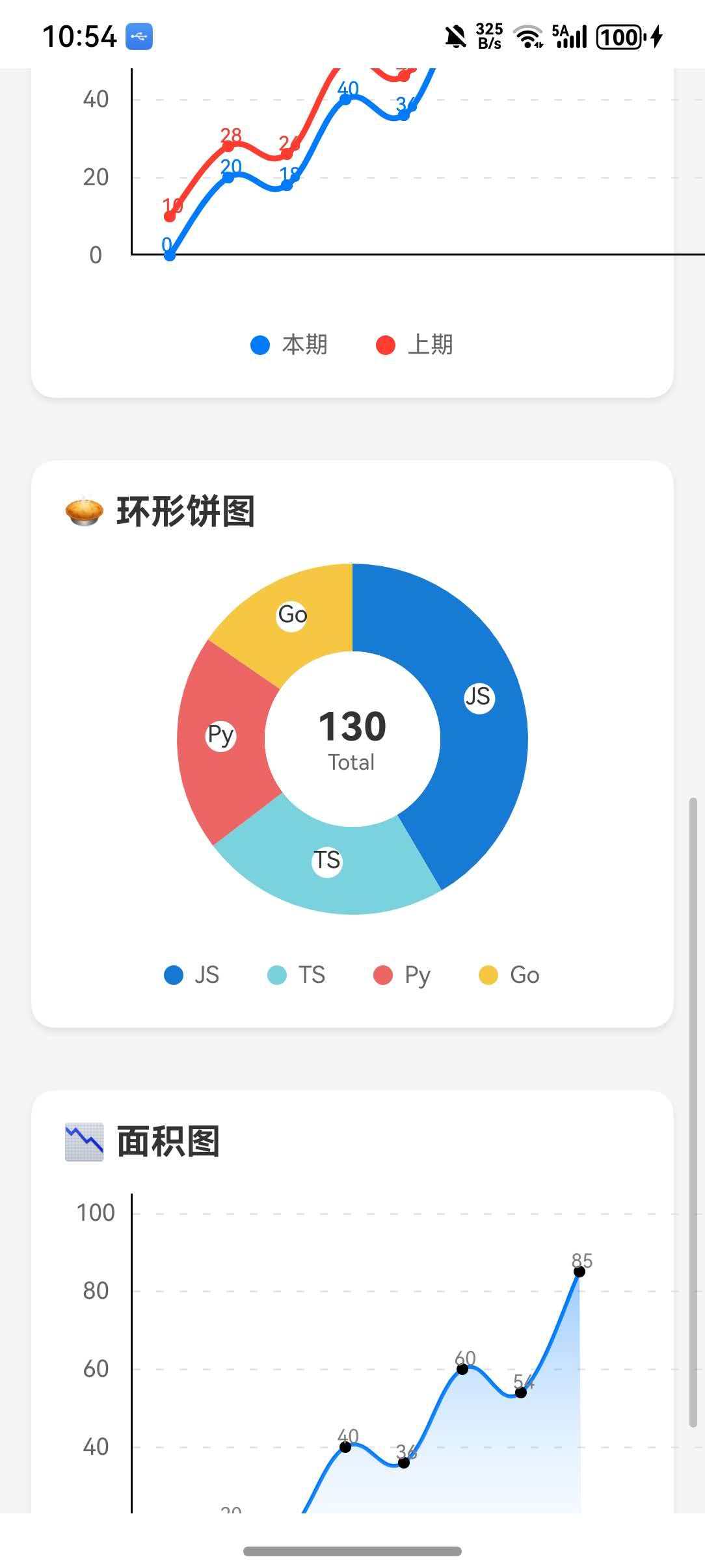
以下示例整合了多种图表类型:柱状图、折线图、饼图、面积图、堆叠柱状图,并包含交互功能。
import React, { useState } from 'react';
import { View, Text, StyleSheet, ScrollView, TouchableOpacity, Modal } from 'react-native';
import { BarChart, LineChart, PieChart } from 'react-native-gifted-charts';

const ChartsDemo = () => {
  const [selectedBar, setSelectedBar] = useState<{ label: string; value: number } | null>(null);
  const [modalVisible, setModalVisible] = useState(false);

  const barData = [
    { value: 250, label: 'Jan', frontColor: '#4AB3E3', onPress: () => handleBarPress('Jan', 250) },
    { value: 500, label: 'Feb', frontColor: '#79C3A8', onPress: () => handleBarPress('Feb', 500) },
    { value: 745, label: 'Mar', frontColor: '#F7C744', onPress: () => handleBarPress('Mar', 745) },
    { value: 320, label: 'Apr', frontColor: '#E8726E', onPress: () => handleBarPress('Apr', 320) },
    { value: 600, label: 'May', frontColor: '#9B59B6', onPress: () => handleBarPress('May', 600) },
    { value: 450, label: 'Jun', frontColor: '#3498DB', onPress: () => handleBarPress('Jun', 450) },
  ];

  const stackData: any[] = [
    { stacks: [{ value: 10, color: '#4AB3E3' }, { value: 20, color: '#79C3A8' }], label: 'Q1' },
    { stacks: [{ value: 15, color: '#4AB3E3' }, { value: 25, color: '#79C3A8' }], label: 'Q2' },
    { stacks: [{ value: 20, color: '#4AB3E3' }, { value: 30, color: '#79C3A8' }], label: 'Q3' },
    { stacks: [{ value: 25, color: '#4AB3E3' }, { value: 35, color: '#79C3A8' }], label: 'Q4' },
  ];

  const lineData = [
    { value: 0, dataPointText: '0' },
    { value: 20, dataPointText: '20' },
    { value: 18, dataPointText: '18' },
    { value: 40, dataPointText: '40' },
    { value: 36, dataPointText: '36' },
    { value: 60, dataPointText: '60' },
    { value: 54, dataPointText: '54' },
    { value: 85, dataPointText: '85' },
  ];

  const lineData2 = [
    { value: 10, dataPointText: '10' },
    { value: 28, dataPointText: '28' },
    { value: 26, dataPointText: '26' },
    { value: 50, dataPointText: '50' },
    { value: 46, dataPointText: '46' },
    { value: 70, dataPointText: '70' },
    { value: 64, dataPointText: '64' },
    { value: 95, dataPointText: '95' },
  ];

  const pieData = [
    { value: 54, color: '#177AD5', text: 'JavaScript', shiftX: 0, shiftY: 0 },
    { value: 30, color: '#79D2DE', text: 'TypeScript', shiftX: 0, shiftY: 0 },
    { value: 26, color: '#ED6665', text: 'Python', shiftX: 0, shiftY: 0 },
    { value: 20, color: '#F7C744', text: 'Go', shiftX: 0, shiftY: 0 },
  ];

  const handleBarPress = (label: string, value: number) => {
    setSelectedBar({ label, value });
    setModalVisible(true);
  };

  return (
    <ScrollView style={styles.container}>
      <View style={styles.section}>
        <Text style={styles.title}>📊 柱状图(可点击)</Text>
        <BarChart
          data={barData}
          width={350}
          height={200}
          maxValue={800}
          noOfSections={4}
          spacing={20}
          barWidth={40}
          yAxisThickness={1}
          xAxisThickness={1}
          yAxisTextStyle={{ color: '#666', fontSize: 12 }}
          xAxisLabelTextStyle={{ color: '#666', fontSize: 11 }}
          rulesType="dashed"
          rulesColor="#E5E5EA"
        />
      </View>

      <View style={styles.section}>
        <Text style={styles.title}>📊 堆叠柱状图</Text>
        <BarChart
          stackData={stackData}
          width={350}
          height={200}
          maxValue={80}
          noOfSections={4}
          spacing={40}
          barWidth={50}
          yAxisThickness={1}
          xAxisThickness={1}
          yAxisTextStyle={{ color: '#666', fontSize: 12 }}
          isAnimated
        />
      </View>

      <View style={styles.section}>
        <Text style={styles.title}>📈 折线图(双线对比)</Text>
        <LineChart
          data={lineData}
          data2={lineData2}
          width={350}
          height={200}
          maxValue={100}
          noOfSections={5}
          spacing={40}
          curved
          color1="#007AFF"
          color2="#FF3B30"
          thickness1={3}
          thickness2={3}
          dataPointsColor1="#007AFF"
          dataPointsColor2="#FF3B30"
          dataPointsShape="circular"
          textColor1="#007AFF"
          textColor2="#FF3B30"
          textFontSize={10}
          yAxisThickness={1}
          xAxisThickness={1}
          yAxisTextStyle={{ color: '#666', fontSize: 12 }}
          rulesType="dashed"
          rulesColor="#E5E5EA"
        />
        <View style={styles.legendContainer}>
          <View style={styles.legendItem}>
            <View style={[styles.legendDot, { backgroundColor: '#007AFF' }]} />
            <Text style={styles.legendText}>本期</Text>
          </View>
          <View style={styles.legendItem}>
            <View style={[styles.legendDot, { backgroundColor: '#FF3B30' }]} />
            <Text style={styles.legendText}>上期</Text>
          </View>
        </View>
      </View>

      <View style={styles.section}>
        <Text style={styles.title}>🥧 环形饼图</Text>
        <View style={styles.pieContainer}>
          <PieChart
            data={pieData}
            radius={110}
            innerRadius={55}
            donut
            showText
            textColor="#333"
            textSize={11}
            showTextBackground
            textBackgroundColor="#FFF"
            textBackgroundRadius={8}
            centerLabelComponent={() => (
              <View style={{ alignItems: 'center' }}>
                <Text style={{ fontSize: 22, fontWeight: 'bold', color: '#333' }}>130</Text>
                <Text style={{ fontSize: 11, color: '#666' }}>Total</Text>
              </View>
            )}
          />
        </View>
        <View style={styles.pieLegendContainer}>
          {pieData.map((item, index) => (
            <View key={index} style={styles.legendItem}>
              <View style={[styles.legendDot, { backgroundColor: item.color }]} />
              <Text style={styles.legendText}>{item.text}</Text>
            </View>
          ))}
        </View>
      </View>

      <View style={styles.section}>
        <Text style={styles.title}>📉 面积图</Text>
        <LineChart
          data={lineData}
          width={350}
          height={200}
          maxValue={100}
          noOfSections={5}
          spacing={40}
          areaChart
          curved
          color="#007AFF"
          thickness={2}
          startFillColor="#007AFF"
          startOpacity={0.4}
          endOpacity={0.05}
          yAxisThickness={1}
          xAxisThickness={1}
          yAxisTextStyle={{ color: '#666', fontSize: 12 }}
          rulesType="dashed"
          rulesColor="#E5E5EA"
        />
      </View>

      <Modal visible={modalVisible} transparent animationType="fade" onRequestClose={() => setModalVisible(false)}>
        <View style={styles.modalOverlay}>
          <View style={styles.modalContent}>
            <Text style={styles.modalTitle}>{selectedBar?.label} 月数据</Text>
            <Text style={styles.modalValue}>销售额: ¥{selectedBar?.value}</Text>
            <TouchableOpacity style={styles.closeButton} onPress={() => setModalVisible(false)}>
              <Text style={styles.closeButtonText}>关闭</Text>
            </TouchableOpacity>
          </View>
        </View>
      </Modal>
    </ScrollView>
  );
};

const styles = StyleSheet.create({
  container: { flex: 1, backgroundColor: '#F5F5F5' },
  section: { backgroundColor: '#FFF', margin: 16, padding: 16, borderRadius: 12, shadowColor: '#000', shadowOffset: { width: 0, height: 2 }, shadowOpacity: 0.08, shadowRadius: 4, elevation: 3 },
  title: { fontSize: 18, fontWeight: 'bold', color: '#333', marginBottom: 16 },
  pieContainer: { alignItems: 'center', marginBottom: 12 },
  legendContainer: { flexDirection: 'row', justifyContent: 'center', marginTop: 12 },
  pieLegendContainer: { flexDirection: 'row', flexWrap: 'wrap', justifyContent: 'center', marginTop: 8 },
  legendItem: { flexDirection: 'row', alignItems: 'center', marginHorizontal: 12, marginVertical: 4 },
  legendDot: { width: 10, height: 10, borderRadius: 5, marginRight: 6 },
  legendText: { fontSize: 12, color: '#666' },
  modalOverlay: { flex: 1, backgroundColor: 'rgba(0,0,0,0.5)', justifyContent: 'center', alignItems: 'center' },
  modalContent: { backgroundColor: '#FFF', padding: 24, borderRadius: 16, width: 260, alignItems: 'center' },
  modalTitle: { fontSize: 18, fontWeight: 'bold', marginBottom: 12, color: '#333' },
  modalValue: { fontSize: 16, color: '#666', marginBottom: 20 },
  closeButton: { backgroundColor: '#007AFF', paddingHorizontal: 28, paddingVertical: 10, borderRadius: 8 },
  closeButtonText: { color: '#FFF', fontSize: 14, fontWeight: '600' },
});

export default ChartsDemo;
⚠️ 注意事项
1. 依赖配置
确保正确配置 react-native-svg 和 react-native-linear-gradient,否则图表无法正常显示。
2. 性能优化
对于大量数据,建议:
- 使用
scrollToEnd自动滚动到末尾 - 使用
disableScroll禁用滚动(如果不需要) - 避免在
renderCell中执行复杂计算
3. 样式注意事项
- 图表宽度建议固定值,不要使用百分比
- 柱子宽度需要根据数据量和图表宽度合理设置
- 使用
rulesType="dashed"可以显示虚线网格
4. 已知问题
| 问题 | 说明 |
|---|---|
sectionColors 不支持 |
HarmonyOS 暂不支持分段背景色 |
bounces 不支持 |
iOS 特有属性 |
overScrollMode 不支持 |
Android 特有属性 |

开源鸿蒙跨平台开发社区汇聚开发者与厂商,共建“一次开发,多端部署”的开源生态,致力于降低跨端开发门槛,推动万物智联创新。
更多推荐


 3
3 0
0- 0


 已为社区贡献72条内容

所有评论(0)