高级进阶 Flutter for OpenHarmony第三方库实战:flutter_markdown——Markdown渲染器详解
场景一:博客和资讯应用需要显示文章内容,作者使用 Markdown 编写场景二:帮助文档和用户协议使用 Markdown 格式存储场景三:社交应用中用户发布的富文本内容场景四:应用内说明、教程和指南内容场景五:代码文档和技术文档展示是 Flutter 官方提供的 Markdown 渲染插件!它支持完整的 Markdown 语法,包括标题、列表、代码块、表格、链接、图片等丰富元素,在 OpenHar
欢迎加入开源鸿蒙跨平台社区:https://openharmonycrossplatform.csdn.net
🎯 欢迎来到 Flutter for OpenHarmony 社区!本文将深入讲解 Flutter 中
flutter_markdown插件的使用方法,带你全面掌握在应用中渲染 Markdown 文本、自定义样式、处理链接和图片的完整流程。
🎯 前言:为什么需要 Markdown 渲染?
在移动应用开发中,Markdown 是一种轻量级的标记语言,被广泛应用于:
场景一:博客和资讯应用需要显示文章内容,作者使用 Markdown 编写
场景二:帮助文档和用户协议使用 Markdown 格式存储
场景三:社交应用中用户发布的富文本内容
场景四:应用内说明、教程和指南内容
场景五:代码文档和技术文档展示
flutter_markdown 是 Flutter 官方提供的 Markdown 渲染插件!它支持完整的 Markdown 语法,包括标题、列表、代码块、表格、链接、图片等丰富元素,在 OpenHarmony 平台上基于 Flutter 的富文本渲染实现。
🚀 核心能力一览
| 功能特性 | 详细说明 | OpenHarmony 支持 |
|---|---|---|
| 标题渲染 | 支持 H1-H6 标题 | ✅ |
| 文本样式 | 粗体、斜体、删除线 | ✅ |
| 列表支持 | 有序列表、无序列表、任务列表 | ✅ |
| 代码块 | 行内代码和代码块 | ✅ |
| 表格支持 | GitHub 风格表格 | ✅ |
| 链接处理 | 文本链接和自动链接 | ✅ |
| 图片显示 | 网络、本地、资源图片 | ✅ |
| 引用块 | Blockquote 引用 | ✅ |
| 分隔线 | 水平分隔线 | ✅ |
| 自定义样式 | 完全自定义 Markdown 样式 | ✅ |
| 语法高亮 | 代码块语法高亮 | ✅ |
| Emoji 支持 | 直接插入 Emoji 或使用标签 | ✅ |
| 选择文本 | 支持文本选择和复制 | ✅ |
| 滚动控制 | 内置滚动或自定义滚动 | ✅ |
支持的功能
| 功能 | 说明 | OpenHarmony 支持 |
|---|---|---|
| MarkdownWidget | Markdown 基础组件 | ✅ |
| Markdown | 可滚动的 Markdown 组件 | ✅ |
| MarkdownBody | 不可滚动的 Markdown 组件 | ✅ |
| MarkdownStyleSheet | 样式配置类 | ✅ |
| onTapLink | 链接点击回调 | ✅ |
| imageBuilder | 自定义图片构建器 | ✅ |
| checkboxBuilder | 自定义复选框构建器 | ✅ |
| bulletBuilder | 自定义列表项构建器 | ✅ |
| syntaxHighlighter | 代码高亮器 | ✅ |
| extensionSet | Markdown 扩展集 | ✅ |
| selectable | 文本可选择 | ✅ |
⚙️ 环境准备
第一步:添加依赖
📄 pubspec.yaml:
dependencies:
  flutter:
    sdk: flutter

  # 添加 flutter_markdown 依赖(OpenHarmony 适配版本)
  flutter_markdown:
    git:
      url: https://atomgit.com/openharmony-tpc/flutter_packages.git
      path: packages/flutter_markdown
执行命令:
flutter pub get
第二步:配置图片资源(可选)
如果需要在 Markdown 中显示本地图片,需要在 pubspec.yaml 中配置资源。
📄 pubspec.yaml:
flutter:
  assets:
    - assets/images/
第三步:无需额外配置
flutter_markdown 插件在 OpenHarmony 平台上无需额外配置,添加依赖后即可使用。
📸 场景一:基础 Markdown 渲染
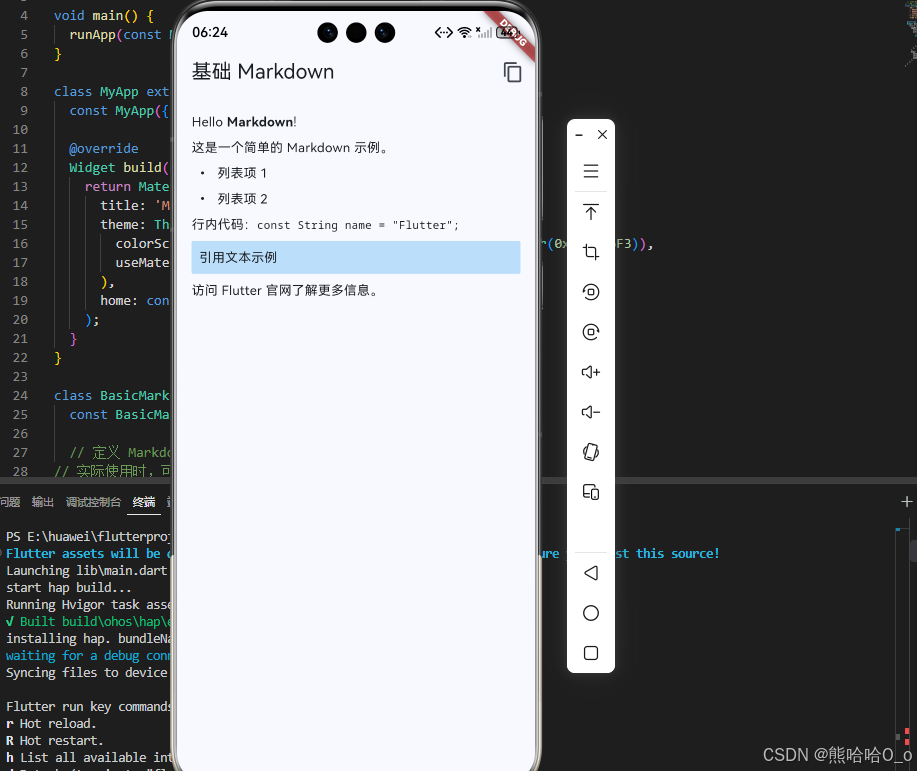
📝 完整代码
import 'package:flutter/material.dart';
import 'package:flutter_markdown/flutter_markdown.dart';
void main() {
runApp(const MyApp());
}
class MyApp extends StatelessWidget {
const MyApp({super.key});
Widget build(BuildContext context) {
return MaterialApp(
title: 'Markdown 基础示例',
theme: ThemeData(
colorScheme: ColorScheme.fromSeed(seedColor: const Color(0xFF2196F3)),
useMaterial3: true,
),
home: const BasicMarkdownPage(),
);
}
}
class BasicMarkdownPage extends StatelessWidget {
const BasicMarkdownPage({super.key});
// 定义 Markdown 数据(这里展示简化版本)
// 实际使用时,可以传入完整的 Markdown 文本
final String _markdownData = 'Hello **Markdown**!\n\n'
'这是一个简单的 Markdown 示例。\n\n'
'- 列表项 1\n'
'- 列表项 2\n\n'
'行内代码:`const String name = "Flutter";`\n\n'
'> 引用文本示例\n\n'
'访问 Flutter 官网了解更多信息。';
Widget build(BuildContext context) {
return Scaffold(
appBar: AppBar(
title: const Text('基础 Markdown'),
actions: [
// 复制 Markdown 源码
IconButton(
icon: const Icon(Icons.copy),
onPressed: () {
// 可以实现复制功能
},
),
],
),
body: Markdown(
data: _markdownData,
selectable: true, // 允许选择文本
padding: const EdgeInsets.all(16),
),
);
}
}
🔑 关键点解析
- Markdown 组件:可滚动的 Markdown 容器,内置 ListView
- data 属性:传入 Markdown 格式的字符串
- selectable 属性:设置为 true 允许用户选择和复制文本
- padding 属性:设置内容内边距
- 默认样式:使用 Material Design 的默认样式
🎨 场景二:自定义样式
📝 完整代码
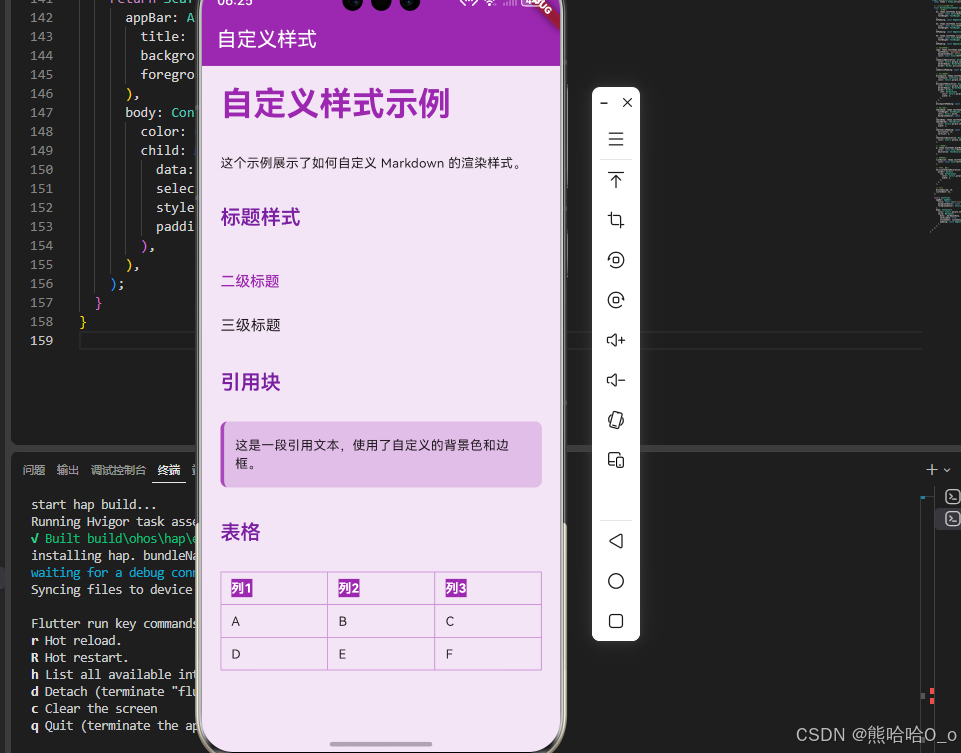
import 'package:flutter/material.dart';
import 'package:flutter_markdown/flutter_markdown.dart';
void main() {
runApp(const MyApp());
}
class MyApp extends StatelessWidget {
const MyApp({super.key});
Widget build(BuildContext context) {
return MaterialApp(
title: 'Markdown 自定义样式',
theme: ThemeData(
colorScheme: ColorScheme.fromSeed(seedColor: const Color(0xFF9C27B0)),
useMaterial3: true,
),
home: const CustomStyleMarkdownPage(),
);
}
}
class CustomStyleMarkdownPage extends StatelessWidget {
const CustomStyleMarkdownPage({super.key});
// 定义自定义样式的 Markdown 数据
final String _markdownData = '# 自定义样式示例\n\n'
'这个示例展示了如何自定义 Markdown 的渲染样式。\n\n'
'## 标题样式\n'
'### 二级标题\n'
'#### 三级标题\n\n'
'## 引用块\n\n'
'> 这是一段引用文本,使用了自定义的背景色和边框。\n\n'
'## 表格\n\n'
'| 列1 | 列2 | 列3 |\n'
'|-----|-----|-----|\n'
'| A | B | C |\n'
'| D | E | F |';
Widget build(BuildContext context) {
final theme = Theme.of(context);
// 创建自定义样式表
final MarkdownStyleSheet customStyleSheet = MarkdownStyleSheet.fromTheme(theme).copyWith(
// 标题样式
h1: theme.textTheme.displaySmall?.copyWith(
color: const Color(0xFF9C27B0),
fontWeight: FontWeight.bold,
),
h1Padding: const EdgeInsets.only(bottom: 16),
h2: theme.textTheme.titleLarge?.copyWith(
color: const Color(0xFF7B1FA2),
fontWeight: FontWeight.w600,
),
h2Padding: const EdgeInsets.only(bottom: 12, top: 20),
h3: theme.textTheme.titleMedium?.copyWith(
color: const Color(0xFF9C27B0),
fontWeight: FontWeight.w500,
),
h3Padding: const EdgeInsets.only(bottom: 8, top: 16),
// 代码块样式
code: theme.textTheme.bodyMedium?.copyWith(
fontFamily: 'monospace',
backgroundColor: Colors.purple.shade50,
color: const Color(0xFF4A148C),
),
codeblockDecoration: BoxDecoration(
color: Colors.purple.shade50,
borderRadius: BorderRadius.circular(8),
border: Border.all(color: Colors.purple.shade200),
),
codeblockPadding: const EdgeInsets.all(16),
// 引用块样式
blockquote: theme.textTheme.bodyMedium?.copyWith(
fontStyle: FontStyle.italic,
color: Colors.purple.shade900,
),
blockquoteDecoration: BoxDecoration(
color: Colors.purple.shade100,
borderRadius: BorderRadius.circular(8),
border: Border(
left: BorderSide(
color: Colors.purple.shade400,
width: 4,
),
),
),
blockquotePadding: const EdgeInsets.all(16),
// 表格样式
tableHead: theme.textTheme.bodyMedium?.copyWith(
fontWeight: FontWeight.bold,
color: Colors.white,
backgroundColor: const Color(0xFF9C27B0),
),
tableBody: theme.textTheme.bodyMedium,
tableBorder: TableBorder.all(
color: Colors.purple.shade200,
width: 1,
),
tableCellsPadding: const EdgeInsets.symmetric(
horizontal: 12,
vertical: 8,
),
tableCellsDecoration: BoxDecoration(
color: Colors.purple.shade50,
),
// 链接样式
a: theme.textTheme.bodyMedium?.copyWith(
color: const Color(0xFF9C27B0),
decoration: TextDecoration.underline,
),
// 列表样式
listBullet: theme.textTheme.bodyMedium?.copyWith(
color: const Color(0xFF9C27B0),
),
// 分隔线样式
horizontalRuleDecoration: BoxDecoration(
border: Border(
top: BorderSide(
color: Colors.purple.shade300,
width: 2,
),
),
),
// 间距
blockSpacing: 16,
listIndent: 32,
);
return Scaffold(
appBar: AppBar(
title: const Text('自定义样式'),
backgroundColor: const Color(0xFF9C27B0),
foregroundColor: Colors.white,
),
body: Container(
color: Colors.purple.shade50,
child: Markdown(
data: _markdownData,
selectable: true,
styleSheet: customStyleSheet,
padding: const EdgeInsets.all(20),
),
),
);
}
}
🔑 关键点解析
- MarkdownStyleSheet.fromTheme:从主题创建基础样式表
- copyWith:基于现有样式表创建自定义样式
- 样式属性:可以自定义各种元素的样式
- h1-h6:标题样式和内边距
- code/codeblockDecoration:代码样式和装饰
- blockquote/blockquoteDecoration:引用块样式
- tableHead/tableBody:表格样式
- a:链接样式
- listBullet:列表项样式
- Decoration:可以设置背景色、边框、圆角等装饰效果
📊 场景三:链接点击和图片显示
📝 完整代码
import 'package:flutter/material.dart';
import 'package:flutter_markdown/flutter_markdown.dart';
import 'package:url_launcher/url_launcher.dart' as url_launcher;
void main() {
runApp(const MyApp());
}
class MyApp extends StatelessWidget {
const MyApp({super.key});
Widget build(BuildContext context) {
return MaterialApp(
title: 'Markdown 链接和图片',
theme: ThemeData(
colorScheme: ColorScheme.fromSeed(seedColor: const Color(0xFF4CAF50)),
useMaterial3: true,
),
home: const LinkImageMarkdownPage(),
);
}
}
class LinkImageMarkdownPage extends StatelessWidget {
const LinkImageMarkdownPage({super.key});
// 定义包含链接和图片的 Markdown 数据
final String _markdownData = '# 链接和图片示例\n\n'
'## 链接处理\n\n'
'访问 Flutter 官网 了解 Flutter 框架。\n\n'
'直接输入网址:https://dart.dev\n\n'
'## 图片显示\n\n'
'网络图片和本地图片都支持。\n\n'
'## 代码示例\n\n'
'行内代码:`const String name = "Flutter";`\n\n'
'## 引用和链接\n\n'
'> 参考相关文档获取更多信息。';
// 处理链接点击
void _handleLinkTap(String text, String? href, String title) {
print('链接被点击:');
print(' 文本: $text');
print(' 链接: $href');
print(' 标题: $title');
if (href != null) {
// 处理锚点链接
if (href.startsWith('#')) {
// 实现页面内跳转
print('跳转到锚点: $href');
return;
}
// 处理外部链接
_launchUrl(Uri.parse(href));
}
}
// 启动 URL
Future<void> _launchUrl(Uri url) async {
if (await url_launcher.canLaunchUrl(url)) {
await url_launcher.launchUrl(
url,
mode: url_launcher.LaunchMode.externalApplication,
);
} else {
if (mounted) {
ScaffoldMessenger.of(context).showSnackBar(
SnackBar(content: Text('无法打开链接: $url')),
);
}
}
}
// 自定义图片构建器
Widget _buildImage(Uri uri, String? title, String? alt) {
return Container(
margin: const EdgeInsets.symmetric(vertical: 8),
decoration: BoxDecoration(
borderRadius: BorderRadius.circular(8),
boxShadow: [
BoxShadow(
color: Colors.black.withOpacity(0.1),
blurRadius: 8,
offset: const Offset(0, 4),
),
],
),
child: ClipRRect(
borderRadius: BorderRadius.circular(8),
child: Image.network(
uri.toString(),
fit: BoxFit.cover,
errorBuilder: (context, error, stackTrace) {
return Container(
height: 200,
color: Colors.grey[300],
child: const Center(
child: Column(
mainAxisAlignment: MainAxisAlignment.center,
children: [
Icon(Icons.error, color: Colors.red),
SizedBox(height: 8),
Text('图片加载失败'),
],
),
),
);
},
loadingBuilder: (context, child, loadingProgress) {
if (loadingProgress == null) return child;
return Container(
height: 200,
color: Colors.grey[200],
child: Center(
child: CircularProgressIndicator(
value: loadingProgress.expectedTotalBytes != null
? loadingProgress.cumulativeBytesLoaded /
loadingProgress.expectedTotalBytes!
: null,
),
),
);
},
),
),
);
}
Widget build(BuildContext context) {
final theme = Theme.of(context);
return Scaffold(
appBar: AppBar(
title: const Text('链接和图片'),
backgroundColor: const Color(0xFF4CAF50),
foregroundColor: Colors.white,
),
body: Markdown(
data: _markdownData,
selectable: true,
onTapLink: _handleLinkTap,
imageBuilder: _buildImage,
styleSheet: MarkdownStyleSheet.fromTheme(theme).copyWith(
// 链接样式
a: theme.textTheme.bodyMedium?.copyWith(
color: const Color(0xFF4CAF50),
decoration: TextDecoration.underline,
),
// 图片样式
img: theme.textTheme.bodyMedium,
// 代码块样式
codeblockDecoration: BoxDecoration(
color: Colors.green.shade50,
borderRadius: BorderRadius.circular(8),
border: Border.all(color: Colors.green.shade200),
),
codeblockPadding: const EdgeInsets.all(16),
),
padding: const EdgeInsets.all(16),
),
);
}
}
🔑 关键点解析
- onTapLink:处理链接点击事件,接收文本、URL 和标题
- url_launcher:使用 url_launcher 包打开外部链接
- imageBuilder:自定义图片的显示方式
- 错误处理:使用 errorBuilder 处理图片加载失败
- 加载状态:使用 loadingBuilder 显示加载进度
- 锚点链接:可以识别和处理页面内锚点链接
🎯 场景四:代码语法高亮
📝 完整代码
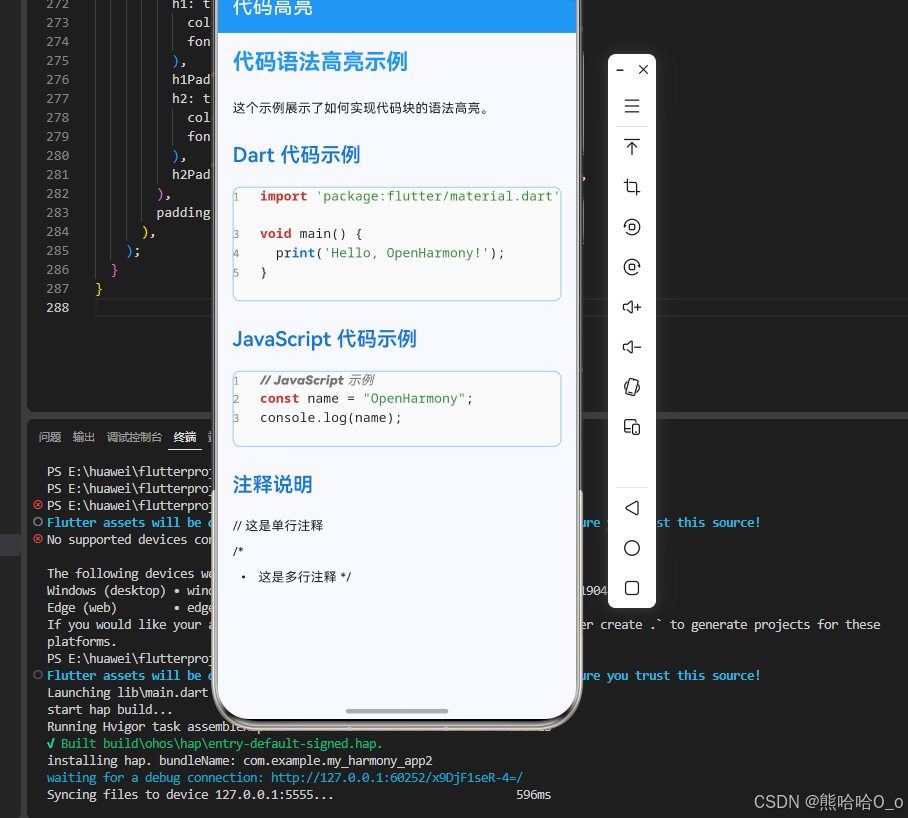
import 'package:flutter/material.dart';
import 'package:flutter_markdown/flutter_markdown.dart';
import 'package:flutter/services.dart';
void main() {
runApp(const MyApp());
}
class MyApp extends StatelessWidget {
const MyApp({super.key});
Widget build(BuildContext context) {
return MaterialApp(
title: 'Markdown 代码高亮',
theme: ThemeData(
colorScheme: ColorScheme.fromSeed(seedColor: const Color(0xFF2196F3)),
useMaterial3: true,
),
home: const CodeHighlightMarkdownPage(),
);
}
}
// 自定义语法高亮器
class CustomSyntaxHighlighter extends SyntaxHighlighter {
TextSpan format(String source) {
final spans = <TextSpan>[];
final buffer = StringBuffer();
// 简单的关键字高亮
final keywords = {
'import', 'package', 'class', 'extends', 'const', 'final',
'void', 'return', 'if', 'else', 'for', 'while', 'break',
'continue', 'new', 'this', 'super', 'static', 'abstract',
'async', 'await', 'try', 'catch', 'throw', 'switch', 'case',
'default', 'true', 'false', 'null', 'const', 'var', 'let',
'function', 'def', 'class', 'interface', 'type', 'enum',
};
final types = {
'String', 'int', 'double', 'bool', 'void', 'List', 'Map',
'Set', 'Future', 'Stream', 'Object', 'dynamic', 'Widget',
'BuildContext', 'StatefulWidget', 'StatelessWidget',
};
// 按行分割
final lines = source.split('\n');
for (var i = 0; i < lines.length; i++) {
final line = lines[i];
if (line.trim().isEmpty) {
spans.add(const TextSpan(text: '\n'));
continue;
}
// 行号
spans.add(TextSpan(
text: '${i + 1}'.padRight(4),
style: const TextStyle(
color: Color(0xFF888888),
fontFamily: 'monospace',
fontSize: 12,
),
));
// 处理行内容
var remaining = line;
var pos = 0;
while (pos < remaining.length) {
bool matched = false;
// 检查关键字
for (final keyword in keywords) {
if (remaining.startsWith(keyword, pos) &&
(pos + keyword.length >= remaining.length ||
!RegExp(r'[a-zA-Z0-9_]').hasMatch(remaining[pos + keyword.length]))) {
spans.add(TextSpan(
text: keyword,
style: const TextStyle(
color: Color(0xFFD32F2F),
fontWeight: FontWeight.bold,
fontFamily: 'monospace',
),
));
pos += keyword.length;
matched = true;
break;
}
}
if (!matched) {
// 检查类型
for (final type in types) {
if (remaining.startsWith(type, pos) &&
(pos + type.length >= remaining.length ||
!RegExp(r'[a-zA-Z0-9_]').hasMatch(remaining[pos + type.length]))) {
spans.add(TextSpan(
text: type,
style: const TextStyle(
color: Color(0xFF1976D2),
fontWeight: FontWeight.bold,
fontFamily: 'monospace',
),
));
pos += type.length;
matched = true;
break;
}
}
}
if (!matched) {
// 检查字符串
if (remaining[pos] == '"' || remaining[pos] == "'") {
final quote = remaining[pos];
spans.add(TextSpan(
text: quote,
style: const TextStyle(
color: Color(0xFF388E3C),
fontFamily: 'monospace',
),
));
pos++;
final endPos = remaining.indexOf(quote, pos);
if (endPos != -1) {
spans.add(TextSpan(
text: remaining.substring(pos, endPos),
style: const TextStyle(
color: Color(0xFF388E3C),
fontFamily: 'monospace',
),
));
spans.add(TextSpan(
text: quote,
style: const TextStyle(
color: Color(0xFF388E3C),
fontFamily: 'monospace',
),
));
pos = endPos + 1;
} else {
spans.add(TextSpan(
text: remaining.substring(pos),
style: const TextStyle(
color: Color(0xFF388E3C),
fontFamily: 'monospace',
),
));
pos = remaining.length;
}
matched = true;
}
}
if (!matched) {
// 检查注释
if (remaining.startsWith('//', pos)) {
spans.add(TextSpan(
text: remaining.substring(pos),
style: const TextStyle(
color: Color(0xFF757575),
fontStyle: FontStyle.italic,
fontFamily: 'monospace',
),
));
pos = remaining.length;
matched = true;
} else if (remaining.startsWith('/*', pos)) {
final endPos = remaining.indexOf('*/', pos);
if (endPos != -1) {
spans.add(TextSpan(
text: remaining.substring(pos, endPos + 2),
style: const TextStyle(
color: Color(0xFF757575),
fontStyle: FontStyle.italic,
fontFamily: 'monospace',
),
));
pos = endPos + 2;
} else {
spans.add(TextSpan(
text: remaining.substring(pos),
style: const TextStyle(
color: Color(0xFF757575),
fontStyle: FontStyle.italic,
fontFamily: 'monospace',
),
));
pos = remaining.length;
}
matched = true;
}
}
if (!matched) {
// 普通字符
spans.add(TextSpan(
text: remaining[pos],
style: const TextStyle(
color: Color(0xFF212121),
fontFamily: 'monospace',
),
));
pos++;
}
}
spans.add(const TextSpan(text: '\n'));
}
return TextSpan(children: spans);
}
}
class CodeHighlightMarkdownPage extends StatelessWidget {
const CodeHighlightMarkdownPage({super.key});
// 定义包含代码块的 Markdown 数据(用于展示语法高亮)
final String _markdownData = '# 代码语法高亮示例\n\n'
'这个示例展示了如何实现代码块的语法高亮。\n\n'
'## Dart 代码示例\n\n'
'```dart\n'
'import \'package:flutter/material.dart\';\n\n'
'void main() {\n'
' print(\'Hello, OpenHarmony!\');\n'
'}\n'
'```\n\n'
'## JavaScript 代码示例\n\n'
'```javascript\n'
'// JavaScript 示例\n'
'const name = "OpenHarmony";\n'
'console.log(name);\n'
'```\n\n'
'## 注释说明\n\n'
'// 这是单行注释\n\n'
'/*\n'
' * 这是多行注释\n'
' */';
Widget build(BuildContext context) {
final theme = Theme.of(context);
return Scaffold(
appBar: AppBar(
title: const Text('代码高亮'),
backgroundColor: const Color(0xFF2196F3),
foregroundColor: Colors.white,
),
body: Markdown(
data: _markdownData,
selectable: true,
syntaxHighlighter: CustomSyntaxHighlighter(),
styleSheet: MarkdownStyleSheet.fromTheme(theme).copyWith(
// 代码块样式
code: theme.textTheme.bodyMedium?.copyWith(
fontFamily: 'monospace',
backgroundColor: Colors.blue.shade50,
fontSize: 14,
),
codeblockDecoration: BoxDecoration(
color: const Color(0xFFFAFAFA),
borderRadius: BorderRadius.circular(8),
border: Border.all(color: Colors.blue.shade200),
),
codeblockPadding: const EdgeInsets.all(0),
// 标题样式
h1: theme.textTheme.headlineSmall?.copyWith(
color: const Color(0xFF2196F3),
fontWeight: FontWeight.bold,
),
h1Padding: const EdgeInsets.only(bottom: 16),
h2: theme.textTheme.titleLarge?.copyWith(
color: const Color(0xFF1976D2),
fontWeight: FontWeight.w600,
),
h2Padding: const EdgeInsets.only(bottom: 12, top: 20),
),
padding: const EdgeInsets.all(16),
),
);
}
}
🔑 关键点解析
- SyntaxHighlighter:自定义语法高亮器的基类
- format 方法:实现高亮逻辑,返回 TextSpan
- 关键字识别:识别并高亮语言关键字
- 字符串处理:识别字符串字面量
- 注释处理:识别单行和多行注释
- 类型高亮:识别类型名称并高亮
- 行号显示:为代码块添加行号
📚 API 参考
Markdown 属性
| 属性 | 类型 | 说明 | OpenHarmony 支持 |
|---|---|---|---|
| data | String | Markdown 数据字符串 | ✅ |
| selectable | bool | 是否可选择文本 | ✅ |
| styleSheet | MarkdownStyleSheet? | 自定义样式表 | ✅ |
| styleSheetTheme | MarkdownStyleSheetBaseTheme | 样式主题 | ✅ |
| syntaxHighlighter | SyntaxHighlighter? | 代码高亮器 | ✅ |
| onTapLink | MarkdownTapLinkCallback? | 链接点击回调 | ✅ |
| onTapText | VoidCallback? | 文本点击回调 | ✅ |
| imageDirectory | String? | 图片目录 | ✅ |
| blockSyntaxes | List? | 自定义块语法 | ✅ |
| inlineSyntaxes | List? | 自定义内联语法 | ✅ |
| extensionSet | ExtensionSet? | 扩展集 | ✅ |
| imageBuilder | MarkdownImageBuilder? | 自定义图片构建器 | ✅ |
| checkboxBuilder | MarkdownCheckboxBuilder? | 自定义复选框构建器 | ✅ |
| bulletBuilder | MarkdownBulletBuilder? | 自定义列表项构建器 | ✅ |
| builders | Map<String, MarkdownElementBuilder> | 自定义元素构建器 | ✅ |
| padding | EdgeInsets | 内边距 | ✅ |
| controller | ScrollController? | 滚动控制器 | ✅ |
| physics | ScrollPhysics? | 滚动物理效果 | ✅ |
| shrinkWrap | bool | 是否收缩包裹 | ✅ |
MarkdownBody 属性
| 属性 | 类型 | 说明 | OpenHarmony 支持 |
|---|---|---|---|
| data | String | Markdown 数据字符串 | ✅ |
| selectable | bool | 是否可选择文本 | ✅ |
| styleSheet | MarkdownStyleSheet? | 自定义样式表 | ✅ |
| fitContent | bool | 是否适应内容 | ✅ |
| shrinkWrap | bool | 是否收缩包裹 | ✅ |
| …(其他属性同 Markdown) | ✅ |
MarkdownStyleSheet 样式属性
| 属性 | 类型 | 说明 |
|---|---|---|
| a | TextStyle? | 链接样式 |
| p | TextStyle? | 段落样式 |
| pPadding | EdgeInsets? | 段落内边距 |
| code | TextStyle? | 行内代码样式 |
| h1-h6 | TextStyle? | 标题样式 |
| h1Padding-h6Padding | EdgeInsets? | 标题内边距 |
| em | TextStyle? | 斜体样式 |
| strong | TextStyle? | 粗体样式 |
| del | TextStyle? | 删除线样式 |
| blockquote | TextStyle? | 引用块样式 |
| blockquotePadding | EdgeInsets? | 引用块内边距 |
| blockquoteDecoration | Decoration? | 引用块装饰 |
| img | TextStyle? | 图片样式 |
| checkbox | TextStyle? | 复选框样式 |
| tableHead | TextStyle? | 表头样式 |
| tableBody | TextStyle? | 表格内容样式 |
| tableBorder | TableBorder? | 表格边框 |
| tableCellsPadding | EdgeInsets? | 表格单元格内边距 |
| tableCellsDecoration | Decoration? | 表格单元格装饰 |
| codeblockDecoration | Decoration? | 代码块装饰 |
| codeblockPadding | EdgeInsets? | 代码块内边距 |
| horizontalRuleDecoration | Decoration? | 分隔线装饰 |
| blockSpacing | double? | 块间距 |
| listIndent | double? | 列表缩进 |
| listBullet | TextStyle? | 列表项样式 |
| listBulletPadding | EdgeInsets? | 列表项内边距 |
💡 最佳实践
1. 优化 Markdown 性能
// 使用 MarkdownBody 代替 Markdown,避免嵌套滚动
class OptimizedMarkdownExample extends StatelessWidget {
final String markdownData;
const OptimizedMarkdownExample({
super.key,
required this.markdownData,
});
Widget build(BuildContext context) {
return SingleChildScrollView(
child: MarkdownBody(
data: markdownData,
selectable: true,
),
);
}
}
2. 图片加载优化
// 使用缓存图片
Widget _buildCachedImage(Uri uri, String? title, String? alt) {
  return CachedNetworkImage(
    imageUrl: uri.toString(),
    placeholder: (context, url) => const CircularProgressIndicator(),
    errorWidget: (context, url, error) => const Icon(Icons.error),
    fit: BoxFit.cover,
  );
}
3. 安全的链接处理
void _safeHandleLinkTap(String text, String? href, String title) {
  if (href == null) return;

  final uri = Uri.tryParse(href);
  if (uri == null) return;

  // 检查是否是安全的 URL
  if (uri.hasScheme && (uri.scheme == 'http' || uri.scheme == 'https')) {
    _launchUrl(uri);
  } else {
    // 处理内部链接或其他协议
    print('内部链接: $href');
  }
}
4. 响应式样式
// 根据屏幕大小调整样式
MarkdownStyleSheet _getResponsiveStyleSheet(BuildContext context) {
  final theme = Theme.of(context);
  final screenWidth = MediaQuery.of(context).size.width;

  final fontSize = screenWidth < 600 ? 14.0 : 16.0;

  return MarkdownStyleSheet.fromTheme(theme).copyWith(
    p: theme.textTheme.bodyMedium?.copyWith(fontSize: fontSize),
    code: theme.textTheme.bodyMedium?.copyWith(
      fontSize: fontSize * 0.85,
      fontFamily: 'monospace',
    ),
  );
}
5. 代码块复制功能
// 为代码块添加复制按钮
class CodeBlockWithCopy extends StatelessWidget {
final String code;
const CodeBlockWithCopy({super.key, required this.code});
Widget build(BuildContext context) {
return Container(
decoration: BoxDecoration(
color: Colors.grey[100],
borderRadius: BorderRadius.circular(8),
),
child: Column(
crossAxisAlignment: CrossAxisAlignment.stretch,
children: [
Container(
padding: const EdgeInsets.symmetric(horizontal: 8, vertical: 4),
decoration: BoxDecoration(
color: Colors.grey[200],
borderRadius: const BorderRadius.only(
topLeft: Radius.circular(8),
topRight: Radius.circular(8),
),
),
child: Row(
mainAxisAlignment: MainAxisAlignment.spaceBetween,
children: [
const Text('Code', style: TextStyle(fontSize: 12)),
IconButton(
iconSize: 16,
icon: const Icon(Icons.copy),
onPressed: () {
Clipboard.setData(ClipboardData(text: code));
ScaffoldMessenger.of(context).showSnackBar(
const SnackBar(content: Text('已复制到剪贴板')),
);
},
),
],
),
),
Padding(
padding: const EdgeInsets.all(8),
child: SelectableText(code),
),
],
),
);
}
}
⚠️ 常见问题
问题1:图片无法显示
解决方案:
// 1. 检查 URL 是否正确
// 2. 添加错误处理
Widget _buildImage(Uri uri, String? title, String? alt) {
return Image.network(
uri.toString(),
errorBuilder: (context, error, stackTrace) {
return Text('图片加载失败: $alt');
},
);
}
// 3. 本地图片需要使用 resource: 前缀
// 
问题2:代码块显示不正确
解决方案:
// 确保代码块使用三个反引号包裹
// 指定语言类型
// ```dart
// void main() {
//   print('Hello');
// }
// ```
问题3:样式不生效
解决方案:
// 确保 styleSheet 正确设置
Markdown(
  data: markdownData,
  styleSheet: MarkdownStyleSheet.fromTheme(theme).copyWith(
    h1: TextStyle(color: Colors.red), // 自定义样式
  ),
)

// 检查样式优先级
// copyWith 的样式会覆盖 fromTheme 的样式
问题4:链接点击无响应
解决方案:
// 确保 onTapLink 已设置
Markdown(
  data: markdownData,
  onTapLink: (text, href, title) {
    print('点击链接: $href');
    // 处理链接点击
  },
)

// 检查链接格式是否正确
// [文本](URL)
问题5:表格显示异常
解决方案:
// 确保表格格式正确
// | 列1 | 列2 |
// |-----|-----|
// | A   | B   |

// 自定义表格样式
Markdown(
  data: markdownData,
  styleSheet: MarkdownStyleSheet.fromTheme(theme).copyWith(
    tableBorder: TableBorder.all(color: Colors.grey),
    tableCellsPadding: EdgeInsets.all(8),
  ),
)
📖 参考资源:

开源鸿蒙跨平台开发社区汇聚开发者与厂商,共建“一次开发,多端部署”的开源生态,致力于降低跨端开发门槛,推动万物智联创新。
更多推荐

 12
12 0
0- 0


 已为社区贡献73条内容

所有评论(0)