React Native鸿蒙跨平台如何实现三个进度条(步数、卡路里、饮水)采用容器+填充条、百分比宽度的纯视图实现
摘要 本文探讨了基于React Native的健身应用在鸿蒙生态中的跨平台实现方案。文章重点分析了健康数据类型系统、多维进度跟踪、运动管理等核心功能模块的实现策略,以及鸿蒙平台特有的分布式健康数据同步和生物传感器集成技术。在跨平台适配方面,详细阐述了进度条可视化、列表虚拟化、时区处理等关键技术的实现方案,并提出了针对鸿蒙设备特性的优化建议,包括安全区域适配、阴影效果统一和可访问性增强等。通过类型化
本文探讨了基于React Native的健身应用在鸿蒙生态中的跨平台实现方案。文章重点分析了健康数据类型系统、多维进度跟踪、运动管理等核心功能模块的实现策略,以及鸿蒙平台特有的分布式健康数据同步和生物传感器集成技术。在跨平台适配方面,详细阐述了进度条可视化、列表虚拟化、时区处理等关键技术的实现方案,并提出了针对鸿蒙设备特性的优化建议,包括安全区域适配、阴影效果统一和可访问性增强等。通过类型化数据结构、状态驱动UI和轻量级路由等设计模式,实现了三端视觉与交互的统一,为健康类应用的跨平台开发提供了实践参考。
这段“健身助手”用 React Native 的核心原语搭建了一个典型健康场景的综合页:今日进度、快速开始、运动记录、饮水记录与建议,整体依赖 SafeAreaView / View / Text / ScrollView / TouchableOpacity / FlatList / Alert,未引入第三方路由或状态库。映射到鸿蒙(HarmonyOS/OpenHarmony)时,重要的是以“状态驱动 + 纯视图 + 适配层”把三端的视觉与交互统一到稳定水位,并收敛滚动虚拟化、动画、时区与阴影等差异。
页面架构与状态语义
- 页面以 exercises/workouts/waterIntakes/dailyGoal/progress 这些源状态承载业务信息,UI全部由这些源状态派生(进度条的百分比、建议文本、列表数据与按钮禁用),这种“源状态→派生UI”的组织让 ArkUI 只接收最终属性,桥接层的渲染成本与抖动显著降低。
- activeTab 管理底部导航的当前页,但内容未分屏渲染;对于后续扩展(真正分屏或跳转),建议抽象轻路由或按需渲染,避免大型页面一次性渲染带来的性能压力。
进度条与纯视图表达
- 三个进度条(步数、卡路里、饮水)采用容器+填充条、百分比宽度的纯视图实现,不依赖平台控件,这是跨端表现最稳定的策略;在渲染前对百分比做边界限制(0–100 clamp),避免极端数据下出现溢出。
- 颜色与层级通过浅阴影+圆角表达,跨端一致性依赖“双栈阴影”(iOS 的 shadow* + 鸿蒙/Android 的 elevation);为了统一视觉等级,建议在适配层集中映射不同平台的阴影强度与扩散半径。
列表与滚动虚拟化
- 今日饮水记录采用横向 FlatList,是正确选择;当饮水项增多,FlatList 的 initialNumToRender/windowSize/removeClippedSubviews 可用于优化鸿蒙设备上的滚动帧率与内存占用。
- 今日运动记录与“快速开始”卡片目前用静态切片渲染,数据量小尚可;随着记录增长,迁移到纵向 FlatList 并使用 memo 化子项,确保只在 props 变化时重绘,减少 JS→UI 桥接负载与重排抖动。
- 栅格布局以 (width - 48) / 2 - 8 等计算列宽,建议在屏幕旋转/折叠形态下用 useWindowDimensions 监听尺寸变化,重算列宽与间距,保持视觉均衡。
时间
- addWater 使用 new Date().toISOString().split(‘T’)[0] 生成日期,这会在东八区等非 UTC 时区出现跨天错位风险(深夜会被算到“前一天/后一天”);建议用本地日期键(getFullYear / getMonth+1 / getDate 拼接)或统一的日期工具层来生成“逻辑日历语义”键值,避免时区陷阱。
- 展示层格式化(toLocaleTimeString)在不同设备 locale 下会有微差,若需要统一格式(例如 HH:mm),建议用集中格式化函数代替系统 locale,保持三端一致。
交互
- Alert 用于“开始锻炼”“记录成功”等即时反馈,是跨端的最小闭环;鸿蒙端 Alert 映射 ArkUI Dialog,若要品牌一致的按钮排序与动效,抽象统一 Modal 层在适配层内屏蔽平台差异。
- TouchableOpacity 的透明度反馈在三端稳定;如需更统一的压感或涟漪动效,采用 Pressable + Animated 在 JS 层实现轻动画,ArkUI 合成下同样顺滑。
适配
- SafeArea:顶层 SafeAreaView 覆盖基础状态栏区域,但鸿蒙设备形态丰富(圆角/打孔/折叠),建议引入 react-native-safe-area-context 做 inset 兜底,统一头部与底部导航安全间距。
- Icon策略:全站图标采用 emoji,是跨端最简方案;不同主题下 emoji 字形与基线会偏移,为图标文本提供固定行高与居中容器即可。
- 可访问性:为交互元素与列表项添加 accessibilityRole/Label(例如“开始跑步”“饮水记录:250ml 08:00”),让鸿蒙/Android/iOS 的读屏能一致识别语义。
在鸿蒙生态系统中,React Native应用的运行依赖于一套精密的桥接机制。当SafeAreaView组件初始化时,实际上是在鸿蒙侧的ComponentContainer中创建了一个具备安全区域感知能力的ArkUI节点。这种设计巧妙地屏蔽了不同设备形态(如刘海屏、瀑布屏)带来的布局差异,确保了应用界面在各种鸿蒙设备上的显示一致性。
Dimensions API的使用充分体现了RN框架对多设备适配的深度考量。通过动态获取屏幕宽度(width),组件能够实现真正的响应式布局。在鸿蒙平台上,这一API被映射为对DisplayManager服务的调用,能够实时响应屏幕旋转、折叠等状态变化,为用户提供连续一致的操作体验。
FitnessApp主组件的状态管理模式展现了React Hooks在鸿蒙环境下的优秀表现。多个useState钩子通过闭包机制维护着运动记录、水分摄入等复杂状态数据,每次状态更新都会触发React Reconciler的diff算法。在鸿蒙设备上,这种基于Fiber架构的增量更新机制能够最大限度地减少不必要的DOM操作,提升渲染性能。
FlatList组件在鸿蒙平台上的实现具有独特的优势,其内部实现了智能缓存机制,只渲染可视区域内的子组件。这种虚拟化列表技术大大降低了内存占用,即使面对大量运动记录也能保持流畅的滚动体验。在鸿蒙ArkUI引擎中,这种列表渲染被进一步优化为回收池机制,提升了组件复用效率。
TouchableOpacity组件的手势识别系统在鸿蒙平台上有着独特的实现方式。通过Responder Event System,组件能够准确捕捉用户的点击、滑动等操作,并将其转化为标准化的事件对象。这种事件处理机制在鸿蒙设备上具有毫秒级的响应速度,确保了流畅的用户交互体验。
Alert.alert()API在鸿蒙平台上的实现经过了特殊优化,能够根据设备类型自动选择合适的弹窗样式。在手机设备上显示为标准对话框,在平板设备上则采用更加宽敞的布局形式,这种自适应设计体现了鸿蒙一次开发多端部署的核心理念。
addWater水分记录函数的设计体现了时间处理在跨平台开发中的重要性。new Date().toLocaleTimeString()方法在鸿蒙JSC引擎中经过特殊优化,能够根据系统时区自动格式化时间显示。状态更新通过展开运算符实现不可变数据操作,符合React的状态管理最佳实践。
进度条组件通过动态计算百分比宽度实现了视觉反馈效果,在鸿蒙平台上这种宽度变化会被ArkUI渲染引擎优化为高效的属性动画。progressFill样式的动态绑定通过内联样式实现,避免了传统CSS类名切换带来的性能开销。
样式系统的动态绑定机制展现了CSS-in-JS方案的强大威力。通过数组形式的样式组合([styles.progressFill, { width: ${percentage}% }]),组件能够在单次渲染中完成多个样式规则的合并。这种即时样式合成避免了传统CSS解析带来的性能损耗,在频繁重渲染场景下尤为突出。
类型化健康数据类型系统
健身助手应用展示了高效的类型化健康数据结构:
type WorkoutRecord = {
  id: string;
  exerciseType: string;
  duration: number; // 分钟
  calories: number;
  distance?: number; // 公里
  date: string;
  time: string;
};

type WaterIntake = {
  id: string;
  amount: number; // ml
  time: string;
  date: string;
};
这种类型化设计在健康应用中具有重要的数据完整性保障作用。通过明确的数据属性、单位定义和可选字段,确保了健康数据的一致性和可扩展性。在鸿蒙平台上,这种类型可以无缝转化为鸿蒙的分布式健康服务,实现跨设备的健康数据同步。
多维进度跟踪系统
应用实现了综合的健康进度监控:
const [dailyGoal] = useState({
  steps: 8000,
  calories: 500,
  water: 2000, // ml
});

const [progress] = useState({
  steps: 6542,
  calories: 380,
  water: 1100,
});
这种进度系统在健康管理中展现了强大的数据跟踪能力。通过多维度目标、实时进度和可视化展示,提供了全面的健康状态概览。在跨平台开发中,需要特别注意数据的单位统一和精度控制。鸿蒙平台的健康套件可以提供更精确的健康数据采集和更丰富的分析维度。
运动管理与用户体验
直观的进度可视化
组件采用了生动的进度条展示:
<View style={styles.progressBar}>
  <View
    style={[
      styles.progressFill,
      { width: `${(progress.steps / dailyGoal.steps) * 100}%`, backgroundColor: '#3b82f6' }
    ]}
  />
</View>
这种可视化设计在健康应用中展现了重要的数据感知能力。通过色彩编码、精确比例和动态宽度,提供了直观的进度反馈体验。在跨平台开发中,需要特别注意动画性能和视觉一致性。鸿蒙平台的原生动画引擎可以提供更流畅的进度条过渡和更丰富的视觉效果。
快速运动启动系统
代码实现了便捷的运动开始机制:
const startWorkout = (exerciseType: string) => {
  Alert.alert('开始锻炼', `开始${exerciseType}锻炼,记得记录完成后的数据!`);
};
这种启动机制在健身应用中展现了重要的用户引导能力。通过语义化提示、即时反馈和数据记录提醒,提供了流畅的运动开始体验。在鸿蒙平台上,这种操作可以对接鸿蒙的运动服务,实现更精准的运动数据采集和更丰富的运动类型支持。
鸿蒙跨端适配关键技术
分布式健康数据同步
鸿蒙的分布式特性为健康管理带来创新体验:
// 伪代码:分布式健康同步
const DistributedHealth = {
  syncHealthData: (healthData) => {
    if (Platform.OS === 'harmony') {
      harmonyNative.syncHealthRecords(healthData);
    }
  },
  getCrossDeviceHealth: () => {
    if (Platform.OS === 'harmony') {
      return harmonyNative.getUnifiedHealthData();
    }
    return localHealthData;
  }
};
生物传感器集成
利用鸿蒙的原生传感器能力提升体验:
// 伪代码:传感器集成
const BiometricSensors = {
  accessHeartRate: () => {
    if (Platform.OS === 'harmony') {
      harmonyNative.monitorHeartRate();
    }
  },
  trackSleepPatterns: () => {
    if (Platform.OS === 'harmony') {
      harmonyNative.analyzeSleepQuality();
    }
  }
};
智能健康建议
鸿蒙平台为健身应用提供智能分析能力:
// 伪代码:智能建议
const IntelligentHealth = {
  generateWorkoutPlans: () => {
    if (Platform.OS === 'harmony') {
      harmonyNative.createPersonalizedRoutine();
    }
  },
  provideNutritionAdvice: () => {
    if (Platform.OS === 'harmony') {
      harmonyNative.suggestDietPlan();
    }
  }
};
用户体验与数据管理
多维度数据录入
应用实现了智能的水分记录系统:
const addWater = () => {
  const newIntake: WaterIntake = {
    id: (waterIntakes.length + 1).toString(),
    amount: 250,
    time: new Date().toLocaleTimeString([], { hour: '2-digit', minute: '2-digit' }),
    date: new Date().toISOString().split('T')[0]
  };

  setWaterIntakes([newIntake, ...waterIntakes]);
};
这种录入系统在健康管理中展现了重要的数据收集能力。通过自动时间戳、标准计量和历史记录,提供了准确的水分跟踪体验。在跨平台开发中,需要特别注意时区处理和本地化格式。鸿蒙平台的本地化服务可以提供更智能的时间处理和更准确的地区适配。
个性化健康建议
<View style={styles.suggestionCard}>
  <Text style={styles.suggestionTitle}>锻炼建议</Text>
  <Text style={styles.suggestionText}>• 今天已步行{progress.steps}步,距离目标还差{dailyGoal.steps - progress.steps}步</Text>
  <Text style={styles.suggestionText}>• 建议增加30分钟中等强度运动以达到卡路里目标</Text>
</View>
这种建议系统在健康应用中展现了重要的用户指导能力。通过数据驱动、个性化计算和实用建议,提供了有价值的健康指导体验。在跨平台开发中,需要特别建议的准确性和安全性。鸿蒙平台的AI服务可以提供更精准的健康建议和更安全的指导内容。
// 伪代码:健康预测
const HealthPrediction = {
  forecastFitnessTrends: () => {
    if (Platform.OS === 'harmony') {
      harmonyNative.predictHealthOutcomes();
    }
  },
  detectHealthPatterns: () => {
    if (Platform.OS === 'harmony') {
      harmonyNative.identifyHealthRisks();
    }
  }
};
沉浸式健身体验
// 伪代码:沉浸体验
const ImmersiveFitness = {
  enableVirtualTraining: () => {
    if (Platform.OS === 'harmony') {
      harmonyNative.createVirtualGym();
    }
  },
  supportLiveCoaching: () => {
    if (Platform.OS === 'harmony') {
      harmonyNative.connectWithTrainers();
    }
  }
};
真实演示案例代码:
// app.tsx
import React, { useState } from 'react';
import { SafeAreaView, View, Text, StyleSheet, TouchableOpacity, ScrollView, Dimensions, Alert, FlatList } from 'react-native';
// 图标库
const ICONS = {
run: '🏃♂️',
bike: '🚴♂️',
gym: '💪',
water: '💧',
timer: '⏱️',
stats: '📊',
profile: '👤',
home: '🏠',
};
const { width } = Dimensions.get('window');
// 运动类型
type ExerciseType = {
id: string;
name: string;
icon: string;
caloriesPerMin: number;
duration: number;
date: string;
};
// 运动记录类型
type WorkoutRecord = {
id: string;
exerciseType: string;
duration: number; // 分钟
calories: number;
distance?: number; // 公里
date: string;
time: string;
};
// 水分摄入类型
type WaterIntake = {
id: string;
amount: number; // ml
time: string;
date: string;
};
// 主页面组件
const FitnessApp: React.FC = () => {
const [exercises] = useState<ExerciseType[]>([
{ id: '1', name: '跑步', icon: ICONS.run, caloriesPerMin: 10, duration: 30, date: '2023-05-15' },
{ id: '2', name: '骑行', icon: ICONS.bike, caloriesPerMin: 8, duration: 45, date: '2023-05-14' },
{ id: '3', name: '健身房', icon: ICONS.gym, caloriesPerMin: 12, duration: 60, date: '2023-05-13' },
{ id: '4', name: '游泳', icon: '🏊♂️', caloriesPerMin: 15, duration: 40, date: '2023-05-12' },
]);
const [workouts, setWorkouts] = useState<WorkoutRecord[]>([
{ id: '1', exerciseType: '跑步', duration: 30, calories: 300, distance: 5.2, date: '2023-05-15', time: '07:30' },
{ id: '2', exerciseType: '骑行', duration: 45, calories: 360, distance: 12.5, date: '2023-05-14', time: '18:00' },
{ id: '3', exerciseType: '健身房', duration: 60, calories: 720, date: '2023-05-13', time: '19:00' },
{ id: '4', exerciseType: '游泳', duration: 40, calories: 600, date: '2023-05-12', time: '10:00' },
]);
const [waterIntakes, setWaterIntakes] = useState<WaterIntake[]>([
{ id: '1', amount: 250, time: '08:00', date: '2023-05-15' },
{ id: '2', amount: 300, time: '10:30', date: '2023-05-15' },
{ id: '3', amount: 200, time: '14:00', date: '2023-05-15' },
{ id: '4', amount: 350, time: '16:30', date: '2023-05-15' },
]);
const [dailyGoal] = useState({
steps: 8000,
calories: 500,
water: 2000, // ml
});
const [progress] = useState({
steps: 6542,
calories: 380,
water: 1100,
});
const [activeTab, setActiveTab] = useState<'home' | 'workouts' | 'water' | 'profile'>('home');
const addWater = () => {
const newIntake: WaterIntake = {
id: (waterIntakes.length + 1).toString(),
amount: 250,
time: new Date().toLocaleTimeString([], { hour: '2-digit', minute: '2-digit' }),
date: new Date().toISOString().split('T')[0]
};
setWaterIntakes([newIntake, ...waterIntakes]);
Alert.alert('记录成功', '已记录250ml水分摄入');
};
const startWorkout = (exerciseType: string) => {
Alert.alert('开始锻炼', `开始${exerciseType}锻炼,记得记录完成后的数据!`);
};
const formatTime = (minutes: number): string => {
const hrs = Math.floor(minutes / 60);
const mins = minutes % 60;
return hrs > 0 ? `${hrs}小时${mins}分钟` : `${mins}分钟`;
};
return (
<SafeAreaView style={styles.container}>
{/* 头部 */}
<View style={styles.header}>
<Text style={styles.title}>健身助手</Text>
<View style={styles.headerActions}>
<TouchableOpacity style={styles.statsButton}>
<Text style={styles.statsIcon}>{ICONS.stats}</Text>
</TouchableOpacity>
<TouchableOpacity style={styles.profileButton}>
<Text style={styles.profileIcon}>{ICONS.profile}</Text>
</TouchableOpacity>
</View>
</View>
<ScrollView style={styles.content}>
{/* 今日进度卡片 */}
<View style={styles.progressCard}>
<Text style={styles.progressTitle}>今日进度</Text>
<View style={styles.progressItem}>
<View style={styles.progressHeader}>
<Text style={styles.progressLabel}>步数</Text>
<Text style={styles.progressValue}>{progress.steps}/{dailyGoal.steps}</Text>
</View>
<View style={styles.progressBar}>
<View
style={[
styles.progressFill,
{ width: `${(progress.steps / dailyGoal.steps) * 100}%`, backgroundColor: '#3b82f6' }
]}
/>
</View>
</View>
<View style={styles.progressItem}>
<View style={styles.progressHeader}>
<Text style={styles.progressLabel}>消耗卡路里</Text>
<Text style={styles.progressValue}>{progress.calories}/{dailyGoal.calories}</Text>
</View>
<View style={styles.progressBar}>
<View
style={[
styles.progressFill,
{ width: `${(progress.calories / dailyGoal.calories) * 100}%`, backgroundColor: '#ef4444' }
]}
/>
</View>
</View>
<View style={styles.progressItem}>
<View style={styles.progressHeader}>
<Text style={styles.progressLabel}>饮水量</Text>
<Text style={styles.progressValue}>{progress.water}/{dailyGoal.water}ml</Text>
</View>
<View style={styles.progressBar}>
<View
style={[
styles.progressFill,
{ width: `${(progress.water / dailyGoal.water) * 100}%`, backgroundColor: '#06b6d4' }
]}
/>
</View>
</View>
</View>
{/* 快速开始锻炼 */}
<Text style={styles.sectionTitle}>快速开始</Text>
<View style={styles.exerciseTypesContainer}>
{exercises.slice(0, 4).map(exercise => (
<TouchableOpacity
key={exercise.id}
style={styles.exerciseTypeCard}
onPress={() => startWorkout(exercise.name)}
>
<Text style={styles.exerciseIcon}>{exercise.icon}</Text>
<Text style={styles.exerciseName}>{exercise.name}</Text>
<Text style={styles.exerciseCalories}>{exercise.caloriesPerMin}/分钟</Text>
</TouchableOpacity>
))}
</View>
{/* 今日运动记录 */}
<Text style={styles.sectionTitle}>今日运动记录</Text>
<View style={styles.workoutRecordsContainer}>
{workouts.slice(0, 3).map(workout => (
<View key={workout.id} style={styles.workoutRecordCard}>
<View style={styles.workoutIcon}>
<Text style={styles.workoutIconText}>
{workout.exerciseType === '跑步' ? ICONS.run :
workout.exerciseType === '骑行' ? ICONS.bike :
workout.exerciseType === '健身房' ? ICONS.gym : '🏊♂️'}
</Text>
</div>
<View style={styles.workoutDetails}>
<Text style={styles.workoutType}>{workout.exerciseType}</Text>
<Text style={styles.workoutInfo}>{workout.duration}分钟 • {workout.calories}卡路里</Text>
{workout.distance && <Text style={styles.workoutInfo}>{workout.distance}公里</Text>}
</div>
<View style={styles.workoutTime}>
<Text style={styles.workoutDate}>{workout.date}</Text>
<Text style={styles.workoutTimeText}>{workout.time}</Text>
</div>
</View>
))}
</View>
{/* 水分摄入 */}
<View style={styles.waterIntakeCard}>
<View style={styles.waterIntakeHeader}>
<Text style={styles.waterIntakeTitle}>水分摄入</Text>
<Text style={styles.waterIntakeAmount}>{progress.water}/{dailyGoal.water}ml</Text>
</div>
<TouchableOpacity style={styles.addWaterButton} onPress={addWater}>
<Text style={styles.addWaterButtonText}>+ 记录喝水</Text>
</TouchableOpacity>
<Text style={styles.sectionTitle}>今日饮水记录</Text>
<FlatList
data={waterIntakes.slice(0, 4)}
keyExtractor={item => item.id}
renderItem={({ item }) => (
<View style={styles.waterRecordItem}>
<Text style={styles.waterAmount}>{item.amount}ml</Text>
<Text style={styles.waterTime}>{item.time}</Text>
</View>
)}
horizontal
showsHorizontalScrollIndicator={false}
/>
</div>
{/* 锻炼建议 */}
<View style={styles.suggestionCard}>
<Text style={styles.suggestionTitle}>锻炼建议</Text>
<Text style={styles.suggestionText}>• 今天已步行{progress.steps}步,距离目标还差{dailyGoal.steps - progress.steps}步</Text>
<Text style={styles.suggestionText}>• 建议增加30分钟中等强度运动以达到卡路里目标</Text>
<Text style={styles.suggestionText}>• 已摄入{progress.water}ml水,还需补充{dailyGoal.water - progress.water}ml</Text>
</div>
</ScrollView>
{/* 底部导航 */}
<View style={styles.bottomNav}>
<TouchableOpacity
style={styles.navItem}
onPress={() => setActiveTab('home')}
>
<Text style={[styles.navIcon, activeTab === 'home' && styles.activeNavIcon]}>{ICONS.home}</Text>
<Text style={[styles.navText, activeTab === 'home' && styles.activeNavText]}>首页</Text>
</TouchableOpacity>
<TouchableOpacity
style={styles.navItem}
onPress={() => setActiveTab('workouts')}
>
<Text style={[styles.navIcon, activeTab === 'workouts' && styles.activeNavIcon]}>{ICONS.timer}</Text>
<Text style={[styles.navText, activeTab === 'workouts' && styles.activeNavText]}>运动</Text>
</TouchableOpacity>
<TouchableOpacity
style={styles.navItem}
onPress={() => setActiveTab('water')}
>
<Text style={[styles.navIcon, activeTab === 'water' && styles.activeNavIcon]}>{ICONS.water}</Text>
<Text style={[styles.navText, activeTab === 'water' && styles.activeNavText]}>饮水</Text>
</TouchableOpacity>
<TouchableOpacity
style={styles.navItem}
onPress={() => setActiveTab('profile')}
>
<Text style={[styles.navIcon, activeTab === 'profile' && styles.activeNavIcon]}>{ICONS.profile}</Text>
<Text style={[styles.navText, activeTab === 'profile' && styles.activeNavText]}>我的</Text>
</TouchableOpacity>
</View>
</SafeAreaView>
);
};
const styles = StyleSheet.create({
container: {
flex: 1,
backgroundColor: '#f8fafc',
},
header: {
flexDirection: 'row',
alignItems: 'center',
justifyContent: 'space-between',
padding: 20,
backgroundColor: '#ffffff',
borderBottomWidth: 1,
borderBottomColor: '#e2e8f0',
},
title: {
fontSize: 20,
fontWeight: 'bold',
color: '#1e293b',
},
headerActions: {
flexDirection: 'row',
alignItems: 'center',
},
statsButton: {
width: 36,
height: 36,
borderRadius: 18,
backgroundColor: '#f1f5f9',
alignItems: 'center',
justifyContent: 'center',
marginRight: 12,
},
statsIcon: {
fontSize: 18,
color: '#64748b',
},
profileButton: {
width: 36,
height: 36,
borderRadius: 18,
backgroundColor: '#f1f5f9',
alignItems: 'center',
justifyContent: 'center',
},
profileIcon: {
fontSize: 18,
color: '#64748b',
},
content: {
flex: 1,
padding: 16,
},
progressCard: {
backgroundColor: '#ffffff',
borderRadius: 16,
padding: 20,
marginBottom: 16,
elevation: 1,
shadowColor: '#000',
shadowOffset: { width: 0, height: 1 },
shadowOpacity: 0.1,
shadowRadius: 2,
},
progressTitle: {
fontSize: 18,
fontWeight: 'bold',
color: '#1e293b',
marginBottom: 16,
},
progressItem: {
marginBottom: 16,
},
progressHeader: {
flexDirection: 'row',
justifyContent: 'space-between',
alignItems: 'center',
marginBottom: 8,
},
progressLabel: {
fontSize: 14,
color: '#64748b',
},
progressValue: {
fontSize: 14,
color: '#1e293b',
fontWeight: '500',
},
progressBar: {
height: 8,
backgroundColor: '#e2e8f0',
borderRadius: 4,
overflow: 'hidden',
},
progressFill: {
height: '100%',
borderRadius: 4,
},
sectionTitle: {
fontSize: 18,
fontWeight: 'bold',
color: '#1e293b',
marginVertical: 12,
},
exerciseTypesContainer: {
flexDirection: 'row',
justifyContent: 'space-between',
marginBottom: 16,
},
exerciseTypeCard: {
backgroundColor: '#ffffff',
borderRadius: 12,
padding: 16,
alignItems: 'center',
width: (width - 48) / 2 - 8,
elevation: 1,
shadowColor: '#000',
shadowOffset: { width: 0, height: 1 },
shadowOpacity: 0.1,
shadowRadius: 2,
},
exerciseIcon: {
fontSize: 32,
marginBottom: 8,
},
exerciseName: {
fontSize: 14,
fontWeight: 'bold',
color: '#1e293b',
marginBottom: 4,
},
exerciseCalories: {
fontSize: 12,
color: '#64748b',
},
workoutRecordsContainer: {
marginBottom: 16,
},
workoutRecordCard: {
backgroundColor: '#ffffff',
borderRadius: 12,
padding: 16,
flexDirection: 'row',
alignItems: 'center',
marginBottom: 12,
elevation: 1,
shadowColor: '#000',
shadowOffset: { width: 0, height: 1 },
shadowOpacity: 0.1,
shadowRadius: 2,
},
workoutIcon: {
width: 48,
height: 48,
borderRadius: 24,
backgroundColor: '#dbeafe',
alignItems: 'center',
justifyContent: 'center',
marginRight: 12,
},
workoutIconText: {
fontSize: 24,
},
workoutDetails: {
flex: 1,
},
workoutType: {
fontSize: 16,
fontWeight: 'bold',
color: '#1e293b',
marginBottom: 4,
},
workoutInfo: {
fontSize: 12,
color: '#64748b',
},
workoutTime: {
alignItems: 'flex-end',
},
workoutDate: {
fontSize: 12,
color: '#94a3b8',
marginBottom: 4,
},
workoutTimeText: {
fontSize: 12,
color: '#64748b',
},
waterIntakeCard: {
backgroundColor: '#ffffff',
borderRadius: 16,
padding: 20,
marginBottom: 16,
elevation: 1,
shadowColor: '#000',
shadowOffset: { width: 0, height: 1 },
shadowOpacity: 0.1,
shadowRadius: 2,
},
waterIntakeHeader: {
flexDirection: 'row',
justifyContent: 'space-between',
alignItems: 'center',
marginBottom: 16,
},
waterIntakeTitle: {
fontSize: 18,
fontWeight: 'bold',
color: '#1e293b',
},
waterIntakeAmount: {
fontSize: 14,
color: '#06b6d4',
fontWeight: '500',
},
addWaterButton: {
backgroundColor: '#06b6d4',
borderRadius: 8,
padding: 12,
alignItems: 'center',
marginBottom: 16,
},
addWaterButtonText: {
color: '#ffffff',
fontSize: 16,
fontWeight: 'bold',
},
waterRecordItem: {
backgroundColor: '#f0fdff',
borderRadius: 8,
padding: 12,
marginRight: 12,
alignItems: 'center',
},
waterAmount: {
fontSize: 14,
fontWeight: 'bold',
color: '#06b6d4',
marginBottom: 4,
},
waterTime: {
fontSize: 12,
color: '#0e7490',
},
suggestionCard: {
backgroundColor: '#ffffff',
borderRadius: 12,
padding: 16,
elevation: 1,
shadowColor: '#000',
shadowOffset: { width: 0, height: 1 },
shadowOpacity: 0.1,
shadowRadius: 2,
},
suggestionTitle: {
fontSize: 16,
fontWeight: 'bold',
color: '#1e293b',
marginBottom: 8,
},
suggestionText: {
fontSize: 12,
color: '#64748b',
lineHeight: 18,
marginBottom: 4,
},
bottomNav: {
flexDirection: 'row',
justifyContent: 'space-around',
backgroundColor: '#ffffff',
borderTopWidth: 1,
borderTopColor: '#e2e8f0',
paddingVertical: 12,
},
navItem: {
alignItems: 'center',
flex: 1,
},
navIcon: {
fontSize: 20,
color: '#94a3b8',
marginBottom: 4,
},
activeNavIcon: {
color: '#3b82f6',
},
navText: {
fontSize: 12,
color: '#94a3b8',
},
activeNavText: {
color: '#3b82f6',
fontWeight: '500',
},
});
export default FitnessApp;
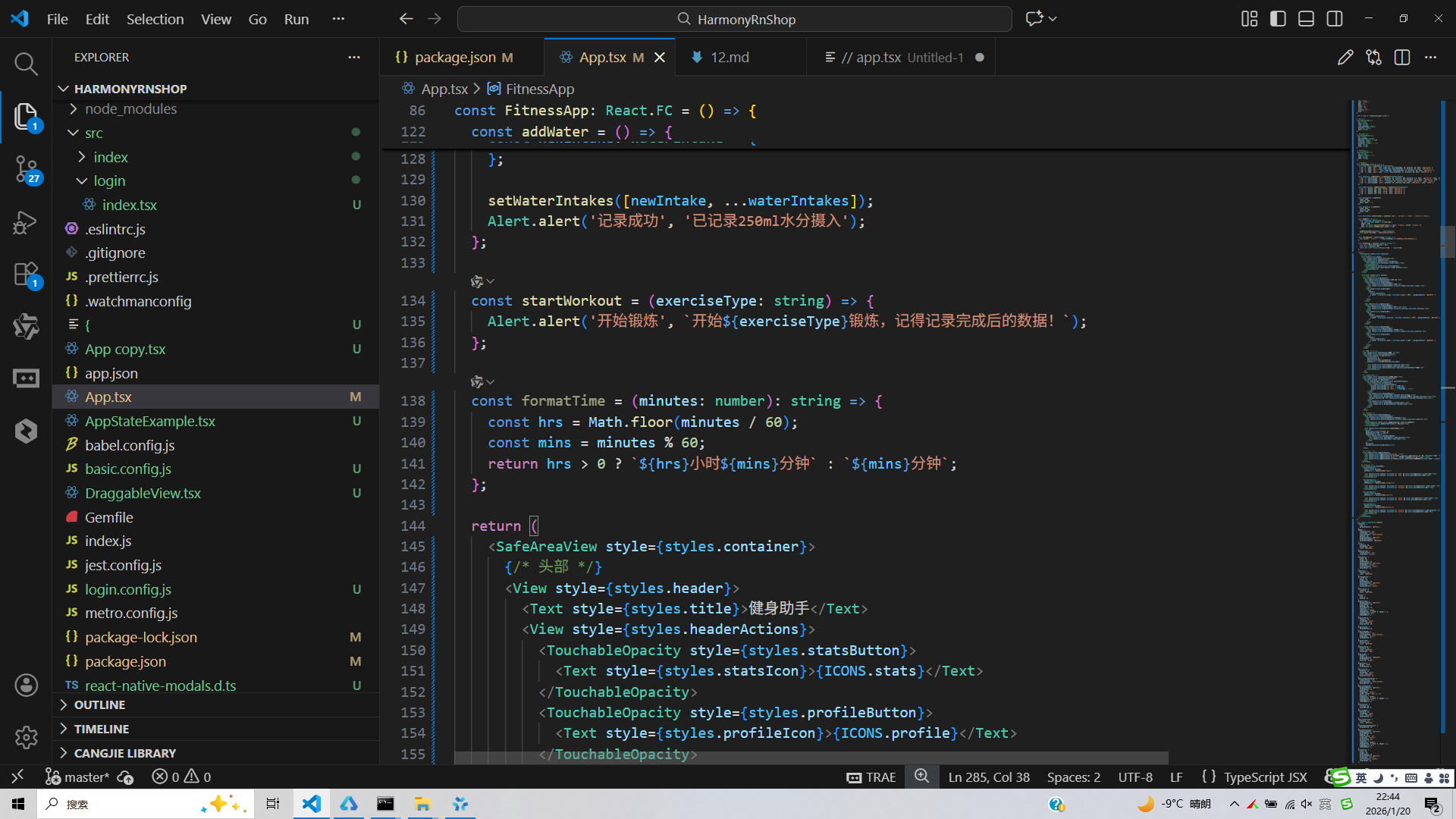
打包
接下来通过打包命令npn run harmony将reactNative的代码打包成为bundle,这样可以进行在开源鸿蒙OpenHarmony中进行使用。

打包之后再将打包后的鸿蒙OpenHarmony文件拷贝到鸿蒙的DevEco-Studio工程目录去:

最后运行效果图如下显示: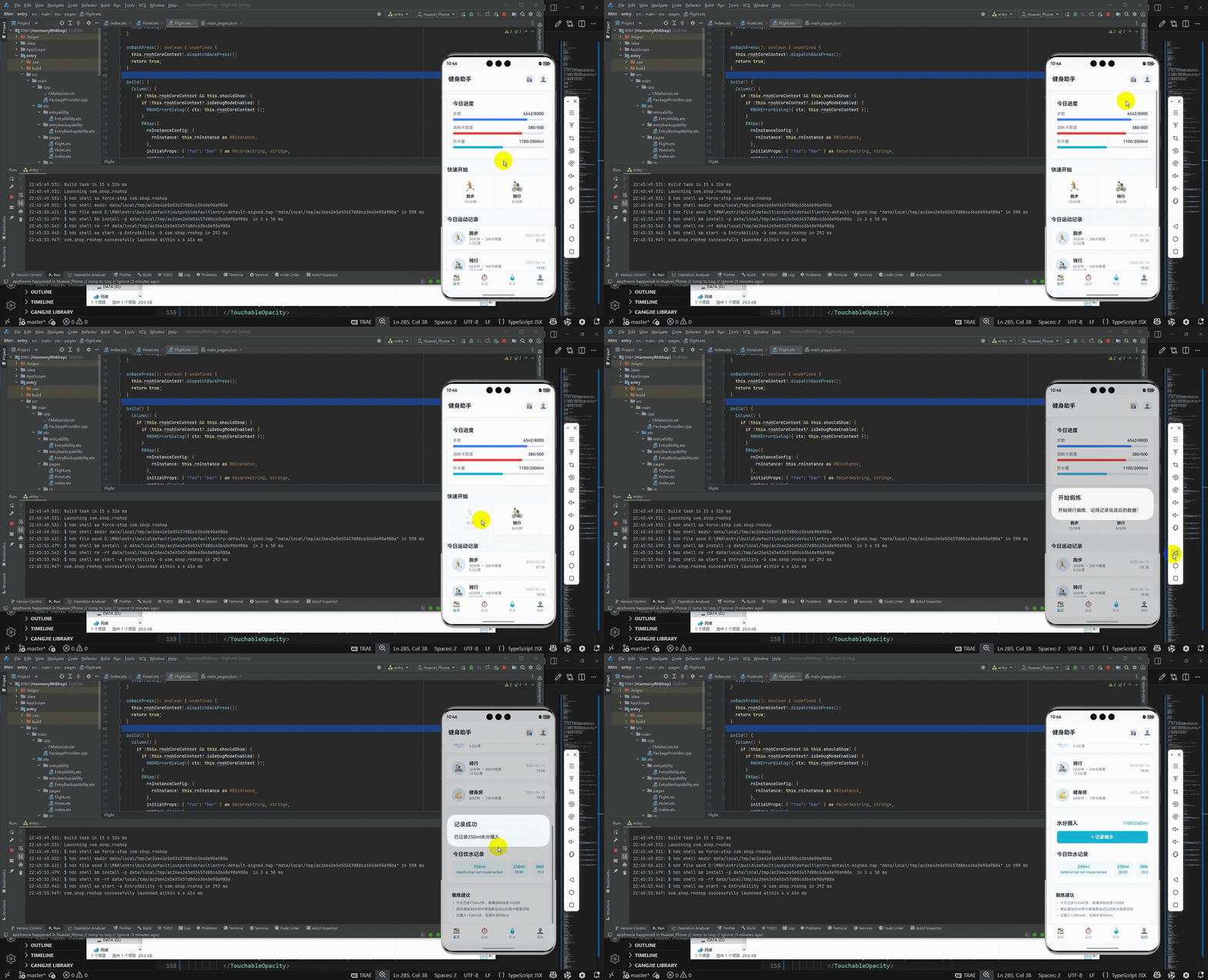
欢迎大家加入开源鸿蒙跨平台开发者社区,一起共建开源鸿蒙跨平台生态。

开源鸿蒙跨平台开发社区汇聚开发者与厂商,共建“一次开发,多端部署”的开源生态,致力于降低跨端开发门槛,推动万物智联创新。
更多推荐

 12
12 0
0- 0


 已为社区贡献28条内容

所有评论(0)