React Native鸿蒙跨平台通过 useState Hook 管理页面状态(selectedGoal、activeTab),实现了目标详情查看和底部导航切换功能
本文介绍了一个基于React Native开发的跨平台阅读目标管理应用,重点分析了其技术架构与鸿蒙生态适配方案。应用采用TypeScript强类型定义核心数据模型(阅读目标、书籍信息、阅读记录),确保数据一致性。通过React Native组件(SafeAreaView、FlatList等)实现跨平台兼容,特别优化了在鸿蒙设备上的性能表现。 状态管理采用useState Hook轻量级方案,支持目
本文介绍了一个基于React Native开发的跨平台阅读目标管理应用,重点分析了其技术架构与鸿蒙生态适配方案。应用采用TypeScript强类型定义核心数据模型(阅读目标、书籍信息、阅读记录),确保数据一致性。通过React Native组件(SafeAreaView、FlatList等)实现跨平台兼容,特别优化了在鸿蒙设备上的性能表现。
状态管理采用useState Hook轻量级方案,支持目标详情查看和导航切换功能。交互设计符合鸿蒙规范,通过状态差异化展示和进度可视化提升用户体验。文章详细解析了复合业务实体设计、状态驱动管理、组件化架构以及表单创建等关键技术实现,并探讨了鸿蒙分布式特性在目标同步和设备协同方面的潜在应用,为跨平台移动开发提供了可扩展的参考架构。
这段 React Native 代码构建了一个阅读目标管理应用的核心框架,充分体现了现代化跨平台移动应用开发的技术特点。应用通过 TypeScript 的类型系统定义了阅读目标(ReadingGoal)、书籍信息(Book)和阅读记录(ReadingRecord)三个核心数据模型,为数据一致性提供了强类型保障。
在鸿蒙生态兼容性方面,代码采用 React Native 的核心组件库,如 SafeAreaView 确保在不同设备屏幕的安全区域显示,Dimensions API 实现响应式布局适配。这种设计使得应用在鸿蒙、Android 和 iOS 平台上都能保持一致的用户体验。FlatList 组件的使用优化了长列表渲染性能,特别适合鸿蒙设备上大量阅读数据的展示场景。
状态管理模式上,应用通过 useState Hook 管理页面状态(selectedGoal、activeTab),实现了目标详情查看和底部导航切换功能。这种轻量级的状态管理方案在鸿蒙设备上具有良好的性能表现,避免了引入复杂状态管理库的开销。代码中预定义的静态数据模拟了真实业务场景,为后续接入鸿蒙分布式数据服务(如 ArkTS 开发的本地数据库)提供了清晰的接口规范。
交互设计层面,TouchableOpacity 组件结合 Alert API 实现了添加、完成和删除目标的操作反馈,符合鸿蒙系统的交互设计规范。目标卡片根据不同状态(进行中、已完成、已逾期)展示差异化样式,通过进度条和百分比数值直观呈现阅读进度,提升了用户对阅读目标的掌控感。整体架构为鸿蒙跨端应用开发提供了可扩展的模板,便于后续集成原生鸿蒙能力,如分布式任务调度或 ArkUI 动画效果。
复合业务实体设计
阅读目标应用展示了目标管理领域的类型系统设计:
type ReadingGoal = {
  id: string;
  title: string;
  description: string;
  target: number; // 目标数量(页数或本数)
  current: number; // 当前进度
  unit: 'pages' | 'books'; // 目标单位
  startDate: string;
  endDate: string;
  status: 'active' | 'completed' | 'overdue';
  progress: number; // 百分比
};

type Book = {
  id: string;
  title: string;
  author: string;
  cover: string;
  totalPages: number;
  currentPage: number;
  progress: number;
  category: string;
  lastReadDate: string;
};

type ReadingRecord = {
  id: string;
  bookId: string;
  bookTitle: string;
  pagesRead: number;
  date: string;
  time: string;
  duration: number; // 阅读时长(分钟)
};
这种类型定义方式在目标管理应用中具有重要的架构意义。通过将目标、书籍、阅读记录等核心业务实体进行严格的类型约束,确保了目标追踪数据的结构完整性和计算准确性。在鸿蒙平台上,这种模型可以与鸿蒙的分布式计时服务结合,实现多设备间的阅读进度同步和目标状态更新。
状态驱动的目标管理
应用实现了复杂的目标状态管理:
const [selectedGoal, setSelectedGoal] = useState<ReadingGoal | null>(null);
const [activeTab, setActiveTab] = useState<'home' | 'goals' | 'books' | 'add' | 'profile'>('home');
这种状态设计在目标管理应用中体现了清晰的业务分层。当前选中的目标和活跃标签页的状态分离,既保证了界面导航的灵活性,又确保了核心目标数据的独立管理。在鸿蒙的分布式场景中,这种设计可以支持更精细的状态同步策略,例如目标进度可以实时同步,而界面状态可能只在当前设备有效。
组件化目标界面架构
复合目标组件设计
应用采用了多层次的目标组件架构:
const GoalItem = ({ goal, onPress }) => {
  return (
    <View style={[styles.goalItem,
        goal.status === 'active' && styles.activeGoal,
        goal.status === 'completed' && styles.completedGoal,
        goal.status === 'overdue' && styles.overdueGoal
      ]}
      onPress={onPress}
    >
      <View style={styles.goalHeader}>
        <Text style={styles.goalTitle}>{goal.title}</Text>
        <Text style={styles.goalStatus}>
          {goal.status === 'active' ? '进行中' :
           goal.status === 'completed' ? '已完成' : '已逾期'}
        </Text>
      </View>
      <Text style={styles.goalDescription}>{goal.description}</Text>
      <View style={styles.goalProgress}>
        <View style={styles.progressBar}>
          <View style={[styles.progressFill, { width: `${goal.progress}%` }]} />
        </View>
        <Text style={styles.progressText}>{goal.current}/{goal.target} {goal.unit === 'pages' ? '页' : '本'}</Text>
      </View>
    </View>
  );
};
这种组件设计模式在目标管理应用中展现了强大的可复用性。目标组件通过清晰的props接口定义其输入和输出,实现了展示逻辑与业务逻辑的完全解耦。在鸿蒙平台上,这种设计可以轻松替换为原生组件,利用鸿蒙的动画引擎实现更流畅的进度条动画效果,提升用户的视觉反馈体验。
表单与目标创建
代码实现了复杂的目标创建表单:
const GoalCreationForm = () => {
  return (
    <View style={styles.inputCard}>
      <View style={styles.inputGroup}>
        <Text style={styles.inputLabel}>目标名称</Text>
        <TextInput
          style={styles.inputField}
          placeholder="例如: 月度阅读挑战"
        />
      </View>

      <View style={styles.inputGroup}>
        <Text style={styles.inputLabel}>目标描述</Text>
        <TextInput
          style={[styles.inputField, styles.descriptionInput]}
          placeholder="例如: 本月目标阅读100页"
          multiline
        />
      </View>

      <View style={styles.inputGroup}>
        <Text style={styles.inputLabel}>目标数量</Text>
        <TextInput
          style={styles.inputField}
          placeholder="例如: 100"
          keyboardType="numeric"
        />
      </View>

      <View style={styles.inputGroup}>
        <Text style={styles.inputLabel}>目标单位</Text>
        <View style={styles.unitSelector}>
          <TouchableOpacity style={[styles.unitOption, { backgroundColor: '#e2e8f0' }]}>
            <Text style={styles.unitText}>页数</Text>
          </TouchableOpacity>
          <TouchableOpacity style={styles.unitOption}>
            <Text style={styles.unitText}>本数</Text>
          </TouchableOpacity>
        </View>
      </View>
    </View>
  );
};
这种表单设计在目标管理应用中具有重要的用户体验价值。清晰的输入分组、适当的占位提示和直观的单位选择,共同构成了高效的目标创建界面。在跨平台开发中,需要特别注意表单键盘行为和输入验证的一致性。鸿蒙平台的原生输入组件可以提供更流畅的输入体验,特别是在处理数字输入和日期选择时。
鸿蒙跨端适配关键技术
分布式目标同步
鸿蒙的分布式特性为目标管理带来创新体验:
// 伪代码:分布式目标同步
const DistributedGoals = {
  syncGoalProgress: (goalId, progress) => {
    if (Platform.OS === 'harmony') {
      harmonyNative.syncReadingGoal(goalId, progress);
    }
  },
  getCrossDeviceProgress: () => {
    if (Platform.OS === 'harmony') {
      return harmonyNative.getAggregatedReadingData();
    }
    return localProgress;
  }
};
原生进度追踪集成
利用鸿蒙的原生能力提升目标追踪体验:
// 伪代码:进度追踪集成
const ProgressTracking = {
  useSystemTimer: () => {
    if (Platform.OS === 'harmony') {
      return harmonyNative.integrateReadingTimer();
    }
    return fallbackTimer;
  },
  enableRealTimeUpdates: () => {
    if (Platform.OS === 'harmony') {
      harmonyNative.enableLiveProgressUpdates();
    }
  }
};
智能提醒与分析
鸿蒙平台为目标管理提供独特能力:
// 伪代码:智能提醒
const SmartReminders = {
  scheduleGoalReminders: () => {
    if (Platform.OS === 'harmony') {
      harmonyNative.scheduleReadingReminders();
    }
  },
  analyzeReadingPatterns: () => {
    if (Platform.OS === 'harmony') {
      return harmonyNative.analyzeReadingHabits();
    }
    return basicAnalysis;
  }
};
数据可视化与分析
进度可视化设计
// 伪代码:可视化优化
const DataVisualization = {
  renderProgressCharts: () => {
    if (Platform.OS === 'harmony') {
      harmonyNative.useNativeCharts();
    }
  },
  animateProgressBars: () => {
    if (Platform.OS === 'harmony') {
      harmonyNative.enableSmoothAnimations();
    }
  }
};
智能化目标管理
// 伪代码:智能目标
const IntelligentGoals = {
  suggestOptimalGoals: () => {
    if (Platform.OS === 'harmony') {
      harmonyNative.recommendReadingGoals();
    }
  },
  autoAdjustTargets: () => {
    if (Platform.OS === 'harmony') {
      harmonyNative.adaptiveGoalSetting();
    }
  }
};
社交化目标追踪
// 伪代码:社交功能
const SocialFeatures = {
  enableGoalSharing: () => {
    if (Platform.OS === 'harmony') {
      harmonyNative.shareGoalsWithFriends();
    }
  },
  createReadingGroups: () => {
    if (Platform.OS === 'harmony') {
      harmonyNative.enableGroupChallenges();
    }
  }
};
在跨端开发的真实场景里,这类以 React Native 编写的阅读目标管理页面,天然具备在 iOS、Android 与鸿蒙(HarmonyOS / OpenHarmony)上保持一致体验的潜质。它用最小依赖的“核心组件组合”搭建完整业务:状态驱动页面切换、虚拟化列表承载数据、进度条纯视图表达、弹窗轻交互提示。跨端成功的关键并不在“是否能跑起来”,而在“如何让它在不同系统的 UI 渲染、输入法、滚动与安全区域等细节上表现稳定”,这正是这段代码值得拆解的地方。
状态即路由的轻架构
组件通过 useState 管理两类核心 UI 状态:activeTab 控制底部导航的当前页,selectedGoal 决定是否进入详情态。没有引入路由库,而是在一个组件里用“伪路由”组织多子视图(首页、目标、书架、添加、个人中心)。这对跨端是友好的:减少导航栈、手势与转场动画的适配复杂度,同时把切换逻辑留在 JS 层,ArkUI 侧只感知视图树变更。要让这种模式在三端更稳健,通常会将复杂子视图拆分为独立 memo 化组件,用稳定的 props 传递,降低虚拟 DOM diff 的范围。
RN 核心组件在鸿蒙的映射稳定性
代码严格依赖 SafeAreaView / View / Text / ScrollView / FlatList / TouchableOpacity / TextInput / Alert 这些 RN 核心组件。它们在鸿蒙端通常由 RN-OH 或同类移植方案映射到 ArkUI 原生视图与交互,具备良好兼容性。若希望在各种设备形态下体验一致,需要关注几个点:
- 安全区域与状态栏适配通过
SafeAreaView处理,鸿蒙设备存在圆角、打孔屏甚至折叠屏;顶部 header 除了 SafeArea 以外建议留出冗余内边距,或引入react-native-safe-area-context做 inset 兜底。 - 点击反馈使用
TouchableOpacity,透明度变化在三端一致。如果要更丰富的压感与涟漪效果,可以采用Pressable + Animated自定义,先验证在鸿蒙桥接下的性能与事件频率。 - 轻交互提示走
Alert的原生弹窗,鸿蒙端样式跟随系统主题。为了品牌一致性与更可控的行为,可以用统一的Modal抽象封装三端弹窗,鸿蒙端内部映射 ArkUI 的 Dialog。
虚拟化列表与进度条的纯视图实现
目标列表、书架列表用 FlatList 承载,进度条通过容器和百分比宽度来呈现完成度。这样的纯视图做法在 ArkUI 上表现稳定,不依赖平台特性:
keyExtractor使用稳定的字符串id,避免跨端复用抖动。- 首屏渲染项数、
windowSize与removeClippedSubviews是面向鸿蒙设备的性能调参入口。大量目标或书籍时,它们直接影响滚动流畅度。 - 进度条通过
progressBar容器和progressFill的百分比宽度来绘制。为了在高 DPI 或字体放大下不被文本换行挤压,建议固定容器尺寸并将文本布局与条形分离。在渲染前对百分比做clamp(限制在 0–100)能避免边界条件下的越界渲染。
输入体验、中文 IME 与本地化
添加目标页面的 TextInput 涉及中文输入法的组合键入、联想词确认以及多行文本滚动。鸿蒙设备在这些环节与 iOS 存在细微差异:
- 采用受控组件并做轻度节流,避免每次字符变更都触发大量重新渲染,减轻 JS→UI 桥接压力。
- 数值输入启用
keyboardType="numeric"并在 JS 层做合法性校验,确保三端对非法字符处理一致。 - 日期展示使用
toLocaleDateString()跟随设备语言环境。若希望统一格式(例如YYYY-MM-DD),可以用轻量格式化函数,自行规范输出而不引入重量库。
图标策略与可访问性取舍
整套 UI 使用 emoji 作为图标(🎯、📊、📚、👤 等),这是跨端最简策略:不需要桥接矢量图标库,也不涉及字体资源打包。它的隐性成本在于基线对齐与字号在部分设备主题下可能存在偏差。经验上会为图标包一层固定尺寸的容器并居中对齐,必要时单独设置 lineHeight。如果后续需要品牌统一与可访问性增强,建议抽象一个 Icon 层:iOS/Android 用矢量资源或 react-native-vector-icons,鸿蒙映射 ArkUI 的矢量或图标资源。
业务建模的派生与一致性
目标结构里同时存储了 current/target 与 progress。跨端工程上更稳的做法是以“派生优先”:用 current/target 在渲染前派生 progress,并做边界限制,降低状态不一致风险。文案(进行中/已完成/已逾期)与色板也建议通过映射表统一管理,避免三元表达式散落各处,后续维护更可控。
真实演示案例代码:
// app.tsx
import React, { useState } from 'react';
import { SafeAreaView, View, Text, StyleSheet, TouchableOpacity, ScrollView, Dimensions, Alert, FlatList } from 'react-native';
// 图标库
const ICONS = {
home: '🏠',
book: '📚',
target: '🎯',
add: '➕',
calendar: '📅',
stats: '📊',
profile: '👤',
back: '◀️',
};
const { width, height } = Dimensions.get('window');
// 阅读目标类型
type ReadingGoal = {
id: string;
title: string;
description: string;
target: number; // 目标数量(页数或本数)
current: number; // 当前进度
unit: 'pages' | 'books'; // 目标单位
startDate: string;
endDate: string;
status: 'active' | 'completed' | 'overdue';
progress: number; // 百分比
};
// 书籍类型
type Book = {
id: string;
title: string;
author: string;
cover: string;
totalPages: number;
currentPage: number;
progress: number;
category: string;
lastReadDate: string;
};
// 阅读记录类型
type ReadingRecord = {
id: string;
bookId: string;
bookTitle: string;
pagesRead: number;
date: string;
time: string;
duration: number; // 阅读时长(分钟)
};
// 主页面组件
const ReadingGoalApp: React.FC = () => {
const [goals] = useState<ReadingGoal[]>([
{
id: '1',
title: '月度阅读挑战',
description: '本月目标阅读100页',
target: 100,
current: 75,
unit: 'pages',
startDate: '2023-05-01',
endDate: '2023-05-31',
status: 'active',
progress: 75
},
{
id: '2',
title: '年度阅读计划',
description: '今年目标阅读50本书',
target: 50,
current: 18,
unit: 'books',
startDate: '2023-01-01',
endDate: '2023-12-31',
status: 'active',
progress: 36
},
{
id: '3',
title: '经典文学阅读',
description: '阅读10本经典文学作品',
target: 10,
current: 6,
unit: 'books',
startDate: '2023-04-01',
endDate: '2023-09-30',
status: 'active',
progress: 60
}
]);
const [books] = useState<Book[]>([
{
id: '1',
title: '活着',
author: '余华',
cover: '',
totalPages: 191,
currentPage: 120,
progress: 63,
category: '小说',
lastReadDate: '2023-05-15'
},
{
id: '2',
title: '百年孤独',
author: '加西亚·马尔克斯',
cover: '',
totalPages: 368,
currentPage: 200,
progress: 54,
category: '文学',
lastReadDate: '2023-05-14'
},
{
id: '3',
title: '人类简史',
author: '尤瓦尔·赫拉利',
cover: '',
totalPages: 443,
currentPage: 300,
progress: 68,
category: '历史',
lastReadDate: '2023-05-13'
}
]);
const [records] = useState<ReadingRecord[]>([
{
id: '1',
bookId: '1',
bookTitle: '活着',
pagesRead: 20,
date: '2023-05-15',
time: '19:30',
duration: 45
},
{
id: '2',
bookId: '2',
bookTitle: '百年孤独',
pagesRead: 15,
date: '2023-05-14',
time: '21:15',
duration: 30
},
{
id: '3',
bookId: '3',
bookTitle: '人类简史',
pagesRead: 30,
date: '2023-05-13',
time: '14:20',
duration: 60
}
]);
const [selectedGoal, setSelectedGoal] = useState<ReadingGoal | null>(null);
const [activeTab, setActiveTab] = useState<'home' | 'goals' | 'books' | 'add' | 'profile'>('home');
const addNewGoal = () => {
Alert.alert('添加目标', '请输入新的阅读目标');
};
const completeGoal = (goalId: string) => {
Alert.alert('完成目标', '确定要标记这个目标为已完成吗?');
};
const deleteGoal = (goalId: string) => {
Alert.alert('删除目标', '确定要删除这个目标吗?', [
{ text: '取消', style: 'cancel' },
{ text: '删除', style: 'destructive' }
]);
};
const renderGoalItem = ({ item }: { item: ReadingGoal }) => (
<TouchableOpacity
style={[styles.goalItem,
item.status === 'active' && styles.activeGoal,
item.status === 'completed' && styles.completedGoal,
item.status === 'overdue' && styles.overdueGoal
]}
onPress={() => setSelectedGoal(item)}
>
<View style={styles.goalHeader}>
<Text style={styles.goalTitle}>{item.title}</Text>
<Text style={styles.goalStatus}>
{item.status === 'active' ? '进行中' :
item.status === 'completed' ? '已完成' : '已逾期'}
</Text>
</div>
<Text style={styles.goalDescription}>{item.description}</Text>
<View style={styles.goalProgress}>
<View style={styles.progressBar}>
<View style={[styles.progressFill, { width: `${item.progress}%` }]} />
</div>
<Text style={styles.progressText}>{item.current}/{item.target} {item.unit === 'pages' ? '页' : '本'}</Text>
</div>
<View style={styles.goalDates}>
<Text style={styles.goalDate}>{item.startDate} 至 {item.endDate}</Text>
<Text style={styles.goalPercentage}>{item.progress}%</Text>
</div>
</TouchableOpacity>
);
const renderGoalDetail = (goal: ReadingGoal) => (
<ScrollView style={styles.detailContainer}>
<View style={styles.detailHeader}>
<TouchableOpacity onPress={() => setSelectedGoal(null)} style={styles.backButton}>
<Text style={styles.backIcon}>{ICONS.back}</Text>
</TouchableOpacity>
<Text style={styles.detailTitle}>目标详情</Text>
<TouchableOpacity onPress={() => deleteGoal(goal.id)}>
<Text style={styles.deleteIcon}>🗑️</Text>
</TouchableOpacity>
</div>
<View style={styles.detailCard}>
<Text style={styles.detailTitleText}>{goal.title}</Text>
<Text style={styles.detailDescription}>{goal.description}</Text>
<View style={styles.detailProgress}>
<Text style={styles.detailProgressText}>{goal.current}/{goal.target} {goal.unit === 'pages' ? '页' : '本'}</Text>
<Text style={styles.detailPercentage}>{goal.progress}%</Text>
</div>
<View style={styles.progressBar}>
<View style={[styles.progressFill, { width: `${goal.progress}%` }]} />
</div>
<View style={styles.detailDates}>
<Text style={styles.detailDate}>开始: {goal.startDate}</Text>
<Text style={styles.detailDate}>结束: {goal.endDate}</Text>
</div>
<View style={styles.detailStatus}>
<Text style={[styles.statusBadge,
goal.status === 'active' && styles.activeStatus,
goal.status === 'completed' && styles.completedStatus,
goal.status === 'overdue' && styles.overdueStatus
]}>
{goal.status === 'active' ? '进行中' :
goal.status === 'completed' ? '已完成' : '已逾期'}
</Text>
</div>
<View style={styles.detailActions}>
<TouchableOpacity
style={styles.completeButton}
onPress={() => completeGoal(goal.id)}
>
<Text style={styles.completeButtonText}>标记完成</Text>
</TouchableOpacity>
</div>
</View>
</ScrollView>
);
const renderHomeScreen = () => (
<ScrollView style={styles.content}>
{/* 当前目标概览 */}
<View style={styles.overviewCard}>
<Text style={styles.overviewTitle}>当前目标概览</Text>
<View style={styles.overviewStats}>
<View style={styles.statItem}>
<Text style={styles.statNumber}>3</Text>
<Text style={styles.statLabel}>总目标</Text>
</View>
<View style={styles.statItem}>
<Text style={styles.statNumber}>2</Text>
<Text style={styles.statLabel}>进行中</Text>
</View>
<View style={styles.statItem}>
<Text style={styles.statNumber}>75%</Text>
<Text style={styles.statLabel}>平均完成度</Text>
</View>
</View>
</View>
{/* 今日阅读记录 */}
<Text style={styles.sectionTitle}>今日阅读记录</Text>
<View style={styles.todayRecord}>
<View style={styles.recordItem}>
<Text style={styles.recordBook}>《活着》</Text>
<Text style={styles.recordPages}>阅读了 20 页</Text>
<Text style={styles.recordDuration}>用时 45 分钟</Text>
</div>
</View>
{/* 最近目标 */}
<Text style={styles.sectionTitle}>最近目标</Text>
<FlatList
data={goals.slice(0, 2)}
renderItem={renderGoalItem}
keyExtractor={item => item.id}
showsVerticalScrollIndicator={false}
/>
{/* 快捷操作 */}
<View style={styles.quickActions}>
<TouchableOpacity style={styles.quickActionItem} onPress={addNewGoal}>
<Text style={styles.quickActionIcon}>{ICONS.add}</Text>
<Text style={styles.quickActionText}>添加目标</Text>
</TouchableOpacity>
<TouchableOpacity style={styles.quickActionItem}>
<Text style={styles.quickActionIcon}>{ICONS.stats}</Text>
<Text style={styles.quickActionText}>统计</Text>
</TouchableOpacity>
<TouchableOpacity style={styles.quickActionItem}>
<Text style={styles.quickActionIcon}>{ICONS.calendar}</Text>
<Text style={styles.quickActionText}>日程</Text>
</TouchableOpacity>
</View>
</ScrollView>
);
const renderGoalsScreen = () => (
<ScrollView style={styles.content}>
<Text style={styles.screenTitle}>阅读目标</Text>
<TouchableOpacity style={styles.addGoalButton} onPress={addNewGoal}>
<Text style={styles.addGoalButtonText}>{ICONS.add} 添加新目标</Text>
</TouchableOpacity>
<FlatList
data={goals}
renderItem={renderGoalItem}
keyExtractor={item => item.id}
showsVerticalScrollIndicator={false}
/>
</ScrollView>
);
const renderBooksScreen = () => (
<ScrollView style={styles.content}>
<Text style={styles.screenTitle}>我的书架</Text>
<FlatList
data={books}
renderItem={({ item }) => (
<TouchableOpacity style={styles.bookItem}>
<View style={styles.bookCover}>
<Text style={styles.bookCoverText}>📚</Text>
</div>
<View style={styles.bookDetails}>
<Text style={styles.bookTitle}>{item.title}</Text>
<Text style={styles.bookAuthor}>{item.author}</Text>
<Text style={styles.bookCategory}>{item.category}</Text>
<View style={styles.bookProgress}>
<View style={styles.progressBar}>
<View style={[styles.progressFill, { width: `${item.progress}%` }]} />
</View>
<Text style={styles.progressText}>{item.progress}% 已读</Text>
</div>
</div>
</TouchableOpacity>
)}
keyExtractor={item => item.id}
showsVerticalScrollIndicator={false}
/>
</ScrollView>
);
const renderAddScreen = () => (
<ScrollView style={styles.content}>
<Text style={styles.screenTitle}>添加阅读目标</Text>
<View style={styles.inputCard}>
<View style={styles.inputGroup}>
<Text style={styles.inputLabel}>目标名称</Text>
<TextInput
style={styles.inputField}
placeholder="例如: 月度阅读挑战"
/>
</div>
<View style={styles.inputGroup}>
<Text style={styles.inputLabel}>目标描述</Text>
<TextInput
style={[styles.inputField, styles.descriptionInput]}
placeholder="例如: 本月目标阅读100页"
multiline
/>
</div>
<View style={styles.inputGroup}>
<Text style={styles.inputLabel}>目标数量</Text>
<TextInput
style={styles.inputField}
placeholder="例如: 100"
keyboardType="numeric"
/>
</div>
<View style={styles.inputGroup}>
<Text style={styles.inputLabel}>目标单位</Text>
<View style={styles.unitSelector}>
<TouchableOpacity style={[styles.unitOption, { backgroundColor: '#e2e8f0' }]}>
<Text style={styles.unitText}>页数</Text>
</TouchableOpacity>
<TouchableOpacity style={styles.unitOption}>
<Text style={styles.unitText}>本数</Text>
</TouchableOpacity>
</View>
</div>
<View style={styles.inputGroup}>
<Text style={styles.inputLabel}>开始日期</Text>
<View style={styles.datePicker}>
<Text style={styles.dateText}>{new Date().toLocaleDateString()}</Text>
</View>
</div>
<View style={styles.inputGroup}>
<Text style={styles.inputLabel}>结束日期</Text>
<View style={styles.datePicker}>
<Text style={styles.dateText}>{new Date(Date.now() + 30*24*60*60*1000).toLocaleDateString()}</Text>
</View>
</div>
<TouchableOpacity style={styles.saveButton}>
<Text style={styles.saveButtonText}>创建目标</Text>
</TouchableOpacity>
</View>
</ScrollView>
);
const renderProfileScreen = () => (
<ScrollView style={styles.content}>
<View style={styles.profileHeader}>
<View style={styles.profileAvatar}>
<Text style={styles.profileAvatarText}>👤</Text>
</div>
<Text style={styles.profileName}>张三</Text>
<Text style={styles.profileInfo}>阅读爱好者</Text>
</View>
<View style={styles.profileStats}>
<View style={styles.statItem}>
<Text style={styles.statNumber}>{goals.length}</Text>
<Text style={styles.statLabel}>阅读目标</Text>
</View>
<View style={styles.statItem}>
<Text style={styles.statNumber}>{books.length}</Text>
<Text style={styles.statLabel}>在读书籍</Text>
</View>
<View style={styles.statItem}>
<Text style={styles.statNumber}>12</Text>
<Text style={styles.statLabel}>本月阅读</Text>
</View>
</View>
<View style={styles.profileOptions}>
<TouchableOpacity style={styles.profileOptionItem}>
<Text style={styles.optionIcon}>{ICONS.stats}</Text>
<Text style={styles.optionText}>阅读统计</Text>
</TouchableOpacity>
<TouchableOpacity style={styles.profileOptionItem}>
<Text style={styles.optionIcon}>🎯</Text>
<Text style={styles.optionText}>目标回顾</Text>
</TouchableOpacity>
<TouchableOpacity style={styles.profileOptionItem}>
<Text style={styles.optionIcon}>📚</Text>
<Text style={styles.optionText}>书单管理</Text>
</TouchableOpacity>
<TouchableOpacity style={styles.profileOptionItem}>
<Text style={styles.optionIcon}>⚙️</Text>
<Text style={styles.optionText}>应用设置</Text>
</TouchableOpacity>
</View>
</ScrollView>
);
return (
<SafeAreaView style={styles.container}>
{/* 头部 */}
<View style={styles.header}>
<Text style={styles.title}>阅读目标管理</Text>
<TouchableOpacity style={styles.statsButton}>
<Text style={styles.statsIcon}>{ICONS.stats}</Text>
</TouchableOpacity>
</View>
{/* 内容区域 */}
{selectedGoal ? (
renderGoalDetail(selectedGoal)
) : (
<>
{activeTab === 'home' && renderHomeScreen()}
{activeTab === 'goals' && renderGoalsScreen()}
{activeTab === 'books' && renderBooksScreen()}
{activeTab === 'add' && renderAddScreen()}
{activeTab === 'profile' && renderProfileScreen()}
</>
)}
{/* 底部导航 */}
<View style={styles.bottomNav}>
<TouchableOpacity
style={styles.navItem}
onPress={() => setActiveTab('home')}
>
<Text style={[styles.navIcon, activeTab === 'home' && styles.activeNavIcon]}>{ICONS.home}</Text>
<Text style={[styles.navText, activeTab === 'home' && styles.activeNavText]}>首页</Text>
</TouchableOpacity>
<TouchableOpacity
style={styles.navItem}
onPress={() => setActiveTab('goals')}
>
<Text style={[styles.navIcon, activeTab === 'goals' && styles.activeNavIcon]}>{ICONS.target}</Text>
<Text style={[styles.navText, activeTab === 'goals' && styles.activeNavText]}>目标</Text>
</TouchableOpacity>
<TouchableOpacity
style={styles.navCenterItem}
onPress={() => setActiveTab('add')}
>
<View style={styles.navCenterCircle}>
<Text style={styles.navCenterIcon}>{ICONS.add}</Text>
</View>
</TouchableOpacity>
<TouchableOpacity
style={styles.navItem}
onPress={() => setActiveTab('books')}
>
<Text style={[styles.navIcon, activeTab === 'books' && styles.activeNavIcon]}>{ICONS.book}</Text>
<Text style={[styles.navText, activeTab === 'books' && styles.activeNavText]}>书架</Text>
</TouchableOpacity>
<TouchableOpacity
style={styles.navItem}
onPress={() => setActiveTab('profile')}
>
<Text style={[styles.navIcon, activeTab === 'profile' && styles.activeNavIcon]}>{ICONS.profile}</Text>
<Text style={[styles.navText, activeTab === 'profile' && styles.activeNavText]}>我的</Text>
</TouchableOpacity>
</View>
</SafeAreaView>
);
};
const styles = StyleSheet.create({
container: {
flex: 1,
backgroundColor: '#f8fafc',
},
header: {
flexDirection: 'row',
alignItems: 'center',
justifyContent: 'space-between',
padding: 20,
backgroundColor: '#ffffff',
borderBottomWidth: 1,
borderBottomColor: '#e2e8f0',
},
title: {
fontSize: 18,
fontWeight: 'bold',
color: '#1e293b',
},
statsButton: {
width: 36,
height: 36,
borderRadius: 18,
backgroundColor: '#f1f5f9',
alignItems: 'center',
justifyContent: 'center',
},
statsIcon: {
fontSize: 18,
color: '#64748b',
},
content: {
flex: 1,
padding: 16,
},
screenTitle: {
fontSize: 24,
fontWeight: 'bold',
color: '#1e293b',
marginBottom: 20,
},
sectionTitle: {
fontSize: 18,
fontWeight: 'bold',
color: '#1e293b',
marginVertical: 12,
},
overviewCard: {
backgroundColor: '#ffffff',
borderRadius: 12,
padding: 20,
marginBottom: 16,
},
overviewTitle: {
fontSize: 16,
fontWeight: 'bold',
color: '#1e293b',
marginBottom: 12,
},
overviewStats: {
flexDirection: 'row',
justifyContent: 'space-around',
},
statItem: {
alignItems: 'center',
},
statNumber: {
fontSize: 20,
fontWeight: 'bold',
color: '#1e293b',
marginBottom: 4,
},
statLabel: {
fontSize: 12,
color: '#64748b',
},
todayRecord: {
backgroundColor: '#ffffff',
borderRadius: 12,
padding: 16,
marginBottom: 16,
},
recordItem: {
paddingVertical: 8,
},
recordBook: {
fontSize: 16,
fontWeight: 'bold',
color: '#1e293b',
marginBottom: 4,
},
recordPages: {
fontSize: 14,
color: '#64748b',
marginBottom: 4,
},
recordDuration: {
fontSize: 12,
color: '#94a3b8',
},
goalItem: {
borderRadius: 12,
padding: 16,
marginBottom: 12,
},
activeGoal: {
backgroundColor: '#dbeafe',
borderLeftColor: '#3b82f6',
borderLeftWidth: 4,
},
completedGoal: {
backgroundColor: '#dcfce7',
borderLeftColor: '#22c55e',
borderLeftWidth: 4,
},
overdueGoal: {
backgroundColor: '#fef3c7',
borderLeftColor: '#f59e0b',
borderLeftWidth: 4,
},
goalHeader: {
flexDirection: 'row',
justifyContent: 'space-between',
alignItems: 'center',
marginBottom: 8,
},
goalTitle: {
fontSize: 16,
fontWeight: 'bold',
color: '#1e293b',
},
goalStatus: {
fontSize: 12,
color: '#64748b',
backgroundColor: '#e2e8f0',
paddingHorizontal: 8,
paddingVertical: 4,
borderRadius: 12,
},
goalDescription: {
fontSize: 14,
color: '#64748b',
marginBottom: 12,
},
goalProgress: {
marginBottom: 8,
},
progressBar: {
height: 8,
backgroundColor: '#e2e8f0',
borderRadius: 4,
overflow: 'hidden',
marginBottom: 4,
},
progressFill: {
height: '100%',
backgroundColor: '#3b82f6',
borderRadius: 4,
},
progressText: {
fontSize: 12,
color: '#64748b',
textAlign: 'right',
},
goalDates: {
flexDirection: 'row',
justifyContent: 'space-between',
alignItems: 'center',
},
goalDate: {
fontSize: 12,
color: '#94a3b8',
},
goalPercentage: {
fontSize: 14,
fontWeight: 'bold',
color: '#1e293b',
},
quickActions: {
flexDirection: 'row',
justifyContent: 'space-between',
marginTop: 16,
},
quickActionItem: {
alignItems: 'center',
flex: 1,
marginHorizontal: 8,
},
quickActionIcon: {
fontSize: 24,
marginBottom: 6,
},
quickActionText: {
fontSize: 12,
color: '#1e293b',
},
detailContainer: {
flex: 1,
backgroundColor: '#ffffff',
},
detailHeader: {
flexDirection: 'row',
justifyContent: 'space-between',
alignItems: 'center',
padding: 16,
backgroundColor: '#f8fafc',
},
backButton: {
padding: 8,
},
backIcon: {
fontSize: 20,
color: '#64748b',
},
detailTitle: {
fontSize: 18,
fontWeight: 'bold',
color: '#1e293b',
},
deleteIcon: {
fontSize: 20,
color: '#ef4444',
},
detailCard: {
padding: 20,
},
detailTitleText: {
fontSize: 20,
fontWeight: 'bold',
color: '#1e293b',
marginBottom: 8,
},
detailDescription: {
fontSize: 14,
color: '#64748b',
marginBottom: 16,
},
detailProgress: {
flexDirection: 'row',
justifyContent: 'space-between',
alignItems: 'center',
marginBottom: 12,
},
detailProgressText: {
fontSize: 16,
color: '#1e293b',
fontWeight: 'bold',
},
detailPercentage: {
fontSize: 16,
color: '#1e293b',
fontWeight: 'bold',
},
detailDates: {
flexDirection: 'row',
justifyContent: 'space-between',
marginBottom: 16,
},
detailDate: {
fontSize: 14,
color: '#64748b',
},
detailStatus: {
alignItems: 'flex-start',
marginBottom: 16,
},
statusBadge: {
fontSize: 12,
color: '#ffffff',
backgroundColor: '#94a3b8',
paddingHorizontal: 8,
paddingVertical: 4,
borderRadius: 12,
},
activeStatus: {
backgroundColor: '#3b82f6',
},
completedStatus: {
backgroundColor: '#22c55e',
},
overdueStatus: {
backgroundColor: '#f59e0b',
},
detailActions: {
alignItems: 'center',
},
completeButton: {
backgroundColor: '#3b82f6',
paddingHorizontal: 20,
paddingVertical: 12,
borderRadius: 8,
},
completeButtonText: {
color: '#ffffff',
fontWeight: 'bold',
},
inputCard: {
backgroundColor: '#ffffff',
borderRadius: 12,
padding: 20,
},
inputGroup: {
marginBottom: 16,
},
inputLabel: {
fontSize: 14,
fontWeight: 'bold',
color: '#1e293b',
marginBottom: 8,
},
inputField: {
borderWidth: 1,
borderColor: '#e2e8f0',
borderRadius: 8,
padding: 12,
fontSize: 16,
backgroundColor: '#f8fafc',
},
descriptionInput: {
height: 80,
textAlignVertical: 'top',
},
unitSelector: {
flexDirection: 'row',
},
unitOption: {
flex: 1,
backgroundColor: '#f1f5f9',
padding: 12,
alignItems: 'center',
borderRadius: 8,
marginRight: 8,
},
unitText: {
fontSize: 16,
color: '#64748b',
},
datePicker: {
borderWidth: 1,
borderColor: '#e2e8f0',
borderRadius: 8,
padding: 12,
backgroundColor: '#f8fafc',
},
dateText: {
fontSize: 16,
color: '#1e293b',
},
saveButton: {
backgroundColor: '#3b82f6',
paddingVertical: 16,
borderRadius: 12,
alignItems: 'center',
marginTop: 16,
},
saveButtonText: {
color: '#ffffff',
fontWeight: 'bold',
fontSize: 16,
},
bookItem: {
backgroundColor: '#ffffff',
borderRadius: 12,
padding: 16,
flexDirection: 'row',
marginBottom: 12,
},
bookCover: {
width: 60,
height: 80,
borderRadius: 8,
backgroundColor: '#dbeafe',
alignItems: 'center',
justifyContent: 'center',
marginRight: 12,
},
bookCoverText: {
fontSize: 24,
},
bookDetails: {
flex: 1,
},
bookTitle: {
fontSize: 16,
fontWeight: 'bold',
color: '#1e293b',
marginBottom: 4,
},
bookAuthor: {
fontSize: 14,
color: '#64748b',
marginBottom: 4,
},
bookCategory: {
fontSize: 12,
color: '#64748b',
marginBottom: 8,
},
bookProgress: {
flexDirection: 'row',
alignItems: 'center',
},
profileHeader: {
backgroundColor: '#ffffff',
borderRadius: 12,
padding: 20,
alignItems: 'center',
marginBottom: 20,
},
profileAvatar: {
width: 80,
height: 80,
borderRadius: 40,
backgroundColor: '#dbeafe',
alignItems: 'center',
justifyContent: 'center',
marginBottom: 12,
},
profileAvatarText: {
fontSize: 40,
},
profileName: {
fontSize: 20,
fontWeight: 'bold',
color: '#1e293b',
marginBottom: 4,
},
profileInfo: {
fontSize: 14,
color: '#64748b',
},
profileStats: {
flexDirection: 'row',
justifyContent: 'space-around',
backgroundColor: '#ffffff',
borderRadius: 12,
padding: 16,
marginBottom: 20,
},
profileOptions: {
backgroundColor: '#ffffff',
borderRadius: 12,
padding: 16,
},
profileOptionItem: {
flexDirection: 'row',
alignItems: 'center',
paddingVertical: 12,
borderBottomWidth: 1,
borderBottomColor: '#f1f5f9',
},
optionIcon: {
fontSize: 20,
color: '#64748b',
marginRight: 12,
},
optionText: {
fontSize: 16,
color: '#1e293b',
flex: 1,
},
addGoalButton: {
backgroundColor: '#3b82f6',
paddingVertical: 14,
borderRadius: 12,
alignItems: 'center',
marginBottom: 16,
},
addGoalButtonText: {
color: '#ffffff',
fontWeight: 'bold',
fontSize: 16,
},
bottomNav: {
flexDirection: 'row',
justifyContent: 'space-around',
backgroundColor: '#ffffff',
borderTopWidth: 1,
borderTopColor: '#e2e8f0',
paddingVertical: 12,
},
navItem: {
alignItems: 'center',
flex: 1,
},
navCenterItem: {
alignItems: 'center',
flex: 1,
position: 'relative',
},
navCenterCircle: {
width: 50,
height: 50,
borderRadius: 25,
backgroundColor: '#3b82f6',
alignItems: 'center',
justifyContent: 'center',
position: 'absolute',
top: -20,
elevation: 5,
shadowColor: '#000',
shadowOffset: { width: 0, height: 2 },
shadowOpacity: 0.25,
shadowRadius: 3.84,
},
navCenterIcon: {
fontSize: 24,
color: '#ffffff',
},
navIcon: {
fontSize: 20,
color: '#94a3b8',
marginBottom: 4,
},
activeNavIcon: {
color: '#3b82f6',
},
navText: {
fontSize: 12,
color: '#94a3b8',
},
activeNavText: {
color: '#3b82f6',
fontWeight: '500',
},
});
export default ReadingGoalApp;
打包
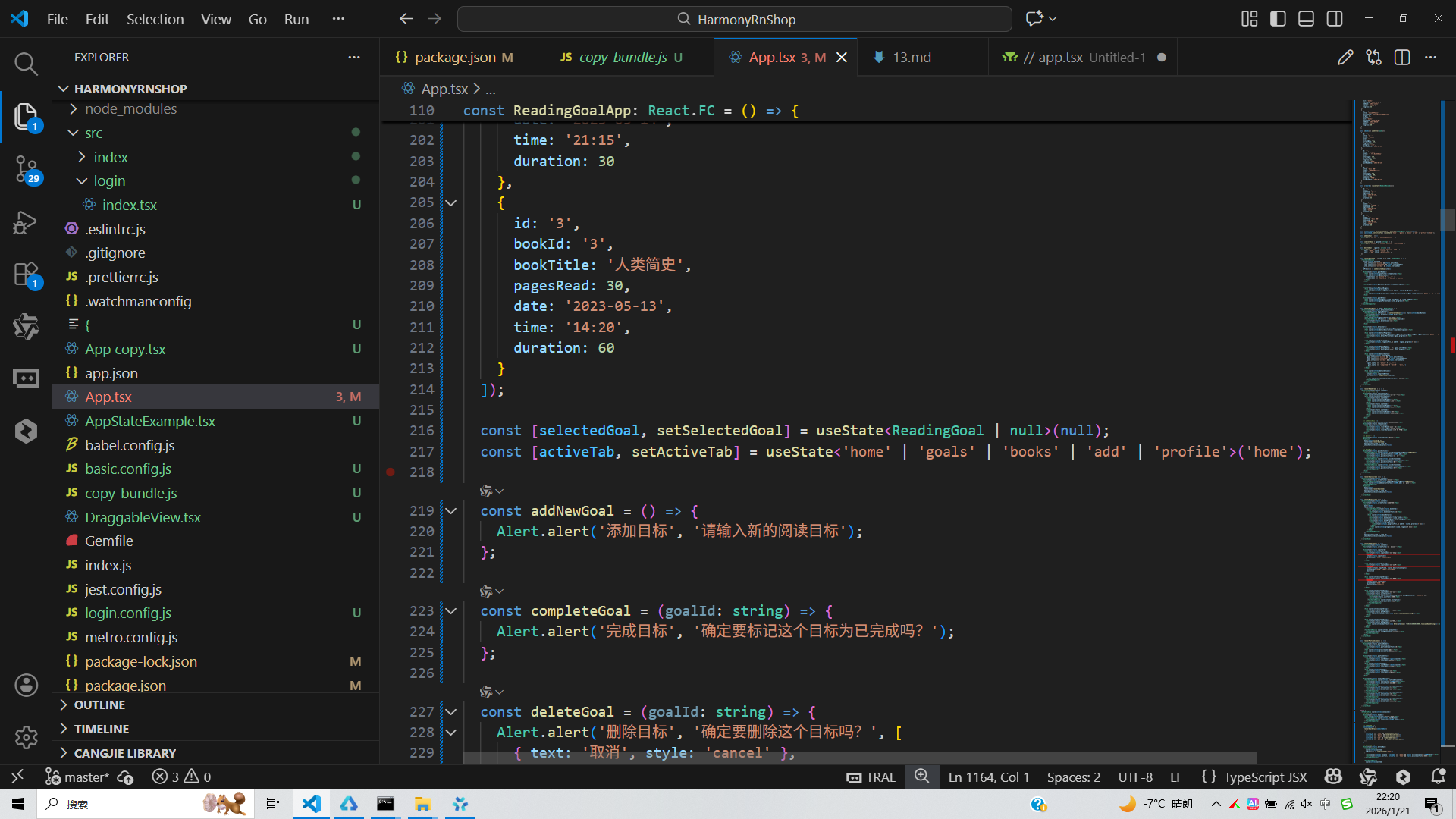
接下来通过打包命令npn run harmony将reactNative的代码打包成为bundle,这样可以进行在开源鸿蒙OpenHarmony中进行使用。

打包之后再将打包后的鸿蒙OpenHarmony文件拷贝到鸿蒙的DevEco-Studio工程目录去:

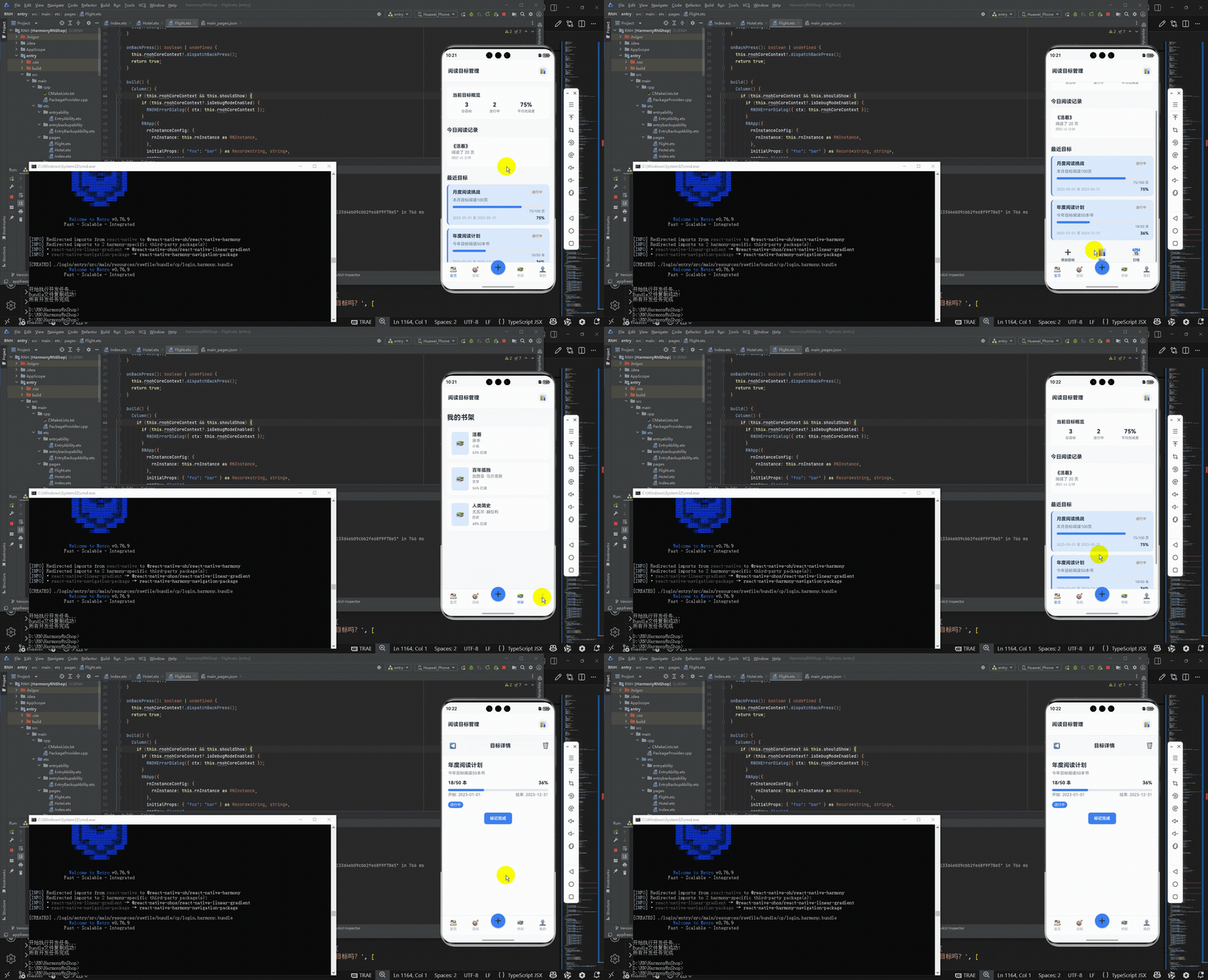
最后运行效果图如下显示:
欢迎大家加入开源鸿蒙跨平台开发者社区,一起共建开源鸿蒙跨平台生态。

开源鸿蒙跨平台开发社区汇聚开发者与厂商,共建“一次开发,多端部署”的开源生态,致力于降低跨端开发门槛,推动万物智联创新。
更多推荐

 14
14 0
0- 0


 已为社区贡献32条内容

所有评论(0)