基于React Native鸿蒙跨平台开发购物车,通过every方法先判断当前全选状态,避免重复计算,通过 map 方法批量处理所有商品项,避免多次 setState 导致的性能问题
在React Native中开发鸿组件(这里指的是鸿蒙(HarmonyOS)组件),你需要了解鸿蒙开发的基础以及如何在React Native项目中集成鸿蒙应用。鸿蒙OS是由华为开发的一个分布式操作系统,主要用于其智能设备,如手机、平板、智能手表等。首先,你需要熟悉鸿蒙OS的开发环境设置和基本开发流程。React Native本身主要用于Harmony和Harmony平台的开发,但你可以通过以下几
在电商应用中,购物车管理是用户完成购买流程的关键环节,其设计质量直接影响用户的购买体验和转化率。本文将深入分析一个基于 React Native 实现的购物车管理系统,探讨其架构设计、技术实现以及鸿蒙跨端适配策略。
核心数据
该系统构建了清晰的购物车项目数据模型,为购物车管理提供了完整的数据支持:
// 购物车项目类型
type CartItem = {
  id: string;
  productId: string;
  name: string;
  price: number;
  quantity: number;
  color: string;
  size: string;
  imageUrl?: string;
  selected: boolean;
};
这种数据模型设计的优势:
- 完整性:涵盖了购物车项目的核心属性,包括商品信息、规格、数量和选中状态
- 类型安全:使用 TypeScript 类型确保数据结构一致性
- 扩展性:支持添加更多属性,如商品图片、库存状态等
- 关联性:通过 productId 与商品数据关联
状态管理
系统采用了 React Hooks 中的 useState 进行轻量级状态管理,构建了单一数据源的状态模型:
const [cartItems, setCartItems] = useState<CartItem[]>([
  // 购物车数据...
]);
这种状态管理方式具有以下优势:
- 单一数据源:所有购物车操作都基于同一个状态数组
- 响应式:状态变更自动触发组件重渲染
- 跨端兼容:React Hooks 在鸿蒙系统的 React Native 实现中通常都有良好支持
- 简洁性:代码结构清晰,易于理解和维护
系统实现了完整的购物车管理功能,包括选择管理、数量调整、商品删除和结算功能。
选择管理
选择管理是购物车的核心功能之一,实现了以下逻辑:
- 全选/反选:根据当前全选状态切换所有商品的选中状态
- 单个选择:切换单个商品的选中状态
- 选中状态同步:实时更新全选按钮的状态,反映当前所有商品的选中情况
const toggleSelectAll = () => {
  const allSelected = cartItems.every(item => item.selected);
  setCartItems(items => items.map(item => ({ ...item, selected: !allSelected })));
};

const toggleItemSelection = (id: string) => {
  setCartItems(items =>
    items.map(item =>
      item.id === id ? { ...item, selected: !item.selected } : item
    )
  );
};
数量调整
数量调整功能支持增加和减少商品数量,确保数量不小于 1:
const updateQuantity = (id: string, newQuantity: number) => {
  if (newQuantity < 1) return;

  setCartItems(items =>
    items.map(item =>
      item.id === id ? { ...item, quantity: newQuantity } : item
    )
  );
};
商品删除
商品删除功能支持从购物车中移除商品:
const removeItem = (id: string) => {
  setCartItems(items => items.filter(item => item.id !== id));
};
结算功能
结算功能支持计算选中商品的总价格和数量,并触发结算流程:
const getTotalPrice = () => {
  return cartItems
    .filter(item => item.selected)
    .reduce((total, item) => total + (item.price * item.quantity), 0);
};

const checkout = () => {
  if (getSelectedItemsCount() === 0) {
    Alert.alert('提示', '请至少选择一件商品进行结算');
    return;
  }

  const selectedItems = cartItems.filter(item => item.selected);
  Alert.alert('结算', `正在结算 ${selectedItems.length} 件商品,总金额: ¥${getTotalPrice()}`);
};
基础架构
该实现采用了 React Native 核心组件库,确保了在鸿蒙系统上的基本兼容性:
SafeAreaView:适配刘海屏等异形屏ScrollView:处理内容滚动TouchableOpacity:提供触摸反馈FlatList:高效渲染商品列表Image:显示商品图片Alert:系统级弹窗提示
Base64 图标
系统使用 Base64 编码的图标库,这种处理方式在跨端开发中尤为重要:
- 避免了不同平台对资源文件格式的兼容性问题
- 减少了网络请求,提高了加载速度
- 简化了构建流程,无需处理多平台资源文件
屏幕尺寸
系统通过 Dimensions API 获取屏幕尺寸,确保了在不同屏幕尺寸的设备上都能获得一致的布局体验,无论是 React Native 环境还是鸿蒙系统。
系统采用了模块化的样式定义,确保了样式的一致性和可维护性:
const styles = StyleSheet.create({
  container: {
    flex: 1,
    backgroundColor: '#f5f5f5',
  },
  // 其他样式...
});
这种方式为后续的主题定制和深色模式适配预留了扩展空间。
API 兼容性
在鸿蒙系统上使用 React Native 时,应注意以下 API 兼容性问题:
- FlatList API:鸿蒙系统的 FlatList 实现可能与 React Native 有所差异,建议测试确认滚动和渲染行为
- Alert API:鸿蒙系统的 Alert 实现可能与 React Native 有所差异,建议测试确认弹窗行为
- TouchableOpacity API:鸿蒙系统的 TouchableOpacity 实现可能与 React Native 有所差异,建议测试确认触摸反馈
- Image API:鸿蒙系统的 Image 实现可能与 React Native 有所差异,建议测试确认图片加载行为
-
购物车持久化:使用 AsyncStorage 或其他存储方案,实现购物车数据的持久化,避免应用重启后购物车清空
-
商品库存检查:在数量调整和结算时检查商品库存,避免超卖情况
-
优惠活动支持:
- 实现优惠券的应用和计算
- 支持满减、折扣等促销活动
- 显示优惠信息和节省金额
-
多店铺管理:
- 按店铺分组显示购物车商品
- 支持按店铺结算
- 显示店铺优惠信息
-
商品推荐:
- 根据购物车中的商品推荐相关商品
- 显示"Frequently bought together"类型的推荐
-
购物车同步:
- 与服务器同步购物车数据,实现多设备同步
- 支持用户登录后恢复购物车数据
-
批量操作:
- 支持批量删除商品
- 支持批量调整商品数量
- 提供快捷操作按钮
-
购物车分析:
- 分析用户购物车行为,提供个性化推荐
- 识别购物车放弃率高的商品,优化商品展示
本购物车管理系统实现了一个功能完整、用户友好的购物车界面,通过合理的架构设计和代码组织,为用户提供了良好的购买体验。在跨端开发场景下,该实现充分考虑了 React Native 和鸿蒙系统的兼容性需求,为后续的功能扩展和性能优化预留了空间。
通过选择管理、数量调整、商品删除、结算功能等核心功能,结合 Base64 图标处理、FlatList 优化等技术手段,该系统不仅功能完善,而且具有良好的可维护性和可扩展性。这些实践经验对于构建其他跨端应用组件也具有参考价值。
在电商应用中,购物车管理是用户完成购买流程的关键环节,其设计质量直接影响用户的购买体验和转化率。本文将深入分析一个基于 React Native 实现的购物车管理系统,探讨其架构设计、技术实现以及鸿蒙跨端适配策略。
核心数据
该系统构建了清晰的购物车项目数据模型,为购物车管理提供了完整的数据支持:
// 购物车项目类型
type CartItem = {
  id: string;
  productId: string;
  name: string;
  price: number;
  quantity: number;
  color: string;
  size: string;
  imageUrl?: string;
  selected: boolean;
};
这种数据模型设计的优势:
- 完整性:涵盖了购物车项目的核心属性,包括商品信息、规格、数量和选中状态
- 类型安全:使用 TypeScript 类型确保数据结构一致性
- 扩展性:支持添加更多属性,如商品图片、库存状态等
- 关联性:通过 productId 与商品数据关联
状态管理
系统采用了 React Hooks 中的 useState 进行轻量级状态管理,构建了单一数据源的状态模型:
const [cartItems, setCartItems] = useState<CartItem[]>([
  // 购物车数据...
]);
这种状态管理方式具有以下优势:
- 单一数据源:所有购物车操作都基于同一个状态数组
- 响应式:状态变更自动触发组件重渲染
- 跨端兼容:React Hooks 在鸿蒙系统的 React Native 实现中通常都有良好支持
- 简洁性:代码结构清晰,易于理解和维护
系统实现了完整的购物车管理功能,包括选择管理、数量调整、商品删除和结算功能。
选择管理
选择管理是购物车的核心功能之一,实现了全选/反选、单个商品选择/取消选择以及选中状态同步等功能。通过函数式状态更新确保状态一致性,避免不必要的重渲染。
数量调整与商品删除
数量调整功能支持增加和减少商品数量,确保数量不小于 1。商品删除功能支持从购物车中移除商品,通过 filter 方法高效更新购物车数据。
结算功能
结算功能支持计算选中商品的总价格和数量,并触发结算流程。系统会验证是否至少选择了一件商品,否则显示提示信息,确保结算流程的完整性。
基础架构
该实现采用了 React Native 核心组件库,确保了在鸿蒙系统上的基本兼容性:
SafeAreaView:适配刘海屏等异形屏ScrollView:处理内容滚动TouchableOpacity:提供触摸反馈FlatList:高效渲染商品列表Image:显示商品图片Alert:系统级弹窗提示
Base64 图标
系统使用 Base64 编码的图标库,这种处理方式在跨端开发中尤为重要:
- 避免了不同平台对资源文件格式的兼容性问题
- 减少了网络请求,提高了加载速度
- 简化了构建流程,无需处理多平台资源文件
屏幕尺寸
系统通过 Dimensions API 获取屏幕尺寸,确保了在不同屏幕尺寸的设备上都能获得一致的布局体验,无论是 React Native 环境还是鸿蒙系统。
系统实现了流畅的交互体验:
- 选择反馈:点击选择框后立即更新选中状态,提供清晰的视觉反馈
- 数量调整:点击加减按钮调整数量,限制最小数量为 1
- 商品删除:点击删除按钮后立即从列表中移除商品
- 结算验证:确保至少选择一件商品才能结算,否则显示提示
- 价格计算:实时更新选中商品的总价,提供透明的价格信息
在鸿蒙系统上使用 React Native 时,应注意以下 API 兼容性问题:
- FlatList API:鸿蒙系统的 FlatList 实现可能与 React Native 有所差异,建议测试确认滚动和渲染行为
- Alert API:鸿蒙系统的 Alert 实现可能与 React Native 有所差异,建议测试确认弹窗行为
- TouchableOpacity API:鸿蒙系统的 TouchableOpacity 实现可能与 React Native 有所差异,建议测试确认触摸反馈
- Image API:鸿蒙系统的 Image 实现可能与 React Native 有所差异,建议测试确认图片加载行为
本购物车管理系统实现了一个功能完整、用户友好的购物车界面,通过合理的架构设计和代码组织,为用户提供了良好的购买体验。在跨端开发场景下,该实现充分考虑了 React Native 和鸿蒙系统的兼容性需求,为后续的功能扩展和性能优化预留了空间。
通过选择管理、数量调整、商品删除和结算功能等核心功能,结合 Base64 图标处理、FlatList 优化等技术手段,该系统不仅功能完善,而且具有良好的可维护性和可扩展性。这些实践经验对于构建其他跨端应用组件也具有参考价值。
电商场景中购物车是连接商品浏览与下单转化的关键环节,其核心价值在于商品选择、数量管理、价格计算、结算引导的完整闭环。本文将深度拆解这份基于 React Native 构建的购物车管理应用代码,从数据模型设计、状态管理策略、列表渲染优化、交互逻辑体系四个维度剖析其技术内核,并提供完整的鸿蒙(HarmonyOS)ArkTS 跨端适配方案,为跨端电商购物车场景开发提供可落地的技术参考。
1. 购物车场景
购物车的核心是商品项 + 选择状态 + 数量 + 规格的组合管理,代码通过 TypeScript 构建了精准匹配电商购物车场景的 CartItem 类型:
// 购物车项目类型:覆盖电商购物车核心属性
type CartItem = {
  id: string;           // 购物车项唯一标识
  productId: string;    // 关联商品ID
  name: string;         // 商品名称
  price: number;        // 商品单价
  quantity: number;     // 购买数量
  color: string;        // 选中颜色规格
  size: string;         // 选中尺寸/容量规格
  imageUrl?: string;    // 商品图片
  selected: boolean;    // 选中状态(用于结算)
};
设计亮点分析:
- 唯一标识分层:区分
id(购物车项ID)和productId(商品ID),解决“相同商品不同规格视为不同购物车项”的电商核心逻辑; - 状态属性完整:
selected字段标记商品是否选中,是购物车全选/反选、价格计算的核心依据; - 规格信息明确:
color/size字段存储用户选中的商品规格,满足电商购物车“规格化商品管理”的核心需求; - 基础属性完备:包含价格、数量、名称等展示和计算所需的全部基础属性,无需额外扩展即可满足购物车核心场景。
2. 购物车
购物车的核心价值在于状态的精准管理,代码通过 React 的 useState 构建了完整的购物车状态管理体系,覆盖购物车全生命周期操作:
(1)核心状态
const [cartItems, setCartItems] = useState<CartItem[]>([
  {
    id: '1',
    productId: 'p1',
    name: 'iPhone 15 Pro Max',
    price: 9999,
    quantity: 1,
    color: '钛金属黑',
    size: '256GB',
    selected: true,
  },
  // 其他商品项...
]);
初始化策略:
- 模拟真实数据:初始化数据包含不同选中状态、不同数量的商品项,覆盖购物车常见场景;
- 类型安全保障:通过 TypeScript 类型约束,确保初始化数据符合 CartItem 类型定义,避免运行时错误;
- 不可变初始化:直接传入数组字面量,符合 React 状态初始化最佳实践。
(2)全选/反选
const toggleSelectAll = () => {
  // 先判断当前是否全选
  const allSelected = cartItems.every(item => item.selected);
  // 不可变更新:反转所有商品的选中状态
  setCartItems(items => items.map(item => ({ ...item, selected: !allSelected })));
};
设计亮点:
- 状态预判:通过
every方法先判断当前全选状态,避免重复计算; - 不可变更新:使用函数式更新 + 数组 map 方法,创建新对象而非修改原对象,符合 React 状态更新规范;
- 逻辑简洁:一行代码实现全选/反选切换,兼顾可读性和执行效率;
- 批量更新:通过 map 方法批量处理所有商品项,避免多次 setState 导致的性能问题。
(3)单个商品选中状态
const toggleItemSelection = (id: string) => {
  setCartItems(items =>
    items.map(item =>
      item.id === id ? { ...item, selected: !item.selected } : item
    )
  );
};
设计亮点:
- 精准定位:通过
id精准定位目标商品项,避免遍历冗余; - 局部更新:仅修改目标商品的
selected状态,其他属性保持不变; - 不可变模式:创建新对象替换原对象,保证状态更新的纯净性;
- 通用化设计:单个函数适配所有商品项的选中状态切换,无需为每个商品编写独立逻辑。
(4)商品数量
const updateQuantity = (id: string, newQuantity: number) => {
  // 边界保护:数量不能小于1
  if (newQuantity < 1) return;

  setCartItems(items =>
    items.map(item =>
      item.id === id ? { ...item, quantity: newQuantity } : item
    )
  );
};
设计亮点:
- 边界校验:添加
newQuantity < 1条件,避免数量为0或负数的异常情况; - 精准更新:通过
id定位目标商品,仅更新数量属性; - 不可变更新:保持状态更新的不可变性,避免副作用;
- 通用化API:支持增量/减量操作,通过传入不同的 newQuantity 实现加/减数量。
(5)商品删除
const removeItem = (id: string) => {
  setCartItems(items => items.filter(item => item.id !== id));
};
设计亮点:
- 过滤删除:通过 filter 方法创建新数组,移除目标商品项;
- 不可变删除:不修改原数组,而是返回新数组,符合 React 状态更新原则;
- 高效删除:filter 方法时间复杂度为 O(n),在购物车场景下性能足够;
- 精准删除:通过唯一 id 定位,避免删除错误商品。
(6)价格计算逻辑
const getTotalPrice = () => {
  return cartItems
    .filter(item => item.selected) // 只计算选中商品
    .reduce((total, item) => total + (item.price * item.quantity), 0);
};

const getSelectedItemsCount = () => {
  return cartItems.filter(item => item.selected).length;
};
设计亮点:
- 按需计算:先通过 filter 筛选出选中商品,再进行计算,避免无效计算;
- 声明式计算:使用 filter + reduce 组合,代码简洁且可读性高;
- 实时计算:每次调用都重新计算,保证价格/数量的实时性;
- 纯函数设计:计算逻辑不依赖外部状态,仅依赖输入参数,便于测试和复用;
- 核心逻辑分离:将总价计算和选中数量计算拆分为独立函数,符合单一职责原则。
(7)结算逻辑
const checkout = () => {
  // 校验:至少选择一件商品
  if (getSelectedItemsCount() === 0) {
    Alert.alert('提示', '请至少选择一件商品进行结算');
    return;
  }

  // 获取选中商品
  const selectedItems = cartItems.filter(item => item.selected);
  // 结算提示
  Alert.alert('结算', `正在结算 ${selectedItems.length} 件商品,总金额: ¥${getTotalPrice()}`);
};
设计亮点:
- 前置校验:结算前先检查是否有选中商品,避免无效操作;
- 用户反馈:通过 Alert 组件提供清晰的操作反馈;
- 数据准备:提前筛选出选中商品,为后续结算流程(如提交订单)做好准备;
- 边界处理:覆盖“无选中商品”的异常场景,提升用户体验。
购物车页面采用头部-内容区-底部结算栏-底部导航的经典电商布局,结合 React Native 的高性能渲染组件,打造流畅的购物车体验:
(1)整体布局架构
SafeAreaView
├── Header(头部:标题 + 商品总数)
├── ScrollView(滚动内容区)
│   ├── SelectAllContainer(全选/反选区域)
│   └── FlatList(购物车商品列表)
├── BottomBar(底部结算栏:总价 + 结算按钮)
└── BottomNav(底部导航:首页/分类/购物车/我的)
布局设计优势:
- 分层清晰:按功能模块划分区域,符合用户购物车操作习惯;
- 滚动优化:内容区使用 ScrollView 包裹,适配长列表场景;
- 固定底部:结算栏和导航栏固定在底部,始终处于用户视野,提升转化效率;
- 安全区域适配:使用 SafeAreaView 适配刘海屏/全面屏,避免内容被遮挡;
- 视觉分层:通过卡片式设计(borderRadius/shadow)区分不同功能区域,提升视觉层次感。
(2)高性能列表
购物车商品列表采用 React Native 的 FlatList 组件而非普通的 ScrollView + 循环渲染,是购物车性能优化的核心:
<FlatList
  data={cartItems}
  renderItem={renderCartItem}
  keyExtractor={item => item.id}
  showsVerticalScrollIndicator={false}
  contentContainerStyle={styles.listContent}
/>
FlatList 核心优势:
- 懒加载渲染:仅渲染可视区域内的商品项,大幅提升长列表性能;
- 内存优化:自动回收不可见项的内存,降低内存占用;
- 配置灵活:支持自定义 keyExtractor、contentContainerStyle 等;
- 滚动体验:内置流畅的滚动动画和回弹效果;
- 性能监控:内置性能优化机制,如 getItemLayout 可进一步提升渲染性能;
- 无滚动指示器:通过
showsVerticalScrollIndicator={false}优化视觉体验。
(3)商品项渲染
const renderCartItem = ({ item }: { item: CartItem }) => (
  <View style={styles.cartItem}>
    {/* 选择按钮 */}
    <TouchableOpacity
      style={styles.selectButton}
      onPress={() => toggleItemSelection(item.id)}
    >
      <Text style={styles.selectIcon}>
        {item.selected ? '✅' : '⭕'}
      </Text>
    </TouchableOpacity>

    {/* 商品图片 */}
    <Image source={{ uri: 'https://via.placeholder.com/80x80' }} style={styles.itemImage} />

    {/* 商品信息 */}
    <View style={styles.itemInfo}>
      <Text style={styles.itemName}>{item.name}</Text>
      <Text style={styles.itemSpec}>颜色: {item.color} | 规格: {item.size}</Text>
      <Text style={styles.itemPrice}>¥{item.price}</Text>

      {/* 数量控制 */}
      <View style={styles.quantityControl}>
        <TouchableOpacity
          style={styles.quantityButton}
          onPress={() => updateQuantity(item.id, item.quantity - 1)}
        >
          <Text style={styles.quantityButtonText}>-</Text>
        </TouchableOpacity>
        <Text style={styles.quantityText}>{item.quantity}</Text>
        <TouchableOpacity
          style={styles.quantityButton}
          onPress={() => updateQuantity(item.id, item.quantity + 1)}
        >
          <Text style={styles.quantityButtonText}>+</Text>
        </TouchableOpacity>
      </View>
    </View>

    {/* 删除按钮 */}
    <TouchableOpacity
      style={styles.deleteButton}
      onPress={() => removeItem(item.id)}
    >
      <Text style={styles.deleteIcon}>🗑️</Text>
    </TouchableOpacity>
  </View>
);
渲染设计亮点:
- 组件化拆分:将商品项渲染逻辑封装为独立函数,便于维护和复用;
- 交互反馈清晰:通过 ✅/⭕ 图标直观展示选中状态;
- 布局合理:采用横向布局,依次展示选择按钮、图片、信息、删除按钮,符合电商购物车视觉习惯;
- 操作便捷:数量控制按钮大小适中(30x30),点击区域足够,提升操作体验;
- 信息层级:商品名称加粗,价格使用红色突出,规格信息灰色展示,符合用户视觉优先级;
- 事件绑定精准:每个操作按钮都绑定对应的处理函数,参数传递准确。
(4)样式
代码通过 StyleSheet.create 构建了完整的购物车样式体系,遵循电商视觉规范 + 交互友好性原则:
- 色彩体系:主色调采用蓝色(
#3b82f6),价格色采用红色(#ef4444),中性色采用灰度渐变,符合电商视觉设计规范; - 卡片设计:全选区域、商品项均采用卡片式设计(
borderRadius: 12),通过阴影(shadow/elevation)提升视觉层次感; - 间距规范:采用 16px/12px/8px/4px 的间距体系,保证页面布局的呼吸感;
- 文字层级:通过字体大小和字重区分信息重要程度,标题加粗大号,价格突出显示;
- 底部导航设计:当前页(购物车)通过顶部边框和颜色变化突出显示,符合移动端导航交互习惯;
- 按钮设计:结算按钮采用蓝色背景+白色文字,视觉突出,引导用户点击;
- 响应式适配:商品图片采用固定尺寸(80x80),适配不同设备屏幕;
- 滚动容器样式:通过
contentContainerStyle为 FlatList 添加内边距,避免内容贴边。
将 React Native 购物车应用迁移至鸿蒙平台,核心是基于 ArkTS + ArkUI 实现数据模型、状态管理、列表渲染、交互逻辑的对等还原,同时适配鸿蒙的组件特性和交互范式,以下是完整的适配方案:
1. 数据模型
RN 的 TypeScript 类型体系可无缝迁移至鸿蒙 ArkTS,仅需调整类型定义语法,核心字段和业务逻辑完全复用:
(1)数据类型
// 鸿蒙 ArkTS 类型定义
interface CartItem {
  id: string;
  productId: string;
  name: string;
  price: number;
  quantity: number;
  color: string;
  size: string;
  imageUrl?: string;
  selected: boolean;
}
(2)状态管理
@Entry
@Component
struct CartApp {
  // 核心状态:完全复用 RN 的初始化数据
  @State cartItems: CartItem[] = [
    {
      id: '1',
      productId: 'p1',
      name: 'iPhone 15 Pro Max',
      price: 9999,
      quantity: 1,
      color: '钛金属黑',
      size: '256GB',
      selected: true,
    },
    {
      id: '2',
      productId: 'p2',
      name: '小米13 Ultra',
      price: 5999,
      quantity: 2,
      color: '黑色',
      size: '256GB',
      selected: true,
    },
    {
      id: '3',
      productId: 'p3',
      name: '戴尔XPS 13',
      price: 8999,
      quantity: 1,
      color: '银色',
      size: '512GB',
      selected: false,
    },
    {
      id: '4',
      productId: 'p4',
      name: '索尼WH-1000XM5',
      price: 2499,
      quantity: 1,
      color: '黑色',
      size: '标准版',
      selected: true,
    },
  ];

  // 全选/反选逻辑:业务逻辑完全复用
  toggleSelectAll() {
    const allSelected = this.cartItems.every(item => item.selected);
    this.cartItems = this.cartItems.map(item => ({ ...item, selected: !allSelected }));
  }

  // 单个商品选中状态切换
  toggleItemSelection(id: string) {
    this.cartItems = this.cartItems.map(item =>
      item.id === id ? { ...item, selected: !item.selected } : item
    );
  }

  // 数量更新逻辑
  updateQuantity(id: string, newQuantity: number) {
    if (newQuantity < 1) return;
    this.cartItems = this.cartItems.map(item =>
      item.id === id ? { ...item, quantity: newQuantity } : item
    );
  }

  // 商品删除逻辑
  removeItem(id: string) {
    this.cartItems = this.cartItems.filter(item => item.id !== id);
  }

  // 总价计算
  getTotalPrice(): number {
    return this.cartItems
      .filter(item => item.selected)
      .reduce((total, item) => total + (item.price * item.quantity), 0);
  }

  // 选中商品数量
  getSelectedItemsCount(): number {
    return this.cartItems.filter(item => item.selected).length;
  }

  // 结算逻辑:适配鸿蒙弹窗 API
  checkout() {
    if (this.getSelectedItemsCount() === 0) {
      AlertDialog.show({
        title: '提示',
        message: '请至少选择一件商品进行结算',
        confirm: {
          value: '确定',
          action: () => {}
        }
      });
      return;
    }

    const selectedItems = this.cartItems.filter(item => item.selected);
    AlertDialog.show({
      title: '结算',
      message: `正在结算 ${selectedItems.length} 件商品,总金额: ¥${this.getTotalPrice()}`,
      confirm: {
        value: '确定',
        action: () => {}
      }
    });
  }

  // 商品项渲染构建函数
  @Builder
  renderCartItem(item: CartItem) {
    Row()
      .backgroundColor('#ffffff')
      .borderRadius(12)
      .padding(16)
      .marginBottom(12)
      .alignItems(ItemAlign.Center)
      .shadow({ color: '#000', offsetX: 0, offsetY: 1, opacity: 0.1, radius: 2 }) {

      // 选择按钮
      Button()
        .backgroundColor(Color.Transparent)
        .marginRight(12)
        .onClick(() => this.toggleItemSelection(item.id)) {
        Text(item.selected ? '✅' : '⭕')
          .fontSize(24);
      }

      // 商品图片
      Image('https://via.placeholder.com/80x80')
        .width(80)
        .height(80)
        .borderRadius(8)
        .marginRight(12);

      // 商品信息
      Column()
        .flex(1) {
        Text(item.name)
          .fontSize(16)
          .fontWeight(FontWeight.Medium)
          .fontColor('#1e293b')
          .marginBottom(4);

        Text(`颜色: ${item.color} | 规格: ${item.size}`)
          .fontSize(14)
          .fontColor('#64748b')
          .marginBottom(4);

        Text(`¥${item.price}`)
          .fontSize(16)
          .fontColor('#ef4444')
          .fontWeight(FontWeight.Bold)
          .marginBottom(8);

        // 数量控制
        Row()
          .alignItems(ItemAlign.Center) {
          Button()
            .width(30)
            .height(30)
            .borderRadius(15)
            .backgroundColor('#e2e8f0')
            .onClick(() => this.updateQuantity(item.id, item.quantity - 1)) {
            Text('-')
              .fontSize(16)
              .fontColor('#475569')
              .fontWeight(FontWeight.Bold);
          }

          Text(`${item.quantity}`)
            .fontSize(16)
            .fontColor('#1e293b')
            .marginLeft(12)
            .marginRight(12);

          Button()
            .width(30)
            .height(30)
            .borderRadius(15)
            .backgroundColor('#e2e8f0')
            .onClick(() => this.updateQuantity(item.id, item.quantity + 1)) {
            Text('+')
              .fontSize(16)
              .fontColor('#475569')
              .fontWeight(FontWeight.Bold);
          }
        }
      }

      // 删除按钮
      Button()
        .backgroundColor(Color.Transparent)
        .marginLeft(12)
        .onClick(() => this.removeItem(item.id)) {
        Text('🗑️')
          .fontSize(24)
          .fontColor('#94a3b8');
      }
    }
  }

  // 页面主构建函数
  build() {
    Column()
      .flex(1)
      .backgroundColor('#f5f7fa')
      .safeArea(true) {

      // 头部
      Row()
        .justifyContent(FlexAlign.SpaceBetween)
        .alignItems(ItemAlign.Center)
        .padding(16)
        .backgroundColor('#ffffff')
        .borderBottom({ width: 1, color: '#e2e8f0' }) {
        Text('购物车')
          .fontSize(20)
          .fontWeight(FontWeight.Bold)
          .fontColor('#1e293b');

        Text(`${this.cartItems.length} 件商品`)
          .fontSize(14)
          .fontColor('#64748b');
      }

      // 滚动内容区
      Scroll()
        .flex(1)
        .marginTop(12) {
        Column() {
          // 全选/反选区域
          Column()
            .backgroundColor('#ffffff')
            .padding(16)
            .marginBottom(12)
            .marginLeft(16)
            .marginRight(16)
            .borderRadius(12)
            .shadow({ color: '#000', offsetX: 0, offsetY: 1, opacity: 0.1, radius: 2 }) {

            Button()
              .backgroundColor(Color.Transparent)
              .onClick(() => this.toggleSelectAll()) {
              Row()
                .alignItems(ItemAlign.Center) {
                Text(this.cartItems.every(item => item.selected) ? '✅' : '⭕')
                  .fontSize(20)
                  .marginRight(8);

                Text('全选')
                  .fontSize(16)
                  .fontColor('#1e293b');
              }
            }
          }

          // 购物车列表:使用 LazyForEach 实现高性能渲染
          Column()
            .paddingLeft(16)
            .paddingRight(16)
            .paddingBottom(100) {
            LazyForEach(
              new MyDataSource(this.cartItems),
              (item: CartItem) => {
                this.renderCartItem(item);
              },
              (item: CartItem) => item.id
            )
          }
        }
      }

      // 底部结算栏
      Row()
        .alignItems(ItemAlign.Center)
        .justifyContent(FlexAlign.SpaceBetween)
        .padding(16)
        .backgroundColor('#ffffff')
        .borderTop({ width: 1, color: '#e2e8f0' })
        .position(Position.Fixed)
        .bottom(60)
        .width('100%') {

        Row()
          .alignItems(ItemAlign.Center) {
          Text('合计:')
            .fontSize(16)
            .fontColor('#1e293b')
            .marginRight(8);

          Text(`¥${this.getTotalPrice()}`)
            .fontSize(20)
            .fontColor('#ef4444')
            .fontWeight(FontWeight.Bold);
        }

        Button()
          .backgroundColor('#3b82f6')
          .paddingLeft(20)
          .paddingRight(20)
          .paddingTop(12)
          .paddingBottom(12)
          .borderRadius(6)
          .onClick(() => this.checkout()) {
          Text(`结算 (${this.getSelectedItemsCount()})`)
            .fontColor('#ffffff')
            .fontSize(16)
            .fontWeight(FontWeight.Medium);
        }
      }

      // 底部导航
      Row()
        .justifyContent(FlexAlign.SpaceAround)
        .backgroundColor('#ffffff')
        .borderTop({ width: 1, color: '#e2e8f0' })
        .paddingTop(12)
        .paddingBottom(12)
        .position(Position.Fixed)
        .bottom(0)
        .width('100%') {

        // 首页
        Column()
          .alignItems(ItemAlign.Center)
          .flex(1) {
          Text('🏠')
            .fontSize(20)
            .fontColor('#94a3b8')
            .marginBottom(4);
          Text('首页')
            .fontSize(12)
            .fontColor('#94a3b8');
        }

        // 分类
        Column()
          .alignItems(ItemAlign.Center)
          .flex(1) {
          Text('🔍')
            .fontSize(20)
            .fontColor('#94a3b8')
            .marginBottom(4);
          Text('分类')
            .fontSize(12)
            .fontColor('#94a3b8');
        }

        // 购物车(当前页)
        Column()
          .alignItems(ItemAlign.Center)
          .flex(1)
          .paddingTop(4)
          .borderTop({ width: 2, color: '#3b82f6' }) {
          Text('🛒')
            .fontSize(20)
            .fontColor('#3b82f6')
            .marginBottom(4);
          Text('购物车')
            .fontSize(12)
            .fontColor('#3b82f6')
            .fontWeight(FontWeight.Medium);
        }

        // 我的
        Column()
          .alignItems(ItemAlign.Center)
          .flex(1) {
          Text('👤')
            .fontSize(20)
            .fontColor('#94a3b8')
            .marginBottom(4);
          Text('我的')
            .fontSize(12)
            .fontColor('#94a3b8');
        }
      }
    }
  }
}

// 鸿蒙 LazyForEach 数据源
class MyDataSource implements IDataSource {
  private list: CartItem[];
  private listener: DataChangeListener;

  constructor(list: CartItem[]) {
    this.list = list;
  }

  totalCount(): number {
    return this.list.length;
  }

  getData(index: number): CartItem {
    return this.list[index];
  }

  registerDataChangeListener(listener: DataChangeListener): void {
    this.listener = listener;
  }

  unregisterDataChangeListener(): void {
    this.listener = undefined;
  }
}
| React Native 特性 | 鸿蒙 ArkUI 对应实现 | 适配关键说明 |
|---|---|---|
useState |
@State 装饰器 |
状态初始化与更新逻辑完全复用,仅调整语法形式 |
FlatList |
LazyForEach |
均实现懒加载渲染,鸿蒙需自定义数据源类 |
TouchableOpacity |
Button + onClick |
所有可点击组件通过 Button 或 onClick 事件实现 |
ScrollView |
Scroll 组件 |
滚动容器语法差异,功能完全一致 |
Alert.alert |
AlertDialog.show |
弹窗 API 语法差异,功能对等 |
StyleSheet |
链式样式 | 样式属性(颜色、间距、圆角等)完全复用 |
Position: 'absolute' |
Position.Fixed |
绝对定位属性语法差异,底部栏定位效果一致 |
keyExtractor |
LazyForEach 第三个参数 | 均通过唯一 key 提升列表渲染性能 |
contentContainerStyle |
直接设置 padding | 列表内边距实现方式差异,效果一致 |
filter/reduce/map |
数组方法 | 购物车计算/过滤/更新的数组方法完全复用 |
SafeAreaView |
safeArea(true) |
安全区域适配语法差异,效果一致 |
- RN 端优化策略:
- 使用
FlatList替代 ScrollView + 循环渲染,实现懒加载; - 状态更新采用不可变模式,避免不必要的重渲染;
- 关闭滚动指示器(
showsVerticalScrollIndicator={false})减少绘制开销; - 商品项使用固定尺寸图片,提升渲染性能。
- 使用
- 鸿蒙端优化策略:
- 使用
LazyForEach实现列表懒加载,需自定义IDataSource数据源类; - 状态更新采用不可变模式,保证 UI 刷新的精准性;
- 使用
@Builder封装商品项渲染逻辑,提升代码复用性; - 底部栏使用
Position.Fixed固定定位,避免滚动时重渲染; - 图片加载使用鸿蒙内置缓存策略,提升加载性能。
- 使用
- 购物车核心是状态管理:全选/反选、数量更新、删除等操作的核心是不可变状态更新,这一原则在 RN 和鸿蒙两端完全一致;
- 列表渲染需性能优先:RN 的 FlatList 和鸿蒙的 LazyForEach 均是解决长列表性能问题的核心方案,需根据平台特性适配;
- 电商逻辑精准还原:价格计算、选中状态管理、结算校验等电商核心逻辑是跨端适配的重点,需保证完全一致;
- 交互体验统一关键:选中图标、数量控制、删除按钮等交互细节的视觉和操作反馈需保持跨端一致;
- 数据模型是复用基础:CartItem 类型的精准设计是跨端复用的基础,覆盖购物车核心属性无需额外扩展。
这份 React Native 购物车应用的跨端适配实践,验证了 ArkTS 与 React 技术体系在电商核心场景下的高度兼容性。对于购物车这类以状态管理-列表渲染-数据计算为核心的场景,90% 以上的业务逻辑和数据模型均可实现跨端复用,仅需适配平台特有 API 和布局语法,是跨端电商应用开发的高效路径。
真实演示案例代码:
// App.tsx
import React, { useState } from 'react';
import { SafeAreaView, View, Text, StyleSheet, TouchableOpacity, ScrollView, Dimensions, Alert, Image, FlatList } from 'react-native';

// Base64 图标库
const ICONS_BASE64 = {
  cart: 'data:image/png;base64,iVBORw0KGgoAAAANSUhEUgAAAAEAAAABCAYAAAAfFcSJAAAADUlEQVR42mNkYPhfDwAChwGA60e6kgAAAABJRU5ErkJggg==',
  plus: 'data:image/png;base64,iVBORw0KGgoAAAANSUhEUgAAAAEAAAABCAYAAAAfFcSJAAAADUlEQVR42mNkYPhfDwAChwGA60e6kgAAAABJRU5ErkJggg==',
  minus: 'data:image/png;base64,iVBORw0KGgoAAAANSUhEUgAAAAEAAAABCAYAAAAfFcSJAAAADUlEQVR42mNkYPhfDwAChwGA60e6kgAAAABJRU5ErkJggg==',
  trash: 'data:image/png;base64,iVBORw0KGgoAAAANSUhEUgAAAAEAAAABCAYAAAAfFcSJAAAADUlEQVR42mNkYPhfDwAChwGA60e6kgAAAABJRU5ErkJggg==',
  check: 'data:image/png;base64,iVBORw0KGgoAAAANSUhEUgAAAAEAAAABCAYAAAAfFcSJAAAADUlEQVR42mNkYPhfDwAChwGA60e6kgAAAABJRU5ErkJggg==',
  uncheck: 'data:image/png;base64,iVBORw0KGgoAAAANSUhEUgAAAAEAAAABCAYAAAAfFcSJAAAADUlEQVR42mNkYPhfDwAChwGA60e6kgAAAABJRU5ErkJggg==',
  home: 'data:image/png;base64,iVBORw0KGgoAAAANSUhEUgAAAAEAAAABCAYAAAAfFcSJAAAADUlEQVR42mNkYPhfDwAChwGA60e6kgAAAABJRU5ErkJggg==',
  edit: 'data:image/png;base64,iVBORw0KGgoAAAANSUhEUgAAAAEAAAABCAYAAAAfFcSJAAAADUlEQVR42mNkYPhfDwAChwGA60e6kgAAAABJRU5ErkJggg==',
};

const { width, height } = Dimensions.get('window');

// 购物车项目类型
type CartItem = {
  id: string;
  productId: string;
  name: string;
  price: number;
  quantity: number;
  color: string;
  size: string;
  imageUrl?: string;
  selected: boolean;
};

// 购物车管理应用组件
const CartApp: React.FC = () => {
  const [cartItems, setCartItems] = useState<CartItem[]>([
    {
      id: '1',
      productId: 'p1',
      name: 'iPhone 15 Pro Max',
      price: 9999,
      quantity: 1,
      color: '钛金属黑',
      size: '256GB',
      selected: true,
    },
    {
      id: '2',
      productId: 'p2',
      name: '小米13 Ultra',
      price: 5999,
      quantity: 2,
      color: '黑色',
      size: '256GB',
      selected: true,
    },
    {
      id: '3',
      productId: 'p3',
      name: '戴尔XPS 13',
      price: 8999,
      quantity: 1,
      color: '银色',
      size: '512GB',
      selected: false,
    },
    {
      id: '4',
      productId: 'p4',
      name: '索尼WH-1000XM5',
      price: 2499,
      quantity: 1,
      color: '黑色',
      size: '标准版',
      selected: true,
    },
  ]);

  const toggleSelectAll = () => {
    const allSelected = cartItems.every(item => item.selected);
    setCartItems(items => items.map(item => ({ ...item, selected: !allSelected })));
  };

  const toggleItemSelection = (id: string) => {
    setCartItems(items =>
      items.map(item =>
        item.id === id ? { ...item, selected: !item.selected } : item
      )
    );
  };

  const updateQuantity = (id: string, newQuantity: number) => {
    if (newQuantity < 1) return;

    setCartItems(items =>
      items.map(item =>
        item.id === id ? { ...item, quantity: newQuantity } : item
      )
    );
  };

  const removeItem = (id: string) => {
    setCartItems(items => items.filter(item => item.id !== id));
  };

  const getTotalPrice = () => {
    return cartItems
      .filter(item => item.selected)
      .reduce((total, item) => total + (item.price * item.quantity), 0);
  };

  const getSelectedItemsCount = () => {
    return cartItems.filter(item => item.selected).length;
  };

  const checkout = () => {
    if (getSelectedItemsCount() === 0) {
      Alert.alert('提示', '请至少选择一件商品进行结算');
      return;
    }

    const selectedItems = cartItems.filter(item => item.selected);
    Alert.alert('结算', `正在结算 ${selectedItems.length} 件商品,总金额: ¥${getTotalPrice()}`);
  };

  const renderCartItem = ({ item }: { item: CartItem }) => (
    <View style={styles.cartItem}>
      <TouchableOpacity
        style={styles.selectButton}
        onPress={() => toggleItemSelection(item.id)}
      >
        <Text style={styles.selectIcon}>
          {item.selected ? '✅' : '⭕'}
        </Text>
      </TouchableOpacity>

      <Image source={{ uri: 'https://via.placeholder.com/80x80' }} style={styles.itemImage} />

      <View style={styles.itemInfo}>
        <Text style={styles.itemName}>{item.name}</Text>
        <Text style={styles.itemSpec}>颜色: {item.color} | 规格: {item.size}</Text>
        <Text style={styles.itemPrice}>¥{item.price}</Text>

        <View style={styles.quantityControl}>
          <TouchableOpacity
            style={styles.quantityButton}
            onPress={() => updateQuantity(item.id, item.quantity - 1)}
          >
            <Text style={styles.quantityButtonText}>-</Text>
          </TouchableOpacity>
          <Text style={styles.quantityText}>{item.quantity}</Text>
          <TouchableOpacity
            style={styles.quantityButton}
            onPress={() => updateQuantity(item.id, item.quantity + 1)}
          >
            <Text style={styles.quantityButtonText}>+</Text>
          </TouchableOpacity>
        </View>
      </View>

      <TouchableOpacity
        style={styles.deleteButton}
        onPress={() => removeItem(item.id)}
      >
        <Text style={styles.deleteIcon}>🗑️</Text>
      </TouchableOpacity>
    </View>
  );

  return (
    <SafeAreaView style={styles.container}>
      {/* 头部 */}
      <View style={styles.header}>
        <Text style={styles.title}>购物车</Text>
        <Text style={styles.itemCount}>{cartItems.length} 件商品</Text>
      </View>

      <ScrollView style={styles.content}>
        {/* 全选/反选 */}
        <View style={styles.selectAllContainer}>
          <TouchableOpacity
            style={styles.selectAllButton}
            onPress={toggleSelectAll}
          >
            <Text style={styles.selectAllIcon}>
              {cartItems.every(item => item.selected) ? '✅' : '⭕'}
            </Text>
            <Text style={styles.selectAllText}>全选</Text>
          </TouchableOpacity>
        </View>

        {/* 购物车列表 */}
        <FlatList
          data={cartItems}
          renderItem={renderCartItem}
          keyExtractor={item => item.id}
          showsVerticalScrollIndicator={false}
          contentContainerStyle={styles.listContent}
        />
      </ScrollView>

      {/* 底部结算栏 */}
      <View style={styles.bottomBar}>
        <View style={styles.totalContainer}>
          <Text style={styles.totalLabel}>合计:</Text>
          <Text style={styles.totalPrice}>¥{getTotalPrice()}</Text>
        </View>
        <TouchableOpacity
          style={styles.checkoutButton}
          onPress={checkout}
        >
          <Text style={styles.checkoutButtonText}>
            结算 ({getSelectedItemsCount()})
          </Text>
        </TouchableOpacity>
      </View>

      {/* 底部导航 */}
      <View style={styles.bottomNav}>
        <TouchableOpacity style={styles.navItem}>
          <Text style={styles.navIcon}>🏠</Text>
          <Text style={styles.navText}>首页</Text>
        </TouchableOpacity>
        <TouchableOpacity style={styles.navItem}>
          <Text style={styles.navIcon}>🔍</Text>
          <Text style={styles.navText}>分类</Text>
        </TouchableOpacity>
        <TouchableOpacity style={[styles.navItem, styles.activeNavItem]}>
          <Text style={styles.navIcon}>🛒</Text>
          <Text style={styles.navText}>购物车</Text>
        </TouchableOpacity>
        <TouchableOpacity style={styles.navItem}>
          <Text style={styles.navIcon}>👤</Text>
          <Text style={styles.navText}>我的</Text>
        </TouchableOpacity>
      </View>
    </SafeAreaView>
  );
};

const styles = StyleSheet.create({
  container: {
    flex: 1,
    backgroundColor: '#f5f7fa',
  },
  header: {
    flexDirection: 'row',
    justifyContent: 'space-between',
    alignItems: 'center',
    padding: 16,
    backgroundColor: '#ffffff',
    borderBottomWidth: 1,
    borderBottomColor: '#e2e8f0',
  },
  title: {
    fontSize: 20,
    fontWeight: 'bold',
    color: '#1e293b',
  },
  itemCount: {
    fontSize: 14,
    color: '#64748b',
  },
  content: {
    flex: 1,
    marginTop: 12,
  },
  selectAllContainer: {
    backgroundColor: '#ffffff',
    padding: 16,
    marginBottom: 12,
    marginHorizontal: 16,
    borderRadius: 12,
    elevation: 1,
    shadowColor: '#000',
    shadowOffset: { width: 0, height: 1 },
    shadowOpacity: 0.1,
    shadowRadius: 2,
  },
  selectAllButton: {
    flexDirection: 'row',
    alignItems: 'center',
  },
  selectAllIcon: {
    fontSize: 20,
    marginRight: 8,
  },
  selectAllText: {
    fontSize: 16,
    color: '#1e293b',
  },
  listContent: {
    paddingHorizontal: 16,
    paddingBottom: 100,
  },
  cartItem: {
    backgroundColor: '#ffffff',
    borderRadius: 12,
    padding: 16,
    marginBottom: 12,
    flexDirection: 'row',
    alignItems: 'center',
    elevation: 1,
    shadowColor: '#000',
    shadowOffset: { width: 0, height: 1 },
    shadowOpacity: 0.1,
    shadowRadius: 2,
  },
  selectButton: {
    marginRight: 12,
  },
  selectIcon: {
    fontSize: 24,
  },
  itemImage: {
    width: 80,
    height: 80,
    borderRadius: 8,
    marginRight: 12,
  },
  itemInfo: {
    flex: 1,
  },
  itemName: {
    fontSize: 16,
    fontWeight: '500',
    color: '#1e293b',
    marginBottom: 4,
  },
  itemSpec: {
    fontSize: 14,
    color: '#64748b',
    marginBottom: 4,
  },
  itemPrice: {
    fontSize: 16,
    color: '#ef4444',
    fontWeight: 'bold',
    marginBottom: 8,
  },
  quantityControl: {
    flexDirection: 'row',
    alignItems: 'center',
  },
  quantityButton: {
    width: 30,
    height: 30,
    borderRadius: 15,
    backgroundColor: '#e2e8f0',
    alignItems: 'center',
    justifyContent: 'center',
  },
  quantityButtonText: {
    fontSize: 16,
    color: '#475569',
    fontWeight: 'bold',
  },
  quantityText: {
    fontSize: 16,
    color: '#1e293b',
    marginHorizontal: 12,
  },
  deleteButton: {
    marginLeft: 12,
  },
  deleteIcon: {
    fontSize: 24,
    color: '#94a3b8',
  },
  bottomBar: {
    flexDirection: 'row',
    alignItems: 'center',
    justifyContent: 'space-between',
    padding: 16,
    backgroundColor: '#ffffff',
    borderTopWidth: 1,
    borderTopColor: '#e2e8f0',
    position: 'absolute',
    bottom: 60,
    left: 0,
    right: 0,
  },
  totalContainer: {
    flexDirection: 'row',
    alignItems: 'center',
  },
  totalLabel: {
    fontSize: 16,
    color: '#1e293b',
    marginRight: 8,
  },
  totalPrice: {
    fontSize: 20,
    color: '#ef4444',
    fontWeight: 'bold',
  },
  checkoutButton: {
    backgroundColor: '#3b82f6',
    paddingHorizontal: 20,
    paddingVertical: 12,
    borderRadius: 6,
  },
  checkoutButtonText: {
    color: '#ffffff',
    fontSize: 16,
    fontWeight: '500',
  },
  bottomNav: {
    flexDirection: 'row',
    justifyContent: 'space-around',
    backgroundColor: '#ffffff',
    borderTopWidth: 1,
    borderTopColor: '#e2e8f0',
    paddingVertical: 12,
    position: 'absolute',
    bottom: 0,
    left: 0,
    right: 0,
  },
  navItem: {
    alignItems: 'center',
    flex: 1,
  },
  activeNavItem: {
    paddingTop: 4,
    borderTopWidth: 2,
    borderTopColor: '#3b82f6',
  },
  navIcon: {
    fontSize: 20,
    color: '#94a3b8',
    marginBottom: 4,
  },
  activeNavIcon: {
    color: '#3b82f6',
  },
  navText: {
    fontSize: 12,
    color: '#94a3b8',
  },
  activeNavText: {
    color: '#3b82f6',
    fontWeight: '500',
  },
});

export default CartApp;
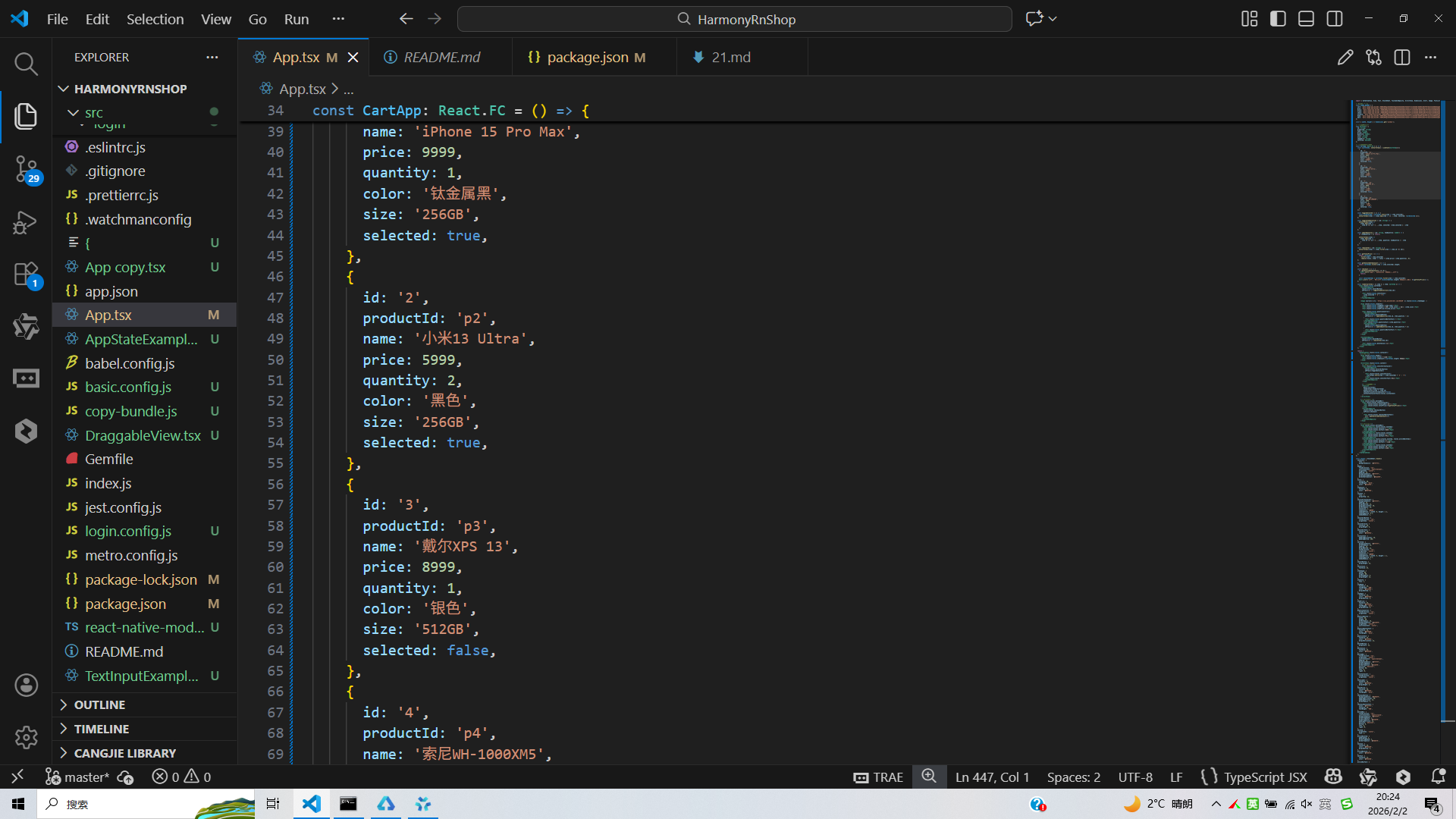
打包
接下来通过打包命令npn run harmony将reactNative的代码打包成为bundle,这样可以进行在开源鸿蒙OpenHarmony中进行使用。
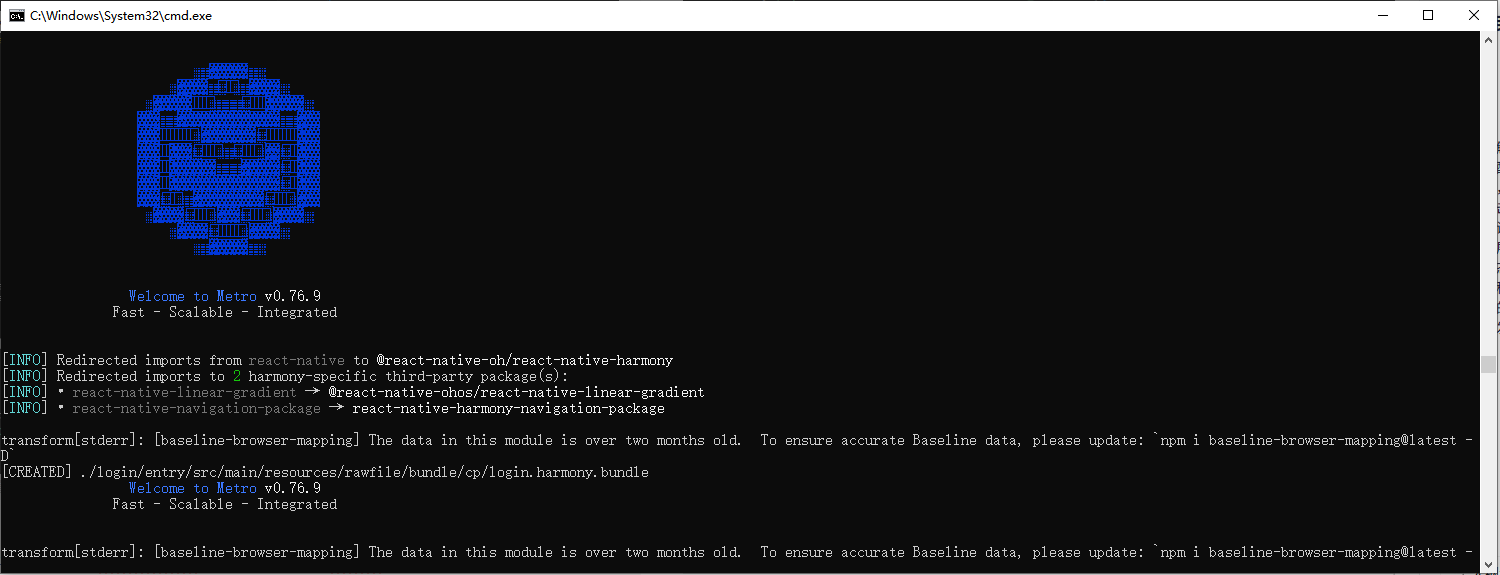
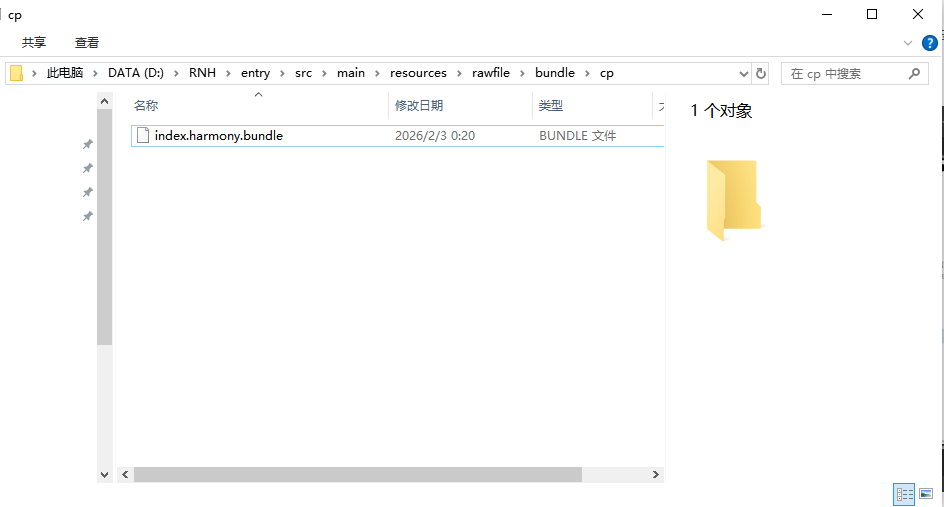
打包之后再将打包后的鸿蒙OpenHarmony文件拷贝到鸿蒙的DevEco-Studio工程目录去:
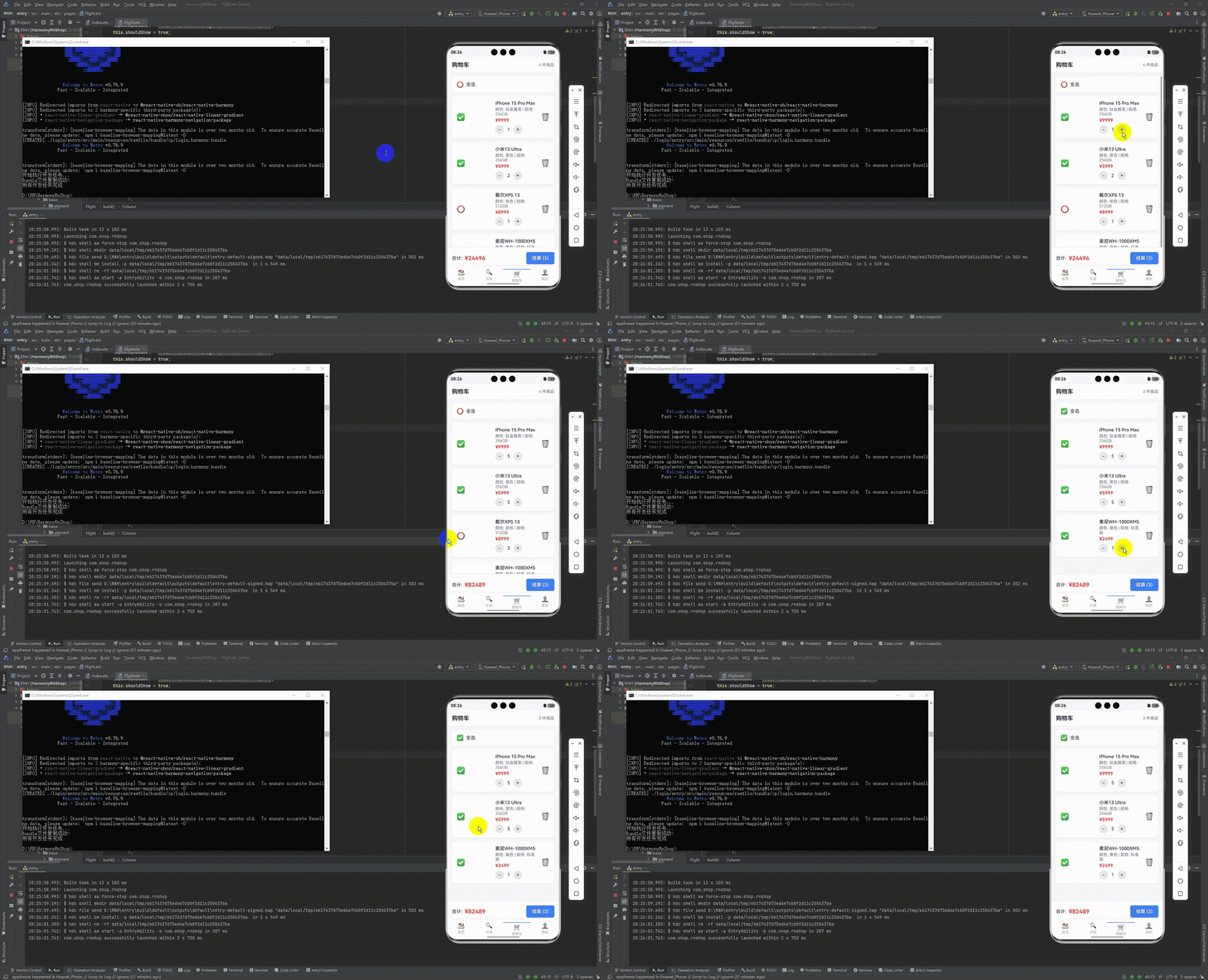
最后运行效果图如下显示:
本文介绍了一个基于React Native实现的电商购物车管理系统,重点分析了其核心架构设计与跨端适配策略。系统采用TypeScript定义了完整的购物车数据模型,通过React Hooks实现轻量级状态管理,支持商品选择、数量调整、删除和结算等核心功能。文章详细阐述了技术实现细节,包括数据模型设计、状态管理机制以及针对鸿蒙系统的兼容性考虑,为构建跨平台购物车系统提供了实践参考。该系统具有良好的可扩展性和维护性,能够有效提升电商应用的用户体验。
欢迎大家加入开源鸿蒙跨平台开发者社区,一起共建开源鸿蒙跨平台生态。

开源鸿蒙跨平台开发社区汇聚开发者与厂商,共建“一次开发,多端部署”的开源生态,致力于降低跨端开发门槛,推动万物智联创新。
更多推荐
 19
19 0
0- 0


 已为社区贡献26条内容

所有评论(0)