鸿蒙跨端Flutter开发:TabBar标签页导航详解
fill:#333;important;important;fill:none;color:#333;color:#333;important;fill:none;fill:#333;height:1em;TabBar最佳实践设计原则性能优化用户体验代码组织合理分类标签数量标签名称视觉设计懒加载状态保持资源释放避免重复渲染流畅切换清晰反馈手势支持记忆位置组件封装状态管理代码复用可维护性。
TabBar标签页导航详解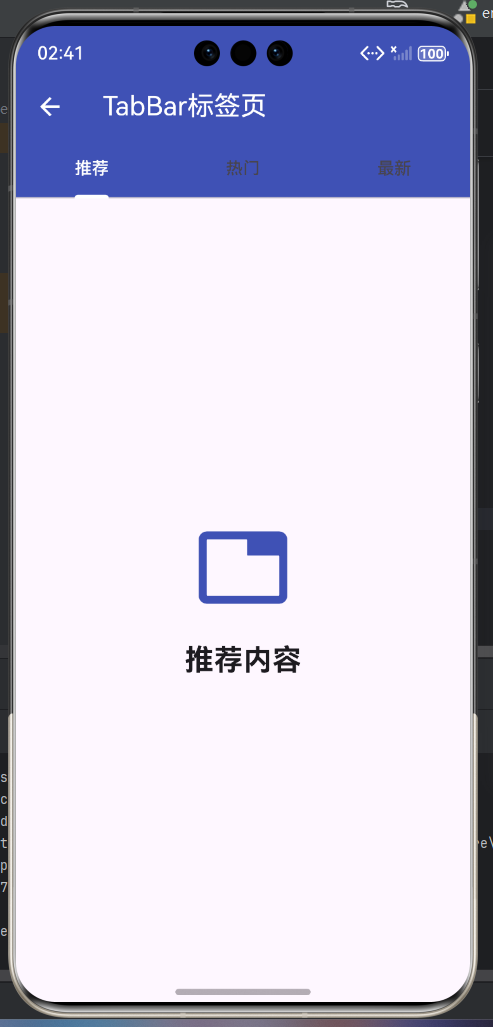
一、TabBar组件概述
TabBar是Flutter中实现标签页导航的核心组件,它通常与TabBarView配合使用,为用户提供在多个内容页面之间快速切换的能力。TabBar是Material Design的重要组成部分,广泛应用于应用的分类浏览、内容筛选等场景。
TabBar的设计理念
TabBar的优势在于它能够在有限的屏幕空间内提供多个内容入口,用户可以通过点击标签或滑动手势在不同页面之间切换,操作简单直观。同时,TabBar能够保持各个标签页的状态,用户切换回来时能够看到之前的内容。
二、TabBar的核心组件
TabBar生态系统
| 组件名 | 作用 | 必需 | 使用场景 |
|---|---|---|---|
| TabController | 控制标签页状态 | 是 | 管理标签切换和索引 |
| TabBar | 标签栏组件 | 是 | 显示可点击的标签 |
| TabBarView | 标签内容视图 | 是 | 显示对应标签的内容 |
| Tab | 单个标签组件 | 是 | TabBar的子项 |
TabBar属性详解
| 属性名 | 类型 | 说明 | 默认值 |
|---|---|---|---|
| controller | TabController | 标签控制器 | null |
| tabs | List | 标签列表(Tab对象) | null |
| indicatorColor | Color | 指示器颜色 | 主题中的指示器颜色 |
| indicatorWeight | double | 指示器粗细 | 2.0 |
| indicatorPadding | EdgeInsetsGeometry | 指示器内边距 | EdgeInsets.zero |
| indicatorSize | TabBarIndicatorSize | 指示器大小模式 | TabBarIndicatorSize.tab |
| labelColor | Color | 选中标签颜色 | 主题中的颜色 |
| labelStyle | TextStyle | 选中标签文字样式 | 主题中的样式 |
| unselectedLabelColor | Color | 未选中标签颜色 | 主题中的颜色 |
| unselectedLabelStyle | TextStyle | 未选中标签文字样式 | 主题中的样式 |
| isScrollable | bool | 是否可滚动 | false |
| onTap | ValueChanged | 点击回调 | null |
TabBarIndicatorSize枚举
| 值 | 说明 | 使用场景 |
|---|---|---|
| tab | 指示器宽度与标签相同 | 标签数量固定,宽度一致 |
| label | 指示器宽度与文字相同 | 标签文字长度差异较大 |
三、基础TabBar使用示例
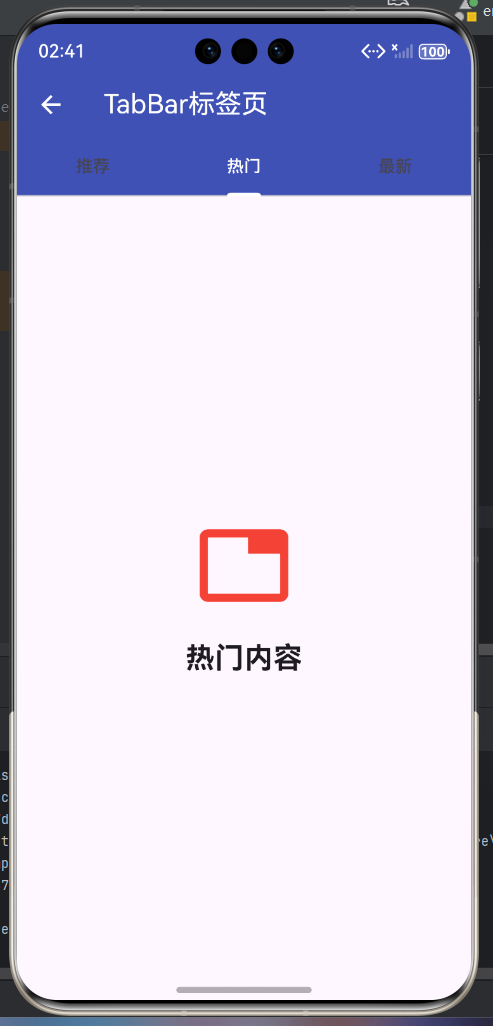
简单的标签页
class BasicTabBarPage extends StatefulWidget {
const BasicTabBarPage({super.key});
State<BasicTabBarPage> createState() => _BasicTabBarPageState();
}
class _BasicTabBarPageState extends State<BasicTabBarPage>
with SingleTickerProviderStateMixin {
late TabController _tabController;
void initState() {
super.initState();
_tabController = TabController(length: 3, vsync: this);
}
void dispose() {
_tabController.dispose();
super.dispose();
}
Widget build(BuildContext context) {
return Scaffold(
appBar: AppBar(
title: const Text('基础TabBar'),
backgroundColor: Colors.blue,
foregroundColor: Colors.white,
bottom: TabBar(
controller: _tabController,
indicatorColor: Colors.white,
labelColor: Colors.white,
unselectedLabelColor: Colors.white70,
tabs: const [
Tab(text: '推荐'),
Tab(text: '热门'),
Tab(text: '最新'),
],
),
),
body: TabBarView(
controller: _tabController,
children: [
_buildTabPage('推荐内容', Colors.blue),
_buildTabPage('热门内容', Colors.red),
_buildTabPage('最新内容', Colors.green),
],
),
);
}
Widget _buildTabPage(String title, Color color) {
return Center(
child: Column(
mainAxisAlignment: MainAxisAlignment.center,
children: [
Icon(Icons.tab, size: 80, color: color),
const SizedBox(height: 20),
Text(
title,
style: const TextStyle(fontSize: 24, fontWeight: FontWeight.bold),
),
],
),
);
}
}
代码实现要点
使用TabBar需要遵循以下步骤:
- 创建StatefulWidget:因为TabController需要在initState中初始化,所以必须使用StatefulWidget
- 混入SingleTickerProviderStateMixin:这是TabController创建时需要的动画帧提供者
- 初始化TabController:在initState中创建,指定标签数量
- 清理TabController:在dispose中调用dispose方法释放资源
- 设置AppBar的bottom属性:将TabBar作为AppBar的底部组件
- 使用TabBarView:在Scaffold的body中使用TabBarView显示内容
四、TabBar与AppBar的集成
丰富的标签页设计
class AppBarTabBarPage extends StatefulWidget {
const AppBarTabBarPage({super.key});
State<AppBarTabBarPage> createState() => _AppBarTabBarPageState();
}
class _AppBarTabBarPageState extends State<AppBarTabBarPage>
with SingleTickerProviderStateMixin {
late TabController _tabController;
final List<String> _categories = ['推荐', '热门', '最新', '关注', '视频', '图文'];
void initState() {
super.initState();
_tabController = TabController(length: _categories.length, vsync: this);
}
void dispose() {
_tabController.dispose();
super.dispose();
}
Widget build(BuildContext context) {
return Scaffold(
appBar: AppBar(
title: const Text('AppBar集成TabBar'),
backgroundColor: Colors.deepPurple,
foregroundColor: Colors.white,
elevation: 4,
actions: [
IconButton(
icon: const Icon(Icons.search),
onPressed: () {
ScaffoldMessenger.of(context).showSnackBar(
const SnackBar(content: Text('搜索功能')),
);
},
),
IconButton(
icon: const Icon(Icons.more_vert),
onPressed: () {
ScaffoldMessenger.of(context).showSnackBar(
const SnackBar(content: Text('更多选项')),
);
},
),
],
bottom: TabBar(
controller: _tabController,
isScrollable: true,
indicatorColor: Colors.white,
indicatorWeight: 3,
labelColor: Colors.white,
unselectedLabelColor: Colors.white70,
labelStyle: const TextStyle(
fontSize: 16,
fontWeight: FontWeight.bold,
),
unselectedLabelStyle: const TextStyle(
fontSize: 15,
),
tabs: _categories.map((category) {
return Tab(text: category);
}).toList(),
),
),
body: TabBarView(
controller: _tabController,
children: _categories.map((category) {
return _buildCategoryPage(category);
}).toList(),
),
floatingActionButton: FloatingActionButton(
onPressed: () {
ScaffoldMessenger.of(context).showSnackBar(
SnackBar(
content: Text('当前标签:${_categories[_tabController.index]}'),
action: SnackBarAction(
label: '查看',
onPressed: () {},
),
),
);
},
backgroundColor: Colors.deepPurple,
foregroundColor: Colors.white,
child: const Icon(Icons.info),
),
);
}
Widget _buildCategoryPage(String category) {
return ListView.builder(
padding: const EdgeInsets.all(16),
itemCount: 10,
itemBuilder: (context, index) {
return Card(
margin: const EdgeInsets.only(bottom: 12),
child: ListTile(
leading: CircleAvatar(
backgroundColor: Colors.primaries[index % Colors.primaries.length],
child: Text(
'${index + 1}',
style: const TextStyle(color: Colors.white),
),
),
title: Text('$category - 项目 ${index + 1}'),
subtitle: Text('这是$category分类下的第${index + 1}个项目'),
trailing: const Icon(Icons.chevron_right),
onTap: () {
ScaffoldMessenger.of(context).showSnackBar(
SnackBar(content: Text('点击了:$category - 项目 ${index + 1}')),
);
},
),
);
},
);
}
}
AppBar集成设计要点
将TabBar集成到AppBar中是常见的使用方式,需要注意以下几点:
- isScrollable设置:当标签数量较多时,应该将isScrollable设置为true,允许用户滑动查看更多标签
- 样式统一:标签的颜色、字体大小等应该与AppBar的整体风格保持一致
- indicatorWeight调整:可以适当增加指示器的粗细,使其更加醒目
- 响应式设计:根据屏幕宽度调整标签的显示方式,在窄屏上显示图标,在宽屏上显示文字
五、TabBar的图标标签
使用图标增强视觉效果
class IconTabBarPage extends StatefulWidget {
const IconTabBarPage({super.key});
State<IconTabBarPage> createState() => _IconTabBarPageState();
}
class _IconTabBarPageState extends State<IconTabBarPage>
with SingleTickerProviderStateMixin {
late TabController _tabController;
void initState() {
super.initState();
_tabController = TabController(length: 4, vsync: this);
}
void dispose() {
_tabController.dispose();
super.dispose();
}
Widget build(BuildContext context) {
return Scaffold(
appBar: AppBar(
title: const Text('图标TabBar'),
backgroundColor: Colors.orange,
foregroundColor: Colors.white,
bottom: TabBar(
controller: _tabController,
indicatorColor: Colors.white,
labelColor: Colors.white,
unselectedLabelColor: Colors.white70,
tabs: const [
Tab(
icon: Icon(Icons.home),
text: '首页',
),
Tab(
icon: Icon(Icons.explore),
text: '发现',
),
Tab(
icon: Icon(Icons.favorite),
text: '收藏',
),
Tab(
icon: Icon(Icons.person),
text: '我的',
),
],
),
),
body: TabBarView(
controller: _tabController,
children: const [
_IconTabPage(
icon: Icons.home,
title: '首页',
color: Colors.blue,
),
_IconTabPage(
icon: Icons.explore,
title: '发现',
color: Colors.green,
),
_IconTabPage(
icon: Icons.favorite,
title: '收藏',
color: Colors.red,
),
_IconTabPage(
icon: Icons.person,
title: '我的',
color: Colors.orange,
),
],
),
);
}
}
class _IconTabPage extends StatelessWidget {
final IconData icon;
final String title;
final Color color;
const _IconTabPage({
required this.icon,
required this.title,
required this.color,
});
Widget build(BuildContext context) {
return Center(
child: Column(
mainAxisAlignment: MainAxisAlignment.center,
children: [
Icon(icon, size: 100, color: color),
const SizedBox(height: 24),
Text(
title,
style: const TextStyle(
fontSize: 28,
fontWeight: FontWeight.bold,
),
),
const SizedBox(height: 12),
Text(
'这是$title页面',
style: TextStyle(
fontSize: 16,
color: Colors.grey[600],
),
),
],
),
);
}
}
图标标签设计建议
使用图标可以增强TabBar的视觉效果和可识别性:
- 选择合适的图标:图标应该与标签内容相关,让用户能够直观理解标签的含义
- 保持图标风格一致:使用同一套图标库(如Material Icons),保持风格统一
- 考虑显示空间:在标签数量较多时,可以考虑只显示图标,不显示文字
- 添加动画效果:可以配合AnimatedIcon等组件,在切换时显示动画效果
六、TabBar的懒加载优化
使用AutomaticKeepAliveClientMixin保持状态
class LazyTabBarPage extends StatefulWidget {
const LazyTabBarPage({super.key});
State<LazyTabBarPage> createState() => _LazyTabBarPageState();
}
class _LazyTabBarPageState extends State<LazyTabBarPage>
with SingleTickerProviderStateMixin {
late TabController _tabController;
void initState() {
super.initState();
_tabController = TabController(length: 3, vsync: this);
}
void dispose() {
_tabController.dispose();
super.dispose();
}
Widget build(BuildContext context) {
return Scaffold(
appBar: AppBar(
title: const Text('懒加载TabBar'),
backgroundColor: Colors.teal,
foregroundColor: Colors.white,
bottom: TabBar(
controller: _tabController,
indicatorColor: Colors.white,
labelColor: Colors.white,
unselectedLabelColor: Colors.white70,
tabs: const [
Tab(text: '页面 1'),
Tab(text: '页面 2'),
Tab(text: '页面 3'),
],
),
),
body: TabBarView(
controller: _tabController,
children: const [
_KeepAliveTabPage(
title: '页面 1',
color: Colors.blue,
),
_KeepAliveTabPage(
title: '页面 2',
color: Colors.green,
),
_KeepAliveTabPage(
title: '页面 3',
color: Colors.orange,
),
],
),
);
}
}
class _KeepAliveTabPage extends StatefulWidget {
final String title;
final Color color;
const _KeepAliveTabPage({
required this.title,
required this.color,
});
State<_KeepAliveTabPage> createState() => _KeepAliveTabPageState();
}
class _KeepAliveTabPageState extends State<_KeepAliveTabPage>
with AutomaticKeepAliveClientMixin {
final ScrollController _scrollController = ScrollController();
int _counter = 0;
bool get wantKeepAlive => true;
void dispose() {
_scrollController.dispose();
super.dispose();
}
Widget build(BuildContext context) {
super.build(context); // 必须调用super.build
return ListView.builder(
controller: _scrollController,
padding: const EdgeInsets.all(16),
itemCount: 50,
itemBuilder: (context, index) {
return Card(
margin: const EdgeInsets.only(bottom: 8),
child: ListTile(
leading: CircleAvatar(
backgroundColor: widget.color.withOpacity(0.2),
child: Icon(Icons.star, color: widget.color),
),
title: Text('${widget.title} - 项目 ${index + 1}'),
subtitle: Text('滚动位置会被记住'),
trailing: IconButton(
icon: const Icon(Icons.add),
onPressed: () {
setState(() {
_counter++;
});
},
),
),
);
},
);
}
}
懒加载优化要点
默认情况下,TabBarView的所有页面都会被创建和渲染,这可能导致性能问题,特别是当页面内容复杂或数量较多时。使用AutomaticKeepAliveClientMixin可以优化这个问题:
- 混入AutomaticKeepAliveClientMixin:在需要保持状态的页面State中混入这个mixin
- 重写wantKeepAlive:返回true表示希望保持状态
- 调用super.build:在build方法中必须调用super.build(context)
- 释放资源:在dispose中释放控制器等资源
这样,只有用户访问过的页面才会被保持状态,其他页面可以延迟加载,大大提升了性能。
七、TabBar的动态标签
支持添加和删除标签
class DynamicTabBarPage extends StatefulWidget {
const DynamicTabBarPage({super.key});
State<DynamicTabBarPage> createState() => _DynamicTabBarPageState();
}
class _DynamicTabBarPageState extends State<DynamicTabBarPage>
with SingleTickerProviderStateMixin {
late TabController _tabController;
final List<String> _tabs = ['标签 1', '标签 2', '标签 3'];
int _tabCount = 3;
void initState() {
super.initState();
_tabController = TabController(length: _tabCount, vsync: this);
}
void dispose() {
_tabController.dispose();
super.dispose();
}
void _addTab() {
setState(() {
_tabCount++;
_tabs.add('标签 $_tabCount');
_tabController = TabController(length: _tabCount, vsync: this);
});
}
void _removeTab() {
if (_tabCount > 2) {
setState(() {
_tabCount--;
_tabs.removeLast();
_tabController = TabController(length: _tabCount, vsync: this);
});
} else {
ScaffoldMessenger.of(context).showSnackBar(
const SnackBar(content: Text('至少需要保留2个标签')),
);
}
}
Widget build(BuildContext context) {
return Scaffold(
appBar: AppBar(
title: const Text('动态TabBar'),
backgroundColor: Colors.indigo,
foregroundColor: Colors.white,
actions: [
IconButton(
icon: const Icon(Icons.add),
onPressed: _addTab,
tooltip: '添加标签',
),
IconButton(
icon: const Icon(Icons.remove),
onPressed: _removeTab,
tooltip: '删除标签',
),
],
bottom: TabBar(
controller: _tabController,
isScrollable: true,
indicatorColor: Colors.white,
labelColor: Colors.white,
unselectedLabelColor: Colors.white70,
tabs: _tabs.map((tab) {
return Tab(text: tab);
}).toList(),
),
),
body: TabBarView(
controller: _tabController,
children: _tabs.map((tab) {
return Center(
child: Column(
mainAxisAlignment: MainAxisAlignment.center,
children: [
Icon(Icons.tab, size: 80, color: Colors.indigo),
const SizedBox(height: 20),
Text(
tab,
style: const TextStyle(
fontSize: 24,
fontWeight: FontWeight.bold,
),
),
const SizedBox(height: 12),
const Text('这是动态创建的标签页'),
],
),
);
}).toList(),
),
floatingActionButton: FloatingActionButton.extended(
onPressed: () {
ScaffoldMessenger.of(context).showSnackBar(
SnackBar(
content: Text('当前有$_tabCount个标签'),
duration: const Duration(seconds: 2),
),
);
},
backgroundColor: Colors.indigo,
foregroundColor: Colors.white,
icon: const Icon(Icons.info),
label: Text('标签数量: $_tabCount'),
),
);
}
}
动态标签实现要点
支持动态添加和删除标签需要注意以下几点:
- 重新创建TabController:当标签数量变化时,需要重新创建TabController
- 保持当前索引:如果需要保持当前选中的标签,需要在重新创建时设置初始索引
- 限制最小标签数:通常需要限制最少保留2个标签,避免用户体验问题
- 性能考虑:频繁创建和销毁TabController可能影响性能,应该合理控制动态操作的频率
八、TabBar最佳实践
实践总结
关键实践要点
-
合理控制标签数量:标签数量应该适中,建议3-5个为最佳,最多不超过7个。过多的标签会让用户难以选择,也影响界面的美观度。
-
标签名称简洁明了:标签文字应该简短、准确,能够清楚表达该标签页的内容。避免使用过于复杂的词汇或缩写。
-
使用图标增强识别:在标签中添加图标可以显著提升用户的识别速度和记忆效果,特别是对于内容类型相似的标签。
-
优化性能:对于内容复杂的标签页,应该使用懒加载策略,只在需要时加载内容。同时,使用AutomaticKeepAliveClientMixin保持已访问页面的状态。
-
支持手势操作:除了点击切换,还应该支持左右滑动切换,提供更自然的交互体验。
-
保持状态一致:用户切换标签后再返回,应该能够看到之前的内容和状态,避免重新加载。
-
响应式设计:在不同尺寸的屏幕上,标签的显示方式应该有所调整。在窄屏上可以考虑只显示图标或使用可滚动的标签栏。
-
国际化支持:标签文字应该支持多语言,避免硬编码文本。
通过遵循这些最佳实践,可以创建出既美观又高效的TabBar导航系统,为用户提供优秀的浏览体验。
欢迎加入开源鸿蒙跨平台社区:https://openharmonycrossplatform.csdn.net

开源鸿蒙跨平台开发社区汇聚开发者与厂商,共建“一次开发,多端部署”的开源生态,致力于降低跨端开发门槛,推动万物智联创新。
更多推荐

 7
7 0
0- 0


 已为社区贡献4条内容

所有评论(0)