高级进阶 React Native 鸿蒙跨平台开发:react-native-orientation 屏幕方向
是 React Native 生态中最流行的屏幕方向控制库,提供了跨平台的屏幕方向管理能力。该库支持获取设备方向、锁定屏幕方向、监听方向变化等功能,广泛应用于游戏开发、视频播放、图片浏览等需要控制屏幕方向的场景,是实现屏幕方向管理功能的标准选择。库名称版本信息RN 0.72:(3.1.4)RN 0.77:(3.2.0)官方仓库主要功能获取当前屏幕方向(portrait/landscape)
欢迎加入开源鸿蒙跨平台社区:https://openharmonycrossplatform.csdn.net
📋 前言
react-native-orientation 是 React Native 生态中最流行的屏幕方向控制库,提供了跨平台的屏幕方向管理能力。该库支持获取设备方向、锁定屏幕方向、监听方向变化等功能,广泛应用于游戏开发、视频播放、图片浏览等需要控制屏幕方向的场景,是实现屏幕方向管理功能的标准选择。
🎯 库简介
基本信息
- 库名称: react-native-orientation
- 版本信息:
- RN 0.72:
@react-native-ohos/react-native-orientation(3.1.4) - RN 0.77:
@react-native-ohos/react-native-orientation(3.2.0)
- RN 0.72:
- 官方仓库: https://gitcode.com/openharmony-sig/rntpc_react-native-orientation
- 主要功能:
- 获取当前屏幕方向(portrait/landscape)
- 获取具体屏幕方向(portrait/landscape-left/landscape-right/portrait-upside-down)
- 锁定屏幕方向(竖屏/横屏/左横屏/右横屏)
- 解锁屏幕方向,允许自由旋转
- 监听屏幕方向变化事件
- 监听具体屏幕方向变化事件
- 兼容性验证:
- RNOH: 0.72.96; SDK: HarmonyOS 6.0.0 Release SDK; IDE: DevEco Studio 6.0.0.858; ROM: 6.0.0.112;
- RNOH: 0.72.33; SDK: HarmonyOS NEXT B1; IDE: DevEco Studio: 5.0.3.900; ROM: Next.0.0.71;
- RNOH: 0.77.18; SDK: HarmonyOS 6.0.0 Release SDK; IDE: DevEco Studio 6.0.0.858; ROM: 6.0.0.112;
为什么需要这个库?
- 跨平台一致: 提供统一的屏幕方向 API
- 功能完整: 支持方向获取、锁定、监听等多种操作
- 易于使用: API 简洁,集成方便
- 性能优异: 原生实现,响应快速
- 事件驱动: 支持方向变化监听,实时响应
- 广泛应用: 游戏、视频、图片浏览等场景必备
📦 安装步骤
1. 使用 npm 安装
npm install @react-native-ohos/react-native-orientation@3.1.4-rc.1
2. 使用 yarn 安装
yarn add @react-native-ohos/react-native-orientation
3. 验证安装
安装完成后,检查 package.json 文件,应该能看到新增的依赖:
{
  "dependencies": {
    "@react-native-ohos/react-native-orientation": "^3.1.4-rc.1",
    // ... 其他依赖
  }
}
🔧 HarmonyOS 平台配置 ⭐
重要说明
- Autolink 支持: 版本 3.1.4 支持 Autolink(RN 0.72),版本 3.2.0 不支持 Autolink(RN 0.77)
- 导入库名: 使用
react-native-orientation导入 - Codegen: 使用前需要执行 Codegen 生成桥接代码
- 类型声明: 该库没有提供 TypeScript 类型声明文件,需要手动创建类型声明文件
添加类型声明文件
由于 react-native-orientation 没有提供 TypeScript 类型声明文件,需要在项目根目录创建类型声明文件:
在项目根目录创建 react-native-orientation.d.ts 文件:
declare module 'react-native-orientation' {
  /**
   * 方向类型
   */
  export type OrientationType =
    | 'PORTRAIT'
    | 'LANDSCAPE'
    | 'LANDSCAPE-LEFT'
    | 'LANDSCAPE-RIGHT'
    | 'PORTRAIT-UPSIDEDOWN'
    | 'UNKNOWN';

  /**
   * 获取当前屏幕方向
   * @param callback 回调函数,参数为 (error, orientation)
   */
  export function getOrientation(
    callback: (error: string, orientation: OrientationType) => void
  ): void;

  /**
   * 获取当前具体屏幕方向
   * @param callback 回调函数,参数为 (error, orientation)
   */
  export function getSpecificOrientation(
    callback: (error: string, orientation: OrientationType) => void
  ): void;

  /**
   * 锁定为竖屏
   */
  export function lockToPortrait(): void;

  /**
   * 锁定为横屏
   */
  export function lockToLandscape(): void;

  /**
   * 锁定为左横屏
   */
  export function lockToLandscapeLeft(): void;

  /**
   * 锁定为右横屏
   */
  export function lockToLandscapeRight(): void;

  /**
   * 解锁所有方向
   */
  export function unlockAllOrientations(): void;

  /**
   * 添加方向变化监听
   * @param callback 回调函数,参数为 orientation
   */
  export function addOrientationListener(
    callback: (orientation: OrientationType) => void
  ): void;

  /**
   * 移除方向变化监听
   * @param callback 回调函数
   */
  export function removeOrientationListener(
    callback: (orientation: OrientationType) => void
  ): void;

  /**
   * 添加具体方向变化监听
   * @param callback 回调函数,参数为 orientation
   */
  export function addSpecificOrientationListener(
    callback: (orientation: OrientationType) => void
  ): void;

  /**
   * 移除具体方向变化监听
   * @param callback 回调函数
   */
  export function removeSpecificOrientationListener(
    callback: (orientation: OrientationType) => void
  ): void;

  const Orientation: {
    getOrientation: typeof getOrientation;
    getSpecificOrientation: typeof getSpecificOrientation;
    lockToPortrait: typeof lockToPortrait;
    lockToLandscape: typeof lockToLandscape;
    lockToLandscapeLeft: typeof lockToLandscapeLeft;
    lockToLandscapeRight: typeof lockToLandscapeRight;
    unlockAllOrientations: typeof unlockAllOrientations;
    addOrientationListener: typeof addOrientationListener;
    removeOrientationListener: typeof removeOrientationListener;
    addSpecificOrientationListener: typeof addSpecificOrientationListener;
    removeSpecificOrientationListener: typeof removeSpecificOrientationListener;
  };

  export default Orientation;
}
创建完成后,TypeScript 就能正确识别 react-native-orientation 的类型了。
Autolink 配置步骤(适用于 RN 0.72)
使用 AutoLink 的工程需要根据该文档配置,Autolink 框架指导文档:https://atomGit.com/openharmony-sig/ohos_react_native/blob/master/docs/zh-cn/Autolinking.md
如已接入 Autolink,可跳过 ManualLink 配置。
手动配置步骤(适用于 RN 0.77 或无 Autolink)
1. 配置 overrides 字段
在工程根目录的 oh-package.json5 添加 overrides 字段:
{
  "overrides": {
    "@rnoh/react-native-openharmony": "./react_native_openharmony"
  }
}
2. 引入原生端代码
方法一:通过 har 包引入(不推荐)
打开 entry/oh-package.json5,添加以下依赖:
"dependencies": {
  "@rnoh/react-native-openharmony": "file:../react_native_openharmony",
  "@react-native-ohos/react-native-orientation": "file:../../node_modules/@react-native-ohos/react-native-orientation/harmony/rn_orientation.har"
}
点击右上角的 sync 按钮或在终端执行:
cd entry
ohpm install
方法二:直接链接源码
把 <RN工程>/node_modules/@react-native-ohos/react-native-orientation/harmony 目录下的源码 rn_orientation 复制到 harmony 工程根目录下。
在 harmony 工程根目录的 build-profile.json5 添加模块:
modules: [
  ...
  {
    name: 'rn_orientation',
    srcPath: './rn_orientation',
  }
]
打开 rn_orientation/oh-package.json5,修改 react-native-openharmony 版本与项目一致。
打开 entry/oh-package.json5,添加依赖:
"dependencies": {
  "@rnoh/react-native-openharmony": "0.72.90",
  "@react-native-ohos/react-native-orientation": "file:../rn_orientation"
}
点击 DevEco Studio 右上角的 sync 按钮。
3. 配置 CMakeLists 和引入 RNOrientationPackage
打开 entry/src/main/cpp/CMakeLists.txt,添加:
+ set(OH_MODULES "${CMAKE_CURRENT_SOURCE_DIR}/../../../oh_modules")

# RNOH_BEGIN: manual_package_linking_1

+ add_subdirectory("${OH_MODULES}/@react-native-ohos/react-native-orientation/src/main/cpp" ./rn_orientation)
# RNOH_END: manual_package_linking_1

add_library(rnoh_app SHARED
    ${GENERATED_CPP_FILES}
    "./PackageProvider.cpp"
    "${RNOH_CPP_DIR}/RNOHAppNapiBridge.cpp"
)
target_link_libraries(rnoh_app PUBLIC rnoh)

# RNOH_BEGIN: manual_package_linking_2
+ target_link_libraries(rnoh_app PUBLIC rnoh_orientation)
# RNOH_END: manual_package_linking_2
打开 entry/src/main/cpp/PackageProvider.cpp,添加:
#include "RNOH/PackageProvider.h"
#include "SamplePackage.h"
+ #include "RNOritentionPackage.h"

using namespace rnoh;

std::vector<std::shared_ptr<Package>> PackageProvider::getPackages(Package::Context ctx) {
    return {
      std::make_shared<SamplePackage>(ctx),
+     std::make_shared<RNOritentionPackage>(ctx),
    };
}
4. 在 ArkTs 侧引入 RNOrientationPackage
打开 entry/src/main/ets/RNPackagesFactory.ts,添加:
+ import {RNOrientationPackage} from '@react-native-ohos/react-native-orientation/ts';

export function createRNPackages(ctx: RNPackageContext): RNPackage[] {
  return [
    new SamplePackage(ctx),
+   new RNOrientationPackage(ctx)
  ];
}
💻 完整代码示例
下面展示了 react-native-orientation 的完整使用场景,包括方向获取、锁定、监听等功能:
import React, { useState, useEffect } from 'react';
import {
  StyleSheet,
  ScrollView,
  View,
  Text,
  TouchableOpacity,
  Alert,
  SafeAreaView,
} from 'react-native';
import Orientation from 'react-native-orientation';

/**
 * react-native-orientation 屏幕方向管理示例
 * 功能演示:
 * 1. 获取当前屏幕方向
 * 2. 获取具体屏幕方向
 * 3. 锁定屏幕方向(竖屏/横屏)
 * 4. 解锁屏幕方向
 * 5. 监听屏幕方向变化
 */
const OrientationExample = () => {
  const [orientation, setOrientation] = useState<string>('');
  const [specificOrientation, setSpecificOrientation] = useState<string>('');

  /**
   * 更新屏幕方向
   */
  const updateOrientation = (orientation: string) => {
    console.info('orientation', orientation);
    setOrientation(orientation);
  };

  /**
   * 更新具体屏幕方向
   */
  const updateSpecificOrientation = (specificOrientation: string) => {
    console.info('specificOrientation', specificOrientation);
    setSpecificOrientation(specificOrientation);
  };

  /**
   * 初始化监听
   */
  useEffect(() => {
    // 开启方向变化的监听
    Orientation.addOrientationListener(updateOrientation);
    Orientation.addSpecificOrientationListener(updateSpecificOrientation);

    // 获取初始方向
    Orientation.getOrientation((err: string, orientation: string) => {
      if (orientation) {
        setOrientation(orientation);
      }
    });

    Orientation.getSpecificOrientation((err: string, orientation: string) => {
      if (orientation) {
        setSpecificOrientation(orientation);
      }
    });

    return () => {
      // 移除方向变化的监听
      Orientation.removeOrientationListener(updateOrientation);
      Orientation.removeSpecificOrientationListener(updateSpecificOrientation);
    };
  }, []);

  /**
   * 获取当前屏幕方向
   */
  const getOrientation = () => {
    Orientation.getOrientation((err: string, orientation: string) => {
      if (orientation) {
        Alert.alert('屏幕方向', `当前屏幕方向为: ${orientation}`);
      } else {
        Alert.alert('错误', err);
      }
    });
  };

  /**
   * 获取当前具体屏幕方向
   */
  const getSpecificOrientation = () => {
    Orientation.getSpecificOrientation((err: string, orientation: string) => {
      if (orientation) {
        Alert.alert('具体方向', `当前具体方向为: ${orientation}`);
      } else {
        Alert.alert('错误', err);
      }
    });
  };

  /**
   * 锁定为竖屏
   */
  const lockToPortrait = () => {
    Orientation.lockToPortrait();
    Alert.alert('成功', '已锁定为竖屏');
  };

  /**
   * 锁定为横屏
   */
  const lockToLandscape = () => {
    Orientation.lockToLandscape();
    Alert.alert('成功', '已锁定为横屏');
  };

  /**
   * 锁定为左横屏
   */
  const lockToLandscapeLeft = () => {
    Orientation.lockToLandscapeLeft();
    Alert.alert('成功', '已锁定为左横屏');
  };

  /**
   * 锁定为右横屏
   */
  const lockToLandscapeRight = () => {
    Orientation.lockToLandscapeRight();
    Alert.alert('成功', '已锁定为右横屏');
  };

  /**
   * 解锁所有方向
   */
  const unlockAllOrientations = () => {
    Orientation.unlockAllOrientations();
    Alert.alert('成功', '已解锁所有方向');
  };

  return (
    <SafeAreaView style={styles.container}>
      <ScrollView style={styles.scrollView}>
        <View style={styles.header}>
          <Text style={styles.headerTitle}>屏幕方向管理</Text>
          <Text style={styles.headerSubtitle}>react-native-orientation</Text>
        </View>

        {/* 当前方向显示 */}
        <View style={styles.infoContainer}>
          <Text style={styles.sectionTitle}>当前方向</Text>

          <View style={styles.infoBox}>
            <Text style={styles.infoLabel}>屏幕方向:</Text>
            <Text style={styles.infoValue}>{orientation || '未知'}</Text>
          </View>

          <View style={styles.infoBox}>
            <Text style={styles.infoLabel}>具体方向:</Text>
            <Text style={styles.infoValue}>{specificOrientation || '未知'}</Text>
          </View>
        </View>

        {/* 获取方向 */}
        <View style={styles.sectionContainer}>
          <Text style={styles.sectionTitle}>获取方向</Text>

          <TouchableOpacity style={styles.button} onPress={getOrientation}>
            <Text style={styles.buttonText}>📱 获取屏幕方向</Text>
          </TouchableOpacity>

          <TouchableOpacity style={styles.button} onPress={getSpecificOrientation}>
            <Text style={styles.buttonText}>🧭 获取具体方向</Text>
          </TouchableOpacity>
        </View>

        {/* 锁定方向 */}
        <View style={styles.sectionContainer}>
          <Text style={styles.sectionTitle}>锁定方向</Text>

          <View style={styles.buttonRow}>
            <TouchableOpacity style={styles.button} onPress={lockToPortrait}>
              <Text style={styles.buttonText}>📵 锁定竖屏</Text>
            </TouchableOpacity>
            <TouchableOpacity style={styles.button} onPress={lockToLandscape}>
              <Text style={styles.buttonText}>↔️ 锁定横屏</Text>
            </TouchableOpacity>
          </View>

          <View style={styles.buttonRow}>
            <TouchableOpacity style={styles.button} onPress={lockToLandscapeLeft}>
              <Text style={styles.buttonText}>⬅️ 左横屏</Text>
            </TouchableOpacity>
            <TouchableOpacity style={styles.button} onPress={lockToLandscapeRight}>
              <Text style={styles.buttonText}>➡️ 右横屏</Text>
            </TouchableOpacity>
          </View>
        </View>

        {/* 解锁方向 */}
        <View style={styles.sectionContainer}>
          <Text style={styles.sectionTitle}>解锁方向</Text>

          <TouchableOpacity
            style={[styles.button, styles.buttonSuccess]}
            onPress={unlockAllOrientations}
          >
            <Text style={styles.buttonText}>🔓 解锁所有方向</Text>
          </TouchableOpacity>
        </View>

        {/* 方向说明 */}
        <View style={styles.tipsContainer}>
          <Text style={styles.sectionTitle}>方向说明</Text>
          <Text style={styles.tipText}>• PORTRAIT: 竖屏模式</Text>
          <Text style={styles.tipText}>• LANDSCAPE: 横屏模式</Text>
          <Text style={styles.tipText}>• LANDSCAPE-LEFT: 横屏左旋转</Text>
          <Text style={styles.tipText}>• LANDSCAPE-RIGHT: 横屏右旋转</Text>
          <Text style={styles.tipText}>• PORTRAIT-UPSIDEDOWN: 倒置竖屏</Text>
        </View>

        {/* 使用说明 */}
        <View style={styles.tipsContainer}>
          <Text style={styles.sectionTitle}>使用说明</Text>
          <Text style={styles.tipText}>• 方向获取: 实时获取当前屏幕方向</Text>
          <Text style={styles.tipText}>• 方向锁定: 强制锁定为指定方向</Text>
          <Text style={styles.tipText}>• 方向监听: 自动监听方向变化</Text>
          <Text style={styles.tipText}>• 适用场景: 游戏、视频、图片浏览等</Text>
          <Text style={styles.tipText}>• 注意: 锁定后需要解锁才能自由旋转</Text>
        </View>
      </ScrollView>
    </SafeAreaView>
  );
};

const styles = StyleSheet.create({
  container: {
    flex: 1,
    backgroundColor: '#F5F5F5',
  },
  scrollView: {
    flex: 1,
  },
  header: {
    backgroundColor: '#2196F3',
    paddingVertical: 24,
    paddingHorizontal: 20,
    alignItems: 'center',
  },
  headerTitle: {
    fontSize: 24,
    fontWeight: 'bold',
    color: '#FFFFFF',
    marginBottom: 4,
  },
  headerSubtitle: {
    fontSize: 14,
    color: 'rgba(255, 255, 255, 0.9)',
  },
  infoContainer: {
    backgroundColor: '#FFFFFF',
    margin: 16,
    borderRadius: 12,
    padding: 16,
    elevation: 2,
    shadowColor: '#000',
    shadowOffset: { width: 0, height: 2 },
    shadowOpacity: 0.1,
    shadowRadius: 4,
  },
  infoBox: {
    flexDirection: 'row',
    justifyContent: 'space-between',
    alignItems: 'center',
    paddingVertical: 8,
    borderBottomWidth: 1,
    borderBottomColor: '#F0F0F0',
  },
  infoLabel: {
    fontSize: 16,
    color: '#666666',
  },
  infoValue: {
    fontSize: 16,
    fontWeight: '600',
    color: '#2196F3',
  },
  sectionContainer: {
    backgroundColor: '#FFFFFF',
    margin: 16,
    borderRadius: 12,
    padding: 16,
    elevation: 2,
    shadowColor: '#000',
    shadowOffset: { width: 0, height: 2 },
    shadowOpacity: 0.1,
    shadowRadius: 4,
  },
  sectionTitle: {
    fontSize: 18,
    fontWeight: '600',
    color: '#333333',
    marginBottom: 12,
  },
  buttonRow: {
    flexDirection: 'row',
    justifyContent: 'space-between',
    marginBottom: 12,
  },
  button: {
    flex: 1,
    backgroundColor: '#2196F3',
    paddingVertical: 14,
    borderRadius: 8,
    alignItems: 'center',
    marginHorizontal: 4,
    marginBottom: 12,
    elevation: 2,
    shadowColor: '#000',
    shadowOffset: { width: 0, height: 2 },
    shadowOpacity: 0.1,
    shadowRadius: 4,
  },
  buttonSuccess: {
    backgroundColor: '#4CAF50',
  },
  buttonText: {
    fontSize: 14,
    fontWeight: '600',
    color: '#FFFFFF',
  },
  tipsContainer: {
    backgroundColor: '#FFFFFF',
    margin: 16,
    borderRadius: 12,
    padding: 16,
    elevation: 2,
    shadowColor: '#000',
    shadowOffset: { width: 0, height: 2 },
    shadowOpacity: 0.1,
    shadowRadius: 4,
    marginBottom: 32,
  },
  tipText: {
    fontSize: 14,
    color: '#666666',
    lineHeight: 22,
    marginBottom: 4,
  },
});

export default OrientationExample;
🎨 实际应用场景
react-native-orientation 可以应用于以下实际场景:
- 游戏开发: 锁定横屏模式,提供更好的游戏体验
- 视频播放: 自动切换横屏,全屏播放视频
- 图片浏览: 支持横竖屏切换,优化浏览体验
- 阅读应用: 竖屏阅读,横屏查看图片
- 相机应用: 锁定特定方向,优化拍照体验
- 表单填写: 竖屏模式,便于输入操作
⚠️ 注意事项与最佳实践
1. 获取屏幕方向
// ✅ 推荐: 获取当前屏幕方向
const getCurrentOrientation = () => {
  Orientation.getOrientation((err: string, orientation: string) => {
    if (orientation) {
      console.log('当前屏幕方向:', orientation);
      // orientation: 'PORTRAIT' | 'LANDSCAPE'
    }
  });
};
2. 获取具体屏幕方向
// ✅ 推荐: 获取具体屏幕方向
const getSpecificOrientation = () => {
  Orientation.getSpecificOrientation((err: string, orientation: string) => {
    if (orientation) {
      console.log('具体方向:', orientation);
      // orientation: 'PORTRAIT' | 'LANDSCAPE-LEFT' | 'LANDSCAPE-RIGHT' | 'PORTRAIT-UPSIDEDOWN'
    }
  });
};
3. 锁定屏幕方向
// ✅ 推荐: 根据场景锁定方向
const lockOrientation = (scenario: string) => {
  switch (scenario) {
    case 'video':
      Orientation.lockToLandscape();
      break;
    case 'form':
      Orientation.lockToPortrait();
      break;
    case 'game':
      Orientation.lockToLandscapeLeft();
      break;
    default:
      Orientation.unlockAllOrientations();
  }
};
4. 监听方向变化
// ✅ 推荐: 监听方向变化并响应
useEffect(() => {
  const handleOrientationChange = (orientation: string) => {
    console.log('方向变化:', orientation);
    // 根据方向调整布局
  };

  Orientation.addOrientationListener(handleOrientationChange);

  return () => {
    Orientation.removeOrientationListener(handleOrientationChange);
  };
}, []);
5. 组件卸载时清理监听
// ✅ 推荐: 组件卸载时移除监听
useEffect(() => {
  const updateOrientation = (orientation: string) => {
    setOrientation(orientation);
  };

  Orientation.addOrientationListener(updateOrientation);

  return () => {
    // 重要: 移除监听避免内存泄漏
    Orientation.removeOrientationListener(updateOrientation);
  };
}, []);
6. HarmonyOS 特殊处理
在 HarmonyOS 上使用时,需要注意:
- Autolink 支持: 版本 3.1.4 支持(RN 0.72),版本 3.2.0 不支持(RN 0.77)
- 导入库名: 使用
react-native-orientation导入 - Codegen: 使用前需要执行 Codegen 生成桥接代码
- 方向值: HarmonyOS 支持的方向值与 Android/iOS 一致
7. 最佳实践
// ✅ 推荐: 封装屏幕方向管理工具类
class OrientationManager {
  // 视频播放场景
  static enterVideoMode(): void {
    Orientation.lockToLandscape();
  }

  // 退出视频播放场景
  static exitVideoMode(): void {
    Orientation.unlockAllOrientations();
  }

  // 表单填写场景
  static enterFormMode(): void {
    Orientation.lockToPortrait();
  }

  // 游戏场景
  static enterGameMode(): void {
    Orientation.lockToLandscapeLeft();
  }

  // 获取当前方向
  static getCurrentOrientation(): Promise<string> {
    return new Promise((resolve, reject) => {
      Orientation.getOrientation((err: string, orientation: string) => {
        if (err) {
          reject(err);
        } else {
          resolve(orientation);
        }
      });
    });
  }

  // 监听方向变化
  static addOrientationListener(callback: (orientation: string) => void): void {
    Orientation.addOrientationListener(callback);
  }

  // 移除方向监听
  static removeOrientationListener(callback: (orientation: string) => void): void {
    Orientation.removeOrientationListener(callback);
  }
}
🧪 测试验证
1. Android 平台测试
npm run android
测试要点:
- 测试方向获取
- 验证方向锁定
- 测试方向监听
- 检查解锁功能
- 旋转设备测试
2. iOS 平台测试
npm run ios
测试要点:
- 测试基本功能
- 验证方向值
- 检查监听器
- 模拟设备旋转
3. HarmonyOS 平台测试
npm run harmony
测试要点:
- 验证 Codegen 配置
- 测试基本功能
- 检查方向锁定
- 验证方向监听
4. 常见问题排查
问题 1: 方向锁定无效
- 检查是否正确调用锁定方法
- 确认设备是否支持该方向
- 验证是否被其他应用干扰
问题 2: 监听器不触发
- 检查监听器是否正确添加
- 确认设备是否支持旋转
- 验证是否正确移除监听器
问题 3: 方向值不正确
- 检查设备实际方向
- 确认方法调用是否正确
- 验证是否使用回调方式
📊 API 参考
核心方法
| 方法 | 描述 | 返回类型 | HarmonyOS 支持 |
|---|---|---|---|
| lockToPortrait() | 锁定为竖屏 | void | yes |
| lockToLandscape() | 锁定为横屏 | void | yes |
| lockToLandscapeLeft() | 锁定为左横屏 | void | yes |
| lockToLandscapeRight() | 锁定为右横屏 | void | yes |
| unlockAllOrientations() | 解锁所有方向 | void | yes |
| getOrientation() | 获取当前屏幕方向 | callback | yes |
| getSpecificOrientation() | 获取当前具体屏幕方向 | callback | yes |
方向值
| 方向值 | 描述 |
|---|---|
| PORTRAIT | 竖屏 |
| LANDSCAPE | 横屏 |
| LANDSCAPE-LEFT | 横屏左旋转 |
| LANDSCAPE-RIGHT | 横屏右旋转 |
| PORTRAIT-UPSIDEDOWN | 倒置竖屏 |
| UNKNOWN | 未知 |
事件方法
| 方法 | 描述 | 返回类型 | HarmonyOS 支持 |
|---|---|---|---|
| addOrientationListener() | 添加方向变化监听 | callback | yes |
| removeOrientationListener() | 移除方向变化监听 | callback | yes |
| addSpecificOrientationListener() | 添加具体方向变化监听 | callback | yes |
| removeSpecificOrientationListener() | 移除具体方向变化监听 | callback | yes |
📝 总结
通过集成 react-native-orientation,我们为项目添加了完整的屏幕方向管理功能。这个库提供了统一的跨平台方向 API,支持方向获取、锁定、监听等多种操作,广泛应用于游戏开发、视频播放、图片浏览等场景,是实现屏幕方向管理功能的标准选择。
关键要点回顾
- ✅ 安装依赖:
npm install @react-native-ohos/react-native-orientation - ✅ 配置平台: 版本 3.1.4 支持 Autolink(RN 0.72),版本 3.2.0 不支持(RN 0.77)
- ✅ Codegen: 需要执行生成三方库桥接代码
- ✅ 导入库名: 使用
react-native-orientation导入 - ✅ 统一 API: 跨平台一致的方向管理接口
- ✅ 功能完整: 支持方向获取、锁定、监听等
- ✅ 重要: 组件卸载时需要移除监听器避免内存泄漏
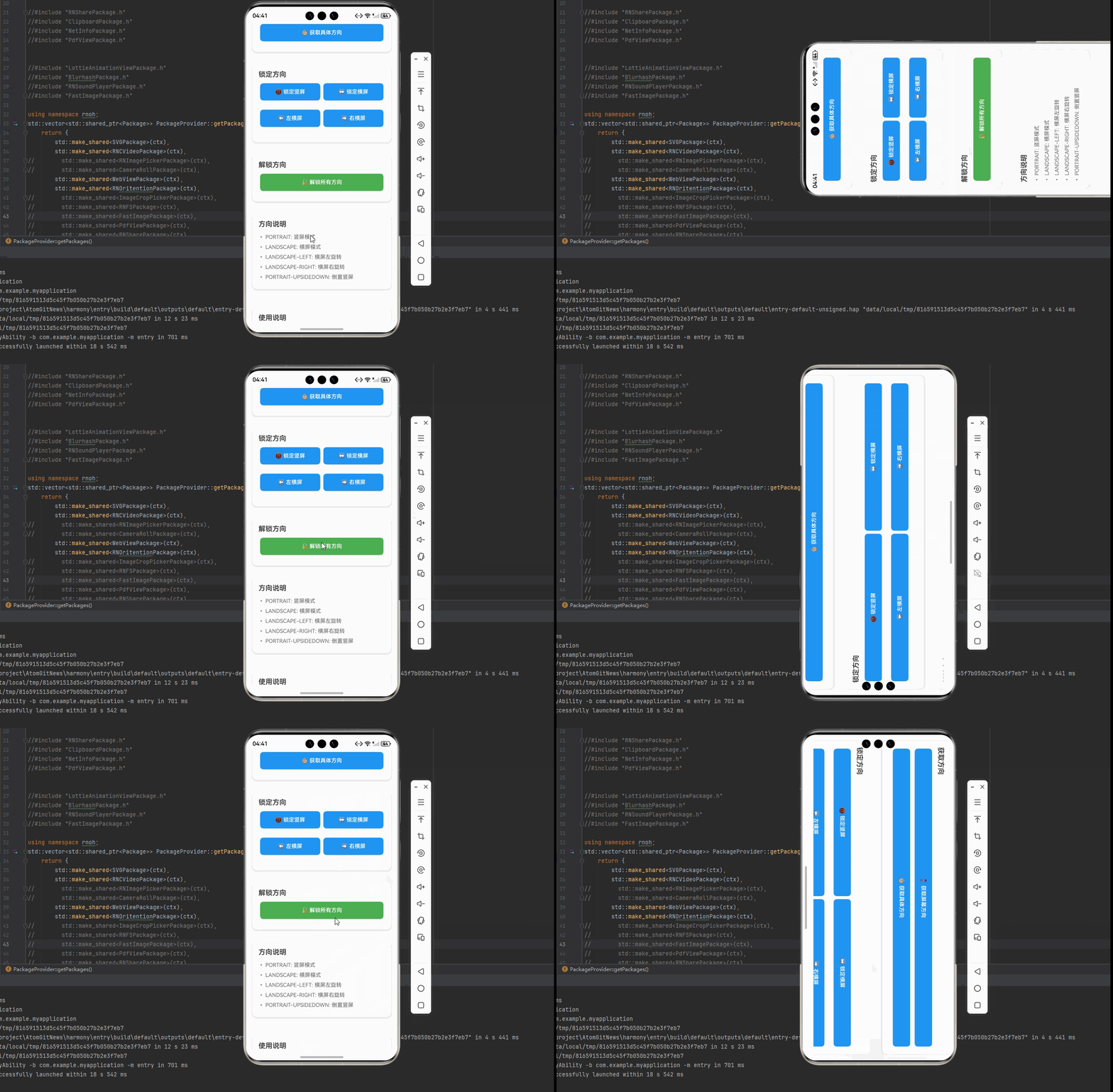
实际效果
- Android: 完整支持,功能丰富
- iOS: 完整支持,功能丰富
- HarmonyOS: 完整支持,方向值一致

开源鸿蒙跨平台开发社区汇聚开发者与厂商,共建“一次开发,多端部署”的开源生态,致力于降低跨端开发门槛,推动万物智联创新。
更多推荐

 33
33 0
0- 0


 已为社区贡献11条内容

所有评论(0)