进阶实战 Flutter for OpenHarmony:fluttertoast 第三方库实战 - 消息提示
在移动应用开发中,消息提示是用户交互反馈的重要组成部分。当用户执行某个操作后,应用需要给予及时的反馈,让用户知道操作的结果。这种反馈机制能够提升用户体验,让用户对应用的操作有清晰的认知。想象一下这样的场景:用户点击"保存"按钮,应用在后台处理数据保存。如果没有提示,用户可能会疑惑操作是否成功。而如果使用 Toast 提示,用户会看到"保存成功"的消息,立即得到确认,体验更加流畅自然。这就是 flu
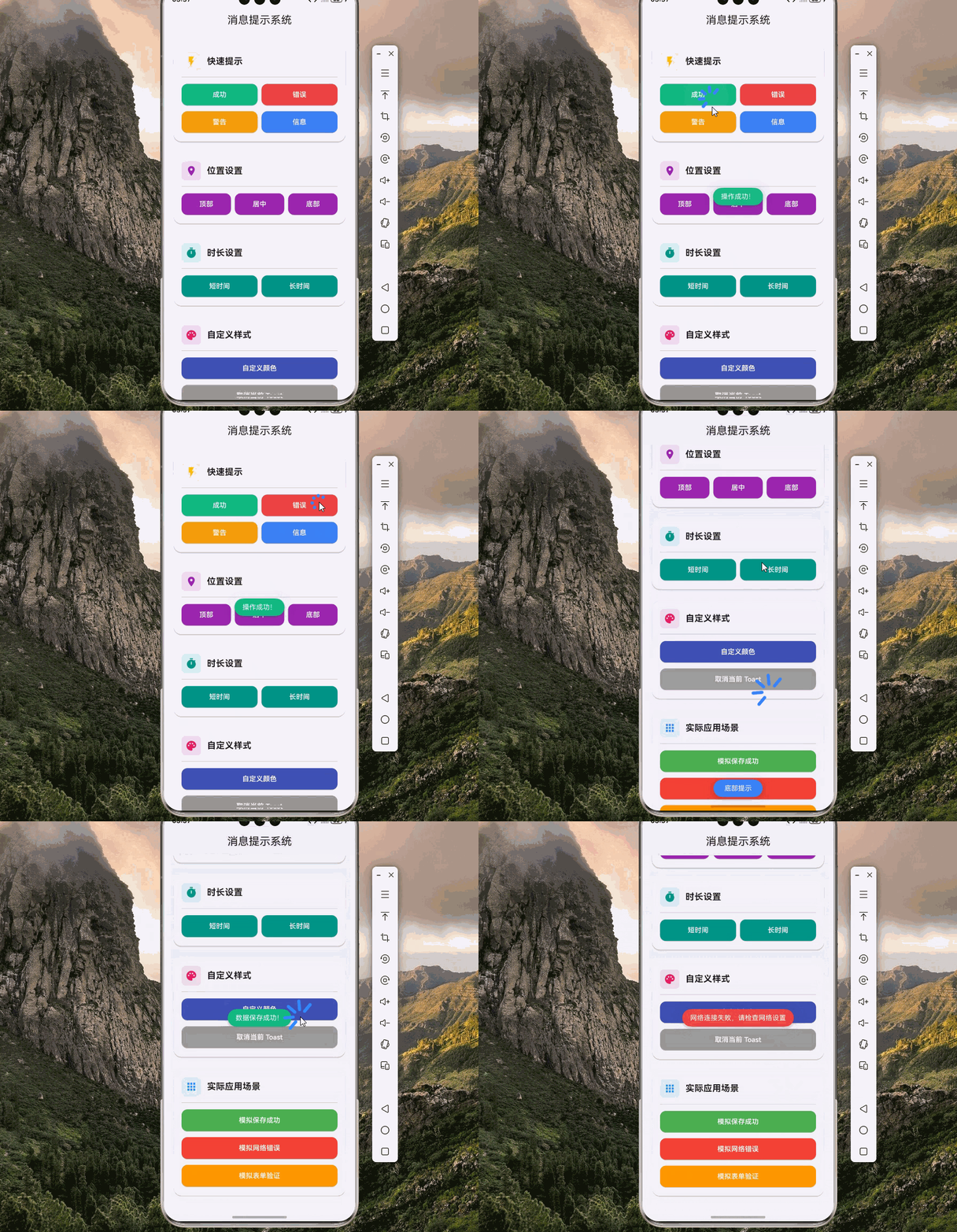
欢迎加入开源鸿蒙跨平台社区:https://openharmonycrossplatform.csdn.net
🔍 一、第三方库概述与应用场景
📱 1.1 为什么需要消息提示功能?
在移动应用开发中,消息提示是用户交互反馈的重要组成部分。当用户执行某个操作后,应用需要给予及时的反馈,让用户知道操作的结果。这种反馈机制能够提升用户体验,让用户对应用的操作有清晰的认知。
想象一下这样的场景:用户点击"保存"按钮,应用在后台处理数据保存。如果没有提示,用户可能会疑惑操作是否成功。而如果使用 Toast 提示,用户会看到"保存成功"的消息,立即得到确认,体验更加流畅自然。
这就是 fluttertoast 库要解决的问题。它提供了一种轻量级的消息提示机制,不会打断用户的操作流程,同时又能有效地传递信息。
📋 1.2 fluttertoast 是什么?
fluttertoast 是一个跨平台的 Toast 消息提示插件,用于在应用中显示简短的提示信息。Toast 是一种非阻塞式的消息提示,它会在屏幕上短暂显示一条消息,然后自动消失,不会打断用户的操作流程。
在 OpenHarmony 平台上,fluttertoast 同样提供了完整的支持,让开发者可以无缝地使用这套 API 来实现消息提示功能。
🎯 1.3 核心功能特性
| 功能特性 | 详细说明 | OpenHarmony 支持 |
|---|---|---|
| 显示 Toast | 显示简短的消息提示 | ✅ 完全支持 |
| 取消 Toast | 取消当前显示的 Toast | ✅ 完全支持 |
| 自定义背景色 | 设置 Toast 背景颜色 | ✅ 完全支持 |
| 自定义文字颜色 | 设置 Toast 文字颜色 | ✅ 完全支持 |
| 位置控制 | 设置 Toast 显示位置 | ✅ 完全支持 |
| 时长控制 | 设置 Toast 显示时长 | ✅ 完全支持 |
💡 1.4 典型应用场景
在实际的应用开发中,fluttertoast 有着广泛的应用场景:
操作成功提示:用户完成保存、提交、删除等操作后,显示成功提示。
错误信息提示:当操作失败或出现错误时,显示错误提示信息。
网络状态提示:网络连接状态变化时,显示网络状态提示。
表单验证反馈:表单验证失败时,显示具体的错误信息。
复制成功提示:用户复制内容后,显示复制成功的提示。
🏗️ 二、系统架构设计
📐 2.1 整体架构
为了构建一个可维护、可扩展的消息提示系统,我们采用分层架构设计:
┌─────────────────────────────────────────────────────────┐
│                    UI 层 (展示层)                        │
│  ┌─────────────┐  ┌─────────────┐  ┌─────────────┐     │
│  │  成功提示   │  │  错误提示   │  │  警告提示   │     │
│  └─────────────┘  └─────────────┘  └─────────────┘     │
├─────────────────────────────────────────────────────────┤
│                  服务层 (业务逻辑)                       │
│  ┌─────────────────────────────────────────────────┐   │
│  │              ToastService                        │   │
│  │  • 统一的消息提示接口                            │   │
│  │  • 预设样式管理                                  │   │
│  │  • 队列管理                                      │   │
│  │  • 错误处理                                      │   │
│  └─────────────────────────────────────────────────┘   │
├─────────────────────────────────────────────────────────┤
│                  基础设施层 (底层实现)                   │
│  ┌─────────────────────────────────────────────────┐   │
│  │              fluttertoast 插件                   │   │
│  │  • showToast() - 显示 Toast                     │   │
│  │  • cancel() - 取消 Toast                        │   │
│  │  • ToastGravity - 位置枚举                      │   │
│  └─────────────────────────────────────────────────┘   │
└─────────────────────────────────────────────────────────┘
📊 2.2 数据模型设计
为了更好地管理消息提示的配置和状态,我们设计了一套数据模型:
/// Toast 类型枚举
enum ToastType {
  success,   // 成功提示
  error,     // 错误提示
  warning,   // 警告提示
  info,      // 信息提示
}

/// Toast 位置枚举
enum ToastPosition {
  top,       // 顶部
  center,    // 居中
  bottom,    // 底部
}

/// Toast 配置模型
class ToastConfig {
  /// 消息内容
  final String message;

  /// Toast 类型
  final ToastType type;

  /// 显示位置
  final ToastPosition position;

  /// 显示时长(秒)
  final int duration;

  /// 自定义背景色
  final Color? backgroundColor;

  /// 自定义文字颜色
  final Color? textColor;

  /// 文字大小
  final double fontSize;

  const ToastConfig({
    required this.message,
    this.type = ToastType.info,
    this.position = ToastPosition.bottom,
    this.duration = 2,
    this.backgroundColor,
    this.textColor,
    this.fontSize = 16.0,
  });
}

/// Toast 预设样式
class ToastPreset {
  final Color backgroundColor;
  final Color textColor;
  final IconData? icon;

  const ToastPreset({
    required this.backgroundColor,
    required this.textColor,
    this.icon,
  });
}
📦 三、项目配置与依赖安装
📥 3.1 添加依赖
在 Flutter 项目中使用 fluttertoast,需要在 pubspec.yaml 文件中添加依赖。由于我们要支持 OpenHarmony 平台,需要使用适配版本的仓库。
打开项目根目录下的 pubspec.yaml 文件,找到 dependencies 部分,添加以下配置:
dependencies:
  flutter:
    sdk: flutter

  # fluttertoast - 消息提示插件
  # 使用 OpenHarmony 适配版本
  fluttertoast:
    git:
      url: "https://atomgit.com/openharmony-sig/flutter_fluttertoast.git"
      ref: "br_8.2.8_ohos"
配置说明:
git方式引用:因为 OpenHarmony 适配版本需要从指定的 Git 仓库获取url:指向开源鸿蒙 SIG 维护的 flutter_fluttertoast 仓库ref:指定适配 OpenHarmony 的分支版本- 本项目基于
fluttertoast@8.2.8开发,适配 Flutter 3.27.5-ohos-1.0.4
🛠️ 四、核心服务实现
🔔 4.1 消息提示服务
首先,我们实现一个消息提示服务,封装 fluttertoast 的底层 API:
import 'package:flutter/material.dart';
import 'package:fluttertoast/fluttertoast.dart';

/// Toast 类型枚举
enum ToastType {
  success,
  error,
  warning,
  info,
}

/// Toast 位置枚举
enum ToastPosition {
  top,
  center,
  bottom,
}

/// 消息提示服务
///
/// 该服务封装了 fluttertoast 的底层 API,提供统一的消息提示接口。
/// 所有方法都是静态的,可以在应用的任何地方直接调用。
class ToastService {
  /// 预设样式
  static const Map<ToastType, ToastPreset> _presets = {
    ToastType.success: ToastPreset(
      backgroundColor: Color(0xFF10B981),
      textColor: Colors.white,
      icon: Icons.check_circle,
    ),
    ToastType.error: ToastPreset(
      backgroundColor: Color(0xFFEF4444),
      textColor: Colors.white,
      icon: Icons.error,
    ),
    ToastType.warning: ToastPreset(
      backgroundColor: Color(0xFFF59E0B),
      textColor: Colors.white,
      icon: Icons.warning,
    ),
    ToastType.info: ToastPreset(
      backgroundColor: Color(0xFF3B82F6),
      textColor: Colors.white,
      icon: Icons.info,
    ),
  };

  /// 显示成功提示
  ///
  /// [message] 消息内容
  /// [position] 显示位置
  static Future<bool?> success(
    String message, {
    ToastPosition position = ToastPosition.center,
  }) {
    return show(message, type: ToastType.success, position: position);
  }

  /// 显示错误提示
  ///
  /// [message] 消息内容
  /// [position] 显示位置
  static Future<bool?> error(
    String message, {
    ToastPosition position = ToastPosition.center,
  }) {
    return show(message, type: ToastType.error, position: position);
  }

  /// 显示警告提示
  ///
  /// [message] 消息内容
  /// [position] 显示位置
  static Future<bool?> warning(
    String message, {
    ToastPosition position = ToastPosition.bottom,
  }) {
    return show(message, type: ToastType.warning, position: position);
  }

  /// 显示信息提示
  ///
  /// [message] 消息内容
  /// [position] 显示位置
  /// [duration] 显示时长(秒)
  static Future<bool?> info(
    String message, {
    ToastPosition position = ToastPosition.bottom,
    int duration = 2,
  }) {
    return show(message, type: ToastType.info, position: position, duration: duration);
  }

  /// 显示 Toast
  ///
  /// [message] 消息内容
  /// [type] Toast 类型
  /// [position] 显示位置
  /// [duration] 显示时长(秒)
  /// [backgroundColor] 自定义背景色
  /// [textColor] 自定义文字颜色
  /// [fontSize] 文字大小
  static Future<bool?> show(
    String message, {
    ToastType type = ToastType.info,
    ToastPosition position = ToastPosition.bottom,
    int duration = 2,
    Color? backgroundColor,
    Color? textColor,
    double fontSize = 16.0,
  }) {
    final preset = _presets[type]!;

    return Fluttertoast.showToast(
      msg: message,
      toastLength: duration > 2 ? Toast.LENGTH_LONG : Toast.LENGTH_SHORT,
      gravity: _mapPosition(position),
      timeInSecForIosWeb: duration,
      backgroundColor: backgroundColor ?? preset.backgroundColor,
      textColor: textColor ?? preset.textColor,
      fontSize: fontSize,
    );
  }

  /// 显示自定义 Toast
  ///
  /// [config] Toast 配置
  static Future<bool?> showCustom(ToastConfig config) {
    return show(
      config.message,
      type: config.type,
      position: config.position,
      duration: config.duration,
      backgroundColor: config.backgroundColor,
      textColor: config.textColor,
      fontSize: config.fontSize,
    );
  }

  /// 取消当前 Toast
  static Future<bool?> cancel() {
    return Fluttertoast.cancel();
  }

  /// 映射位置
  static ToastGravity _mapPosition(ToastPosition position) {
    switch (position) {
      case ToastPosition.top:
        return ToastGravity.TOP;
      case ToastPosition.center:
        return ToastGravity.CENTER;
      case ToastPosition.bottom:
        return ToastGravity.BOTTOM;
    }
  }
}

/// Toast 预设样式
class ToastPreset {
  final Color backgroundColor;
  final Color textColor;
  final IconData? icon;

  const ToastPreset({
    required this.backgroundColor,
    required this.textColor,
    this.icon,
  });
}

/// Toast 配置模型
class ToastConfig {
  final String message;
  final ToastType type;
  final ToastPosition position;
  final int duration;
  final Color? backgroundColor;
  final Color? textColor;
  final double fontSize;

  const ToastConfig({
    required this.message,
    this.type = ToastType.info,
    this.position = ToastPosition.bottom,
    this.duration = 2,
    this.backgroundColor,
    this.textColor,
    this.fontSize = 16.0,
  });
}
📝 五、完整示例代码
下面是一个完整的智能消息提示系统示例:
import 'package:flutter/material.dart';
import 'package:fluttertoast/fluttertoast.dart';
// ============ 枚举定义 ============
enum ToastType {
success,
error,
warning,
info,
}
enum ToastPosition {
top,
center,
bottom,
}
// ============ 数据模型 ============
class ToastPreset {
final Color backgroundColor;
final Color textColor;
final IconData? icon;
const ToastPreset({
required this.backgroundColor,
required this.textColor,
this.icon,
});
}
class ToastConfig {
final String message;
final ToastType type;
final ToastPosition position;
final int duration;
final Color? backgroundColor;
final Color? textColor;
final double fontSize;
const ToastConfig({
required this.message,
this.type = ToastType.info,
this.position = ToastPosition.bottom,
this.duration = 2,
this.backgroundColor,
this.textColor,
this.fontSize = 16.0,
});
}
// ============ 服务类 ============
class ToastService {
static const Map<ToastType, ToastPreset> _presets = {
ToastType.success: ToastPreset(
backgroundColor: Color(0xFF10B981),
textColor: Colors.white,
icon: Icons.check_circle,
),
ToastType.error: ToastPreset(
backgroundColor: Color(0xFFEF4444),
textColor: Colors.white,
icon: Icons.error,
),
ToastType.warning: ToastPreset(
backgroundColor: Color(0xFFF59E0B),
textColor: Colors.white,
icon: Icons.warning,
),
ToastType.info: ToastPreset(
backgroundColor: Color(0xFF3B82F6),
textColor: Colors.white,
icon: Icons.info,
),
};
static Future<bool?> success(
String message, {
ToastPosition position = ToastPosition.center,
}) {
return show(message, type: ToastType.success, position: position);
}
static Future<bool?> error(
String message, {
ToastPosition position = ToastPosition.center,
}) {
return show(message, type: ToastType.error, position: position);
}
static Future<bool?> warning(
String message, {
ToastPosition position = ToastPosition.bottom,
}) {
return show(message, type: ToastType.warning, position: position);
}
static Future<bool?> info(
String message, {
ToastPosition position = ToastPosition.bottom,
int duration = 2,
}) {
return show(message, type: ToastType.info, position: position, duration: duration);
}
static Future<bool?> show(
String message, {
ToastType type = ToastType.info,
ToastPosition position = ToastPosition.bottom,
int duration = 2,
Color? backgroundColor,
Color? textColor,
double fontSize = 16.0,
}) {
final preset = _presets[type]!;
return Fluttertoast.showToast(
msg: message,
toastLength: duration > 2 ? Toast.LENGTH_LONG : Toast.LENGTH_SHORT,
gravity: _mapPosition(position),
timeInSecForIosWeb: duration,
backgroundColor: backgroundColor ?? preset.backgroundColor,
textColor: textColor ?? preset.textColor,
fontSize: fontSize,
);
}
static Future<bool?> showCustom(ToastConfig config) {
return show(
config.message,
type: config.type,
position: config.position,
duration: config.duration,
backgroundColor: config.backgroundColor,
textColor: config.textColor,
fontSize: config.fontSize,
);
}
static Future<bool?> cancel() {
return Fluttertoast.cancel();
}
static ToastGravity _mapPosition(ToastPosition position) {
switch (position) {
case ToastPosition.top:
return ToastGravity.TOP;
case ToastPosition.center:
return ToastGravity.CENTER;
case ToastPosition.bottom:
return ToastGravity.BOTTOM;
}
}
}
// ============ 应用入口 ============
void main() {
runApp(const ToastDemoApp());
}
class ToastDemoApp extends StatelessWidget {
const ToastDemoApp({super.key});
Widget build(BuildContext context) {
return MaterialApp(
title: '消息提示系统',
debugShowCheckedModeBanner: false,
theme: ThemeData(
colorScheme: ColorScheme.fromSeed(seedColor: Colors.indigo),
useMaterial3: true,
),
home: const ToastDemoPage(),
);
}
}
class ToastDemoPage extends StatelessWidget {
const ToastDemoPage({super.key});
Widget build(BuildContext context) {
return Scaffold(
appBar: AppBar(
title: const Text('消息提示系统'),
centerTitle: true,
elevation: 0,
),
body: Container(
decoration: BoxDecoration(
gradient: LinearGradient(
begin: Alignment.topCenter,
end: Alignment.bottomCenter,
colors: [
Colors.indigo.shade50,
Colors.white,
],
),
),
child: SingleChildScrollView(
padding: const EdgeInsets.all(16),
child: Column(
crossAxisAlignment: CrossAxisAlignment.start,
children: [
_buildSectionCard(
title: '快速提示',
icon: Icons.flash_on,
color: Colors.amber,
child: Column(
children: [
Row(
children: [
Expanded(
child: _buildTypeButton(
label: '成功',
color: const Color(0xFF10B981),
onTap: () => ToastService.success('操作成功!'),
),
),
const SizedBox(width: 8),
Expanded(
child: _buildTypeButton(
label: '错误',
color: const Color(0xFFEF4444),
onTap: () => ToastService.error('操作失败!'),
),
),
],
),
const SizedBox(height: 8),
Row(
children: [
Expanded(
child: _buildTypeButton(
label: '警告',
color: const Color(0xFFF59E0B),
onTap: () => ToastService.warning('请注意!'),
),
),
const SizedBox(width: 8),
Expanded(
child: _buildTypeButton(
label: '信息',
color: const Color(0xFF3B82F6),
onTap: () => ToastService.info('这是一条信息'),
),
),
],
),
],
),
),
const SizedBox(height: 16),
_buildSectionCard(
title: '位置设置',
icon: Icons.place,
color: Colors.purple,
child: Row(
children: [
Expanded(
child: _buildTypeButton(
label: '顶部',
color: Colors.purple,
onTap: () => ToastService.info(
'顶部提示',
position: ToastPosition.top,
),
),
),
const SizedBox(width: 8),
Expanded(
child: _buildTypeButton(
label: '居中',
color: Colors.purple,
onTap: () => ToastService.info(
'居中提示',
position: ToastPosition.center,
),
),
),
const SizedBox(width: 8),
Expanded(
child: _buildTypeButton(
label: '底部',
color: Colors.purple,
onTap: () => ToastService.info(
'底部提示',
position: ToastPosition.bottom,
),
),
),
],
),
),
const SizedBox(height: 16),
_buildSectionCard(
title: '时长设置',
icon: Icons.timer,
color: Colors.teal,
child: Row(
children: [
Expanded(
child: _buildTypeButton(
label: '短时间',
color: Colors.teal,
onTap: () => ToastService.info(
'短时间提示(约2秒)',
duration: 2,
),
),
),
const SizedBox(width: 8),
Expanded(
child: _buildTypeButton(
label: '长时间',
color: Colors.teal,
onTap: () => ToastService.info(
'长时间提示(约4秒)',
duration: 4,
),
),
),
],
),
),
const SizedBox(height: 16),
_buildSectionCard(
title: '自定义样式',
icon: Icons.palette,
color: Colors.pink,
child: Column(
children: [
SizedBox(
width: double.infinity,
child: _buildTypeButton(
label: '自定义颜色',
color: Colors.indigo,
onTap: () => ToastService.show(
'自定义样式的提示',
backgroundColor: Colors.indigo,
textColor: Colors.white,
fontSize: 18,
),
),
),
const SizedBox(height: 8),
SizedBox(
width: double.infinity,
child: _buildTypeButton(
label: '取消当前 Toast',
color: Colors.grey,
onTap: () {
ToastService.cancel();
ScaffoldMessenger.of(context).showSnackBar(
const SnackBar(content: Text('Toast 已取消')),
);
},
),
),
],
),
),
const SizedBox(height: 16),
_buildSectionCard(
title: '实际应用场景',
icon: Icons.apps,
color: Colors.blue,
child: Column(
children: [
SizedBox(
width: double.infinity,
child: _buildTypeButton(
label: '模拟保存成功',
color: Colors.green,
onTap: () async {
await Future.delayed(const Duration(milliseconds: 500));
ToastService.success('数据保存成功!');
},
),
),
const SizedBox(height: 8),
SizedBox(
width: double.infinity,
child: _buildTypeButton(
label: '模拟网络错误',
color: Colors.red,
onTap: () => ToastService.error(
'网络连接失败,请检查网络设置',
position: ToastPosition.center,
),
),
),
const SizedBox(height: 8),
SizedBox(
width: double.infinity,
child: _buildTypeButton(
label: '模拟表单验证',
color: Colors.orange,
onTap: () => ToastService.warning('请填写所有必填项'),
),
),
],
),
),
const SizedBox(height: 32),
],
),
),
),
);
}
Widget _buildSectionCard({
required String title,
required IconData icon,
required Color color,
required Widget child,
}) {
return Card(
elevation: 2,
shape: RoundedRectangleBorder(
borderRadius: BorderRadius.circular(16),
),
child: Padding(
padding: const EdgeInsets.all(16),
child: Column(
crossAxisAlignment: CrossAxisAlignment.start,
children: [
Row(
children: [
Container(
padding: const EdgeInsets.all(8),
decoration: BoxDecoration(
color: color.withOpacity(0.1),
borderRadius: BorderRadius.circular(8),
),
child: Icon(icon, color: color, size: 24),
),
const SizedBox(width: 12),
Text(
title,
style: const TextStyle(
fontSize: 18,
fontWeight: FontWeight.bold,
),
),
],
),
const Divider(height: 24),
child,
],
),
),
);
}
Widget _buildTypeButton({
required String label,
required Color color,
required VoidCallback onTap,
}) {
return ElevatedButton(
onPressed: onTap,
style: ElevatedButton.styleFrom(
backgroundColor: color,
foregroundColor: Colors.white,
padding: const EdgeInsets.symmetric(vertical: 12),
shape: RoundedRectangleBorder(
borderRadius: BorderRadius.circular(12),
),
),
child: Text(label),
);
}
}
🏆 六、最佳实践与注意事项
⚠️ 6.1 使用场景最佳实践
成功提示:使用绿色背景,居中显示,短时间。
错误提示:使用红色背景,居中显示,较长时间以便用户阅读。
警告提示:使用橙色背景,底部显示。
信息提示:使用蓝色背景,底部显示。
🔐 6.2 消息内容注意事项
简洁明了:Toast 消息应该简短,一般不超过两行。
避免技术术语:使用用户易懂的语言,避免技术术语。
及时反馈:操作完成后立即显示 Toast,不要延迟。
📱 6.3 OpenHarmony 平台特殊说明
无需权限:Toast 不需要任何特殊权限。
自动消失:Toast 会在指定时间后自动消失。
非阻塞式:Toast 不会阻止用户操作。
📌 七、总结
本文通过一个完整的智能消息提示系统案例,深入讲解了 fluttertoast 第三方库的使用方法与最佳实践:
架构设计:采用分层架构(UI层 → 服务层 → 基础设施层),让代码更清晰,便于维护和测试。
服务封装:统一封装消息提示逻辑,提供语义化的方法名,让调用代码更易读。
预设样式:定义常用的提示样式预设,方便在不同场景下快速使用。
灵活配置:支持自定义背景色、文字颜色、位置、时长等参数。
掌握这些技巧,你就能构建出专业级的消息提示功能,为用户提供清晰、友好的操作反馈。
参考资料

开源鸿蒙跨平台开发社区汇聚开发者与厂商,共建“一次开发,多端部署”的开源生态,致力于降低跨端开发门槛,推动万物智联创新。
更多推荐
 14
14 0
0- 0


 已为社区贡献36条内容

所有评论(0)