Flutter for OpenHarmony:stop_watch_timer 简单高效的秒表与倒计时器(毫秒级高精度计时) 深度解析与鸿蒙适配指南
摘要: stop_watch_timer 是一个功能强大的 Flutter 计时器插件,支持秒表、倒计时等多种模式。它通过流式 API 实现高效 UI 刷新,提供毫秒级精度、暂停/恢复/重置等功能,并内置时间格式化工具。适用于验证码倒计时、运动计时、番茄钟等场景。文章详细介绍了其核心 API、应用场景,并提供了完整的秒表示例代码,包含开始、暂停、复位和记录圈数功能。此外还针对 OpenHarmon
欢迎加入开源鸿蒙跨平台社区:https://openharmonycrossplatform.csdn.net

前言
在健身 App、游戏倒计时、验证码重发等场景中,我们经常需要一个精确的计时器。虽然 Dart 的 Timer 可以实现,但要处理暂停、恢复、重置、毫秒格式化等逻辑并不轻松,稍有不慎还会导致内存泄漏或 UI 卡顿。
stop_watch_timer 封装了这些常见需求,提供了一套流式 API 来驱动 UI 更新,支持正向计时(秒表)和反向计时(倒计时),且性能优异。
一、概念介绍/原理解析
1.1 基础概念
- Mode: 计时模式,
StopWatchMode.countUp(秒表) 或StopWatchMode.countDown(倒计时)。 - Stream: 计时器的核心是
rawTime(毫秒数) 和secondTime(秒数) 的 Stream 流。 - Display: 内置格式化工具,将 123456ms 转为
02:03:45。
1.2 进阶概念
利用 onChange 回调可以在特定时间点触发事件(如倒计时结束响铃)。
二、核心 API/组件详解
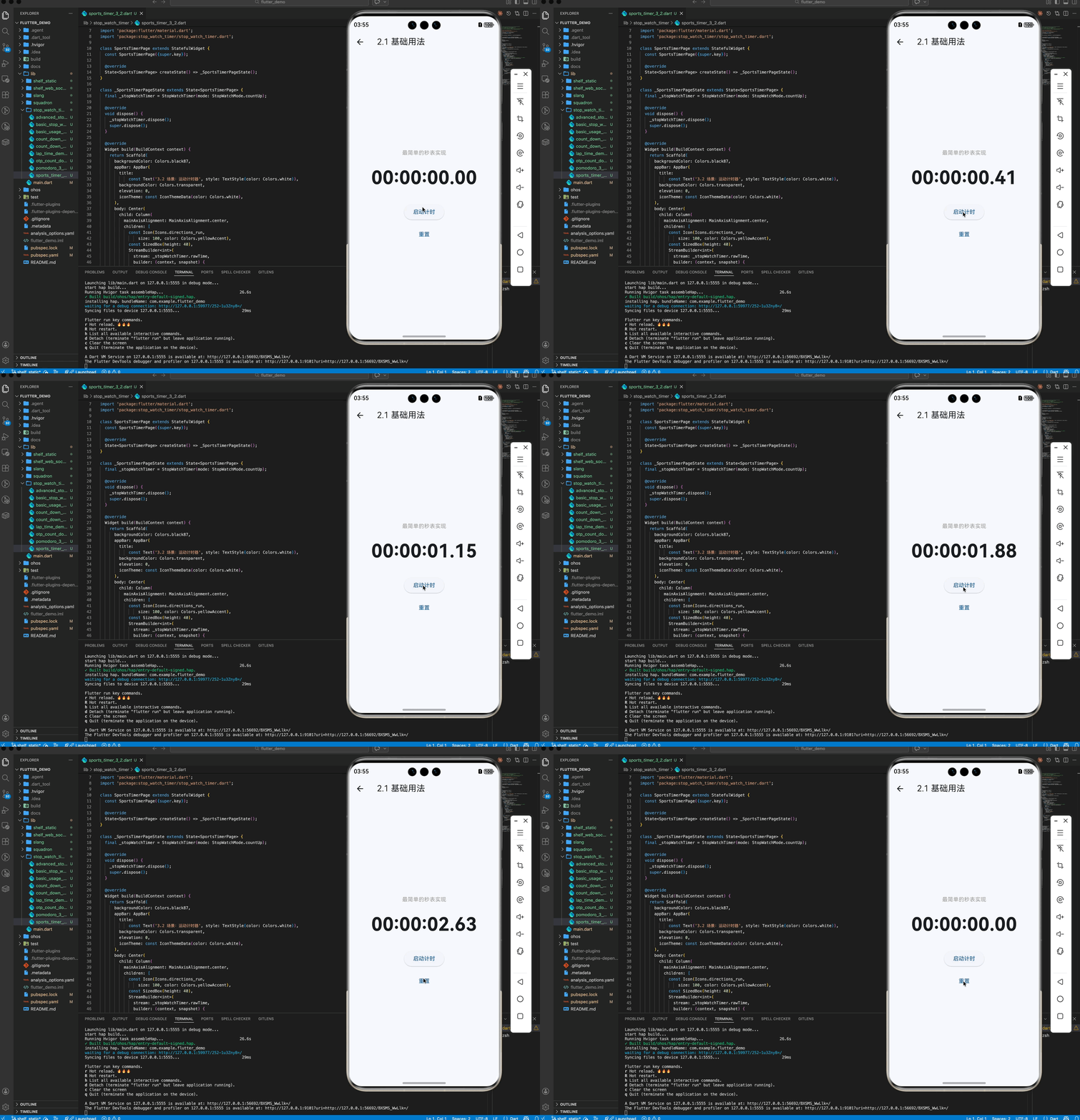
2.1 基础用法
最简单的秒表实现。
import 'package:stop_watch_timer/stop_watch_timer.dart';

final stopWatchTimer = StopWatchTimer(
  mode: StopWatchMode.countUp,
);

// 启动
stopWatchTimer.onStartTimer();

// 监听并显示
StreamBuilder<int>(
  stream: stopWatchTimer.rawTime,
  builder: (context, snapshot) {
    final value = snapshot.data;
    final displayTime = StopWatchTimer.getDisplayTime(value ?? 0);
    return Text(displayTime);
  },
);
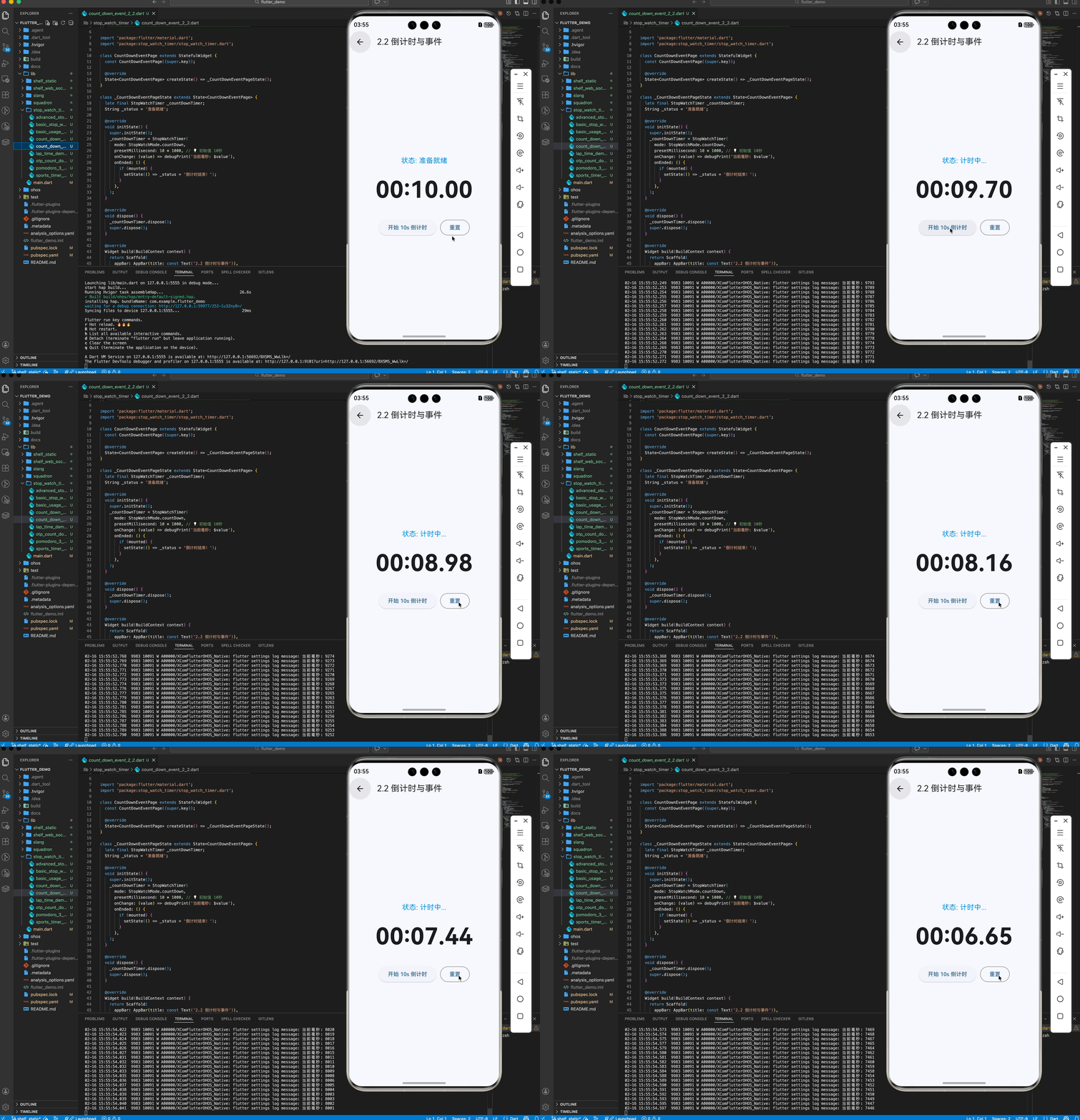
2.2 倒计时与事件
设置 10 秒倒计时,并在结束时打印日志。
final countDownTimer = StopWatchTimer(
  mode: StopWatchMode.countDown,
  presetMillisecond: 10 * 1000, // 初始值 10秒
  onChange: (value) => print('当前: $value'),
  onEnded: () => print('倒计时结束!'),
);
三、常见应用场景
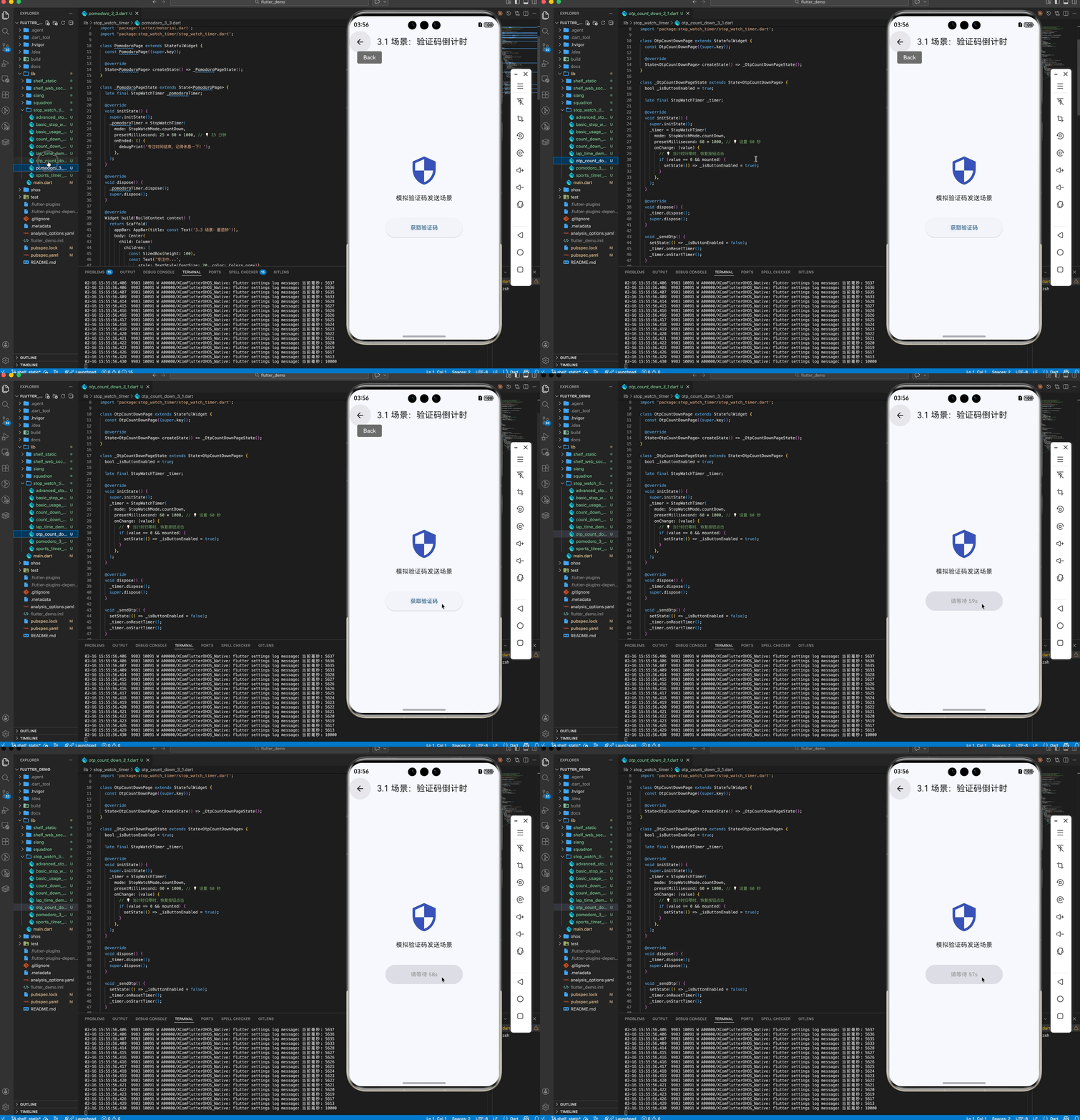
3.1 场景 1:验证码倒计时
发送验证码后,按钮禁用并显示 “60s” 倒计时。
final timer = StopWatchTimer(
  mode: StopWatchMode.countDown,
  presetMillisecond: 60 * 1000,
  onChange: (value) {
    if (value == 0) enableButton();
  },
);
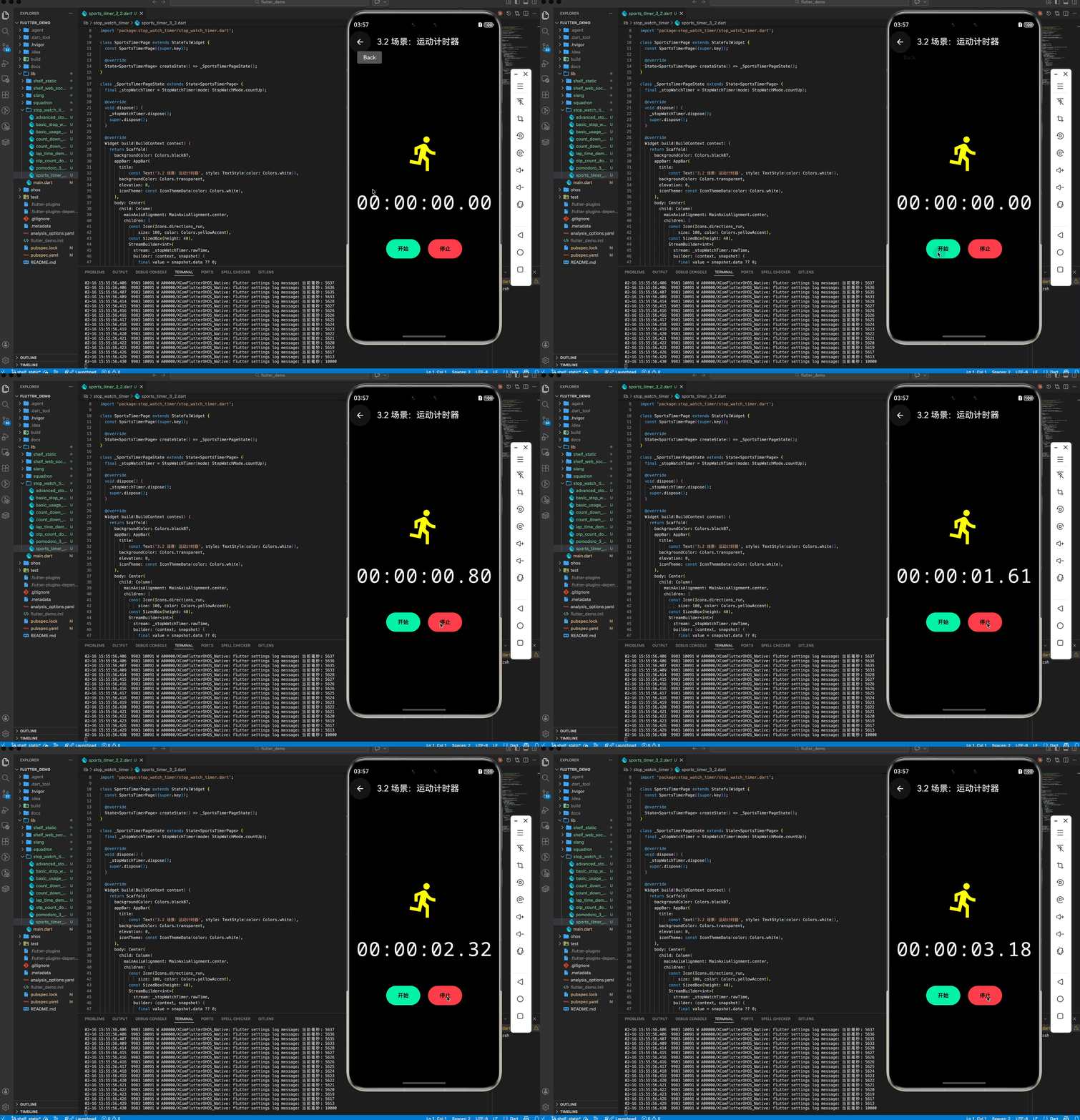
3.2 场景 2:运动计时器
记录跑步时长,精确到毫秒。
// 使用 hours: true 保留小时位
final timeStr = StopWatchTimer.getDisplayTime(
  value,
  hours: true,
  milliSecond: true,
);
// 输出:01:30:15.12
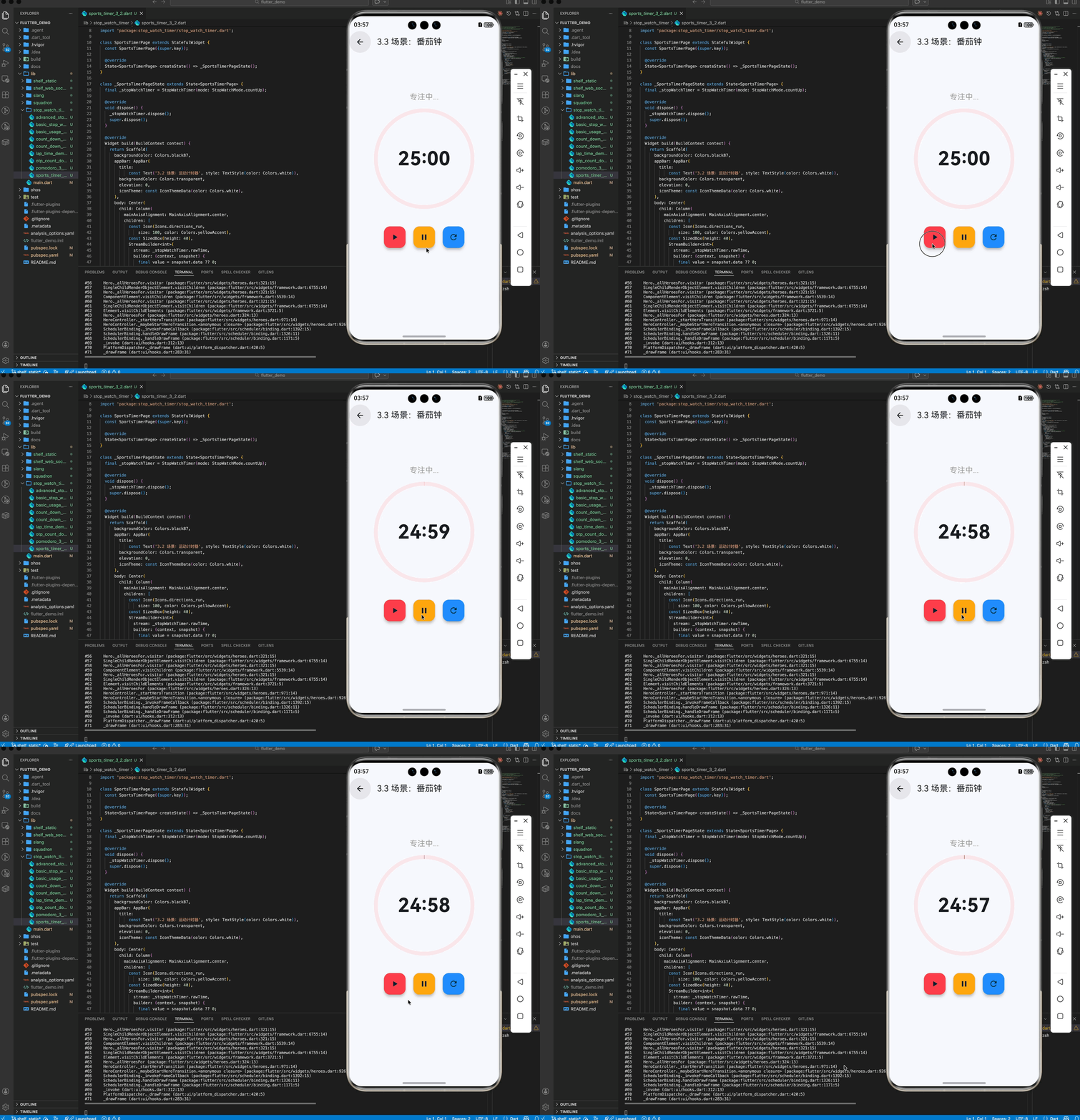
3.3 场景 3:番茄钟
25 分钟专注时间倒计时,结束后震动提醒。
final pomodoro = StopWatchTimer(
  mode: StopWatchMode.countDown,
  presetMillisecond: 25 * 60 * 1000,
  onEnded: () => vibrate(),
);
四、OpenHarmony 平台适配
4.1 UI 刷新频率
stop_watch_timer 默认每 10ms (或更短) 发送一次 Stream 事件。在低端鸿蒙设备上,如果 StreamBuilder 内构建的 Widget 过于复杂,可能导致卡顿。建议仅包裹显示的 Text 组件。
4.2 后台运行
Flutter 的 Timer 在后台可能会被暂停。如果需要类似于系统闹钟的精准后台提醒,需要原生能力支持。单纯的 UI 计时器仅适合前台使用。
五、完整示例代码
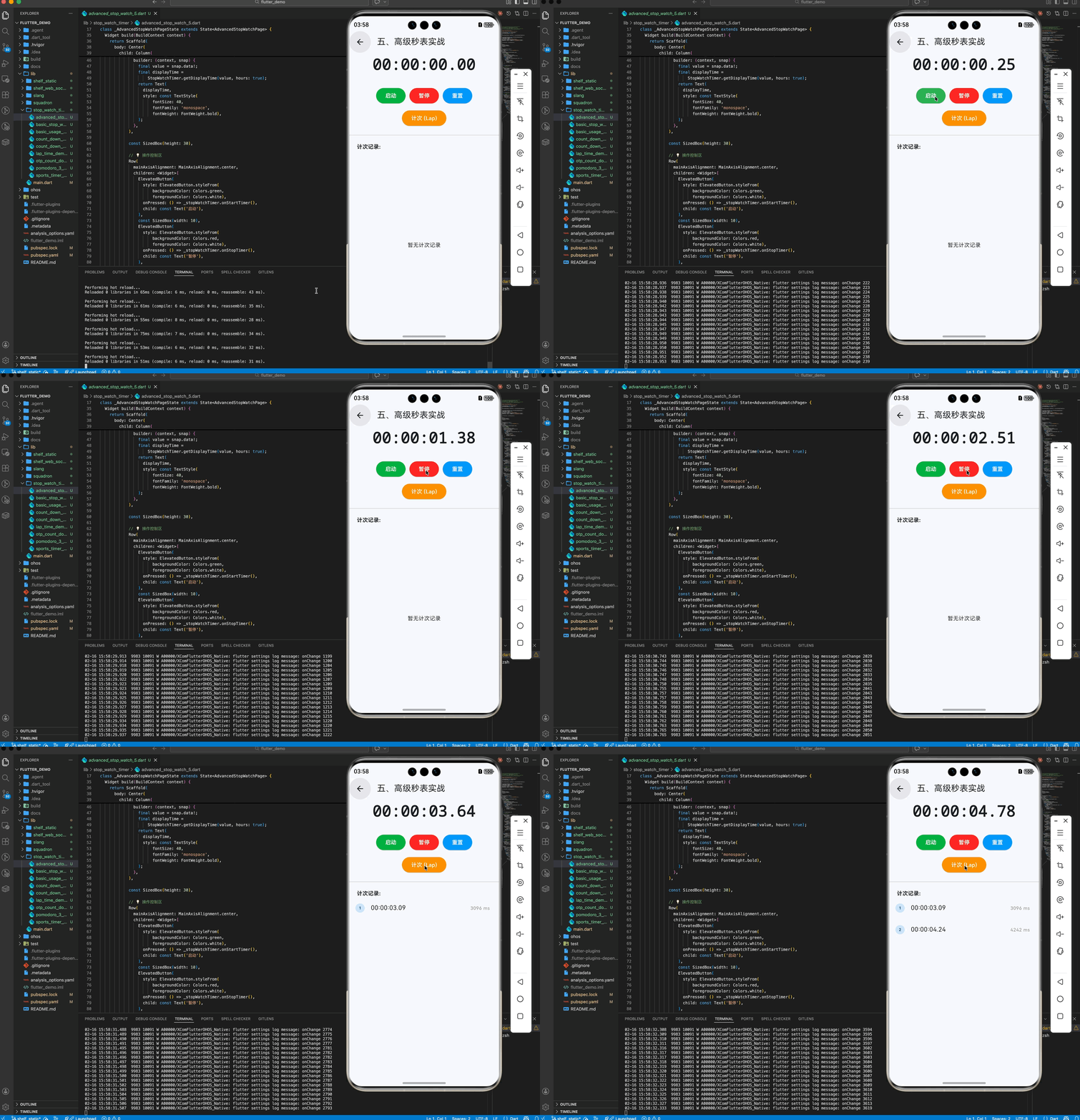
本示例实现一个包含开始、暂停、复位、记录圈数(Lap)功能的完整秒表。
import 'package:flutter/material.dart';
import 'package:stop_watch_timer/stop_watch_timer.dart';
void main() {
runApp(const MaterialApp(home: StopWatchPage()));
}
class StopWatchPage extends StatefulWidget {
const StopWatchPage({super.key});
State<StopWatchPage> createState() => _StopWatchPageState();
}
class _StopWatchPageState extends State<StopWatchPage> {
final StopWatchTimer _stopWatchTimer = StopWatchTimer(
mode: StopWatchMode.countUp,
onChange: (value) => print('onChange $value'),
onChangeRawSecond: (value) => print('onChangeRawSecond $value'),
onChangeRawMinute: (value) => print('onChangeRawMinute $value'),
);
final _scrollController = ScrollController();
void dispose() {
_stopWatchTimer.dispose();
_scrollController.dispose();
super.dispose();
}
Widget build(BuildContext context) {
return Scaffold(
appBar: AppBar(title: const Text('高级秒表')),
body: Center(
child: Column(
mainAxisAlignment: MainAxisAlignment.center,
children: <Widget>[
// 显示时间
StreamBuilder<int>(
stream: _stopWatchTimer.rawTime,
initialData: _stopWatchTimer.rawTime.value,
builder: (context, snap) {
final value = snap.data!;
final displayTime = StopWatchTimer.getDisplayTime(value, hours: true);
return Text(
displayTime,
style: const TextStyle(fontSize: 40, fontFamily: 'Helvetica', fontWeight: FontWeight.bold),
);
},
),
const SizedBox(height: 30),
// 操作按钮
Row(
mainAxisAlignment: MainAxisAlignment.center,
children: <Widget>[
ElevatedButton(
style: ElevatedButton.styleFrom(backgroundColor: Colors.green),
onPressed: () => _stopWatchTimer.onStartTimer(),
child: const Text('启动', style: TextStyle(color: Colors.white)),
),
const SizedBox(width: 10),
ElevatedButton(
style: ElevatedButton.styleFrom(backgroundColor: Colors.red),
onPressed: () => _stopWatchTimer.onStopTimer(),
child: const Text('暂停', style: TextStyle(color: Colors.white)),
),
const SizedBox(width: 10),
ElevatedButton(
style: ElevatedButton.styleFrom(backgroundColor: Colors.blue),
onPressed: () => _stopWatchTimer.onResetTimer(),
child: const Text('重置', style: TextStyle(color: Colors.white)),
),
],
),
const SizedBox(height: 10),
ElevatedButton(
style: ElevatedButton.styleFrom(backgroundColor: Colors.orange),
onPressed: () => _stopWatchTimer.onAddLap(),
child: const Text('计次 (Lap)', style: TextStyle(color: Colors.white)),
),
const Divider(),
// 计次列表
SizedBox(
height: 200,
child: StreamBuilder<List<StopWatchRecord>>(
stream: _stopWatchTimer.records,
initialData: const [],
builder: (context, snap) {
final value = snap.data!;
if (value.isEmpty) return const Center(child: Text('暂无计次记录'));
return ListView.builder(
controller: _scrollController,
itemCount: value.length,
itemBuilder: (context, index) {
final data = value[index];
return ListTile(
leading: Text('${index + 1}'),
title: Text(data.displayTime),
trailing: Text('${data.rawValue} ms'),
);
},
);
},
),
),
],
),
),
);
}
}
六、总结
stop_watch_timer 完美解决了 Flutter 中计时器逻辑与 UI 状态同步的痛点。
最佳实践:
- 销毁:务必在
dispose中调用timer.dispose(),否则 Stream 会一直发送数据导致内存泄漏。 - 性能:不需要显示毫秒时,可以调整 Timer 触发频率或自行节流。

开源鸿蒙跨平台开发社区汇聚开发者与厂商,共建“一次开发,多端部署”的开源生态,致力于降低跨端开发门槛,推动万物智联创新。
更多推荐
 22
22 0
0- 0


 已为社区贡献33条内容

所有评论(0)