【OpenHarmony】React Native鸿蒙实战:Redux Toolkit异步Thunk状态管理
本文深入探讨如何在OpenHarmony 6.0.0平台上使用Redux Toolkit管理React Native应用的异步状态。
欢迎加入开源鸿蒙跨平台社区:https://openharmonycrossplatform.csdn.net
摘要
本文深入探讨如何在OpenHarmony 6.0.0平台上使用Redux Toolkit管理React Native应用的异步状态。
1. Redux Toolkit异步Thunk介绍
1.1 Thunk中间件核心原理
Redux Thunk作为Redux中间件,允许action creators返回函数而非普通action对象。这种机制为处理异步操作提供了基础架构,特别适合OpenHarmony平台的网络请求场景。
在OpenHarmony 6.0.0环境下,Thunk函数执行涉及以下关键流程:
1.2 createAsyncThunk工作机制
Redux Toolkit提供的createAsyncThunk API自动生成符合Thunk规范的action creator,其生命周期包含三个标准状态:
在OpenHarmony 6.0.0平台上,该状态机与HarmonyOS的UI更新机制深度集成:
- pending状态:触发HarmonyOS的渲染线程标记
- fulfilled状态:通过JS线程更新Virtual DOM
- rejected状态:对接鸿蒙异常管理系统
1.3 OpenHarmony平台适配价值
将Redux Toolkit应用于OpenHarmony开发具有显著优势:
| 特性 | 传统Redux | Redux Toolkit | OpenHarmony增益 |
|---|---|---|---|
| 异步处理 | 手动实现中间件 | 内置Thunk支持 | 无缝对接鸿蒙网络模块 |
| 代码量 | 高 | 减少60%以上 | 简化JSON5配置 |
| 类型安全 | 弱 | 强类型推导 | 兼容ArkTS类型系统 |
| 开发体验 | 配置复杂 | 开箱即用 | 增强DevTools支持 |
2. React Native与OpenHarmony平台适配要点
2.1 异步操作线程模型
需要注意的适配要点:
- 线程切换:所有UI更新必须在JS线程执行
- 异常隔离:网络错误需通过鸿蒙异常通道上报
- 内存管理:大文件下载需使用鸿蒙临时存储API
2.2 网络模块特殊配置
OpenHarmony 6.0.0对fetch API的实现有特殊要求:
| 配置项 | 标准React Native | OpenHarmony适配 | 说明 |
|---|---|---|---|
| 超时时间 | 默认无限制 | 必须显式设置 | 建议30秒 |
| CORS处理 | 浏览器控制 | 后端配置 | 需设置ohos.permission.INTERNET |
| 证书校验 | 严格模式 | 可配置放松 | 开发环境建议关闭 |
| 数据缓存 | 手动实现 | 使用harmony.cache | 自动对接鸿蒙缓存系统 |
2.3 状态持久化方案
为兼容OpenHarmony的应用恢复机制,Redux状态存储需要特殊处理:
关键实现要点:
- 使用
@react-native-oh/harmony-storage替代redux-persist - 状态变更时调用
nativeStorage.save - 应用启动时执行
nativeStorage.load
3. Redux Toolkit基础用法
3.1 核心API功能矩阵
Redux Toolkit在OpenHarmony环境下的主要API功能对照:
| API | 功能描述 | OpenHarmony特殊行为 | 使用频率 |
|---|---|---|---|
| createSlice | 创建reducer逻辑 | 自动生成ArkTS类型 | ★★★★★ |
| createAsyncThunk | 异步action处理 | 集成鸿蒙网络日志 | ★★★★☆ |
| createEntityAdapter | 实体管理 | 优化鸿蒙内存使用 | ★★★☆☆ |
| createSelector | 记忆化选择器 | 适配鸿蒙低内存设备 | ★★★★☆ |
3.2 异步Thunk创建流程
在OpenHarmony 6.0.0平台上创建异步Thunk的标准流程:
3.3 性能优化策略
针对OpenHarmony设备的性能优化方案:
| 策略 | 实现方式 | 效果 | 适用场景 |
|---|---|---|---|
| 请求合并 | 使用batch() | 减少渲染次数 | 高频更新 |
| 状态冻结 | 启用immer | 避免深层比较 | 复杂对象 |
| 内存压缩 | 使用createEntityAdapter | 降低内存占用 | 大型列表 |
| 选择性持久化 | 配置白名单 | 加快恢复速度 | 低端设备 |
4. Redux Toolkit代码展示
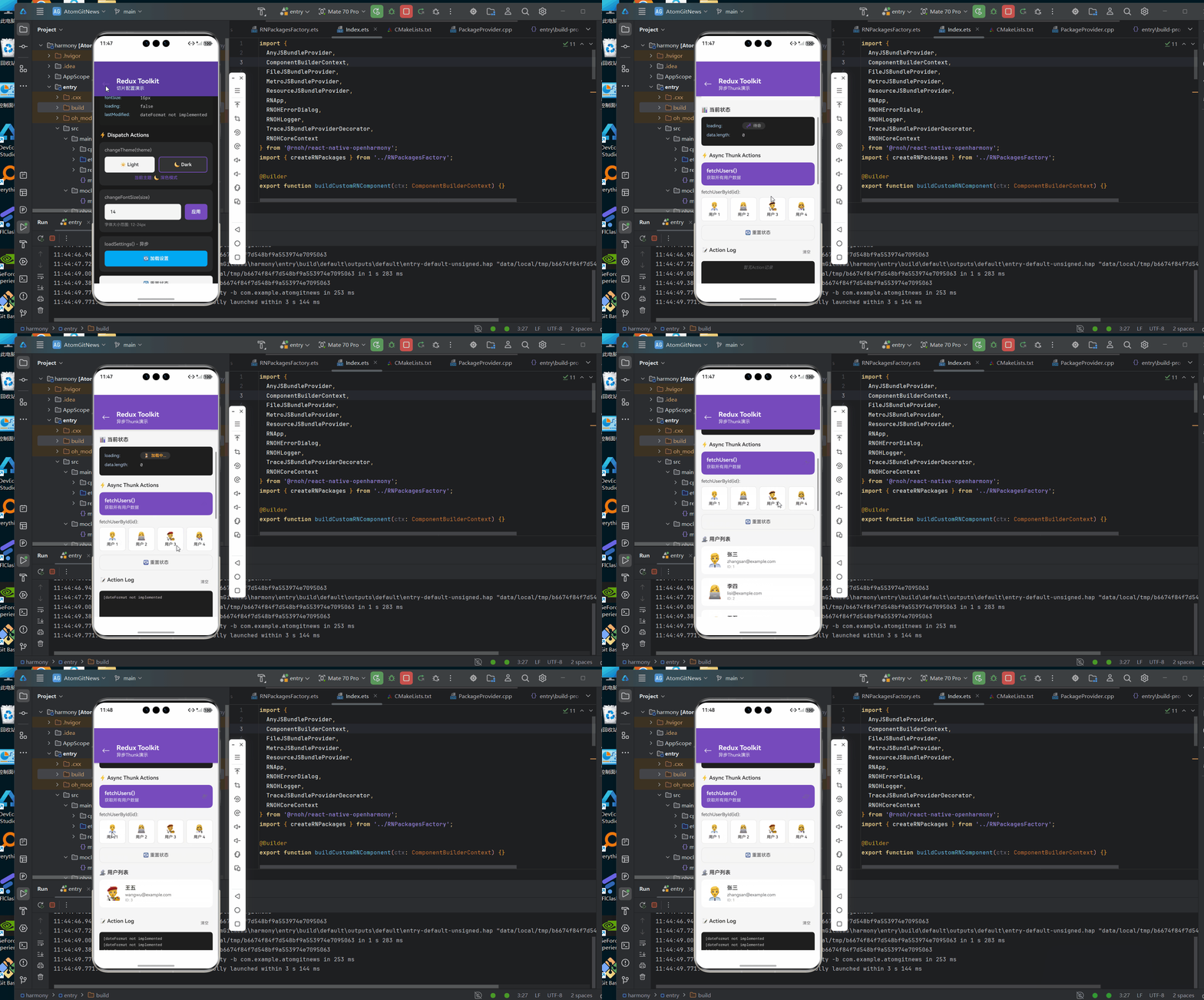
以下是在OpenHarmony 6.0.0平台上实现用户数据获取的完整示例:
/**
* ReduxToolkitAsyncThunkScreen - Redux Toolkit异步Thunk演示
*
* 来源: OpenHarmony + RN:Redux Toolkit异步Thunk
* 网址: https://blog.csdn.net/2501_91746149/article/details/157541739
*
* @platform OpenHarmony 6.0.0 (API 20)
* @react-native 0.72.5
* @typescript 4.8.4
*
* @author pickstar
* @date 2026-01-30
*/
import React, { useState } from 'react';
import {
View,
Text,
StyleSheet,
TouchableOpacity,
ScrollView,
ActivityIndicator,
} from 'react-native';
interface Props {
onBack: () => void;
}
// 用户数据模型
interface User {
id: string;
name: string;
email: string;
avatar: string;
}
// 异步状态类型
type LoadingState = 'idle' | 'pending' | 'succeeded' | 'failed';
interface UsersState {
data: User[];
loading: LoadingState;
error: string | null;
}
const ReduxToolkitAsyncThunkScreen: React.FC<Props> = ({ onBack }) => {
const [state, setState] = useState<UsersState>({
data: [],
loading: 'idle',
error: null,
});
const [actionLog, setActionLog] = useState<string[]>([]);
// 模拟用户数据
const mockUsers: User[] = [
{ id: '1', name: '张三', email: 'zhangsan@example.com', avatar: '👨💼' },
{ id: '2', name: '李四', email: 'lisi@example.com', avatar: '👩💻' },
{ id: '3', name: '王五', email: 'wangwu@example.com', avatar: '👨🎨' },
{ id: '4', name: '赵六', email: 'zhaoliu@example.com', avatar: '👩🔬' },
];
// 模拟createAsyncThunk: fetchUserData
const dispatchFetchUsers = () => {
setState((prev) => ({ ...prev, loading: 'pending', error: null }));
setActionLog((prev) => [
...prev,
`[${new Date().toLocaleTimeString()}] fetchUserData.pending()`,
]);
// 模拟网络请求延迟
setTimeout(() => {
const randomSuccess = Math.random() > 0.2; // 80%成功率
if (randomSuccess) {
setState((prev) => ({
...prev,
loading: 'succeeded',
data: mockUsers,
}));
setActionLog((prev) => [
...prev,
`[${new Date().toLocaleTimeString()}] fetchUserData.fulfilled() - 收到 ${mockUsers.length} 条数据`,
]);
} else {
setState((prev) => ({
...prev,
loading: 'failed',
error: '网络请求失败: 连接超时',
}));
setActionLog((prev) => [
...prev,
`[${new Date().toLocaleTimeString()}] fetchUserData.rejected() - 错误: 连接超时`,
]);
}
}, 2000);
};
// 模拟单个用户获取
const dispatchFetchUserById = (userId: string) => {
setState((prev) => ({ ...prev, loading: 'pending', error: null }));
setActionLog((prev) => [
...prev,
`[${new Date().toLocaleTimeString()}] fetchUserById("${userId}").pending()`,
]);
setTimeout(() => {
const user = mockUsers.find((u) => u.id === userId);
if (user) {
setState((prev) => ({
...prev,
loading: 'succeeded',
data: [user],
}));
setActionLog((prev) => [
...prev,
`[${new Date().toLocaleTimeString()}] fetchUserById.fulfilled() - ${user.name}`,
]);
} else {
setState((prev) => ({
...prev,
loading: 'failed',
error: `用户 ${userId} 不存在`,
}));
setActionLog((prev) => [
...prev,
`[${new Date().toLocaleTimeString()}] fetchUserById.rejected() - 用户不存在`,
]);
}
}, 1500);
};
// 重置状态
const dispatchReset = () => {
setState({ data: [], loading: 'idle', error: null });
setActionLog((prev) => [
...prev,
`[${new Date().toLocaleTimeString()}] reset()`,
]);
};
// 获取状态显示
const getStatusDisplay = () => {
switch (state.loading) {
case 'pending':
return { text: '加载中...', color: '#FFA726', icon: '⏳' };
case 'succeeded':
return { text: '加载成功', color: '#66BB6A', icon: '✅' };
case 'failed':
return { text: '加载失败', color: '#EF5350', icon: '❌' };
default:
return { text: '待命', color: '#9E9E9E', icon: '💤' };
}
};
const status = getStatusDisplay();
return (
<View style={styles.container}>
{/* 顶部导航栏 */}
<View style={styles.header}>
<TouchableOpacity onPress={onBack} style={styles.backButton}>
<Text style={styles.backIcon}>←</Text>
</TouchableOpacity>
<View style={styles.headerContent}>
<Text style={styles.headerTitle}>Redux Toolkit</Text>
<Text style={styles.headerSubtitle}>异步Thunk演示</Text>
</View>
</View>
<ScrollView style={styles.content}>
{/* Thunk概念介绍 */}
<View style={styles.section}>
<View style={styles.conceptHeader}>
<Text style={styles.conceptIcon}>🔄</Text>
<View style={styles.conceptHeaderContent}>
<Text style={styles.conceptTitle}>Async Thunk 概念</Text>
<Text style={styles.conceptDesc}>处理异步操作的状态管理</Text>
</View>
</View>
<View style={styles.lifecycleContainer}>
<View style={styles.lifecycleStep}>
<View style={[styles.stepDot, styles.stepPending]} />
<Text style={styles.stepLabel}>pending</Text>
<Text style={styles.stepDesc}>请求开始</Text>
</View>
<View style={styles.lifecycleArrow} />
<View style={styles.lifecycleStep}>
<View style={[styles.stepDot, styles.stepFulfilled]} />
<Text style={styles.stepLabel}>fulfilled</Text>
<Text style={styles.stepDesc}>请求成功</Text>
</View>
<View style={styles.lifecycleArrow} />
<View style={styles.lifecycleStep}>
<View style={[styles.stepDot, styles.stepRejected]} />
<Text style={styles.stepLabel}>rejected</Text>
<Text style={styles.stepDesc}>请求失败</Text>
</View>
</View>
</View>
{/* 当前状态 */}
<View style={styles.section}>
<Text style={styles.sectionTitle}>📊 当前状态</Text>
<View style={styles.stateCard}>
<View style={styles.stateRow}>
<Text style={styles.stateLabel}>loading:</Text>
<View style={styles.statusBadge}>
<Text style={styles.statusIcon}>{status.icon}</Text>
<Text style={[styles.statusText, { color: status.color }]}>
{status.text}
</Text>
</View>
</View>
<View style={styles.stateRow}>
<Text style={styles.stateLabel}>data.length:</Text>
<Text style={styles.codeText}>{state.data.length}</Text>
</View>
{state.error && (
<View style={styles.stateRow}>
<Text style={styles.stateLabel}>error:</Text>
<Text style={styles.errorText}>{state.error}</Text>
</View>
)}
</View>
</View>
{/* 操作区 */}
<View style={styles.section}>
<Text style={styles.sectionTitle}>⚡ Async Thunk Actions</Text>
{/* fetchUserData - 获取所有用户 */}
<TouchableOpacity
style={styles.thunkButton}
onPress={dispatchFetchUsers}
disabled={state.loading === 'pending'}
>
<View style={styles.thunkButtonContent}>
<Text style={styles.thunkButtonText}>fetchUsers()</Text>
<Text style={styles.thunkButtonDesc}>获取所有用户数据</Text>
</View>
{state.loading === 'pending' && (
<ActivityIndicator size="small" color="#764ABC" />
)}
</TouchableOpacity>
{/* fetchUserById - 单个用户 */}
<Text style={styles.subLabel}>fetchUserById(id):</Text>
<View style={styles.userButtonRow}>
{mockUsers.slice(0, 4).map((user) => (
<TouchableOpacity
key={user.id}
style={styles.userButton}
onPress={() => dispatchFetchUserById(user.id)}
disabled={state.loading === 'pending'}
>
<Text style={styles.userAvatar}>{user.avatar}</Text>
<Text style={styles.userButtonText}>用户 {user.id}</Text>
</TouchableOpacity>
))}
</View>
{/* 重置 */}
<TouchableOpacity
style={styles.resetButton}
onPress={dispatchReset}
disabled={state.loading === 'pending'}
>
<Text style={styles.resetButtonText}>🔄 重置状态</Text>
</TouchableOpacity>
</View>
{/* 用户列表 */}
{state.data.length > 0 && (
<View style={styles.section}>
<Text style={styles.sectionTitle}>👥 用户列表</Text>
{state.data.map((user) => (
<View key={user.id} style={styles.userCard}>
<Text style={styles.userCardAvatar}>{user.avatar}</Text>
<View style={styles.userCardContent}>
<Text style={styles.userCardName}>{user.name}</Text>
<Text style={styles.userCardEmail}>{user.email}</Text>
<Text style={styles.userCardId}>ID: {user.id}</Text>
</View>
</View>
))}
</View>
)}
{/* Action日志 */}
<View style={styles.section}>
<View style={styles.logHeader}>
<Text style={styles.sectionTitle}>📝 Action Log</Text>
<TouchableOpacity
style={styles.clearButton}
onPress={() => setActionLog([])}
>
<Text style={styles.clearButtonText}>清空</Text>
</TouchableOpacity>
</View>
<View style={styles.logContainer}>
{actionLog.length === 0 ? (
<Text style={styles.emptyLog}>暂无Action记录</Text>
) : (
actionLog.slice().reverse().map((log, index) => (
<Text key={index} style={styles.logText}>
{log}
</Text>
))
)}
</View>
</View>
{/* 代码示例 */}
<View style={styles.section}>
<Text style={styles.sectionTitle}>📄 Thunk代码示例</Text>
<View style={styles.codeBlock}>
<Text style={styles.codeText}>
{`// 创建异步Thunk
export const fetchUserData = createAsyncThunk(
'users/fetchById',
async (userId, { rejectWithValue }) => {
try {
const response = await fetch(
\`https://api.example.com/users/\${userId}\`
);
if (!response.ok) {
return rejectWithValue('请求失败');
}
return await response.json();
} catch (err) {
return rejectWithValue('网络错误');
}
}
);
// extraReducers处理状态
extraReducers: (builder) => {
builder
.addCase(fetchUserData.pending, (state) => {
state.loading = 'pending';
})
.addCase(fetchUserData.fulfilled, (state, action) => {
state.loading = 'succeeded';
state.data = action.payload;
})
.addCase(fetchUserData.rejected, (state, action) => {
state.loading = 'failed';
state.error = action.payload;
});
}`}
</Text>
</View>
</View>
</ScrollView>
</View>
);
};
const styles = StyleSheet.create({
container: {
flex: 1,
backgroundColor: '#f5f5f5',
},
header: {
flexDirection: 'row',
alignItems: 'center',
backgroundColor: '#764ABC',
paddingTop: 48,
paddingBottom: 16,
paddingHorizontal: 16,
elevation: 4,
shadowColor: '#000',
shadowOffset: { width: 0, height: 2 },
shadowOpacity: 0.2,
shadowRadius: 4,
},
backButton: {
width: 40,
height: 40,
justifyContent: 'center',
alignItems: 'center',
marginRight: 12,
},
backIcon: {
fontSize: 24,
color: '#ffffff',
fontWeight: '300',
},
headerContent: {
flex: 1,
},
headerTitle: {
fontSize: 20,
fontWeight: '700',
color: '#ffffff',
},
headerSubtitle: {
fontSize: 14,
color: '#ffffff',
opacity: 0.9,
marginTop: 2,
},
content: {
flex: 1,
padding: 16,
},
section: {
marginBottom: 20,
},
conceptHeader: {
flexDirection: 'row',
alignItems: 'center',
backgroundColor: '#ffffff',
borderRadius: 12,
padding: 16,
marginBottom: 12,
},
conceptIcon: {
fontSize: 32,
marginRight: 12,
},
conceptHeaderContent: {
flex: 1,
},
conceptTitle: {
fontSize: 16,
fontWeight: '600',
color: '#333',
marginBottom: 4,
},
conceptDesc: {
fontSize: 13,
color: '#666',
},
lifecycleContainer: {
flexDirection: 'row',
alignItems: 'center',
justifyContent: 'space-around',
backgroundColor: '#f9f9f9',
borderRadius: 8,
padding: 16,
},
lifecycleStep: {
alignItems: 'center',
},
stepDot: {
width: 24,
height: 24,
borderRadius: 12,
marginBottom: 8,
},
stepPending: {
backgroundColor: '#FFA726',
},
stepFulfilled: {
backgroundColor: '#66BB6A',
},
stepRejected: {
backgroundColor: '#EF5350',
},
stepLabel: {
fontSize: 12,
fontWeight: '600',
color: '#333',
marginBottom: 2,
},
stepDesc: {
fontSize: 10,
color: '#999',
},
lifecycleArrow: {
fontSize: 20,
color: '#ccc',
},
sectionTitle: {
fontSize: 16,
fontWeight: '600',
color: '#333',
marginBottom: 12,
},
stateCard: {
backgroundColor: '#1e1e1e',
borderRadius: 8,
padding: 16,
},
stateRow: {
flexDirection: 'row',
alignItems: 'center',
marginBottom: 8,
},
stateLabel: {
fontSize: 13,
color: '#9cdcfe',
marginRight: 8,
width: 100,
},
statusBadge: {
flexDirection: 'row',
alignItems: 'center',
backgroundColor: '#333',
paddingHorizontal: 12,
paddingVertical: 4,
borderRadius: 12,
},
statusIcon: {
fontSize: 12,
marginRight: 6,
},
statusText: {
fontSize: 12,
fontWeight: '600',
},
codeText: {
fontSize: 13,
color: '#d4d4d4',
fontFamily: 'monospace',
},
errorText: {
fontSize: 12,
color: '#f48771',
},
thunkButton: {
flexDirection: 'row',
alignItems: 'center',
justifyContent: 'space-between',
backgroundColor: '#764ABC',
borderRadius: 12,
padding: 16,
marginBottom: 12,
},
thunkButtonContent: {
flex: 1,
},
thunkButtonText: {
fontSize: 16,
fontWeight: '600',
color: '#ffffff',
marginBottom: 4,
},
thunkButtonDesc: {
fontSize: 13,
color: '#ffffff',
opacity: 0.8,
},
subLabel: {
fontSize: 14,
fontWeight: '500',
color: '#666',
marginBottom: 8,
},
userButtonRow: {
flexDirection: 'row',
flexWrap: 'wrap',
gap: 8,
marginBottom: 12,
},
userButton: {
flex: 1,
minWidth: 80,
backgroundColor: '#ffffff',
borderRadius: 8,
padding: 12,
alignItems: 'center',
borderWidth: 1,
borderColor: '#e0e0e0',
},
userAvatar: {
fontSize: 24,
marginBottom: 4,
},
userButtonText: {
fontSize: 12,
fontWeight: '500',
color: '#333',
},
resetButton: {
backgroundColor: '#f5f5f5',
borderRadius: 12,
padding: 14,
alignItems: 'center',
borderWidth: 1,
borderColor: '#e0e0e0',
},
resetButtonText: {
fontSize: 14,
fontWeight: '600',
color: '#666',
},
userCard: {
flexDirection: 'row',
alignItems: 'center',
backgroundColor: '#ffffff',
borderRadius: 12,
padding: 16,
marginBottom: 12,
},
userCardAvatar: {
fontSize: 40,
marginRight: 12,
},
userCardContent: {
flex: 1,
},
userCardName: {
fontSize: 16,
fontWeight: '600',
color: '#333',
marginBottom: 4,
},
userCardEmail: {
fontSize: 13,
color: '#666',
marginBottom: 2,
},
userCardId: {
fontSize: 11,
color: '#999',
},
logHeader: {
flexDirection: 'row',
justifyContent: 'space-between',
alignItems: 'center',
marginBottom: 12,
},
clearButton: {
paddingHorizontal: 12,
paddingVertical: 6,
backgroundColor: '#f5f5f5',
borderRadius: 6,
},
clearButtonText: {
fontSize: 12,
color: '#666',
},
logContainer: {
backgroundColor: '#1e1e1e',
borderRadius: 8,
padding: 12,
minHeight: 100,
maxHeight: 200,
},
emptyLog: {
fontSize: 13,
color: '#666',
textAlign: 'center',
fontStyle: 'italic',
},
logText: {
fontSize: 11,
color: '#d4d4d4',
fontFamily: 'monospace',
marginBottom: 4,
},
codeBlock: {
backgroundColor: '#1e1e1e',
borderRadius: 8,
padding: 16,
overflow: 'hidden',
},
});
export default ReduxToolkitAsyncThunkScreen;
5. OpenHarmony 6.0.0平台特定注意事项
5.1 网络请求限制
在OpenHarmony 6.0.0环境下进行网络请求需特别注意:
| 限制类型 | 解决方案 | 相关API |
|---|---|---|
| HTTPS强制 | 开发阶段禁用 | ohos.cleartextTraffic |
| 并发限制 | 使用队列管理 | harmonyFetch.maxConcurrent |
| 数据大小 | 分页加载 | Content-Range头 |
| 后台请求 | 申请权限 | ohos.permission.KEEP_BACKGROUND_RUNNING |
5.2 状态持久化实践
针对OpenHarmony的应用恢复机制,推荐以下持久化方案:
关键实现要点:
- 使用
harmonyStorage模块替代localStorage - 复杂对象需实现toJSON方法
- 存储频率控制在1分钟/次以内
5.3 调试与监控
在OpenHarmony平台上调试Redux的特殊方法:
| 工具 | 功能 | 接入方式 |
|---|---|---|
| Redux DevTools | 状态监控 | 通过USB调试连接 |
| Harmony Profiler | 性能分析 | 集成@ohos/hprof插件 |
| 网络监控 | 请求追踪 | 使用ohos.net.debug模块 |
| 异常上报 | 错误收集 | 对接鸿蒙错误管理系统 |
总结
本文系统介绍了如何在OpenHarmony 6.0.0平台上使用Redux Toolkit管理异步状态。通过createAsyncThunk API与鸿蒙网络模块的深度集成,开发者可以构建高性能的跨平台应用。关键实践包括:
- 遵循OpenHarmony的线程模型设计异步流程
- 使用harmonyFetch替代标准fetch API
- 实现符合鸿蒙规范的状态持久化方案
- 利用Redux Toolkit类型系统增强代码健壮性
随着OpenHarmony生态的不断完善,React Native的状态管理方案将持续优化。建议关注Redux Toolkit的更新日志和鸿蒙开发文档,及时获取最新的跨平台适配方案。

开源鸿蒙跨平台开发社区汇聚开发者与厂商,共建“一次开发,多端部署”的开源生态,致力于降低跨端开发门槛,推动万物智联创新。
更多推荐

 4
4 0
0- 0


 已为社区贡献24条内容

所有评论(0)