【OpenHarmony】React Native鸿蒙实战:Redux Toolkit切片配置详解
Redux Toolkit(RTK)是Redux官方推荐的简化状态管理工具,其核心切片(Slice)概念通过自动化处理Reducer和Action创建过程,显著提升开发效率。自动Action生成:根据Reducer函数自动创建匹配的Action类型不可变更新逻辑:内置Immer库简化不可变数据操作代码组织优化:将相关状态、Reducer和Action集中管理。
欢迎加入开源鸿蒙跨平台社区:https://openharmonycrossplatform.csdn.net
摘要
本文深入探讨React Native在OpenHarmony 6.0.0平台上使用Redux Toolkit进行状态管理的实战方案。
1. Redux Toolkit切片介绍
1.1 核心概念解析
Redux Toolkit(RTK)是Redux官方推荐的简化状态管理工具,其核心切片(Slice) 概念通过自动化处理Reducer和Action创建过程,显著提升开发效率。在OpenHarmony环境中,切片机制特别适合处理鸿蒙设备特有的状态管理需求:
- 自动Action生成:根据Reducer函数自动创建匹配的Action类型
- 不可变更新逻辑:内置Immer库简化不可变数据操作
- 代码组织优化:将相关状态、Reducer和Action集中管理
1.2 OpenHarmony适配价值
在鸿蒙设备开发中,切片配置提供以下特殊优势:
| 特性 | 传统Redux | Redux Toolkit切片 | OpenHarmony收益 |
|---|---|---|---|
| 代码量 | 高 | 减少60%以上 | 降低包体积,适应鸿蒙内存限制 |
| 异步处理 | 需中间件 | 内置createAsyncThunk | 优化鸿蒙任务调度机制 |
| 类型安全 | 手动实现 | 自动类型推断 | 提升TS在鸿蒙环境开发体验 |
| 开发效率 | 中等 | 高 | 加速鸿蒙应用迭代周期 |
1.3 架构设计图解
该架构展示了Redux Toolkit在OpenHarmony应用中的数据流向:
- UI组件通过
useSelector从Slice状态获取数据 - 用户交互触发
useDispatch派发Action - Slice Reducer处理状态更新
- 状态变更自动持久化到鸿蒙设备存储
- 更新后的状态驱动UI重渲染
2. React Native与OpenHarmony平台适配要点
2.1 异步操作适配
鸿蒙6.0.0的任务调度机制要求特殊处理异步操作:
关键适配点:
- 使用
createAsyncThunk封装鸿蒙原生API调用 - 异步操作需返回标准Promise对象
- 充分利用鸿蒙任务调度器避免UI阻塞
2.2 持久化存储策略
针对鸿蒙设备的存储特性,推荐以下配置:
| 存储方式 | 适用场景 | OpenHarmony API | 注意事项 |
|---|---|---|---|
| 内存存储 | 临时状态 | 无 | 应用退出自动清除 |
| 文件存储 | 用户配置 | ohos.file.fs | 需申请存储权限 |
| 数据库 | 结构化数据 | ohos.data.relationalStore | 批量操作性能最佳 |
| 云同步 | 多设备同步 | ohos.telephony.data | 需网络连接 |
2.3 性能优化方案
基于鸿蒙6.0.0的设备特性,采用以下优化措施:
- 状态树精简:使用
createEntityAdapter管理列表数据 - 按需加载:动态注入Slice减少初始内存占用
- 渲染优化:配合
memo和useMemo减少UI更新 - 持久化节流:使用
debounce控制存储频率
3. Redux Toolkit基础用法
3.1 切片配置要素
完整的Slice应包含以下结构化配置:
| 属性 | 类型 | 描述 | 示例值 |
|---|---|---|---|
| name | string | 切片命名空间 | ‘userProfile’ |
| initialState | object | 初始状态 | { loading: false } |
| reducers | object | 同步更新方法 | { setLoading } |
| extraReducers | function | 异步状态处理器 | builder.addCase |
3.2 鸿蒙专用配置项
针对OpenHarmony平台,需特别关注以下配置:
流程说明:
- 应用启动时从鸿蒙存储加载初始状态
- 同步操作直接更新内存状态
- 异步操作通过extraReducers处理结果
- 状态变更后自动持久化到鸿蒙存储
3.3 类型安全实践
在TypeScript环境中,应建立完整类型体系:
- 定义状态类型:
interface UserState {
  id: string
  name: string
  lastSync: number // 鸿蒙设备时间戳
}
- 创建类型化Slice:
const userSlice = createSlice({
  name: 'user',
  initialState: {} as UserState,
  reducers: {
    updateName(state, action: PayloadAction<string>) {
      state.name = action.payload
    }
  }
})
4. Redux Toolkit代码展示
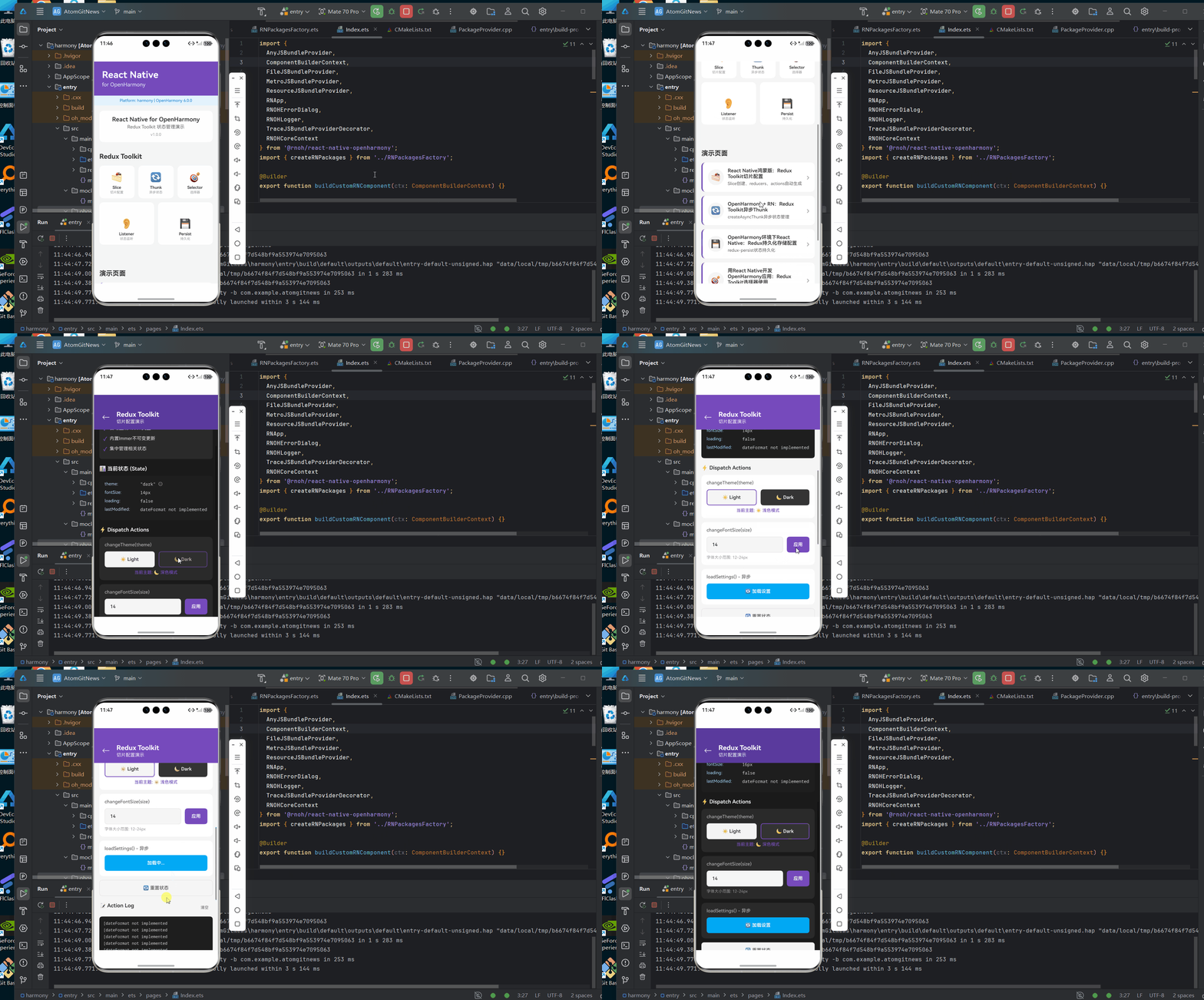
以下是在OpenHarmony 6.0.0平台上实现用户配置管理的完整案例:
/**
 * ReduxToolkitSliceScreen - Redux Toolkit切片配置演示
 *
 * 来源: React Native鸿蒙版:Redux Toolkit切片配置
 * 网址: https://blog.csdn.net/2501_91746149/article/details/157541725
 *
 * @platform OpenHarmony 6.0.0 (API 20)
 * @react-native 0.72.5
 * @typescript 4.8.4
 *
 * @author pickstar
 * @date 2026-01-30
 */

import React, { useState } from 'react';
import {
  View,
  Text,
  StyleSheet,
  TouchableOpacity,
  ScrollView,
  TextInput,
} from 'react-native';

interface Props {
  onBack: () => void;
}

// 模拟Redux Store状态
interface UserSettings {
  theme: 'light' | 'dark';
  fontSize: number;
  lastModified?: number;
}

interface SettingsState {
  data: UserSettings;
  loading: boolean;
  error: string | null;
}

// 模拟初始状态
const initialState: SettingsState = {
  data: { theme: 'light', fontSize: 14 },
  loading: false,
  error: null,
};

const ReduxToolkitSliceScreen: React.FC<Props> = ({ onBack }) => {
  const [state, setState] = useState<SettingsState>(initialState);
  const [fontSizeInput, setFontSizeInput] = useState('14');
  const [actionLog, setActionLog] = useState<string[]>([]);

  // 根据主题动态计算样式
  const dynamicStyles = {
    container: { backgroundColor: state.data.theme === 'dark' ? '#1a1a1a' : '#f5f5f5' },
    content: { backgroundColor: state.data.theme === 'dark' ? '#1a1a1a' : '#f5f5f5' },
    conceptHeader: { backgroundColor: state.data.theme === 'dark' ? '#2a2a2a' : '#ffffff' },
    conceptTitle: { color: state.data.theme === 'dark' ? '#ffffff' : '#333333' },
    conceptDesc: { color: state.data.theme === 'dark' ? '#aaaaaa' : '#666666' },
    featureList: { backgroundColor: state.data.theme === 'dark' ? '#2a2a2a' : '#f9f9f9' },
    featureText: { color: state.data.theme === 'dark' ? '#e0e0e0' : '#333333' },
    sectionTitle: { color: state.data.theme === 'dark' ? '#ffffff' : '#333333' },
    actionGroup: { backgroundColor: state.data.theme === 'dark' ? '#2a2a2a' : '#ffffff' },
    actionLabel: { color: state.data.theme === 'dark' ? '#aaaaaa' : '#666666' },
  };

  // 模拟Redux action: changeTheme
  const dispatchChangeTheme = (theme: 'light' | 'dark') => {
    setState((prev) => ({
      ...prev,
      data: { ...prev.data, theme, lastModified: Date.now() },
    }));
    setActionLog((prev) => [
      ...prev,
      `[${new Date().toLocaleTimeString()}] dispatch(changeTheme('${theme}'))`,
    ]);
  };

  // 模拟Redux action: changeFontSize
  const dispatchChangeFontSize = (size: number) => {
    const clampedSize = Math.max(12, Math.min(24, size));
    setState((prev) => ({
      ...prev,
      data: { ...prev.data, fontSize: clampedSize, lastModified: Date.now() },
    }));
    setActionLog((prev) => [
      ...prev,
      `[${new Date().toLocaleTimeString()}] dispatch(changeFontSize(${clampedSize}))`,
    ]);
  };

  // 模拟异步action: loadSettings
  const dispatchLoadSettings = () => {
    setState((prev) => ({ ...prev, loading: true, error: null }));
    setActionLog((prev) => [
      ...prev,
      `[${new Date().toLocaleTimeString()}] dispatch(loadSettings.pending())`,
    ]);

    setTimeout(() => {
      setState((prev) => ({
        ...prev,
        loading: false,
        data: { theme: 'dark', fontSize: 16, lastModified: Date.now() },
      }));
      setActionLog((prev) => [
        ...prev,
        `[${new Date().toLocaleTimeString()}] dispatch(loadSettings.fulfilled())`,
      ]);
    }, 1500);
  };

  // 模拟重置
  const dispatchReset = () => {
    setState(initialState);
    setActionLog((prev) => [
      ...prev,
      `[${new Date().toLocaleTimeString()}] dispatch(reset())`,
    ]);
  };

  return (
    <View style={[styles.container, dynamicStyles.container]}>
      {/* 顶部导航栏 */}
      <View style={[styles.header, state.data.theme === 'dark' && styles.headerDark]}>
        <TouchableOpacity onPress={onBack} style={styles.backButton}>
          <Text style={styles.backIcon}>←</Text>
        </TouchableOpacity>
        <View style={styles.headerContent}>
          <Text style={styles.headerTitle}>Redux Toolkit</Text>
          <Text style={styles.headerSubtitle}>切片配置演示</Text>
        </View>
      </View>

      <ScrollView style={[styles.content, dynamicStyles.content]}>
        {/* Slice概念介绍 */}
        <View style={styles.section}>
          <View style={[styles.conceptHeader, dynamicStyles.conceptHeader]}>
            <Text style={styles.conceptIcon}>🍰</Text>
            <View style={styles.conceptHeaderContent}>
              <Text style={[styles.conceptTitle, dynamicStyles.conceptTitle]}>Slice 切片概念</Text>
              <Text style={[styles.conceptDesc, dynamicStyles.conceptDesc]}>自动化处理Reducer和Action创建</Text>
            </View>
          </View>
          <View style={[styles.featureList, dynamicStyles.featureList]}>
            <View style={styles.featureItem}>
              <Text style={styles.featureIcon}>✓</Text>
              <Text style={[styles.featureText, dynamicStyles.featureText]}>自动生成Action类型</Text>
            </View>
            <View style={styles.featureItem}>
              <Text style={styles.featureIcon}>✓</Text>
              <Text style={[styles.featureText, dynamicStyles.featureText]}>内置Immer不可变更新</Text>
            </View>
            <View style={styles.featureItem}>
              <Text style={styles.featureIcon}>✓</Text>
              <Text style={[styles.featureText, dynamicStyles.featureText]}>集中管理相关状态</Text>
            </View>
          </View>
        </View>

        {/* 当前状态展示 */}
        <View style={styles.section}>
          <Text style={[styles.sectionTitle, dynamicStyles.sectionTitle]}>📊 当前状态 (State)</Text>
          <View style={styles.stateCard}>
            <View style={styles.stateRow}>
              <Text style={styles.stateLabel}>theme:</Text>
              <View style={styles.stateValue}>
                <Text style={styles.codeText}>
                  "{state.data.theme}"
                </Text>
                <View
                  style={[
                    styles.themeIndicator,
                    state.data.theme === 'dark' && styles.themeIndicatorDark,
                  ]}
                />
              </View>
            </View>
            <View style={styles.stateRow}>
              <Text style={styles.stateLabel}>fontSize:</Text>
              <Text style={styles.codeText}>{state.data.fontSize}px</Text>
            </View>
            <View style={styles.stateRow}>
              <Text style={styles.stateLabel}>loading:</Text>
              <Text style={styles.codeText}>{String(state.loading)}</Text>
            </View>
            {state.data.lastModified && (
              <View style={styles.stateRow}>
                <Text style={styles.stateLabel}>lastModified:</Text>
                <Text style={styles.codeText}>
                  {new Date(state.data.lastModified).toLocaleTimeString()}
                </Text>
              </View>
            )}
          </View>
        </View>

        {/* Actions操作区 */}
        <View style={styles.section}>
          <Text style={[styles.sectionTitle, dynamicStyles.sectionTitle]}>⚡ Dispatch Actions</Text>

          {/* changeTheme action */}
          <View style={[styles.actionGroup, dynamicStyles.actionGroup]}>
            <Text style={[styles.actionLabel, dynamicStyles.actionLabel]}>changeTheme(theme)</Text>
            <View style={styles.buttonRow}>
              <TouchableOpacity
                style={[
                  styles.actionButton,
                  styles.lightButton,
                  state.data.theme === 'light' && styles.themeButtonActive,
                ]}
                onPress={() => dispatchChangeTheme('light')}
              >
                <Text style={styles.lightButtonText}>☀️ Light</Text>
              </TouchableOpacity>
              <TouchableOpacity
                style={[
                  styles.actionButton,
                  styles.darkButton,
                  state.data.theme === 'dark' && styles.themeButtonActive,
                ]}
                onPress={() => dispatchChangeTheme('dark')}
              >
                <Text style={styles.darkButtonText}>🌙 Dark</Text>
              </TouchableOpacity>
            </View>
            <Text style={styles.currentThemeText}>
              当前主题: {state.data.theme === 'light' ? '☀️ 浅色模式' : '🌙 深色模式'}
            </Text>
          </View>

          {/* changeFontSize action */}
          <View style={[styles.actionGroup, dynamicStyles.actionGroup]}>
            <Text style={[styles.actionLabel, dynamicStyles.actionLabel]}>changeFontSize(size)</Text>
            <View style={styles.inputRow}>
              <TextInput
                style={styles.input}
                value={fontSizeInput}
                onChangeText={setFontSizeInput}
                keyboardType="number-pad"
                placeholder="12-24"
              />
              <TouchableOpacity
                style={styles.applyButton}
                onPress={() => {
                  const size = parseInt(fontSizeInput, 10);
                  if (!isNaN(size)) {
                    dispatchChangeFontSize(size);
                  }
                }}
              >
                <Text style={styles.applyButtonText}>应用</Text>
              </TouchableOpacity>
            </View>
            <Text style={styles.hintText}>字体大小范围: 12-24px</Text>
          </View>

          {/* loadSettings async action */}
          <View style={[styles.actionGroup, dynamicStyles.actionGroup]}>
            <Text style={[styles.actionLabel, dynamicStyles.actionLabel]}>loadSettings() - 异步</Text>
            <TouchableOpacity
              style={[styles.actionButton, styles.asyncButton]}
              onPress={dispatchLoadSettings}
              disabled={state.loading}
            >
              <Text style={styles.asyncButtonText}>
                {state.loading ? '加载中...' : '🔄 加载设置'}
              </Text>
            </TouchableOpacity>
          </View>

          {/* reset action */}
          <TouchableOpacity
            style={[styles.actionButton, styles.resetButton]}
            onPress={dispatchReset}
          >
            <Text style={styles.resetButtonText}>🔄 重置状态</Text>
          </TouchableOpacity>
        </View>

        {/* Action日志 */}
        <View style={styles.section}>
          <View style={styles.logHeader}>
            <Text style={[styles.sectionTitle, dynamicStyles.sectionTitle]}>📝 Action Log</Text>
            <TouchableOpacity
              style={styles.clearButton}
              onPress={() => setActionLog([])}
            >
              <Text style={styles.clearButtonText}>清空</Text>
            </TouchableOpacity>
          </View>
          <View style={styles.logContainer}>
            {actionLog.length === 0 ? (
              <Text style={styles.emptyLog}>暂无Action记录</Text>
            ) : (
              actionLog.map((log, index) => (
                <Text key={index} style={styles.logText}>
                  {log}
                </Text>
              ))
            )}
          </View>
        </View>

        {/* 代码示例 */}
        <View style={styles.section}>
          <Text style={[styles.sectionTitle, dynamicStyles.sectionTitle]}>📄 Slice代码示例</Text>
          <View style={styles.codeBlock}>
            <Text style={styles.codeText}>
{`const settingsSlice = createSlice({
  name: 'settings',
  initialState,
  reducers: {
    changeTheme(state, action) {
      state.data.theme = action.payload
      state.data.lastModified = Date.now()
    },
    changeFontSize(state, action) {
      state.data.fontSize = action.payload
    }
  }
})`}
            </Text>
          </View>
        </View>
      </ScrollView>
    </View>
  );
};

const styles = StyleSheet.create({
  container: {
    flex: 1,
    backgroundColor: '#f5f5f5',
  },
  header: {
    flexDirection: 'row',
    alignItems: 'center',
    backgroundColor: '#764ABC',
    paddingTop: 48,
    paddingBottom: 16,
    paddingHorizontal: 16,
    elevation: 4,
    shadowColor: '#000',
    shadowOffset: { width: 0, height: 2 },
    shadowOpacity: 0.2,
    shadowRadius: 4,
  },
  headerDark: {
    backgroundColor: '#5a3a9e',
  },
  backButton: {
    width: 40,
    height: 40,
    justifyContent: 'center',
    alignItems: 'center',
    marginRight: 12,
  },
  backIcon: {
    fontSize: 24,
    color: '#ffffff',
    fontWeight: '300',
  },
  headerContent: {
    flex: 1,
  },
  headerTitle: {
    fontSize: 20,
    fontWeight: '700',
    color: '#ffffff',
  },
  headerSubtitle: {
    fontSize: 14,
    color: '#ffffff',
    opacity: 0.9,
    marginTop: 2,
  },
  content: {
    flex: 1,
    padding: 16,
  },
  section: {
    marginBottom: 20,
  },
  conceptHeader: {
    flexDirection: 'row',
    alignItems: 'center',
    backgroundColor: '#ffffff',
    borderRadius: 12,
    padding: 16,
    marginBottom: 12,
  },
  conceptIcon: {
    fontSize: 32,
    marginRight: 12,
  },
  conceptHeaderContent: {
    flex: 1,
  },
  conceptTitle: {
    fontSize: 16,
    fontWeight: '600',
    color: '#333',
    marginBottom: 4,
  },
  conceptDesc: {
    fontSize: 13,
    color: '#666',
  },
  featureList: {
    backgroundColor: '#f9f9f9',
    borderRadius: 8,
    padding: 12,
  },
  featureItem: {
    flexDirection: 'row',
    alignItems: 'center',
    marginBottom: 8,
  },
  featureIcon: {
    fontSize: 16,
    color: '#764ABC',
    marginRight: 8,
    fontWeight: '700',
  },
  featureText: {
    fontSize: 14,
    color: '#333',
  },
  sectionTitle: {
    fontSize: 16,
    fontWeight: '600',
    color: '#333',
    marginBottom: 12,
  },
  stateCard: {
    backgroundColor: '#1e1e1e',
    borderRadius: 8,
    padding: 16,
  },
  stateRow: {
    flexDirection: 'row',
    alignItems: 'center',
    marginBottom: 8,
  },
  stateLabel: {
    fontSize: 13,
    color: '#9cdcfe',
    marginRight: 8,
    width: 100,
  },
  stateValue: {
    flexDirection: 'row',
    alignItems: 'center',
  },
  codeText: {
    fontSize: 13,
    color: '#d4d4d4',
    fontFamily: 'monospace',
  },
  themeIndicator: {
    width: 12,
    height: 12,
    borderRadius: 6,
    backgroundColor: '#f0f0f0',
    marginLeft: 8,
    borderWidth: 1,
    borderColor: '#666',
  },
  themeIndicatorDark: {
    backgroundColor: '#333',
    borderColor: '#999',
  },
  actionGroup: {
    backgroundColor: '#ffffff',
    borderRadius: 12,
    padding: 16,
    marginBottom: 12,
  },
  actionLabel: {
    fontSize: 14,
    fontWeight: '500',
    color: '#666',
    marginBottom: 12,
  },
  buttonRow: {
    flexDirection: 'row',
    gap: 12,
  },
  actionButton: {
    flex: 1,
    padding: 14,
    borderRadius: 8,
    alignItems: 'center',
    justifyContent: 'center',
    minHeight: 48,
  },
  lightButton: {
    backgroundColor: '#f5f5f5',
    borderWidth: 1,
    borderColor: '#e0e0e0',
  },
  lightButtonText: {
    fontSize: 14,
    fontWeight: '600',
    color: '#333',
  },
  darkButton: {
    backgroundColor: '#333',
  },
  darkButtonText: {
    fontSize: 14,
    fontWeight: '600',
    color: '#ffffff',
  },
  inputRow: {
    flexDirection: 'row',
    alignItems: 'center',
    gap: 12,
  },
  input: {
    flex: 1,
    height: 48,
    backgroundColor: '#f5f5f5',
    borderRadius: 8,
    paddingHorizontal: 16,
    fontSize: 14,
    borderWidth: 1,
    borderColor: '#e0e0e0',
  },
  applyButton: {
    paddingHorizontal: 20,
    height: 48,
    backgroundColor: '#764ABC',
    borderRadius: 8,
    justifyContent: 'center',
  },
  applyButtonText: {
    fontSize: 14,
    fontWeight: '600',
    color: '#ffffff',
  },
  hintText: {
    fontSize: 12,
    color: '#999',
    marginTop: 8,
  },
  asyncButton: {
    backgroundColor: '#03A9F4',
  },
  asyncButtonText: {
    fontSize: 14,
    fontWeight: '600',
    color: '#ffffff',
  },
  resetButton: {
    backgroundColor: '#f5f5f5',
    borderWidth: 1,
    borderColor: '#e0e0e0',
  },
  resetButtonText: {
    fontSize: 14,
    fontWeight: '600',
    color: '#666',
  },
  logHeader: {
    flexDirection: 'row',
    justifyContent: 'space-between',
    alignItems: 'center',
    marginBottom: 12,
  },
  clearButton: {
    paddingHorizontal: 12,
    paddingVertical: 6,
    backgroundColor: '#f5f5f5',
    borderRadius: 6,
  },
  clearButtonText: {
    fontSize: 12,
    color: '#666',
  },
  logContainer: {
    backgroundColor: '#1e1e1e',
    borderRadius: 8,
    padding: 12,
    minHeight: 100,
    maxHeight: 200,
  },
  emptyLog: {
    fontSize: 13,
    color: '#666',
    textAlign: 'center',
    fontStyle: 'italic',
  },
  logText: {
    fontSize: 12,
    color: '#d4d4d4',
    fontFamily: 'monospace',
    marginBottom: 4,
  },
  codeBlock: {
    backgroundColor: '#1e1e1e',
    borderRadius: 8,
    padding: 16,
    overflow: 'hidden',
  },
  themeButtonActive: {
    borderWidth: 2,
    borderColor: '#764ABC',
  },
  currentThemeText: {
    fontSize: 13,
    color: '#764ABC',
    textAlign: 'center',
    marginTop: 8,
    fontWeight: '500',
  },
});

export default ReduxToolkitSliceScreen;
5. OpenHarmony 6.0.0平台特定注意事项
5.1 异步操作适配
在鸿蒙平台上使用createAsyncThunk需注意:
- 任务优先级:鸿蒙系统会根据任务类型分配优先级
- 线程安全:避免在Reducer中直接调用鸿蒙API
- 超时处理:设置合理的timeout防止阻塞UI线程
5.2 持久化存储优化
针对鸿蒙设备的存储特性:
- 存储配额:单应用最大存储限制为100MB
- 加密存储:敏感数据应使用
ohos.security.crypto加密 - 性能优化:批量操作使用事务API
| 操作类型 | 推荐API | 性能影响 |
|---|---|---|
| 单次读取 | storage.get | 低 |
| 批量读取 | relationalStore.query | 高 |
| 单次写入 | storage.set | 中 |
| 批量写入 | relationalStore.insert | 最高 |
5.3 内存管理策略
在鸿蒙设备上优化内存使用:
- 状态树压缩:使用
createEntityAdapter管理大型数据集 - 懒加载切片:动态注入Slice减少初始内存占用
- 定时清理:设置超时自动清除非活跃状态
5.4 调试与监控
鸿蒙平台专用调试方案:
- 鸿蒙开发者工具:使用DevEco Studio状态监控
- Redux中间件:集成
redux-flipper进行远程调试 - 性能分析:使用
ohos.hiviewdfx.hiTrace追踪状态变更
结论
本文系统介绍了在OpenHarmony 6.0.0平台上使用Redux Toolkit进行状态管理的最佳实践。通过切片机制,开发者可以显著提升鸿蒙应用的开发效率和性能表现。特别需要注意的是:
- 充分利用
createAsyncThunk处理鸿蒙原生API的异步调用 - 根据鸿蒙存储特性设计合理的持久化策略
- 针对内存受限设备优化状态树结构
- 使用类型系统保障跨平台代码质量
随着OpenHarmony生态的不断发展,React Native与Redux Toolkit的组合将成为鸿蒙应用开发的重要技术栈。后续可探索的方向包括鸿蒙原子化服务与Redux的状态共享、跨设备状态同步等高级应用场景。

开源鸿蒙跨平台开发社区汇聚开发者与厂商,共建“一次开发,多端部署”的开源生态,致力于降低跨端开发门槛,推动万物智联创新。
更多推荐

 17
17 0
0- 0


 已为社区贡献24条内容

所有评论(0)