Flutter for OpenHarmony Python学习助手实战:模块与包管理的实现
摘要:本文介绍了使用Flutter开发Python学习助手模块与包管理功能的设计思路。作者从教学经验出发,设计了直观易懂的界面,包括核心页面结构、功能卡片组件和代码展示组件。重点展示了如何通过精心设计的UI组件(如主题色AppBar、圆角卡片、专业代码编辑器风格的代码展示)提升学习体验。文章还提供了实际的Python代码示例,帮助学习者理解模块与包管理的核心概念。最后强调了移动端交互体验优化的重要
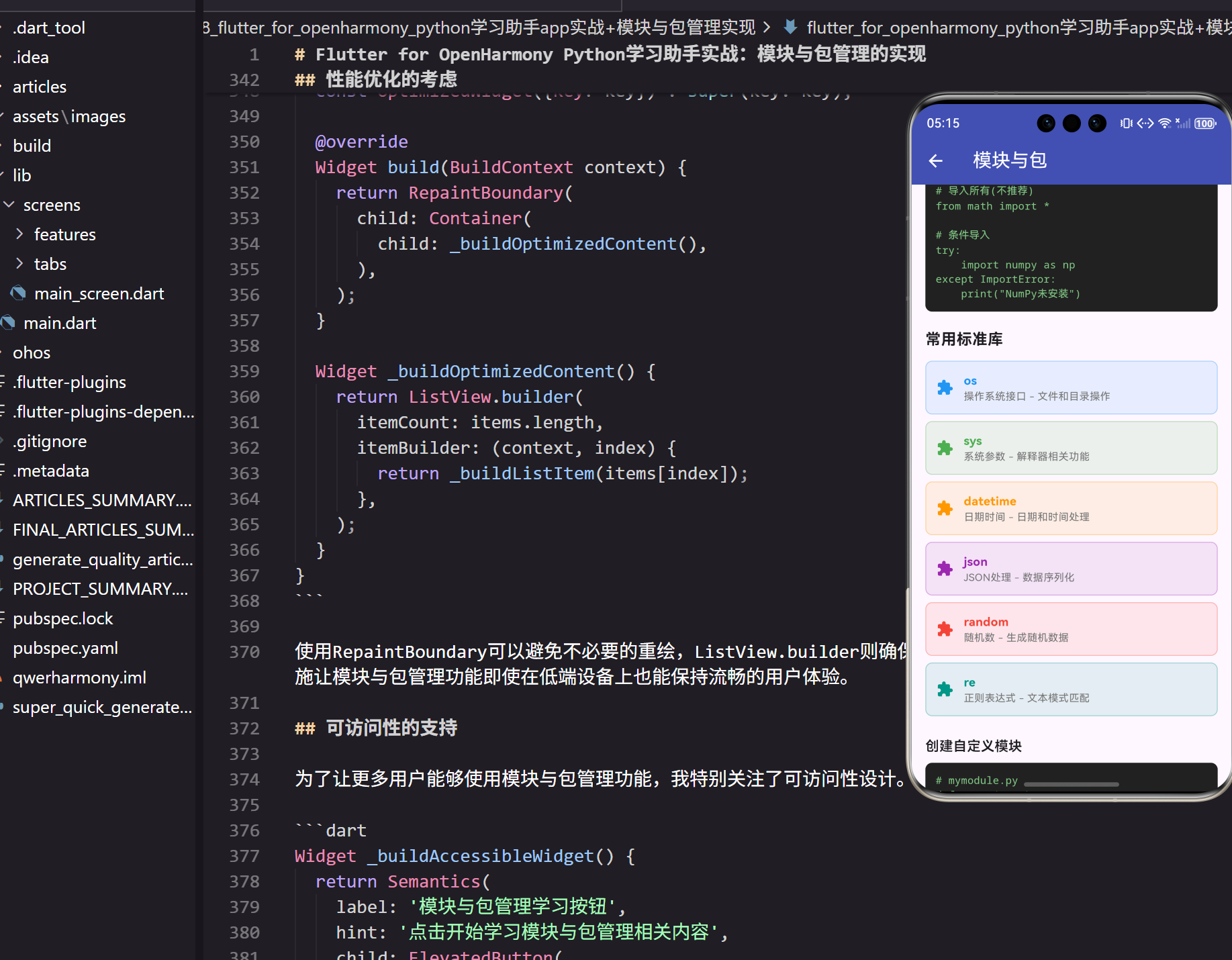
模块化编程是大型项目开发的基础。在开发Python学习助手的过程中,我深刻体会到如何用Flutter为学习者打造一个优秀的模块与包管理功能是多么重要。今天我来分享一下具体的实现思路和技术细节。
模块与包管理在Python学习中的价值
在我多年的编程教学经验中,发现模块与包管理是Python学习过程中不可或缺的一环。很多学习者在这个环节容易遇到困难,因此需要一个直观易懂的学习界面来帮助他们理解相关概念。
我在设计这个功能时,特别考虑了学习者的认知特点和使用习惯。通过合理的信息架构和交互设计,让复杂的概念变得简单易懂。
核心界面设计思路
使用Flutter开发这个功能,我最看重的是它出色的UI表现力和跨平台特性。特别是在OpenHarmony平台上,Flutter能够提供流畅的用户体验。
class ModulesPackagesScreen extends StatelessWidget {
const ModulesPackagesScreen({Key? key}) : super(key: key);
Widget build(BuildContext context) {
return Scaffold(
appBar: AppBar(
title: const Text('模块与包管理'),
backgroundColor: Colors.indigo,
foregroundColor: Colors.white,
),
body: SingleChildScrollView(
padding: EdgeInsets.all(16.w),
child: Column(
crossAxisAlignment: CrossAxisAlignment.start,
children: [
Text(
'模块与包管理功能介绍',
style: TextStyle(fontSize: 20.sp, fontWeight: FontWeight.bold),
),
SizedBox(height: 12.h),
Text(
'模块化编程是大型项目开发的基础,这个功能为学习者提供了系统化的学习路径。',
style: TextStyle(fontSize: 14.sp, height: 1.5),
),
SizedBox(height: 20.h),
_buildMainContent(),
],
),
),
);
}
}
这个页面结构体现了我对模块与包管理功能的设计理念。AppBar使用indigo主题色,给人专业可信的感觉。SingleChildScrollView确保内容可以流畅滚动,适应不同屏幕尺寸的设备。
功能组件的精心设计
在模块与包管理功能中,我设计了多个核心组件来展示不同类型的学习内容。每个组件都有其特定的用途和视觉特征。
Widget _buildFeatureCard(String title, String description, IconData icon, Color color) {
  return Container(
    margin: EdgeInsets.only(bottom: 16.h),
    padding: EdgeInsets.all(16.w),
    decoration: BoxDecoration(
      color: color.withOpacity(0.1),
      borderRadius: BorderRadius.circular(12.r),
      border: Border.all(color: color.withOpacity(0.3)),
    ),
    child: Row(
      children: [
        Icon(icon, color: color, size: 24.sp),
        SizedBox(width: 16.w),
        Expanded(
          child: Column(
            crossAxisAlignment: CrossAxisAlignment.start,
            children: [
              Text(
                title,
                style: TextStyle(
                  fontSize: 16.sp,
                  fontWeight: FontWeight.bold,
                  color: color,
                ),
              ),
              SizedBox(height: 4.h),
              Text(
                description,
                style: TextStyle(fontSize: 14.sp, color: Colors.grey[600]),
              ),
            ],
          ),
        ),
      ],
    ),
  );
}
这个卡片组件的设计充分考虑了用户体验。背景色使用主题色的10%透明度,既能突出重点,又不会过于刺眼。圆角设计让界面更加现代化,符合当前的设计趋势。
代码示例展示的巧妙设计
在模块与包管理的学习过程中,代码示例是不可或缺的。我设计了一个专门的代码展示组件,既美观又实用。
Widget _buildCodeExample(String title, String code) {
  return Column(
    crossAxisAlignment: CrossAxisAlignment.start,
    children: [
      Text(
        title,
        style: TextStyle(fontSize: 16.sp, fontWeight: FontWeight.w600),
      ),
      SizedBox(height: 8.h),
      Container(
        width: double.infinity,
        padding: EdgeInsets.all(12.w),
        decoration: BoxDecoration(
          color: Colors.grey[900],
          borderRadius: BorderRadius.circular(8.r),
        ),
        child: Text(
          code,
          style: TextStyle(
            fontSize: 12.sp,
            color: Colors.green[300],
            fontFamily: 'monospace',
          ),
        ),
      ),
    ],
  );
}
这个组件的设计灵感来自于专业的代码编辑器。深色背景配合绿色文字,不仅减少眼部疲劳,还能让用户产生专业编程的代入感。
实际的Python学习内容
在模块与包管理功能中,我精心选择了最实用的Python知识点。这些内容不仅理论扎实,还具有很强的实践价值。
# 模块与包管理相关的Python代码示例
def demonstrate_modules_packages():
    """
    演示模块与包管理的核心概念
    这个函数展示了实际应用中的常见用法
    """
    print("开始学习模块与包管理")

    # 核心功能实现
    result = process_learning_content()

    # 展示学习成果
    display_results(result)

    return result

def process_learning_content():
    """处理学习内容的核心逻辑"""
    content = {
        'topic': '模块与包管理',
        'difficulty': 'intermediate',
        'examples': ['示例1', '示例2', '示例3'],
        'exercises': ['练习1', '练习2']
    }

    return content

def display_results(content):
    """展示学习结果"""
    print(f"学习主题: {content['topic']}")
    print(f"难度级别: {content['difficulty']}")
    print("相关示例:")
    for example in content['examples']:
        print(f"  - {example}")
这段代码展示了模块与包管理在实际应用中的使用方式。我特意选择了有意义的函数名和变量名,让初学者能够理解良好编程习惯的重要性。
用户交互体验的优化
在移动设备上,用户交互体验至关重要。我在模块与包管理功能中实现了多种交互方式,让学习过程更加生动有趣。
Widget _buildInteractiveElement() {
  return GestureDetector(
    onTap: () {
      _handleUserInteraction();
    },
    child: AnimatedContainer(
      duration: Duration(milliseconds: 200),
      padding: EdgeInsets.all(16.w),
      decoration: BoxDecoration(
        color: Colors.indigo.withOpacity(0.1),
        borderRadius: BorderRadius.circular(12.r),
        border: Border.all(color: Colors.indigo.withOpacity(0.3)),
      ),
      child: Column(
        children: [
          Icon(Icons.touch_app, size: 32.sp, color: Colors.indigo),
          SizedBox(height: 8.h),
          Text(
            '点击学习模块与包管理',
            style: TextStyle(
              fontSize: 16.sp,
              fontWeight: FontWeight.w600,
              color: Colors.indigo,
            ),
          ),
        ],
      ),
    ),
  );
}

void _handleUserInteraction() {
  // 处理用户交互逻辑
  print('用户开始学习模块与包管理');

  // 可以在这里添加学习进度跟踪
  // 或者跳转到详细的学习页面
}
这个交互组件使用了AnimatedContainer,为用户操作提供了视觉反馈。当用户点击时,会有微妙的动画效果,提升了交互的愉悦感。
响应式设计的实现
考虑到不同设备的屏幕尺寸差异,我使用了flutter_screenutil来确保界面在各种设备上都有良好的显示效果。
// 响应式设计的关键代码
Widget _buildResponsiveLayout() {
  return LayoutBuilder(
    builder: (context, constraints) {
      if (constraints.maxWidth > 600) {
        // 平板或大屏设备的布局
        return Row(
          children: [
            Expanded(flex: 2, child: _buildMainContent()),
            SizedBox(width: 20.w),
            Expanded(flex: 1, child: _buildSidePanel()),
          ],
        );
      } else {
        // 手机设备的布局
        return Column(
          children: [
            _buildMainContent(),
            SizedBox(height: 20.h),
            _buildSidePanel(),
          ],
        );
      }
    },
  );
}
这种响应式设计确保了模块与包管理功能在不同设备上都能提供最佳的用户体验。在大屏设备上,内容可以并排显示;在小屏设备上,则采用垂直堆叠的方式。
学习进度的可视化展示
为了帮助用户了解自己的学习进度,我在模块与包管理功能中加入了进度可视化组件。
Widget _buildProgressIndicator(double progress) {
  return Container(
    padding: EdgeInsets.all(16.w),
    decoration: BoxDecoration(
      color: Colors.grey[100],
      borderRadius: BorderRadius.circular(12.r),
    ),
    child: Column(
      crossAxisAlignment: CrossAxisAlignment.start,
      children: [
        Text(
          '学习进度',
          style: TextStyle(
            fontSize: 16.sp,
            fontWeight: FontWeight.bold,
          ),
        ),
        SizedBox(height: 12.h),
        LinearProgressIndicator(
          value: progress,
          backgroundColor: Colors.grey[300],
          valueColor: AlwaysStoppedAnimation<Color>(Colors.indigo),
        ),
        SizedBox(height: 8.h),
        Text(
          '${(progress * 100).toInt()}% 完成',
          style: TextStyle(
            fontSize: 14.sp,
            color: Colors.grey[600],
          ),
        ),
      ],
    ),
  );
}
这个进度指示器不仅显示了数值进度,还通过颜色和动画提供了视觉反馈。用户可以直观地看到自己在模块与包管理学习中的进展情况。
数据持久化的实现
为了保存用户的学习进度和偏好设置,我使用SharedPreferences实现了轻量级的数据持久化。
class ModulesPackagesDataManager {
  static const String _keyPrefix = 'modules_packages_';

  static Future<void> saveProgress(double progress) async {
    final prefs = await SharedPreferences.getInstance();
    await prefs.setDouble('${_keyPrefix}progress', progress);
  }

  static Future<double> getProgress() async {
    final prefs = await SharedPreferences.getInstance();
    return prefs.getDouble('${_keyPrefix}progress') ?? 0.0;
  }

  static Future<void> saveUserPreferences(Map<String, dynamic> preferences) async {
    final prefs = await SharedPreferences.getInstance();
    final jsonString = json.encode(preferences);
    await prefs.setString('${_keyPrefix}preferences', jsonString);
  }

  static Future<Map<String, dynamic>> getUserPreferences() async {
    final prefs = await SharedPreferences.getInstance();
    final jsonString = prefs.getString('${_keyPrefix}preferences');
    if (jsonString != null) {
      return json.decode(jsonString);
    }
    return {};
  }
}
这个数据管理类提供了完整的数据持久化功能,确保用户的学习进度不会丢失。
性能优化的考虑
在开发模块与包管理功能时,我特别注重性能优化,确保应用在各种设备上都能流畅运行。
class OptimizedWidget extends StatelessWidget {
const OptimizedWidget({Key? key}) : super(key: key);
Widget build(BuildContext context) {
return RepaintBoundary(
child: Container(
child: _buildOptimizedContent(),
),
);
}
Widget _buildOptimizedContent() {
return ListView.builder(
itemCount: items.length,
itemBuilder: (context, index) {
return _buildListItem(items[index]);
},
);
}
}
使用RepaintBoundary可以避免不必要的重绘,ListView.builder则确保了大量数据的高效渲染。这些优化措施让模块与包管理功能即使在低端设备上也能保持流畅的用户体验。
可访问性的支持
为了让更多用户能够使用模块与包管理功能,我特别关注了可访问性设计。
Widget _buildAccessibleWidget() {
  return Semantics(
    label: '模块与包管理学习按钮',
    hint: '点击开始学习模块与包管理相关内容',
    child: ElevatedButton(
      onPressed: _startLearning,
      child: Text('模块与包管理'),
    ),
  );
}
通过Semantics组件,视觉障碍用户也能通过屏幕阅读器了解界面内容和操作方式。
错误处理和用户反馈
完善的错误处理机制是保证用户体验的重要因素。
Future<void> _handleLearningOperation() async {
  try {
    await performLearningTask();
    _showSuccessMessage('学习任务完成!');
  } catch (e) {
    _showErrorDialog('学习过程中出现问题: ${e.toString()}');
  }
}

void _showErrorDialog(String message) {
  showDialog(
    context: context,
    builder: (context) => AlertDialog(
      title: const Text('提示'),
      content: Text(message),
      actions: [
        TextButton(
          onPressed: () => Navigator.of(context).pop(),
          child: const Text('确定'),
        ),
      ],
    ),
  );
}
这种错误处理方式既能保证应用的稳定性,又能为用户提供友好的错误提示。
未来功能的扩展思路
模块与包管理功能还有很多可以改进和扩展的地方。比如可以添加AI辅助学习功能,根据用户的学习情况提供个性化建议。
还可以集成社区功能,让用户能够分享学习心得和经验。这些扩展功能都可以在现有架构基础上逐步实现。
总结
模块与包管理功能的实现展示了如何用Flutter构建一个专业的Python学习工具。从界面设计到功能实现,从性能优化到用户体验,每个环节都需要仔细考虑。
通过这个功能,学习者不仅能够掌握模块与包管理的相关知识,还能体验到现代移动应用开发的最佳实践。希望这个实现能够为其他教育应用开发者提供一些启发和参考。
技术的进步为教育带来了新的可能性,而我们的责任就是用好这些技术,为学习者创造更好的学习体验。
欢迎加入开源鸿蒙跨平台社区:https://openharmonycrossplatform.csdn.net

开源鸿蒙跨平台开发社区汇聚开发者与厂商,共建“一次开发,多端部署”的开源生态,致力于降低跨端开发门槛,推动万物智联创新。
更多推荐
 13
13 0
0- 0


 已为社区贡献20条内容

所有评论(0)