Flutter for OpenHarmony PUBG游戏助手App实战:灵敏度计算器实现
灵敏度是影响游戏表现的关键因素。不同的鼠标DPI和游戏内灵敏度组合会产生不同的有效DPI(eDPI)。今天我们来实现一个实用的灵敏度计算器。
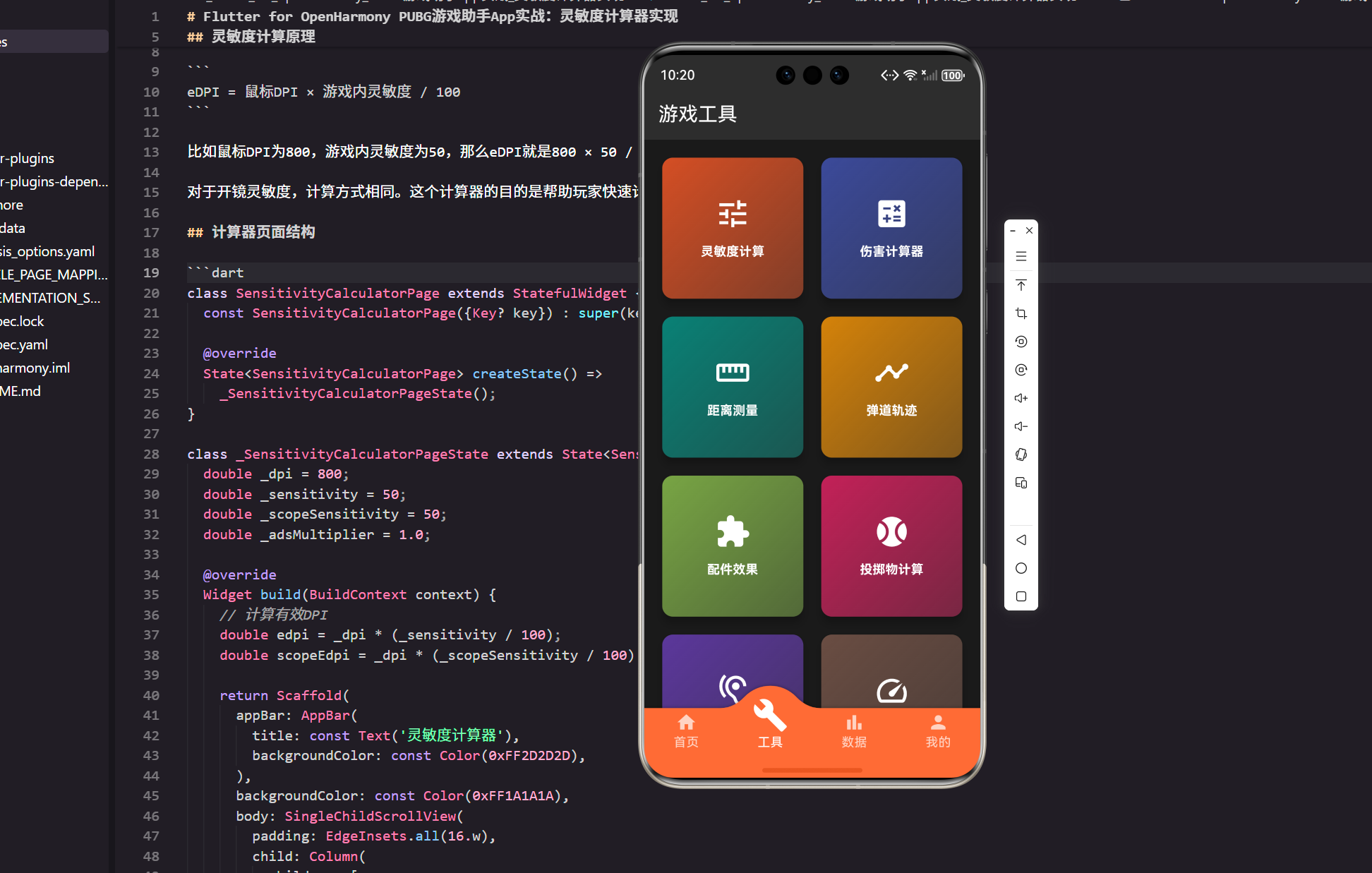
灵敏度是影响游戏表现的关键因素。不同的鼠标DPI和游戏内灵敏度组合会产生不同的有效DPI(eDPI)。今天我们来实现一个实用的灵敏度计算器。
灵敏度计算原理
有效DPI的计算公式很简单:
eDPI = 鼠标DPI × 游戏内灵敏度 / 100
比如鼠标DPI为800,游戏内灵敏度为50,那么eDPI就是800 × 50 / 100 = 400。
对于开镜灵敏度,计算方式相同。这个计算器的目的是帮助玩家快速计算和对比不同的灵敏度组合。
计算器页面结构
class SensitivityCalculatorPage extends StatefulWidget {
const SensitivityCalculatorPage({Key? key}) : super(key: key);
State<SensitivityCalculatorPage> createState() =>
_SensitivityCalculatorPageState();
}
class _SensitivityCalculatorPageState extends State<SensitivityCalculatorPage> {
double _dpi = 800;
double _sensitivity = 50;
double _scopeSensitivity = 50;
double _adsMultiplier = 1.0;
Widget build(BuildContext context) {
// 计算有效DPI
double edpi = _dpi * (_sensitivity / 100);
double scopeEdpi = _dpi * (_scopeSensitivity / 100) * _adsMultiplier;
return Scaffold(
appBar: AppBar(
title: const Text('灵敏度计算器'),
backgroundColor: const Color(0xFF2D2D2D),
),
backgroundColor: const Color(0xFF1A1A1A),
body: SingleChildScrollView(
padding: EdgeInsets.all(16.w),
child: Column(
children: [
_buildDpiSection(),
SizedBox(height: 20.h),
_buildSensitivitySection(),
SizedBox(height: 20.h),
_buildScopeSensitivitySection(),
SizedBox(height: 20.h),
_buildResultSection(edpi, scopeEdpi),
],
),
),
);
}
}
状态管理:使用StatefulWidget管理三个主要参数:鼠标DPI、游戏内灵敏度、开镜灵敏度。
实时计算:在build方法中实时计算eDPI,用户调整参数时立即看到结果。
DPI设置模块
Widget _buildDpiSection() {
  return Card(
    color: const Color(0xFF2D2D2D),
    child: Padding(
      padding: EdgeInsets.all(16.w),
      child: Column(
        crossAxisAlignment: CrossAxisAlignment.start,
        children: [
          Row(
            mainAxisAlignment: MainAxisAlignment.spaceBetween,
            children: [
              Text(
                '鼠标DPI',
                style: TextStyle(
                  color: Colors.white,
                  fontSize: 16.sp,
                  fontWeight: FontWeight.bold,
                ),
              ),
              Container(
                padding: EdgeInsets.symmetric(horizontal: 12.w, vertical: 6.h),
                decoration: BoxDecoration(
                  color: const Color(0xFFFF6B35),
                  borderRadius: BorderRadius.circular(8.r),
                ),
                child: Text(
                  _dpi.round().toString(),
                  style: TextStyle(
                    color: Colors.white,
                    fontSize: 14.sp,
                    fontWeight: FontWeight.bold,
                  ),
                ),
              ),
            ],
          ),
          SizedBox(height: 16.h),
          Slider(
            value: _dpi,
            min: 400,
            max: 3200,
            divisions: 28,
            activeColor: const Color(0xFFFF6B35),
            inactiveColor: Colors.white24,
            label: _dpi.round().toString(),
            onChanged: (value) => setState(() => _dpi = value),
          ),
          SizedBox(height: 12.h),
          Row(
            mainAxisAlignment: MainAxisAlignment.spaceBetween,
            children: [
              Text(
                '常见DPI预设',
                style: TextStyle(
                  color: Colors.white70,
                  fontSize: 12.sp,
                ),
              ),
            ],
          ),
          SizedBox(height: 8.h),
          Wrap(
            spacing: 8.w,
            runSpacing: 8.h,
            children: [400, 800, 1600, 3200].map((dpi) {
              return GestureDetector(
                onTap: () => setState(() => _dpi = dpi.toDouble()),
                child: Container(
                  padding: EdgeInsets.symmetric(horizontal: 12.w, vertical: 6.h),
                  decoration: BoxDecoration(
                    color: _dpi == dpi
                        ? const Color(0xFFFF6B35)
                        : Colors.white10,
                    borderRadius: BorderRadius.circular(6.r),
                    border: Border.all(
                      color: _dpi == dpi
                          ? const Color(0xFFFF6B35)
                          : Colors.white30,
                    ),
                  ),
                  child: Text(
                    '$dpi',
                    style: TextStyle(
                      color: Colors.white,
                      fontSize: 12.sp,
                      fontWeight: FontWeight.bold,
                    ),
                  ),
                );
              }).toList(),
            ),
          ),
        ],
      ),
    ),
  );
}
滑块设计:DPI范围从400到3200,这是大多数游戏鼠标的范围。divisions参数让滑块有28个刻度,提供精细的调整。
快速预设:提供常见DPI值的快速按钮,玩家可以一键设置。这样不用每次都拖动滑块。
实时显示:DPI值在卡片顶部实时显示,用户能清楚看到当前设置。
游戏内灵敏度模块
Widget _buildSensitivitySection() {
  return Card(
    color: const Color(0xFF2D2D2D),
    child: Padding(
      padding: EdgeInsets.all(16.w),
      child: Column(
        crossAxisAlignment: CrossAxisAlignment.start,
        children: [
          Row(
            mainAxisAlignment: MainAxisAlignment.spaceBetween,
            children: [
              Text(
                '游戏内灵敏度',
                style: TextStyle(
                  color: Colors.white,
                  fontSize: 16.sp,
                  fontWeight: FontWeight.bold,
                ),
              ),
              Container(
                padding: EdgeInsets.symmetric(horizontal: 12.w, vertical: 6.h),
                decoration: BoxDecoration(
                  color: const Color(0xFF4CAF50),
                  borderRadius: BorderRadius.circular(8.r),
                ),
                child: Text(
                  _sensitivity.round().toString(),
                  style: TextStyle(
                    color: Colors.white,
                    fontSize: 14.sp,
                    fontWeight: FontWeight.bold,
                  ),
                ),
              ),
            ],
          ),
          SizedBox(height: 16.h),
          Slider(
            value: _sensitivity,
            min: 1,
            max: 100,
            divisions: 99,
            activeColor: const Color(0xFF4CAF50),
            inactiveColor: Colors.white24,
            label: _sensitivity.round().toString(),
            onChanged: (value) => setState(() => _sensitivity = value),
          ),
          SizedBox(height: 12.h),
          Text(
            '提示:灵敏度越高,鼠标移动越快。新手建议从50开始调整。',
            style: TextStyle(
              color: Colors.white70,
              fontSize: 11.sp,
              height: 1.5,
            ),
          ),
        ],
      ),
    ),
  );
}
灵敏度范围:游戏内灵敏度通常是1-100的百分比。divisions设置为99,让用户能精细调整。
使用提示:提供新手建议,帮助玩家理解灵敏度的含义。
开镜灵敏度模块
Widget _buildScopeSensitivitySection() {
  return Card(
    color: const Color(0xFF2D2D2D),
    child: Padding(
      padding: EdgeInsets.all(16.w),
      child: Column(
        crossAxisAlignment: CrossAxisAlignment.start,
        children: [
          Row(
            mainAxisAlignment: MainAxisAlignment.spaceBetween,
            children: [
              Text(
                '开镜灵敏度',
                style: TextStyle(
                  color: Colors.white,
                  fontSize: 16.sp,
                  fontWeight: FontWeight.bold,
                ),
              ),
              Container(
                padding: EdgeInsets.symmetric(horizontal: 12.w, vertical: 6.h),
                decoration: BoxDecoration(
                  color: const Color(0xFF2196F3),
                  borderRadius: BorderRadius.circular(8.r),
                ),
                child: Text(
                  _scopeSensitivity.round().toString(),
                  style: TextStyle(
                    color: Colors.white,
                    fontSize: 14.sp,
                    fontWeight: FontWeight.bold,
                  ),
                ),
              ),
            ],
          ),
          SizedBox(height: 16.h),
          Slider(
            value: _scopeSensitivity,
            min: 1,
            max: 100,
            divisions: 99,
            activeColor: const Color(0xFF2196F3),
            inactiveColor: Colors.white24,
            label: _scopeSensitivity.round().toString(),
            onChanged: (value) => setState(() => _scopeSensitivity = value),
          ),
          SizedBox(height: 12.h),
          Row(
            mainAxisAlignment: MainAxisAlignment.spaceBetween,
            children: [
              Text(
                'ADS倍数',
                style: TextStyle(
                  color: Colors.white70,
                  fontSize: 12.sp,
                ),
              ),
              Container(
                padding: EdgeInsets.symmetric(horizontal: 12.w, vertical: 6.h),
                decoration: BoxDecoration(
                  color: Colors.white10,
                  borderRadius: BorderRadius.circular(6.r),
                ),
                child: Text(
                  '${_adsMultiplier.toStringAsFixed(1)}x',
                  style: TextStyle(
                    color: Colors.white,
                    fontSize: 12.sp,
                    fontWeight: FontWeight.bold,
                  ),
                ),
              ),
            ],
          ),
          SizedBox(height: 8.h),
          Slider(
            value: _adsMultiplier,
            min: 0.5,
            max: 2.0,
            divisions: 15,
            activeColor: const Color(0xFF2196F3),
            inactiveColor: Colors.white24,
            label: _adsMultiplier.toStringAsFixed(1),
            onChanged: (value) => setState(() => _adsMultiplier = value),
          ),
        ],
      ),
    ),
  );
}
开镜灵敏度:独立的灵敏度设置,用于瞄准镜模式。
ADS倍数:不同的瞄准镜有不同的倍数(如2x、4x、8x)。这个参数影响开镜时的有效DPI。
计算结果展示
Widget _buildResultSection(double edpi, double scopeEdpi) {
  return Card(
    color: const Color(0xFF2D2D2D),
    child: Container(
      width: double.infinity,
      padding: EdgeInsets.all(20.w),
      decoration: BoxDecoration(
        borderRadius: BorderRadius.circular(12.r),
        gradient: const LinearGradient(
          colors: [Color(0xFFFF6B35), Color(0xFFFF8E53)],
          begin: Alignment.topLeft,
          end: Alignment.bottomRight,
        ),
      ),
      child: Column(
        children: [
          Text(
            '计算结果',
            style: TextStyle(
              color: Colors.white,
              fontSize: 18.sp,
              fontWeight: FontWeight.bold,
            ),
          ),
          SizedBox(height: 20.h),
          Row(
            mainAxisAlignment: MainAxisAlignment.spaceAround,
            children: [
              _buildResultItem('有效DPI', edpi.toStringAsFixed(0)),
              _buildResultItem('开镜eDPI', scopeEdpi.toStringAsFixed(0)),
            ],
          ),
          SizedBox(height: 20.h),
          Container(
            padding: EdgeInsets.all(12.w),
            decoration: BoxDecoration(
              color: Colors.white.withOpacity(0.1),
              borderRadius: BorderRadius.circular(8.r),
            ),
            child: Column(
              crossAxisAlignment: CrossAxisAlignment.start,
              children: [
                Text(
                  '灵敏度评估',
                  style: TextStyle(
                    color: Colors.white,
                    fontSize: 13.sp,
                    fontWeight: FontWeight.bold,
                  ),
                ),
                SizedBox(height: 8.h),
                Text(
                  _getSensitivityAssessment(edpi),
                  style: TextStyle(
                    color: Colors.white70,
                    fontSize: 12.sp,
                    height: 1.5,
                  ),
                ),
              ],
            ),
          ),
        ],
      ),
    ),
  );
}

Widget _buildResultItem(String label, String value) {
  return Column(
    children: [
      Text(
        label,
        style: TextStyle(
          color: Colors.white70,
          fontSize: 12.sp,
        ),
      ),
      SizedBox(height: 8.h),
      Text(
        value,
        style: TextStyle(
          color: Colors.white,
          fontSize: 28.sp,
          fontWeight: FontWeight.bold,
        ),
      ),
    ],
  );
}

String _getSensitivityAssessment(double edpi) {
  if (edpi < 400) {
    return '低灵敏度:适合精准射击,需要大鼠标垫';
  } else if (edpi < 800) {
    return '中低灵敏度:平衡精准度和转身速度';
  } else if (edpi < 1200) {
    return '中灵敏度:大多数职业玩家的选择';
  } else if (edpi < 1600) {
    return '中高灵敏度:快速反应,需要手腕控制';
  } else {
    return '高灵敏度:快速转身,对手腕稳定性要求高';
  }
}
结果展示:清晰地显示计算出的有效DPI。
灵敏度评估:根据eDPI值给出评估,帮助玩家理解自己的灵敏度水平。
灵敏度对比功能
class SensitivityComparisonPage extends StatefulWidget {
const SensitivityComparisonPage({Key? key}) : super(key: key);
State<SensitivityComparisonPage> createState() =>
_SensitivityComparisonPageState();
}
class _SensitivityComparisonPageState extends State<SensitivityComparisonPage> {
final List<Map<String, double>> _presets = [
{'name': '职业选手', 'dpi': 800, 'sens': 50},
{'name': '高手玩家', 'dpi': 1600, 'sens': 40},
{'name': '普通玩家', 'dpi': 800, 'sens': 60},
];
Widget build(BuildContext context) {
return Scaffold(
appBar: AppBar(
title: const Text('灵敏度对比'),
backgroundColor: const Color(0xFF2D2D2D),
),
backgroundColor: const Color(0xFF1A1A1A),
body: ListView.builder(
padding: EdgeInsets.all(16.w),
itemCount: _presets.length,
itemBuilder: (context, index) {
final preset = _presets[index];
final edpi = preset['dpi']! * (preset['sens']! / 100);
return Card(
margin: EdgeInsets.only(bottom: 12.h),
color: const Color(0xFF2D2D2D),
child: Padding(
padding: EdgeInsets.all(12.w),
child: Row(
mainAxisAlignment: MainAxisAlignment.spaceBetween,
children: [
Column(
crossAxisAlignment: CrossAxisAlignment.start,
children: [
Text(
preset['name'].toString(),
style: TextStyle(
color: Colors.white,
fontSize: 14.sp,
fontWeight: FontWeight.bold,
),
),
SizedBox(height: 4.h),
Text(
'DPI: ${preset['dpi']!.toInt()} | 灵敏度: ${preset['sens']!.toInt()}',
style: TextStyle(
color: Colors.white70,
fontSize: 12.sp,
),
),
],
),
Container(
padding: EdgeInsets.symmetric(horizontal: 12.w, vertical: 6.h),
decoration: BoxDecoration(
color: const Color(0xFFFF6B35),
borderRadius: BorderRadius.circular(6.r),
),
child: Text(
'eDPI: ${edpi.toInt()}',
style: TextStyle(
color: Colors.white,
fontSize: 12.sp,
fontWeight: FontWeight.bold,
),
),
),
],
),
),
);
},
),
);
}
}
预设对比:提供几个常见的灵敏度预设,让玩家快速对比。
参考学习:通过对比职业选手的灵敏度,帮助普通玩家找到合适的设置。
小结
灵敏度计算器虽然功能简单,但对玩家很有帮助。通过清晰的UI和实时计算,玩家能快速找到适合自己的灵敏度设置。
关键要点:准确的计算公式、清晰的参数展示、实用的预设功能、有用的评估建议。做好这些,灵敏度计算器就能成为玩家的好帮手。
欢迎加入开源鸿蒙跨平台社区:https://openharmonycrossplatform.csdn.net

开源鸿蒙跨平台开发社区汇聚开发者与厂商,共建“一次开发,多端部署”的开源生态,致力于降低跨端开发门槛,推动万物智联创新。
更多推荐

 16
16 0
0- 0


 已为社区贡献22条内容

所有评论(0)