flutter_for_openharmony手语学习app实战+闪卡练习实现
本文介绍了一个手语闪卡应用的实现方案。该应用采用正面显示词汇、反面展示手语动作的设计,支持点击翻转和左右滑动切换卡片。代码结构包含状态管理(_currentIndex和_showAnswer)、卡片数据准备(包含8个基础手语词汇)、页面布局(AppBar显示进度、手势交互区域)以及卡片正反面内容展示。通过AnimatedSwitcher实现300毫秒的平滑过渡动画,提升用户体验。该方案适用于语言学
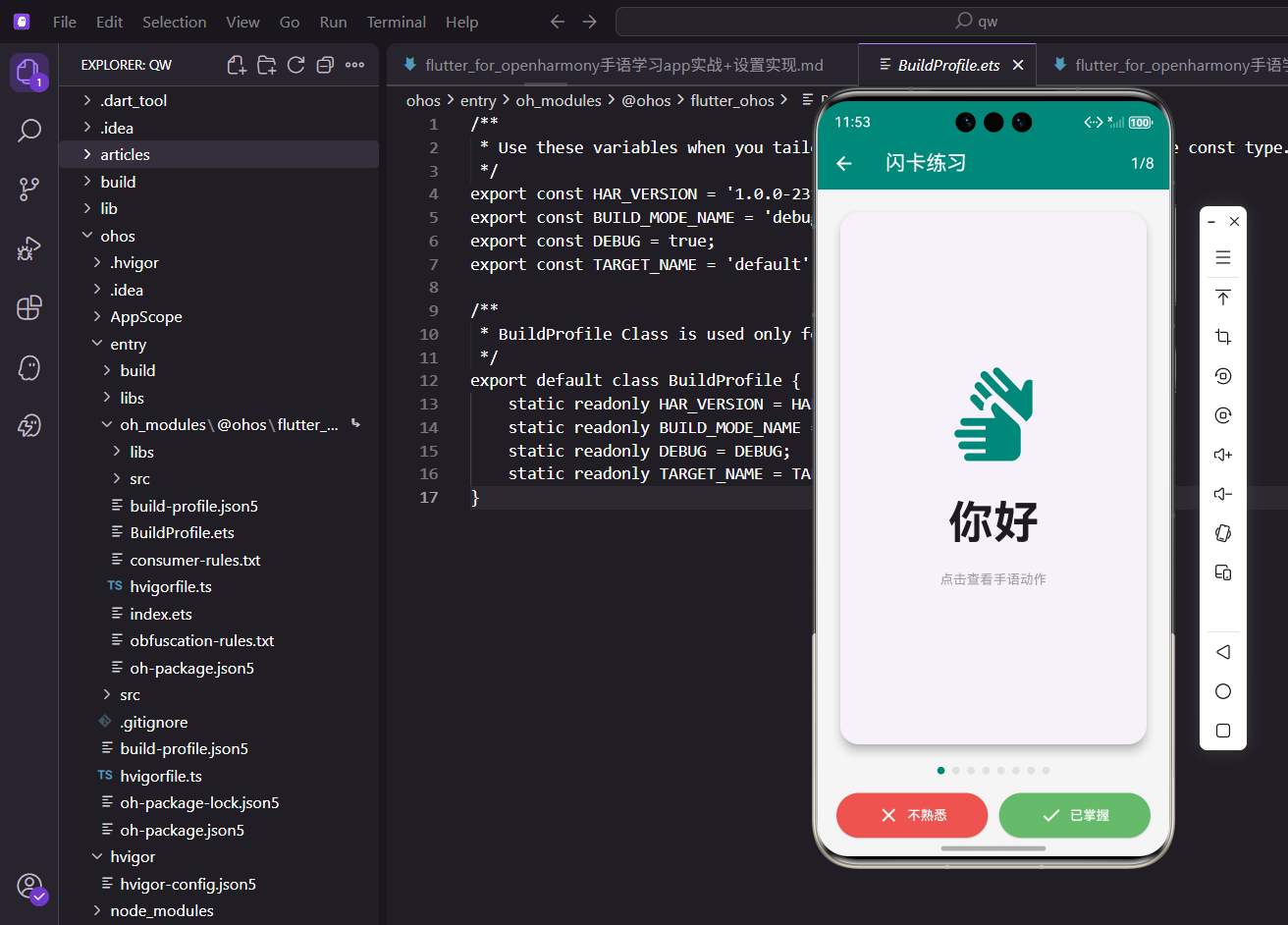
闪卡是一种高效的记忆方式,正面显示词汇,点击翻转显示手语动作说明。用户可以左右滑动切换卡片,标记掌握程度来强化记忆效果。
状态变量定义
闪卡需要追踪当前索引和翻转状态:
class FlashcardScreen extends StatefulWidget {
const FlashcardScreen({super.key});
State<FlashcardScreen> createState() => _FlashcardScreenState();
}
class _FlashcardScreenState extends State<FlashcardScreen> {
int _currentIndex = 0;
bool _showAnswer = false;
_currentIndex是当前卡片索引,_showAnswer控制是否显示答案面。这两个状态会随用户操作频繁变化。
闪卡数据准备
准备一组手语词汇卡片:
  final List<Map<String, String>> _cards = [
    {
      'word': '你好',
      'description': '右手握拳,拇指伸出,从额头向前挥动'
    },
    {
      'word': '谢谢',
      'description': '右手平伸,手心向上,从下巴处向前推出'
    },
    {
      'word': '对不起',
      'description': '右手握拳放在胸前,顺时针画圈'
    },
    {
      'word': '再见',
      'description': '手掌向外,左右摆动'
    },
每张卡片包含词汇和动作描述,实际项目中还可以加入图片或视频链接。
    {
      'word': '我爱你',
      'description': '同时伸出拇指、食指和小指'
    },
    {
      'word': '帮助',
      'description': '一只手托住另一只手的拳头向上推'
    },
    {
      'word': '吃饭',
      'description': '手指并拢,做往嘴里送食物的动作'
    },
    {
      'word': '喝水',
      'description': '手做握杯状,向嘴边倾斜'
    },
  ];
涵盖基础问候、情感表达、日常用语等多个类别的词汇。
页面整体结构
AppBar显示进度,body包含卡片和控制按钮:
Widget build(BuildContext context) {
return Scaffold(
appBar: AppBar(
title: const Text('闪卡练习'),
actions: [
Center(
child: Padding(
padding: EdgeInsets.only(right: 16.w),
child: Text(
'${_currentIndex + 1}/${_cards.length}',
style: TextStyle(fontSize: 16.sp),
),
),
),
],
),
AppBar右侧显示当前是第几张卡片,让用户了解练习进度。
手势交互区域
点击翻转,滑动切换:
      body: Column(
        children: [
          Expanded(
            child: GestureDetector(
              onTap: () => setState(() => _showAnswer = !_showAnswer),
              onHorizontalDragEnd: (details) {
                if (details.primaryVelocity! < 0) {
                  _nextCard();
                } else if (details.primaryVelocity! > 0) {
                  _previousCard();
                }
              },
onTap切换正反面,onHorizontalDragEnd检测滑动方向。primaryVelocity小于0是左滑下一张,大于0是右滑上一张。
              child: Container(
                margin: EdgeInsets.all(20.w),
                child: AnimatedSwitcher(
                  duration: const Duration(milliseconds: 300),
                  child: _buildCard(),
                ),
              ),
            ),
          ),
          _buildControls(),
          SizedBox(height: 20.h),
        ],
      ),
    );
  }
AnimatedSwitcher在卡片切换时自动添加过渡动画,300毫秒的时长比较自然流畅。
卡片组件构建
根据状态显示正面或反面:
  Widget _buildCard() {
    final card = _cards[_currentIndex];
    return Card(
      key: ValueKey('$_currentIndex-$_showAnswer'),
      elevation: 8,
      shape: RoundedRectangleBorder(
        borderRadius: BorderRadius.circular(20.r),
      ),
      child: Container(
        width: double.infinity,
        padding: EdgeInsets.all(32.w),
        child: Column(
          mainAxisAlignment: MainAxisAlignment.center,
          children: [
            if (!_showAnswer) ...[
key包含索引和状态,确保AnimatedSwitcher能正确识别变化触发动画。elevation: 8给卡片添加阴影效果。
卡片正面内容
显示词汇和提示:
              Icon(
                Icons.sign_language,
                size: 100.sp,
                color: const Color(0xFF00897B),
              ),
              SizedBox(height: 32.h),
              Text(
                card['word']!,
                style: TextStyle(
                  fontSize: 48.sp,
                  fontWeight: FontWeight.bold,
                ),
              ),
              SizedBox(height: 16.h),
              Text(
                '点击查看手语动作',
                style: TextStyle(
                  fontSize: 14.sp,
                  color: Colors.grey
                ),
              ),
            ]
正面显示大号词汇和手语图标,底部提示用户点击查看答案。大字体设计让词汇更醒目。
卡片反面内容
显示动作描述:
            else ...[
              Container(
                width: 150.w,
                height: 150.w,
                decoration: BoxDecoration(
                  color: const Color(0xFF00897B).withOpacity(0.1),
                  borderRadius: BorderRadius.circular(75.r),
                ),
                child: Icon(
                  Icons.sign_language,
                  size: 80.sp,
                  color: const Color(0xFF00897B),
                ),
              ),
反面图标放在圆形背景中,视觉上更柔和。
              SizedBox(height: 32.h),
              Text(
                card['word']!,
                style: TextStyle(
                  fontSize: 32.sp,
                  fontWeight: FontWeight.bold,
                ),
              ),
              SizedBox(height: 16.h),
              Container(
                padding: EdgeInsets.all(16.w),
                decoration: BoxDecoration(
                  color: Colors.grey[100],
                  borderRadius: BorderRadius.circular(12.r),
                ),
                child: Text(
                  card['description']!,
                  style: TextStyle(fontSize: 16.sp, height: 1.5),
                  textAlign: TextAlign.center,
                ),
              ),
            ],
          ],
        ),
      ),
    );
  }
词汇字号略小,重点是下方的动作描述。灰色背景让描述区域更突出。height: 1.5增加行高提升可读性。
控制区域构建
底部显示进度指示器和操作按钮:
  Widget _buildControls() {
    return Padding(
      padding: EdgeInsets.symmetric(horizontal: 20.w),
      child: Column(
        children: [
          Row(
            mainAxisAlignment: MainAxisAlignment.center,
            children: List.generate(_cards.length, (index) {
              return Container(
                width: 8.w,
                height: 8.w,
                margin: EdgeInsets.symmetric(horizontal: 4.w),
                decoration: BoxDecoration(
                  shape: BoxShape.circle,
                  color: index == _currentIndex
                      ? const Color(0xFF00897B)
                      : Colors.grey[300],
                ),
              );
            }),
          ),
小圆点指示器,当前卡片对应的圆点用主题色高亮。List.generate根据卡片数量生成圆点。
掌握程度按钮
两个按钮标记掌握情况:
          SizedBox(height: 20.h),
          Row(
            children: [
              Expanded(
                child: ElevatedButton.icon(
                  onPressed: () => _markCard(false),
                  icon: const Icon(Icons.close, color: Colors.white),
                  label: const Text(
                    '不熟悉',
                    style: TextStyle(color: Colors.white)
                  ),
                  style: ElevatedButton.styleFrom(
                    backgroundColor: Colors.red[400],
                    padding: EdgeInsets.symmetric(vertical: 12.h),
                  ),
                ),
              ),
红色"不熟悉"按钮,点击后标记这张卡片需要继续练习。
              SizedBox(width: 12.w),
              Expanded(
                child: ElevatedButton.icon(
                  onPressed: () => _markCard(true),
                  icon: const Icon(Icons.check, color: Colors.white),
                  label: const Text(
                    '已掌握',
                    style: TextStyle(color: Colors.white)
                  ),
                  style: ElevatedButton.styleFrom(
                    backgroundColor: Colors.green[400],
                    padding: EdgeInsets.symmetric(vertical: 12.h),
                  ),
                ),
              ),
            ],
          ),
        ],
      ),
    );
  }
绿色"已掌握"按钮,颜色对比鲜明。点击后自动切换到下一张卡片。
切换卡片逻辑
前后切换的方法:
  void _nextCard() {
    if (_currentIndex < _cards.length - 1) {
      setState(() {
        _currentIndex++;
        _showAnswer = false;
      });
    }
  }

  void _previousCard() {
    if (_currentIndex > 0) {
      setState(() {
        _currentIndex--;
        _showAnswer = false;
      });
    }
  }
切换时重置_showAnswer为false,确保新卡片显示正面。边界检查防止索引越界。
标记卡片逻辑
标记掌握程度并切换:
  void _markCard(bool mastered) {
    if (_currentIndex < _cards.length - 1) {
      _nextCard();
    } else {
      _showCompletionDialog();
    }
  }
如果不是最后一张就切换到下一张,最后一张标记后弹出完成对话框。
完成对话框
练习完成后的反馈:
  void _showCompletionDialog() {
    showDialog(
      context: context,
      builder: (context) => AlertDialog(
        title: const Text('练习完成!'),
        content: Column(
          mainAxisSize: MainAxisSize.min,
          children: [
            Icon(
              Icons.celebration,
              size: 64.sp,
              color: Colors.amber
            ),
            SizedBox(height: 16.h),
            Text('你已完成 ${_cards.length} 张闪卡的练习'),
          ],
        ),
庆祝图标配合完成提示,mainAxisSize: MainAxisSize.min让对话框高度自适应内容。
        actions: [
          TextButton(
            onPressed: () {
              Navigator.pop(context);
              Navigator.pop(context);
            },
            child: const Text('返回'),
          ),
          ElevatedButton(
            onPressed: () {
              Navigator.pop(context);
              setState(() {
                _currentIndex = 0;
                _showAnswer = false;
              });
            },
            child: const Text('再练一次'),
          ),
        ],
      ),
    );
  }
两个按钮:返回上一页或重新开始。重新开始时重置索引和状态从头练习。
小结
闪卡练习的核心是点击翻转和滑动切换的交互设计。AnimatedSwitcher提供平滑的过渡动画,掌握程度按钮帮助用户自我评估学习效果。这种主动回忆的学习方式比被动阅读更有效,能加深记忆。
欢迎加入开源鸿蒙跨平台社区:https://openharmonycrossplatform.csdn.net
练习统计
显示练习的统计数据:
Widget _buildStatistics() {
  return Container(
    margin: EdgeInsets.all(16.w),
    padding: EdgeInsets.all(16.w),
    decoration: BoxDecoration(
      gradient: const LinearGradient(
        colors: [Color(0xFF00897B), Color(0xFF4DB6AC)],
        begin: Alignment.topLeft,
        end: Alignment.bottomRight,
      ),
      borderRadius: BorderRadius.circular(12.r),
    ),
    child: Row(
      mainAxisAlignment: MainAxisAlignment.spaceAround,
      children: [
        _buildStatItem('已练习', '$_currentIndex', Icons.check_circle),
        _buildStatItem('正确率', '${_calculateAccuracy()}%', Icons.trending_up),
        _buildStatItem('剩余', '${_cards.length - _currentIndex}', Icons.pending),
      ],
    ),
  );
}

Widget _buildStatItem(String label, String value, IconData icon) {
  return Column(
    children: [
      Icon(icon, color: Colors.white, size: 24.sp),
      SizedBox(height: 4.h),
      Text(
        value,
        style: TextStyle(
          fontSize: 20.sp,
          fontWeight: FontWeight.bold,
          color: Colors.white,
        ),
      ),
      Text(
        label,
        style: TextStyle(
          fontSize: 12.sp,
          color: Colors.white.withOpacity(0.9),
        ),
      ),
    ],
  );
}

int _calculateAccuracy() {
  if (_correctCount + _wrongCount == 0) return 0;
  return ((_correctCount / (_correctCount + _wrongCount)) * 100).toInt();
}
统计卡片使用渐变背景,显示已练习数量、正确率和剩余数量三个关键指标。白色图标和文字在渐变背景上清晰可见。
错题回顾
支持查看和复习错题:
List<FlashCard> _wrongCards = [];

Widget _buildWrongCardsButton() {
  if (_wrongCards.isEmpty) return const SizedBox.shrink();

  return Container(
    margin: EdgeInsets.all(16.w),
    child: ElevatedButton.icon(
      onPressed: _reviewWrongCards,
      icon: const Icon(Icons.replay),
      label: Text('复习错题 (${_wrongCards.length})'),
      style: ElevatedButton.styleFrom(
        backgroundColor: Colors.orange,
        minimumSize: Size(double.infinity, 48.h),
        shape: RoundedRectangleBorder(
          borderRadius: BorderRadius.circular(12.r),
        ),
      ),
    ),
  );
}

void _reviewWrongCards() {
  setState(() {
    _cards = List.from(_wrongCards);
    _wrongCards.clear();
    _currentIndex = 0;
    _correctCount = 0;
    _wrongCount = 0;
    _showAnswer = false;
  });

  Get.snackbar(
    '开始复习',
    '共${_cards.length}道错题',
    snackPosition: SnackPosition.BOTTOM,
  );
}
错题回顾按钮显示错题数量,点击后重新开始练习这些错题。这个功能帮助用户针对性地复习薄弱环节。
学习建议
根据练习情况提供学习建议:
Widget _buildSuggestions() {
  final accuracy = _calculateAccuracy();
  String suggestion;
  Color color;
  IconData icon;

  if (accuracy >= 80) {
    suggestion = '太棒了!掌握得很好,可以学习新内容了。';
    color = Colors.green;
    icon = Icons.sentiment_very_satisfied;
  } else if (accuracy >= 60) {
    suggestion = '不错!继续加油,多练习几遍会更好。';
    color = Colors.orange;
    icon = Icons.sentiment_satisfied;
  } else {
    suggestion = '需要加强练习,建议重新学习相关课程。';
    color = Colors.red;
    icon = Icons.sentiment_dissatisfied;
  }

  return Container(
    margin: EdgeInsets.all(16.w),
    padding: EdgeInsets.all(16.w),
    decoration: BoxDecoration(
      color: color.withOpacity(0.1),
      borderRadius: BorderRadius.circular(12.r),
      border: Border.all(color: color.withOpacity(0.3)),
    ),
    child: Row(
      children: [
        Icon(icon, color: color, size: 32.sp),
        SizedBox(width: 12.w),
        Expanded(
          child: Text(
            suggestion,
            style: TextStyle(fontSize: 14.sp, color: color),
          ),
        ),
      ],
    ),
  );
}
学习建议根据正确率给出不同的反馈和建议。使用不同颜色和表情图标表达不同的评价等级。
练习记录
保存练习历史记录:
class PracticeRecord {
  final DateTime date;
  final int totalCards;
  final int correctCount;
  final int wrongCount;
  final int accuracy;

  PracticeRecord({
    required this.date,
    required this.totalCards,
    required this.correctCount,
    required this.wrongCount,
    required this.accuracy,
  });
}

List<PracticeRecord> _records = [];

void _savePracticeRecord() {
  final record = PracticeRecord(
    date: DateTime.now(),
    totalCards: _cards.length,
    correctCount: _correctCount,
    wrongCount: _wrongCount,
    accuracy: _calculateAccuracy(),
  );

  setState(() => _records.add(record));

  // 保存到本地存储
  _saveToLocal(record);
}

Widget _buildRecordsButton() {
  return TextButton.icon(
    onPressed: _showRecords,
    icon: const Icon(Icons.history),
    label: const Text('练习记录'),
  );
}

void _showRecords() {
  showModalBottomSheet(
    context: context,
    shape: RoundedRectangleBorder(
      borderRadius: BorderRadius.vertical(top: Radius.circular(20.r)),
    ),
    builder: (context) => Container(
      padding: EdgeInsets.all(16.w),
      child: Column(
        mainAxisSize: MainAxisSize.min,
        crossAxisAlignment: CrossAxisAlignment.start,
        children: [
          Text(
            '练习记录',
            style: TextStyle(fontSize: 18.sp, fontWeight: FontWeight.bold),
          ),
          SizedBox(height: 16.h),
          if (_records.isEmpty)
            Center(
              child: Text(
                '暂无练习记录',
                style: TextStyle(fontSize: 14.sp, color: Colors.grey[500]),
              ),
            )
          else
            Expanded(
              child: ListView.builder(
                itemCount: _records.length,
                itemBuilder: (context, index) {
                  final record = _records[index];
                  return ListTile(
                    leading: CircleAvatar(
                      backgroundColor: const Color(0xFF00897B).withOpacity(0.1),
                      child: Text(
                        '${record.accuracy}%',
                        style: const TextStyle(
                          fontSize: 12,
                          color: Color(0xFF00897B),
                        ),
                      ),
                    ),
                    title: Text(
                      DateFormat('yyyy-MM-dd HH:mm').format(record.date),
                    ),
                    subtitle: Text(
                      '练习${record.totalCards}题 正确${record.correctCount}题',
                    ),
                  );
                },
              ),
            ),
        ],
      ),
    ),
  );
}
练习记录功能保存每次练习的详细数据,包括日期、题目数、正确数、错误数和正确率。用户可以查看历史记录,了解学习进度。
分享成绩
支持分享练习成绩:
Widget _buildShareButton() {
  return ElevatedButton.icon(
    onPressed: _shareResult,
    icon: const Icon(Icons.share),
    label: const Text('分享成绩'),
    style: ElevatedButton.styleFrom(
      backgroundColor: const Color(0xFF2196F3),
      minimumSize: Size(double.infinity, 48.h),
      shape: RoundedRectangleBorder(
        borderRadius: BorderRadius.circular(12.r),
      ),
    ),
  );
}

void _shareResult() {
  final text = '''
我在手语学习App完成了闪卡练习!

练习题数:${_cards.length}
正确题数:$_correctCount
正确率:${_calculateAccuracy()}%

一起来学习手语吧!
''';

  Share.share(text, subject: '我的练习成绩');
}
分享功能将练习成绩整理成文本,通过系统分享功能发送。这个功能可以激励用户坚持学习,也能吸引更多人使用应用。
练习模式选择
提供不同的练习模式:
enum PracticeMode {
  sequential, // 顺序练习
  random,     // 随机练习
  wrong,      // 错题练习
}

PracticeMode _mode = PracticeMode.sequential;

Widget _buildModeSelector() {
  return Container(
    margin: EdgeInsets.all(16.w),
    child: Column(
      crossAxisAlignment: CrossAxisAlignment.start,
      children: [
        Text(
          '练习模式',
          style: TextStyle(fontSize: 16.sp, fontWeight: FontWeight.bold),
        ),
        SizedBox(height: 12.h),
        Wrap(
          spacing: 8.w,
          children: [
            ChoiceChip(
              label: const Text('顺序练习'),
              selected: _mode == PracticeMode.sequential,
              onSelected: (selected) {
                if (selected) {
                  setState(() => _mode = PracticeMode.sequential);
                  _resetPractice();
                }
              },
            ),
            ChoiceChip(
              label: const Text('随机练习'),
              selected: _mode == PracticeMode.random,
              onSelected: (selected) {
                if (selected) {
                  setState(() => _mode = PracticeMode.random);
                  _shuffleCards();
                }
              },
            ),
            ChoiceChip(
              label: const Text('错题练习'),
              selected: _mode == PracticeMode.wrong,
              onSelected: (selected) {
                if (selected && _wrongCards.isNotEmpty) {
                  setState(() => _mode = PracticeMode.wrong);
                  _reviewWrongCards();
                }
              },
            ),
          ],
        ),
      ],
    ),
  );
}

void _shuffleCards() {
  setState(() {
    _cards.shuffle();
    _currentIndex = 0;
    _showAnswer = false;
  });
}
练习模式选择器提供三种模式:顺序练习、随机练习和错题练习。用户可以根据需要选择不同的练习方式。
总结
闪卡练习页面通过丰富的功能模块,为用户提供了高效的学习工具。从基础的翻卡练习到统计分析,从错题回顾到学习建议,每个功能都旨在提升学习效果。练习记录和分享功能增加了应用的社交属性,激励用户坚持学习。
欢迎加入开源鸿蒙跨平台社区:https://openharmonycrossplatform.csdn.net

开源鸿蒙跨平台开发社区汇聚开发者与厂商,共建“一次开发,多端部署”的开源生态,致力于降低跨端开发门槛,推动万物智联创新。
更多推荐
 4
4 0
0- 0


 已为社区贡献26条内容

所有评论(0)