Flutter for OpenHarmony垃圾分类指南App实战:个人中心实现
个人中心页面设计摘要(149字): 个人中心页面采用三段式布局:用户头部、统计数据和功能菜单。头部区域使用渐变背景,包含可点击的头像、用户昵称和等级标签。统计区域展示用户使用数据,采用卡片式设计悬浮于头部下方。功能菜单采用网格布局,包含常用功能入口。页面整体采用响应式设计,适配不同屏幕尺寸。交互细节上,头像和等级标签均可点击,右上角设置按钮符合用户习惯。这种布局结构清晰,视觉层次分明,既展示关键用
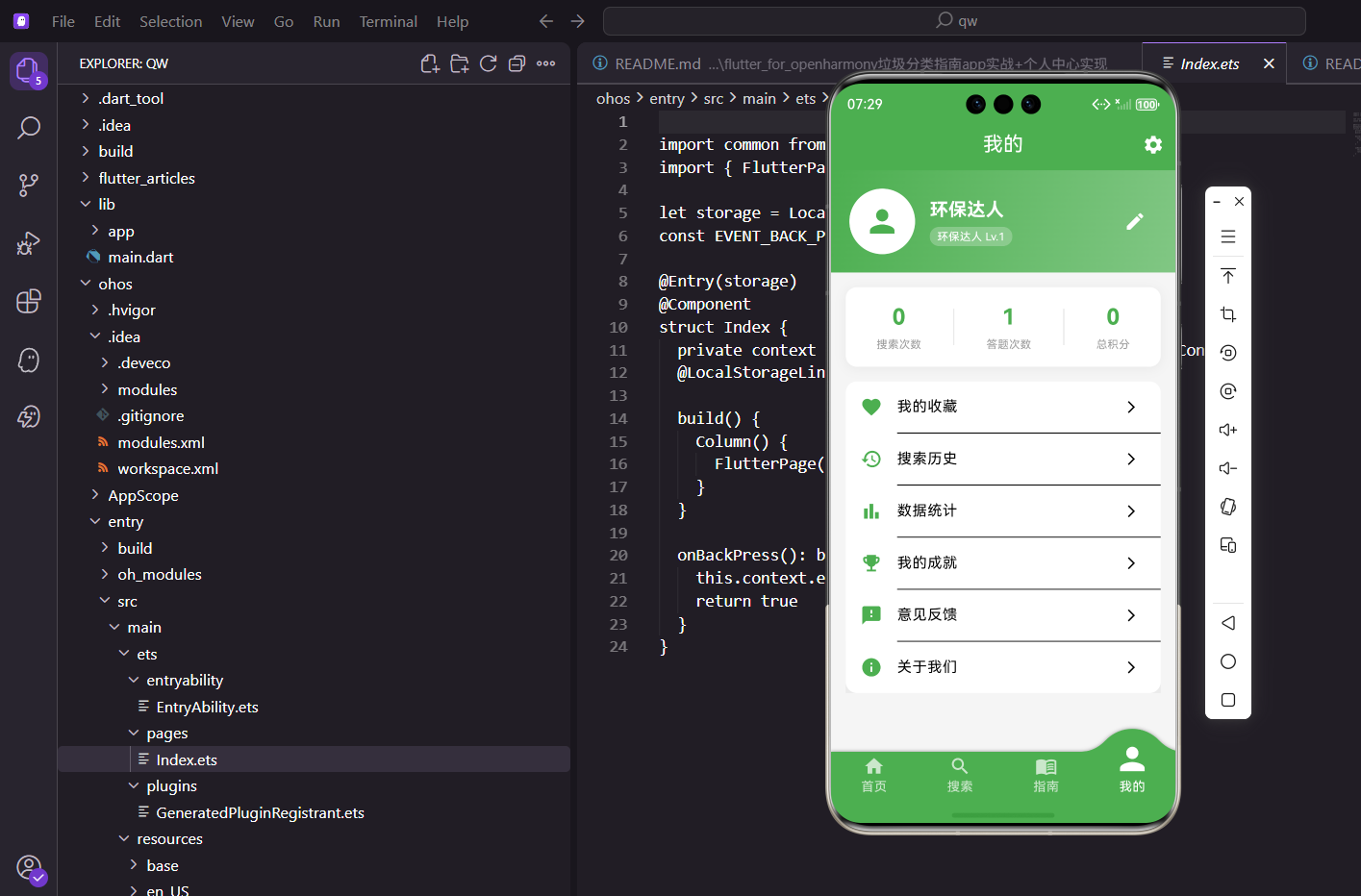
个人中心页面是App里用户最常访问的页面之一。这里展示用户信息、使用数据,还有各种功能入口。做好这个页面,能让用户感觉到App是"懂他的"。个人中心不仅是信息展示的窗口,更是用户与应用交互的核心枢纽。通过合理的布局设计和功能组织,可以让用户快速访问各项功能,提升应用的整体体验。
本文将详细介绍垃圾分类指南App个人中心页面的完整实现方案。我们将从页面结构设计、用户信息展示、统计数据呈现、功能菜单组织等多个方面进行深入讲解,帮助开发者构建一个专业的个人中心页面。通过本文的学习,你将掌握复杂页面布局、数据统计展示、状态管理等实用技能。
页面整体结构
个人中心分为三个区块:用户头部信息、统计数据、功能菜单。
class ProfilePage extends StatelessWidget {
const ProfilePage({super.key});
Widget build(BuildContext context) {
// 获取用户相关的控制器
final controller = Get.find<ProfileController>();
return Scaffold(
appBar: AppBar(
title: const Text('我的'),
// 右上角设置按钮
actions: [
IconButton(
icon: const Icon(Icons.settings),
onPressed: () => Get.toNamed(Routes.settings),
),
],
),
AppBar右边放了个设置按钮,点击进入设置页面。这是很常见的布局方式,用户习惯在个人中心找到设置入口。
页面主体用SingleChildScrollView包裹,保证内容多的时候可以滚动:
      body: SingleChildScrollView(
        child: Column(
          children: [
            _buildUserHeader(controller),    // 用户头部信息
            _buildStatistics(controller),    // 统计数据
            _buildMenuList(),                // 功能菜单
          ],
        ),
      ),
    );
  }
这种布局结构在很多App的个人中心页面都能看到,是比较成熟的设计模式。
用户头部区域
头部区域用渐变背景,展示用户头像、昵称和等级:
Widget _buildUserHeader(ProfileController controller) {
  return Container(
    padding: EdgeInsets.all(20.w),
    decoration: const BoxDecoration(
      // 渐变背景
      gradient: LinearGradient(
        colors: [AppTheme.primaryColor, AppTheme.secondaryColor],
        begin: Alignment.topLeft,
        end: Alignment.bottomRight,
      ),
    ),
渐变背景从主题色过渡到次要主题色,视觉上比纯色更有层次感。这种设计能让头部区域更加醒目,和下面的白色内容区域形成对比。
头像和用户信息用Row布局:
    child: Row(
      children: [
        // 头像区域,点击可编辑资料
        GestureDetector(
          onTap: () => Get.toNamed(Routes.editProfile),
          child: Stack(
            children: [
              // 头像
              CircleAvatar(
                radius: 36.r,
                backgroundColor: Colors.white,
                child: Icon(
                  Icons.person,
                  size: 40.sp,
                  color: AppTheme.primaryColor,
                ),
              ),
              // 编辑图标
              Positioned(
                bottom: 0,
                right: 0,
                child: Container(
                  padding: EdgeInsets.all(4.w),
                  decoration: const BoxDecoration(
                    color: Colors.white,
                    shape: BoxShape.circle,
                  ),
                  child: Icon(
                    Icons.camera_alt,
                    size: 14.sp,
                    color: AppTheme.primaryColor,
                  ),
                ),
              ),
            ],
          ),
        ),
        SizedBox(width: 16.w),
头像用CircleAvatar组件,点击可以进入编辑资料页面。现在用图标占位,实际项目中可以换成用户的真实头像。右下角的相机图标提示用户可以更换头像。
用户昵称和等级标签:
        Expanded(
          child: Column(
            crossAxisAlignment: CrossAxisAlignment.start,
            children: [
              // 用户昵称,响应式更新
              Obx(() => Text(
                controller.userName.value,
                style: TextStyle(
                  color: Colors.white,
                  fontSize: 20.sp,
                  fontWeight: FontWeight.bold,
                ),
              )),
              SizedBox(height: 4.h),
              // 等级标签,点击进入成就页面
              GestureDetector(
                onTap: () => Get.toNamed(Routes.achievement),
                child: Container(
                  padding: EdgeInsets.symmetric(
                    horizontal: 8.w,
                    vertical: 2.h,
                  ),
                  decoration: BoxDecoration(
                    color: Colors.white24,
                    borderRadius: BorderRadius.circular(10.r),
                  ),
                  child: Row(
                    mainAxisSize: MainAxisSize.min,
                    children: [
                      Icon(
                        Icons.emoji_events,
                        size: 12.sp,
                        color: Colors.white,
                      ),
                      SizedBox(width: 4.w),
                      Text(
                        '环保达人 Lv.1',
                        style: TextStyle(
                          color: Colors.white,
                          fontSize: 12.sp,
                        ),
                      ),
                    ],
                  ),
                ),
              ),
            ],
          ),
        ),
交互细节:等级标签是可点击的,点击后进入成就页面。这种隐藏的交互入口能增加用户探索的乐趣。标签里加了个奖杯图标,让用户知道这和成就相关。
右边还有个编辑按钮:
        // 编辑按钮
        IconButton(
          icon: const Icon(Icons.edit, color: Colors.white),
          onPressed: () => Get.toNamed(Routes.editProfile),
        ),
      ],
    ),
  );
}
统计数据区域
统计区域展示用户的使用数据:搜索次数、答题次数、总积分。
Widget _buildStatistics(ProfileController controller) {
  return Container(
    // 负的上边距,让卡片和头部区域重叠一点
    margin: EdgeInsets.fromLTRB(16.w, -20.h, 16.w, 16.h),
    padding: EdgeInsets.all(16.w),
    decoration: BoxDecoration(
      color: Colors.white,
      borderRadius: BorderRadius.circular(12.r),
      // 阴影效果
      boxShadow: [
        BoxShadow(
          color: Colors.black.withOpacity(0.05),
          blurRadius: 10,
          offset: const Offset(0, 2),
        ),
      ],
    ),
用白色卡片加轻微阴影,和上面的渐变背景形成对比,视觉上有层次感。负的上边距让卡片和头部区域重叠一点,这是一种常见的设计技巧,能让页面看起来更有层次。
三个统计项用Row平均分布:
    child: Row(
      mainAxisAlignment: MainAxisAlignment.spaceAround,
      children: [
        // 搜索次数
        Obx(() => _buildStatItem(
          '搜索次数',
          controller.searchCount.value.toString(),
          Icons.search,
        )),
        _buildDivider(),
        // 答题次数
        Obx(() => _buildStatItem(
          '答题次数',
          controller.quizCount.value.toString(),
          Icons.quiz,
        )),
        _buildDivider(),
        // 总积分
        Obx(() => _buildStatItem(
          '总积分',
          controller.totalScore.value.toString(),
          Icons.star,
        )),
      ],
    ),
  );
}
每个统计项用Obx包裹,这样数据变化时UI会自动更新。
统计项组件:
Widget _buildStatItem(String label, String value, IconData icon) {
  return GestureDetector(
    onTap: () => Get.toNamed(Routes.statistics),
    child: Column(
      children: [
        // 图标
        Icon(icon, color: AppTheme.primaryColor, size: 24.sp),
        SizedBox(height: 8.h),
        // 数值
        Text(
          value,
          style: TextStyle(
            fontSize: 24.sp,
            fontWeight: FontWeight.bold,
            color: AppTheme.primaryColor,
          ),
        ),
        SizedBox(height: 4.h),
        // 标签
        Text(
          label,
          style: TextStyle(
            fontSize: 12.sp,
            color: Colors.grey,
          ),
        ),
      ],
    ),
  );
}
数字用大字号主题色显示,标签用小字号灰色,形成主次关系。点击任意统计项都会跳转到数据统计页面。
分隔线组件:
Widget _buildDivider() {
  return Container(
    width: 1,
    height: 40.h,
    color: Colors.grey.withOpacity(0.3),
  );
}
功能菜单列表
菜单列表包含各种功能入口:
Widget _buildMenuList() {
  // 菜单配置数据
  final menus = [
    {
      'icon': Icons.favorite,
      'label': '我的收藏',
      'route': Routes.favorites,
      'color': Colors.red,
    },
    {
      'icon': Icons.history,
      'label': '搜索历史',
      'route': Routes.history,
      'color': Colors.blue,
    },
    {
      'icon': Icons.bar_chart,
      'label': '数据统计',
      'route': Routes.statistics,
      'color': Colors.green,
    },
    {
      'icon': Icons.emoji_events,
      'label': '我的成就',
      'route': Routes.achievement,
      'color': Colors.orange,
    },
    {
      'icon': Icons.feedback,
      'label': '意见反馈',
      'route': Routes.feedback,
      'color': Colors.purple,
    },
    {
      'icon': Icons.info,
      'label': '关于我们',
      'route': Routes.about,
      'color': Colors.teal,
    },
  ];
菜单数据用List存储,包含图标、标签、路由和颜色。这样写的好处是添加或删除菜单项只需要改数据,不用改UI代码。每个菜单项有自己的颜色,让列表看起来更丰富。
菜单列表的渲染:
  return Container(
    margin: EdgeInsets.symmetric(horizontal: 16.w),
    decoration: BoxDecoration(
      color: Colors.white,
      borderRadius: BorderRadius.circular(12.r),
    ),
    child: Column(
      children: menus.asMap().entries.map((entry) {
        final index = entry.key;
        final menu = entry.value;
        return Column(
          children: [
            // 菜单项
            ListTile(
              leading: Container(
                width: 36.w,
                height: 36.w,
                decoration: BoxDecoration(
                  color: (menu['color'] as Color).withOpacity(0.1),
                  borderRadius: BorderRadius.circular(8.r),
                ),
                child: Icon(
                  menu['icon'] as IconData,
                  color: menu['color'] as Color,
                  size: 20.sp,
                ),
              ),
              title: Text(
                menu['label'] as String,
                style: TextStyle(fontSize: 15.sp),
              ),
              trailing: const Icon(Icons.arrow_forward_ios, size: 16),
              onTap: () => Get.toNamed(menu['route'] as String),
            ),
            // 分隔线(最后一项不显示)
            if (index < menus.length - 1)
              Divider(height: 1, indent: 56.w),
          ],
        );
      }).toList(),
    ),
  );
}
细节处理:分隔线只在菜单项之间显示,最后一项下面没有。
indent: 56.w让分隔线从图标右边开始,和文字对齐,看起来更整齐。
控制器的实现
ProfileController负责管理用户相关的数据:
class ProfileController extends GetxController {
// 用户名
final userName = '环保小达人'.obs;
// 统计数据
final searchCount = 0.obs;
final quizCount = 0.obs;
final totalScore = 0.obs;
// 收藏列表
final favorites = <GarbageItem>[].obs;
// 深色模式
final isDarkMode = false.obs;
// 通知开关
final notificationEnabled = true.obs;
void onInit() {
super.onInit();
_loadUserData();
}
/// 加载用户数据
void _loadUserData() {
final storage = GetStorage();
userName.value = storage.read('userName') ?? '环保小达人';
searchCount.value = storage.read('searchCount') ?? 0;
quizCount.value = storage.read('quizCount') ?? 0;
totalScore.value = storage.read('totalScore') ?? 0;
// 加载收藏列表
final favData = storage.read('favorites');
if (favData != null) {
favorites.value = (favData as List)
.map((json) => GarbageItem.fromJson(json))
.toList();
}
}
/// 保存用户名
void saveUserName(String name) {
userName.value = name;
GetStorage().write('userName', name);
}
/// 增加搜索次数
void incrementSearchCount() {
searchCount.value++;
GetStorage().write('searchCount', searchCount.value);
}
/// 增加答题次数
void incrementQuizCount() {
quizCount.value++;
GetStorage().write('quizCount', quizCount.value);
}
/// 添加积分
void addScore(int score) {
totalScore.value += score;
GetStorage().write('totalScore', totalScore.value);
}
/// 切换收藏状态
void toggleFavorite(GarbageItem item) {
if (isFavorite(item.id)) {
favorites.removeWhere((i) => i.id == item.id);
} else {
favorites.add(item);
}
_saveFavorites();
}
/// 检查是否已收藏
bool isFavorite(String id) {
return favorites.any((item) => item.id == id);
}
/// 保存收藏列表
void _saveFavorites() {
final data = favorites.map((item) => item.toJson()).toList();
GetStorage().write('favorites', data);
}
/// 切换深色模式
void toggleDarkMode() {
isDarkMode.value = !isDarkMode.value;
Get.changeThemeMode(
isDarkMode.value ? ThemeMode.dark : ThemeMode.light,
);
GetStorage().write('isDarkMode', isDarkMode.value);
}
/// 切换通知开关
void toggleNotification() {
notificationEnabled.value = !notificationEnabled.value;
GetStorage().write('notificationEnabled', notificationEnabled.value);
}
}
数据持久化
用户数据需要持久化存储,这里使用GetStorage:
// 在main.dart中初始化
void main() async {
  await GetStorage.init();
  runApp(const MyApp());
}
GetStorage是GetX提供的轻量级存储方案,基于SharedPreferences,但API更简洁。
可以优化的地方
1. 头像上传
Future<void> pickAndUploadAvatar() async {
  final picker = ImagePicker();
  final image = await picker.pickImage(source: ImageSource.gallery);
  if (image != null) {
    // 压缩图片
    final compressed = await compressImage(image.path);
    // 上传到服务器
    final url = await uploadImage(compressed);
    // 保存头像URL
    avatarUrl.value = url;
  }
}
2. 登录状态
Widget _buildUserHeader() {
  return Obx(() {
    if (controller.isLoggedIn.value) {
      return _buildLoggedInHeader();
    } else {
      return _buildLoginPrompt();
    }
  });
}
3. 会员等级
String get levelName {
  if (totalScore.value >= 1000) return '环保大师';
  if (totalScore.value >= 500) return '环保达人';
  if (totalScore.value >= 100) return '环保新手';
  return '环保小白';
}
个人中心页面是用户了解自己使用情况的窗口,也是各种功能的入口。做好这个页面,能提升用户对App的好感度。
核心技术点总结:
使用GetX进行状态管理和页面导航,代码简洁高效。Consumer组件监听数据变化,实现响应式UI。渐变背景和卡片设计,视觉层次分明。Row和Column布局灵活组合,实现复杂页面结构。
设计亮点分析:
头部渐变背景突出用户信息,视觉冲击力强。统计数据用卡片展示,负边距实现重叠效果。功能菜单使用图标和颜色标识,易于识别。等级标签可点击,隐藏的交互增加探索乐趣。
功能扩展方向:
添加头像上传功能,支持自定义头像。实现登录状态管理,区分登录和未登录。增加会员等级系统,根据积分划分等级。支持数据统计图表,可视化展示使用情况。添加个性化推荐,根据用户行为推荐内容。
性能优化建议:
使用Obx精确控制Widget重建范围。图片使用缓存机制,避免重复加载。数据使用GetStorage持久化,启动时快速加载。列表使用ListView.builder实现懒加载。
个人中心页面是用户与应用交互的核心枢纽,通过合理的布局设计和功能组织,我们创建了一个既美观又实用的个人中心系统。良好的个人中心设计能够提升用户满意度,增强用户对应用的归属感。
欢迎加入开源鸿蒙跨平台社区:https://openharmonycrossplatform.csdn.net

开源鸿蒙跨平台开发社区汇聚开发者与厂商,共建“一次开发,多端部署”的开源生态,致力于降低跨端开发门槛,推动万物智联创新。
更多推荐
 19
19 0
0- 0


 已为社区贡献30条内容

所有评论(0)