Flutter for OpenHarmony三方库适配实战:image_cropper 图片裁剪
图片裁剪是图像处理中的基础功能,广泛应用于头像设置、图片编辑、内容发布等场景。在 Flutter for OpenHarmony 应用开发中,提供了完整的图片裁剪解决方案。当需要自定义裁剪比例时使用此参数,设置后裁剪框将锁定为此比例。常用比例对照表比例ratioXratioY说明1:111正方形4:343标准比例3:232照片比例16:9169宽屏比例2:323竖版比例9:16916手机比例使用示
欢迎加入开源鸿蒙跨平台社区:https://openharmonycrossplatform.csdn.net
本文基于flutter3.27.5开发
一、image_cropper 库概述
图片裁剪是图像处理中的基础功能,广泛应用于头像设置、图片编辑、内容发布等场景。在 Flutter for OpenHarmony 应用开发中,image_cropper 提供了完整的图片裁剪解决方案。
image_cropper 库特点
多平台原生体验:基于各平台原生库实现,Android 使用 uCrop,iOS 使用 TOCropViewController,OpenHarmony 使用自定义实现。
丰富裁剪功能:支持自由裁剪、固定比例裁剪、圆形裁剪、旋转、缩放等操作。
图片压缩:支持裁剪后图片质量压缩,减少存储空间。
灵活配置:可自定义裁剪框样式、工具栏按钮、输出格式等。
功能支持对比
| 功能 | Android | iOS | OpenHarmony |
|---|---|---|---|
| 自由裁剪 | ✅ | ✅ | ✅ |
| 固定比例裁剪 | ✅ | ✅ | ✅ |
| 圆形裁剪 | ✅ | ✅ | ✅ |
| 图片旋转 | ✅ | ✅ | ✅ |
| 图片缩放 | ✅ | ✅ | ✅ |
| 质量压缩 | ✅ | ✅ | ✅ |
使用场景:头像设置、图片编辑、内容发布、二维码识别等。
二、安装与配置
2.1 添加依赖
在项目的 pubspec.yaml 文件中添加 image_cropper 依赖:
dependencies:
  image_cropper:
    git:
      url: https://atomgit.com/openharmony-sig/fluttertpc_image_cropper.git
      path: ./image_cropper
      ref: master

dev_dependencies:
  imagecropper_ohos:
    git:
      url: https://atomgit.com/openharmony-sig/fluttertpc_image_cropper.git
      path: ./image_cropper/ohos
      ref: master
然后执行以下命令获取依赖:
flutter pub get
2.2 权限配置
OpenHarmony 平台需要配置网络权限。打开 ohos/entry/src/main/module.json5 文件,添加以下权限:
{
  "module": {
    "requestPermissions": [
      {
        "name": "ohos.permission.INTERNET",
        "reason": "$string:network_reason",
        "usedScene": {
          "abilities": ["EntryAbility"],
          "when": "inuse"
        }
      }
    ]
  }
}
三、核心 API 详解
3.1 ImageCropper 类
ImageCropper 是图片裁剪的核心入口类,提供静态的 cropImage 方法。
class ImageCropper {
  static ImageCropperPlatform get platform => ImageCropperPlatform.instance;

  Future<CroppedFile?> cropImage({
    required String sourcePath,
    int? maxWidth,
    int? maxHeight,
    CropAspectRatio? aspectRatio,
    List<CropAspectRatioPreset> aspectRatioPresets = const [...],
    CropStyle cropStyle = CropStyle.rectangle,
    ImageCompressFormat compressFormat = ImageCompressFormat.jpg,
    int compressQuality = 90,
    List<PlatformUiSettings>? uiSettings,
  });
}
3.2 cropImage 方法 ⭐核心方法
裁剪图片并返回裁剪后的文件。这是使用 image_cropper 的主要入口方法。
OpenHarmony 平台注意:OpenHarmony 使用
imagecropper_ohos包,API 参数有所不同,详见下方说明。
3.2.1 标准 API(Android/iOS)
Future<CroppedFile?> cropImage({
  required String sourcePath,
  int? maxWidth,
  int? maxHeight,
  CropAspectRatio? aspectRatio,
  List<CropAspectRatioPreset> aspectRatioPresets = const [...],
  CropStyle cropStyle = CropStyle.rectangle,
  ImageCompressFormat compressFormat = ImageCompressFormat.jpg,
  int compressQuality = 90,
  List<PlatformUiSettings>? uiSettings,
})
参数说明:
| 参数 | 类型 | 必填 | 说明 |
|---|---|---|---|
| sourcePath | String | ✅ | 图片文件的绝对路径(命名参数) |
| maxWidth | int? | ❌ | 输出图片的最大宽度 |
| maxHeight | int? | ❌ | 输出图片的最大高度 |
| aspectRatio | CropAspectRatio? | ❌ | 锁定裁剪框的比例 |
| aspectRatioPresets | List | ❌ | 可选的裁剪比例列表 |
| cropStyle | CropStyle | ❌ | 裁剪框样式,默认矩形 |
| compressFormat | ImageCompressFormat | ❌ | 输出图片格式,默认 JPG |
| compressQuality | int | ❌ | 压缩质量 0-100,默认 90 |
| uiSettings | List? | ❌ | 平台特定的 UI 配置 |
3.2.2 OpenHarmony 专用 API
OpenHarmony 平台使用 imagecropper_ohos 包,API 参数有所不同:
import 'package:imagecropper_ohos/imagecropper_ohos.dart';

final ImagecropperOhos _cropper = ImagecropperOhos();

Future<File?> cropImage({
  required File file,      // 注意:是 File 类型,不是 String
  required Rect area,      // 裁剪区域,比例值(0-1)
  double? scale,           // 缩放比例
  double? angle,           // 旋转角度
  double? cx,              // 裁剪区域中心 X
  double? cy,              // 裁剪区域中心 Y
})
OpenHarmony 参数说明:
| 参数 | 类型 | 必填 | 说明 |
|---|---|---|---|
| file | File | ✅ | 要裁剪的图片文件 |
| area | Rect | ✅ | 裁剪区域,比例值(0-1),不是像素值 |
| scale | double? | ❌ | 缩放比例,默认 1.0 |
| angle | double? | ❌ | 旋转角度,默认 0 |
| cx | double? | ❌ | 裁剪区域中心 X 坐标 |
| cy | double? | ❌ | 裁剪区域中心 Y 坐标 |
重要:
area参数使用比例值(0-1),例如Rect.fromLTWH(0.1, 0.1, 0.8, 0.8)表示裁剪图片中间 80% 的区域。
返回值:返回 File? 对象,如果裁剪失败则返回 null。
OpenHarmony 使用示例:
import 'package:imagecropper_ohos/imagecropper_ohos.dart';
import 'package:image_picker/image_picker.dart';

final ImagecropperOhos _cropper = ImagecropperOhos();

Future<void> _cropImage() async {
  final XFile? image = await ImagePicker().pickImage(
    source: ImageSource.gallery,
  );

  if (image == null) return;

  // area 参数是比例值(0-1),不是像素值
  final croppedFile = await _cropper.cropImage(
    file: File(image.path),
    area: const Rect.fromLTWH(0.1, 0.1, 0.8, 0.8),  // 裁剪中间 80%
    scale: 1.0,
    angle: 0,
    cx: 0,
    cy: 0,
  );

  if (croppedFile != null) {
    print('裁剪完成,保存至: ${croppedFile.path}');
  }
}
3.3 CropAspectRatioPreset 裁剪比例预设
预定义的裁剪比例枚举,用于 aspectRatioPresets 参数。
enum CropAspectRatioPreset {
  original,      // 原始比例
  square,        // 1:1 正方形
  ratio3x2,      // 3:2
  ratio5x3,      // 5:3
  ratio4x3,      // 4:3
  ratio5x4,      // 5:4
  ratio7x5,      // 7:5
  ratio16x9,     // 16:9
}
使用示例:
cropImage(
  sourcePath: image.path,
  aspectRatioPresets: [
    CropAspectRatioPreset.original,   // 原始比例
    CropAspectRatioPreset.square,     // 1:1
    CropAspectRatioPreset.ratio3x2,   // 3:2
    CropAspectRatioPreset.ratio4x3,   // 4:3
    CropAspectRatioPreset.ratio16x9,  // 16:9
  ],
)
3.4 CropAspectRatio 自定义裁剪比例
当需要自定义裁剪比例时使用此参数,设置后裁剪框将锁定为此比例。
class CropAspectRatio {
  final double ratioX;
  final double ratioY;

  const CropAspectRatio({required this.ratioX, required this.ratioY});

  static const CropAspectRatio original = CropAspectRatio(ratioX: 0, ratioY: 0);
  static const CropAspectRatio square = CropAspectRatio(ratioX: 1, ratioY: 1);
}
常用比例对照表:
| 比例 | ratioX | ratioY | 说明 |
|---|---|---|---|
| 1:1 | 1 | 1 | 正方形 |
| 4:3 | 4 | 3 | 标准比例 |
| 3:2 | 3 | 2 | 照片比例 |
| 16:9 | 16 | 9 | 宽屏比例 |
| 2:3 | 2 | 3 | 竖版比例 |
| 9:16 | 9 | 16 | 手机比例 |
使用示例:
cropImage(
  sourcePath: image.path,
  aspectRatio: CropAspectRatio(ratioX: 16, ratioY: 9),  // 锁定为 16:9
)
3.5 CropStyle 裁剪框样式
控制裁剪框的形状样式。
enum CropStyle {
  rectangle,  // 矩形裁剪框
  circle,     // 圆形裁剪框(适合头像裁剪)
}
使用示例:
// 矩形裁剪
cropImage(
  sourcePath: image.path,
  cropStyle: CropStyle.rectangle,
)

// 圆形裁剪(适合头像)
cropImage(
  sourcePath: image.path,
  cropStyle: CropStyle.circle,
  aspectRatio: CropAspectRatio(ratioX: 1, ratioY: 1),
)
3.6 ImageCompressFormat 图片输出格式
控制裁剪后图片的输出格式。
enum ImageCompressFormat {
  jpg,  // JPG 格式(有损压缩,文件较小)
  png,  // PNG 格式(无损压缩,支持透明通道)
}
格式对比:
| 格式 | 压缩方式 | 透明通道 | 文件大小 | 适用场景 |
|---|---|---|---|---|
| JPG | 有损压缩 | ❌ | 较小 | 照片、风景图 |
| PNG | 无损压缩 | ✅ | 较大 | 图标、头像、需要透明 |
使用示例:
// JPG 格式(默认)
cropImage(
  sourcePath: image.path,
  compressFormat: ImageCompressFormat.jpg,
)

// PNG 格式(保留透明通道)
cropImage(
  sourcePath: image.path,
  compressFormat: ImageCompressFormat.png,
)
3.7 CroppedFile 裁剪结果
裁剪成功后返回的文件对象。
class CroppedFile {
  final String path;

  CroppedFile(this.path);

  String get path => this.path;
}
使用示例:
final croppedFile = await cropImage(sourcePath: image.path);
if (croppedFile != null) {
  print('裁剪后路径: ${croppedFile.path}');
  // 可以使用该路径加载图片或上传
}
四、OpenHarmony 平台实现原理
4.1 整体架构
OpenHarmony 平台的 image_cropper 采用 MethodChannel 跨语言通信机制,实现 Dart 层与 Native 层的交互。
┌─────────────────────────────────────────────────────────────┐
│                        Flutter 层                          │
│  ┌─────────────────────────────────────────────────────┐   │
│  │              ImageCropper.cropImage()               │   │
│  └─────────────────────────────────────────────────────┘   │
│                           │                                 │
│                           ▼                                 │
│  ┌─────────────────────────────────────────────────────┐   │
│  │         MethodChannel("imagecropper")               │   │
│  └─────────────────────────────────────────────────────┘   │
└─────────────────────────────────────────────────────────────┘
                            │
                    MethodChannel 调用
                            │
                            ▼
┌─────────────────────────────────────────────────────────────┐
│                     OpenHarmony 层 (ETS)                    │
│  ┌─────────────────────────────────────────────────────┐   │
│  │         ImagecropPlugin.onMethodCall()              │   │
│  └─────────────────────────────────────────────────────┘   │
│                           │                                 │
│            ┌──────────────┼──────────────┐                 │
│            ▼              ▼              ▼                 │
│  ┌─────────────┐  ┌─────────────┐  ┌─────────────┐       │
│  │  cropImage   │  │ sampleImage │  │getImageOptions│     │
│  └─────────────┘  └─────────────┘  └─────────────┘       │
│            │              │              │                 │
│            ▼              └──────────────┘                 │
│  ┌─────────────────────────────────────────────────────┐   │
│  │         @ohos.multimedia.image (PixelMap)           │   │
│  └─────────────────────────────────────────────────────┘   │
└─────────────────────────────────────────────────────────────┘
4.2 Dart 层源码分析
源码位置:image_cropper/lib/src/cropper.dart
核心代码:
class ImageCropper {
  // 获取平台实例(通过静态实例化模式实现跨平台)
  static ImageCropperPlatform get platform => ImageCropperPlatform.instance;

  // 核心方法:启动裁剪界面
  Future<CroppedFile?> cropImage({
    required String sourcePath,
    int? maxWidth,
    int? maxHeight,
    CropAspectRatio? aspectRatio,
    List<CropAspectRatioPreset> aspectRatioPresets = const [...],
    CropStyle cropStyle = CropStyle.rectangle,
    ImageCompressFormat compressFormat = ImageCompressFormat.jpg,
    int compressQuality = 90,
    List<PlatformUiSettings>? uiSettings,
  }) {
    // 委托给平台特定实现处理
    return platform.cropImage(
      sourcePath: sourcePath,
      maxWidth: maxWidth,
      maxHeight: maxHeight,
      aspectRatio: aspectRatio,
      aspectRatioPresets: aspectRatioPresets,
      cropStyle: cropStyle,
      compressFormat: compressFormat,
      compressQuality: compressQuality,
      uiSettings: uiSettings,
    );
  }
}
关键设计:
- 使用平台抽象模式,通过
ImageCropperPlatform接口定义统一 API - 各平台(Android、iOS、OpenHarmony)分别实现该接口
- Flutter 层无需关心平台差异,调用方式完全一致
4.3 OpenHarmony Native 层源码分析
源码位置:image_cropper/ohos/ohos/src/main/ets/components/plugin/ImagecropperOhosPlugin.ets
4.3.1 插件入口
export default class ImagecropPlugin implements FlutterPlugin, MethodCallHandler, AbilityAware {
  private channel?: MethodChannel = undefined;

  // 插件被绑定到 Flutter 引擎时调用
  onAttachedToEngine(binding: FlutterPluginBinding): void {
    // 创建 MethodChannel,channel 名称为 "imagecropper"
    this.channel = new MethodChannel(binding.getBinaryMessenger(), "imagecropper");
    this.channel.setMethodCallHandler(this);
  }

  // 处理来自 Dart 层的 MethodCall
  onMethodCall(call: MethodCall, result: MethodResult): void {
    if ("cropImage" == call.method) {
      // 解析裁剪参数
      let path: string = call.argument("path");
      let scale: number = call.argument("scale");
      let left: number = call.argument("left");
      let top: number = call.argument("top");
      let right: number = call.argument("right");
      let bottom: number = call.argument("bottom");
      let angle: number = call.argument("angle");
      let cx: number = call.argument("cx");
      let cy: number = call.argument("cy");
      this.cropImage(result, path, scale, left, top, right, bottom, angle, cx, cy);
    } else if ("sampleImage" == call.method) {
      // 图片缩放采样
      this.sampleImage(result, path, maximumWidth, maximumHeight);
    } else if ("getImageOptions" == call.method) {
      // 获取图片属性
      this.getImageOptions(path, result);
    } else if ("requestPermissions" == call.method) {
      // 请求权限
      this.requestPermissions(result);
    } else {
      result.notImplemented();
    }
  }
}
4.3.2 图片裁剪核心实现
private async cropImage(result: MethodResult, path: string, scale: number,
    left: number, top: number, right: number, bottom: number,
    angle: number, cx: number, cy: number) {

  // 第一步:创建图片源
  let imageSource = image.createImageSource(path);

  // 第二步:获取像素数据
  let pixelMapData = await imageSource.createPixelMap();

  // 第三步:解析图片方向属性
  let options = await this.decodeImageOptions(imageSource);

  // 第四步:根据角度旋转
  await pixelMapData.rotate(angle);

  // 第五步:计算裁剪区域
  let width = options.getWidth() * (right - left) * scale;
  let height = options.getHeight() * (bottom - top) * scale;

  // 第六步:计算旋转后的偏移量
  let rAngle = 2 * Math.PI - angle / 180 * Math.PI;
  let originX = options.getWidth() * left;
  let originY = -options.getHeight() * top;

  // 旋转中心
  let x0 = (options.getWidth() * left + width / 2);
  let y0 = -(options.getHeight() * top + height / 2);

  // 计算旋转后四个角的坐标
  // ...(坐标计算代码)

  // 第七步:确定裁剪区域
  let verifyX = Math.min(...四个角的X坐标);
  let verifyY = Math.max(...四个角的Y坐标);

  let region: image.Region = {
    x: originX - verifyX,
    y: Math.abs(originY - verifyY),
    size: { height: height, width: width }
  };

  // 第八步:执行裁剪
  await pixelMapData.crop(region);

  // 第九步:保存到临时文件
  let dstFile = this.createTemporaryImageFilePath();
  await this.savaPixelMap(pixelMapData, dstFile);

  // 第十步:复制 EXIF 信息
  await this.copyExif(path, dstFile);

  result.success(dstFile);
}
4.3.3 图片保存实现
private async savaPixelMap(pixelMap: image.PixelMap, path: string) {
  // 配置打包选项:JPG 格式,100% 质量
  let options: image.PackingOption = {
    format: 'image/jpeg',
    quality: 100
  };

  // 创建图像打包器
  let packer = image.createImagePacker();

  // 将 PixelMap 打包为图像缓冲区
  let imageBuffer = await packer.packing(pixelMap, options);

  // 创建文件流并写入
  let stream = fs.createStreamSync(path, "a+");
  stream.writeSync(imageBuffer);
  stream.closeSync();

  // 释放资源
  await pixelMap.release();
  await packer.release();
}
4.3.4 EXIF 信息复制
private async copyExif(source: string, destination: string) {
  // 需要保留的 EXIF 标签列表
  let tags = Array<image.PropertyKey>();
  tags.push(image.PropertyKey.F_NUMBER);           // 光圈值
  tags.push(image.PropertyKey.EXPOSURE_TIME);      // 曝光时间
  tags.push(image.PropertyKey.FOCAL_LENGTH);       // 焦距
  tags.push(image.PropertyKey.GPS_DATE_STAMP);     // GPS 日期
  tags.push(image.PropertyKey.WHITE_BALANCE);      // 白平衡
  tags.push(image.PropertyKey.DATE_TIME);          // 日期时间
  tags.push(image.PropertyKey.FLASH);              // 闪光灯
  tags.push(image.PropertyKey.GPS_LATITUDE);       // GPS 纬度
  tags.push(image.PropertyKey.GPS_LONGITUDE);      // GPS 经度
  tags.push(image.PropertyKey.MAKE);               // 制造商
  tags.push(image.PropertyKey.MODEL);              // 型号
  tags.push(image.PropertyKey.ORIENTATION);        // 方向

  let sourceExif = image.createImageSource(source);
  let destinationExif = image.createImageSource(destination);

  // 逐个复制 EXIF 标签
  for (let tag of tags) {
    let data = await sourceExif.getImageProperty(tag).catch(() => null);
    if (data != null) {
      await destinationExif.modifyImageProperty(tag, data).catch(() => {});
    }
  }
}
4.3.5 图片属性解析
private decodeImageOptions(imageSource: image.ImageSource): Promise<ImageOptions> {
  return new Promise<ImageOptions>((resolve, reject) => {
    imageSource.getImageInfo().then((info: image.ImageInfo) => {
      // 获取图片宽高
      let width = info.size.width;
      let height = info.size.height;

      // 获取图片方向旋转角度
      return imageSource.getImageProperty(image.PropertyKey.ORIENTATION);
    }).then((result: string) => {
      let value = Number.parseInt(result);
      resolve(new ImageOptions(width, height, value ? value : 0));
    }).catch((err: BusinessError) => {
      resolve(new ImageOptions(width, height, 0));
    });
  });
}

class ImageOptions {
  constructor(width: number, height: number, degrees: number) {
    this.width = width;
    this.height = height;
    this.degrees = degrees;
  }

  getHeight(): number {
    // 旋转 90° 或 270° 时宽高互换(180° 时不变)
    return (this.isFlippedDimensions() && this.degrees != 180)
      ? this.width : this.height;
  }

  getWidth(): number {
    return (this.isFlippedDimensions() && this.degrees != 180)
      ? this.height : this.width;
  }

  isFlippedDimensions(): boolean {
    return this.degrees == 90 || this.degrees == 270 || this.degrees == 180;
  }
}
五、MethodChannel 通信协议
5.1 Channel 名称
const MethodChannel _channel = MethodChannel("imagecropper");
5.2 方法列表
| 方法 | Dart 参数 | 返回值 | 说明 |
|---|---|---|---|
| cropImage | path, scale, left, top, right, bottom, angle, cx, cy | String | 执行图片裁剪 |
| sampleImage | path, maximumWidth, maximumHeight | String | 缩放图片采样 |
| getImageOptions | path | Map(width,height) | 获取图片属性 |
| requestPermissions | - | bool | 请求权限 |
5.3 cropImage 参数详解
| 参数 | 类型 | 说明 |
|---|---|---|
| path | String | 源图片文件路径 |
| scale | double | 缩放比例 |
| left | double | 裁剪区域左边距比例 (0.0 ~ 1.0) |
| top | double | 裁剪区域上边距比例 (0.0 ~ 1.0) |
| right | double | 裁剪区域右边距比例 (0.0 ~ 1.0) |
| bottom | double | 裁剪区域下边距比例 (0.0 ~ 1.0) |
| angle | double | 旋转角度(度) |
| cx | double | 裁剪区域中心 X 坐标 |
| cy | double | 裁剪区域中心 Y 坐标 |
六、完整使用示例
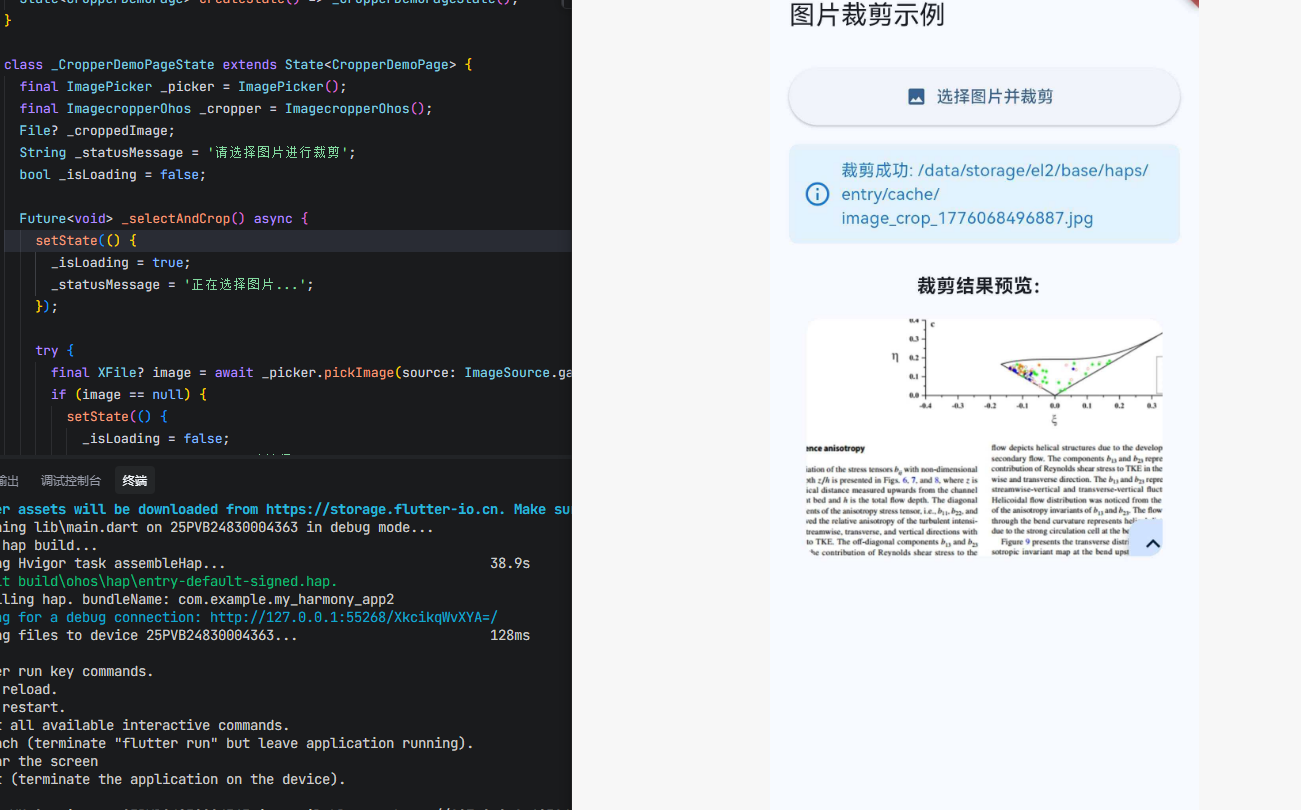
以下是一个完整的图片裁剪应用示例,包含头像裁剪和多种裁剪比例可选功能。
重要说明:OpenHarmony 平台使用
imagecropper_ohos包,API 与标准版有所不同:
area参数是比例值(0-1),不是像素值file参数是File类型,不是String路径- 建议先调用
sampleImage进行图片采样
import 'dart:io';
import 'package:flutter/material.dart';
import 'package:imagecropper_ohos/imagecropper_ohos.dart';
import 'package:image_picker/image_picker.dart';
class ImageCropperApp extends StatelessWidget {
const ImageCropperApp({super.key});
Widget build(BuildContext context) {
return MaterialApp(
title: 'Image Cropper Demo',
theme: ThemeData(
colorScheme: ColorScheme.fromSeed(seedColor: Colors.blue),
useMaterial3: true,
),
home: const CropperDemoPage(),
);
}
}
class CropperDemoPage extends StatefulWidget {
const CropperDemoPage({super.key});
State<CropperDemoPage> createState() => _CropperDemoPageState();
}
class _CropperDemoPageState extends State<CropperDemoPage> {
final ImagePicker _picker = ImagePicker();
final ImagecropperOhos _cropper = ImagecropperOhos();
File? _croppedImage;
String _statusMessage = '请选择图片进行裁剪';
bool _isLoading = false;
Future<void> _selectAndCrop() async {
setState(() {
_isLoading = true;
_statusMessage = '正在选择图片...';
});
try {
final XFile? image = await _picker.pickImage(source: ImageSource.gallery);
if (image == null) {
setState(() {
_isLoading = false;
_statusMessage = '已取消选择';
});
return;
}
setState(() {
_statusMessage = '正在裁剪图片...';
});
// area 参数是比例值(0-1),表示裁剪图片中间 80% 的区域
final croppedFile = await _cropper.cropImage(
file: File(image.path),
area: const Rect.fromLTWH(0.1, 0.1, 0.8, 0.8),
scale: 1.0,
angle: 0,
cx: 0,
cy: 0,
);
if (croppedFile != null) {
setState(() {
_croppedImage = croppedFile;
_statusMessage = '裁剪成功';
});
} else {
setState(() {
_statusMessage = '裁剪失败';
});
}
} catch (e) {
setState(() {
_statusMessage = '错误: $e';
});
} finally {
setState(() {
_isLoading = false;
});
}
}
Widget build(BuildContext context) {
return Scaffold(
appBar: AppBar(
title: const Text('图片裁剪示例'),
),
body: SingleChildScrollView(
padding: const EdgeInsets.all(16),
child: Column(
children: [
ElevatedButton.icon(
onPressed: _isLoading ? null : _selectAndCrop,
icon: _isLoading
? const SizedBox(
width: 20,
height: 20,
child: CircularProgressIndicator(strokeWidth: 2),
)
: const Icon(Icons.image),
label: Text(_isLoading ? '处理中...' : '选择图片并裁剪'),
style: ElevatedButton.styleFrom(
minimumSize: const Size(double.infinity, 48),
),
),
const SizedBox(height: 16),
Container(
padding: const EdgeInsets.all(12),
decoration: BoxDecoration(
color: Colors.blue[50],
borderRadius: BorderRadius.circular(8),
),
child: Row(
children: [
Icon(Icons.info_outline, color: Colors.blue[700]),
const SizedBox(width: 8),
Expanded(
child: Text(
_statusMessage,
style: TextStyle(color: Colors.blue[700]),
),
),
],
),
),
const SizedBox(height: 24),
const Text(
'裁剪结果预览:',
style: TextStyle(fontWeight: FontWeight.bold, fontSize: 16),
),
const SizedBox(height: 16),
if (_croppedImage != null)
ClipRRect(
borderRadius: BorderRadius.circular(12),
child: Image.file(
_croppedImage!,
width: 300,
height: 200,
fit: BoxFit.cover,
),
)
else
Container(
width: 300,
height: 200,
decoration: BoxDecoration(
color: Colors.grey[200],
borderRadius: BorderRadius.circular(12),
),
child: const Column(
mainAxisAlignment: MainAxisAlignment.center,
children: [
Icon(Icons.image, size: 48, color: Colors.grey),
SizedBox(height: 8),
Text(
'请选择图片进行裁剪',
style: TextStyle(color: Colors.grey),
),
],
),
),
],
),
),
);
}
}
七、注意事项
7.1 路径要求
sourcePath必须是绝对路径,不能是相对路径- 路径对应的文件必须存在且可读
- 裁剪结果保存在临时目录,需要及时保存到永久存储
7.2 裁剪质量
compressQuality建议设置为 80-95- PNG 格式会忽略质量参数(无损压缩)
- 质量越高文件越大,建议普通图片 85,头像 90
7.3 圆形裁剪
- 圆形裁剪会自动将输出图片裁剪为圆形区域
- PNG 格式背景保持透明,JPG 格式背景为白色
- 建议同时设置
aspectRatio: CropAspectRatio(ratioX: 1, ratioY: 1)
7.4 OpenHarmony 特有
- 裁剪结果自动保存到应用缓存目录
- EXIF 信息会自动复制到裁剪后的图片
- 支持图片方向自动识别和旋转
八、总结
image_cropper 为 Flutter for OpenHarmony 提供了完整的图片裁剪解决方案,其 OpenHarmony 适配版本基于原生 API 实现,性能优异。
核心优势:
- ✅ 开箱即用的裁剪功能
- ✅ 支持多种裁剪比例和样式
- ✅ 图片压缩,减少存储占用
- ✅ EXIF 信息自动保留
- ✅ OpenHarmony 原生实现
API 使用建议:
- 头像设置:
CropStyle.circle+aspectRatio(1,1)+compressFormat: png - 普通裁剪:
CropStyle.rectangle+ 多种比例可选 +compressQuality: 90 - 缩略图生成:使用
maxWidth/maxHeight限制尺寸
📚 相关资源:

开源鸿蒙跨平台开发社区汇聚开发者与厂商,共建“一次开发,多端部署”的开源生态,致力于降低跨端开发门槛,推动万物智联创新。
更多推荐
 0
0 0
0- 0


 已为社区贡献111条内容

所有评论(0)