Flutter与OpenHarmony打卡手势交互组件
前言
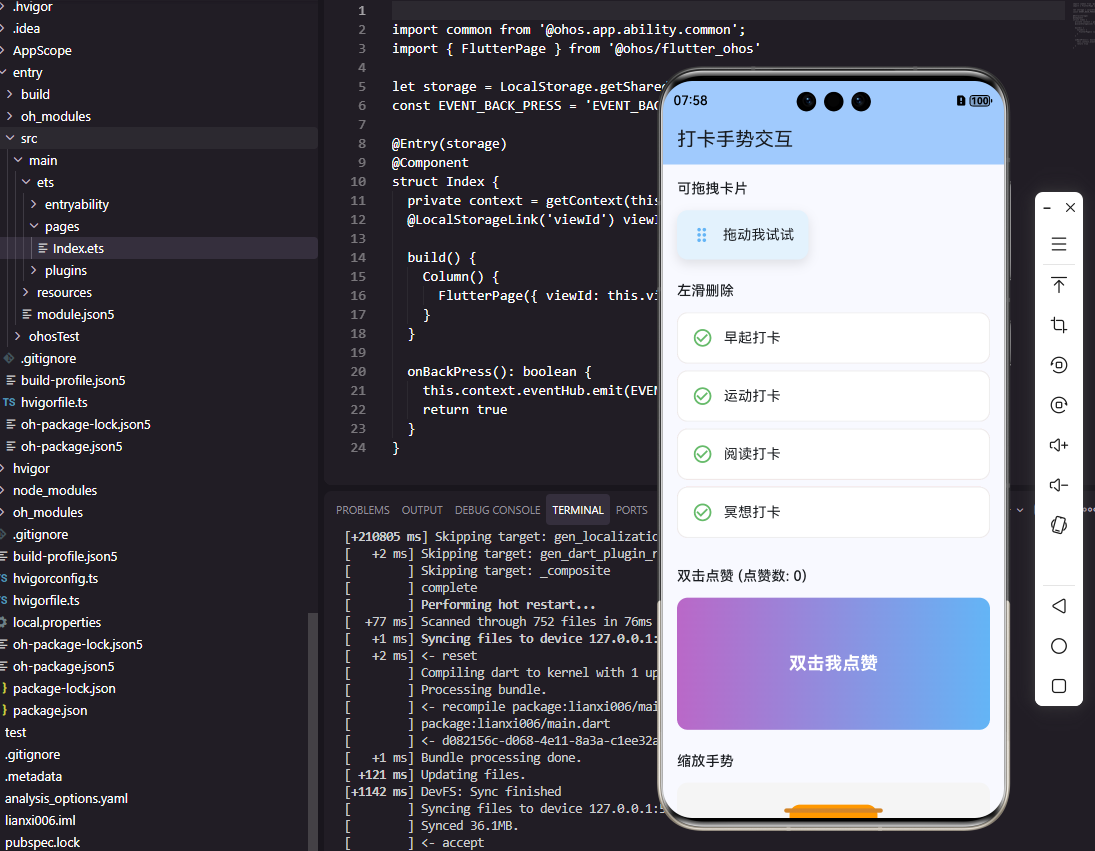
手势交互是移动应用提升用户体验的重要方式。在打卡工具类应用中,滑动打卡、长按编辑、双击点赞等手势操作可以让用户操作更加便捷自然。本文将详细介绍如何在Flutter和OpenHarmony平台上实现丰富的手势交互组件。
手势交互的设计需要考虑手势识别的准确性、反馈的及时性和操作的直观性。我们将实现滑动打卡、长按菜单、拖拽排序等常见的手势交互功能。
Flutter手势交互实现
首先实现滑动打卡组件:
class SwipeToCheckIn extends StatefulWidget {
final VoidCallback onCheckIn;
final bool isCompleted;
const SwipeToCheckIn({
Key? key,
required this.onCheckIn,
this.isCompleted = false,
}) : super(key: key);
State<SwipeToCheckIn> createState() => _SwipeToCheckInState();
}
class _SwipeToCheckInState extends State<SwipeToCheckIn> {
double _dragPosition = 0;
final double _maxDrag = 200;
bool _isDragging = false;
void _onDragUpdate(DragUpdateDetails details) {
if (widget.isCompleted) return;
setState(() {
_dragPosition = (_dragPosition + details.delta.dx).clamp(0, _maxDrag);
_isDragging = true;
});
}
void _onDragEnd(DragEndDetails details) {
if (_dragPosition >= _maxDrag * 0.8) {
widget.onCheckIn();
}
setState(() {
_dragPosition = 0;
_isDragging = false;
});
}
Widget build(BuildContext context) {
final progress = _dragPosition / _maxDrag;
return Container(
height: 60,
decoration: BoxDecoration(
color: Color.lerp(Colors.grey.shade200, Colors.green, progress),
borderRadius: BorderRadius.circular(30),
),
child: Stack(
children: [
Center(
child: Text(
widget.isCompleted ? '已完成' : '滑动打卡',
style: TextStyle(
color: Color.lerp(Colors.grey, Colors.white, progress),
fontWeight: FontWeight.w500,
),
),
),
Positioned(
left: _dragPosition,
top: 5,
child: GestureDetector(
onHorizontalDragUpdate: _onDragUpdate,
onHorizontalDragEnd: _onDragEnd,
child: Container(
width: 50,
height: 50,
decoration: BoxDecoration(
color: widget.isCompleted ? Colors.green : Colors.white,
shape: BoxShape.circle,
boxShadow: [
BoxShadow(
color: Colors.black.withOpacity(0.2),
blurRadius: 8,
),
],
),
child: Icon(
widget.isCompleted ? Icons.check : Icons.arrow_forward,
color: widget.isCompleted ? Colors.white : Colors.grey,
),
),
),
),
],
),
);
}
}
滑动打卡组件通过水平拖动手势触发打卡。GestureDetector捕获拖动事件,_dragPosition跟踪滑块位置。当滑动超过80%时触发打卡回调。背景颜色随滑动进度从灰色渐变到绿色,提供视觉反馈。
实现长按菜单:
class LongPressMenu extends StatelessWidget {
final Widget child;
final List<PopupMenuItem> menuItems;
const LongPressMenu({
Key? key,
required this.child,
required this.menuItems,
}) : super(key: key);
void _showMenu(BuildContext context, Offset position) {
showMenu(
context: context,
position: RelativeRect.fromLTRB(
position.dx,
position.dy,
position.dx,
position.dy,
),
items: menuItems,
shape: RoundedRectangleBorder(borderRadius: BorderRadius.circular(8)),
);
}
Widget build(BuildContext context) {
return GestureDetector(
onLongPressStart: (details) => _showMenu(context, details.globalPosition),
child: child,
);
}
}
// 使用示例
LongPressMenu(
menuItems: [
PopupMenuItem(value: 'edit', child: Text('编辑')),
PopupMenuItem(value: 'delete', child: Text('删除')),
],
child: HabitCard(habit: habit),
)
长按菜单在用户长按时显示操作选项。onLongPressStart获取长按位置,showMenu在该位置显示弹出菜单。这种交互方式常用于列表项的快捷操作。
OpenHarmony手势交互实现
在鸿蒙系统中实现滑动打卡:
@Component
struct SwipeToCheckIn {
  @Prop isCompleted: boolean = false
  private onCheckIn: () => void = () => {}
  @State dragPosition: number = 0
  private maxDrag: number = 200

  build() {
    Stack() {
      // 背景轨道
      Row()
        .width('100%')
        .height(60)
        .borderRadius(30)
        .backgroundColor(this.getBackgroundColor())

      // 提示文字
      Text(this.isCompleted ? '已完成' : '滑动打卡')
        .fontColor(this.getTextColor())
        .fontWeight(FontWeight.Medium)

      // 滑块
      Column()
        .width(50)
        .height(50)
        .borderRadius(25)
        .backgroundColor(this.isCompleted ? '#4CAF50' : Color.White)
        .shadow({ radius: 8, color: 'rgba(0,0,0,0.2)' })
        .position({ x: this.dragPosition + 5, y: 5 })
        .gesture(
          PanGesture()
            .onActionUpdate((event: GestureEvent) => {
              if (!this.isCompleted) {
                this.dragPosition = Math.max(0, Math.min(this.maxDrag, this.dragPosition + event.offsetX))
              }
            })
            .onActionEnd(() => {
              if (this.dragPosition >= this.maxDrag * 0.8) {
                this.onCheckIn()
              }
              animateTo({ duration: 200 }, () => {
                this.dragPosition = 0
              })
            })
        )
    }
    .width('100%')
    .height(60)
  }

  getBackgroundColor(): string {
    const progress = this.dragPosition / this.maxDrag
    // 简化的颜色插值
    if (progress < 0.5) return '#E0E0E0'
    return '#81C784'
  }

  getTextColor(): string {
    const progress = this.dragPosition / this.maxDrag
    return progress > 0.5 ? '#FFFFFF' : '#666666'
  }
}
鸿蒙使用PanGesture处理拖动手势。onActionUpdate在拖动过程中更新位置,onActionEnd在拖动结束时判断是否触发打卡并重置位置。animateTo为位置重置添加动画效果。
实现双击点赞:
@Component
struct DoubleTapLike {
  @State isLiked: boolean = false
  @State showHeart: boolean = false
  private onLike: () => void = () => {}

  build() {
    Stack() {
      // 内容区域
      Image($r('app.media.habit_image'))
        .width('100%')
        .aspectRatio(1)
        .gesture(
          TapGesture({ count: 2 })
            .onAction(() => {
              this.isLiked = true
              this.showHeart = true
              this.onLike()
              setTimeout(() => {
                this.showHeart = false
              }, 1000)
            })
        )

      // 爱心动画
      if (this.showHeart) {
        Image($r('app.media.heart_filled'))
          .width(80)
          .height(80)
          .fillColor('#FF4081')
          .scale({ x: this.showHeart ? 1 : 0, y: this.showHeart ? 1 : 0 })
          .animation({ duration: 300, curve: Curve.EaseOut })
      }
    }
  }
}
双击点赞使用TapGesture配合count: 2识别双击手势。双击后显示爱心动画,1秒后自动隐藏。这种交互方式在社交应用中非常流行。
拖拽排序
Flutter中实现拖拽排序:
class DraggableHabitList extends StatefulWidget {
final List<Habit> habits;
final Function(List<Habit>) onReorder;
const DraggableHabitList({
Key? key,
required this.habits,
required this.onReorder,
}) : super(key: key);
State<DraggableHabitList> createState() => _DraggableHabitListState();
}
class _DraggableHabitListState extends State<DraggableHabitList> {
late List<Habit> _habits;
void initState() {
super.initState();
_habits = List.from(widget.habits);
}
Widget build(BuildContext context) {
return ReorderableListView.builder(
itemCount: _habits.length,
onReorder: (oldIndex, newIndex) {
setState(() {
if (newIndex > oldIndex) newIndex--;
final item = _habits.removeAt(oldIndex);
_habits.insert(newIndex, item);
});
widget.onReorder(_habits);
},
itemBuilder: (context, index) {
return ListTile(
key: ValueKey(_habits[index].id),
leading: Icon(_habits[index].icon),
title: Text(_habits[index].name),
trailing: ReorderableDragStartListener(
index: index,
child: const Icon(Icons.drag_handle),
),
);
},
);
}
}
ReorderableListView提供了内置的拖拽排序功能。onReorder回调在拖拽完成时触发,提供旧索引和新索引。ReorderableDragStartListener指定拖拽手柄,用户需要按住手柄才能拖动,避免误操作。
滑动删除
实现滑动删除功能:
class SwipeToDelete extends StatelessWidget {
final Widget child;
final VoidCallback onDelete;
const SwipeToDelete({
Key? key,
required this.child,
required this.onDelete,
}) : super(key: key);
Widget build(BuildContext context) {
return Dismissible(
key: UniqueKey(),
direction: DismissDirection.endToStart,
background: Container(
alignment: Alignment.centerRight,
padding: const EdgeInsets.only(right: 20),
color: Colors.red,
child: const Icon(Icons.delete, color: Colors.white),
),
confirmDismiss: (direction) async {
return await showDialog(
context: context,
builder: (context) => AlertDialog(
title: const Text('确认删除'),
content: const Text('确定要删除这个习惯吗?'),
actions: [
TextButton(
onPressed: () => Navigator.pop(context, false),
child: const Text('取消'),
),
TextButton(
onPressed: () => Navigator.pop(context, true),
child: const Text('删除'),
),
],
),
);
},
onDismissed: (_) => onDelete(),
child: child,
);
}
}
Dismissible组件提供了滑动删除功能。direction限制只能从右向左滑动,background显示删除背景。confirmDismiss在删除前显示确认对话框,防止误删。这种交互方式直观高效,是列表操作的标准模式。
总结
本文详细介绍了在Flutter和OpenHarmony平台上实现手势交互组件的完整方案。滑动打卡、长按菜单、双击点赞、拖拽排序和滑动删除等手势操作,让用户可以更加自然便捷地与应用交互。两个平台都提供了丰富的手势识别API,通过合理的视觉反馈和确认机制,确保手势操作准确可靠。
欢迎加入开源鸿蒙跨平台社区:https://openharmonycrossplatform.csdn.net

开源鸿蒙跨平台开发社区汇聚开发者与厂商,共建“一次开发,多端部署”的开源生态,致力于降低跨端开发门槛,推动万物智联创新。
更多推荐
 5
5 0
0- 0


 已为社区贡献25条内容

所有评论(0)