Flutter & OpenHarmony 社交App语音消息组件开发详解
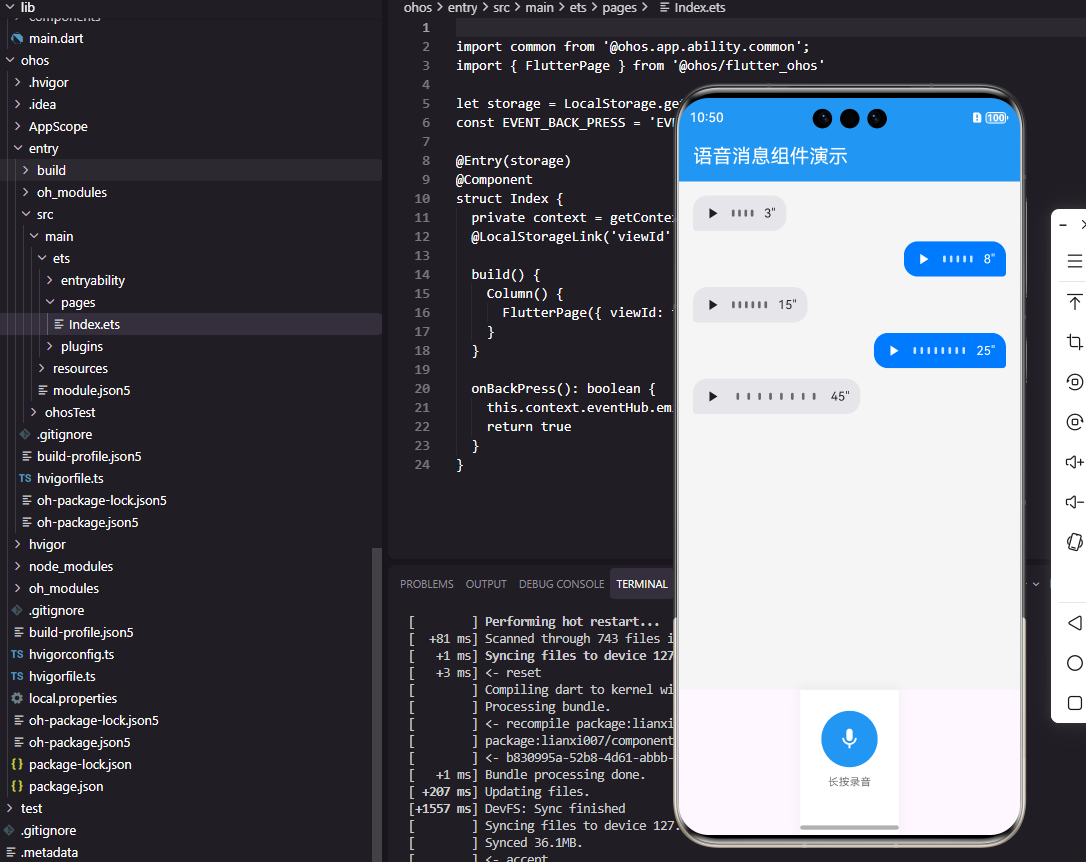
本文详细介绍了在Flutter和OpenHarmony平台上实现专业语音消息组件的方法。Flutter版本通过AnimationController实现波形动画,支持动态宽度、播放状态切换和方向区分。OpenHarmony ArkTS版本采用类似的布局逻辑,使用@Builder构建可复用的播放图标和波形组件。两种实现都包含时长显示、播放控制、动态宽度调整等功能,并保持一致的UI风格。组件设计考虑了
前言
语音消息是社交应用中重要的沟通方式,让用户能够更便捷地表达情感和传递信息。一个完善的语音消息组件需要支持录音、播放、波形显示以及时长展示等功能。本文将详细讲解如何在Flutter和OpenHarmony平台上构建专业级的语音消息组件。
Flutter语音消息实现
首先实现语音消息的展示组件。
class VoiceMessage extends StatefulWidget {
final String audioUrl;
final int duration;
final bool isSentByMe;
final bool isPlaying;
final VoidCallback onPlayTap;
const VoiceMessage({
Key? key,
required this.audioUrl,
required this.duration,
required this.isSentByMe,
this.isPlaying = false,
required this.onPlayTap,
}) : super(key: key);
State<VoiceMessage> createState() => _VoiceMessageState();
}
VoiceMessage组件接收音频URL、时长、发送方向、播放状态和点击回调。isPlaying由父组件控制,实现全局只有一条语音在播放的效果。
class _VoiceMessageState extends State<VoiceMessage>
with SingleTickerProviderStateMixin {
late AnimationController _animationController;
void initState() {
super.initState();
_animationController = AnimationController(
vsync: this,
duration: Duration(milliseconds: 1000),
)..repeat();
}
Widget build(BuildContext context) {
final width = 80.0 + (widget.duration * 2).clamp(0, 120).toDouble();
return GestureDetector(
onTap: widget.onPlayTap,
child: Container(
width: width,
padding: EdgeInsets.symmetric(horizontal: 12, vertical: 8),
decoration: BoxDecoration(
color: widget.isSentByMe ? Color(0xFF007AFF) : Color(0xFFE5E5EA),
borderRadius: BorderRadius.circular(16),
),
AnimationController控制播放动画。消息宽度根据时长动态计算,最短80像素,最长200像素。背景色根据发送方向变化,与聊天气泡保持一致的视觉风格。
        child: Row(
          mainAxisSize: MainAxisSize.min,
          children: [
            if (!widget.isSentByMe) _buildPlayIcon(),
            Expanded(
              child: _buildWaveform(),
            ),
            if (widget.isSentByMe) _buildPlayIcon(),
            SizedBox(width: 8),
            Text(
              '${widget.duration}"',
              style: TextStyle(
                color: widget.isSentByMe ? Colors.white : Colors.black87,
                fontSize: 14,
              ),
            ),
          ],
        ),
      ),
    );
  }
Row水平排列播放图标、波形和时长。播放图标的位置根据发送方向调整,发送的消息图标在右侧,接收的消息图标在左侧。时长显示秒数。
  Widget _buildPlayIcon() {
    return AnimatedBuilder(
      animation: _animationController,
      builder: (context, child) {
        return Icon(
          widget.isPlaying ? Icons.pause : Icons.play_arrow,
          color: widget.isSentByMe ? Colors.white : Colors.black87,
          size: 20,
        );
      },
    );
  }

  Widget _buildWaveform() {
    return Row(
      mainAxisAlignment: MainAxisAlignment.spaceEvenly,
      children: List.generate(6, (index) {
        return AnimatedBuilder(
          animation: _animationController,
          builder: (context, child) {
            final height = widget.isPlaying
              ? 8.0 + 8.0 * sin((_animationController.value * 2 * pi) + index)
              : 8.0;

            return Container(
              width: 3,
              height: height.abs(),
              decoration: BoxDecoration(
                color: widget.isSentByMe
                  ? Colors.white.withOpacity(0.8)
                  : Colors.black54,
                borderRadius: BorderRadius.circular(1.5),
              ),
            );
          },
        );
      }),
    );
  }
_buildPlayIcon显示播放或暂停图标。_buildWaveform生成6个波形条,播放时使用正弦函数创建波动动画,每个条的相位不同形成波浪效果。这种动画设计让用户直观感知语音正在播放。
void dispose() {
_animationController.dispose();
super.dispose();
}
}
dispose方法释放动画控制器资源。
OpenHarmony ArkTS实现
鸿蒙系统上的语音消息实现。
@Component
struct VoiceMessage {
  @Prop audioUrl: string = ''
  @Prop duration: number = 0
  @Prop isSentByMe: boolean = false
  @Prop isPlaying: boolean = false
  onPlayTap: () => void = () => {}

  build() {
    Row() {
      if (!this.isSentByMe) {
        this.PlayIcon()
      }

      this.Waveform()
组件属性与Flutter版本对应。Row水平排列各元素,播放图标位置根据发送方向调整。
      Text(`${this.duration}"`)
        .fontSize(14)
        .fontColor(this.isSentByMe ? Color.White : '#1C1C1E')
        .margin({ left: 8 })

      if (this.isSentByMe) {
        this.PlayIcon()
      }
    }
    .width(80 + Math.min(this.duration * 2, 120))
    .padding({ left: 12, right: 12, top: 8, bottom: 8 })
    .backgroundColor(this.isSentByMe ? '#007AFF' : '#E5E5EA')
    .borderRadius(16)
    .onClick(() => this.onPlayTap())
  }
宽度根据时长动态计算。背景色和圆角设置与Flutter版本一致。onClick绑定点击事件。
  @Builder
  PlayIcon() {
    Image(this.isPlaying
      ? $r('app.media.ic_pause')
      : $r('app.media.ic_play'))
      .width(20)
      .height(20)
      .fillColor(this.isSentByMe ? Color.White : '#1C1C1E')
  }

  @Builder
  Waveform() {
    Row() {
      ForEach([0, 1, 2, 3, 4, 5], (index: number) => {
        Column()
          .width(3)
          .height(this.isPlaying ? 8 + Math.random() * 8 : 8)
          .backgroundColor(this.isSentByMe ? '#FFFFFFCC' : '#00000088')
          .borderRadius(1.5)
          .animation({ duration: 200 })
      })
    }
    .justifyContent(FlexAlign.SpaceEvenly)
    .layoutWeight(1)
  }
}
@Builder定义播放图标和波形构建方法。波形使用随机高度模拟动画效果,animation属性添加过渡动画。
录音组件扩展
在Flutter中实现录音按钮:
class VoiceRecordButton extends StatefulWidget {
final Function(String path, int duration) onRecordComplete;
const VoiceRecordButton({
Key? key,
required this.onRecordComplete,
}) : super(key: key);
State<VoiceRecordButton> createState() => _VoiceRecordButtonState();
}
class _VoiceRecordButtonState extends State<VoiceRecordButton> {
bool _isRecording = false;
int _duration = 0;
Timer? _timer;
Widget build(BuildContext context) {
return GestureDetector(
onLongPressStart: (_) => _startRecording(),
onLongPressEnd: (_) => _stopRecording(),
child: Container(
width: 60,
height: 60,
decoration: BoxDecoration(
color: _isRecording ? Colors.red : Colors.blue,
shape: BoxShape.circle,
),
child: Icon(
Icons.mic,
color: Colors.white,
size: 28,
),
),
);
}
void _startRecording() {
setState(() => _isRecording = true);
_timer = Timer.periodic(Duration(seconds: 1), (timer) {
setState(() => _duration++);
});
// 调用录音API开始录音
}
void _stopRecording() {
_timer?.cancel();
setState(() => _isRecording = false);
// 调用录音API停止录音并获取文件路径
widget.onRecordComplete('path/to/audio.m4a', _duration);
_duration = 0;
}
}
VoiceRecordButton使用长按手势触发录音。按下开始录音,松开停止录音。Timer计时显示录音时长。录音完成后通过回调返回文件路径和时长。
总结
本文详细介绍了语音消息组件在Flutter和OpenHarmony两个平台上的实现。语音消息是社交应用的重要沟通方式,需要支持播放动画和时长显示。两个平台的实现都采用了动态宽度和波形动画。在实际项目中,还需要集成音频录制和播放SDK来实现完整功能。
欢迎加入开源鸿蒙跨平台社区:https://openharmonycrossplatform.csdn.net

开源鸿蒙跨平台开发社区汇聚开发者与厂商,共建“一次开发,多端部署”的开源生态,致力于降低跨端开发门槛,推动万物智联创新。
更多推荐
 4
4 0
0- 0


 已为社区贡献21条内容

所有评论(0)