分类统计页面 UI 设计-Cordova 与 OpenHarmony 混合开发实战
·
欢迎大家加入开源鸿蒙跨平台开发者社区,一起共建开源鸿蒙跨平台生态。
本文对应模块:
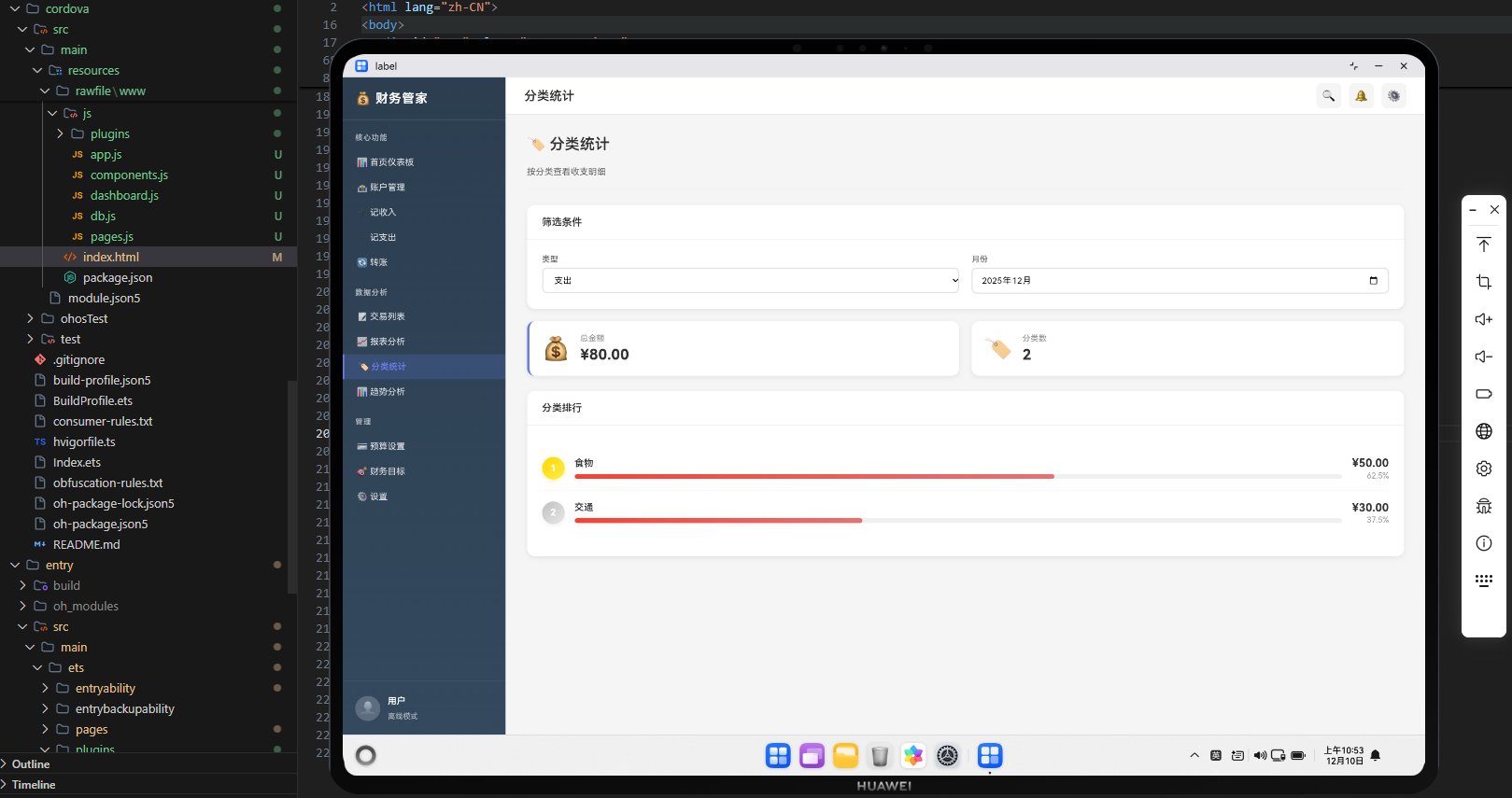
pages.js中“分类统计”页面的 HTML 模板与 UI 结构,重点是按分类查看支出占比的图表、列表和筛选条件设计;同时会给出一段鸿蒙 ArkTS 代码,说明 ArkTS 如何承载该页面并配合整体数据导出。
1. 模块定位:看清“钱都花在哪些分类上了”
报表分析模块更多关注时间维度(按日/按月),而分类统计模块则关注:
在一段时间内,钱分别花在了哪些分类上、各自占比多少、哪些是大头。
典型需求:
- 选择一个时间范围(如本月、上月、自定义);
- 按分类汇总支出金额和占比;
- 用饼图或条形图展示分类占比;
- 用表格列出分类、金额、占比和笔数;
- 可选:区分收入分类和支出分类。
本模块主要关注 UI 结构和组件布局,统计计算细节会在后续分类统计功能模块中展开。
2. 页面整体结构:过滤区 + 图表区 + 列表区
在 pages.js 中,“分类统计”页面可以设计为:
// ==================== 分类统计页面 ====================
'category-report': () => `
  <div class="pc-page-container">
    <div class="pc-page-header">
      <h2>📊 分类统计</h2>
      <p>从分类维度分析你的支出结构</p>
    </div>

    <!-- 过滤条件区域 -->
    <div class="pc-filter-bar">
      <div class="pc-filter-group">
        <label class="pc-label">开始日期</label>
        <input type="date" id="category-report-start" class="pc-input">
      </div>
      <div class="pc-filter-group">
        <label class="pc-label">结束日期</label>
        <input type="date" id="category-report-end" class="pc-input">
      </div>
      <div class="pc-filter-group">
        <label class="pc-label">类型</label>
        <select id="category-report-type" class="pc-input">
          <option value="expense">支出</option>
          <option value="income">收入</option>
        </select>
      </div>
      <button id="category-report-apply" class="pc-button pc-button-primary">生成统计</button>
    </div>

    <!-- 分类占比图和概要信息 -->
    <div class="pc-category-report-top">
      <div class="pc-card pc-category-chart-card">
        <div class="pc-card-header"><h3>分类占比图</h3></div>
        <div class="pc-card-body">
          <div id="category-report-chart" class="pc-report-chart-placeholder">
            <!-- 将来可用于渲染饼图或条形图 -->
          </div>
        </div>
      </div>

      <div class="pc-card pc-card-metric" id="category-report-summary-card">
        <div class="pc-card-header"><h3>汇总信息</h3></div>
        <div class="pc-card-body pc-report-metrics">
          <div class="pc-metric-row">
            <span>总金额</span>
            <span id="category-report-total">¥0.00</span>
          </div>
          <div class="pc-metric-row">
            <span>分类数</span>
            <span id="category-report-category-count">0</span>
          </div>
          <div class="pc-metric-row">
            <span>交易笔数</span>
            <span id="category-report-transaction-count">0</span>
          </div>
        </div>
      </div>
    </div>

    <!-- 分类统计列表 -->
    <div class="pc-card" id="category-report-table-card">
      <div class="pc-card-header"><h3>分类明细</h3></div>
      <div class="pc-card-body">
        <table class="pc-table" id="category-report-table">
          <thead>
            <tr>
              <th>分类</th>
              <th>金额</th>
              <th>占比</th>
              <th>笔数</th>
            </tr>
          </thead>
          <tbody>
            <!-- JS 动态渲染分类统计行 -->
          </tbody>
        </table>
      </div>
    </div>
  </div>
`,
整体与报表页面类似:
- 顶部为过滤区;
- 中部为图表和汇总指标;
- 下方为分类明细表格。
3. 过滤条件 UI:时间 + 类型
3.1 日期范围
<div class="pc-filter-group">
  <label class="pc-label">开始日期</label>
  <input type="date" id="category-report-start" class="pc-input">
</div>
<div class="pc-filter-group">
  <label class="pc-label">结束日期</label>
  <input type="date" id="category-report-end" class="pc-input">
</div>
- 使用原生
input type="date"控件,与报表页面保持一致; - 将来可以在模块逻辑中增加预设(如本月、上月),自动填充这两个字段。
3.2 收入/支出类型选择
<div class="pc-filter-group">
  <label class="pc-label">类型</label>
  <select id="category-report-type" class="pc-input">
    <option value="expense">支出</option>
    <option value="income">收入</option>
  </select>
</div>
- 默认选中“支出”,因为大部分分类统计场景以支出为主;
- 若选择“收入”,则分类统计会基于收入分类和收入交易进行聚合。
3.3 生成统计按钮
<button id="category-report-apply" class="pc-button pc-button-primary">生成统计</button>
- 保持与报表页面相同的交互模式:用户配置好条件后点击一次按钮生成统计;
- 在
PageManager中可以统一绑定该按钮的点击事件,调用generateCategoryReport()。
4. 分类占比图和汇总信息 UI
4.1 分类占比图容器
<div class="pc-card pc-category-chart-card">
  <div class="pc-card-header"><h3>分类占比图</h3></div>
  <div class="pc-card-body">
    <div id="category-report-chart" class="pc-report-chart-placeholder">
      <!-- 将来用于渲染饼图/条形图 -->
    </div>
  </div>
</div>
category-report-chart为图表渲染预留 DOM;- 当前可以先用纯文本或简单 SVG 占位,将来再接入图表库。
4.2 汇总信息卡片
<div class="pc-card pc-card-metric" id="category-report-summary-card">
  <div class="pc-card-header"><h3>汇总信息</h3></div>
  <div class="pc-card-body pc-report-metrics">
    <div class="pc-metric-row">
      <span>总金额</span>
      <span id="category-report-total">¥0.00</span>
    </div>
    <div class="pc-metric-row">
      <span>分类数</span>
      <span id="category-report-category-count">0</span>
    </div>
    <div class="pc-metric-row">
      <span>交易笔数</span>
      <span id="category-report-transaction-count">0</span>
    </div>
  </div>
</div>
category-report-total:选定区间内所有符合条件(收入/支出类型)的总金额;category-report-category-count:参与统计的分类数量;category-report-transaction-count:交易总笔数。
这些字段会在后续模块中通过 JS 逻辑填充,这里只负责为它们预留统一位置。
5. 分类明细表格 UI
<table class="pc-table" id="category-report-table">
  <thead>
    <tr>
      <th>分类</th>
      <th>金额</th>
      <th>占比</th>
      <th>笔数</th>
    </tr>
  </thead>
  <tbody>
    <!-- JS 动态渲染分类统计行 -->
  </tbody>
</table>
每一行大致对应一个分类统计结果:
- 分类名称(例如“餐饮”、“交通”、“房租”等);
- 在选定时间范围内的总金额(收入或支出);
- 占比(分类金额 / 总金额);
- 笔数(该分类下发生的交易条数)。
UI 层面可以扩展:
- 将分类名称做成可点击元素,点击后跳转到交易列表页面并自动按分类+时间过滤;
- 对金额列进行颜色区分(支出为红、收入为绿),增强可读性。
6. 与分类管理/报表模块的 UI 一致性
分类统计页面虽然是新的视角,但仍然遵循整个应用的 UI 规范:
- 使用
pc-page-container、pc-page-header作为基础页面骨架; - 过滤区沿用
pc-filter-bar、pc-filter-group结构,与交易列表/报表页统一; - 统计结果使用
pc-card包裹,内部利用pc-metric-row和pc-table实现统一的展示风格。
这让用户可以无缝切换:
- 从报表页看时间维度;
- 到分类统计页看结构维度;
- 再跳到交易列表看具体明细。
7. 鸿蒙 ArkTS 侧:承载分类统计页面与数据导出
从 ArkTS 角度看,分类统计页面依旧是跑在 Web 容器里的一个路由页面,由 Index.ets 承载:
import {
  MainPage,
  PluginEntry,
} from '@magongshou/harmony-cordova/Index';
import { FileManagerPlugin } from '../plugins/FileManagerPlugin';

@Entry
@Component
struct Index {
  cordovaPlugs: Array<PluginEntry> = [
    { pluginName: 'FileManager', pluginObject: new FileManagerPlugin() }
  ];

  build() {
    // MainPage 内部加载 rawfile/www/index.html
    // 分类统计页面只是 pages.js 中的一个页面路由
    MainPage({
      cordovaPlugs: this.cordovaPlugs
    });
  }
}
分类统计所依赖的数据主要是:
transactions表:提供每条交易记录的金额、分类 ID、日期;categories表:提供分类 ID 对应的名称和类型(收入/支出)。
在导出时,这些表会随整库一起被打包,由 ArkTS 的 FileManager 插件写入文件:
import { CordovaPlugin, CallbackContext } from '@magongshou/harmony-cordova/Index';
import { PluginResult, MessageStatus } from '@magongshou/harmony-cordova/Index';
import { common } from '@kit.AbilityKit';
import { fileIo } from '@kit.CoreFileKit';

export class FileManagerPlugin extends CordovaPlugin {
  async exportData(callbackContext: CallbackContext, args: string[]): Promise<void> {
    try {
      const json = args[0]; // 包含 transactions 和 categories 在内的所有表
      const context = getContext() as common.UIAbilityContext;
      const cacheDir: string = context.cacheDir;
      const filePath: string = `${cacheDir}/finance-backup.json`;

      const file = await fileIo.open(filePath, fileIo.OpenMode.WRITE_ONLY | fileIo.OpenMode.CREATE);
      await fileIo.write(file.fd, json);
      await fileIo.close(file.fd);

      const result = PluginResult.createByString(MessageStatus.OK, filePath);
      callbackContext.sendPluginResult(result);
    } catch (error) {
      const result = PluginResult.createByString(MessageStatus.ERROR, (error as Error).message);
      callbackContext.sendPluginResult(result);
    }
  }
}
从分类统计模块的视角来看:
- Web 层只要保证按
transactions+categories做聚合逻辑即可; - ArkTS 层保证这两张表在导出/导入时完整保留,无需关心分类统计的具体业务含义;
- 两者通过 JSON 数据结构这一“契约”完成配合。
8. 小结:分类统计页面 UI 设计要点
-
三段式布局清晰:
- 顶部过滤区、中部图表和汇总、底部分类明细表格;
-
与报表和交易模块 UI 统一:
- 复用
pc-filter-bar、pc-card、pc-table等组件,保持视觉和交互一致;
- 复用
-
为分类聚合逻辑预留结构:
- 使用语义化 ID(如
category-report-chart、category-report-total),方便后续 JS 侧填充统计结果;
- 使用语义化 ID(如
-
支持从结构到明细的联动:
- 分类列表行可加
data-category-id,与交易列表互跳,形成结构→明细的分析路径;
- 分类列表行可加
-
与鸿蒙 ArkTS 容器和 FileManager 插件良好协作:
- ArkTS 负责提供稳定的 Web 容器并统一导出/导入底层数据;
- Web 层专注分类统计 UI 和聚合逻辑,两者边界清晰、职责明确。
在下一模块中,我们会进一步展开:如何在 JS 中按分类聚合交易数据、计算占比并驱动这个 UI 渲染,让分类统计页面真正“跑起来”。

开源鸿蒙跨平台开发社区汇聚开发者与厂商,共建“一次开发,多端部署”的开源生态,致力于降低跨端开发门槛,推动万物智联创新。
更多推荐



 17
17 0
0- 0


 已为社区贡献20条内容

所有评论(0)