React Native for OpenHarmony 实战:日期计算实现
摘要:本文介绍了使用React Native实现日期差值计算器的过程。核心功能包括:输入两个日期(YYYY-MM-DD格式)、快捷设置为今天、计算差值并显示天数/周数/月数/年数/小时数。通过Date对象处理日期计算,使用Animated API实现结果卡片的弹出动画、数字旋转效果和头部图标脉冲动画。计算逻辑先验证日期有效性,再计算绝对时间差并转换为不同时间单位。文章还对比了鸿蒙ArkTS的实现方
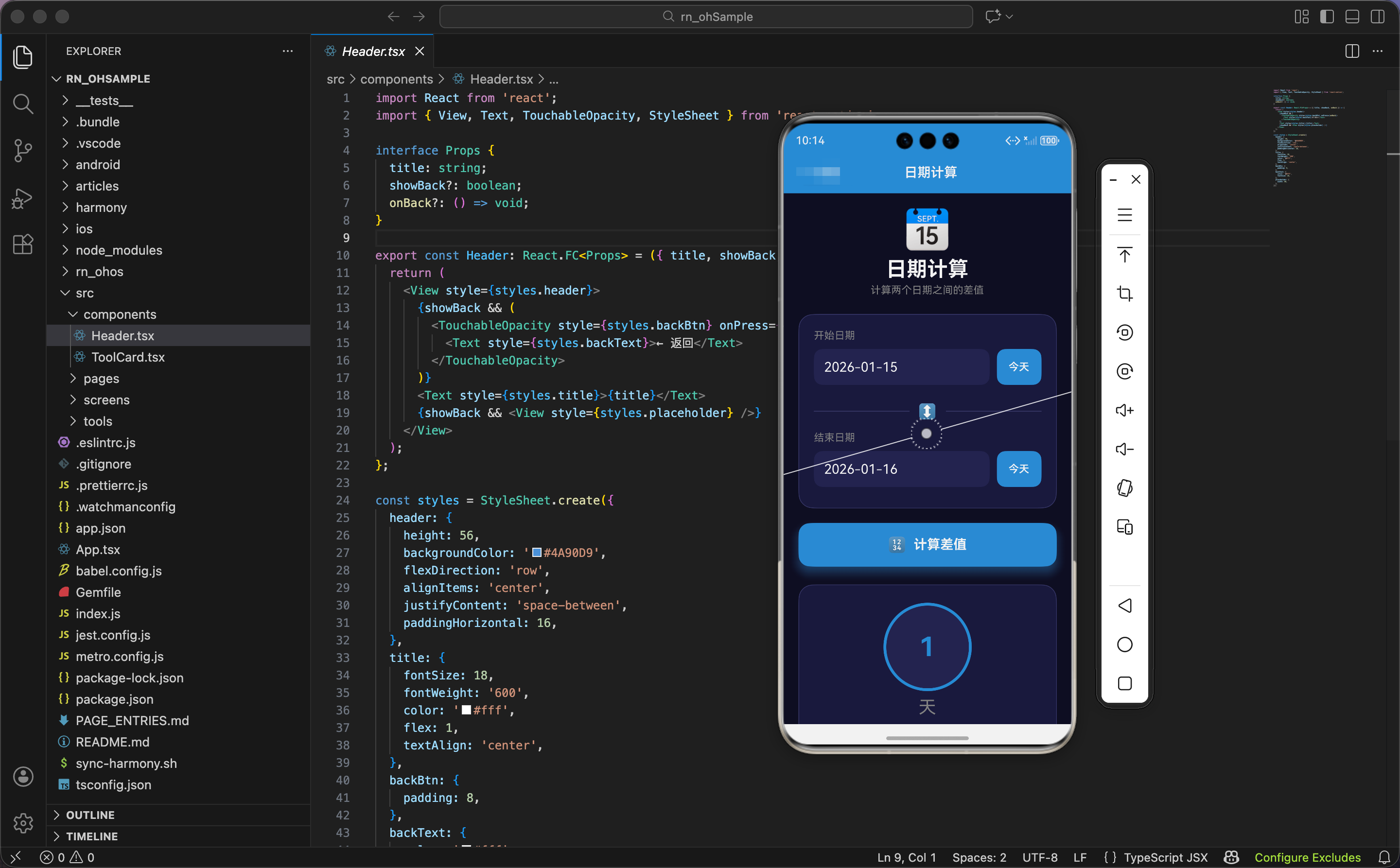
日期计算是一个很实用的功能,比如计算距离某个重要日子还有多少天,或者两个事件之间相隔多久。今天我们用 React Native 实现一个日期差值计算器,支持多种时间单位的显示。
功能设计
这个日期计算器需要实现:
- 输入两个日期(支持 YYYY-MM-DD 格式)
- 快捷设置为今天
- 计算两个日期之间的差值
- 显示天数、周数、月数、年数、小时数
日期处理是 JavaScript 的强项,我们可以直接使用 Date 对象来完成计算。
状态和动画定义
import React, { useState, useRef, useEffect } from 'react';
import { View, Text, TextInput, TouchableOpacity, StyleSheet, Animated, ScrollView } from 'react-native';

export const DateCalculator: React.FC = () => {
  const [date1, setDate1] = useState('');
  const [date2, setDate2] = useState('');
  const [result, setResult] = useState<any>(null);

  const scaleAnim = useRef(new Animated.Value(0)).current;
  const rotateAnim = useRef(new Animated.Value(0)).current;
  const pulseAnim = useRef(new Animated.Value(1)).current;
状态变量:
date1和date2存储用户输入的日期字符串result存储计算结果,可能是数据对象或错误信息
动画值:
scaleAnim控制结果卡片的弹出效果rotateAnim控制主数字的旋转效果pulseAnim控制头部图标的脉冲效果
鸿蒙 ArkTS 对比:状态定义
@Entry
@Component
struct DateCalculator {
  @State date1: string = ''
  @State date2: string = ''
  @State result: DateResult | null = null
  @State scaleValue: number = 0
  @State rotateAngle: number = 0
  @State pulseScale: number = 1

interface DateResult {
  diffDays: number
  weeks: number
  months: number
  years: number
  hours: number
  error?: string
}
ArkTS 中建议用接口定义结果的类型,这样类型检查更严格。React Native 中用 any 类型比较灵活,但也可以定义接口来增强类型安全。
头部脉冲动画
  useEffect(() => {
    Animated.loop(
      Animated.sequence([
        Animated.timing(pulseAnim, { toValue: 1.05, duration: 1000, useNativeDriver: true }),
        Animated.timing(pulseAnim, { toValue: 1, duration: 1000, useNativeDriver: true }),
      ])
    ).start();
  }, []);
组件挂载时启动头部图标的脉冲动画,2 秒一个周期,轻微放大缩小,让界面更有活力。
核心计算逻辑
  const calculate = () => {
    const d1 = new Date(date1);
    const d2 = new Date(date2);
    if (isNaN(d1.getTime()) || isNaN(d2.getTime())) {
      setResult({ error: '请输入有效日期格式 (YYYY-MM-DD)' });
      return;
    }

    const diffTime = Math.abs(d2.getTime() - d1.getTime());
    const diffDays = Math.ceil(diffTime / (1000 * 60 * 60 * 24));
    const weeks = Math.floor(diffDays / 7);
    const months = Math.floor(diffDays / 30);
    const years = Math.floor(diffDays / 365);
    const hours = diffDays * 24;

    // 动画
    scaleAnim.setValue(0);
    rotateAnim.setValue(0);
    Animated.parallel([
      Animated.spring(scaleAnim, { toValue: 1, friction: 4, useNativeDriver: true }),
      Animated.timing(rotateAnim, { toValue: 1, duration: 600, useNativeDriver: true }),
    ]).start();

    setResult({ diffDays, weeks, months, years, hours });
  };
计算步骤:
- 用
new Date()解析日期字符串 - 用
isNaN(d.getTime())检查日期是否有效 - 计算时间差的绝对值(毫秒)
- 转换成各种单位
Math.abs 确保无论哪个日期在前,结果都是正数。月数和年数用简化的 30 天和 365 天来计算,不考虑闰年和月份天数差异。
鸿蒙 ArkTS 对比:日期计算
calculate() {
  let d1 = new Date(this.date1)
  let d2 = new Date(this.date2)

  if (isNaN(d1.getTime()) || isNaN(d2.getTime())) {
    this.result = { error: '请输入有效日期格式 (YYYY-MM-DD)' } as DateResult
    return
  }

  let diffTime = Math.abs(d2.getTime() - d1.getTime())
  let diffDays = Math.ceil(diffTime / (1000 * 60 * 60 * 24))

  this.result = {
    diffDays: diffDays,
    weeks: Math.floor(diffDays / 7),
    months: Math.floor(diffDays / 30),
    years: Math.floor(diffDays / 365),
    hours: diffDays * 24
  }

  this.playResultAnimation()
}
日期计算逻辑完全一样,JavaScript 的 Date 对象在 ArkTS 中同样可用。
快捷设置今天
  const setToday = (setter: (v: string) => void) => {
    setter(new Date().toISOString().split('T')[0]);
  };
toISOString() 返回 ISO 格式的日期时间字符串,如 2024-01-15T08:30:00.000Z。用 split('T')[0] 取日期部分,正好是 YYYY-MM-DD 格式。
这个函数接收一个 setter 函数作为参数,这样可以复用于两个日期输入框。
动画插值
const spin = rotateAnim.interpolate({ inputRange: [0, 1], outputRange: ['0deg', '360deg'] });
把 0-1 的动画值映射成 0-360 度的旋转,用于结果数字的旋转效果。
界面渲染:头部
  return (
    <ScrollView style={styles.container}>
      <View style={styles.header}>
        <Animated.View style={{ transform: [{ scale: pulseAnim }] }}>
          <Text style={styles.headerIcon}>📅</Text>
        </Animated.View>
        <Text style={styles.headerTitle}>日期计算</Text>
        <Text style={styles.headerSubtitle}>计算两个日期之间的差值</Text>
      </View>
头部图标用 Animated.View 包裹,应用脉冲缩放效果。
日期输入区域
      <View style={styles.inputCard}>
        <View style={styles.inputGroup}>
          <Text style={styles.label}>开始日期</Text>
          <View style={styles.inputRow}>
            <View style={styles.inputWrapper}>
              <TextInput
                style={styles.input}
                value={date1}
                onChangeText={setDate1}
                placeholder="YYYY-MM-DD"
                placeholderTextColor="#666"
              />
            </View>
            <TouchableOpacity style={styles.todayBtn} onPress={() => setToday(setDate1)}>
              <Text style={styles.todayText}>今天</Text>
            </TouchableOpacity>
          </View>
        </View>

        <View style={styles.divider}>
          <View style={styles.dividerLine} />
          <View style={styles.dividerIcon}>
            <Text style={styles.dividerText}>↕️</Text>
          </View>
          <View style={styles.dividerLine} />
        </View>

        <View style={styles.inputGroup}>
          <Text style={styles.label}>结束日期</Text>
          <View style={styles.inputRow}>
            <View style={styles.inputWrapper}>
              <TextInput
                style={styles.input}
                value={date2}
                onChangeText={setDate2}
                placeholder="YYYY-MM-DD"
                placeholderTextColor="#666"
              />
            </View>
            <TouchableOpacity style={styles.todayBtn} onPress={() => setToday(setDate2)}>
              <Text style={styles.todayText}>今天</Text>
            </TouchableOpacity>
          </View>
        </View>
      </View>
每个日期输入框旁边都有一个"今天"按钮,方便快速设置。两个输入框之间用分隔线和箭头图标分开,视觉上更清晰。
鸿蒙 ArkTS 对比:输入组件
Column() {
  Text('开始日期')
    .fontSize(14)
    .fontColor('#888888')

  Row() {
    TextInput({ placeholder: 'YYYY-MM-DD' })
      .backgroundColor('#252550')
      .borderRadius(12)
      .onChange((value: string) => {
        this.date1 = value
      })

    Button('今天')
      .backgroundColor('#4A90D9')
      .onClick(() => {
        this.date1 = new Date().toISOString().split('T')[0]
      })
  }
}
ArkTS 的输入组件用 TextInput,通过 onChange 回调获取输入值。React Native 用 onChangeText,两者功能相同。
计算按钮
      <TouchableOpacity style={styles.btn} onPress={calculate} activeOpacity={0.8}>
        <View style={styles.btnInner}>
          <Text style={styles.btnIcon}>🔢</Text>
          <Text style={styles.btnText}>计算差值</Text>
        </View>
      </TouchableOpacity>
按钮用蓝色背景和阴影,是页面的主要操作入口。
结果显示
      {result && !result.error && (
        <Animated.View style={[styles.resultCard, {
          transform: [{ scale: scaleAnim }, { perspective: 1000 }]
        }]}>
          <Animated.View style={[styles.mainResult, { transform: [{ rotate: spin }] }]}>
            <Text style={styles.mainNumber}>{result.diffDays}</Text>
          </Animated.View>
          <Text style={styles.mainLabel}>天</Text>

          <View style={styles.resultGrid}>
            {[
              { icon: '📆', value: result.weeks, label: '周' },
              { icon: '🗓️', value: result.months, label: '月' },
              { icon: '🎂', value: result.years, label: '年' },
              { icon: '⏰', value: result.hours.toLocaleString(), label: '小时' },
            ].map((item, i) => (
              <View key={i} style={styles.resultItem}>
                <Text style={styles.resultIcon}>{item.icon}</Text>
                <Text style={styles.resultValue}>{item.value}</Text>
                <Text style={styles.resultLabel}>{item.label}</Text>
              </View>
            ))}
          </View>
        </Animated.View>
      )}
结果区域分为两部分:
- 主结果:天数,用大圆圈显示,带旋转动画
- 其他单位:周、月、年、小时,用网格布局显示
toLocaleString() 给小时数添加千位分隔符,大数字更易读。
错误提示
      {result?.error && (
        <View style={styles.errorBox}>
          <Text style={styles.errorText}>⚠️ {result.error}</Text>
        </View>
      )}
    </ScrollView>
  );
};
如果日期格式无效,显示红色的错误提示框。用可选链 result?.error 安全地访问属性。
样式定义:容器和头部
const styles = StyleSheet.create({
  container: { flex: 1, backgroundColor: '#0f0f23', padding: 20 },
  header: { alignItems: 'center', marginBottom: 24 },
  headerIcon: { fontSize: 50, marginBottom: 8 },
  headerTitle: { fontSize: 28, fontWeight: '700', color: '#fff' },
  headerSubtitle: { fontSize: 14, color: '#888', marginTop: 4 },
暗色主题,头部居中显示图标、标题和副标题。
输入卡片样式
  inputCard: {
    backgroundColor: '#1a1a3e',
    borderRadius: 20,
    padding: 20,
    marginBottom: 20,
    borderWidth: 1,
    borderColor: '#3a3a6a',
  },
  inputGroup: { marginBottom: 8 },
  label: { color: '#888', fontSize: 14, marginBottom: 10 },
  inputRow: { flexDirection: 'row' },
  inputWrapper: { flex: 1, backgroundColor: '#252550', borderRadius: 12, overflow: 'hidden' },
  input: { padding: 14, fontSize: 18, color: '#fff' },
  todayBtn: {
    backgroundColor: '#4A90D9',
    paddingHorizontal: 16,
    borderRadius: 12,
    marginLeft: 10,
    justifyContent: 'center',
  },
  todayText: { color: '#fff', fontWeight: '600' },
  divider: { flexDirection: 'row', alignItems: 'center', marginVertical: 16 },
  dividerLine: { flex: 1, height: 1, backgroundColor: '#3a3a6a' },
  dividerIcon: { paddingHorizontal: 12 },
  dividerText: { fontSize: 20 },
输入框和按钮并排显示,用 flex: 1 让输入框占据剩余空间。分隔线用两条线夹着图标的方式实现。
按钮和结果样式
  btn: {
    backgroundColor: '#4A90D9',
    borderRadius: 16,
    marginBottom: 24,
    shadowColor: '#4A90D9',
    shadowOffset: { width: 0, height: 8 },
    shadowOpacity: 0.4,
    shadowRadius: 15,
    elevation: 10,
  },
  btnInner: { flexDirection: 'row', alignItems: 'center', justifyContent: 'center', paddingVertical: 18 },
  btnIcon: { fontSize: 20, marginRight: 10 },
  btnText: { color: '#fff', fontSize: 18, fontWeight: '700' },
  resultCard: {
    backgroundColor: '#1a1a3e',
    borderRadius: 20,
    padding: 24,
    borderWidth: 1,
    borderColor: '#3a3a6a',
    alignItems: 'center',
  },
  mainResult: {
    width: 120,
    height: 120,
    borderRadius: 60,
    backgroundColor: '#252550',
    justifyContent: 'center',
    alignItems: 'center',
    borderWidth: 4,
    borderColor: '#4A90D9',
    marginBottom: 8,
  },
  mainNumber: { fontSize: 36, fontWeight: '700', color: '#4A90D9' },
  mainLabel: { fontSize: 24, color: '#888', marginBottom: 24 },
主结果用圆形容器,蓝色边框突出显示。数字用蓝色,和边框颜色一致。
网格和错误样式
  resultGrid: { flexDirection: 'row', flexWrap: 'wrap', justifyContent: 'center' },
  resultItem: {
    width: '45%',
    backgroundColor: '#252550',
    borderRadius: 16,
    padding: 16,
    margin: '2.5%',
    alignItems: 'center',
  },
  resultIcon: { fontSize: 24, marginBottom: 8 },
  resultValue: { fontSize: 24, fontWeight: '700', color: '#fff' },
  resultLabel: { fontSize: 14, color: '#888', marginTop: 4 },
  errorBox: {
    backgroundColor: 'rgba(231, 76, 60, 0.2)',
    borderRadius: 12,
    padding: 16,
    borderWidth: 1,
    borderColor: '#e74c3c',
  },
  errorText: { color: '#e74c3c', textAlign: 'center' },
});
结果网格用 width: '45%' 实现两列布局,margin: '2.5%' 留出间距。错误框用红色半透明背景和红色边框,醒目但不刺眼。
日期格式说明
这个组件使用 YYYY-MM-DD 格式,这是 ISO 8601 标准格式,JavaScript 的 Date 对象可以直接解析。如果需要支持其他格式(如 DD/MM/YYYY),可以在解析前做格式转换:
const parseDate = (dateStr: string) => {
  // 支持 DD/MM/YYYY 格式
  if (dateStr.includes('/')) {
    const [day, month, year] = dateStr.split('/');
    return new Date(`${year}-${month}-${day}`);
  }
  return new Date(dateStr);
};
在 OpenHarmony 上,日期解析行为和标准 JavaScript 一致,不需要特殊处理。
小结
这个日期计算器展示了 React Native 中表单输入和数据处理的常见模式。通过 Date 对象进行日期计算,用动画增强结果展示的视觉效果。错误处理也很重要,无效输入时给用户明确的提示。
日期相关的功能在跨平台开发中通常不需要特殊适配,因为 JavaScript 的 Date 对象是语言标准的一部分,在 OpenHarmony 上同样可用。
欢迎加入开源鸿蒙跨平台社区:https://openharmonycrossplatform.csdn.net

开源鸿蒙跨平台开发社区汇聚开发者与厂商,共建“一次开发,多端部署”的开源生态,致力于降低跨端开发门槛,推动万物智联创新。
更多推荐


 5
5 0
0- 0


 已为社区贡献18条内容

所有评论(0)