Flutter for OpenHarmony 实战:科学计算器完整开发指南
本文介绍了使用Flutter for OpenHarmony开发科学计算器的完整流程。主要内容包括:计算器的UI设计原则与布局实现,采用Column和Row构建按钮网格;运算逻辑设计,包括状态管理、数据类型选择和错误处理;详细的数据模型定义,如按钮类型枚举和状态变量;以及完整的界面实现代码示例。文章重点讲解了显示区域和按钮网格的实现细节,帮助开发者掌握在鸿蒙平台上构建功能完善的计算器应用的关键技术
Flutter for OpenHarmony 实战:科学计算器完整开发指南
文章目录
摘要
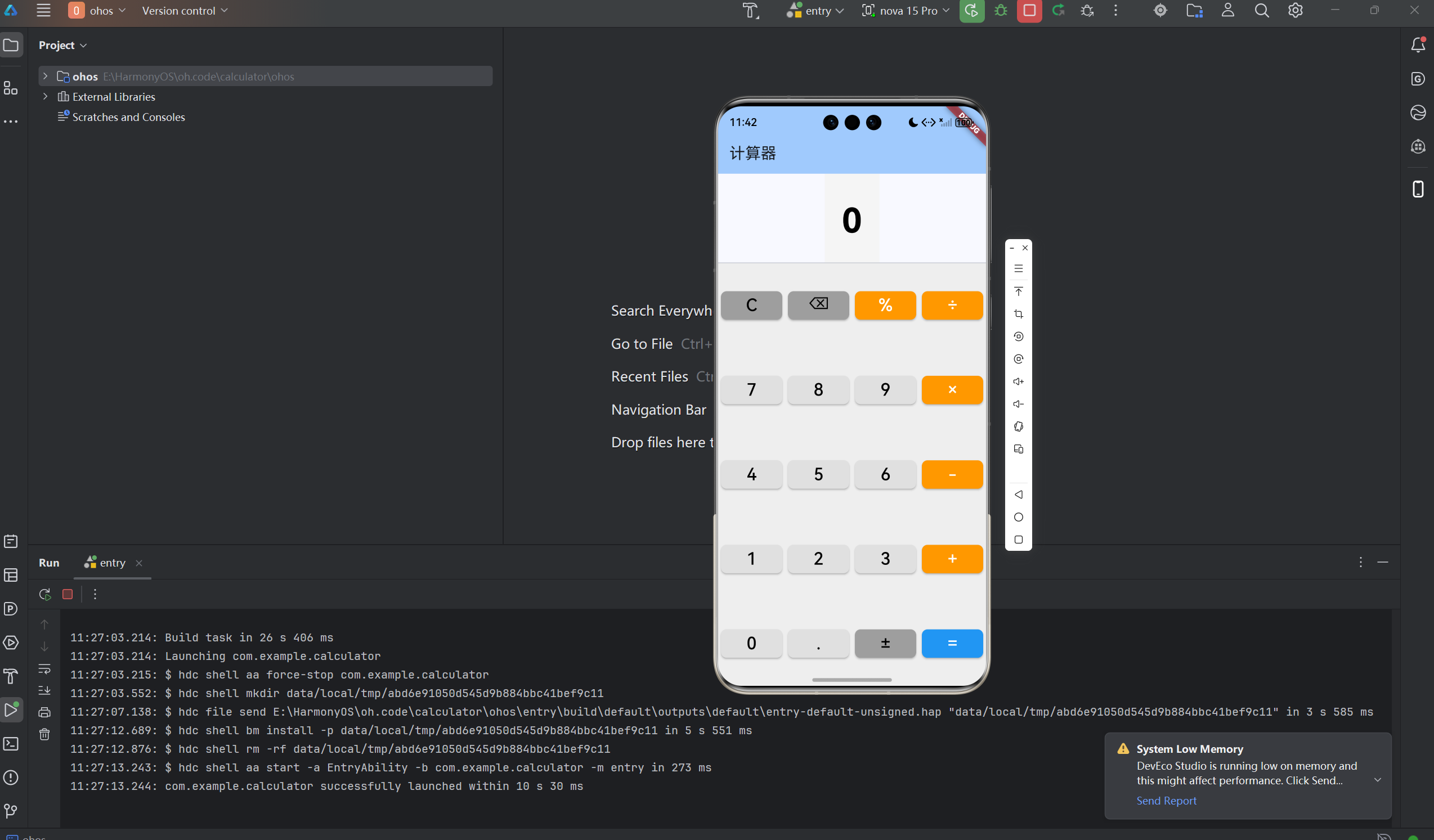
计算器是移动设备中最基础且最重要的工具应用之一。本文将详细介绍如何使用Flutter for OpenHarmony框架开发一款功能完整的计算器应用。文章涵盖了计算器UI设计、运算逻辑实现、状态管理、错误处理等核心技术点。通过本文学习,读者将掌握Flutter在鸿蒙平台上开发工具类应用的完整流程,了解如何构建功能完善、用户体验优秀的计算器应用。
一、项目背景与功能概述
1.1 计算器应用的历史
计算器应用从最初的简单加减乘除发展到如今支持科学运算、单位转换等多种功能。随着智能手机的普及,计算器成为每台设备必备的基础应用。
1.2 应用功能规划
| 功能模块 | 具体功能 |
|---|---|
| 基本运算 | 加、减、乘、除、取余 |
| 数字输入 | 0-9数字、小数点、正负号切换 |
| 功能操作 | 清除、删除 |
| 显示功能 | 表达式显示、结果显示 |
| 错误处理 | 除零检测、格式错误处理 |
1.3 为什么选择Flutter for OpenHarmony
Flutter在开发计算器应用时具有明显优势:
精确的数值计算
- double类型提供高精度计算
- 避免浮点数精度问题
- 支持大数运算
流畅的交互体验
- 即时响应的按钮反馈
- 平滑的状态更新
- 自适应的布局设计
跨平台一致性
- 一套代码多端运行
- 统一的按键手感
- 降低维护成本
二、计算器设计原则
2.1 用户界面设计
布局原则
- 显示区域位于顶部
- 按钮区域占据主要空间
- 操作符与数字颜色区分
- 等号按钮突出显示
交互原则
- 即时响应按钮点击
- 清晰的状态反馈
- 错误提示友好明确
- 支持连续运算
2.2 计算逻辑设计
运算流程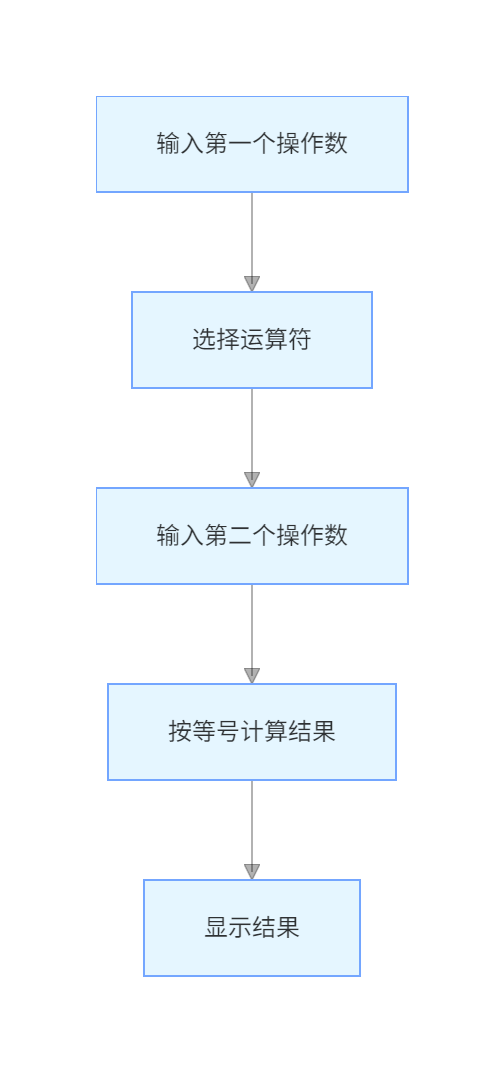
状态管理
- 当前显示值
- 第一个操作数
- 当前运算符
- 表达式显示
三、技术选型与架构设计
3.1 核心技术栈
UI组件
- Column:垂直布局
- Row:水平布局
- ElevatedButton:按钮组件
- Text:文本显示
状态管理
- StatefulWidget管理状态
- setState更新UI
- 成员变量存储状态
数据类型
- double:数值计算
- String:显示处理
- enum:按钮类型定义
3.2 应用架构
CalculatorApp (应用根组件)
    └── CalculatorPage (计算器页面)
        ├── AppBar (导航栏)
        ├── DisplayArea (显示区域)
        │   ├── 表达式显示
        │   └── 结果显示
        └── ButtonGrid (按钮网格)
            ├── 第1行: C, ⌫, %, ÷
            ├── 第2行: 7, 8, 9, ×
            ├── 第3行: 4, 5, 6, -
            ├── 第4行: 1, 2, 3, +
            └── 第5行: 0, ., ±, =
3.3 按钮类型设计
使用枚举定义按钮类型:
enum CalculatorButtonType {
  number,     // 数字按钮:0-9, 小数点
  operator,   // 运算符按钮:+, -, ×, ÷, %
  function,   // 功能按钮:清除, 删除, 正负号
  equals,     // 等号按钮
}
四、数据模型设计
4.1 按钮数据模型
class CalculatorButton {
  final String label;      // 按钮显示文本
  final CalculatorButtonType type; // 按钮类型
  final String? value;     // 按钮值(用于计算)

  const CalculatorButton({
    required this.label,
    required this.type,
    this.value,
  });
}
设计要点
- label:用户看到的按钮文字
- type:按钮的类型分类
- value:实际参与计算的值
4.2 状态变量设计
class _CalculatorPageState extends State<CalculatorPage> {
  String _display = '0';          // 当前显示的值
  String _expression = '';        // 表达式显示
  double? _firstOperand;          // 第一个操作数
  String? _operator;              // 当前运算符
  bool _resetDisplay = false;     // 是否重置显示
  bool _hasError = false;         // 是否有错误
}
变量说明
- _display:主显示区域的内容
- _expression:上方显示的运算过程
- _firstOperand:存储的第一个操作数
- _operator:当前选中的运算符
- _resetDisplay:控制输入时是否清空当前显示
- _hasError:标识是否处于错误状态
五、UI界面实现
5.1 按钮布局定义
使用二维数组定义按钮布局: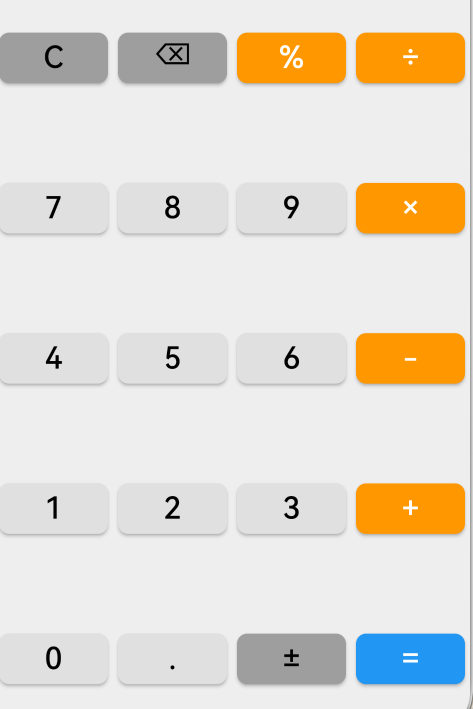
static const List<List<CalculatorButton>> _buttons = [
  [
    CalculatorButton(label: 'C', type: CalculatorButtonType.function, value: 'clear'),
    CalculatorButton(label: '⌫', type: CalculatorButtonType.function, value: 'delete'),
    CalculatorButton(label: '%', type: CalculatorButtonType.operator, value: '%'),
    CalculatorButton(label: '÷', type: CalculatorButtonType.operator, value: '/'),
  ],
  [
    CalculatorButton(label: '7', type: CalculatorButtonType.number, value: '7'),
    CalculatorButton(label: '8', type: CalculatorButtonType.number, value: '8'),
    CalculatorButton(label: '9', type: CalculatorButtonType.number, value: '9'),
    CalculatorButton(label: '×', type: CalculatorButtonType.operator, value: '*'),
  ],
  // ... 其他行
];
5.2 显示区域实现
Widget _buildDisplayArea() {
  return Container(
    padding: const EdgeInsets.all(24),
    color: Colors.grey[100],
    child: Column(
      crossAxisAlignment: CrossAxisAlignment.end,
      children: [
        // 表达式显示
        if (_expression.isNotEmpty)
          Text(
            _expression,
            style: TextStyle(
              fontSize: 20,
              color: Colors.grey[600],
            ),
          ),
        const SizedBox(height: 8),
        // 主显示
        Text(
          _display,
          style: TextStyle(
            fontSize: 48,
            fontWeight: FontWeight.bold,
            color: _hasError ? Colors.red : Colors.black,
          ),
          textAlign: TextAlign.right,
          maxLines: 1,
          overflow: TextOverflow.ellipsis,
        ),
      ],
    ),
  );
}
设计要点
- 右对齐显示数字
- 表达式使用较小字体和灰色
- 主显示使用大字体和粗体
- 错误时文字变红
- 超长时省略显示
5.3 按钮网格实现
Widget _buildButtonGrid() {
  return Container(
    color: Colors.grey[200],
    child: Column(
      children: _buttons.map((row) {
        return Expanded(
          child: Row(
            children: row.map((button) {
              return Expanded(
                child: _buildButton(button),
              );
            }).toList(),
          ),
        );
      }).toList(),
    ),
  );
}
5.4 单个按钮实现
Widget _buildButton(CalculatorButton button) {
  return Container(
    margin: const EdgeInsets.all(4),
    child: ElevatedButton(
      onPressed: () => _onButtonPressed(button),
      style: ElevatedButton.styleFrom(
        backgroundColor: _getButtonColor(button.type),
        foregroundColor: _getButtonTextColor(button.type),
        shape: RoundedRectangleBorder(
          borderRadius: BorderRadius.circular(8),
        ),
        elevation: 2,
      ),
      child: Text(
        button.label,
        style: const TextStyle(
          fontSize: 24,
          fontWeight: FontWeight.w500,
        ),
      ),
    ),
  );
}
5.5 按钮颜色方案
Color _getButtonColor(CalculatorButtonType type) {
  switch (type) {
    case CalculatorButtonType.number:
      return Colors.grey[300]!;
    case CalculatorButtonType.operator:
      return Colors.orange;
    case CalculatorButtonType.function:
      return Colors.grey;
    case CalculatorButtonType.equals:
      return Colors.blue;
  }
}

Color _getButtonTextColor(CalculatorButtonType type) {
  switch (type) {
    case CalculatorButtonType.number:
      return Colors.black;
    case CalculatorButtonType.operator:
    case CalculatorButtonType.equals:
      return Colors.white;
    case CalculatorButtonType.function:
      return Colors.black;
  }
}
颜色设计
- 数字按钮:浅灰色背景,黑色文字
- 运算符:橙色背景,白色文字
- 功能按钮:灰色背景,黑色文字
- 等号按钮:蓝色背景,白色文字
六、运算逻辑实现
6.1 按钮点击处理
void _onButtonPressed(CalculatorButton button) {
  setState(() {
    _hasError = false;

    switch (button.type) {
      case CalculatorButtonType.number:
        _handleNumberButton(button.value!);
        break;
      case CalculatorButtonType.operator:
        _handleOperatorButton(button.value!);
        break;
      case CalculatorButtonType.function:
        _handleFunctionButton(button.value!);
        break;
      case CalculatorButtonType.equals:
        _handleEqualsButton();
        break;
    }
  });
}
6.2 数字输入处理
void _handleNumberButton(String value) {
  if (_resetDisplay) {
    _display = '0';
    _resetDisplay = false;
  }

  if (value == '.') {
    // 小数点处理:只允许一个小数点
    if (!_display.contains('.')) {
      _display = _display == '0' ? '0.' : '$_display.';
    }
  } else {
    // 数字处理:0开头时替换,否则追加
    if (_display == '0') {
      _display = value;
    } else {
      _display += value;
    }
  }
}
输入规则
- 小数点只能输入一次
- 0后输入数字替换0
- 其他情况追加到末尾
6.3 运算符处理
void _handleOperatorButton(String value) {
  if (_firstOperand == null) {
    // 第一次输入运算符,保存当前值
    _firstOperand = double.tryParse(_display);
    if (_firstOperand == null) {
      _hasError = true;
      _display = '错误';
      return;
    }
  } else if (!_resetDisplay && _operator != null) {
    // 连续运算,先计算之前的结果
    _calculateResult();
  }

  _operator = value;
  _resetDisplay = true;
  _expression = '$_display $value';
}
运算逻辑
- 首次输入运算符:保存第一个操作数
- 连续运算:先计算之前的表达式
- 更新运算符和表达式显示
6.4 功能按钮处理
void _handleFunctionButton(String value) {
  switch (value) {
    case 'clear':
      _clearAll();
      break;
    case 'delete':
      _deleteLastChar();
      break;
    case 'negate':
      _negateNumber();
      break;
  }
}

// 清除所有
void _clearAll() {
  _display = '0';
  _expression = '';
  _firstOperand = null;
  _operator = null;
  _resetDisplay = false;
}

// 删除最后一个字符
void _deleteLastChar() {
  if (_display.length > 1) {
    _display = _display.substring(0, _display.length - 1);
  } else {
    _display = '0';
  }
}

// 取反数字
void _negateNumber() {
  final number = double.tryParse(_display);
  if (number != null) {
    _display = (-number).toString();
  }
}
6.5 等号处理
void _handleEqualsButton() {
  if (_firstOperand != null && _operator != null) {
    _calculateResult();
    _expression = '';
    _operator = null;
    _firstOperand = null;
    _resetDisplay = true;
  }
}
6.6 计算结果
void _calculateResult() {
  final secondOperand = double.tryParse(_display);
  if (secondOperand == null) {
    _hasError = true;
    _display = '错误';
    return;
  }

  double result;
  try {
    result = _performOperation(_firstOperand!, secondOperand, _operator!);
  } catch (e) {
    _hasError = true;
    _display = '错误';
    return;
  }

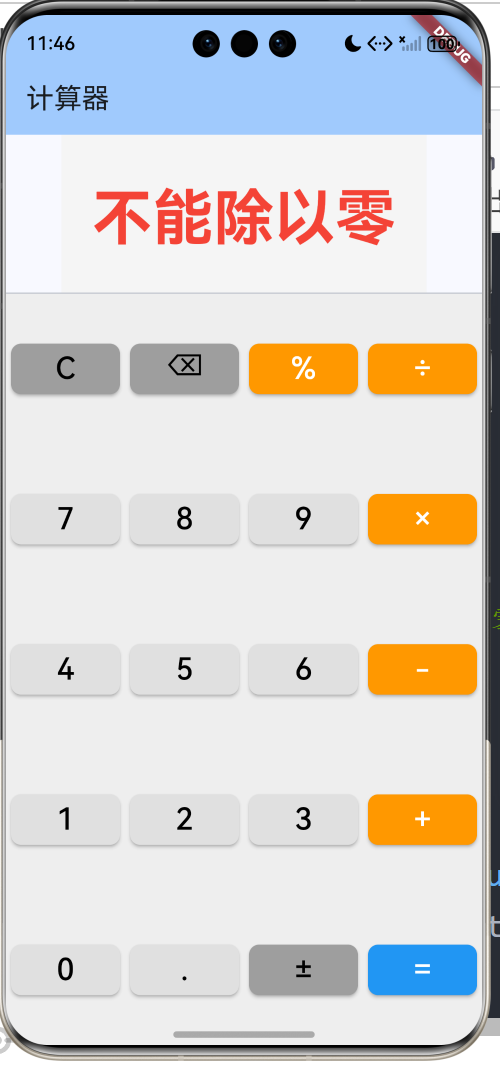
  // 处理除数为零的情况
  if (!result.isFinite) {
    _hasError = true;
    _display = '不能除以零';
    return;
  }

  // 格式化结果
  _display = _formatResult(result);
  _firstOperand = result;
}
6.7 运算执行
double _performOperation(double a, double b, String operator) {
  switch (operator) {
    case '+':
      return a + b;
    case '-':
      return a - b;
    case '*':
      return a * b;
    case '/':
      return a / b;
    case '%':
      return a % b;
    default:
      throw ArgumentError('未知的运算符: $operator');
  }
}
6.8 结果格式化
String _formatResult(double result) {
  // 整数直接显示
  if (result == result.truncateToDouble()) {
    return result.toInt().toString();
  }

  // 处理浮点数精度问题
  String formatted = result.toString();
  if (formatted.contains('.') && formatted.length > 12) {
    // 使用科学计数法或四舍五入
    if (result.abs() >= 1e10 || result.abs() < 1e-6 && result != 0) {
      return result.toStringAsExponential(6);
    } else {
      // 保留最多10位小数
      final rounded = double.parse(result.toStringAsFixed(10));
      return rounded.toString();
    }
  }

  return formatted;
}
格式化策略
- 整数不显示小数点
- 超大或超小数使用科学计数法
- 长小数进行四舍五入
七、状态管理
7.1 状态变量管理
使用StatefulWidget管理所有状态:
class _CalculatorPageState extends State<CalculatorPage> {
  // 状态变量
  String _display = '0';
  String _expression = '';
  double? _firstOperand;
  String? _operator;
  bool _resetDisplay = false;
  bool _hasError = false;

  // 状态更新
  void _updateDisplay(String value) {
    setState(() {
      _display = value;
    });
  }
}
7.2 状态转换图
初始状态 (display='0')
    ↓ [输入数字]
数字输入状态
    ↓ [输入运算符]
运算符选中状态
    ↓ [输入数字]
第二操作数状态
    ↓ [按等号]
结果显示状态
    ↓ [输入数字]
回到数字输入状态
7.3 错误状态处理
// 检测错误状态
if (_firstOperand == null) {
  _hasError = true;
  _display = '错误';
  return;
}

// 显示错误
if (_hasError) {
  Text(
    _display,
    style: TextStyle(
      fontSize: 48,
      fontWeight: FontWeight.bold,
      color: Colors.red, // 红色显示错误
    ),
  );
}

// 清除错误状态
setState(() {
  _hasError = false;
});
八、完整代码实现
8.1 应用入口
void main() {
runApp(const CalculatorApp());
}
class CalculatorApp extends StatelessWidget {
const CalculatorApp({super.key});
Widget build(BuildContext context) {
return MaterialApp(
title: '计算器',
theme: ThemeData(
colorScheme: ColorScheme.fromSeed(seedColor: Colors.blue),
useMaterial3: true,
),
home: const CalculatorPage(),
);
}
}
8.2 主页面结构
Widget build(BuildContext context) {
return Scaffold(
appBar: AppBar(
title: const Text('计算器'),
backgroundColor: Theme.of(context).colorScheme.inversePrimary,
),
body: Column(
children: [
// 显示区域
_buildDisplayArea(),
const Divider(height: 1),
// 按钮区域
Expanded(
child: _buildButtonGrid(),
),
],
),
);
}
九、运行效果与测试
9.1 项目运行命令
cd E:\HarmonyOS\oh.code\calculator
flutter run -d ohos
9.2 功能测试清单
基本运算测试
- 加法:2 + 3 = 5
- 减法:10 - 4 = 6
- 乘法:7 × 8 = 56
- 除法:15 ÷ 3 = 5
- 取余:17 % 5 = 2
小数运算测试
- 小数加法:1.5 + 2.3 = 3.8
- 小数乘法:0.5 × 0.2 = 0.1
连续运算测试
- 连续加法:5 + 3 + 2 = 10
- 混合运算:10 - 3 + 5 = 12
功能按钮测试
- 清除按钮:重置所有状态
- 删除按钮:逐个删除字符
- 正负号:切换数字符号
错误处理测试
- 除以零:显示"不能除以零"
- 无效输入:显示"错误"
9.3 边界条件测试
大数运算
- 9999999999 + 1 = 科学计数法显示
- 0.000000001 × 0.000000001 = 科学计数法显示
特殊输入
- 连续输入小数点:只允许一个
- 0开头输入:正确处理
- 超长数字:正确显示
十、总结
本文详细介绍了使用Flutter for OpenHarmony开发计算器应用的完整过程,涵盖了以下核心技术点:
- UI布局设计:Column、Row实现网格布局
- 按钮系统:enum分类、统一样式、颜色区分
- 运算逻辑:状态管理、连续运算、错误处理
- 格式化显示:整数、小数、科学计数法
- 状态管理:setState更新、条件渲染
这个项目展示了Flutter在工具类应用开发中的完整流程,代码结构清晰,功能完整。读者可以基于此项目添加更多功能,如:
- 科学计算功能(三角函数、对数等)
- 历史记录功能
- 单位转换功能
- 复制粘贴功能
- 语音输入功能
通过本文的学习,读者应该能够独立开发类似的工具类应用,掌握Flutter在鸿蒙平台上的UI设计和状态管理技巧。
欢迎加入开源鸿蒙跨平台社区: 开源鸿蒙跨平台开发者社区

开源鸿蒙跨平台开发社区汇聚开发者与厂商,共建“一次开发,多端部署”的开源生态,致力于降低跨端开发门槛,推动万物智联创新。
更多推荐



 16
16 0
0- 0


 已为社区贡献44条内容

所有评论(0)