Flutter for OpenHarmony 实战:番茄钟应用完整开发指南
摘要 本文详细介绍了使用Flutter for OpenHarmony开发番茄钟应用的全过程。该应用基于番茄工作法原理,包含25分钟工作计时、5分钟短休息和15分钟长休息三种模式。文章从项目背景、功能规划入手,阐述了Flutter框架的优势,包括精准计时控制、流畅UI体验和跨平台一致性。核心技术栈涵盖Timer组件、状态管理和UI组件实现,采用模块化架构设计,包含模式选择器、计时显示和控制按钮等核
Flutter for OpenHarmony 实战:番茄钟应用完整开发指南
文章目录
摘要
欢迎加入开源鸿蒙跨平台社区:开源鸿蒙跨平台开发者社区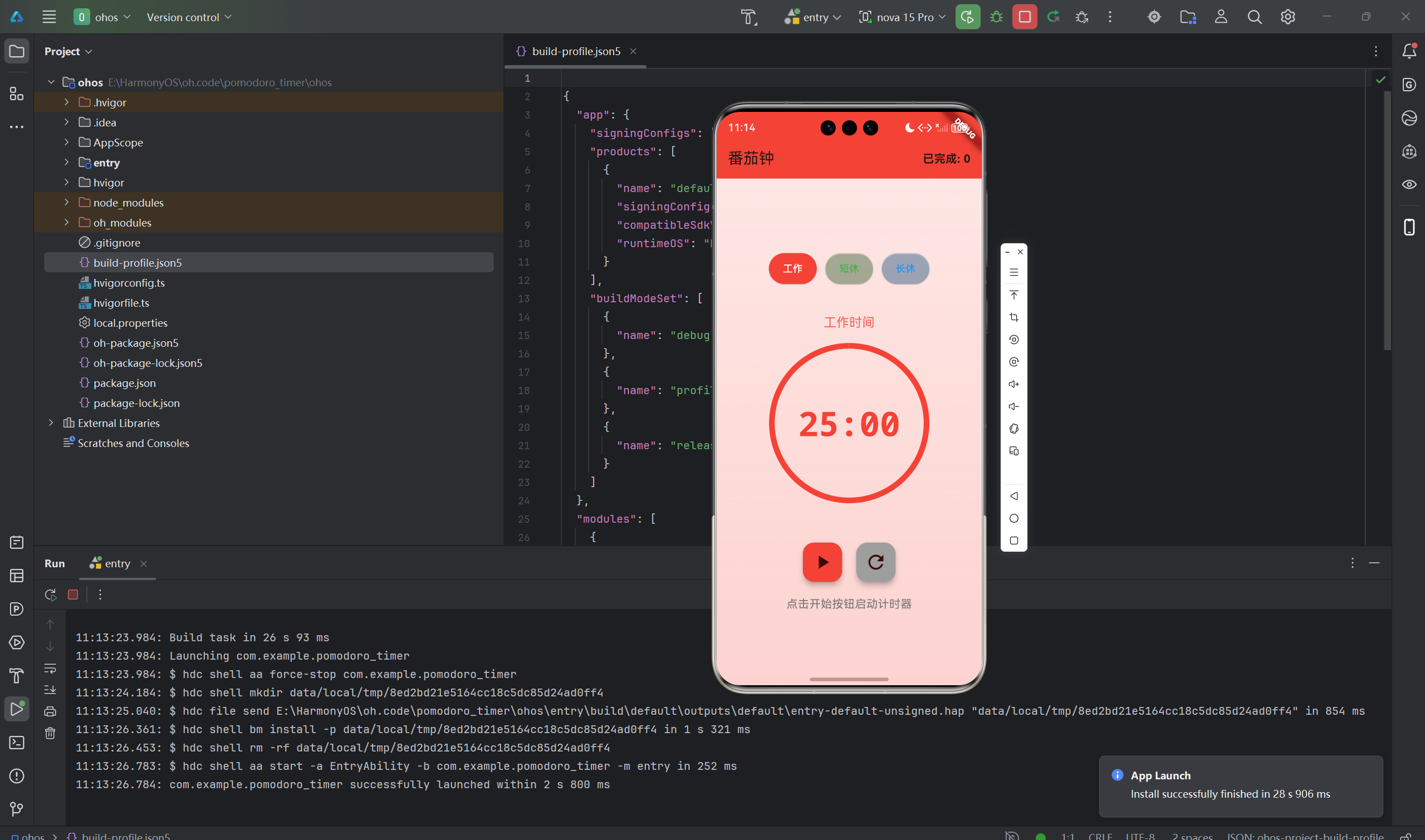
番茄工作法是一种高效的时间管理方法,通过将工作时间分割为25分钟的时间段来提高专注力。本文将详细介绍如何使用Flutter for OpenHarmony框架开发一款功能完整的番茄钟应用。文章涵盖了番茄工作法原理、计时器实现、状态管理、UI设计等核心技术点。通过本文学习,读者将掌握Flutter在鸿蒙平台上开发时间管理类应用的完整流程,了解Timer组件的使用方法和状态管理最佳实践。
一、项目背景与功能概述
1.1 番茄工作法的由来
番茄工作法(Pomodoro Technique)由Francesco Cirillo在1980年代创立,因其使用番茄形状的厨房计时器而得名。这是一种简单而高效的时间管理方法,通过将工作时间分割为固定长度的时间段来帮助人们保持专注和高效。
核心理念
- 选择一个任务
- 设置25分钟计时器
- 专注工作直到计时器响起
- 短暂休息5分钟
- 每完成4个番茄时间,休息15-30分钟
1.2 应用功能规划
| 功能模块 | 具体功能 |
|---|---|
| 计时功能 | 25分钟工作计时、5分钟短休息、15分钟长休息 |
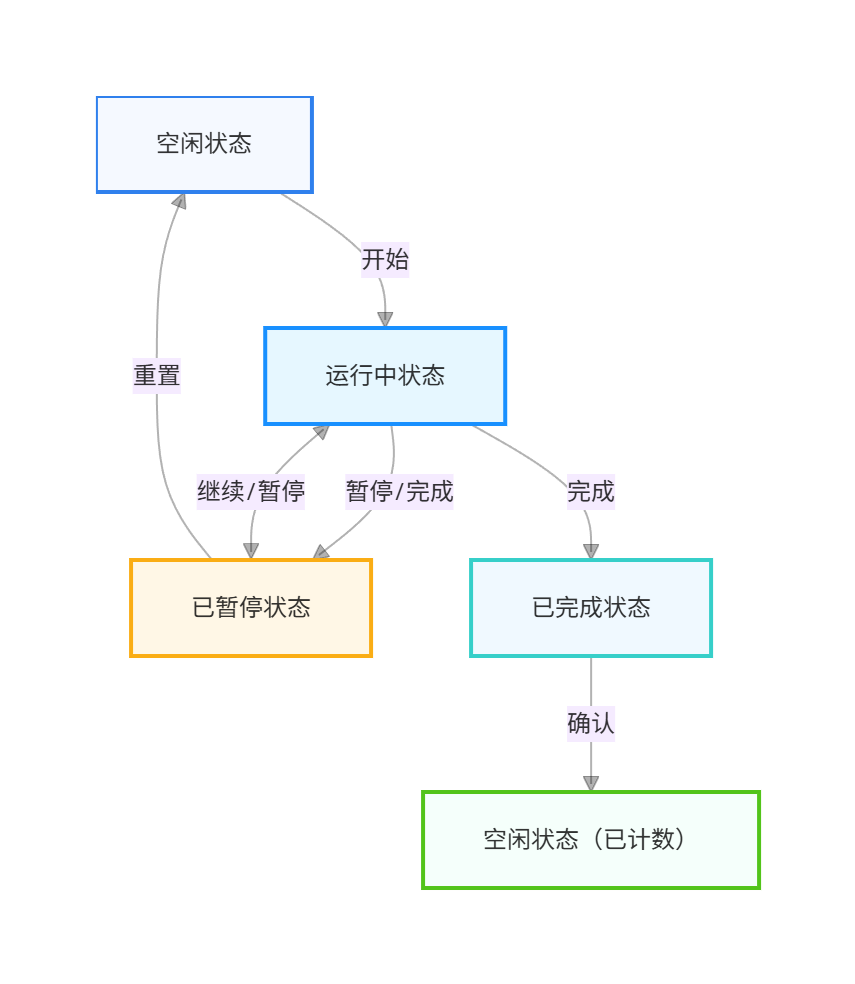
| 状态管理 | 空闲、运行中、已暂停、已完成 |
| 模式切换 | 工作模式、短休息模式、长休息模式 |
| 进度显示 | 圆形进度条、剩余时间显示 |
| 统计功能 | 已完成番茄钟数量统计 |
| 提示功能 | 计时完成弹窗提示 |
1.3 为什么选择Flutter for OpenHarmony
Flutter在开发时间管理应用时具有独特优势:
精准的计时控制
- Timer组件提供毫秒级精度
- Timer.periodic实现周期性更新
- 稳定的状态同步机制
流畅的UI体验
- 60fps的动画渲染
- 平滑的进度条动画
- 响应式界面设计
跨平台一致性
- 一套代码多端运行
- 统一的交互体验
- 降低维护成本
二、番茄工作法原理
2.1 时间分配策略
番茄工作法采用固定的时间间隔模式:
工作周期
- 25分钟专注工作
- 不可中断原则
- 单任务处理
休息策略
- 短休息:5分钟
- 长休息:15分钟(每4个番茄钟后)
- 完全放松原则
2.2 状态转换图
2.3 心理效应
番茄工作法的心理学基础:
- 时间限制增强紧迫感
- 定期休息保持精力
- 小成就激励持续工作
- 减少拖延行为
三、技术选型与架构设计
3.1 核心技术栈
计时器组件
- dart:async库的Timer类
- Timer.periodic实现周期性回调
- Timer.cancel停止计时
状态管理
- StatefulWidget管理组件状态
- enum定义状态常量
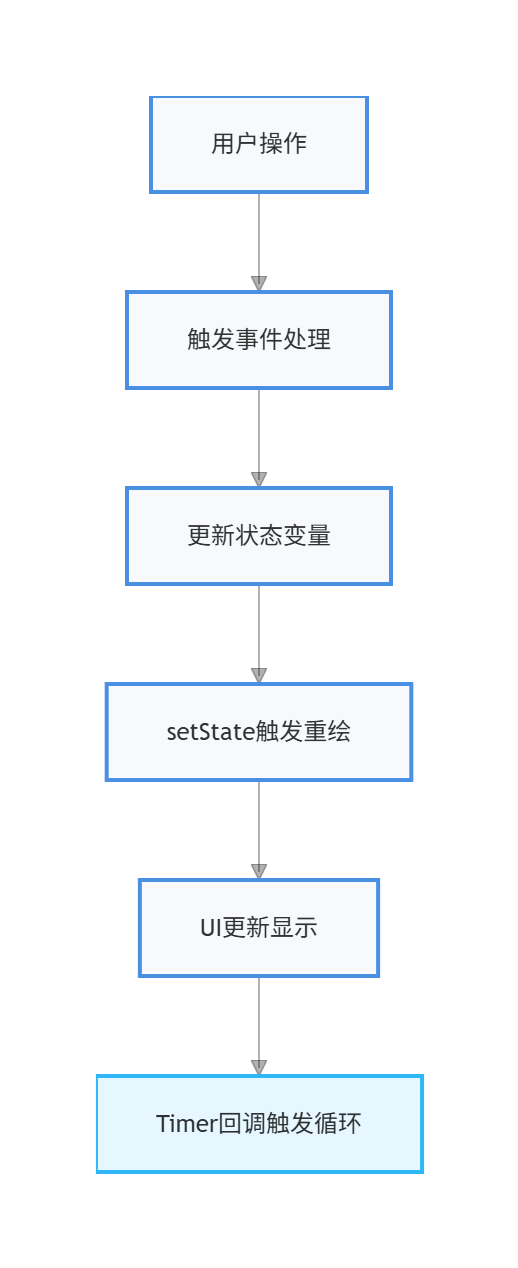
- setState触发UI更新
UI组件
- CircularProgressIndicator圆形进度条
- FloatingActionButton操作按钮
- AlertDialog提示对话框
3.2 应用架构
PomodoroApp (应用根组件)
    └── PomodoroTimerPage (计时器页面)
        ├── AppBar (导航栏)
        │   └── 统计信息显示
        ├── ModeSelector (模式选择器)
        │   ├── 工作模式按钮
        │   ├── 短休息按钮
        │   └── 长休息按钮
        ├── TimerDisplay (计时器显示)
        │   ├── 模式名称
        │   ├── 圆形进度条
        │   └── 时间显示
        ├── ControlButtons (控制按钮)
        │   ├── 开始/暂停按钮
        │   └── 重置按钮
        └── StatusText (状态提示)
3.3 数据流设计
四、数据模型设计
4.1 番茄工作模式枚举
使用枚举定义三种工作模式:
enum PomodoroMode {
  work,       // 工作模式:25分钟
  shortBreak, // 短休息:5分钟
  longBreak,  // 长休息:15分钟
}
枚举优势
- 类型安全
- 编译时检查
- 代码可读性高
- 易于维护
4.2 计时器状态枚举
定义计时器的四种状态:
enum TimerStatus {
  idle,      // 空闲
  running,   // 运行中
  paused,    // 已暂停
  completed, // 已完成
}
4.3 时间常量定义
使用静态常量定义各模式的时长:
class _PomodoroTimerPageState extends State<PomodoroTimerPage> {
  static const int workDuration = 25 * 60;      // 工作时间:25分钟
  static const int shortBreakDuration = 5 * 60; // 短休息:5分钟
  static const int longBreakDuration = 15 * 60;  // 长休息:15分钟
}
使用const的好处
- 编译时常量
- 内存优化
- 语义清晰
- 易于修改
五、UI界面实现
5.1 模式选择器
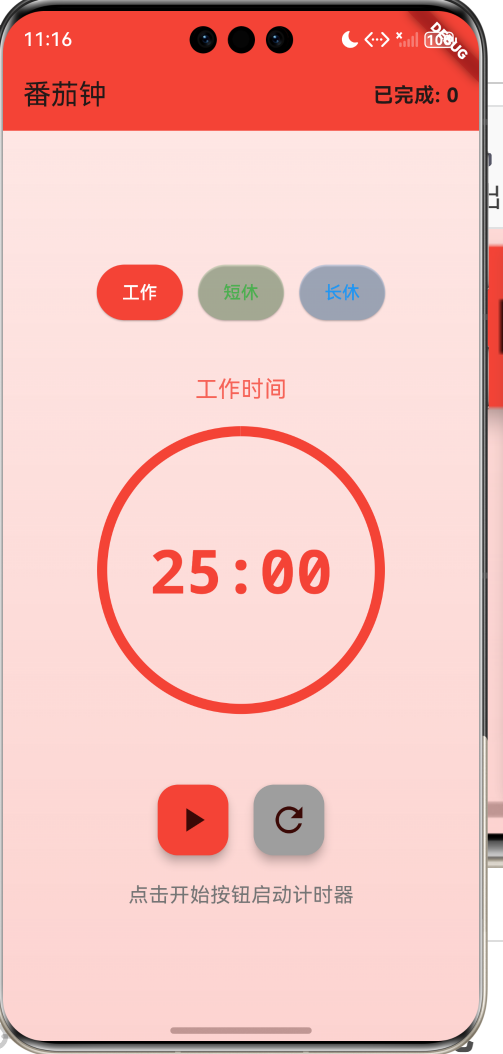
模式选择器由三个按钮组成,分别对应工作、短休息、长休息模式:
Widget _buildModeSelector() {
  return Row(
    mainAxisAlignment: MainAxisAlignment.center,
    children: [
      _buildModeButton(PomodoroMode.work, '工作', Colors.red),
      const SizedBox(width: 12),
      _buildModeButton(PomodoroMode.shortBreak, '短休', Colors.green),
      const SizedBox(width: 12),
      _buildModeButton(PomodoroMode.longBreak, '长休', Colors.blue),
    ],
  );
}

Widget _buildModeButton(PomodoroMode mode, String label, Color color) {
  final isSelected = _currentMode == mode;

  return ElevatedButton(
    onPressed: () => _switchMode(mode),
    style: ElevatedButton.styleFrom(
      backgroundColor: isSelected ? color : color.withAlpha(51),
      foregroundColor: isSelected ? Colors.white : color,
      padding: const EdgeInsets.symmetric(horizontal: 20, vertical: 12),
    ),
    child: Text(label),
  );
}
设计要点
- 选中状态使用实色填充
- 未选中状态使用半透明背景
- 颜色编码:工作-红色、短休-绿色、长休-蓝色
- 按钮间距12px保持视觉平衡
5.2 计时器显示
计时器显示是应用的核心UI元素,包含圆形进度条和时间文字:
Widget _buildTimerDisplay(Color color, double progress) {
  return Column(
    children: [
      // 当前模式
      Text(
        _getCurrentModeName(),
        style: TextStyle(
          fontSize: 18,
          color: color.withAlpha(204),
        ),
      ),
      const SizedBox(height: 20),

      // 圆形进度条和时间
      Stack(
        alignment: Alignment.center,
        children: [
          // 背景圆环
          SizedBox(
            width: 220,
            height: 220,
            child: CircularProgressIndicator(
              value: progress,
              strokeWidth: 8,
              backgroundColor: color.withAlpha(26),
              valueColor: AlwaysStoppedAnimation<Color>(color),
            ),
          ),
          // 时间显示
          Text(
            _formatTime(_remainingSeconds),
            style: TextStyle(
              fontSize: 48,
              fontWeight: FontWeight.bold,
              color: color,
              fontFamily: 'monospace',
            ),
          ),
        ],
      ),
    ],
  );
}
UI细节
- Stack布局实现文字叠加
- CircularProgressIndicator显示进度
- monospace字体确保数字等宽
- 220px尺寸保证视觉平衡
5.3 控制按钮
控制按钮区域包含开始/暂停和重置两个浮动操作按钮:
Widget _buildControlButtons(Color color) {
  return Row(
    mainAxisAlignment: MainAxisAlignment.center,
    children: [
      // 开始/暂停按钮
      FloatingActionButton(
        heroTag: 'start_pause',
        onPressed: () {
          if (_status == TimerStatus.idle || _status == TimerStatus.paused) {
            _startTimer();
          } else if (_status == TimerStatus.running) {
            _pauseTimer();
          }
        },
        backgroundColor: color,
        child: Icon(
          _status == TimerStatus.running ? Icons.pause : Icons.play_arrow,
          size: 32,
        ),
      ),
      const SizedBox(width: 20),

      // 重置按钮
      FloatingActionButton(
        heroTag: 'reset',
        onPressed: _resetTimer,
        backgroundColor: Colors.grey,
        child: const Icon(Icons.refresh, size: 32),
      ),
    ],
  );
}
交互逻辑
- 开始/暂停按钮根据状态切换图标
- heroTag区分不同的FloatingActionButton
- 按钮颜色与当前模式保持一致
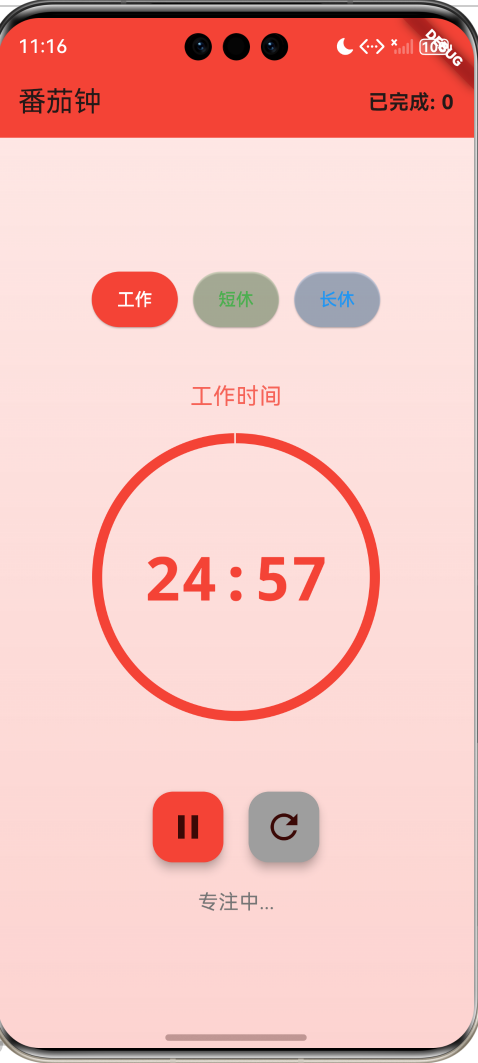
5.4 状态提示文字
底部显示当前状态文字提示:
Widget _buildStatusText() {
  String statusText;

  switch (_status) {
    case TimerStatus.idle:
      statusText = '点击开始按钮启动计时器';
      break;
    case TimerStatus.running:
      statusText = '专注中...';
      break;
    case TimerStatus.paused:
      statusText = '已暂停,点击继续';
      break;
    case TimerStatus.completed:
      statusText = '已完成!';
      break;
  }

  return Text(
    statusText,
    style: TextStyle(
      fontSize: 16,
      color: Colors.grey[600],
    ),
  );
}
六、计时器核心功能
6.1 Timer组件基础
Flutter的Timer类来自dart:async库,提供定时任务功能:
Timer类型
- Timer:一次性定时器
- Timer.periodic:周期性定时器
6.2 启动计时器
使用Timer.periodic实现每秒更新的倒计时:
void _startTimer() {
  setState(() {
    _status = TimerStatus.running;
  });

  _timer = Timer.periodic(const Duration(seconds: 1), (timer) {
    setState(() {
      if (_remainingSeconds > 0) {
        _remainingSeconds--;
      } else {
        _timer?.cancel();
        _status = TimerStatus.completed;
        _onTimerComplete();
      }
    });
  });
}
实现要点
- Timer.periodic每秒触发一次回调
- setState触发UI更新
- 剩余时间减到0时停止计时
- 自动触发完成处理
6.3 暂停计时器
暂停功能通过取消Timer实现:
void _pauseTimer() {
  _timer?.cancel();
  setState(() {
    _status = TimerStatus.paused;
  });
}
注意
- cancel()停止Timer但保留当前状态
- _remainingSeconds保持不变
- 可通过_startTimer()恢复计时
6.4 重置计时器
重置功能恢复初始状态:
void _resetTimer() {
  _timer?.cancel();
  setState(() {
    _status = TimerStatus.idle;
    _remainingSeconds = _getCurrentModeDuration();
  });
}
6.5 资源释放
在组件销毁时必须释放Timer资源:
void dispose() {
_timer?.cancel();
super.dispose();
}
重要性
- 防止内存泄漏
- 避免后台继续计时
- 符合Flutter生命周期管理
七、模式切换与状态管理
7.1 模式切换逻辑
用户可以随时切换工作模式:
void _switchMode(PomodoroMode mode) {
  _timer?.cancel();
  setState(() {
    _currentMode = mode;
    _status = TimerStatus.idle;
    _remainingSeconds = _getCurrentModeDuration();
  });
}
切换规则
- 停止当前计时
- 重置为空闲状态
- 恢复新模式对应的时长
7.2 获取模式属性
int _getCurrentModeDuration() {
  switch (_currentMode) {
    case PomodoroMode.work:
      return workDuration;
    case PomodoroMode.shortBreak:
      return shortBreakDuration;
    case PomodoroMode.longBreak:
      return longBreakDuration;
  }
}

String _getCurrentModeName() {
  switch (_currentMode) {
    case PomodoroMode.work:
      return '工作时间';
    case PomodoroMode.shortBreak:
      return '短休息';
    case PomodoroMode.longBreak:
      return '长休息';
  }
}

Color _getCurrentModeColor() {
  switch (_currentMode) {
    case PomodoroMode.work:
      return Colors.red;
    case PomodoroMode.shortBreak:
      return Colors.green;
    case PomodoroMode.longBreak:
      return Colors.blue;
  }
}
7.3 完成处理逻辑
计时完成时的处理逻辑:
void _onTimerComplete() {
  if (_currentMode == PomodoroMode.work) {
    setState(() {
      _completedPomodoros++;
    });
  }

  _showCompletionNotification();
}
统计规则
- 仅工作模式完成时计数
- 短休息和长休息不计数
- 累计完成数量显示在AppBar
7.4 完成提示对话框
使用AlertDialog显示完成提示:
void _showCompletionNotification() {
  String message;
  switch (_currentMode) {
    case PomodoroMode.work:
      message = '工作时间结束!休息一下吧';
      break;
    case PomodoroMode.shortBreak:
      message = '短休息结束!准备开始工作';
      break;
    case PomodoroMode.longBreak:
      message = '长休息结束!准备开始工作';
      break;
  }

  if (mounted) {
    showDialog(
      context: context,
      barrierDismissible: false,
      builder: (context) => AlertDialog(
        title: const Icon(
          Icons.check_circle,
          color: Colors.green,
          size: 48,
        ),
        content: Text(
          message,
          style: const TextStyle(fontSize: 16),
          textAlign: TextAlign.center,
        ),
        actions: [
          TextButton(
            onPressed: () {
              Navigator.pop(context);
              _resetTimer();
            },
            child: const Text('确定'),
          ),
        ],
      ),
    );
  }
}
设计要点
- barrierDismissible: false强制用户点击确认
- mounted检查避免内存泄漏
- 确认后重置计时器
八、完整代码实现
8.1 时间格式化
将秒数转换为MM:SS格式:
String _formatTime(int seconds) {
  final minutes = seconds ~/ 60;
  final secs = seconds % 60;
  return '${minutes.toString().padLeft(2, '0')}:${secs.toString().padLeft(2, '0')}';
}
格式化技巧
- ~/运算符整除获取分钟
- %运算符取余获取秒数
- padLeft确保两位数显示
8.2 渐变背景实现
使用LinearGradient创建渐变背景:
Container(
  decoration: BoxDecoration(
    gradient: LinearGradient(
      begin: Alignment.topCenter,
      end: Alignment.bottomCenter,
      colors: [
        _getCurrentModeColor().withAlpha(25),
        _getCurrentModeColor().withAlpha(51),
      ],
    ),
  ),
)
8.3 AppBar动态颜色
AppBar颜色随模式变化:
AppBar(
  title: const Text('番茄钟'),
  backgroundColor: _getCurrentModeColor(),
  actions: [
    Center(
      child: Padding(
        padding: const EdgeInsets.only(right: 16),
        child: Text(
          '已完成: $_completedPomodoros',
          style: const TextStyle(
            fontSize: 16,
            fontWeight: FontWeight.bold,
          ),
        ),
      ),
    ),
  ],
)
九、运行效果与测试
9.1 项目运行命令
cd E:\HarmonyOS\oh.code\pomodoro_timer
flutter run -d ohos
9.2 功能测试清单
计时功能测试
- 工作模式25分钟倒计时是否准确
- 短休息5分钟倒计时是否准确
- 长休息15分钟倒计时是否准确
- 暂停后恢复是否正常
- 重置功能是否正常
模式切换测试
- 模式切换是否停止计时
- 时间是否正确更新
- 颜色是否正确变化
- 统计数据是否正确
UI交互测试
- 按钮点击是否响应
- 进度条是否平滑更新
- 完成提示是否正常显示
- 空状态提示是否正确
9.3 性能考虑
性能优化
- Timer.periodic间隔1秒,避免过度更新
- setState仅更新必要状态
- dispose释放Timer资源
内存管理
- 使用?避免空指针异常
- mounted检查避免内存泄漏
- 控制器及时释放
十、总结
本文详细介绍了使用Flutter for OpenHarmony开发番茄钟应用的完整过程,涵盖了以下核心技术点:
- Timer组件应用:掌握Timer.periodic实现倒计时
- 状态管理设计:enum定义状态,setState更新UI
- UI组件组合:CircularProgressIndicator、FloatingActionButton等
- 模式切换逻辑:状态转换与数据同步
- 资源管理:dispose释放Timer,避免内存泄漏
这个项目展示了Flutter在时间管理应用开发中的完整流程,代码结构清晰,功能完整。读者可以基于此项目添加更多功能,如:
- 音效提醒功能
- 后台计时支持
- 数据统计历史
- 自定义时间设置
- 主题切换功能
通过本文的学习,读者应该能够独立开发类似的工具类应用,掌握Flutter在鸿蒙平台上的状态管理和计时器应用技巧。
欢迎加入开源鸿蒙跨平台社区: 开源鸿蒙跨平台开发者社区

开源鸿蒙跨平台开发社区汇聚开发者与厂商,共建“一次开发,多端部署”的开源生态,致力于降低跨端开发门槛,推动万物智联创新。
更多推荐
 25
25 0
0- 0


 已为社区贡献84条内容

所有评论(0)