【开源鸿蒙跨平台开发先锋训练营】DAY8~DAY13底部导航栏Tab选项卡2-首页
本文介绍了水果打卡App首页开发的核心功能实现。主要包含轮播图展示和打卡系统两大模块:1)轮播图使用carousel_slider组件实现自动播放,支持图片点击预览和动态指示器;2)打卡系统通过状态管理切换未打卡/已打卡状态,包含UI样式变化(背景色、标签文字等)和交互逻辑(记录打卡时间、选择水果等)。代码示例展示了轮播图配置、状态切换逻辑及动态UI渲染的实现细节,使用Flutter框架实现了完整
1.首页页面的开发先看截图效果
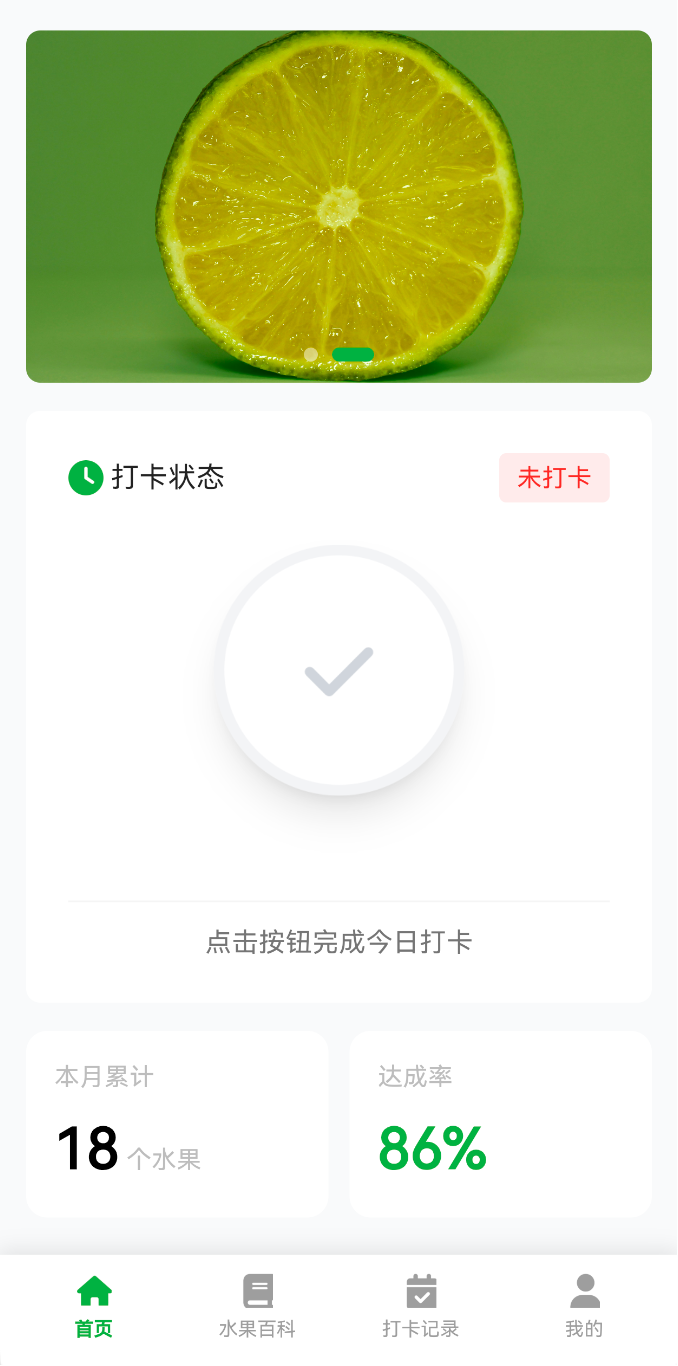
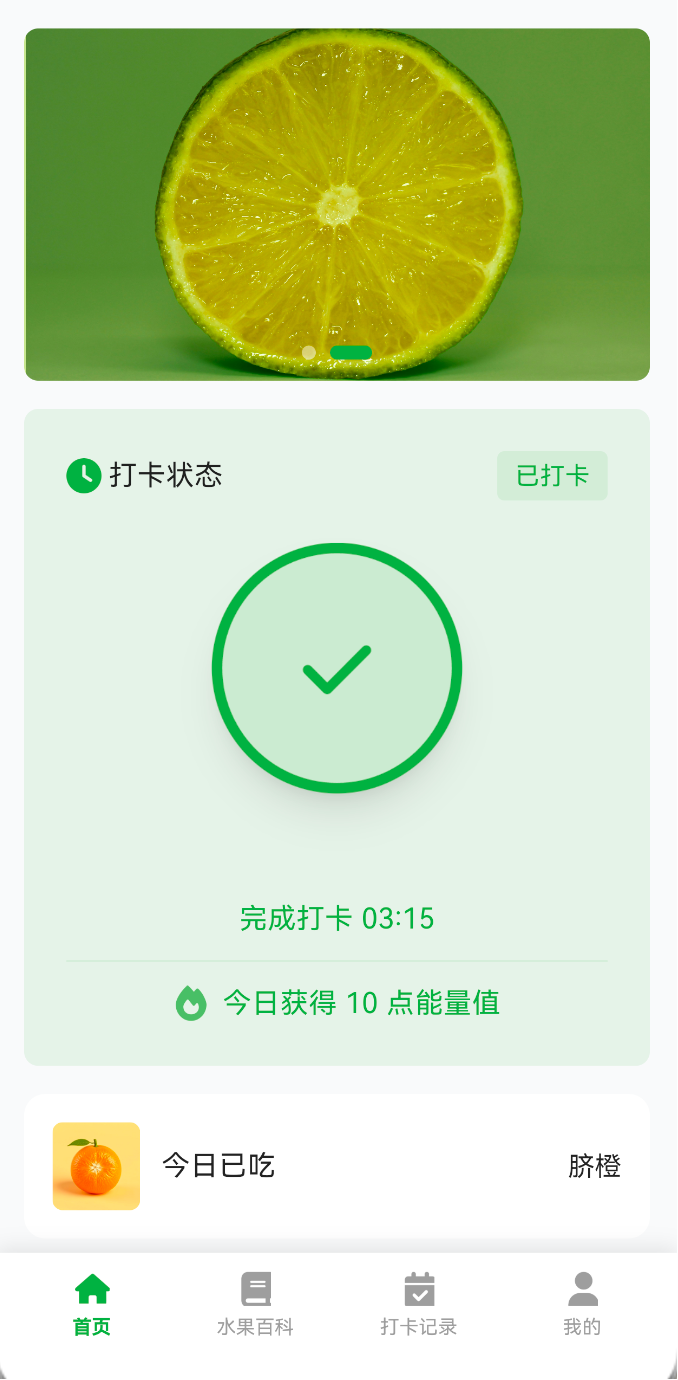
2.核心功能
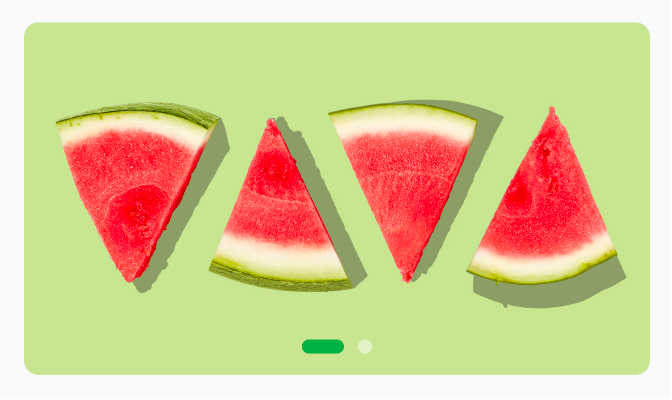
- 轮播图展示 顶部自动轮播的水果宣传图
- 打卡系统 每日水果摄入打卡记录
- 水果记录 显示今日已吃的水果
- 统计数据 本月累计和达成率展示
2.1 轮播图展示
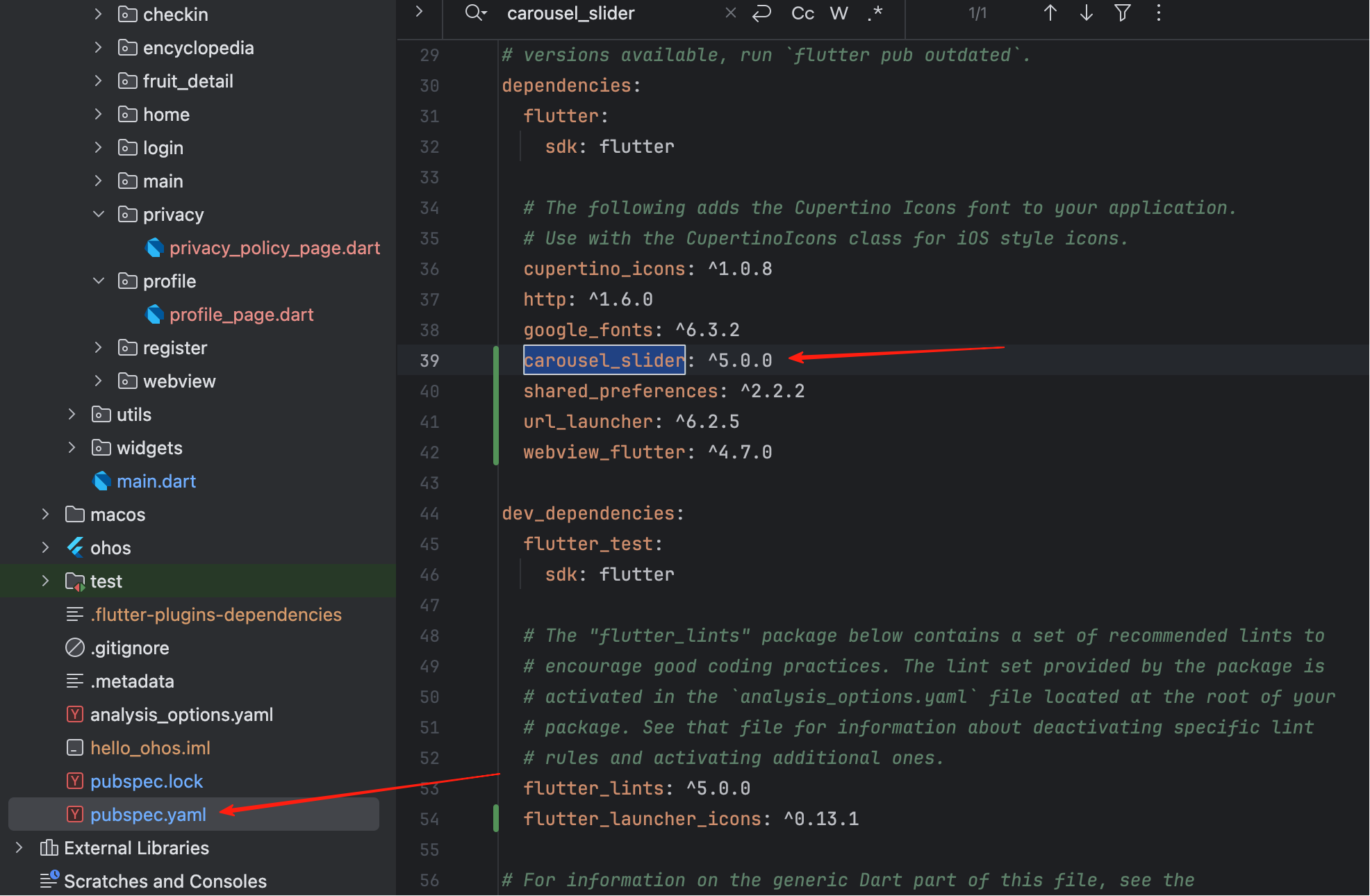
2.1.1添加依赖包
# pubspec.yaml
dependencies:
  carousel_slider: ^5.0.0  # 轮播图组件
2.1.2核心代码
int _currentBannerIndex = 0; // 当前显示的图片索引
final List<String> _bannerImages = [
AppImages.banner1, // 橙子图
AppImages.banner2, // 西瓜图
];
使用 Stack 叠加布局,底层是 CarouselSlider 轮播组件,顶层是底部指示器。使用 Row 组件横向排列小圆点,当前页显示为24x8的绿色长条,其他页其他页显示为8x8的半透明白色圆点。
// 1. 状态变量
int _currentBannerIndex = 0;  // 当前轮播图索引
final List<String> _bannerImages = [
  AppImages.banner1,  // assets/images/banners/swiper_orange.jpg
  AppImages.banner2,  // assets/images/banners/swiper_watermelon.jpg
];

// 2. 轮播图组件
Widget _buildBannerSection() {
  return Container(
    margin: const EdgeInsets.all(16),  // 外边距
    child: ClipRRect(
      borderRadius: BorderRadius.circular(8),  // 圆角
      child: Stack(
        children: [
          // 轮播图主体
          CarouselSlider(...),
          // 底部指示器
          Positioned(
            bottom: 12,
            left: 0,
            right: 0,
            child: _buildIndicators(),
          ),
        ],
      ),
    ),
  );
}
CarouselSlider(
  options: CarouselOptions(
    height: 200,                    // 高度
    autoPlay: true,                 // 自动播放
    autoPlayInterval: Duration(seconds: 3),      // 3秒切换
    autoPlayAnimationDuration: Duration(milliseconds: 800),  // 动画时长
    autoPlayCurve: Curves.fastOutSlowIn,  // 动画曲线
    enlargeCenterPage: false,       // 不放大中间页
    viewportFraction: 1.0,          // 占满宽度
    onPageChanged: (index, reason) {
      setState(() {
        _currentBannerIndex = index;  // 更新指示器
      });
    },
  ),
  items: _bannerImages.map((imagePath) {
    return Builder(
      builder: (BuildContext context) {
        return GestureDetector(
          onTap: () => _showImagePreview(context, imagePath),  // 点击预览
          child: Image.asset(
            imagePath,
            fit: BoxFit.cover,
            width: double.infinity,
            errorBuilder: (context, error, stackTrace) {
              // 加载失败显示占位符
              return Container(
                color: Colors.grey[300],
                child: Icon(Icons.image_not_supported),
              );
            },
          ),
        );
      },
    );
  }).toList(),
)
// 底部小圆点指示器
Row(
  mainAxisAlignment: MainAxisAlignment.center,
  children: _bannerImages.asMap().entries.map((entry) {
    final bool isActive = _currentBannerIndex == entry.key;
    return Container(
      width: isActive ? 24 : 8,   // 当前页宽24,其他8
      height: 8,
      margin: const EdgeInsets.symmetric(horizontal: 4),
      decoration: BoxDecoration(
        borderRadius: BorderRadius.circular(4),
        color: isActive
          ? Colors.green                           // 当前页绿色
          : Colors.white.withValues(alpha: 0.5),  // 其他页半透明白色
      ),
    );
  }).toList(),
)
2.2 未打卡和已打卡的展示
2.2.1状态逻辑切换
// 未打卡 → 已打卡
setState(() {
  _isCheckedIn = true;
  _selectedFruits = [fruit];
  _checkInTime = '14:30';
});

// 已打卡 → 未打卡
setState(() {
  _isCheckedIn = false;
  _selectedFruits.clear();
});
2.2.2 未打卡和已打卡比较
| 未打卡 | 已打卡 | |
|---|---|---|
| 背景色 | 白色 | 浅绿色 |
| 标签颜色 | 红色 | 绿色 |
| 标签文字 | "未打卡" | "已打卡" |
| 按钮图片 | checkIn.png |
checkOut.png |
| 底部内容 | 提示文字 | 时间 + 能量值 |
| 点击行为 | 打卡 | 取消打卡 |
2.2.3 核心代码
bool _isCheckedIn = false;           // 打卡状态
String _checkInTime = '';            // 打卡时间
List<Fruit> _selectedFruits = [];   // 选中的水果
Widget _buildCheckInSection() {
  return Container(
    margin: const EdgeInsets.symmetric(horizontal: 16),
    padding: const EdgeInsets.all(24),
    decoration: BoxDecoration(
      // 已打卡显示浅绿色,未打卡显示白色
      color: _isCheckedIn
        ? Colors.green.withValues(alpha: 0.1)
        : Colors.white,
      borderRadius: BorderRadius.circular(8),
    ),
    child: Column(
      children: [
        // 1. 标题行
        Row(
          mainAxisAlignment: MainAxisAlignment.spaceBetween,
          children: [
            // 左侧:时钟图标 + 文字
            Row(
              children: [
                Image.asset(AppImages.time, width: 20, height: 20),
                const SizedBox(width: 4),
                const Text('打卡状态', style: TextStyle(fontSize: 16)),
              ],
            ),
            // 右侧:状态标签
            Container(
              padding: const EdgeInsets.symmetric(horizontal: 10, vertical: 4),
              decoration: BoxDecoration(
                color: _isCheckedIn
                  ? Colors.green.withValues(alpha: 0.1)
                  : Colors.red.withValues(alpha: 0.1),
                borderRadius: BorderRadius.circular(4),
              ),
              child: Text(
                _isCheckedIn ? '已打卡' : '未打卡',
                style: TextStyle(
                  color: _isCheckedIn ? Colors.green : Colors.red,
                  fontSize: 14,
                ),
              ),
            ),
          ],
        ),
        const SizedBox(height: 10),

        // 2. 打卡按钮
        GestureDetector(
          onTap: _handleCheckIn,
          child: ClipOval(
            child: Image.asset(
              // 已打卡显示 checkOut,未打卡显示 checkIn
              _isCheckedIn ? AppImages.checkOut : AppImages.checkIn,
              width: 200,
              height: 200,
              fit: BoxFit.cover,
            ),
          ),
        ),
        const SizedBox(height: 16),

        // 3. 底部内容(根据状态显示不同内容)
        if (_isCheckedIn) ...[
          // 已打卡:显示时间和能量值
          Text('完成打卡 $_checkInTime',
            style: TextStyle(fontSize: 16, color: Colors.green)),
          const SizedBox(height: 12),
          Container(height: 1, color: Colors.green.withValues(alpha: 0.1)),
          const SizedBox(height: 12),
          Row(
            mainAxisAlignment: MainAxisAlignment.center,
            children: [
              Image.asset(AppImages.fire, width: 20, height: 20),
              const SizedBox(width: 8),
              const Text('今日获得 10 点能量值',
                style: TextStyle(fontSize: 16, color: Colors.green)),
            ],
          ),
        ] else ...[
          // 未打卡:显示提示文字
          Container(height: 1, color: Colors.grey.withValues(alpha: 0.1)),
          const SizedBox(height: 12),
          Text('点击按钮完成今日打卡',
            style: TextStyle(fontSize: 15, color: Colors.grey[600])),
        ],
      ],
    ),
  );
}
2.2.4 实现逻辑
打卡功能是首页的核心交互模块,用于记录用户每日的水果摄入情况。该功能包含两种状态:未打卡状态和已打卡状态,通过点击打卡按钮在两种状态之间切换。
打卡按钮是整个区域的视觉焦点,位于卡片中央。按钮尺寸为200x200像素,采用圆形设计(通过ClipOval组件实现),显示的是checkIn.png图片。按钮使用GestureDetector包裹,使其可以响应点击事件。当用户点击按钮时,会触发打卡流程。
整个打卡功能依赖三个核心状态变量:
_isCheckedIn是一个布尔值,表示当前是否已打卡。初始值为false(未打卡)。这是控制UI显示的主要开关,通过条件判断(if-else或三元运算符)来决定显示哪种状态的UI。
_checkInTime是一个字符串,存储打卡的具体时间。初始值为空字符串。当用户完成打卡时,系统会获取当前时间并格式化为"HH:MM"格式存储到这个变量中。这个时间会显示在已打卡状态的UI上。
_selectedFruits是一个Fruit对象列表,存储用户选择的水果。初始值为空列表。虽然当前设计只允许选择一个水果,但使用列表结构为未来扩展(比如一天记录多个水果)预留了空间。
3.最后
欢迎加入开源鸿蒙跨平台社区:
https://openharmonycrossplatform.csdn.net

开源鸿蒙跨平台开发社区汇聚开发者与厂商,共建“一次开发,多端部署”的开源生态,致力于降低跨端开发门槛,推动万物智联创新。
更多推荐

 3
3 0
0- 0


 已为社区贡献7条内容

所有评论(0)