flutter_for_openharmony手语学习app实战+视频课程实现
摘要:本文介绍了一个手语视频学习页面的Flutter实现方案。页面分为上下两部分:上半部分为视频播放区,采用黑色背景提升观看体验,包含可隐藏的控制层(播放/暂停、进度条、快进快退功能);下半部分为白色背景的信息区,展示课程详情、章节列表和学习笔记。状态管理使用StatefulWidget处理播放状态、播放速度和控制栏显示等交互逻辑。通过Stack布局叠加视频和控制层,使用Slider组件实现可拖动
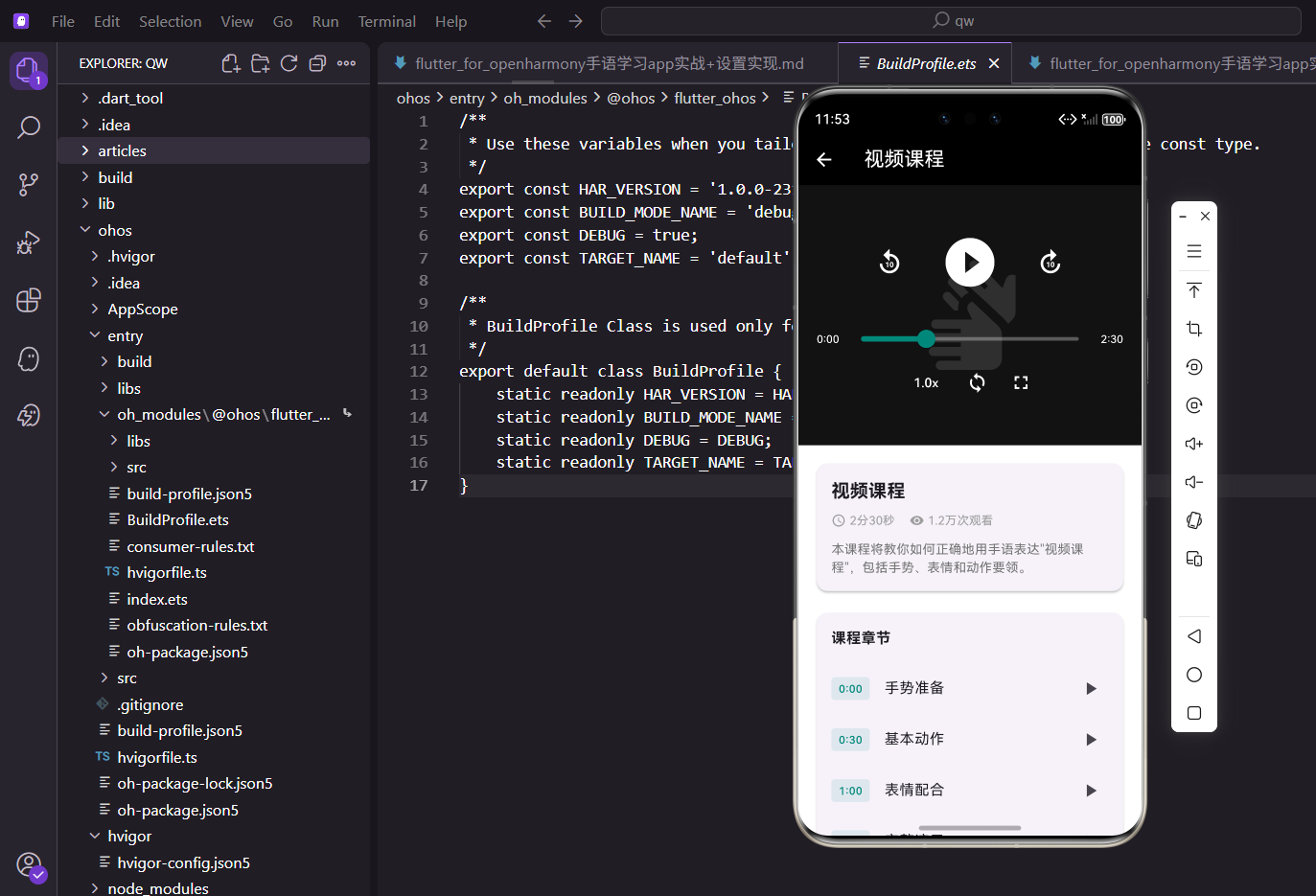
视频是学习手语最直观的方式,用户可以看到完整的手势动作和表情变化。视频课程页面需要实现播放控制、章节跳转、学习笔记等功能。
页面参数接收
视频课程页面需要接收课程ID和标题:
class VideoLessonScreen extends StatefulWidget {
final String lessonId;
final String title;
const VideoLessonScreen({
super.key,
required this.lessonId,
required this.title,
});
State<VideoLessonScreen> createState() => _VideoLessonScreenState();
}
通过构造函数传入课程信息,required关键字确保调用时必须提供这些参数。
状态变量定义
视频播放涉及多个状态需要管理:
class _VideoLessonScreenState extends State<VideoLessonScreen> {
  bool _isPlaying = false;
  double _playbackSpeed = 1.0;
  bool _showControls = true;
_isPlaying控制播放暂停状态,_playbackSpeed是播放速度倍率,_showControls控制控制栏的显示隐藏。
这些状态会随用户操作频繁变化,所以用StatefulWidget来管理。
页面整体布局
上半部分是视频区域,下半部分是课程信息:
Widget build(BuildContext context) {
return Scaffold(
backgroundColor: Colors.black,
appBar: AppBar(
backgroundColor: Colors.transparent,
elevation: 0,
title: Text(widget.title),
),
背景设为黑色营造沉浸式观看体验,AppBar透明融入视频区域,elevation: 0去掉阴影。
      body: Column(
        children: [
          Expanded(
            flex: 2,
            child: GestureDetector(
              onTap: () => setState(() => _showControls = !_showControls),
              child: Stack(
                alignment: Alignment.center,
                children: [
                  Container(
                    color: Colors.grey[900],
                    child: Center(
                      child: Icon(
                        Icons.sign_language,
                        size: 120.sp,
                        color: Colors.white24,
                      ),
                    ),
                  ),
                  if (_showControls) _buildVideoControls(),
                ],
              ),
            ),
          ),
点击视频区域切换控制栏的显示状态。用Stack叠加视频画面和控制层,if语句控制控制栏的显示。
          Expanded(
            flex: 3,
            child: Container(
              color: Colors.white,
              child: SingleChildScrollView(
                padding: EdgeInsets.all(16.w),
                child: Column(
                  crossAxisAlignment: CrossAxisAlignment.start,
                  children: [
                    _buildLessonInfo(),
                    SizedBox(height: 16.h),
                    _buildStepsList(),
                    SizedBox(height: 16.h),
                    _buildNotes(),
                  ],
                ),
              ),
            ),
          ),
        ],
      ),
    );
  }
下半部分白色背景,包含课程信息、章节列表和学习笔记三个模块。flex比例让视频区占2份,信息区占3份。
视频控制层
控制层包含播放按钮、进度条、速度调节:
  Widget _buildVideoControls() {
    return Container(
      color: Colors.black45,
      child: Column(
        mainAxisAlignment: MainAxisAlignment.center,
        children: [
          Row(
            mainAxisAlignment: MainAxisAlignment.center,
            children: [
              IconButton(
                icon: Icon(
                  Icons.replay_10,
                  color: Colors.white,
                  size: 32.sp
                ),
                onPressed: () {},
              ),
半透明黑色背景让控制按钮在视频画面上更清晰可见。快退10秒按钮放在左侧。
              SizedBox(width: 24.w),
              IconButton(
                icon: Icon(
                  _isPlaying
                      ? Icons.pause_circle_filled
                      : Icons.play_circle_filled,
                  color: Colors.white,
                  size: 64.sp,
                ),
                onPressed: () => setState(() => _isPlaying = !_isPlaying),
              ),
              SizedBox(width: 24.w),
              IconButton(
                icon: Icon(
                  Icons.forward_10,
                  color: Colors.white,
                  size: 32.sp
                ),
                onPressed: () {},
              ),
            ],
          ),
中间是播放暂停按钮,根据状态显示不同图标。点击切换播放状态。右侧是快进10秒按钮。
进度条实现
用Slider组件实现可拖动的进度条:
          SizedBox(height: 20.h),
          Padding(
            padding: EdgeInsets.symmetric(horizontal: 20.w),
            child: Row(
              children: [
                Text(
                  '0:00',
                  style: TextStyle(
                    color: Colors.white,
                    fontSize: 12.sp
                  )
                ),
                Expanded(
                  child: Slider(
                    value: 0.3,
                    onChanged: (value) {},
                    activeColor: const Color(0xFF00897B),
                    inactiveColor: Colors.white30,
                  ),
                ),
                Text(
                  '2:30',
                  style: TextStyle(
                    color: Colors.white,
                    fontSize: 12.sp
                  )
                ),
              ],
            ),
          ),
进度条两端显示当前时间和总时长。activeColor是已播放部分的颜色,inactiveColor是未播放部分的颜色。
底部功能按钮
速度调节和其他功能:
          Row(
            mainAxisAlignment: MainAxisAlignment.center,
            children: [
              TextButton(
                onPressed: () => _showSpeedDialog(),
                child: Text(
                  '${_playbackSpeed}x',
                  style: TextStyle(color: Colors.white),
                ),
              ),
              IconButton(
                icon: Icon(Icons.loop, color: Colors.white),
                onPressed: () {},
              ),
              IconButton(
                icon: Icon(Icons.fullscreen, color: Colors.white),
                onPressed: () {},
              ),
            ],
          ),
        ],
      ),
    );
  }
速度按钮显示当前倍速,点击弹出选择对话框。循环播放和全屏按钮是视频播放器的常见功能。
课程信息卡片
展示课程的基本信息:
  Widget _buildLessonInfo() {
    return Card(
      child: Padding(
        padding: EdgeInsets.all(16.w),
        child: Column(
          crossAxisAlignment: CrossAxisAlignment.start,
          children: [
            Text(
              widget.title,
              style: TextStyle(
                fontSize: 20.sp,
                fontWeight: FontWeight.bold
              ),
            ),
标题使用widget.title访问StatefulWidget的属性,加粗显示突出课程名称。
            SizedBox(height: 8.h),
            Row(
              children: [
                Icon(
                  Icons.access_time,
                  size: 16.sp,
                  color: Colors.grey
                ),
                SizedBox(width: 4.w),
                Text(
                  '2分30秒',
                  style: TextStyle(
                    fontSize: 13.sp,
                    color: Colors.grey
                  )
                ),
                SizedBox(width: 16.w),
                Icon(
                  Icons.visibility,
                  size: 16.sp,
                  color: Colors.grey
                ),
                SizedBox(width: 4.w),
                Text(
                  '1.2万次观看',
                  style: TextStyle(
                    fontSize: 13.sp,
                    color: Colors.grey
                  )
                ),
              ],
            ),
时长和观看次数用图标配合文字展示,灰色调表示次要信息。
            SizedBox(height: 12.h),
            Text(
              '本课程将教你如何正确地用手语表达"${widget.title}",包括手势、表情和动作要领。',
              style: TextStyle(
                fontSize: 14.sp,
                color: Colors.grey[600]
              ),
            ),
          ],
        ),
      ),
    );
  }
课程简介动态插入课程标题,让描述更具体。
章节列表数据
准备章节数据:
  Widget _buildStepsList() {
    final steps = [
      {'time': '0:00', 'title': '手势准备'},
      {'time': '0:30', 'title': '基本动作'},
      {'time': '1:00', 'title': '表情配合'},
      {'time': '1:30', 'title': '完整演示'},
      {'time': '2:00', 'title': '常见错误'},
    ];
每个章节包含时间点和标题,点击可以跳转到对应位置播放。
章节列表展示
用Card包裹章节列表:
    return Card(
      child: Column(
        crossAxisAlignment: CrossAxisAlignment.start,
        children: [
          Padding(
            padding: EdgeInsets.all(16.w),
            child: Text(
              '课程章节',
              style: TextStyle(
                fontSize: 16.sp,
                fontWeight: FontWeight.bold
              ),
            ),
          ),
标题放在列表上方,加粗显示区分内容层级。
          ...steps.map((step) => ListTile(
            leading: Container(
              padding: EdgeInsets.symmetric(
                horizontal: 8.w,
                vertical: 4.h
              ),
              decoration: BoxDecoration(
                color: const Color(0xFF00897B).withOpacity(0.1),
                borderRadius: BorderRadius.circular(4.r),
              ),
              child: Text(
                step['time']!,
                style: TextStyle(
                  fontSize: 12.sp,
                  color: const Color(0xFF00897B),
                ),
              ),
            ),
            title: Text(step['title']!),
            trailing: const Icon(Icons.play_arrow),
            onTap: () {},
          )).toList(),
        ],
      ),
    );
  }
时间标签用主题色浅色背景突出显示,右侧播放图标提示可点击跳转。...展开操作符把map结果展开到Column的children中。
学习笔记模块
用户可以记录学习心得:
  Widget _buildNotes() {
    return Card(
      child: Padding(
        padding: EdgeInsets.all(16.w),
        child: Column(
          crossAxisAlignment: CrossAxisAlignment.start,
          children: [
            Row(
              mainAxisAlignment: MainAxisAlignment.spaceBetween,
              children: [
                Text(
                  '学习笔记',
                  style: TextStyle(
                    fontSize: 16.sp,
                    fontWeight: FontWeight.bold
                  ),
                ),
                TextButton.icon(
                  onPressed: () {},
                  icon: const Icon(Icons.add),
                  label: const Text('添加'),
                ),
              ],
            ),
标题和添加按钮放在同一行,spaceBetween让它们分居两端。
            SizedBox(height: 8.h),
            Container(
              padding: EdgeInsets.all(12.w),
              decoration: BoxDecoration(
                color: Colors.grey[100],
                borderRadius: BorderRadius.circular(8.r),
              ),
              child: Text(
                '点击添加按钮记录你的学习心得...',
                style: TextStyle(
                  fontSize: 13.sp,
                  color: Colors.grey
                ),
              ),
            ),
          ],
        ),
      ),
    );
  }
灰色背景的占位区域提示用户可以添加笔记,点击添加按钮后可以输入内容。
播放速度选择
点击速度按钮弹出选择框:
  void _showSpeedDialog() {
    showDialog(
      context: context,
      builder: (context) => AlertDialog(
        title: const Text('播放速度'),
        content: Column(
          mainAxisSize: MainAxisSize.min,
          children: [0.5, 0.75, 1.0, 1.25, 1.5, 2.0].map((speed) {
            return ListTile(
              title: Text('${speed}x'),
              trailing: _playbackSpeed == speed
                  ? const Icon(
                      Icons.check,
                      color: Color(0xFF00897B)
                    )
                  : null,
              onTap: () {
                setState(() => _playbackSpeed = speed);
                Navigator.pop(context);
              },
            );
          }).toList(),
        ),
      ),
    );
  }
提供0.5x到2.0x六档速度选择,当前选中的显示对勾图标。选择后更新状态并关闭对话框。
mainAxisSize: MainAxisSize.min让对话框高度自适应内容,不会撑满屏幕。
小结
视频课程页面的核心是播放控制和章节导航功能。控制层用Stack叠加在视频上,点击切换显示隐藏。章节列表让用户可以快速定位到想看的内容。学习笔记功能帮助用户记录学习心得,加深记忆效果。
欢迎加入开源鸿蒙跨平台社区:https://openharmonycrossplatform.csdn.net

开源鸿蒙跨平台开发社区汇聚开发者与厂商,共建“一次开发,多端部署”的开源生态,致力于降低跨端开发门槛,推动万物智联创新。
更多推荐


 20
20 0
0- 0


 已为社区贡献30条内容

所有评论(0)