flutter_for_openharmony口腔护理app实战+我的实现
个人中心页面设计摘要: 本文介绍了Flutter个人中心页面的设计与实现,包含三个核心模块:用户信息卡片、数据统计卡片和功能菜单列表。用户卡片采用渐变背景和圆形头像设计,展示用户名、年龄和健康称号;统计卡片突出显示打卡天数、积分等核心数据;功能菜单提供成就、收藏等入口。页面使用Provider管理状态,确保数据实时更新。整体设计遵循移动端UI规范,通过视觉层次和交互反馈提升用户体验。代码结构清晰,
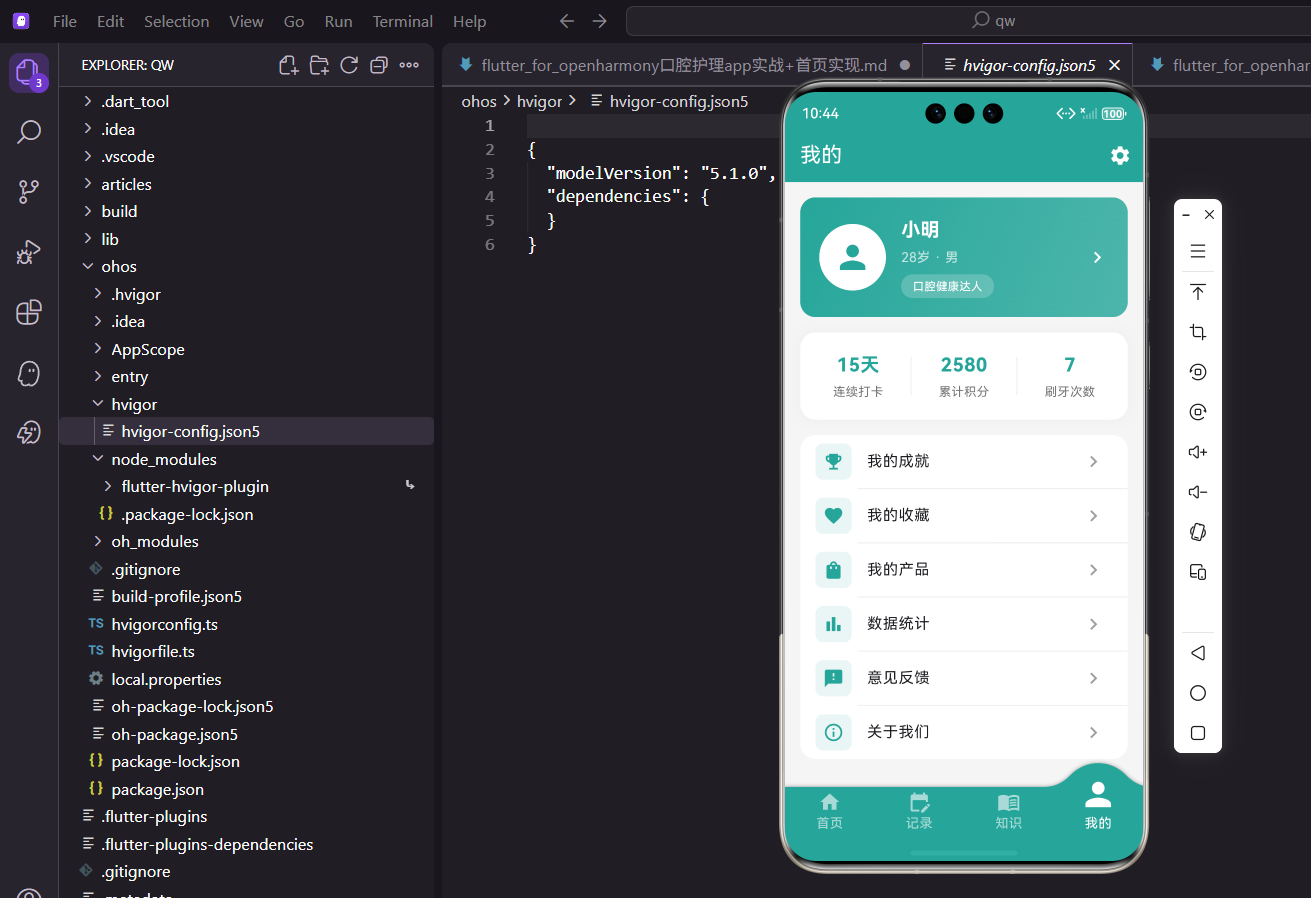
"我的"页面是用户的个人中心,集中展示用户信息、数据统计和各种功能入口。这个页面让用户能够管理自己的账户、查看护理成就、访问收藏内容等。一个设计良好的个人中心能够提升用户对App的归属感和使用粘性。
个人中心的设计思路
个人中心页面通常包含三个核心区域:用户信息展示、数据统计概览、功能菜单列表。用户信息区域要突出显示,让用户一眼就能确认自己的身份。数据统计区域展示用户最关心的核心指标,比如连续打卡天数、累计积分等。功能菜单则提供各种二级功能的入口,方便用户快速访问。
依赖导入说明
import 'package:flutter/material.dart';
import 'package:provider/provider.dart';
Flutter核心库和Provider状态管理是基础依赖。
Provider让用户数据能够在整个应用中共享。
import '../../providers/app_provider.dart';
AppProvider存储了用户的个人信息和护理数据。
包括用户名、年龄、性别、打卡天数、积分等。
import '../pages/user_info_page.dart';
import '../pages/achievement_page.dart';
import '../pages/product_page.dart';
用户信息页、成就页、产品页的导入。
这些是个人中心的核心功能页面。
import '../pages/statistics_page.dart';
import '../pages/settings_page.dart';
import '../pages/feedback_page.dart';
import '../pages/about_page.dart';
import '../pages/favorite_page.dart';
数据统计、设置、反馈、关于、收藏页面的导入。
这些页面提供了完整的个人中心功能体系。
页面基础结构
class ProfileTab extends StatelessWidget {
  const ProfileTab({super.key});
个人中心页面使用StatelessWidget。
所有数据都来自Provider,页面本身不需要维护状态。
Widget build(BuildContext context) {
return Scaffold(
appBar: AppBar(
title: const Text('我的'),
Scaffold提供页面基础结构。
AppBar标题简洁明了,就是"我的"两个字。
        actions: [
          IconButton(
            icon: const Icon(Icons.settings),
            onPressed: () => Navigator.push(context, MaterialPageRoute(builder: (_) => const SettingsPage())),
          ),
        ],
      ),
AppBar右侧放置设置图标按钮。
点击后跳转到设置页面,这是一个常见的设计模式。
      body: Consumer<AppProvider>(
        builder: (context, provider, _) {
          return SingleChildScrollView(
            child: Column(
              children: [
                _buildUserCard(context, provider),
                _buildStatsCard(context, provider),
                _buildMenuList(context),
              ],
            ),
          );
        },
      ),
    );
  }
Consumer监听AppProvider的数据变化。
Column垂直排列用户卡片、统计卡片和菜单列表三个区域。
用户信息卡片实现
用户信息卡片是个人中心最醒目的区域,使用渐变背景突出显示。
  Widget _buildUserCard(BuildContext context, AppProvider provider) {
    return GestureDetector(
      onTap: () => Navigator.push(context, MaterialPageRoute(builder: (_) => const UserInfoPage())),
整个卡片可点击,跳转到用户信息详情页。
用户可以在详情页修改自己的个人信息。
      child: Container(
        margin: const EdgeInsets.all(16),
        padding: const EdgeInsets.all(20),
四周16像素外边距,内部20像素内边距。
给卡片留出足够的空间,不会显得拥挤。
        decoration: BoxDecoration(
          gradient: const LinearGradient(
            colors: [Color(0xFF26A69A), Color(0xFF4DB6AC)],
            begin: Alignment.topLeft,
            end: Alignment.bottomRight,
          ),
          borderRadius: BorderRadius.circular(16),
        ),
使用和首页欢迎卡片相同的渐变色。
保持整个App的视觉风格统一。
        child: Row(
          children: [
            Container(
              width: 70,
              height: 70,
              decoration: BoxDecoration(
                color: Colors.white,
                shape: BoxShape.circle,
                border: Border.all(color: Colors.white, width: 3),
              ),
              child: const Icon(Icons.person, size: 40, color: Color(0xFF26A69A)),
            ),
左侧是用户头像区域,70像素的圆形容器。
白色背景配绿色人物图标,简洁大方。
            const SizedBox(width: 16),
            Expanded(
              child: Column(
                crossAxisAlignment: CrossAxisAlignment.start,
                children: [
                  Text(
                    provider.userName,
                    style: const TextStyle(fontSize: 20, fontWeight: FontWeight.bold, color: Colors.white),
                  ),
用户名使用20像素加粗白色字体。
从provider获取用户名,实现动态显示。
                  const SizedBox(height: 4),
                  Text(
                    '${provider.userAge}岁 · ${provider.userGender}',
                    style: const TextStyle(color: Colors.white70),
                  ),
显示用户年龄和性别。
白色70%透明度区分主次信息。
                  const SizedBox(height: 8),
                  Container(
                    padding: const EdgeInsets.symmetric(horizontal: 12, vertical: 4),
                    decoration: BoxDecoration(
                      color: Colors.white.withOpacity(0.2),
                      borderRadius: BorderRadius.circular(12),
                    ),
                    child: Text(
                      '口腔健康达人',
                      style: const TextStyle(color: Colors.white, fontSize: 12),
                    ),
                  ),
                ],
              ),
            ),
用户称号标签,半透明白色背景。
这种设计增加了趣味性,也是一种激励机制。
            const Icon(Icons.chevron_right, color: Colors.white),
          ],
        ),
      ),
    );
  }
右侧箭头图标暗示卡片可以点击。
这是移动端常见的交互暗示设计。
数据统计卡片
数据统计卡片展示用户最关心的核心指标。
  Widget _buildStatsCard(BuildContext context, AppProvider provider) {
    return GestureDetector(
      onTap: () => Navigator.push(context, MaterialPageRoute(builder: (_) => const StatisticsPage())),
点击卡片跳转到详细的数据统计页面。
用户可以查看更完整的护理数据分析。
      child: Container(
        margin: const EdgeInsets.symmetric(horizontal: 16),
        padding: const EdgeInsets.all(20),
        decoration: BoxDecoration(
          color: Colors.white,
          borderRadius: BorderRadius.circular(16),
          boxShadow: [BoxShadow(color: Colors.grey.shade200, blurRadius: 10)],
        ),
白色背景卡片,16像素圆角,浅色阴影。
与用户卡片的渐变背景形成对比。
        child: Row(
          mainAxisAlignment: MainAxisAlignment.spaceAround,
          children: [
            _buildStatItem('连续打卡', '${provider.streakDays}天'),
三个统计项横向排列,均匀分布。
第一项显示连续打卡天数。
            Container(width: 1, height: 40, color: Colors.grey.shade200),
            _buildStatItem('累计积分', '${provider.totalPoints}'),
用竖线分隔各统计项。
第二项显示累计积分。
            Container(width: 1, height: 40, color: Colors.grey.shade200),
            _buildStatItem('刷牙次数', '${provider.brushRecords.length}'),
          ],
        ),
      ),
    );
  }
第三项显示总刷牙次数。
brushRecords.length获取刷牙记录列表的长度。
统计项组件
  Widget _buildStatItem(String label, String value) {
    return Column(
      children: [
        Text(value, style: const TextStyle(fontSize: 20, fontWeight: FontWeight.bold, color: Color(0xFF26A69A))),
        const SizedBox(height: 4),
        Text(label, style: TextStyle(color: Colors.grey.shade600, fontSize: 13)),
      ],
    );
  }
抽取通用的统计项组件,避免重复代码。
数值使用20像素加粗绿色字体,标签使用13像素灰色字体。
数值在上,标签在下,符合阅读习惯。
功能菜单列表
功能菜单提供各种二级功能的入口。
  Widget _buildMenuList(BuildContext context) {
    final menuItems = [
      {'icon': Icons.emoji_events, 'label': '我的成就', 'page': const AchievementPage()},
      {'icon': Icons.favorite, 'label': '我的收藏', 'page': const FavoritePage()},
      {'icon': Icons.shopping_bag, 'label': '我的产品', 'page': const ProductPage()},
用Map数组定义菜单项配置。
每个菜单项包含图标、文字和目标页面。
      {'icon': Icons.bar_chart, 'label': '数据统计', 'page': const StatisticsPage()},
      {'icon': Icons.feedback, 'label': '意见反馈', 'page': const FeedbackPage()},
      {'icon': Icons.info_outline, 'label': '关于我们', 'page': const AboutPage()},
    ];
六个菜单项覆盖了个人中心的主要功能。
成就、收藏、产品、统计、反馈、关于。
    return Container(
      margin: const EdgeInsets.all(16),
      decoration: BoxDecoration(
        color: Colors.white,
        borderRadius: BorderRadius.circular(16),
      ),
菜单列表用白色圆角容器包裹。
整体作为一个卡片呈现。
      child: Column(
        children: menuItems.asMap().entries.map((entry) {
          final index = entry.key;
          final item = entry.value;
asMap()把List转成Map,entries获取键值对。
这样可以同时获取索引和元素,用于判断是否显示分隔线。
          return Column(
            children: [
              ListTile(
                leading: Container(
                  padding: const EdgeInsets.all(8),
                  decoration: BoxDecoration(
                    color: const Color(0xFF26A69A).withOpacity(0.1),
                    borderRadius: BorderRadius.circular(8),
                  ),
                  child: Icon(item['icon'] as IconData, color: const Color(0xFF26A69A), size: 22),
                ),
ListTile是Flutter提供的列表项组件。
leading放置带背景的图标,浅绿色圆角方形背景。
                title: Text(item['label'] as String),
                trailing: const Icon(Icons.chevron_right, color: Colors.grey),
                onTap: () => Navigator.push(context, MaterialPageRoute(builder: (_) => item['page'] as Widget)),
              ),
title显示菜单文字,trailing显示右箭头。
onTap处理点击事件,跳转到对应页面。
              if (index < menuItems.length - 1)
                Divider(height: 1, indent: 60, color: Colors.grey.shade200),
            ],
          );
        }).toList(),
      ),
    );
  }
}
除了最后一项,每项下方都显示分隔线。
indent设为60让分隔线从图标右侧开始,更美观。
ListTile组件的优势
ListTile是Flutter提供的标准列表项组件,内置了leading、title、subtitle、trailing等常用布局槽位。使用ListTile可以快速构建符合Material Design规范的列表项,不需要手动处理布局细节。它还内置了点击效果和无障碍支持,是构建设置页面和菜单列表的首选组件。
渐变背景的实现技巧
LinearGradient创建线性渐变,通过colors数组指定渐变的颜色序列,begin和end指定渐变的方向。从topLeft到bottomRight形成对角线方向的渐变,视觉效果比水平或垂直渐变更有动感。渐变色的选择要注意色彩的协调性,这里使用的两个绿色调属于同一色系,过渡自然不突兀。
数据绑定的实现方式
页面中的用户名、年龄、性别、打卡天数、积分等数据都来自AppProvider。通过Consumer组件监听provider的变化,当数据更新时页面会自动刷新。这种响应式的数据绑定方式让代码更简洁,不需要手动调用setState来更新UI。用户在其他页面修改了个人信息,返回到"我的"页面时会自动显示最新数据。
小结
"我的"页面通过用户卡片、统计卡片、菜单列表三个区域,为用户提供了完整的个人中心体验。用户卡片使用渐变背景突出显示,统计卡片展示核心数据指标,菜单列表提供各功能入口。ListTile组件简化了菜单项的构建,asMap配合entries实现了分隔线的条件显示。整个页面的设计注重信息层次和视觉美感,给用户专业可靠的印象。
欢迎加入开源鸿蒙跨平台社区:https://openharmonycrossplatform.csdn.net

开源鸿蒙跨平台开发社区汇聚开发者与厂商,共建“一次开发,多端部署”的开源生态,致力于降低跨端开发门槛,推动万物智联创新。
更多推荐
 9
9 0
0- 0


 已为社区贡献22条内容

所有评论(0)