Flutter for OpenHarmony艺考真题题库app实战+答题实现
答题功能是艺考学习应用的核心交互模块,它需要支持多种题型、实时计时、答题进度跟踪等功能。将详细介绍如何构建一个功能完善的答题页面,包含题目导航、答题卡、结果统计等功能。答题页面采用状态管理设计,需要跟踪当前题目索引、用户答案、考试状态等信息。我们使用StatefulWidget来管理这些状态,确保界面能够实时响应数据变化。
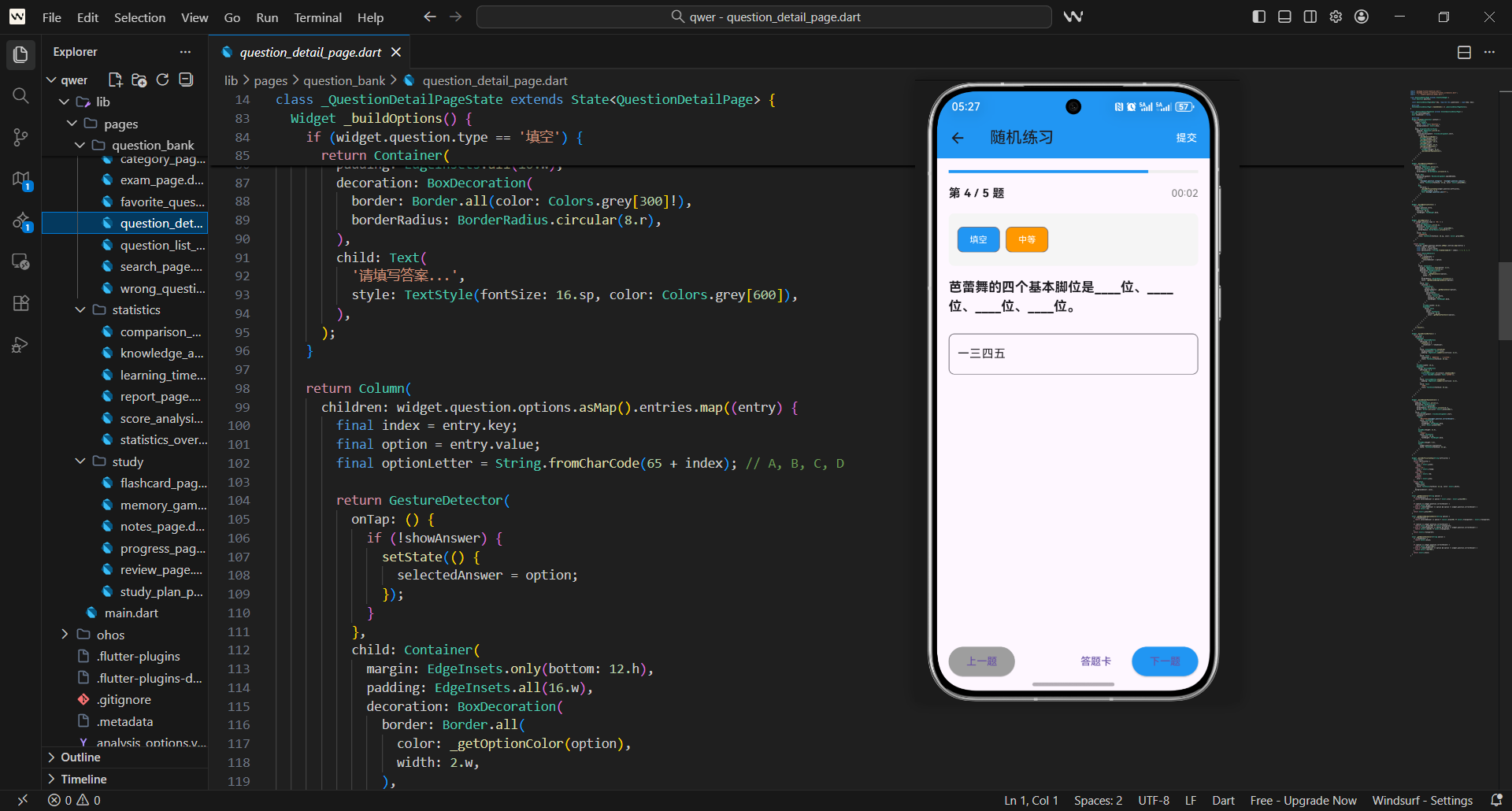
答题功能是艺考学习应用的核心交互模块,它需要支持多种题型、实时计时、答题进度跟踪等功能。今天我们将详细介绍如何构建一个功能完善的答题页面,包含题目导航、答题卡、结果统计等功能。
答题页面架构
答题页面采用状态管理设计,需要跟踪当前题目索引、用户答案、考试状态等信息。我们使用StatefulWidget来管理这些状态,确保界面能够实时响应数据变化。
架构设计原则
- 状态集中管理:将答题相关的所有状态(如当前题目、用户答案、考试状态等)统一维护,避免状态分散导致的管理混乱
- 数据驱动视图:界面渲染完全依赖状态数据,状态变更时自动触发UI更新,保证数据与视图一致性
- 模块化设计:把进度条、题目渲染、导航控制等功能拆分为独立模块,降低耦合度,便于后续维护和扩展
- 可扩展性:预留不同考试模式(如随机练习、模拟考试)的适配接口,新增模式时无需重构核心逻辑
核心状态管理
核心状态是答题页面的基础,需精准定义各状态变量的作用和数据类型:
- 题目列表:存储当前考试的所有题目数据,是答题功能的数据源
- 当前题目索引:标记用户正在作答的题目位置,用于切换题目和计算进度
- 用户答案:以键值对形式存储(key为题目ID,value为用户选择/输入的答案),便于快速查询和提交
- 考试状态:通过布尔值标记是否提交,区分答题中/已完成状态
- 时间信息:记录考试开始时间戳,用于计算答题耗时
class ExamPage extends StatefulWidget {
final String examType;
const ExamPage({Key? key, required this.examType}) : super(key: key);
State<ExamPage> createState() => _ExamPageState();
}
class _ExamPageState extends State<ExamPage> {
  List<Question> questions = [];
  int currentQuestionIndex = 0;
  Map<String, String> answers = {};
  bool isSubmitted = false;
  int startTime = DateTime.now().millisecondsSinceEpoch;
}
题目初始化逻辑
根据不同的考试类型,需对题目数据做差异化处理,确保符合不同练习场景的需求:
- 初始化时机:在
initState中触发初始化,保证页面加载时先获取并处理题目数据 - 数据源统一:先获取全量题目数据,再根据考试类型筛选/排序,避免重复请求数据
- 边界处理:针对每种考试类型设置默认逻辑,防止类型匹配失败导致初始化异常
void initState() {
super.initState();
_initializeQuestions(); // 初始化题目
}
void _initializeQuestions() {
questions = MockData.getQuestions(); // 获取基础题目数据
switch (widget.examType) {
case '随机练习': _handleRandomPractice(); break;
case '专项练习': _handleSpecialPractice(); break;
case '模拟考试': _handleMockExam(); break;
case '错题重做': _handleWrongQuestions(); break;
default: break;
}
}
不同考试类型的处理逻辑设计要点:
- 随机练习:打乱题目顺序提升练习随机性,同时限制题目数量避免答题耗时过长
- 专项练习:预留科目/难度筛选接口,可根据用户选择的专项维度过滤题目
- 模拟考试:保持题目原始顺序,贴合真实考试场景,保证题目数量固定
- 错题重做:对接错题本数据源,仅加载用户历史答错的题目
void _handleRandomPractice() {
  questions.shuffle(); // 打乱题目顺序
  if (questions.length > 20) {
    questions = questions.take(20).toList(); // 限制20题
  }
}

void _handleSpecialPractice() {
}
数据验证
题目初始化后需执行校验,避免数据异常影响答题体验:
- 数量校验:确保处理后题目数量≥1,无题目时给出友好提示
- 格式校验:检查题目ID、题干、选项、正确答案等字段是否完整
- 题型校验:确认所有题目题型均为系统支持的类型(单选/多选/判断/填空)
- 难度校验:保证题目难度分布合理,避免单一难度占比过高
进度条实现
进度条是答题页面的核心视觉元素,设计时需兼顾实用性和视觉体验:
- 进度计算:以“当前题号+1/总题数”为核心公式,精准反映答题进度
- 视觉分层:通过进度文字、进度条、题数提示三层展示,信息层级清晰
- 动态更新:依托StatefulWidget的setState机制,切换题目时实时更新进度
- 样式优化:设置进度条高度、背景色、进度色,提升视觉辨识度
Widget _buildProgressBar() {
  final progress = (currentQuestionIndex + 1) / questions.length;
  return Container(
    padding: EdgeInsets.all(16.w),
    child: Column(
      children: [
        Row(
          mainAxisAlignment: MainAxisAlignment.spaceBetween,
          children: [
            Text('答题进度', style: TextStyle(fontSize: 14.sp, color: Colors.grey[600])),
            Text('${(progress * 100).toInt()}%', style: TextStyle(fontSize: 14.sp, fontWeight: FontWeight.bold, color: Colors.blue[700])),
          ],
        ),
        SizedBox(height: 8.h),
        LinearProgressIndicator(
          value: progress,
          backgroundColor: Colors.grey[200],
          valueColor: AlwaysStoppedAnimation<Color>(Colors.blue),
          minHeight: 6.h,
        ),
      ],
    ),
  );
}
进度条视觉反馈增强策略:
- 颜色动态变化:进度<50%为蓝色,50%-80%为橙色,≥80%为绿色,直观提示进度阶段
- 平滑动画:为进度值变化添加动画过渡,避免进度条跳变,提升流畅度
- 里程碑提示:进度达到50%/100%时,弹出轻量提示框反馈进度节点
- 异常处理:题目数量为0时,进度条置灰并显示“暂无题目”,避免界面异常
题目信息区域
题目信息区域需清晰展示核心信息,设计时兼顾信息密度和可读性:
- 布局逻辑:左侧展示题号/题型,右侧展示答题时间,左右对称布局更易阅读
- 题型展示:实时获取当前题目的题型和难度,帮助用户快速了解题目属性
- 时间更新:每秒刷新答题耗时,格式为MM:SS,符合用户时间认知习惯
Widget _buildQuestionInfo() {
  return Container(
    padding: EdgeInsets.symmetric(horizontal: 16.w),
    child: Row(
      mainAxisAlignment: MainAxisAlignment.spaceBetween,
      children: [
        Expanded(
          child: Column(
            crossAxisAlignment: CrossAxisAlignment.start,
            children: [
              Text('第 ${currentQuestionIndex + 1} / ${questions.length} 题', style: TextStyle(fontSize: 16.sp, fontWeight: FontWeight.bold)),
              SizedBox(height: 4.h),
              Text(_getQuestionType(), style: TextStyle(fontSize: 12.sp, color: Colors.grey[600])),
            ],
          ),
        ),
        Column(
          crossAxisAlignment: CrossAxisAlignment.end,
          children: [
            Text('答题时间', style: TextStyle(fontSize: 12.sp, color: Colors.grey[600])),
            SizedBox(height: 4.h),
            Text(_getElapsedTime(), style: TextStyle(fontSize: 16.sp, fontWeight: FontWeight.bold, color: Colors.blue[700])),
          ],
        ),
      ],
    ),
  );
}
时间管理核心逻辑:
- 计时起点:以页面初始化时的时间戳为起点,确保计时精准
- 耗时计算:通过当前时间戳与起点差值,换算为分秒格式
- 资源管理:页面销毁时取消计时器,避免内存泄漏
String _getQuestionType() {
  if (currentQuestionIndex < questions.length) {
    final q = questions[currentQuestionIndex];
    return '题型:${q.type} | 难度:${q.difficulty}';
  }
  return '';
}

String _getElapsedTime() {
  final elapsed = DateTime.now().millisecondsSinceEpoch - startTime;
  final minutes = (elapsed / 60000).floor();
  final seconds = ((elapsed % 60000) / 1000).floor();
  return '${minutes.toString().padLeft(2, '0')}:${seconds.toString().padLeft(2, '0')}';
}
题目内容渲染
不同题型需适配差异化的展示和交互逻辑,核心设计原则:
- 题型区分:根据题型类型(填空/判断/单选/多选)渲染对应界面
- 交互适配:填空题用输入框、判断题用对错按钮、选择题用选项列表
- 答案绑定:用户操作时实时更新答案映射表,确保答案可追溯
Widget _buildOptions(Question question) {
  switch (question.type) {
    case '填空': return _buildFillInBlankOption(question);
    case '判断': return _buildTrueFalseOption(question);
    default: return _buildMultipleChoiceOption(question);
  }
}
填空题交互设计要点:
- 输入体验:支持多行输入,适配长文本答案场景
- 样式优化:添加边框和圆角,提升输入框辨识度
- 实时绑定:输入内容变化时立即更新答案,避免答案丢失
Widget _buildFillInBlankOption(Question question) {
  return Container(
    padding: EdgeInsets.all(16.w),
    decoration: BoxDecoration(
      border: Border.all(color: Colors.grey[300]!),
      borderRadius: BorderRadius.circular(8.r),
    ),
    child: TextField(
      decoration: InputDecoration(hintText: '请输入答案...', border: OutlineInputBorder(borderRadius: BorderRadius.circular(8.r))),
      style: TextStyle(fontSize: 16.sp),
      maxLines: 3,
      onChanged: (value) { answers[question.id] = value; },
    ),
  );
}
判断题交互设计要点:
- 布局对称:正确/错误按钮平分宽度,视觉平衡
- 选中反馈:选中状态通过背景色、边框色、文字色区分,反馈清晰
- 操作便捷:点击按钮立即更新答案,无需额外确认步骤
Widget _buildTrueFalseOption(Question question) {
  return Row(
    children: [
      Expanded(child: _buildJudgmentButton('正确', question, '正确')),
      SizedBox(width: 16.w),
      Expanded(child: _buildJudgmentButton('错误', question, '错误')),
    ],
  );
}

Widget _buildJudgmentButton(String text, Question q, String val) {
  final isSelected = answers[q.id] == val;
  return GestureDetector(
    onTap: () => setState(() => answers[q.id] = val),
    child: Container(
      padding: EdgeInsets.symmetric(vertical: 16.h),
      decoration: BoxDecoration(
        color: isSelected ? Colors.blue[50] : Colors.grey[50],
        borderRadius: BorderRadius.circular(8.r),
        border: Border.all(color: isSelected ? Colors.blue : Colors.grey[300]!, width: 2.w),
      ),
      child: Text(text, textAlign: TextAlign.center, style: TextStyle(fontSize: 16.sp, fontWeight: FontWeight.bold, color: isSelected ? Colors.blue[700] : Colors.grey[700])),
    ),
  );
}
导航控制
导航按钮设计需兼顾操作便捷性和状态合理性:
- 状态禁用:上一题在第一题时禁用,下一题在最后一题时禁用,避免无效操作
- 布局分层:分两行布局(上一题/下一题、答题卡/提交),核心操作更突出
- 视觉区分:通过背景色区分主要按钮(下一题/提交)和次要按钮(上一题/答题卡)
Widget _buildNavigationButtons() {
  return Container(
    padding: EdgeInsets.all(16.w),
    child: Column(
      children: [
        Row(
          mainAxisAlignment: MainAxisAlignment.spaceBetween,
          children: [
            Expanded(
              child: ElevatedButton.icon(
                onPressed: currentQuestionIndex > 0 ? _navigateToPreviousQuestion : null,
                icon: Icon(Icons.arrow_back), label: Text('上一题'),
                style: ElevatedButton.styleFrom(backgroundColor: Colors.grey[600], padding: EdgeInsets.symmetric(vertical: 12.h)),
              ),
            ),
            SizedBox(width: 16.w),
            Expanded(
              child: ElevatedButton.icon(
                onPressed: currentQuestionIndex < questions.length - 1 ? _navigateToNextQuestion : null,
                icon: Icon(Icons.arrow_forward), label: Text('下一题'),
                style: ElevatedButton.styleFrom(backgroundColor: Colors.blue, padding: EdgeInsets.symmetric(vertical: 12.h)),
              ),
            ),
          ],
        ),
      ],
    ),
  );
}
导航核心逻辑与提交校验:
- 题目切换:通过修改
currentQuestionIndex实现,结合setState触发UI更新 - 提交校验:提交前检查未答题数量,未答题目>0时弹出确认框,避免误提交
- 用户提示:确认框清晰提示未答题数量,提供取消/确定提交选项,尊重用户意愿
void _navigateToPreviousQuestion() => setState(() => currentQuestionIndex--);
void _navigateToNextQuestion() => setState(() => currentQuestionIndex++);

void _submitExam() {
  final unanswered = _getUnansweredQuestions();
  if (unanswered > 0) {
    _showSubmitConfirmationDialog(unanswered);
  } else {
    _completeExam();
  }
}

int _getUnansweredQuestions() {
  int count = 0;
  for (final q in questions) {
    if (!answers.containsKey(q.id) || answers[q.id]?.isEmpty == true) count++;
  }
  return count;
}
答题卡功能
答题卡作为答题页面的核心辅助功能,设计要点:
- 弹窗展示:以底部弹窗形式呈现,不跳转页面,操作更便捷
- 状态可视化:通过颜色区分当前题(蓝色)、已答题(绿色)、未答题(灰色)
- 快速导航:点击题目网格项可关闭弹窗并跳转到对应题目,提升切换效率
- 数据统计:展示已答题/未答题数量、完成率,帮助用户掌握整体答题情况
// 打开答题卡弹窗
void _showQuestionList() {
  showModalBottomSheet(
    context: context,
    isScrollControlled: true,
    backgroundColor: Colors.transparent,
    builder: (context) {
      return Container(
        height: MediaQuery.of(context).size.height * 0.7,
        decoration: BoxDecoration(color: Colors.white, borderRadius: BorderRadius.vertical(top: Radius.circular(20.r))),
        child: Column(children: [_buildAnswerSheetHeader(), _buildAnswerSheetStats(), Expanded(child: _buildQuestionGrid())]),
      );
    },
  );
}
答题卡统计信息与网格项设计:
- 统计项:已答题、未答题、完成率三项核心数据,颜色区分不同维度
- 网格布局:5列网格展示题目,兼顾信息密度和点击便捷性
- 交互反馈:点击网格项立即跳转题目,操作无延迟
Widget _buildAnswerSheetStats() {
  final answered = answers.length;
  final total = questions.length;
  final progress = (answered / total * 100).toInt();
  return Container(
    padding: EdgeInsets.all(16.w),
    child: Row(
      mainAxisAlignment: MainAxisAlignment.spaceAround,
      children: [
        _buildStatItem('已答题', '$answered', Colors.green),
        _buildStatItem('未答题', '${total - answered}', Colors.orange),
        _buildStatItem('完成率', '$progress%', Colors.blue),
      ],
    ),
  );
}

Widget _buildStatItem(String label, String val, Color color) {
  return Column(
    children: [
      Text(val, style: TextStyle(fontSize: 20.sp, fontWeight: FontWeight.bold, color: color)),
      SizedBox(height: 4.h),
      Text(label, style: TextStyle(fontSize: 12.sp, color: Colors.grey[600])),
    ],
  );
}
结果统计页面
提交答案后展示结果页面,核心设计目标是清晰呈现答题成果和分析数据:
- 核心数据突出:分数以大字体展示,搭配评价文字,直观反馈答题效果
- 数据维度丰富:包含正确题数、错误题数、用时、题型正确率等多维度数据
- 操作便捷:提供查看答案、重新答题等操作按钮,满足后续学习需求
Widget _buildResultPage() {
  final correct = _calculateCorrectAnswers();
  final total = questions.length;
  final score = (correct / total * 100).round();
  final duration = DateTime.now().millisecondsSinceEpoch - startTime;

  return Scaffold(
    appBar: AppBar(title: const Text('考试结果'), backgroundColor: Colors.blue, automaticallyImplyLeading: false),
    body: SingleChildScrollView(
      padding: EdgeInsets.all(16.w),
      child: Column(children: [_buildScoreCard(score, correct, total, duration), SizedBox(height: 24.h), _buildAnswerAnalysis()]),
    ),
  );
}
分数卡片与答题分析设计:
- 分数卡片:渐变背景提升视觉层级,核心数据(分数、正确数、用时)一目了然
- 答题分析:按题型统计正确率,补充平均答题时间、未答题数等维度,辅助用户复盘
int _calculateCorrectAnswers() {
  int count = 0;
  for (final q in questions) {
    if (answers[q.id] == q.correctAnswer) count++;
  }
  return count;
}
String _getScoreEvaluation(int score) {
  if (score >= 90) return '优秀!继续保持!';
  if (score >= 80) return '良好!还有进步空间!';
  if (score >= 70) return '中等!需要加强练习!';
  if (score >= 60) return '及格!继续努力!';
  return '不及格!需要更多练习!';
}
性能优化考虑
答题页面需处理大量题目数据,性能优化是保障流畅体验的关键:
- 列表懒加载:使用
ListView.builder/GridView.builder,仅渲染可见区域组件,降低内存占用 - const构造函数:静态组件使用const修饰,避免不必要的重建,提升页面刷新速度
- 数据加载策略:大量题目时分页加载,提前预加载下一批题目,避免卡顿
- 资源管理:及时取消定时器、释放图片缓存,页面销毁时清空无用数据
用户体验优化
为提升答题体验,从视觉、交互、无障碍多维度优化:
- 视觉反馈:按钮点击时添加高亮/缩放效果,选中状态清晰可辨
- 手势支持:支持左右滑动切换题目,适配移动端操作习惯
- 无障碍适配:添加语义标签、支持屏幕阅读器、适配高对比度模式
- 响应式设计:使用flutter_screenutil插件,适配不同屏幕尺寸,保证多设备体验一致
通过以上实现,我们创建了一个功能完善、交互流畅的答题页面。这个页面不仅支持多种题型,还提供了丰富的导航功能和详细的结果统计,为用户提供了良好的答题体验。
欢迎加入开源鸿蒙跨平台社区:https://openharmonycrossplatform.csdn.net

开源鸿蒙跨平台开发社区汇聚开发者与厂商,共建“一次开发,多端部署”的开源生态,致力于降低跨端开发门槛,推动万物智联创新。
更多推荐
 11
11 0
0- 0


 已为社区贡献49条内容

所有评论(0)