Flutter for OpenHarmony PUBG游戏助手App实战:个人战绩统计页面
个人战绩是玩家最关心的数据。通过可视化的图表和详细的统计,玩家能清楚了解自己的游戏表现。今天我们来实现一个完整的战绩统计页面。
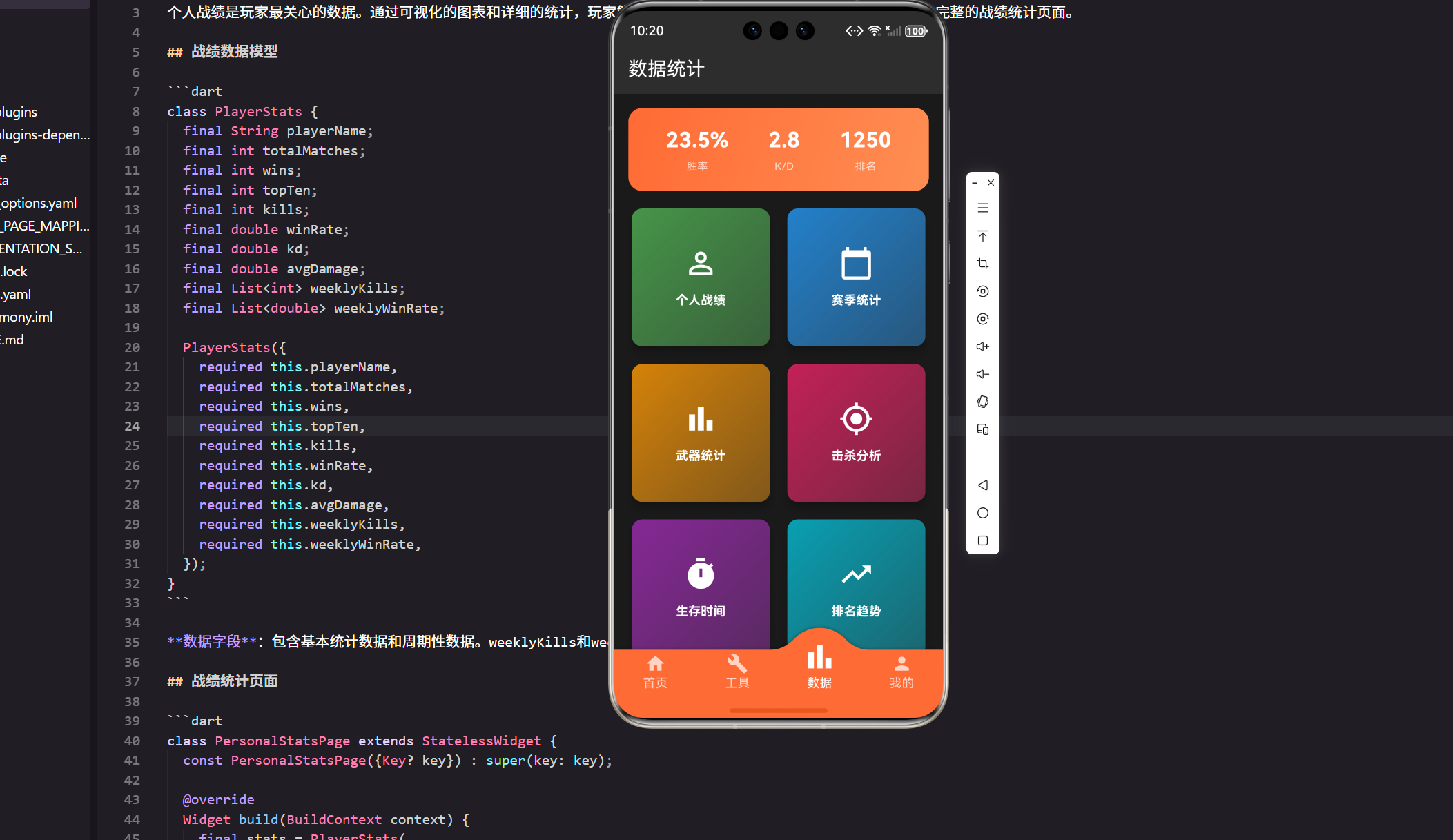
个人战绩是玩家最关心的数据。通过可视化的图表和详细的统计,玩家能清楚了解自己的游戏表现。在实际项目中,我们需要从服务器获取这些数据,然后通过精心设计的UI展现出来。今天我们来实现一个完整的战绩统计页面,包括数据模型、UI设计、图表展示和交互逻辑。
战绩数据模型
首先定义一个完整的数据模型来承载所有的玩家统计数据:
class PlayerStats {
这是数据模型的起点,我们用一个类来组织所有的玩家统计数据。
final String playerName;
玩家的昵称,从用户登录时获取,用于在UI上展示。
  final int totalMatches;
  final int wins;
  final int topTen;
  final int kills;
这些是核心的战绩指标。totalMatches 表示总参赛场次,wins 是吃鸡次数,topTen 是前十名次数,kills 是总击杀数。这些数据通常从后端API获取。
  final double winRate;
  final double kd;
  final double avgDamage;
这些是计算出来的比率数据。winRate 是胜率(百分比),kd 是击杀死亡比,avgDamage 是平均伤害。这些可以在客户端计算,也可以由服务器直接返回。
  final List<int> weeklyKills;
  final List<double> weeklyWinRate;
这两个列表存储最近7天的数据,用于绘制趋势图。每个元素对应一天的数据,这样可以让玩家看到自己的进度变化。
  PlayerStats({
    required this.playerName,
    required this.totalMatches,
    required this.wins,
    required this.topTen,
    required this.kills,
    required this.winRate,
    required this.kd,
    required this.avgDamage,
    required this.weeklyKills,
    required this.weeklyWinRate,
  });
}
构造函数使用 required 关键字确保所有字段都必须被初始化,这样可以避免数据不完整的问题。
战绩统计页面主体
现在来实现主页面,这是展示所有战绩信息的核心:
class PersonalStatsPage extends StatelessWidget {
  const PersonalStatsPage({Key? key}) : super(key: key);
定义一个无状态的Widget,因为战绩数据通常由父Widget或状态管理层提供。
Widget build(BuildContext context) {
final stats = PlayerStats(
playerName: '职业玩家',
totalMatches: 156,
wins: 37,
topTen: 89,
kills: 437,
winRate: 23.7,
kd: 2.8,
avgDamage: 312.5,
weeklyKills: [45, 52, 48, 61, 55, 58, 63],
weeklyWinRate: [20, 22, 21, 25, 23, 24, 26],
);
这里创建了一个示例数据对象。在实际应用中,这些数据应该从API获取,而不是硬编码。
    return Scaffold(
      appBar: AppBar(
        title: const Text('个人战绩'),
        backgroundColor: const Color(0xFF2D2D2D),
      ),
使用 Scaffold 提供基本的页面结构,包括顶部的 AppBar。深灰色的背景色 0xFF2D2D2D 符合游戏应用的暗黑风格。
      backgroundColor: const Color(0xFF1A1A1A),
      body: SingleChildScrollView(
        padding: EdgeInsets.all(16.w),
        child: Column(
          children: [
            _buildPlayerCard(stats),
            SizedBox(height: 20.h),
            _buildMainStats(stats),
            SizedBox(height: 20.h),
            _buildDetailedStats(stats),
            SizedBox(height: 20.h),
            _buildKillsTrendChart(stats),
            SizedBox(height: 20.h),
            _buildWinRateTrendChart(stats),
          ],
        ),
      ),
使用 SingleChildScrollView 包裹内容,这样当内容超过屏幕高度时可以滚动。Column 中的各个组件从上到下依次排列,包括玩家卡片、核心数据、详细数据和两个趋势图。这里使用了响应式单位 w 和 h,来自 flutter_screenutil 库,确保在不同屏幕尺寸上都能正确显示。
    );
  }
玩家卡片组件
  Widget _buildPlayerCard(PlayerStats stats) {
    return Card(
      color: const Color(0xFF2D2D2D),
      child: Container(
        width: double.infinity,
        padding: EdgeInsets.all(20.w),
        decoration: BoxDecoration(
          borderRadius: BorderRadius.circular(12.r),
          gradient: const LinearGradient(
            colors: [Color(0xFF4CAF50), Color(0xFF66BB6A)],
            begin: Alignment.topLeft,
            end: Alignment.bottomRight,
          ),
        ),
玩家卡片使用了绿色渐变背景,从左上到右下。这个设计能够吸引用户的注意力,同时保持整体的视觉协调。
        child: Column(
          children: [
            CircleAvatar(
              radius: 40.r,
              backgroundColor: Colors.white,
              child: Icon(
                Icons.person,
                size: 40.sp,
                color: const Color(0xFF4CAF50),
              ),
            ),
使用 CircleAvatar 显示玩家头像。在实际应用中,这里应该加载真实的用户头像URL。
            SizedBox(height: 12.h),
            Text(
              stats.playerName,
              style: TextStyle(
                color: Colors.white,
                fontSize: 18.sp,
                fontWeight: FontWeight.bold,
              ),
            ),
            SizedBox(height: 4.h),
            Text(
              '本赛季统计',
              style: TextStyle(
                color: Colors.white70,
                fontSize: 12.sp,
              ),
            ),
          ],
        ),
      ),
    );
  }
玩家名字使用较大的字体和加粗效果,下面的"本赛季统计"使用半透明的白色,形成视觉层次。
核心数据展示
  Widget _buildMainStats(PlayerStats stats) {
    return Card(
      color: const Color(0xFF2D2D2D),
      child: Padding(
        padding: EdgeInsets.all(16.w),
        child: Column(
          crossAxisAlignment: CrossAxisAlignment.start,
          children: [
            Text(
              '核心数据',
              style: TextStyle(
                color: Colors.white,
                fontSize: 16.sp,
                fontWeight: FontWeight.bold,
              ),
            ),
每个卡片都有一个标题,用来说明这个区域展示的是什么内容。
            SizedBox(height: 16.h),
            Row(
              mainAxisAlignment: MainAxisAlignment.spaceAround,
              children: [
                _buildStatBox('胜率', '${stats.winRate.toStringAsFixed(1)}%',
                  const Color(0xFF4CAF50)),
                _buildStatBox('K/D', stats.kd.toStringAsFixed(1),
                  const Color(0xFF2196F3)),
                _buildStatBox('平均伤害', stats.avgDamage.toStringAsFixed(0),
                  const Color(0xFFFF9800)),
              ],
            ),
          ],
        ),
      ),
    );
  }
三个最重要的指标并排显示,使用不同的颜色区分。toStringAsFixed() 方法用来控制小数位数,确保数据显示的一致性。
  Widget _buildStatBox(String label, String value, Color color) {
    return Column(
      children: [
        Container(
          padding: EdgeInsets.symmetric(horizontal: 12.w, vertical: 8.h),
          decoration: BoxDecoration(
            color: color.withOpacity(0.2),
            borderRadius: BorderRadius.circular(8.r),
            border: Border.all(color: color, width: 1),
          ),
每个数据框使用对应颜色的半透明背景和边框,这样既能区分不同的指标,又不会显得太突兀。
          child: Text(
            value,
            style: TextStyle(
              color: color,
              fontSize: 20.sp,
              fontWeight: FontWeight.bold,
            ),
          ),
        ),
        SizedBox(height: 8.h),
        Text(
          label,
          style: TextStyle(
            color: Colors.white70,
            fontSize: 12.sp,
          ),
        ),
      ],
    );
  }
数值使用较大的字体,标签在下方使用较小的字体,形成清晰的视觉层次。
详细数据列表
  Widget _buildDetailedStats(PlayerStats stats) {
    return Card(
      color: const Color(0xFF2D2D2D),
      child: Padding(
        padding: EdgeInsets.all(16.w),
        child: Column(
          crossAxisAlignment: CrossAxisAlignment.start,
          children: [
            Text(
              '详细数据',
              style: TextStyle(
                color: Colors.white,
                fontSize: 16.sp,
                fontWeight: FontWeight.bold,
              ),
            ),
            SizedBox(height: 16.h),
            _buildStatRow('总场次', '${stats.totalMatches}',
              const Color(0xFF9C27B0)),
            _buildStatRow('吃鸡次数', '${stats.wins}',
              const Color(0xFF4CAF50)),
            _buildStatRow('前十次数', '${stats.topTen}',
              const Color(0xFF2196F3)),
            _buildStatRow('总击杀数', '${stats.kills}',
              const Color(0xFFFF9800)),
          ],
        ),
      ),
    );
  }
详细数据以列表形式展示,每一行都有一个彩色的指示条。
  Widget _buildStatRow(String label, String value, Color color) {
    return Padding(
      padding: EdgeInsets.symmetric(vertical: 12.h),
      child: Row(
        mainAxisAlignment: MainAxisAlignment.spaceBetween,
        children: [
          Row(
            children: [
              Container(
                width: 4.w,
                height: 16.h,
                decoration: BoxDecoration(
                  color: color,
                  borderRadius: BorderRadius.circular(2.r),
                ),
              ),
左边的彩色条形是一个视觉指示器,帮助用户快速识别不同的数据类型。
              SizedBox(width: 12.w),
              Text(
                label,
                style: TextStyle(
                  color: Colors.white70,
                  fontSize: 14.sp,
                ),
              ),
            ],
          ),
          Text(
            value,
            style: TextStyle(
              color: Colors.white,
              fontSize: 14.sp,
              fontWeight: FontWeight.bold,
            ),
          ),
        ],
      ),
    );
  }
标签在左边,数值在右边,这样的布局便于用户快速扫描和对比数据。
趋势图表展示
趋势图表能够让玩家看到自己的进度变化,这对于激励玩家持续改进很重要。
  Widget _buildKillsTrendChart(PlayerStats stats) {
    return Card(
      color: const Color(0xFF2D2D2D),
      child: Padding(
        padding: EdgeInsets.all(16.w),
        child: Column(
          crossAxisAlignment: CrossAxisAlignment.start,
          children: [
            Text(
              '击杀趋势(最近7天)',
              style: TextStyle(
                color: Colors.white,
                fontSize: 16.sp,
                fontWeight: FontWeight.bold,
              ),
            ),
图表标题清楚地说明了展示的是什么数据和时间范围。
            SizedBox(height: 16.h),
            SizedBox(
              height: 200.h,
              child: LineChart(
                LineChartData(
                  gridData: const FlGridData(show: false),
使用 fl_chart 库的 LineChart 组件。隐藏网格线可以让图表看起来更清爽。
                  titlesData: FlTitlesData(
                    bottomTitles: AxisTitles(
                      sideTitles: SideTitles(
                        showTitles: true,
                        getTitlesWidget: (value, meta) {
                          const days = ['一', '二', '三', '四', '五', '六', '日'];
                          return Text(
                            days[value.toInt()],
                            style: TextStyle(
                              color: Colors.white70,
                              fontSize: 10.sp,
                            ),
                          );
                        },
                      ),
                    ),
底部显示星期几的标签,使用中文数字表示,更符合国内用户的习惯。
                    leftTitles: AxisTitles(
                      sideTitles: SideTitles(
                        showTitles: true,
                        getTitlesWidget: (value, meta) {
                          return Text(
                            value.toInt().toString(),
                            style: TextStyle(
                              color: Colors.white70,
                              fontSize: 10.sp,
                            ),
                          );
                        },
                      ),
                    ),
                  ),
左边显示击杀数的数值标签。
                  borderData: FlBorderData(show: false),
                  lineBarsData: [
                    LineChartBarData(
                      spots: List.generate(
                        stats.weeklyKills.length,
                        (index) => FlSpot(
                          index.toDouble(),
                          stats.weeklyKills[index].toDouble(),
                        ),
                      ),
使用 List.generate 将数据转换为图表需要的 FlSpot 对象。每个点的X坐标是天数索引,Y坐标是击杀数。
                      isCurved: true,
                      color: const Color(0xFFFF6B35),
                      barWidth: 3,
isCurved: true 使线条呈现平滑的曲线而不是直线,看起来更美观。橙色 0xFFFF6B35 用来表示击杀数据。
                      dotData: FlDotData(
                        show: true,
                        getDotPainter: (spot, percent, barData, index) {
                          return FlDotCirclePainter(
                            radius: 4.r,
                            color: const Color(0xFFFF6B35),
                            strokeWidth: 2,
                            strokeColor: Colors.white,
                          );
                        },
                      ),
在每个数据点上显示一个圆点,圆点有白色的边框,这样可以让数据点更加突出。
                    ),
                  ],
                ),
              ),
            ),
          ],
        ),
      ),
    );
  }
胜率趋势图
  Widget _buildWinRateTrendChart(PlayerStats stats) {
    return Card(
      color: const Color(0xFF2D2D2D),
      child: Padding(
        padding: EdgeInsets.all(16.w),
        child: Column(
          crossAxisAlignment: CrossAxisAlignment.start,
          children: [
            Text(
              '胜率趋势(最近7天)',
              style: TextStyle(
                color: Colors.white,
                fontSize: 16.sp,
                fontWeight: FontWeight.bold,
              ),
            ),
            SizedBox(height: 16.h),
            SizedBox(
              height: 200.h,
              child: LineChart(
                LineChartData(
                  gridData: const FlGridData(show: false),
                  titlesData: FlTitlesData(
                    bottomTitles: AxisTitles(
                      sideTitles: SideTitles(
                        showTitles: true,
                        getTitlesWidget: (value, meta) {
                          const days = ['一', '二', '三', '四', '五', '六', '日'];
                          return Text(
                            days[value.toInt()],
                            style: TextStyle(
                              color: Colors.white70,
                              fontSize: 10.sp,
                            ),
                          );
                        },
                      ),
                    ),
                    leftTitles: AxisTitles(
                      sideTitles: SideTitles(
                        showTitles: true,
                        getTitlesWidget: (value, meta) {
                          return Text(
                            '${value.toInt()}%',
胜率的Y轴标签需要加上百分号,这样用户能够清楚地理解这是百分比数据。
                            style: TextStyle(
                              color: Colors.white70,
                              fontSize: 10.sp,
                            ),
                          );
                        },
                      ),
                    ),
                  ),
                  borderData: FlBorderData(show: false),
                  lineBarsData: [
                    LineChartBarData(
                      spots: List.generate(
                        stats.weeklyWinRate.length,
                        (index) => FlSpot(
                          index.toDouble(),
                          stats.weeklyWinRate[index],
                        ),
                      ),
                      isCurved: true,
                      color: const Color(0xFF4CAF50),
                      barWidth: 3,
                      dotData: FlDotData(
                        show: true,
                        getDotPainter: (spot, percent, barData, index) {
                          return FlDotCirclePainter(
                            radius: 4.r,
                            color: const Color(0xFF4CAF50),
                            strokeWidth: 2,
                            strokeColor: Colors.white,
                          );
                        },
                      ),
                    ),
                  ],
                ),
              ),
            ),
          ],
        ),
      ),
    );
  }
}
胜率趋势图使用绿色 0xFF4CAF50 来表示,与核心数据中的胜率颜色保持一致,这样可以帮助用户建立视觉关联。
赛季对比功能
玩家往往想看到自己在不同赛季的表现对比,这能够帮助他们了解自己的进度:
class SeasonComparisonPage extends StatelessWidget {
const SeasonComparisonPage({Key? key}) : super(key: key);
Widget build(BuildContext context) {
final seasons = [
{
'name': '第1赛季',
'winRate': 20.5,
'kd': 2.3,
'kills': 380,
},
{
'name': '第2赛季',
'winRate': 22.1,
'kd': 2.5,
'kills': 410,
},
{
'name': '第3赛季',
'winRate': 23.7,
'kd': 2.8,
'kills': 437,
},
];
这里使用了一个Map列表来存储多个赛季的数据。在实际应用中,这些数据应该从API获取。
    return Scaffold(
      appBar: AppBar(
        title: const Text('赛季对比'),
        backgroundColor: const Color(0xFF2D2D2D),
      ),
      backgroundColor: const Color(0xFF1A1A1A),
      body: ListView.builder(
        padding: EdgeInsets.all(16.w),
        itemCount: seasons.length,
        itemBuilder: (context, index) {
          final season = seasons[index];
使用 ListView.builder 动态生成赛季卡片,这样即使有很多赛季也能高效地渲染。
          return Card(
            margin: EdgeInsets.only(bottom: 12.h),
            color: const Color(0xFF2D2D2D),
            child: Padding(
              padding: EdgeInsets.all(16.w),
              child: Column(
                crossAxisAlignment: CrossAxisAlignment.start,
                children: [
                  Text(
                    season['name'] as String,
                    style: TextStyle(
                      color: Colors.white,
                      fontSize: 16.sp,
                      fontWeight: FontWeight.bold,
                    ),
                  ),
赛季名称作为卡片的标题,使用较大的字体。
                  SizedBox(height: 12.h),
                  Row(
                    mainAxisAlignment: MainAxisAlignment.spaceAround,
                    children: [
                      _buildComparisonItem(
                        '胜率',
                        '${(season['winRate'] as double).toStringAsFixed(1)}%',
                        const Color(0xFF4CAF50),
                      ),
                      _buildComparisonItem(
                        'K/D',
                        (season['kd'] as double).toStringAsFixed(1),
                        const Color(0xFF2196F3),
                      ),
                      _buildComparisonItem(
                        '击杀',
                        (season['kills'] as int).toString(),
                        const Color(0xFFFF9800),
                      ),
                    ],
                  ),
                ],
              ),
            ),
          );
        },
      ),
    );
  }
每个赛季的三个主要指标并排显示,便于用户快速对比。
  Widget _buildComparisonItem(String label, String value, Color color) {
    return Column(
      children: [
        Text(
          label,
          style: TextStyle(
            color: Colors.white70,
            fontSize: 12.sp,
          ),
        ),
        SizedBox(height: 4.h),
        Text(
          value,
          style: TextStyle(
            color: color,
            fontSize: 16.sp,
            fontWeight: FontWeight.bold,
          ),
        ),
      ],
    );
  }
}
对比项目的标签在上,数值在下,使用对应的颜色来区分不同的指标。
数据获取和状态管理
在实际应用中,我们需要从API获取数据。这里展示如何使用Provider进行状态管理:
class StatsProvider extends ChangeNotifier {
  PlayerStats? _stats;
  bool _isLoading = false;
  String? _error;
定义三个状态变量:数据、加载状态和错误信息。
  PlayerStats? get stats => _stats;
  bool get isLoading => _isLoading;
  String? get error => _error;
提供getter方法来访问这些状态。
  Future<void> fetchStats(String playerId) async {
    _isLoading = true;
    _error = null;
    notifyListeners();

    try {
      final response = await http.get(
        Uri.parse('https://api.example.com/stats/$playerId'),
      );
发送HTTP请求获取玩家数据。
      if (response.statusCode == 200) {
        final json = jsonDecode(response.body);
        _stats = PlayerStats.fromJson(json);
      } else {
        _error = '获取数据失败';
      }
    } catch (e) {
      _error = '网络错误: $e';
    } finally {
      _isLoading = false;
      notifyListeners();
    }
  }
}
处理响应,更新状态,并通知监听者。
实际应用中的注意事项
在开发这个功能时,有几个重要的点需要注意:
数据缓存:不要每次打开页面都重新获取数据,应该实现缓存机制,只在必要时刷新。
错误处理:网络请求可能失败,需要显示友好的错误提示,并提供重试选项。
性能优化:如果数据量很大,考虑使用分页或虚拟列表来提高性能。
实时更新:可以使用WebSocket或定时轮询来实现实时数据更新,让玩家看到最新的战绩。
离线支持:使用本地数据库(如SQLite)存储历史数据,即使离线也能查看。
小结
战绩统计页面通过清晰的数据展示和可视化图表,帮助玩家了解自己的游戏表现。关键要点包括:
- 完整的数据模型:确保所有必要的数据都被正确定义和传递
- 清晰的UI设计:使用颜色、大小和布局来建立视觉层次
- 有效的数据可视化:通过图表让数据更容易理解
- 有用的对比功能:让玩家能够看到自己的进度和改进
- 良好的用户体验:考虑加载状态、错误处理和数据缓存
欢迎加入开源鸿蒙跨平台社区:https://openharmonycrossplatform.csdn.net

开源鸿蒙跨平台开发社区汇聚开发者与厂商,共建“一次开发,多端部署”的开源生态,致力于降低跨端开发门槛,推动万物智联创新。
更多推荐
 4
4 0
0- 0


 已为社区贡献22条内容

所有评论(0)