Flutter for OpenHarmony 社团管理App实战 - 社团详情实现
社团详情页设计摘要(150字): 本文介绍了一个Flutter社团详情页的实现方案。页面采用CustomScrollView实现可折叠AppBar效果,包含基本信息卡片、统计数据、社团简介、标签分类和功能入口等模块。通过Consumer监听数据变化,使用Sliver系列组件优化滚动性能。关键设计点包括:渐变背景的FlexibleSpaceBar、圆形首字母头像、统一风格的信息卡片(含社长、联系方式
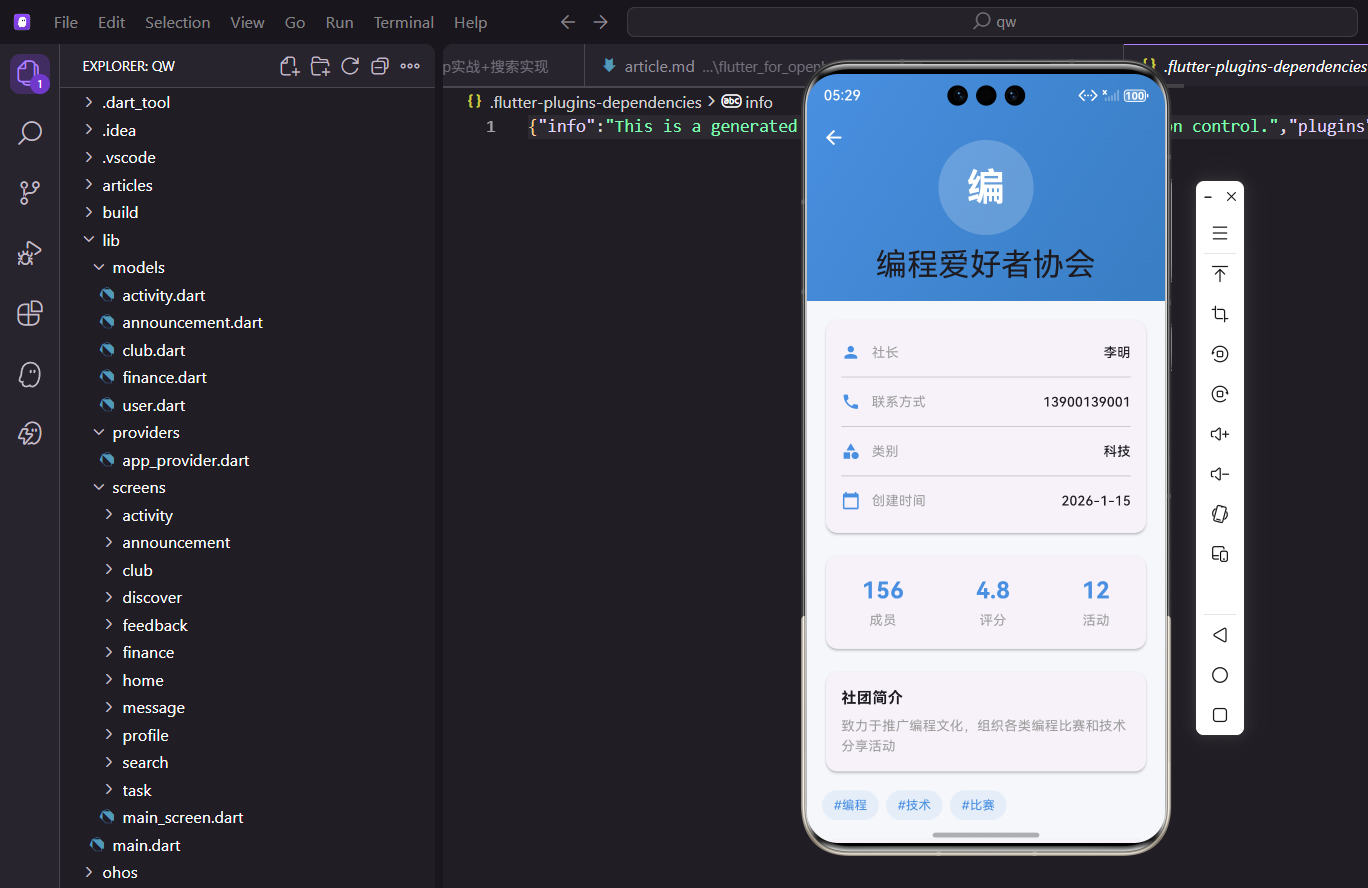
社团详情页是展示社团完整信息的核心页面,包含基本信息、统计数据、简介、标签、功能入口等多个模块。
页面参数设计
详情页需要接收社团对象作为参数:
class ClubDetailPage extends StatelessWidget {
  final Club club;

  const ClubDetailPage({super.key, required this.club});
通过构造函数传入club对象,类型安全且IDE能提供补全。
使用StatelessWidget因为页面本身不维护状态,数据变化通过Provider监听。
页面整体结构
使用CustomScrollView实现可折叠的AppBar效果:
Widget build(BuildContext context) {
return Scaffold(
body: Consumer<AppProvider>(
builder: (context, provider, _) {
final currentClub = provider.clubs.firstWhere(
(c) => c.id == club.id,
orElse: () => club
);
Consumer监听Provider,当社团数据变化时自动刷新页面。
firstWhere从列表中找到最新的社团数据,orElse处理找不到的情况。
构建CustomScrollView:
          return CustomScrollView(
            slivers: [
              SliverAppBar(
                expandedHeight: 200,
                pinned: true,
CustomScrollView配合Sliver系列组件实现复杂的滚动效果。
expandedHeight设置展开时的高度,pinned让AppBar在滚动时固定在顶部。
配置FlexibleSpaceBar:
                flexibleSpace: FlexibleSpaceBar(
                  title: Text(currentClub.name),
                  background: Container(
                    decoration: BoxDecoration(
                      gradient: LinearGradient(
                        colors: [
                          const Color(0xFF4A90E2),
                          const Color(0xFF357ABD).withOpacity(0.8)
                        ],
                        begin: Alignment.topLeft,
                        end: Alignment.bottomRight,
                      ),
                    ),
FlexibleSpaceBar在滚动时会自动缩放标题和背景。
渐变背景从左上到右下,蓝色调和主题一致。
背景中心的头像:
                    child: Center(
                      child: CircleAvatar(
                        radius: 50,
                        backgroundColor: Colors.white.withOpacity(0.2),
                        child: Text(
                          currentClub.name[0],
                          style: const TextStyle(
                            fontSize: 40,
                            color: Colors.white,
                            fontWeight: FontWeight.bold
                          )
                        ),
                      ),
                    ),
                  ),
                ),
              ),
半透明白色背景的圆形头像,显示社团名称首字。
40像素的大字体在展开状态下很醒目。
内容区域
使用SliverToBoxAdapter包裹普通Widget:
              SliverToBoxAdapter(
                child: Padding(
                  padding: const EdgeInsets.all(16),
                  child: Column(
                    crossAxisAlignment: CrossAxisAlignment.start,
                    children: [
                      _buildInfoCard(currentClub),
                      const SizedBox(height: 16),
                      _buildStatsRow(currentClub),
SliverToBoxAdapter把普通Widget转换成Sliver,可以放在CustomScrollView中。
各模块之间用16像素的间距分隔。
继续添加其他模块:
                      const SizedBox(height: 16),
                      _buildDescription(currentClub),
                      const SizedBox(height: 16),
                      _buildTags(currentClub),
                      const SizedBox(height: 16),
                      _buildMenuItems(context, currentClub),
                      const SizedBox(height: 24),
                      _buildActionButton(context, provider, currentClub),
                    ],
                  ),
                ),
              ),
            ],
          );
        },
      ),
    );
  }
模块顺序:基本信息、统计数据、简介、标签、菜单、操作按钮。
底部按钮前留24像素的间距,让它更突出。
基本信息卡片
构建信息卡片:
  Widget _buildInfoCard(Club club) {
    return Card(
      child: Padding(
        padding: const EdgeInsets.all(16),
        child: Column(
          children: [
            _buildInfoRow(Icons.person, '社长', club.president),
            const Divider(),
            _buildInfoRow(Icons.phone, '联系方式', club.contact),
Card包裹所有信息行,统一的卡片样式。
Divider分割线让各行信息更清晰。
继续添加信息行:
            const Divider(),
            _buildInfoRow(Icons.category, '类别', club.category),
            const Divider(),
            _buildInfoRow(
              Icons.calendar_today,
              '创建时间',
              '${club.createTime.year}-${club.createTime.month}-${club.createTime.day}'
            ),
          ],
        ),
      ),
    );
  }
日期格式化成年-月-日的形式。
四行信息涵盖了社团的基本情况。
封装信息行组件:
  Widget _buildInfoRow(IconData icon, String label, String value) {
    return Padding(
      padding: const EdgeInsets.symmetric(vertical: 8),
      child: Row(
        children: [
          Icon(icon, size: 20, color: const Color(0xFF4A90E2)),
          const SizedBox(width: 12),
          Text(label, style: const TextStyle(color: Colors.grey)),
          const Spacer(),
          Text(value, style: const TextStyle(fontWeight: FontWeight.w500)),
        ],
      ),
    );
  }
图标、标签、值三部分,Spacer把值推到右边。
统一的样式让信息展示整齐一致。
统计数据行
构建统计卡片:
  Widget _buildStatsRow(Club club) {
    return Card(
      child: Padding(
        padding: const EdgeInsets.symmetric(vertical: 20),
        child: Row(
          mainAxisAlignment: MainAxisAlignment.spaceAround,
          children: [
            _buildStatItem('成员', '${club.memberCount}'),
            _buildStatItem('评分', club.rating.toStringAsFixed(1)),
            _buildStatItem('活动', '12'),
          ],
        ),
      ),
    );
  }
三个统计项均匀分布,展示社团的核心数据。
垂直内边距20像素让数字有足够的呼吸空间。
封装统计项组件:
  Widget _buildStatItem(String label, String value) {
    return Column(
      children: [
        Text(
          value,
          style: const TextStyle(
            fontSize: 24,
            fontWeight: FontWeight.bold,
            color: Color(0xFF4A90E2)
          )
        ),
        const SizedBox(height: 4),
        Text(label, style: const TextStyle(color: Colors.grey)),
      ],
    );
  }
数字用24像素的蓝色粗体,非常醒目。
标签用灰色小字,作为数字的说明。
社团简介
构建简介卡片:
  Widget _buildDescription(Club club) {
    return Card(
      child: Padding(
        padding: const EdgeInsets.all(16),
        child: Column(
          crossAxisAlignment: CrossAxisAlignment.start,
          children: [
            const Text(
              '社团简介',
              style: TextStyle(fontWeight: FontWeight.bold, fontSize: 16)
            ),
            const SizedBox(height: 8),
            Text(
              club.description,
              style: const TextStyle(color: Colors.grey, height: 1.5)
            ),
          ],
        ),
      ),
    );
  }
标题和内容分开,结构清晰。
行高1.5让多行文字阅读更舒适。
标签展示
使用Wrap实现自动换行:
  Widget _buildTags(Club club) {
    return Wrap(
      spacing: 8,
      runSpacing: 8,
      children: club.tags.map((tag) {
        return Container(
          padding: const EdgeInsets.symmetric(horizontal: 12, vertical: 6),
          decoration: BoxDecoration(
            color: const Color(0xFF4A90E2).withOpacity(0.1),
            borderRadius: BorderRadius.circular(16),
          ),
          child: Text(
            '#$tag',
            style: const TextStyle(color: Color(0xFF4A90E2), fontSize: 13)
          ),
        );
      }).toList(),
    );
  }
Wrap组件在空间不足时自动换行,适合标签这种数量不定的场景。
spacing和runSpacing分别控制水平和垂直间距。
功能菜单
构建菜单列表:
  Widget _buildMenuItems(BuildContext context, Club club) {
    return Card(
      child: Column(
        children: [
          ListTile(
            leading: const Icon(Icons.people, color: Color(0xFF4A90E2)),
            title: const Text('成员列表'),
            trailing: const Icon(Icons.chevron_right),
            onTap: () => Navigator.push(
              context,
              MaterialPageRoute(
                builder: (_) => ClubMembersPage(
                  clubId: club.id,
                  clubName: club.name
                )
              )
            ),
          ),
ListTile是标准的菜单项组件,自带合理的布局和点击效果。
leading放图标,trailing放箭头,表示可以点击进入。
添加更多菜单项:
          const Divider(height: 1),
          ListTile(
            leading: const Icon(Icons.event, color: Color(0xFF4A90E2)),
            title: const Text('社团活动'),
            trailing: const Icon(Icons.chevron_right),
            onTap: () => Navigator.push(
              context,
              MaterialPageRoute(
                builder: (_) => ClubActivitiesPage(
                  clubId: club.id,
                  clubName: club.name
                )
              )
            ),
          ),
          const Divider(height: 1),
          ListTile(
            leading: const Icon(Icons.campaign, color: Color(0xFF4A90E2)),
            title: const Text('社团公告'),
            trailing: const Icon(Icons.chevron_right),
            onTap: () => Navigator.push(
              context,
              MaterialPageRoute(
                builder: (_) => ClubAnnouncementsPage(
                  clubId: club.id,
                  clubName: club.name
                )
              )
            ),
          ),
        ],
      ),
    );
  }
三个入口分别进入成员、活动、公告页面。
Divider高度设为1像素,细线分隔更精致。
操作按钮
构建加入/退出按钮:
  Widget _buildActionButton(
    BuildContext context,
    AppProvider provider,
    Club club
  ) {
    return SizedBox(
      width: double.infinity,
      height: 48,
      child: ElevatedButton(
        style: ElevatedButton.styleFrom(
          backgroundColor: club.isJoined ? Colors.red : const Color(0xFF4A90E2),
          shape: RoundedRectangleBorder(
            borderRadius: BorderRadius.circular(24)
          ),
        ),
按钮宽度撑满,高度48像素,是常见的按钮尺寸。
已加入显示红色退出按钮,未加入显示蓝色加入按钮。
处理点击事件:
        onPressed: () {
          if (club.isJoined) {
            showDialog(
              context: context,
              builder: (ctx) => AlertDialog(
                title: const Text('确认退出'),
                content: Text('确定要退出${club.name}吗?'),
                actions: [
                  TextButton(
                    onPressed: () => Navigator.pop(ctx),
                    child: const Text('取消')
                  ),
退出操作需要二次确认,防止误操作。
AlertDialog是Material Design的标准对话框。
确认退出的处理:
                  TextButton(
                    onPressed: () {
                      provider.leaveClub(club.id);
                      Navigator.pop(ctx);
                      ScaffoldMessenger.of(context).showSnackBar(
                        const SnackBar(content: Text('已退出社团'))
                      );
                    },
                    child: const Text('确定', style: TextStyle(color: Colors.red)),
                  ),
                ],
              ),
            );
调用provider的leaveClub方法更新数据。
SnackBar给出操作反馈,让用户知道操作成功了。
加入社团的处理:
          } else {
            provider.joinClub(club.id);
            ScaffoldMessenger.of(context).showSnackBar(
              SnackBar(content: Text('已加入${club.name}'))
            );
          }
        },
        child: Text(
          club.isJoined ? '退出社团' : '申请加入',
          style: const TextStyle(fontSize: 16, color: Colors.white)
        ),
      ),
    );
  }
}
加入操作不需要确认,直接执行。
按钮文字根据状态动态变化。
小结
社团详情页通过CustomScrollView和SliverAppBar实现了可折叠的头部效果。页面分为多个模块:基本信息、统计数据、简介、标签、功能菜单、操作按钮,信息层次分明。加入和退出操作都有即时反馈,退出还增加了二次确认,用户体验完善。
欢迎加入开源鸿蒙跨平台社区:https://openharmonycrossplatform.csdn.net

开源鸿蒙跨平台开发社区汇聚开发者与厂商,共建“一次开发,多端部署”的开源生态,致力于降低跨端开发门槛,推动万物智联创新。
更多推荐
 10
10 0
0- 0


 已为社区贡献26条内容

所有评论(0)