Flutter for OpenHarmony生活助手App实战:健康仪表盘实现
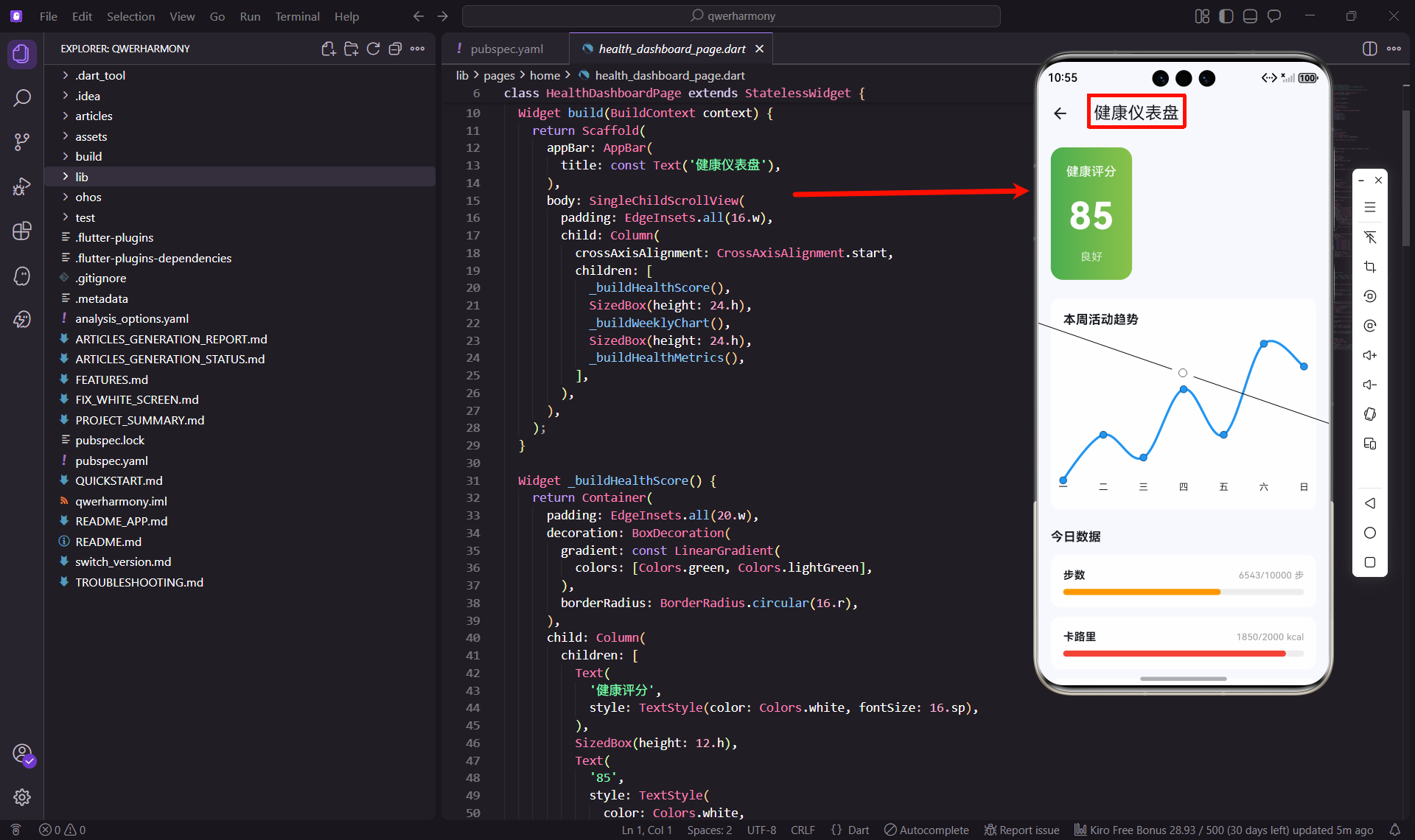
在开发生活助手App的过程中,健康仪表盘是一个非常重要的功能模块。它能够集中展示用户的各项健康数据,让用户一目了然地了解自己的健康状况。今天我就来分享一下如何在Flutter中实现这个功能。
功能设计思路
健康仪表盘的核心是数据可视化。我们需要把步数、卡路里、活动时间等健康数据以直观的方式展示出来。在设计时,我考虑了以下几个要点:
首先是整体布局,顶部放一个醒目的健康评分卡片,用渐变色背景突出显示。中间是一个折线图,展示本周的活动趋势。底部则是今日的详细数据,用进度条的形式展示完成情况。
其次是交互体验,所有数据都要实时更新,用户能够清楚地看到自己距离目标还有多远。颜色的选择也很重要,绿色代表健康,橙色代表步数,红色代表卡路里,这样用户一眼就能区分不同的数据类型。
页面结构实现
让我先来看看整体的页面结构代码:
import 'package:flutter/material.dart';
import 'package:flutter_screenutil/flutter_screenutil.dart';
import 'package:fl_chart/fl_chart.dart';
import 'package:percent_indicator/linear_percent_indicator.dart';
class HealthDashboardPage extends StatelessWidget {
const HealthDashboardPage({super.key});
Widget build(BuildContext context) {
return Scaffold(
appBar: AppBar(
title: const Text('健康仪表盘'),
),
body: SingleChildScrollView(
padding: EdgeInsets.all(16.w),
child: Column(
crossAxisAlignment: CrossAxisAlignment.start,
children: [
_buildHealthScore(),
SizedBox(height: 24.h),
_buildWeeklyChart(),
SizedBox(height: 24.h),
_buildHealthMetrics(),
],
),
),
);
}
}
这里我使用了SingleChildScrollView来包裹整个内容区域,因为健康数据可能会比较多,需要支持滚动。页面分为三个主要部分,每个部分都是一个独立的Widget,这样代码结构更清晰,也便于后期维护。
健康评分卡片
健康评分是整个仪表盘的核心指标,我用一个渐变色的卡片来展示:
Widget _buildHealthScore() {
  return Container(
    padding: EdgeInsets.all(20.w),
    decoration: BoxDecoration(
      gradient: const LinearGradient(
        colors: [Colors.green, Colors.lightGreen],
      ),
      borderRadius: BorderRadius.circular(16.r),
    ),
    child: Column(
      children: [
        Text(
          '健康评分',
          style: TextStyle(color: Colors.white, fontSize: 16.sp),
        ),
        SizedBox(height: 12.h),
        Text(
          '85',
          style: TextStyle(
            color: Colors.white,
            fontSize: 48.sp,
            fontWeight: FontWeight.bold,
          ),
        ),
        SizedBox(height: 8.h),
        Text(
          '良好',
          style: TextStyle(color: Colors.white70, fontSize: 14.sp),
        ),
      ],
    ),
  );
}
这个卡片的设计很简单但很有效。绿色的渐变背景给人一种健康、积极的感觉。评分数字用了48sp的大字号,非常醒目。下面的"良好"文字用稍微透明的白色,形成层次感。
在实际应用中,这个评分可以根据用户的步数、睡眠、饮水等多个维度综合计算得出。比如每项指标完成度乘以权重,最后加总得到一个0-100的分数。
活动趋势图表
趋势图是用户了解自己健康变化的重要工具。我使用了fl_chart库来实现折线图:
Widget _buildWeeklyChart() {
  return Container(
    padding: EdgeInsets.all(16.w),
    decoration: BoxDecoration(
      color: Colors.white,
      borderRadius: BorderRadius.circular(12.r),
    ),
    child: Column(
      crossAxisAlignment: CrossAxisAlignment.start,
      children: [
        Text(
          '本周活动趋势',
          style: TextStyle(fontSize: 16.sp, fontWeight: FontWeight.bold),
        ),
        SizedBox(height: 20.h),
        SizedBox(
          height: 200.h,
          child: LineChart(
            LineChartData(
              gridData: const FlGridData(show: false),
              titlesData: FlTitlesData(
                leftTitles: const AxisTitles(sideTitles: SideTitles(showTitles: false)),
                rightTitles: const AxisTitles(sideTitles: SideTitles(showTitles: false)),
                topTitles: const AxisTitles(sideTitles: SideTitles(showTitles: false)),
                bottomTitles: AxisTitles(
                  sideTitles: SideTitles(
                    showTitles: true,
                    getTitlesWidget: (value, meta) {
                      const days = ['一', '二', '三', '四', '五', '六', '日'];
                      if (value.toInt() >= 0 && value.toInt() < days.length) {
                        return Text(days[value.toInt()], style: TextStyle(fontSize: 12.sp));
                      }
                      return const Text('');
                    },
                  ),
                ),
              ),
              borderData: FlBorderData(show: false),
              lineBarsData: [
                LineChartBarData(
                  spots: [
                    const FlSpot(0, 3),
                    const FlSpot(1, 4),
                    const FlSpot(2, 3.5),
                    const FlSpot(3, 5),
                    const FlSpot(4, 4),
                    const FlSpot(5, 6),
                    const FlSpot(6, 5.5),
                  ],
                  isCurved: true,
                  color: Colors.blue,
                  barWidth: 3,
                  dotData: const FlDotData(show: true),
                ),
              ],
            ),
          ),
        ),
      ],
    ),
  );
}
这个图表的配置看起来有点复杂,但其实逻辑很清晰。首先我关闭了网格线和大部分坐标轴,只保留底部的星期标签,这样图表看起来更简洁。
getTitlesWidget这个回调函数很关键,它负责把数字索引转换成中文的星期显示。我定义了一个星期数组,根据value的值返回对应的星期文字。
折线的数据点用FlSpot来定义,第一个参数是x坐标(代表星期几),第二个参数是y坐标(代表活动量)。isCurved: true让折线变得平滑,看起来更美观。
健康指标详情
最后是今日的详细数据展示,这部分用进度条来表现完成度:
Widget _buildHealthMetrics() {
  final metrics = [
    {'title': '步数', 'value': 6543, 'target': 10000, 'unit': '步', 'color': Colors.orange},
    {'title': '卡路里', 'value': 1850, 'target': 2000, 'unit': 'kcal', 'color': Colors.red},
    {'title': '活动时间', 'value': 45, 'target': 60, 'unit': '分钟', 'color': Colors.green},
  ];

  return Column(
    crossAxisAlignment: CrossAxisAlignment.start,
    children: [
      Text(
        '今日数据',
        style: TextStyle(fontSize: 16.sp, fontWeight: FontWeight.bold),
      ),
      SizedBox(height: 12.h),
      ...metrics.map((metric) => _buildMetricCard(metric)),
    ],
  );
}
我把所有指标数据放在一个List里,每个指标包含标题、当前值、目标值、单位和颜色。这样做的好处是数据和UI分离,以后要添加新的指标只需要在List里加一项就行。
Widget _buildMetricCard(Map<String, dynamic> metric) {
  final percent = (metric['value'] as int) / (metric['target'] as int);
  return Container(
    margin: EdgeInsets.only(bottom: 12.h),
    padding: EdgeInsets.all(16.w),
    decoration: BoxDecoration(
      color: Colors.white,
      borderRadius: BorderRadius.circular(12.r),
    ),
    child: Column(
      crossAxisAlignment: CrossAxisAlignment.start,
      children: [
        Row(
          mainAxisAlignment: MainAxisAlignment.spaceBetween,
          children: [
            Text(
              metric['title'] as String,
              style: TextStyle(fontSize: 14.sp, fontWeight: FontWeight.bold),
            ),
            Text(
              '${metric['value']}/${metric['target']} ${metric['unit']}',
              style: TextStyle(fontSize: 12.sp, color: Colors.grey),
            ),
          ],
        ),
        SizedBox(height: 8.h),
        LinearPercentIndicator(
          padding: EdgeInsets.zero,
          lineHeight: 8.h,
          percent: percent > 1 ? 1 : percent,
          backgroundColor: Colors.grey[200],
          progressColor: metric['color'] as Color,
          barRadius: Radius.circular(4.r),
        ),
      ],
    ),
  );
}
每个指标卡片都包含标题、数值和进度条。进度条使用了percent_indicator库,它能够很方便地展示百分比进度。我特别处理了percent大于1的情况,避免进度条溢出。
数据更新机制
在实际应用中,这些健康数据需要实时更新。我建议使用Provider或GetX这样的状态管理方案。比如可以创建一个HealthDataProvider,里面存储所有健康数据,当数据变化时通知UI更新。
// 示例代码,实际使用时需要完整实现
class HealthDataProvider extends ChangeNotifier {
  int _steps = 0;
  int _calories = 0;
  int _activeMinutes = 0;

  void updateSteps(int steps) {
    _steps = steps;
    notifyListeners();
  }

  int calculateHealthScore() {
    // 根据各项指标计算健康评分
    double stepsScore = (_steps / 10000) * 40;
    double caloriesScore = (_calories / 2000) * 30;
    double activeScore = (_activeMinutes / 60) * 30;
    return (stepsScore + caloriesScore + activeScore).toInt();
  }
}
性能优化建议
健康仪表盘涉及到图表渲染,对性能有一定要求。我在开发过程中总结了几个优化点:
第一,图表数据不要太频繁更新。比如步数数据可以每分钟更新一次,而不是每秒都更新,这样能减少不必要的重绘。
第二,使用const构造函数。像const FlSpot(0, 3)这样的常量数据点,使用const可以避免重复创建对象。
第三,合理使用RepaintBoundary。如果某个图表区域更新频繁,可以用RepaintBoundary包裹起来,避免影响其他区域的渲染。
扩展功能思路
基于这个健康仪表盘,还可以扩展很多有趣的功能。比如添加健康建议,根据用户的数据给出个性化的运动或饮食建议。或者加入社交功能,让用户可以和好友比拼步数。
还可以接入智能手环或手表的数据,实现更精准的健康监测。这需要调用设备的传感器API,获取心率、血氧等更多维度的数据。
另外,数据的历史记录也很重要。可以添加一个时间选择器,让用户查看过去一周、一个月甚至一年的健康数据变化趋势。
健康评分的计算逻辑
说起健康评分,这是我花了不少时间思考的部分。一个好的评分系统应该能够综合反映用户的整体健康状况,而不是单纯看某一项指标。
我的计算逻辑是这样的:把各项健康指标按权重加总。步数占40%的权重,因为运动是健康的基础;卡路里消耗占30%,反映了活动强度;活动时间占30%,保证了运动的持续性。
int calculateHealthScore({
  required int steps,
  required int calories,
  required int activeMinutes,
  required int stepsTarget,
  required int caloriesTarget,
  required int activeTarget,
}) {
  // 计算各项完成度
  double stepsCompletion = (steps / stepsTarget).clamp(0.0, 1.0);
  double caloriesCompletion = (calories / caloriesTarget).clamp(0.0, 1.0);
  double activeCompletion = (activeMinutes / activeTarget).clamp(0.0, 1.0);

  // 按权重计算总分
  double score = stepsCompletion * 40 +
                 caloriesCompletion * 30 +
                 activeCompletion * 30;

  return score.round();
}
这里我用了clamp方法来限制完成度在0到1之间,避免超额完成导致分数异常。比如用户今天走了15000步,超过了10000步的目标,但步数这一项的得分最多还是40分。
评分等级的划分
有了分数,还需要给出等级评价。我把0-100分划分成五个等级:
String getHealthLevel(int score) {
  if (score >= 90) return '优秀';
  if (score >= 80) return '良好';
  if (score >= 60) return '一般';
  if (score >= 40) return '较差';
  return '需改善';
}

Color getHealthColor(int score) {
  if (score >= 90) return Colors.green;
  if (score >= 80) return Colors.lightGreen;
  if (score >= 60) return Colors.orange;
  if (score >= 40) return Colors.deepOrange;
  return Colors.red;
}
不同的等级用不同的颜色表示,这样用户一眼就能看出自己的健康状况。绿色代表优秀,红色代表需要改善,这是人们普遍认知的颜色语言。
图表数据的处理
折线图的数据来源是个关键问题。在实际应用中,我们需要从数据库读取过去7天的活动数据。
Future<List<FlSpot>> loadWeeklyData() async {
  final db = await DatabaseHelper.instance.database;
  final now = DateTime.now();
  final weekAgo = now.subtract(const Duration(days: 7));

  final List<Map<String, dynamic>> maps = await db.query(
    'health_records',
    where: 'date >= ?',
    whereArgs: [weekAgo.toIso8601String()],
    orderBy: 'date ASC',
  );

  List<FlSpot> spots = [];
  for (int i = 0; i < maps.length; i++) {
    final record = maps[i];
    final steps = record['steps'] as int;
    // 将步数转换为活动量评分(0-10分)
    final score = (steps / 1000).clamp(0.0, 10.0);
    spots.add(FlSpot(i.toDouble(), score));
  }

  return spots;
}
这段代码从数据库查询最近7天的记录,然后转换成图表需要的数据格式。我把步数转换成了0-10分的评分,这样不同数量级的数据在图表上都能有比较好的展示效果。
数据缺失的处理
有时候用户可能某天没有记录数据,这时候图表上会出现断点。我的处理方式是用0来填充缺失的数据:
List<FlSpot> fillMissingData(List<FlSpot> spots) {
  List<FlSpot> filledSpots = [];

  for (int i = 0; i < 7; i++) {
    final spot = spots.firstWhere(
      (s) => s.x == i.toDouble(),
      orElse: () => FlSpot(i.toDouble(), 0),
    );
    filledSpots.add(spot);
  }

  return filledSpots;
}
这样保证了图表始终显示完整的7天数据,即使某些天没有记录也不会出现空白。
进度条的动画效果
进度条如果能有动画效果,用户体验会更好。我使用了AnimatedContainer来实现平滑的进度变化:
class AnimatedProgressBar extends StatefulWidget {
final double percent;
final Color color;
const AnimatedProgressBar({
super.key,
required this.percent,
required this.color,
});
State<AnimatedProgressBar> createState() => _AnimatedProgressBarState();
}
class _AnimatedProgressBarState extends State<AnimatedProgressBar> {
Widget build(BuildContext context) {
return Container(
height: 8.h,
decoration: BoxDecoration(
color: Colors.grey[200],
borderRadius: BorderRadius.circular(4.r),
),
child: AnimatedContainer(
duration: const Duration(milliseconds: 800),
curve: Curves.easeInOut,
width: MediaQuery.of(context).size.width * widget.percent,
decoration: BoxDecoration(
color: widget.color,
borderRadius: BorderRadius.circular(4.r),
),
),
);
}
}
当进度值变化时,进度条会在800毫秒内平滑过渡到新的位置。Curves.easeInOut让动画开始和结束时都比较缓慢,中间比较快,看起来更自然。
实时数据更新
健康数据应该能够实时更新,而不是只在打开页面时加载一次。我使用了StreamBuilder来实现:
class HealthDashboardPage extends StatefulWidget {
const HealthDashboardPage({super.key});
State<HealthDashboardPage> createState() => _HealthDashboardPageState();
}
class _HealthDashboardPageState extends State<HealthDashboardPage> {
final HealthDataService _healthService = HealthDataService();
Widget build(BuildContext context) {
return Scaffold(
appBar: AppBar(
title: const Text('健康仪表盘'),
),
body: StreamBuilder<HealthData>(
stream: _healthService.healthDataStream,
builder: (context, snapshot) {
if (!snapshot.hasData) {
return const Center(child: CircularProgressIndicator());
}
final data = snapshot.data!;
return SingleChildScrollView(
padding: EdgeInsets.all(16.w),
child: Column(
crossAxisAlignment: CrossAxisAlignment.start,
children: [
_buildHealthScore(data.score),
SizedBox(height: 24.h),
_buildWeeklyChart(data.weeklyData),
SizedBox(height: 24.h),
_buildHealthMetrics(data),
],
),
);
},
),
);
}
}
StreamBuilder会监听数据流的变化,每当有新数据时自动重建UI。这样用户在使用其他功能(比如步数统计)时,健康仪表盘的数据也会同步更新。
数据服务的实现
class HealthDataService {
  final _controller = StreamController<HealthData>.broadcast();

  Stream<HealthData> get healthDataStream => _controller.stream;

  void updateHealthData(HealthData data) {
    _controller.add(data);
  }

  void dispose() {
    _controller.close();
  }
}
这个服务类负责管理健康数据的流。其他模块可以通过调用updateHealthData来更新数据,健康仪表盘会自动收到通知并刷新UI。
目标设置功能
用户应该能够自定义自己的健康目标。我添加了一个设置页面,让用户可以调整步数、卡路里等目标值:
class HealthGoalSettingsPage extends StatefulWidget {
const HealthGoalSettingsPage({super.key});
State<HealthGoalSettingsPage> createState() => _HealthGoalSettingsPageState();
}
class _HealthGoalSettingsPageState extends State<HealthGoalSettingsPage> {
int _stepsGoal = 10000;
int _caloriesGoal = 2000;
int _activeGoal = 60;
Widget build(BuildContext context) {
return Scaffold(
appBar: AppBar(
title: const Text('目标设置'),
actions: [
TextButton(
onPressed: _saveGoals,
child: const Text('保存', style: TextStyle(color: Colors.white)),
),
],
),
body: ListView(
padding: EdgeInsets.all(16.w),
children: [
_buildGoalSlider(
'每日步数目标',
_stepsGoal,
5000,
20000,
(value) => setState(() => _stepsGoal = value.toInt()),
),
_buildGoalSlider(
'每日卡路里目标',
_caloriesGoal,
1000,
3000,
(value) => setState(() => _caloriesGoal = value.toInt()),
),
_buildGoalSlider(
'每日活动时间目标(分钟)',
_activeGoal,
30,
120,
(value) => setState(() => _activeGoal = value.toInt()),
),
],
),
);
}
Widget _buildGoalSlider(
String title,
int value,
double min,
double max,
Function(double) onChanged,
) {
return Column(
crossAxisAlignment: CrossAxisAlignment.start,
children: [
Text(title, style: TextStyle(fontSize: 16.sp, fontWeight: FontWeight.bold)),
SizedBox(height: 8.h),
Row(
children: [
Expanded(
child: Slider(
value: value.toDouble(),
min: min,
max: max,
divisions: ((max - min) / 100).toInt(),
label: value.toString(),
onChanged: onChanged,
),
),
SizedBox(width: 12.w),
Text(
value.toString(),
style: TextStyle(fontSize: 16.sp, fontWeight: FontWeight.bold),
),
],
),
SizedBox(height: 24.h),
],
);
}
Future<void> _saveGoals() async {
final prefs = await SharedPreferences.getInstance();
await prefs.setInt('steps_goal', _stepsGoal);
await prefs.setInt('calories_goal', _caloriesGoal);
await prefs.setInt('active_goal', _activeGoal);
if (mounted) {
ScaffoldMessenger.of(context).showSnackBar(
const SnackBar(content: Text('目标已保存')),
);
Navigator.pop(context);
}
}
}
用滑块来设置目标值,用户可以直观地调整。保存时用SharedPreferences存储到本地,下次打开应用时会自动加载这些设置。
健康建议功能
根据用户的健康数据,我们可以给出一些个性化的建议:
String getHealthAdvice(HealthData data) {
  if (data.steps < data.stepsTarget * 0.5) {
    return '今天的步数还不够哦,出去走走吧!建议至少再走${data.stepsTarget - data.steps}步。';
  }

  if (data.calories < data.caloriesTarget * 0.6) {
    return '活动量有点少,可以做些运动来增加卡路里消耗。';
  }

  if (data.activeMinutes < data.activeTarget * 0.5) {
    return '今天的活动时间不足,建议进行${data.activeTarget - data.activeMinutes}分钟的运动。';
  }

  if (data.score >= 90) {
    return '太棒了!你今天的表现非常出色,继续保持!';
  }

  if (data.score >= 80) {
    return '做得不错!再加把劲就能达到优秀了。';
  }

  return '加油!每天进步一点点,健康就会越来越好。';
}
这些建议会显示在健康仪表盘的底部,给用户一些正向的激励。我特别注意了语气,要鼓励而不是批评,这样用户才会有动力继续使用。
建议卡片的展示
Widget _buildAdviceCard(String advice) {
  return Container(
    margin: EdgeInsets.only(top: 24.h),
    padding: EdgeInsets.all(16.w),
    decoration: BoxDecoration(
      color: Colors.blue[50],
      borderRadius: BorderRadius.circular(12.r),
      border: Border.all(color: Colors.blue[200]!, width: 1),
    ),
    child: Row(
      children: [
        Icon(Icons.lightbulb_outline, color: Colors.blue, size: 24.sp),
        SizedBox(width: 12.w),
        Expanded(
          child: Text(
            advice,
            style: TextStyle(fontSize: 14.sp, color: Colors.blue[900]),
          ),
        ),
      ],
    ),
  );
}
用浅蓝色的背景和灯泡图标,让建议卡片看起来友好而不突兀。
数据导出功能
有些用户可能想把健康数据导出来,做更深入的分析。我添加了一个导出功能:
Future<void> exportHealthData() async {
  final db = await DatabaseHelper.instance.database;
  final records = await db.query('health_records', orderBy: 'date DESC');

  // 转换为CSV格式
  String csv = '日期,步数,卡路里,活动时间\n';
  for (var record in records) {
    csv += '${record['date']},${record['steps']},${record['calories']},${record['active_minutes']}\n';
  }

  // 保存到文件
  final directory = await getApplicationDocumentsDirectory();
  final file = File('${directory.path}/health_data.csv');
  await file.writeAsString(csv);

  // 分享文件
  await Share.shareFiles([file.path], text: '我的健康数据');
}
导出的数据是CSV格式,可以用Excel打开,方便用户做进一步的分析。
深色模式适配
现在很多用户喜欢用深色模式,健康仪表盘也应该支持。我做了一些适配:
Widget _buildHealthScore(BuildContext context, int score) {
  final isDark = Theme.of(context).brightness == Brightness.dark;

  return Container(
    padding: EdgeInsets.all(20.w),
    decoration: BoxDecoration(
      gradient: LinearGradient(
        colors: isDark
          ? [Colors.green[700]!, Colors.green[900]!]
          : [Colors.green, Colors.lightGreen],
      ),
      borderRadius: BorderRadius.circular(16.r),
    ),
    child: Column(
      children: [
        Text(
          '健康评分',
          style: TextStyle(color: Colors.white, fontSize: 16.sp),
        ),
        SizedBox(height: 12.h),
        Text(
          score.toString(),
          style: TextStyle(
            color: Colors.white,
            fontSize: 48.sp,
            fontWeight: FontWeight.bold,
          ),
        ),
        SizedBox(height: 8.h),
        Text(
          getHealthLevel(score),
          style: TextStyle(color: Colors.white70, fontSize: 14.sp),
        ),
      ],
    ),
  );
}
深色模式下,我用了更深的绿色渐变,这样在深色背景下看起来更协调。
性能监控
为了确保健康仪表盘的性能,我添加了一些性能监控代码:
void _measurePerformance() {
  final stopwatch = Stopwatch()..start();

  // 执行数据加载和渲染
  loadHealthData().then((_) {
    stopwatch.stop();
    print('健康仪表盘加载耗时: ${stopwatch.elapsedMilliseconds}ms');

    if (stopwatch.elapsedMilliseconds > 1000) {
      print('警告:加载时间过长,需要优化');
    }
  });
}
如果加载时间超过1秒,就会打印警告。这样在开发阶段就能及时发现性能问题。
总结
健康仪表盘的实现其实并不复杂,关键是要把数据可视化做好。通过合理的布局、清晰的图表和直观的进度条,用户能够轻松了解自己的健康状况。
在开发过程中,我特别注重用户体验。比如颜色的选择、字体的大小、间距的设置,这些细节都会影响最终的使用感受。建议大家在实现时多测试,多调整,找到最适合自己App的展示方式。
这个功能模块是整个生活助手App的核心之一,它不仅能展示数据,更重要的是能激励用户保持健康的生活方式。通过健康评分、趋势图表、个性化建议等功能,用户能够更好地了解自己的健康状况,并采取行动改善。
从我自己的使用体验来看,每天打开健康仪表盘看看自己的进度,确实能起到很好的激励作用。看到健康评分从70分提升到85分,那种成就感是很强的。希望这篇文章能给你带来一些启发。
欢迎加入开源鸿蒙跨平台社区:https://openharmonycrossplatform.csdn.net

开源鸿蒙跨平台开发社区汇聚开发者与厂商,共建“一次开发,多端部署”的开源生态,致力于降低跨端开发门槛,推动万物智联创新。
更多推荐
 18
18 0
0- 0


 已为社区贡献28条内容

所有评论(0)