Flutter for OpenHarmony 个人理财管理App实战 - 数据导出页面
摘要:本文介绍了一个记账应用的数据导出功能实现,支持CSV/Excel/JSON三种格式,提供本月/近三月/本年/全部/自定义等多种导出范围选择。导出页面采用卡片式布局,包含格式选择、范围设定、内容选项(分类/账户/备注)、数据预览和导出历史等功能模块。该功能主要用于数据备份、迁移、分析和分享,通过Flutter框架实现,使用GetX进行状态管理,界面设计简洁直观,帮助用户轻松完成数据导出操作。
数据导出功能让用户可以将记账数据导出为文件,方便备份或在其他软件中使用。本篇将实现一个支持多种格式和范围选择的导出页面。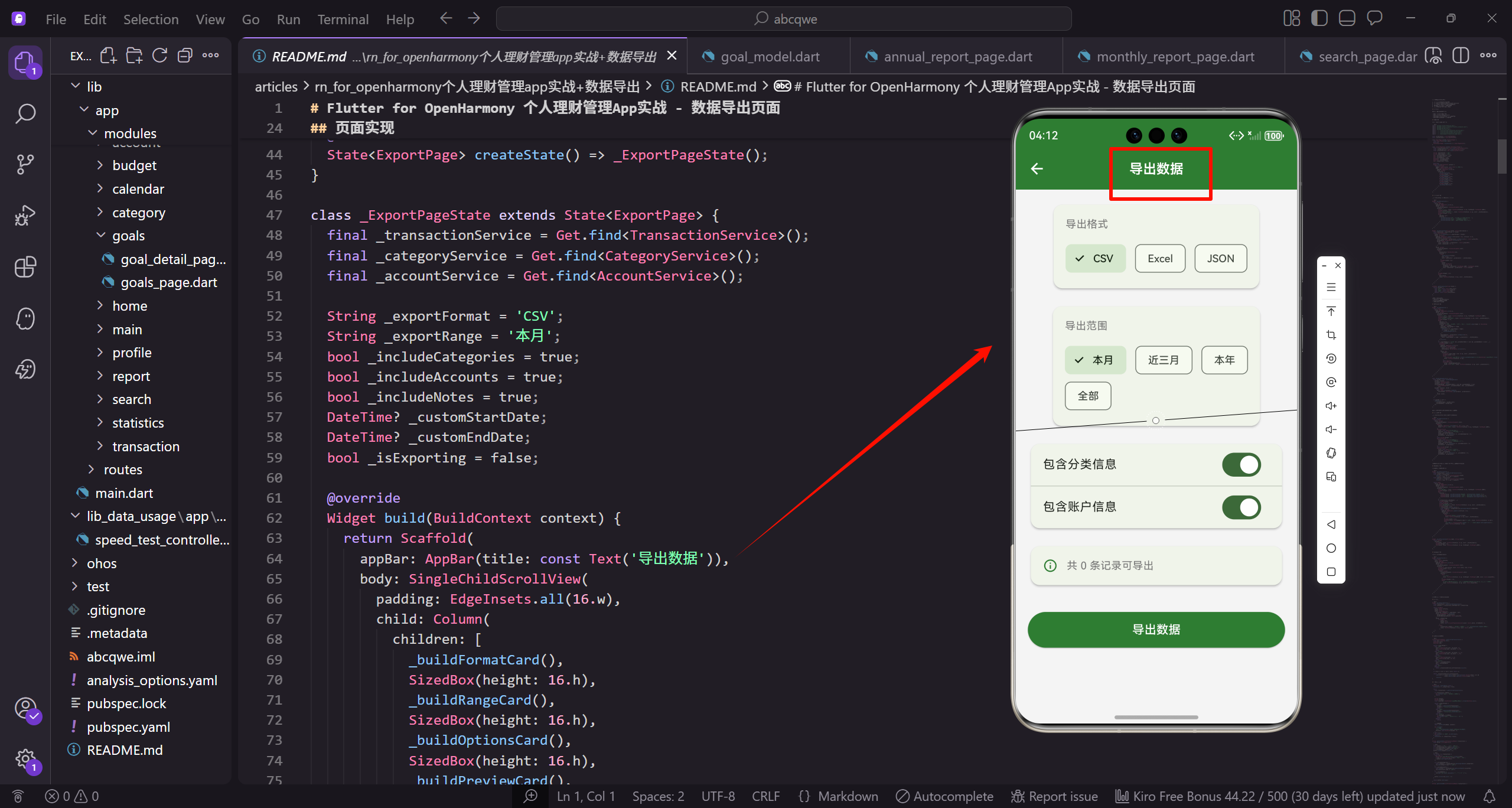
功能规划
导出页面提供以下选项:
- 导出格式:CSV、Excel、JSON
- 导出范围:本月、近三月、本年、全部、自定义
- 导出内容:是否包含分类信息、账户信息
- 数据统计:显示可导出的记录数量
- 导出历史:查看之前的导出记录
设计思路
数据导出功能的核心价值:
- 数据备份,防止数据丢失
- 数据迁移,方便切换到其他应用
- 数据分析,在Excel等工具中进行深度分析
- 数据分享,与家人或财务顾问分享
页面实现
创建 export_page.dart:
import 'package:flutter/material.dart';
import 'package:flutter_screenutil/flutter_screenutil.dart';
import 'package:get/get.dart';
import 'package:intl/intl.dart';
import '../../core/services/transaction_service.dart';
import '../../core/services/category_service.dart';
import '../../core/services/account_service.dart';
import '../../data/models/transaction_model.dart';

const _primaryColor = Color(0xFF2E7D32);
导入必要的依赖包和服务类。flutter_screenutil 用于屏幕适配,GetX 用于状态管理和依赖注入,intl 用于日期格式化。导入三个核心服务:交易服务、分类服务和账户服务,用于获取导出所需的数据。TransactionModel 是交易数据模型。定义主题绿色常量,与应用整体风格保持一致。
const _textSecondary = Color(0xFF757575);
class ExportPage extends StatefulWidget {
const ExportPage({super.key});
State<ExportPage> createState() => _ExportPageState();
}
class _ExportPageState extends State<ExportPage> {
final _transactionService = Get.find<TransactionService>();
final _categoryService = Get.find<CategoryService>();
定义次要文本灰色常量。ExportPage 是有状态组件,因为需要管理多个用户选择的状态。_ExportPageState 是状态类,通过 Get.find 获取已注册的服务实例。这三个服务分别用于获取交易数据、分类信息和账户信息,是导出功能的数据来源。
  final _accountService = Get.find<AccountService>();

  String _exportFormat = 'CSV';
  String _exportRange = '本月';
  bool _includeCategories = true;
  bool _includeAccounts = true;
  bool _includeNotes = true;
  DateTime? _customStartDate;
  DateTime? _customEndDate;
  bool _isExporting = false;
定义页面状态变量。_exportFormat 存储导出格式(CSV/Excel/JSON),默认为 CSV。_exportRange 存储导出范围(本月/近三月/本年/全部/自定义),默认为本月。三个布尔值控制是否包含分类、账户和备注信息,默认都为 true。_customStartDate 和 _customEndDate 存储自定义日期范围。_isExporting 标识是否正在导出,用于显示加载状态。
Widget build(BuildContext context) {
return Scaffold(
appBar: AppBar(title: const Text('导出数据')),
body: SingleChildScrollView(
padding: EdgeInsets.all(16.w),
child: Column(
children: [
_buildFormatCard(),
build 方法构建页面 UI。Scaffold 提供基本页面结构,AppBar 显示"导出数据"标题。SingleChildScrollView 让内容可以滚动,padding 添加 16 像素内边距。Column 垂直排列所有卡片组件。_buildFormatCard 构建格式选择卡片,让用户选择导出文件格式。
            SizedBox(height: 16.h),
            _buildRangeCard(),
            SizedBox(height: 16.h),
            _buildOptionsCard(),
            SizedBox(height: 16.h),
            _buildPreviewCard(),
            SizedBox(height: 16.h),
            _buildInfoCard(),
            SizedBox(height: 32.h),
            _buildExportButton(),
SizedBox 在各卡片之间添加 16 像素间距。_buildRangeCard 构建范围选择卡片,_buildOptionsCard 构建导出选项卡片,_buildPreviewCard 构建数据预览卡片,_buildInfoCard 构建信息提示卡片。最后用 32 像素间距分隔,_buildExportButton 构建导出按钮。这种卡片式布局清晰展示各个配置选项。
          ],
        ),
      ),
    );
  }
}
完成页面构建。整个页面采用卡片式设计,每个卡片负责一个功能模块,用户可以逐步配置导出选项,最后点击按钮执行导出。这种设计让复杂的导出配置变得简单直观。
格式选择卡片
使用 ChoiceChip 让用户选择导出格式:
Widget _buildFormatCard() {
  return Card(
    child: Padding(
      padding: EdgeInsets.all(16.w),
      child: Column(
        crossAxisAlignment: CrossAxisAlignment.start,
        children: [
          Text('导出格式', style: TextStyle(fontSize: 16.sp, fontWeight: FontWeight.w600)),
          SizedBox(height: 4.h),
_buildFormatCard 方法构建格式选择卡片。Card 组件提供卡片样式。Padding 添加 16 像素内边距。Column 垂直排列标题、描述和格式选项,crossAxisAlignment 设置为 start 让内容左对齐。Text 显示"导出格式"标题,字体大小 16 像素,中等粗细。SizedBox 添加 4 像素间距。
          Text('选择导出文件的格式', style: TextStyle(fontSize: 12.sp, color: _textSecondary)),
          SizedBox(height: 12.h),
          Wrap(
            spacing: 12.w,
            children: [
              _buildFormatChip('CSV', '通用表格格式,可用Excel打开'),
              _buildFormatChip('Excel', '直接生成xlsx文件'),
              _buildFormatChip('JSON', '适合程序处理和数据迁移'),
Text 显示描述文字"选择导出文件的格式",字体较小,颜色为次要文本灰色。SizedBox 添加 12 像素间距。Wrap 是自动换行的布局组件,spacing 设置水平间距 12 像素。创建三个格式选项:CSV(通用表格格式)、Excel(直接生成xlsx文件)、JSON(适合程序处理)。每个选项都有描述文字,帮助用户理解格式特点。
            ],
          ),
        ],
      ),
    ),
  );
}

Widget _buildFormatChip(String format, String description) {
  final isSelected = _exportFormat == format;
  return GestureDetector(
    onTap: () => setState(() => _exportFormat = format),
完成格式卡片的构建。_buildFormatChip 方法创建单个格式选项。接收格式名称和描述两个参数。isSelected 判断当前格式是否被选中。GestureDetector 包裹整个选项,点击时调用 setState 更新 _exportFormat,触发 UI 重建显示选中状态。
    child: Container(
      padding: EdgeInsets.symmetric(horizontal: 16.w, vertical: 12.h),
      decoration: BoxDecoration(
        color: isSelected ? _primaryColor.withOpacity(0.1) : Colors.grey[100],
        borderRadius: BorderRadius.circular(8.r),
        border: Border.all(
          color: isSelected ? _primaryColor : Colors.grey[300]!,
          width: isSelected ? 2 : 1,
Container 包裹选项内容,padding 添加水平 16 像素、垂直 12 像素的内边距。BoxDecoration 定义装饰样式。背景色根据选中状态变化:选中时用主题绿色的 10% 透明度,未选中时用浅灰色。圆角半径 8 像素。边框颜色和宽度也根据选中状态变化:选中时用主题绿色 2 像素边框,未选中时用灰色 1 像素边框。
        ),
      ),
      child: Column(
        crossAxisAlignment: CrossAxisAlignment.start,
        children: [
          Row(
            mainAxisSize: MainAxisSize.min,
            children: [
              Icon(
                _getFormatIcon(format),
                size: 20.sp,
完成装饰定义。Column 垂直排列图标+名称和描述,crossAxisAlignment 设置为 start 左对齐。Row 水平排列图标和格式名称,mainAxisSize 设置为 min 让宽度自适应内容。Icon 显示格式图标,通过 _getFormatIcon 方法根据格式名称获取对应图标,大小 20 像素。
                color: isSelected ? _primaryColor : _textSecondary,
              ),
              SizedBox(width: 8.w),
              Text(
                format,
                style: TextStyle(
                  fontSize: 14.sp,
                  fontWeight: isSelected ? FontWeight.w600 : FontWeight.normal,
                  color: isSelected ? _primaryColor : Colors.black87,
图标颜色根据选中状态变化:选中时用主题绿色,未选中时用次要文本灰色。SizedBox 添加 8 像素间距。Text 显示格式名称(CSV/Excel/JSON),字体大小 14 像素。字重和颜色根据选中状态变化:选中时中等粗细和主题绿色,未选中时普通字重和黑色 87% 透明度。
                ),
              ),
            ],
          ),
          SizedBox(height: 4.h),
          Text(
            description,
            style: TextStyle(fontSize: 10.sp, color: _textSecondary),
          ),
        ],
      ),
    ),
  );
}
完成图标和名称行。SizedBox 添加 4 像素间距。Text 显示格式描述文字,字体大小 10 像素,颜色为次要文本灰色。这个描述帮助用户理解每种格式的用途和特点。完成格式选项的构建。整个选项通过颜色、边框和字重的变化清晰展示选中状态。
IconData _getFormatIcon(String format) {
  switch (format) {
    case 'CSV': return Icons.table_chart;
    case 'Excel': return Icons.grid_on;
    case 'JSON': return Icons.code;
    default: return Icons.file_present;
  }
}
_getFormatIcon 方法根据格式名称返回对应的图标。CSV 用表格图标,Excel 用网格图标,JSON 用代码图标,默认用文件图标。这些图标直观表达了各格式的特点,提升用户体验。
三种格式各有特点:
- CSV:通用性强,可用Excel打开
- Excel:直接生成xlsx文件
- JSON:适合程序处理
范围选择卡片
Widget _buildRangeCard() {
  return Card(
    child: Padding(
      padding: EdgeInsets.all(16.w),
      child: Column(
        crossAxisAlignment: CrossAxisAlignment.start,
        children: [
          Text('导出范围', style: TextStyle(fontSize: 16.sp, fontWeight: FontWeight.w600)),
          SizedBox(height: 4.h),
_buildRangeCard 方法构建范围选择卡片。Card 组件提供卡片样式。Padding 添加 16 像素内边距。Column 垂直排列标题、描述和范围选项,crossAxisAlignment 设置为 start 让内容左对齐。Text 显示"导出范围"标题,字体大小 16 像素,中等粗细。SizedBox 添加 4 像素间距。
          Text('选择要导出的时间范围', style: TextStyle(fontSize: 12.sp, color: _textSecondary)),
          SizedBox(height: 12.h),
          Wrap(
            spacing: 8.w,
            runSpacing: 8.h,
            children: ['本月', '近三月', '本年', '全部', '自定义'].map((range) => ChoiceChip(
              label: Text(range),
              selected: _exportRange == range,
              onSelected: (_) {
Text 显示描述文字"选择要导出的时间范围",字体较小,颜色为次要文本灰色。SizedBox 添加 12 像素间距。Wrap 是自动换行的布局组件,spacing 设置水平间距 8 像素,runSpacing 设置垂直间距 8 像素。使用 map 方法为五个范围选项创建 ChoiceChip。ChoiceChip 是 Material Design 的选择芯片组件,label 显示范围名称,selected 判断是否选中。
                setState(() => _exportRange = range);
                if (range == '自定义') {
                  _showDateRangePicker();
                }
              },
              selectedColor: _primaryColor.withOpacity(0.2),
              labelStyle: TextStyle(
                color: _exportRange == range ? _primaryColor : _textSecondary,
              ),
            )).toList(),
onSelected 回调在用户点击时触发,调用 setState 更新 _exportRange。如果选择"自定义",立即弹出日期范围选择器。selectedColor 设置选中时的背景色为主题绿色的 20% 透明度。labelStyle 定义标签样式,颜色根据选中状态变化:选中时用主题绿色,未选中时用次要文本灰色。toList 将 map 结果转换为列表。
          ),
          if (_exportRange == '自定义' && _customStartDate != null && _customEndDate != null) ...[
            SizedBox(height: 12.h),
            Container(
              padding: EdgeInsets.all(12.w),
              decoration: BoxDecoration(
                color: Colors.grey[100],
                borderRadius: BorderRadius.circular(8.r),
              ),
使用 if 条件判断,只有选择"自定义"且已选择日期范围时才显示日期信息。扩展运算符 … 将列表展开到 Column 的 children 中。SizedBox 添加 12 像素间距。Container 包裹日期信息,padding 添加 12 像素内边距。BoxDecoration 定义装饰,背景色为浅灰色,圆角半径 8 像素。
              child: Row(
                children: [
                  Icon(Icons.date_range, size: 16.sp, color: _primaryColor),
                  SizedBox(width: 8.w),
                  Text(
                    '${DateFormat('yyyy-MM-dd').format(_customStartDate!)} 至 ${DateFormat('yyyy-MM-dd').format(_customEndDate!)}',
                    style: TextStyle(fontSize: 14.sp),
                  ),
                  const Spacer(),
Row 水平排列日期图标、日期文字和修改按钮。Icon 显示日期范围图标,大小 16 像素,颜色为主题绿色。SizedBox 添加 8 像素间距。Text 显示选中的日期范围,使用 DateFormat 格式化为"yyyy-MM-dd"格式,例如"2024-01-01 至 2024-01-31"。字体大小 14 像素。Spacer 占据剩余空间,将修改按钮推到右侧。
                  GestureDetector(
                    onTap: _showDateRangePicker,
                    child: Text('修改', style: TextStyle(fontSize: 12.sp, color: _primaryColor)),
                  ),
                ],
              ),
            ),
          ],
        ],
      ),
    ),
  );
}
GestureDetector 包裹"修改"文字,点击时调用 _showDateRangePicker 方法重新选择日期范围。Text 显示"修改",字体大小 12 像素,颜色为主题绿色。完成日期信息显示。完成范围选择卡片的构建。这个设计让用户可以快速选择常用范围,也可以自定义精确的日期范围。
void _showDateRangePicker() async {
  final picked = await showDateRangePicker(
    context: context,
    firstDate: DateTime(2020),
    lastDate: DateTime.now(),
    initialDateRange: _customStartDate != null && _customEndDate != null
        ? DateTimeRange(start: _customStartDate!, end: _customEndDate!)
        : null,
_showDateRangePicker 方法显示日期范围选择器。使用 Flutter 内置的 showDateRangePicker 函数。context 是必需参数。firstDate 设置为 2020年,限制最早可选日期。lastDate 设置为当前日期,不能选择未来日期。initialDateRange 设置初始日期范围,如果已有自定义日期则使用,否则为 null。
    builder: (context, child) {
      return Theme(
        data: Theme.of(context).copyWith(
          colorScheme: ColorScheme.light(primary: _primaryColor),
        ),
        child: child!,
      );
    },
  );

  if (picked != null) {
builder 参数自定义日期选择器的主题。使用 Theme 组件包裹,copyWith 方法复制当前主题并修改 colorScheme,将主色设置为应用的主题绿色,保持视觉一致性。showDateRangePicker 返回 Future,使用 await 等待用户选择。如果用户选择了日期范围(不是取消)。
    setState(() {
      _customStartDate = picked.start;
      _customEndDate = picked.end;
    });
  }
}
调用 setState 更新 _customStartDate 和 _customEndDate,保存用户选择的日期范围。这会触发 UI 重建,显示选中的日期范围。完成日期范围选择器的实现。这个功能让用户可以精确控制导出的时间范围,满足各种导出需求。
提供多个时间范围选项,满足不同的导出需求。
导出选项卡片
使用 SwitchListTile 控制是否包含额外信息:
Widget _buildOptionsCard() {
  return Card(
    child: Column(
      crossAxisAlignment: CrossAxisAlignment.start,
      children: [
        Padding(
          padding: EdgeInsets.fromLTRB(16.w, 16.w, 16.w, 8.h),
          child: Text('导出内容', style: TextStyle(fontSize: 16.sp, fontWeight: FontWeight.w600)),
        ),
        SwitchListTile(
          title: const Text('包含分类信息'),
          subtitle: const Text('导出分类名称和图标'),
          value: _includeCategories,
          onChanged: (v) => setState(() => _includeCategories = v),
          activeColor: _primaryColor,
        ),
        const Divider(height: 1),
        SwitchListTile(
          title: const Text('包含账户信息'),
          subtitle: const Text('导出账户名称和类型'),
          value: _includeAccounts,
          onChanged: (v) => setState(() => _includeAccounts = v),
          activeColor: _primaryColor,
        ),
        const Divider(height: 1),
        SwitchListTile(
          title: const Text('包含备注信息'),
          subtitle: const Text('导出交易备注'),
          value: _includeNotes,
          onChanged: (v) => setState(() => _includeNotes = v),
          activeColor: _primaryColor,
        ),
      ],
    ),
  );
}
用户可以选择是否在导出文件中包含分类和账户的详细信息。
数据预览卡片
显示将要导出的数据预览:
Widget _buildPreviewCard() {
  final transactions = _getFilteredTransactions();
  final income = transactions
      .where((t) => t.type == TransactionType.income)
      .fold(0.0, (sum, t) => sum + t.amount);
  final expense = transactions
      .where((t) => t.type == TransactionType.expense)
      .fold(0.0, (sum, t) => sum + t.amount);

  return Card(
    child: Padding(
      padding: EdgeInsets.all(16.w),
      child: Column(
        crossAxisAlignment: CrossAxisAlignment.start,
        children: [
          Text('数据预览', style: TextStyle(fontSize: 16.sp, fontWeight: FontWeight.w600)),
          SizedBox(height: 16.h),
          Row(
            children: [
              Expanded(child: _buildPreviewItem('记录数', '${transactions.length} 笔')),
              Expanded(child: _buildPreviewItem('总收入', '¥${income.toStringAsFixed(0)}')),
              Expanded(child: _buildPreviewItem('总支出', '¥${expense.toStringAsFixed(0)}')),
            ],
          ),
          if (transactions.isNotEmpty) ...[
            SizedBox(height: 16.h),
            const Divider(),
            SizedBox(height: 8.h),
            Text('最近记录预览', style: TextStyle(fontSize: 12.sp, color: _textSecondary)),
            SizedBox(height: 8.h),
            ...transactions.take(3).map((t) {
              final category = _categoryService.getCategoryById(t.categoryId);
              return Padding(
                padding: EdgeInsets.symmetric(vertical: 4.h),
                child: Row(
                  children: [
                    Text(
                      DateFormat('MM-dd').format(t.date),
                      style: TextStyle(fontSize: 12.sp, color: _textSecondary),
                    ),
                    SizedBox(width: 12.w),
                    Expanded(child: Text(category?.name ?? '未知', style: TextStyle(fontSize: 12.sp))),
                    Text(
                      '${t.type == TransactionType.income ? '+' : '-'}¥${t.amount.toStringAsFixed(2)}',
                      style: TextStyle(fontSize: 12.sp),
                    ),
                  ],
                ),
              );
            }),
          ],
        ],
      ),
    ),
  );
}

Widget _buildPreviewItem(String label, String value) {
  return Column(
    children: [
      Text(label, style: TextStyle(fontSize: 12.sp, color: _textSecondary)),
      SizedBox(height: 4.h),
      Text(value, style: TextStyle(fontSize: 16.sp, fontWeight: FontWeight.w600)),
    ],
  );
}
信息提示卡片
显示导出相关的提示信息:
Widget _buildInfoCard() {
  return Card(
    color: Colors.blue[50],
    child: Padding(
      padding: EdgeInsets.all(16.w),
      child: Row(
        crossAxisAlignment: CrossAxisAlignment.start,
        children: [
          Icon(Icons.info_outline, color: Colors.blue, size: 20.sp),
          SizedBox(width: 12.w),
          Expanded(
            child: Column(
              crossAxisAlignment: CrossAxisAlignment.start,
              children: [
                Text(
                  '导出说明',
                  style: TextStyle(fontSize: 14.sp, fontWeight: FontWeight.w600, color: Colors.blue[800]),
                ),
                SizedBox(height: 4.h),
                Text(
                  '• CSV格式可直接用Excel打开\n• 导出的文件将保存到下载目录\n• 建议定期导出备份数据',
                  style: TextStyle(fontSize: 12.sp, color: Colors.blue[700]),
                ),
              ],
            ),
          ),
        ],
      ),
    ),
  );
}
让用户在导出前了解相关信息。
导出按钮
Widget _buildExportButton() {
  final transactions = _getFilteredTransactions();
  final canExport = transactions.isNotEmpty && !_isExporting;

  return SizedBox(
    width: double.infinity,
    height: 48.h,
    child: ElevatedButton(
      onPressed: canExport ? _exportData : null,
      style: ElevatedButton.styleFrom(
        backgroundColor: _primaryColor,
        disabledBackgroundColor: Colors.grey[300],
      ),
      child: _isExporting
          ? SizedBox(
              width: 24.w,
              height: 24.w,
              child: const CircularProgressIndicator(color: Colors.white, strokeWidth: 2),
            )
          : Text(
              transactions.isEmpty ? '没有可导出的数据' : '导出 ${transactions.length} 条记录',
              style: TextStyle(fontSize: 16.sp, color: Colors.white),
            ),
    ),
  );
}
获取筛选后的数据
List<TransactionModel> _getFilteredTransactions() {
  final now = DateTime.now();
  DateTime? start;
  DateTime? end;

  switch (_exportRange) {
    case '本月':
      start = DateTime(now.year, now.month, 1);
      end = DateTime(now.year, now.month + 1, 0);
_getFilteredTransactions 方法根据选择的范围筛选交易数据。获取当前日期时间。声明 start 和 end 变量存储日期范围。使用 switch 语句根据 _exportRange 计算日期范围。“本月”:start 是本月第一天,end 是本月最后一天(下月第一天的前一天,即本月最后一天)。
      break;
    case '近三月':
      start = DateTime(now.year, now.month - 2, 1);
      end = DateTime(now.year, now.month + 1, 0);
      break;
    case '本年':
      start = DateTime(now.year, 1, 1);
      end = DateTime(now.year, 12, 31);
      break;
“近三月”:start 是三个月前的第一天(当前月份减 2),end 是本月最后一天。“本年”:start 是今年1月1日,end 是今年12月31日。这些预设范围覆盖了常用的导出需求,用户无需手动选择日期。
    case '自定义':
      start = _customStartDate;
      end = _customEndDate;
      break;
    case '全部':
    default:
      return _transactionService.allTransactions.toList();
  }

  if (start == null || end == null) return [];
“自定义”:使用用户选择的自定义日期范围。"全部"或默认情况:直接返回所有交易记录的副本。如果 start 或 end 为 null(例如选择自定义但未选择日期),返回空列表。这个检查防止后续代码出错。
  return _transactionService.allTransactions
      .where((t) => t.date.isAfter(start!.subtract(const Duration(days: 1))) &&
                    t.date.isBefore(end!.add(const Duration(days: 1))))
      .toList();
}
从所有交易中筛选符合日期范围的记录。使用 where 方法过滤,条件是交易日期在 start 前一天之后且在 end 后一天之前。这种写法确保包含 start 和 end 当天的交易(因为 isAfter 和 isBefore 不包含边界)。toList 将筛选结果转换为列表。这个方法为导出功能提供了精确的数据筛选。
实际导出逻辑
Future<void> _exportData() async {
  setState(() => _isExporting = true);

  try {
    final transactions = _getFilteredTransactions();

    if (transactions.isEmpty) {
      Get.snackbar('提示', '没有可导出的数据');
      return;
    }
_exportData 方法执行实际的导出操作。这是一个异步方法,因为文件操作需要时间。首先设置 _isExporting 为 true,显示加载状态。使用 try-catch 捕获可能的错误。调用 _getFilteredTransactions 获取筛选后的交易数据。如果没有数据,显示提示并返回,避免生成空文件。
    String content;
    String fileName;
    final timestamp = DateFormat('yyyyMMdd_HHmmss').format(DateTime.now());

    switch (_exportFormat) {
      case 'CSV':
        content = _generateCSV(transactions);
        fileName = 'transactions_$timestamp.csv';
        break;
声明 content 存储文件内容,fileName 存储文件名。使用当前时间生成时间戳,格式为"yyyyMMdd_HHmmss",例如"20240115_143025"。根据选择的格式生成不同的文件。CSV 格式:调用 _generateCSV 方法生成 CSV 内容,文件名为"transactions_时间戳.csv"。
      case 'JSON':
        content = _generateJSON(transactions);
        fileName = 'transactions_$timestamp.json';
        break;
      case 'Excel':
        // Excel需要使用专门的库
        Get.snackbar('提示', 'Excel格式导出开发中');
        return;
      default:
        return;
    }
JSON 格式:调用 _generateJSON 方法生成 JSON 内容,文件名为"transactions_时间戳.json"。Excel 格式:显示"开发中"提示并返回。实际项目中需要使用 excel 库生成 xlsx 文件。default 情况直接返回。
    // 保存文件
    await _saveFile(fileName, content);

    Get.snackbar(
      '导出成功',
      '已导出 ${transactions.length} 条记录到 $fileName',
      duration: const Duration(seconds: 3),
    );
  } catch (e) {
调用 _saveFile 方法保存文件,传入文件名和内容。使用 await 等待文件保存完成。显示成功提示,告知用户导出了多少条记录和文件名。duration 设置提示显示 3 秒。catch 捕获导出过程中的任何错误。
    Get.snackbar('导出失败', e.toString());
  } finally {
    setState(() => _isExporting = false);
  }
}

String _generateCSV(List<TransactionModel> transactions) {
  final buffer = StringBuffer();

  // 表头
显示错误提示,包含错误信息。finally 块无论成功或失败都会执行,设置 _isExporting 为 false,恢复按钮状态。_generateCSV 方法生成 CSV 格式内容。StringBuffer 用于高效拼接字符串。首先生成表头。
  final headers = ['日期', '类型', '金额'];
  if (_includeCategories) headers.add('分类');
  if (_includeAccounts) headers.add('账户');
  if (_includeNotes) headers.add('备注');
  buffer.writeln(headers.join(','));

  // 数据行
  for (final t in transactions) {
    final row = [
创建表头列表,基本列包括日期、类型、金额。根据用户选择,可选添加分类、账户、备注列。使用 join 方法将表头用逗号连接,writeln 写入并换行。遍历所有交易记录,为每条记录生成一行数据。创建 row 列表存储该行的各列数据。
      DateFormat('yyyy-MM-dd HH:mm').format(t.date),
      t.type == TransactionType.income ? '收入' : '支出',
      t.amount.toStringAsFixed(2),
    ];

    if (_includeCategories) {
      final category = _categoryService.getCategoryById(t.categoryId);
      row.add(category?.name ?? '未知');
    }
添加日期列,格式化为"yyyy-MM-dd HH:mm"。添加类型列,收入显示"收入",支出显示"支出"。添加金额列,保留两位小数。如果包含分类信息,从分类服务获取分类对象,添加分类名称,如果找不到则显示"未知"。
    if (_includeAccounts) {
      final account = _accountService.getAccountById(t.accountId);
      row.add(account?.name ?? '未知');
    }
    if (_includeNotes) {
      row.add('"${t.note?.replaceAll('"', '""') ?? ''}"');
    }

    buffer.writeln(row.join(','));
  }
如果包含账户信息,从账户服务获取账户对象,添加账户名称。如果包含备注信息,添加备注内容。备注用双引号包裹,内部的双引号转义为两个双引号(CSV 标准)。使用 join 方法将行数据用逗号连接,writeln 写入并换行。
  return buffer.toString();
}

String _generateJSON(List<TransactionModel> transactions) {
  final data = transactions.map((t) {
    final map = {
      'date': t.date.toIso8601String(),
      'type': t.type.name,
      'amount': t.amount,
    };
返回生成的 CSV 字符串。_generateJSON 方法生成 JSON 格式内容。使用 map 方法将每条交易转换为 Map。创建基本字段:date 转换为 ISO 8601 格式字符串,type 使用枚举的名称,amount 直接使用数值。
    if (_includeCategories) {
      final category = _categoryService.getCategoryById(t.categoryId);
      map['category'] = category?.name ?? '未知';
    }
    if (_includeAccounts) {
      final account = _accountService.getAccountById(t.accountId);
      map['account'] = account?.name ?? '未知';
    }
    if (_includeNotes && t.note != null) {
      map['note'] = t.note!;
    }
根据用户选择添加可选字段。如果包含分类,添加 category 字段。如果包含账户,添加 account 字段。如果包含备注且备注不为空,添加 note 字段。这种条件添加让 JSON 结构更灵活。
    return map;
  }).toList();

  return const JsonEncoder.withIndent('  ').convert(data);
}

Future<void> _saveFile(String fileName, String content) async {
  // 实际项目中使用 path_provider 和 share_plus
  // final directory = await getApplicationDocumentsDirectory();
  // final file = File('${directory.path}/$fileName');
将所有 Map 转换为列表。使用 JsonEncoder.withIndent 创建带缩进的 JSON 编码器,缩进为两个空格,让 JSON 更易读。convert 方法将数据转换为 JSON 字符串。_saveFile 方法保存文件。这里是示例代码,实际项目中需要使用 path_provider 获取文档目录,创建 File 对象。
  // await file.writeAsString(content);

  // 或者使用分享功能
  // await Share.shareFiles([file.path], text: '导出的记账数据');
}
writeAsString 方法将内容写入文件。或者使用 share_plus 库的分享功能,让用户选择保存位置或分享给其他应用。完成文件保存。实际实现需要处理权限请求、错误处理等细节。
小结
数据导出功能让用户可以:
- 备份自己的记账数据
- 在其他软件中分析数据
- 迁移到其他记账应用
- 与他人分享财务数据
下一篇我们将开始实现分类管理相关页面。
欢迎加入 OpenHarmony 跨平台开发社区,获取更多技术资源和交流机会:
https://openharmonycrossplatform.csdn.net

开源鸿蒙跨平台开发社区汇聚开发者与厂商,共建“一次开发,多端部署”的开源生态,致力于降低跨端开发门槛,推动万物智联创新。
更多推荐

 20
20 0
0- 0


 已为社区贡献26条内容

所有评论(0)