Flutter for OpenHarmony 健康管理App应用实战 - 卡路里详情实现
卡路里详情页面是用户查看每日热量收支的地方。和首页的卡路里卡片不同,详情页面提供了更丰富的信息:环形进度图、每日摘要、各餐明细等。这个页面的核心是一个自定义绘制的环形进度图,用渐变色展示剩余卡路里的比例。我们会用来实现这个效果。这篇文章会详细讲解如何绘制自定义图表、如何组织复杂的页面布局、以及如何让数据实时更新。这是页面的技术重点,用接收一个progress参数,表示进度(0.0-1.0)。),)
写在前面
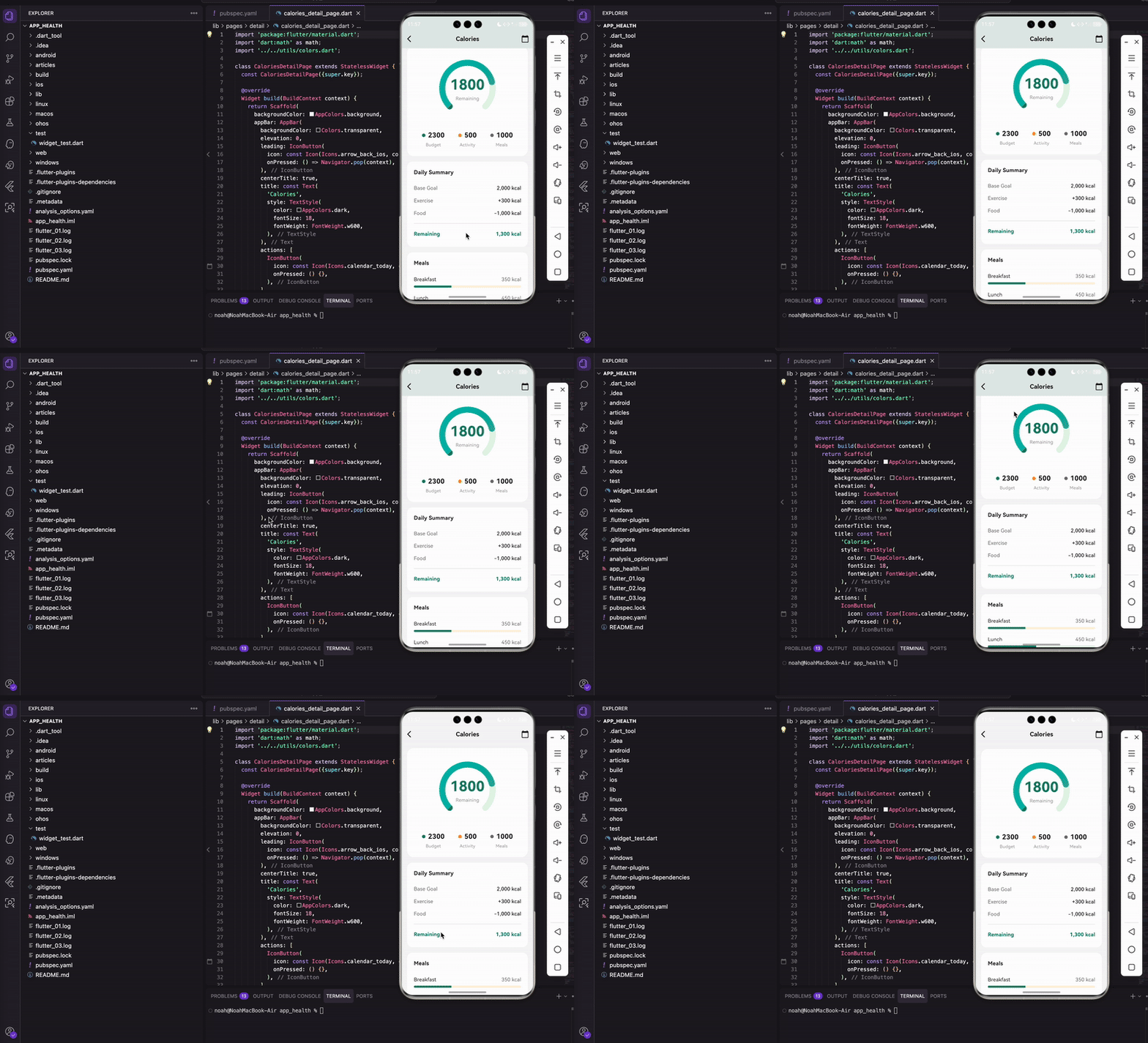
卡路里详情页面是用户查看每日热量收支的地方。和首页的卡路里卡片不同,详情页面提供了更丰富的信息:环形进度图、每日摘要、各餐明细等。
这个页面的核心是一个自定义绘制的环形进度图,用渐变色展示剩余卡路里的比例。我们会用 CustomPainter 来实现这个效果。这篇文章会详细讲解如何绘制自定义图表、如何组织复杂的页面布局、以及如何让数据实时更新。
导入依赖
import 'package:flutter/material.dart';
import 'dart:math' as math;
import '../../utils/colors.dart';
dart:math 用于数学计算,画圆弧需要用到 pi 常量。
创建页面
class CaloriesDetailPage extends StatelessWidget {
  const CaloriesDetailPage({super.key});
构建主体
Widget build(BuildContext context) {
return Scaffold(
backgroundColor: AppColors.background,
appBar: AppBar(
backgroundColor: Colors.transparent,
elevation: 0,
leading: IconButton(
icon: const Icon(Icons.arrow_back_ios, color: AppColors.dark),
onPressed: () => Navigator.pop(context),
),
centerTitle: true,
title: const Text(
'Calories',
style: TextStyle(
color: AppColors.dark,
fontSize: 18,
fontWeight: FontWeight.w600,
),
),
actions: [
IconButton(
icon: const Icon(Icons.calendar_today, color: AppColors.dark),
onPressed: () {},
),
],
),
AppBar右边加了一个日历图标,点击可以选择查看其他日期的数据。
      body: SingleChildScrollView(
        padding: const EdgeInsets.all(16),
        child: Column(
          children: [
            _buildCaloriesRingCard(),
            const SizedBox(height: 16),
            _buildSummaryCard(),
            const SizedBox(height: 16),
            _buildMealsCard(),
            const SizedBox(height: 40),
          ],
        ),
      ),
    );
  }
页面由三个卡片组成:环形图卡片、每日摘要卡片、餐食明细卡片。
环形图卡片
这是页面的核心组件,展示剩余卡路里和各项统计:
  Widget _buildCaloriesRingCard() {
    return Container(
      padding: const EdgeInsets.all(24),
      decoration: BoxDecoration(
        color: Colors.white,
        borderRadius: BorderRadius.circular(20),
      ),
      child: Column(
        children: [
          SizedBox(
            height: 200,
            child: Stack(
              alignment: Alignment.center,
              children: [
                CustomPaint(
                  size: const Size(180, 180),
                  painter: _CaloriesRingPainter(progress: 0.78),
                ),
用 Stack 把环形图和中间的文字叠加在一起。CustomPaint 绑制环形图,progress: 0.78 表示已消耗78%的卡路里预算。
                Column(
                  mainAxisSize: MainAxisSize.min,
                  children: [
                    const Text(
                      '1800',
                      style: TextStyle(
                        fontSize: 42,
                        fontWeight: FontWeight.bold,
                        color: AppColors.primary,
                      ),
                    ),
                    Text(
                      'Remaining',
                      style: TextStyle(
                        fontSize: 14,
                        color: Colors.grey.shade500,
                      ),
                    ),
                  ],
                ),
              ],
            ),
          ),
中间显示剩余卡路里数字和"Remaining"标签。
          const SizedBox(height: 24),
          Row(
            mainAxisAlignment: MainAxisAlignment.spaceAround,
            children: [
              _buildStatItem('2300', 'Budget', AppColors.primary),
              _buildStatItem('500', 'Activity', AppColors.orange),
              _buildStatItem('1000', 'Meals', AppColors.grey),
            ],
          ),
        ],
      ),
    );
  }
底部三个统计项:预算、活动消耗、餐食摄入。
统计项组件
  Widget _buildStatItem(String value, String label, Color color) {
    return Column(
      children: [
        Row(
          mainAxisSize: MainAxisSize.min,
          children: [
            Container(
              width: 10,
              height: 10,
              decoration: BoxDecoration(
                color: color,
                shape: BoxShape.circle,
              ),
            ),
            const SizedBox(width: 8),
            Text(
              value,
              style: const TextStyle(
                fontSize: 20,
                fontWeight: FontWeight.bold,
                color: AppColors.dark,
              ),
            ),
          ],
        ),
        const SizedBox(height: 4),
        Text(
          label,
          style: TextStyle(
            fontSize: 13,
            color: Colors.grey.shade500,
          ),
        ),
      ],
    );
  }
每个统计项由彩色圆点、数值、标签组成。圆点颜色和环形图的颜色对应。
自定义环形图绑制
这是页面的技术重点,用 CustomPainter 绑制渐变色环形进度图:
class _CaloriesRingPainter extends CustomPainter {
  final double progress;

  _CaloriesRingPainter({required this.progress});
接收一个 progress 参数,表示进度(0.0-1.0)。
绑制方法
void paint(Canvas canvas, Size size) {
final center = Offset(size.width / 2, size.height / 2);
final radius = size.width / 2 - 15;
const strokeWidth = 18.0;
const startAngle = math.pi * 0.75;
const sweepAngle = math.pi * 1.5;
计算圆心、半径、线宽。startAngle 是起始角度,从左下方开始(0.75π)。sweepAngle 是扫过的角度,270度(1.5π),形成一个3/4圆弧。
绘制背景弧
    final bgPaint = Paint()
      ..color = const Color(0xFFE8F5E9)
      ..style = PaintingStyle.stroke
      ..strokeWidth = strokeWidth
      ..strokeCap = StrokeCap.round;

    canvas.drawArc(
      Rect.fromCircle(center: center, radius: radius),
      startAngle,
      sweepAngle,
      false,
      bgPaint,
    );
背景弧用浅绿色,strokeCap: StrokeCap.round 让端点是圆形的。
绘制进度弧
    final progressSweep = sweepAngle * progress;
    final rect = Rect.fromCircle(center: center, radius: radius);

    final gradient = SweepGradient(
      startAngle: startAngle,
      endAngle: startAngle + progressSweep,
      colors: const [
        Color(0xFF4DB6AC),
        Color(0xFF26A69A),
        Color(0xFF2E7D6B),
      ],
      stops: const [0.0, 0.5, 1.0],
      transform: GradientRotation(startAngle),
    );
进度弧用渐变色,从浅青绿到深青绿。SweepGradient 是扫描渐变,颜色沿着圆弧方向变化。GradientRotation 让渐变从起始角度开始。
    final progressPaint = Paint()
      ..shader = gradient.createShader(rect)
      ..style = PaintingStyle.stroke
      ..strokeWidth = strokeWidth
      ..strokeCap = StrokeCap.round;

    canvas.drawArc(rect, startAngle, progressSweep, false, progressPaint);
  }
把渐变应用到画笔上,绘制进度弧。
重绘判断
bool shouldRepaint(covariant _CaloriesRingPainter oldDelegate) =>
oldDelegate.progress != progress;
}
只有当 progress 变化时才需要重绘。
每日摘要卡片
这个卡片展示卡路里的计算过程:
  Widget _buildSummaryCard() {
    return Container(
      padding: const EdgeInsets.all(20),
      decoration: BoxDecoration(
        color: Colors.white,
        borderRadius: BorderRadius.circular(16),
      ),
      child: Column(
        crossAxisAlignment: CrossAxisAlignment.start,
        children: [
          const Text(
            'Daily Summary',
            style: TextStyle(
              fontSize: 16,
              fontWeight: FontWeight.w600,
              color: AppColors.dark,
            ),
          ),
          const SizedBox(height: 16),
          _buildSummaryRow('Base Goal', '2,000 kcal'),
          _buildSummaryRow('Exercise', '+300 kcal'),
          _buildSummaryRow('Food', '-1,000 kcal'),
          const Divider(height: 24),
          _buildSummaryRow('Remaining', '1,300 kcal', isHighlight: true),
        ],
      ),
    );
  }
四行数据:基础目标、运动消耗(加)、食物摄入(减)、剩余。最后一行用高亮样式。
摘要行组件
  Widget _buildSummaryRow(String label, String value, {bool isHighlight = false}) {
    return Padding(
      padding: const EdgeInsets.symmetric(vertical: 8),
      child: Row(
        mainAxisAlignment: MainAxisAlignment.spaceBetween,
        children: [
          Text(
            label,
            style: TextStyle(
              fontSize: 15,
              color: isHighlight ? AppColors.primary : AppColors.grey,
              fontWeight: isHighlight ? FontWeight.w600 : FontWeight.normal,
            ),
          ),
          Text(
            value,
            style: TextStyle(
              fontSize: 15,
              color: isHighlight ? AppColors.primary : AppColors.dark,
              fontWeight: isHighlight ? FontWeight.w600 : FontWeight.w500,
            ),
          ),
        ],
      ),
    );
  }
高亮行用主题色,普通行用灰色标签和深色数值。
餐食明细卡片
这个卡片展示各餐的卡路里摄入:
  Widget _buildMealsCard() {
    return Container(
      padding: const EdgeInsets.all(20),
      decoration: BoxDecoration(
        color: Colors.white,
        borderRadius: BorderRadius.circular(16),
      ),
      child: Column(
        crossAxisAlignment: CrossAxisAlignment.start,
        children: [
          const Text(
            'Meals',
            style: TextStyle(
              fontSize: 16,
              fontWeight: FontWeight.w600,
              color: AppColors.dark,
            ),
          ),
          const SizedBox(height: 16),
          _buildMealItem('Breakfast', '350 kcal', 0.35, const Color(0xFFFFF3E0)),
          _buildMealItem('Lunch', '450 kcal', 0.45, const Color(0xFFE8F5E9)),
          _buildMealItem('Dinner', '200 kcal', 0.20, const Color(0xFFFCE4EC)),
          _buildMealItem('Snacks', '0 kcal', 0.0, const Color(0xFFFFEBEE)),
        ],
      ),
    );
  }
四餐数据,每餐有名称、卡路里、进度比例、背景色。
餐食项组件
  Widget _buildMealItem(String name, String calories, double progress, Color color) {
    return Padding(
      padding: const EdgeInsets.symmetric(vertical: 10),
      child: Column(
        children: [
          Row(
            mainAxisAlignment: MainAxisAlignment.spaceBetween,
            children: [
              Text(
                name,
                style: const TextStyle(
                  fontSize: 15,
                  color: AppColors.dark,
                ),
              ),
              Text(
                calories,
                style: const TextStyle(
                  fontSize: 15,
                  color: AppColors.grey,
                ),
              ),
            ],
          ),
顶部是餐食名称和卡路里数值。
          const SizedBox(height: 8),
          ClipRRect(
            borderRadius: BorderRadius.circular(4),
            child: LinearProgressIndicator(
              value: progress,
              backgroundColor: color,
              valueColor: const AlwaysStoppedAnimation<Color>(AppColors.primary),
              minHeight: 6,
            ),
          ),
        ],
      ),
    );
  }
}
底部是进度条,用 LinearProgressIndicator 实现。ClipRRect 给进度条加圆角。每餐用不同的背景色区分。
环形图的数学原理
理解环形图的绘制需要一些数学知识:
角度单位:Flutter的Canvas使用弧度制,不是角度制。一个完整的圆是2π弧度(约6.28),半圆是π弧度(约3.14)。
起始角度:0弧度在3点钟方向,顺时针增加。我们的环形图从7点半方向开始(0.75π),到4点半方向结束(0.75π + 1.5π = 2.25π)。
扫过角度:sweepAngle 是从起始角度开始扫过的角度。正值顺时针,负值逆时针。
进度计算:progressSweep = sweepAngle * progress,比如progress是0.78,sweepAngle是1.5π,那么progressSweep就是1.17π。
渐变色的实现
SweepGradient 是扫描渐变,颜色沿着圆周方向变化:
final gradient = SweepGradient(
  startAngle: startAngle,
  endAngle: startAngle + progressSweep,
  colors: const [
    Color(0xFF4DB6AC),  // 浅青绿
    Color(0xFF26A69A),  // 中青绿
    Color(0xFF2E7D6B),  // 深青绿
  ],
  stops: const [0.0, 0.5, 1.0],
  transform: GradientRotation(startAngle),
);
colors 定义渐变的颜色序列。
stops 定义每个颜色的位置,0.0是起点,1.0是终点。
transform 旋转渐变,让它从起始角度开始。
进度条的使用
LinearProgressIndicator 是Flutter内置的线性进度条:
LinearProgressIndicator(
  value: progress,           // 进度值,0.0-1.0
  backgroundColor: color,    // 背景色
  valueColor: AlwaysStoppedAnimation<Color>(AppColors.primary),  // 进度色
  minHeight: 6,              // 高度
)
value 为null时显示不确定进度(动画),有值时显示确定进度。
valueColor 用 AlwaysStoppedAnimation 包裹,表示颜色不变化。如果想要颜色动画,可以用 AnimationController。
卡路里计算公式
页面上的数据遵循这个公式:
剩余卡路里 = 基础目标 + 运动消耗 - 食物摄入
以页面数据为例:
基础目标:2000 kcal
运动消耗:+300 kcal
食物摄入:-1000 kcal
剩余:2000 + 300 - 1000 = 1300 kcal
环形图显示的是已消耗比例:1000 / (2000 + 300) ≈ 0.43,但页面上显示的是0.78,可能是示例数据不一致。
实际应用中,这些数据应该从数据库读取并实时计算。
小结
这篇文章我们实现了卡路里详情页面,核心是用 CustomPainter 绑制渐变色环形进度图。
环形图的绘制涉及到弧度计算、渐变色应用等知识点。SweepGradient 配合 GradientRotation 可以实现沿圆弧方向的渐变效果。
页面还包含了每日摘要和餐食明细两个卡片,用简单的列表展示数据。
欢迎加入开源鸿蒙跨平台社区:https://openharmonycrossplatform.csdn.net

开源鸿蒙跨平台开发社区汇聚开发者与厂商,共建“一次开发,多端部署”的开源生态,致力于降低跨端开发门槛,推动万物智联创新。
更多推荐

 27
27 0
0- 0


 已为社区贡献63条内容

所有评论(0)