Flutter for OpenHarmony社团管理App实战:荣誉勋章实现
荣誉勋章系统设计摘要(148字): 本文介绍了社团管理应用中荣誉勋章功能的设计与实现。系统采用游戏化激励机制,通过勋章展示用户的社团成就。功能包括勋章统计展示、已获得/待解锁勋章列表及详情说明。技术实现基于Flutter框架,使用StatelessWidget构建页面结构,包含统计卡片和网格化勋章展示。数据模型定义勋章名称、描述、图标等属性,并区分已获得/未获得状态。界面设计采用卡片式布局,已获得
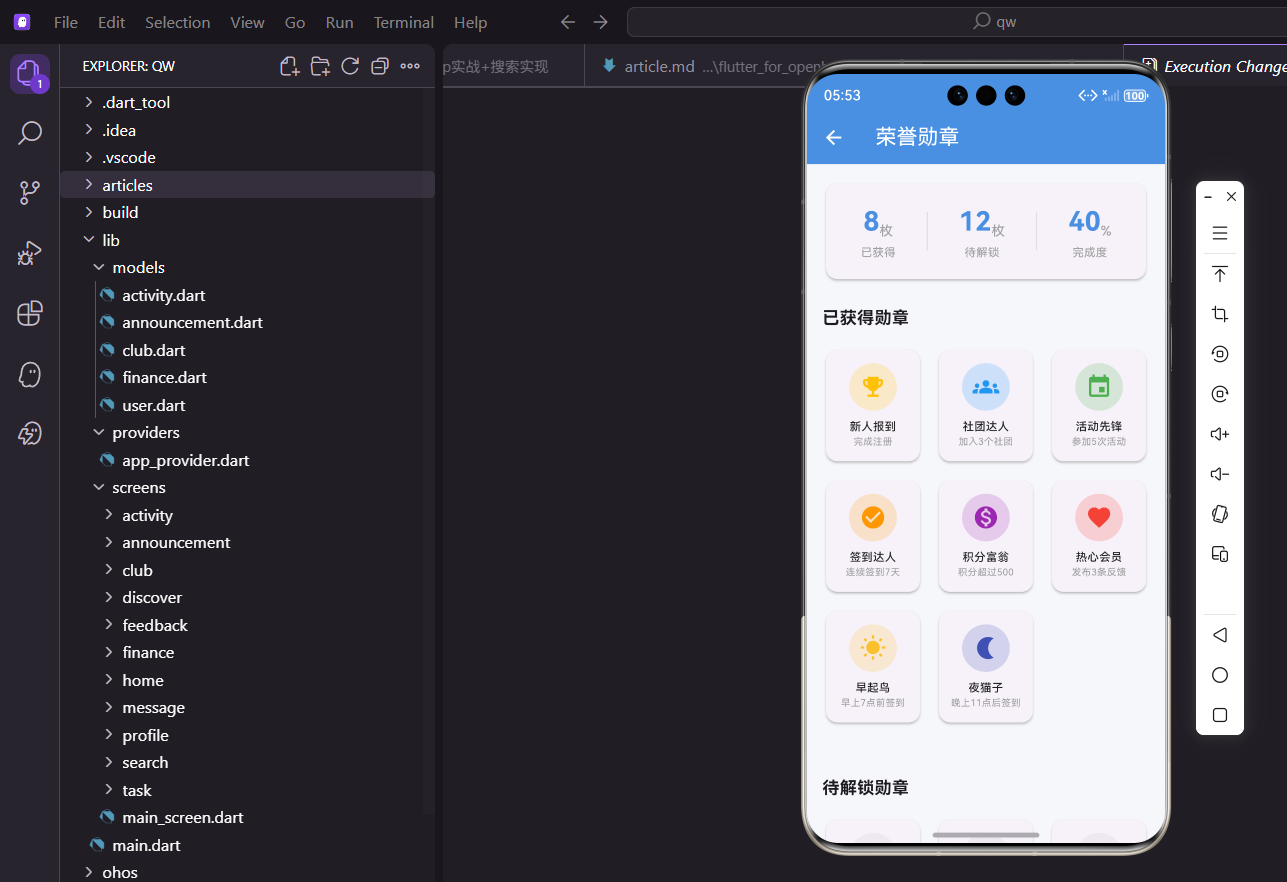
荣誉勋章是社团管理应用中的激励功能模块。通过勋章系统,用户可以直观地看到自己在社团中的成就和贡献,这种游戏化的设计能够有效提升用户的参与积极性。本篇将详细介绍如何实现一个完整的荣誉勋章展示页面。
功能需求分析
荣誉勋章页面需要实现以下核心功能。首先是勋章统计展示,显示已获得和待解锁的勋章数量。其次是已获得勋章列表,展示用户已经解锁的所有勋章。然后是待解锁勋章列表,展示用户尚未获得的勋章及解锁条件。最后是勋章详情展示,让用户了解每个勋章的含义。
这些功能组合在一起,构成了一个完整的成就系统,激励用户持续参与社团活动。
数据模型设计
首先定义勋章的数据模型,包含勋章的基本属性。
class BadgeItem {
  final String name;
  final String description;
  final IconData icon;
  final Color color;
  final bool isEarned;

  BadgeItem({
    required this.name,
    required this.description,
    required this.icon,
    required this.color,
    required this.isEarned,
  });
}
数据模型包含五个字段,name是勋章名称,description是获得条件说明,icon是勋章图标,color是勋章主题色,isEarned表示是否已获得。
页面基础结构
荣誉勋章页面使用StatelessWidget实现,因为页面内容相对静态。
import 'package:flutter/material.dart';
class BadgePage extends StatelessWidget {
const BadgePage({super.key});
Widget build(BuildContext context) {
return Scaffold(
appBar: AppBar(title: const Text('荣誉勋章')),
body: SingleChildScrollView(
padding: const EdgeInsets.all(16),
child: Column(
crossAxisAlignment: CrossAxisAlignment.start,
children: [
_buildStatsCard(),
const SizedBox(height: 24),
_buildBadgeSection('已获得勋章', _getEarnedBadges()),
const SizedBox(height: 24),
_buildBadgeSection('待解锁勋章', _getLockedBadges()),
],
),
),
);
}
}
页面结构清晰,顶部是统计卡片,下方分别展示已获得和待解锁的勋章列表。使用SingleChildScrollView确保内容可以滚动。
统计卡片实现
统计卡片展示勋章获取的整体进度。
Widget _buildStatsCard() {
  return Card(
    child: Padding(
      padding: const EdgeInsets.all(20),
      child: Row(
        mainAxisAlignment: MainAxisAlignment.spaceAround,
        children: [
          _buildStatItem('已获得', '8', '枚'),
          Container(
            width: 1,
            height: 40,
            color: Colors.grey.withOpacity(0.3)
          ),
          _buildStatItem('待解锁', '12', '枚'),
          Container(
            width: 1,
            height: 40,
            color: Colors.grey.withOpacity(0.3)
          ),
          _buildStatItem('完成度', '40', '%'),
        ],
      ),
    ),
  );
}
卡片内使用Row横向排列三个统计项,中间用半透明分隔线隔开。统计项包括已获得数量、待解锁数量和完成百分比。
统计项组件
单个统计项的构建方法,采用数值加单位的展示形式。
Widget _buildStatItem(String label, String value, String unit) {
  return Column(
    children: [
      Row(
        crossAxisAlignment: CrossAxisAlignment.end,
        children: [
          Text(
            value,
            style: const TextStyle(
              fontSize: 28,
              fontWeight: FontWeight.bold,
              color: Color(0xFF4A90E2)
            )
          ),
          Text(
            unit,
            style: const TextStyle(fontSize: 14, color: Colors.grey)
          ),
        ],
      ),
      const SizedBox(height: 4),
      Text(
        label,
        style: const TextStyle(fontSize: 12, color: Colors.grey)
      ),
    ],
  );
}
数值使用大号蓝色粗体字突出显示,单位使用小号灰色字体,标签放在下方。这种设计让数据一目了然。
勋章区域构建
勋章区域包含标题和网格列表。
Widget _buildBadgeSection(String title, List<BadgeItem> badges) {
  return Column(
    crossAxisAlignment: CrossAxisAlignment.start,
    children: [
      Text(
        title,
        style: const TextStyle(
          fontSize: 18,
          fontWeight: FontWeight.bold
        )
      ),
      const SizedBox(height: 16),
      GridView.builder(
        shrinkWrap: true,
        physics: const NeverScrollableScrollPhysics(),
        gridDelegate: const SliverGridDelegateWithFixedCrossAxisCount(
          crossAxisCount: 3,
          childAspectRatio: 0.85,
          crossAxisSpacing: 12,
          mainAxisSpacing: 12,
        ),
        itemCount: badges.length,
        itemBuilder: (context, index) => _buildBadgeCard(badges[index]),
      ),
    ],
  );
}
使用GridView.builder构建网格布局,每行显示3个勋章。shrinkWrap设为true让网格高度自适应内容,NeverScrollableScrollPhysics禁用网格自身的滚动。
勋章卡片设计
单个勋章卡片的构建,已获得和未获得显示不同样式。
Widget _buildBadgeCard(BadgeItem badge) {
  return Card(
    child: InkWell(
      onTap: () {},
      child: Padding(
        padding: const EdgeInsets.all(8),
        child: Column(
          mainAxisAlignment: MainAxisAlignment.center,
          children: [
            Container(
              width: 50,
              height: 50,
              decoration: BoxDecoration(
                shape: BoxShape.circle,
                color: badge.isEarned
                    ? badge.color.withOpacity(0.2)
                    : Colors.grey.withOpacity(0.1),
              ),
              child: Icon(
                badge.icon,
                color: badge.isEarned ? badge.color : Colors.grey,
                size: 28,
              ),
            ),
            const SizedBox(height: 8),
            Text(
              badge.name,
              style: TextStyle(
                fontSize: 12,
                fontWeight: FontWeight.w500,
                color: badge.isEarned ? Colors.black87 : Colors.grey,
              ),
              textAlign: TextAlign.center,
              maxLines: 1,
              overflow: TextOverflow.ellipsis,
            ),
            Text(
              badge.description,
              style: TextStyle(
                fontSize: 10,
                color: badge.isEarned
                    ? Colors.grey
                    : Colors.grey.withOpacity(0.5)
              ),
              textAlign: TextAlign.center,
              maxLines: 1,
              overflow: TextOverflow.ellipsis,
            ),
          ],
        ),
      ),
    ),
  );
}
已获得的勋章显示彩色图标和背景,未获得的显示灰色。卡片包含图标、名称和描述三部分,使用maxLines和overflow处理文字溢出。
已获得勋章数据
定义已获得勋章的测试数据。
List<BadgeItem> _getEarnedBadges() {
  return [
    BadgeItem(
      name: '新人报到',
      description: '完成注册',
      icon: Icons.emoji_events,
      color: Colors.amber,
      isEarned: true
    ),
    BadgeItem(
      name: '社团达人',
      description: '加入3个社团',
      icon: Icons.groups,
      color: Colors.blue,
      isEarned: true
    ),
    BadgeItem(
      name: '活动先锋',
      description: '参加5次活动',
      icon: Icons.event,
      color: Colors.green,
      isEarned: true
    ),
    BadgeItem(
      name: '签到达人',
      description: '连续签到7天',
      icon: Icons.check_circle,
      color: Colors.orange,
      isEarned: true
    ),
    BadgeItem(
      name: '积分富翁',
      description: '积分超过500',
      icon: Icons.monetization_on,
      color: Colors.purple,
      isEarned: true
    ),
    BadgeItem(
      name: '热心会员',
      description: '发布3条反馈',
      icon: Icons.favorite,
      color: Colors.red,
      isEarned: true
    ),
    BadgeItem(
      name: '早起鸟',
      description: '早上7点前签到',
      icon: Icons.wb_sunny,
      color: Colors.yellow.shade700,
      isEarned: true
    ),
    BadgeItem(
      name: '夜猫子',
      description: '晚上11点后签到',
      icon: Icons.nightlight,
      color: Colors.indigo,
      isEarned: true
    ),
  ];
}
每个勋章都有独特的图标和颜色,描述说明了获得条件。这些勋章涵盖了注册、社团、活动、签到等多个维度。
待解锁勋章数据
定义待解锁勋章的测试数据。
List<BadgeItem> _getLockedBadges() {
  return [
    BadgeItem(
      name: '社团领袖',
      description: '成为社长',
      icon: Icons.star,
      color: Colors.amber,
      isEarned: false
    ),
    BadgeItem(
      name: '活动策划',
      description: '组织10次活动',
      icon: Icons.event_note,
      color: Colors.teal,
      isEarned: false
    ),
    BadgeItem(
      name: '签到狂人',
      description: '连续签到30天',
      icon: Icons.calendar_month,
      color: Colors.deepOrange,
      isEarned: false
    ),
    BadgeItem(
      name: '积分大亨',
      description: '积分超过5000',
      icon: Icons.diamond,
      color: Colors.cyan,
      isEarned: false
    ),
    BadgeItem(
      name: '社交达人',
      description: '认识50位会员',
      icon: Icons.people,
      color: Colors.pink,
      isEarned: false
    ),
    BadgeItem(
      name: '全勤奖',
      description: '月度全勤',
      icon: Icons.workspace_premium,
      color: Colors.brown,
      isEarned: false
    ),
  ];
}
待解锁勋章设置了更高的获取门槛,激励用户持续参与。isEarned设为false,在界面上会显示为灰色。
网格布局配置
GridView的gridDelegate配置决定了网格的布局方式。
gridDelegate: const SliverGridDelegateWithFixedCrossAxisCount(
  crossAxisCount: 3,
  childAspectRatio: 0.85,
  crossAxisSpacing: 12,
  mainAxisSpacing: 12,
),
crossAxisCount设为3表示每行3个,childAspectRatio设为0.85让卡片略高于宽,spacing设置卡片之间的间距。
颜色主题设计
每个勋章都有独特的主题色,增强视觉辨识度。
BadgeItem(
  name: '新人报到',
  description: '完成注册',
  icon: Icons.emoji_events,
  color: Colors.amber,
  isEarned: true
),
使用Flutter内置的Material颜色,如amber、blue、green等,保持整体风格统一的同时又有所区分。
图标选择
勋章图标使用Material Icons,选择与勋章含义相关的图标。
icon: Icons.emoji_events,  // 奖杯图标,用于新人报到
icon: Icons.groups,        // 群组图标,用于社团达人
icon: Icons.event,         // 日历图标,用于活动先锋
icon: Icons.check_circle,  // 对勾图标,用于签到达人
图标的选择要直观反映勋章的含义,让用户一眼就能理解勋章代表的成就。
页面入口配置
荣誉勋章页面的入口位于个人中心页面的菜单列表中。
{'icon': Icons.emoji_events, 'title': '荣誉勋章', 'page': const BadgePage()},
使用emoji_events图标(奖杯)直观表示荣誉勋章功能,用户点击后跳转到勋章页面。
交互设计
勋章卡片使用InkWell包裹,支持点击交互。
InkWell(
  onTap: () {
    // 可以弹出勋章详情对话框
  },
  child: Padding(
    padding: const EdgeInsets.all(8),
    child: Column(...),
  ),
),
点击勋章可以弹出详情对话框,展示更多信息如获得时间、详细条件等。InkWell提供了Material风格的水波纹点击效果。
视觉层次设计
页面通过颜色和大小建立清晰的视觉层次。
// 标题使用大号粗体
Text(title, style: const TextStyle(fontSize: 18, fontWeight: FontWeight.bold))

// 勋章名称使用中号字体
Text(badge.name, style: TextStyle(fontSize: 12, fontWeight: FontWeight.w500))

// 描述使用小号灰色字体
Text(badge.description, style: TextStyle(fontSize: 10, color: Colors.grey))
标题最大最粗,勋章名称次之,描述最小最淡,形成清晰的信息层级。
状态区分设计
已获得和未获得的勋章通过颜色进行区分。
color: badge.isEarned
    ? badge.color.withOpacity(0.2)
    : Colors.grey.withOpacity(0.1),
已获得的勋章使用各自的主题色,未获得的统一使用灰色,让用户一眼就能区分状态。
总结
荣誉勋章功能的实现涉及到数据模型设计、网格布局、条件渲染等多个Flutter开发要点。通过合理的视觉设计和交互设计,我们实现了一个直观友好的成就展示页面。勋章系统作为游戏化设计的重要组成部分,能够有效激励用户参与社团活动。
在实际项目中,勋章数据应该从后端获取,勋章的解锁逻辑也需要在服务端进行判断。本文的实现为前端展示层提供了完整的参考,后续可以根据实际需求接入数据层。
欢迎加入开源鸿蒙跨平台社区:https://openharmonycrossplatform.csdn.net

开源鸿蒙跨平台开发社区汇聚开发者与厂商,共建“一次开发,多端部署”的开源生态,致力于降低跨端开发门槛,推动万物智联创新。
更多推荐
 20
20 0
0- 0


 已为社区贡献13条内容

所有评论(0)