Flutter for OpenHarmony移动数据使用监管助手App实战 - 实时监控实现
实时监控页面是流量监控App的核心模块,实现了网络数据的实时采集与可视化展示。该页面采用垂直布局,包含三个主要组件:渐变背景的速度卡片展示实时下载/上传速度;动态曲线图通过fl_chart库实现网速变化趋势的可视化;累计流量卡片统计会话总流量。技术实现上解决了数据实时获取、UI流畅更新、图表动态渲染等关键问题,并采用响应式编程优化性能。页面设计注重用户体验,通过渐变、阴影等视觉效果增强交互性,同时
实时监控页面是流量监控App中技术含量较高的一个模块,它需要持续获取网络流量数据并实时更新UI。用户可以在这个页面看到当前的网络使用状态,包括实时网速、累计流量等信息,还能通过动态曲线图直观地观察网速的变化趋势。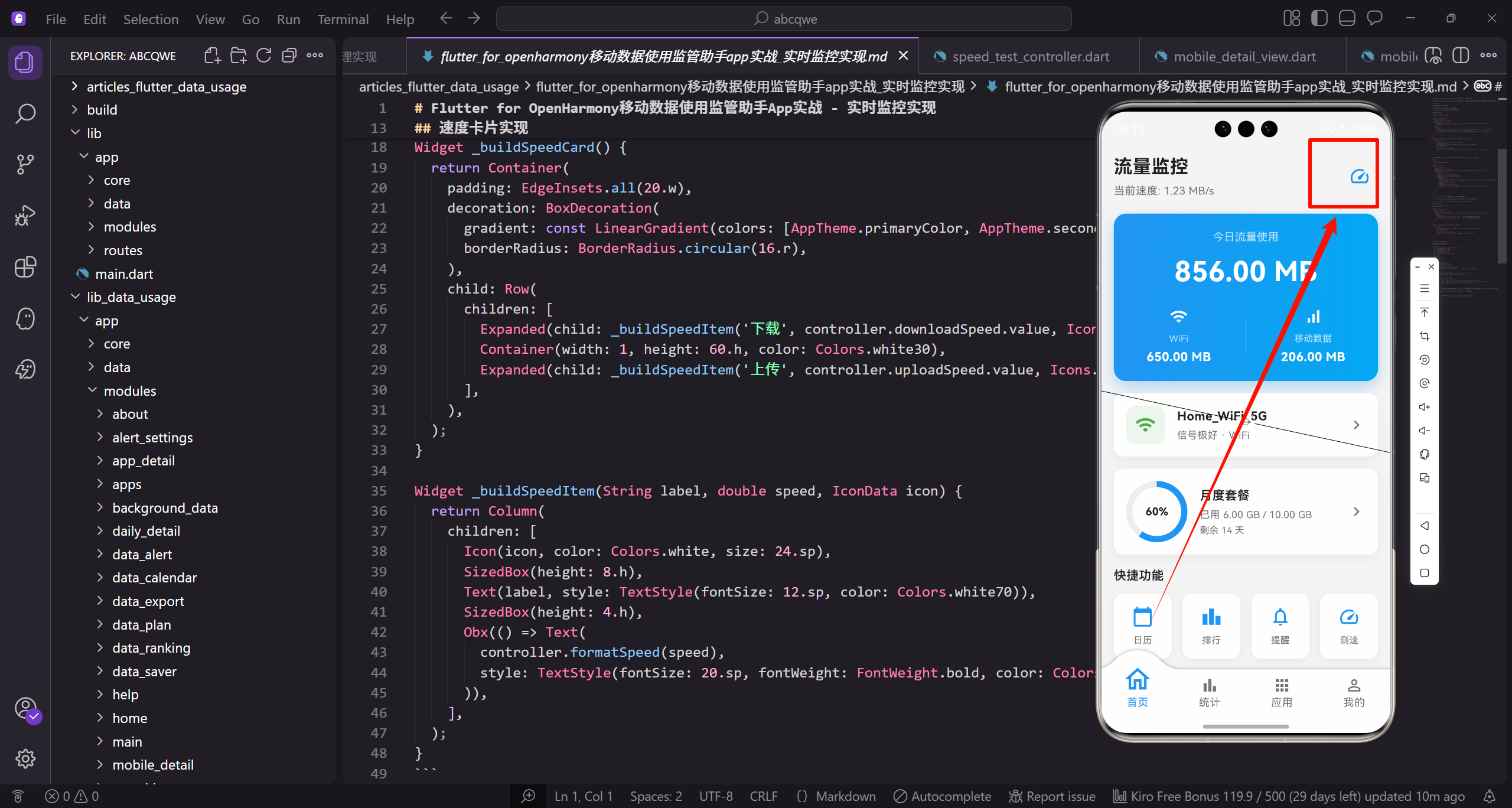
功能需求分析
实时监控页面需要解决几个核心问题:
- 如何获取实时的网络速度数据
- 如何让UI持续更新而不卡顿
- 如何用图表展示速度变化趋势
- 如何在页面退出时正确释放资源
围绕这些问题,页面设计成三个主要区块:速度卡片展示当前网速、曲线图展示历史趋势、累计卡片展示本次会话的总流量。这种布局让用户既能看到实时数据,也能了解整体趋势。
页面布局设计
实时监控页面采用垂直布局,从上到下依次是速度卡片、曲线图、累计流量卡片:
class RealtimeView extends GetView<RealtimeController> {
const RealtimeView({super.key});
Widget build(BuildContext context) {
return Scaffold(
backgroundColor: AppTheme.backgroundColor,
appBar: AppBar(
title: const Text('实时监控'),
actions: [
IconButton(
icon: Obx(() => Icon(
// 上面这段代码定义了RealtimeView类,继承自GetView并指定RealtimeController作为控制器。
// build方法返回一个Scaffold脚手架,设置了背景色和AppBar。
// AppBar的actions中放置了一个IconButton,用于控制监控的暂停和恢复。
controller.isMonitoring.value ? Icons.pause : Icons.play_arrow,
)),
onPressed: () => controller.toggleMonitoring(),
),
],
),
body: SingleChildScrollView(
padding: EdgeInsets.all(16.w),
child: Column(
children: [
_buildSpeedCard(),
SizedBox(height: 16.h),
_buildChart(),
SizedBox(height: 16.h),
// 这里根据isMonitoring的值动态切换图标,监控中显示暂停图标,暂停时显示播放图标。
// body部分使用SingleChildScrollView包裹,确保内容可以滚动。
// Column中依次放置速度卡片、图表和累计流量卡片,用SizedBox控制间距。
_buildTotalCard(),
],
),
),
);
}
}
AppBar右侧的暂停/播放按钮:用户可以随时暂停或恢复监控,暂停时不再更新数据,节省系统资源。按钮图标根据监控状态动态切换,用Obx包裹实现响应式更新。
SingleChildScrollView的使用:虽然当前内容可能不会超出一屏,但加上滚动容器是个好习惯。在小屏设备或者横屏模式下,内容可能需要滚动才能完整显示。
GetView的便利性:继承GetView<RealtimeController>后,可以直接通过controller属性访问控制器,代码更简洁。
速度卡片实现
速度卡片是页面的视觉焦点,用渐变背景让它更醒目。卡片内展示下载和上传两个方向的实时速度:
Widget _buildSpeedCard() {
  return Container(
    padding: EdgeInsets.all(20.w),
    decoration: BoxDecoration(
      gradient: const LinearGradient(
        begin: Alignment.topLeft,
        end: Alignment.bottomRight,
        colors: [AppTheme.primaryColor, AppTheme.secondaryColor],
      ),
      borderRadius: BorderRadius.circular(16.r),
// 这个方法构建速度卡片组件,使用Container作为容器。
// decoration中设置了从左上到右下的线性渐变背景,颜色从主色调过渡到次色调。
// borderRadius设置16像素的圆角,让卡片看起来更柔和。

      boxShadow: [
        BoxShadow(
          color: AppTheme.primaryColor.withOpacity(0.3),
          blurRadius: 15.r,
          offset: Offset(0, 8.h),
        ),
      ],
    ),
    child: Row(
      children: [
        Expanded(child: _buildSpeedItem('下载', controller.downloadSpeed, Icons.arrow_downward)),
        Container(width: 1, height: 60.h, color: Colors.white30),
        Expanded(child: _buildSpeedItem('上传', controller.uploadSpeed, Icons.arrow_upward)),
// boxShadow添加了带有主色调的阴影效果,透明度30%,模糊半径15,向下偏移8像素。
// child使用Row横向布局,包含下载和上传两个速度项。
// 中间用一个1像素宽的半透明白色Container作为分隔线。

      ],
    ),
  );
}
渐变背景的设计:从左上到右下的渐变,模拟光源从左上方照射的效果,让卡片更有立体感。渐变色从primaryColor到secondaryColor,和App其他页面的主色调保持一致。
阴影颜色的选择:阴影用主色调的30%透明度,而不是通用的黑色。这样阴影会带有一点蓝色调,和卡片更协调,视觉效果更精致。
分隔线的处理:下载和上传之间用一条半透明的白色竖线分隔,Colors.white30是30%透明度的白色,既能起到分隔作用又不会太抢眼。
速度项的具体实现,每个速度项包含图标、标签和数值:
Widget _buildSpeedItem(String label, RxDouble speed, IconData icon) {
  return Column(
    children: [
      Container(
        width: 48.w,
        height: 48.w,
        decoration: BoxDecoration(
          color: Colors.white.withOpacity(0.2),
          shape: BoxShape.circle,
        ),
        child: Icon(icon, color: Colors.white, size: 28.sp),
// 这个方法构建单个速度项,接收标签、速度值和图标作为参数。
// 使用Column垂直布局,顶部是一个圆形的图标容器。
// 图标容器设置20%透明度的白色背景,形状为圆形。

      ),
      SizedBox(height: 12.h),
      Text(
        label,
        style: TextStyle(fontSize: 12.sp, color: Colors.white70),
      ),
      SizedBox(height: 4.h),
      Obx(() => Text(
        controller.formatSpeed(speed.value),
        style: TextStyle(
          fontSize: 22.sp,
          fontWeight: FontWeight.bold,
          color: Colors.white,
// 图标下方是12像素的间距,然后是标签文字,使用70%透明度的白色。
// 再下方是速度数值,用Obx包裹实现响应式更新。
// 速度文字使用22sp的大字号和粗体,纯白色显示。

        ),
      )),
    ],
  );
}
图标容器设计:图标放在一个半透明的圆形容器里,Colors.white.withOpacity(0.2)创建20%透明度的白色背景,让图标更突出但不会太抢眼。
箭头方向的语义:下载用向下箭头,上传用向上箭头,这是网络流量的通用表示方式,用户一看就懂。
Obx的精确包裹:只有速度数值用Obx包裹,而不是整个Column。这样速度变化时只会重建Text组件,而不是整个速度项,性能更好。
颜色层次:标签用Colors.white70(70%透明度的白色),数值用纯白色,形成主次区分。
速度曲线图实现
曲线图是这个页面的技术亮点,用fl_chart库绘制实时更新的折线图:
Widget _buildChart() {
  return Container(
    height: 200.h,
    padding: EdgeInsets.all(16.w),
    decoration: BoxDecoration(
      color: Colors.white,
      borderRadius: BorderRadius.circular(16.r),
      boxShadow: [
        BoxShadow(
          color: Colors.black.withOpacity(0.03),
          blurRadius: 10.r,
// 这个方法构建速度曲线图组件,Container设置固定高度200像素。
// 内边距16像素,白色背景配合16像素圆角。
// 添加轻微的黑色阴影,透明度仅3%,营造微妙的层次感。

          offset: Offset(0, 4.h),
        ),
      ],
    ),
    child: Column(
      crossAxisAlignment: CrossAxisAlignment.start,
      children: [
        Row(
          mainAxisAlignment: MainAxisAlignment.spaceBetween,
          children: [
            Text(
              '速度趋势',
              style: TextStyle(
                fontSize: 16.sp,
// 阴影向下偏移4像素,模拟卡片悬浮效果。
// child使用Column布局,顶部是标题行,包含"速度趋势"文字和图例。
// 标题使用16sp字号和600字重,突出显示。

                fontWeight: FontWeight.w600,
                color: AppTheme.textPrimary,
              ),
            ),
            _buildLegend(),
          ],
        ),
        SizedBox(height: 12.h),
        Expanded(
          child: Obx(() => LineChart(
            LineChartData(
              gridData: FlGridData(
                show: true,
                drawVerticalLine: false,
                horizontalInterval: 50,
// 标题行右侧放置图例组件,用于区分下载和上传曲线。
// 标题下方12像素间距后是图表区域,使用Expanded填充剩余空间。
// LineChart用Obx包裹,数据变化时自动重绑。

                getDrawingHorizontalLine: (value) => FlLine(
                  color: Colors.grey.shade200,
                  strokeWidth: 1,
                ),
              ),
              titlesData: FlTitlesData(
                show: true,
                leftTitles: AxisTitles(
                  sideTitles: SideTitles(
                    showTitles: true,
                    reservedSize: 35.w,
                    getTitlesWidget: (value, meta) => Text(
                      '${value.toInt()}',
// gridData配置网格线,只显示水平线,间隔50个单位。
// 水平网格线使用浅灰色,线宽1像素。
// titlesData配置坐标轴标签,左侧Y轴显示数值标签。

                      style: TextStyle(fontSize: 10.sp, color: AppTheme.textSecondary),
                    ),
                  ),
                ),
                bottomTitles: AxisTitles(sideTitles: SideTitles(showTitles: false)),
                topTitles: AxisTitles(sideTitles: SideTitles(showTitles: false)),
                rightTitles: AxisTitles(sideTitles: SideTitles(showTitles: false)),
              ),
              borderData: FlBorderData(show: false),
              lineBarsData: [
                _buildLineData(controller.downloadHistory, AppTheme.primaryColor),
                _buildLineData(controller.uploadHistory, AppTheme.secondaryColor),
// reservedSize为Y轴标签预留35像素宽度,标签字号10sp。
// 底部、顶部、右侧的标签都隐藏,保持图表简洁。
// lineBarsData包含两条曲线数据,分别是下载和上传历史记录。

              ],
              minY: 0,
              maxY: _calculateMaxY(),
            ),
          )),
        ),
      ],
    ),
  );
}
图表容器设计:固定高度200.h,白色背景配合轻微阴影,和页面背景形成层次感。内部用Column布局,顶部是标题和图例,下方是图表本身。
网格线配置:只显示水平网格线,不显示垂直网格线,让图表更简洁。网格线用浅灰色,间隔50个单位。
坐标轴配置:只显示左侧的Y轴标签,其他三边都隐藏。reservedSize设为35.w,给Y轴标签留出足够的空间。
双曲线设计:同时显示下载和上传两条曲线,用不同颜色区分。下载用主色调蓝色,上传用次色调浅蓝色。
图例组件,帮助用户区分两条曲线:
Widget _buildLegend() {
  return Row(
    children: [
      _buildLegendItem('下载', AppTheme.primaryColor),
      SizedBox(width: 16.w),
      _buildLegendItem('上传', AppTheme.secondaryColor),
    ],
  );
}

Widget _buildLegendItem(String label, Color color) {
  return Row(
    children: [
// 图例组件使用Row横向排列下载和上传两个图例项。
// 两个图例项之间间隔16像素。
// 每个图例项也是Row布局,包含颜色标识和文字标签。

      Container(
        width: 12.w,
        height: 3.h,
        decoration: BoxDecoration(
          color: color,
          borderRadius: BorderRadius.circular(2.r),
        ),
      ),
      SizedBox(width: 4.w),
      Text(
        label,
        style: TextStyle(fontSize: 11.sp, color: AppTheme.textSecondary),
// 颜色标识是一个12x3像素的小矩形,带有2像素圆角。
// 矩形颜色对应曲线颜色,直观地表示对应关系。
// 标签文字使用11sp小字号,次要文字颜色。

      ),
    ],
  );
}
曲线数据的构建方法:
LineChartBarData _buildLineData(RxList<double> data, Color color) {
  return LineChartBarData(
    spots: List.generate(
      data.length,
      (i) => FlSpot(i.toDouble(), data[i]),
    ),
    isCurved: true,
    curveSmoothness: 0.3,
    color: color,
    barWidth: 2.5,
    dotData: FlDotData(show: false),
// 这个方法根据数据列表和颜色生成曲线配置。
// spots通过List.generate生成,将索引和值转换为FlSpot坐标点。
// isCurved设为true启用曲线平滑,curveSmoothness控制平滑程度。

    belowBarData: BarAreaData(
      show: true,
      color: color.withOpacity(0.1),
    ),
  );
}

double _calculateMaxY() {
  double maxDownload = controller.downloadHistory.isEmpty
      ? 100
      : controller.downloadHistory.reduce((a, b) => a > b ? a : b);
  double maxUpload = controller.uploadHistory.isEmpty
      ? 100
// barWidth设置曲线宽度2.5像素,dotData隐藏数据点标记。
// belowBarData在曲线下方填充10%透明度的颜色,形成面积图效果。
// _calculateMaxY方法计算Y轴最大值,取下载和上传历史中的最大值。

      : controller.uploadHistory.reduce((a, b) => a > b ? a : b);
  return (maxDownload > maxUpload ? maxDownload : maxUpload) * 1.2;
}
曲线平滑度:curveSmoothness: 0.3让曲线有一定的弧度但不会太弯曲,看起来更自然。值越大曲线越平滑,但可能会偏离实际数据点。
隐藏数据点:dotData: FlDotData(show: false)隐藏曲线上的数据点,因为数据更新频繁,显示数据点会让图表看起来很乱。
面积填充:belowBarData在曲线下方填充10%透明度的颜色,形成面积图效果,视觉上更丰富。
动态Y轴最大值:_calculateMaxY方法根据当前数据动态计算Y轴最大值,乘以1.2留出一些顶部空间,让最高点不会顶到边缘。
累计流量卡片
展示本次监控会话的累计下载和上传流量:
Widget _buildTotalCard() {
  return Container(
    padding: EdgeInsets.all(16.w),
    decoration: BoxDecoration(
      color: Colors.white,
      borderRadius: BorderRadius.circular(12.r),
      boxShadow: [
        BoxShadow(
          color: Colors.black.withOpacity(0.03),
          blurRadius: 8.r,
          offset: Offset(0, 2.h),
// 累计流量卡片使用Container容器,内边距16像素。
// 白色背景配合12像素圆角,风格与其他卡片保持一致。
// 添加轻微阴影效果,模糊半径8像素,向下偏移2像素。

        ),
      ],
    ),
    child: Column(
      crossAxisAlignment: CrossAxisAlignment.start,
      children: [
        Text(
          '本次会话累计',
          style: TextStyle(
            fontSize: 14.sp,
            fontWeight: FontWeight.w600,
            color: AppTheme.textPrimary,
          ),
        ),
        SizedBox(height: 16.h),
// child使用Column垂直布局,crossAxisAlignment设为start左对齐。
// 顶部是"本次会话累计"标题,14sp字号,600字重。
// 标题下方16像素间距后是流量数据行。

        Row(
          children: [
            Expanded(child: _buildTotalItem('总下载', controller.totalDownload, AppTheme.primaryColor)),
            Container(width: 1, height: 50.h, color: Colors.grey.shade200),
            Expanded(child: _buildTotalItem('总上传', controller.totalUpload, AppTheme.secondaryColor)),
          ],
        ),
      ],
    ),
  );
}

Widget _buildTotalItem(String label, RxInt bytes, Color color) {
  return Column(
    children: [
      Row(
        mainAxisAlignment: MainAxisAlignment.center,
// Row中包含下载和上传两个数据项,用Expanded等宽分布。
// 中间用1像素宽的灰色分隔线隔开,高度50像素。
// _buildTotalItem方法构建单个累计项,接收标签、字节数和颜色参数。

        children: [
          Icon(
            label.contains('下载') ? Icons.cloud_download : Icons.cloud_upload,
            size: 18.sp,
            color: color,
          ),
          SizedBox(width: 6.w),
          Text(
            label,
            style: TextStyle(fontSize: 12.sp, color: AppTheme.textSecondary),
          ),
        ],
      ),
      SizedBox(height: 8.h),
      Obx(() => Text(
        controller.formatBytes(bytes.value),
// 顶部Row包含图标和标签,根据标签内容选择下载或上传图标。
// 图标大小18sp,颜色使用传入的color参数。
// 标签文字12sp,使用次要文字颜色。

        style: TextStyle(
          fontSize: 18.sp,
          fontWeight: FontWeight.bold,
          color: color,
        ),
      )),
    ],
  );
}
会话累计的意义:这个数据从用户进入页面开始累计,退出页面后清零。它帮助用户了解这段时间内的流量消耗,比如看一个视频用了多少流量。
图标选择:下载用cloud_download图标,上传用cloud_upload图标,云朵形状暗示数据在网络中传输。
颜色一致性:下载用主色调,上传用次色调,和速度卡片、曲线图保持一致,形成视觉统一。
Controller层的数据管理
Controller是实时监控的核心,负责定时获取数据、更新UI、管理生命周期:
class RealtimeController extends GetxController {
final downloadSpeed = 0.0.obs;
final uploadSpeed = 0.0.obs;
final totalDownload = 0.obs;
final totalUpload = 0.obs;
final downloadHistory = <double>[].obs;
final uploadHistory = <double>[].obs;
final isMonitoring = true.obs;
Timer? _refreshTimer;
int _lastDownloadBytes = 0;
// RealtimeController继承GetxController,管理实时监控的所有状态。
// 定义了下载速度、上传速度、累计下载、累计上传等响应式变量。
// downloadHistory和uploadHistory存储历史数据用于绑制曲线图。
int _lastUploadBytes = 0;
DateTime? _lastUpdateTime;
void onInit() {
super.onInit();
_initializeHistory();
startMonitoring();
}
void onClose() {
stopMonitoring();
super.onClose();
}
// _refreshTimer是定时器引用,_lastDownloadBytes和_lastUploadBytes记录上次采样的字节数。
// onInit生命周期方法中初始化历史数据并启动监控。
// onClose生命周期方法中停止监控,确保Timer被正确取消。
void _initializeHistory() {
// 初始化历史数据数组,填充20个0
downloadHistory.value = List.filled(20, 0.0);
uploadHistory.value = List.filled(20, 0.0);
}
void startMonitoring() {
isMonitoring.value = true;
_lastUpdateTime = DateTime.now();
// 每秒更新一次数据
_refreshTimer = Timer.periodic(const Duration(seconds: 1), (_) {
if (isMonitoring.value) {
_updateData();
}
// _initializeHistory用20个0填充历史数组,让图表一开始就有完整曲线。
// startMonitoring设置监控状态为true,记录开始时间。
// Timer.periodic每秒触发一次_updateData方法更新数据。
});
}
void stopMonitoring() {
isMonitoring.value = false;
_refreshTimer?.cancel();
_refreshTimer = null;
}
void toggleMonitoring() {
if (isMonitoring.value) {
stopMonitoring();
} else {
startMonitoring();
}
// stopMonitoring设置监控状态为false,取消定时器并置空引用。
// toggleMonitoring切换监控状态,根据当前状态调用对应方法。
// 这个方法供UI层的暂停/播放按钮调用。
}
}
Timer的使用:用Timer.periodic每秒触发一次数据更新。选择1秒的间隔是因为太快会增加CPU负担,太慢用户感觉不到"实时"。
生命周期管理:在onInit中启动监控,在onClose中停止监控并取消Timer。这很重要,如果不取消Timer,页面退出后Timer还会继续运行,造成内存泄漏。
历史数据初始化:用20个0填充历史数组,这样图表一开始就有完整的曲线,而不是从一个点开始慢慢延伸。
数据更新的核心逻辑:
void _updateData() {
  final now = DateTime.now();
  final elapsed = _lastUpdateTime != null
      ? now.difference(_lastUpdateTime!).inMilliseconds / 1000.0
      : 1.0;
  _lastUpdateTime = now;

  // 获取当前的累计流量(实际项目中调用系统API)
  final currentDownload = _getCurrentDownloadBytes();
  final currentUpload = _getCurrentUploadBytes();

  // 计算速度 = 流量差 / 时间差
  if (_lastDownloadBytes > 0) {
// _updateData是数据更新的核心方法,首先计算距离上次更新的时间间隔。
// elapsed以秒为单位,用于计算速度时作为分母。
// 调用_getCurrentDownloadBytes和_getCurrentUploadBytes获取当前累计流量。

    final downloadDiff = currentDownload - _lastDownloadBytes;
    downloadSpeed.value = downloadDiff / elapsed / 1024; // KB/s
    totalDownload.value += downloadDiff;
  }

  if (_lastUploadBytes > 0) {
    final uploadDiff = currentUpload - _lastUploadBytes;
    uploadSpeed.value = uploadDiff / elapsed / 1024; // KB/s
    totalUpload.value += uploadDiff;
  }

  _lastDownloadBytes = currentDownload;
  _lastUploadBytes = currentUpload;
// 计算下载速度:流量差除以时间差再除以1024转换为KB/s。
// totalDownload累加本次的流量增量,记录会话总流量。
// 上传速度的计算逻辑与下载相同。


  // 更新历史数据
  _updateHistory();
}

void _updateHistory() {
  // 移除最旧的数据点,添加最新的数据点
  if (downloadHistory.length >= 20) {
    downloadHistory.removeAt(0);
  }
  downloadHistory.add(downloadSpeed.value);

  if (uploadHistory.length >= 20) {
    uploadHistory.removeAt(0);
  }
  uploadHistory.add(uploadSpeed.value);
// 更新完速度后保存当前字节数,供下次计算差值使用。
// _updateHistory方法维护历史数据的滑动窗口。
// 当历史数据达到20个时,移除最旧的数据点,保持数组长度恒定。

}

int _getCurrentDownloadBytes() {
  // 实际项目中这里调用系统API获取累计下载字节数
  // 这里用模拟数据
  return _lastDownloadBytes + (50000 + Random().nextInt(100000));
}

int _getCurrentUploadBytes() {
  // 实际项目中这里调用系统API获取累计上传字节数
  return _lastUploadBytes + (10000 + Random().nextInt(30000));
}
速度计算原理:速度 = 流量差 / 时间差。获取两次采样之间的流量增量,除以时间间隔,就得到了平均速度。
时间间隔的精确计算:虽然Timer设置的是1秒,但实际间隔可能有微小偏差。用DateTime.now().difference()计算精确的时间差,让速度计算更准确。
历史数据的滑动窗口:保持历史数组长度为20,每次更新时移除最旧的数据点,添加最新的。这样图表始终显示最近20秒的数据。
格式化方法:
String formatSpeed(double kbps) {
  if (kbps < 1) {
    return '0 KB/s';
  }
  if (kbps < 1024) {
    return '${kbps.toStringAsFixed(1)} KB/s';
  }
  return '${(kbps / 1024).toStringAsFixed(2)} MB/s';
}

String formatBytes(int bytes) {
  if (bytes < 1024) return '$bytes B';
// formatSpeed方法将速度值格式化为可读字符串。
// 小于1KB/s显示为0,小于1024KB/s显示KB/s单位。
// 大于等于1024KB/s时转换为MB/s单位显示。

  if (bytes < 1024 * 1024) return '${(bytes / 1024).toStringAsFixed(1)} KB';
  if (bytes < 1024 * 1024 * 1024) {
    return '${(bytes / (1024 * 1024)).toStringAsFixed(2)} MB';
  }
  return '${(bytes / (1024 * 1024 * 1024)).toStringAsFixed(2)} GB';
}
单位自动选择:根据数值大小自动选择合适的单位。速度通常在KB/s到MB/s之间,累计流量可能达到GB级别。
小数位数控制:KB保留1位小数,MB和GB保留2位小数,避免显示过长的数字。
性能优化建议
实时监控页面需要频繁更新UI,性能优化很重要:
精确控制重建范围:每个需要更新的数据都单独用Obx包裹,而不是整个页面用一个Obx。这样只有变化的部分会重建。
避免在build方法中创建对象:图表的配置对象应该缓存起来,只在数据变化时更新,而不是每次build都重新创建。
使用const构造函数:静态的Widget用const修饰,Flutter会复用这些Widget实例,减少内存分配。
图表数据点数量控制:历史数据保持在20个点左右,太多会影响图表渲染性能。
实际项目中的数据获取
模拟数据只是演示用,实际项目需要调用系统API获取真实的网络流量数据:
// Android平台可以使用TrafficStats
// iOS平台需要使用NetworkExtension框架
// OpenHarmony平台需要使用对应的系统API

Future<int> getDownloadBytes() async {
  // 调用平台通道获取数据
  final result = await platform.invokeMethod('getDownloadBytes');
  return result as int;
// 这段代码展示了实际项目中获取流量数据的方式。
// 不同平台有不同的系统API,需要通过Platform Channel调用原生代码。
// Android使用TrafficStats,iOS使用NetworkExtension框架。

}
不同平台的实现方式不同,需要通过Platform Channel调用原生代码。
扩展功能思路
实时监控页面还可以增加更多功能:
网络类型显示:在页面顶部显示当前连接的是WiFi还是移动数据,以及信号强度。
速度预警:当速度异常高或异常低时,用颜色变化或震动提醒用户。
历史记录:保存每次监控会话的数据,用户可以回顾历史记录。
分应用监控:显示当前哪个应用在使用网络,以及各自的速度。
悬浮窗模式:支持以悬浮窗形式显示实时网速,用户可以边用其他App边看网速。
写在最后
实时监控页面是流量监控App中技术含量较高的模块,涉及到定时器、响应式编程、图表绑制等多个技术点。通过合理的架构设计和性能优化,可以实现流畅的实时数据展示效果。
在实现过程中,最重要的是正确管理Timer的生命周期,避免内存泄漏。同时要注意精确控制UI重建范围,保证页面的流畅性。
欢迎加入开源鸿蒙跨平台社区:https://openharmonycrossplatform.csdn.net

开源鸿蒙跨平台开发社区汇聚开发者与厂商,共建“一次开发,多端部署”的开源生态,致力于降低跨端开发门槛,推动万物智联创新。
更多推荐
 11
11 0
0- 0


 已为社区贡献30条内容

所有评论(0)