Flutter for OpenHarmony 猫咪管家App实战 - 年龄计算器实现
猫咪年龄计算器实现了一个实用的年龄换算工具,通过滑块交互实时计算猫咪年龄对应的人类年龄。采用兽医学界认可的换算算法:第一年15岁,第二年24岁,之后每年加4岁。界面包含猫咪/人类年龄卡片、年龄对照表和生命阶段提示,使用橙色主题和卡片布局提升用户体验。该工具帮助铲屎官更科学地了解爱猫的成长阶段。
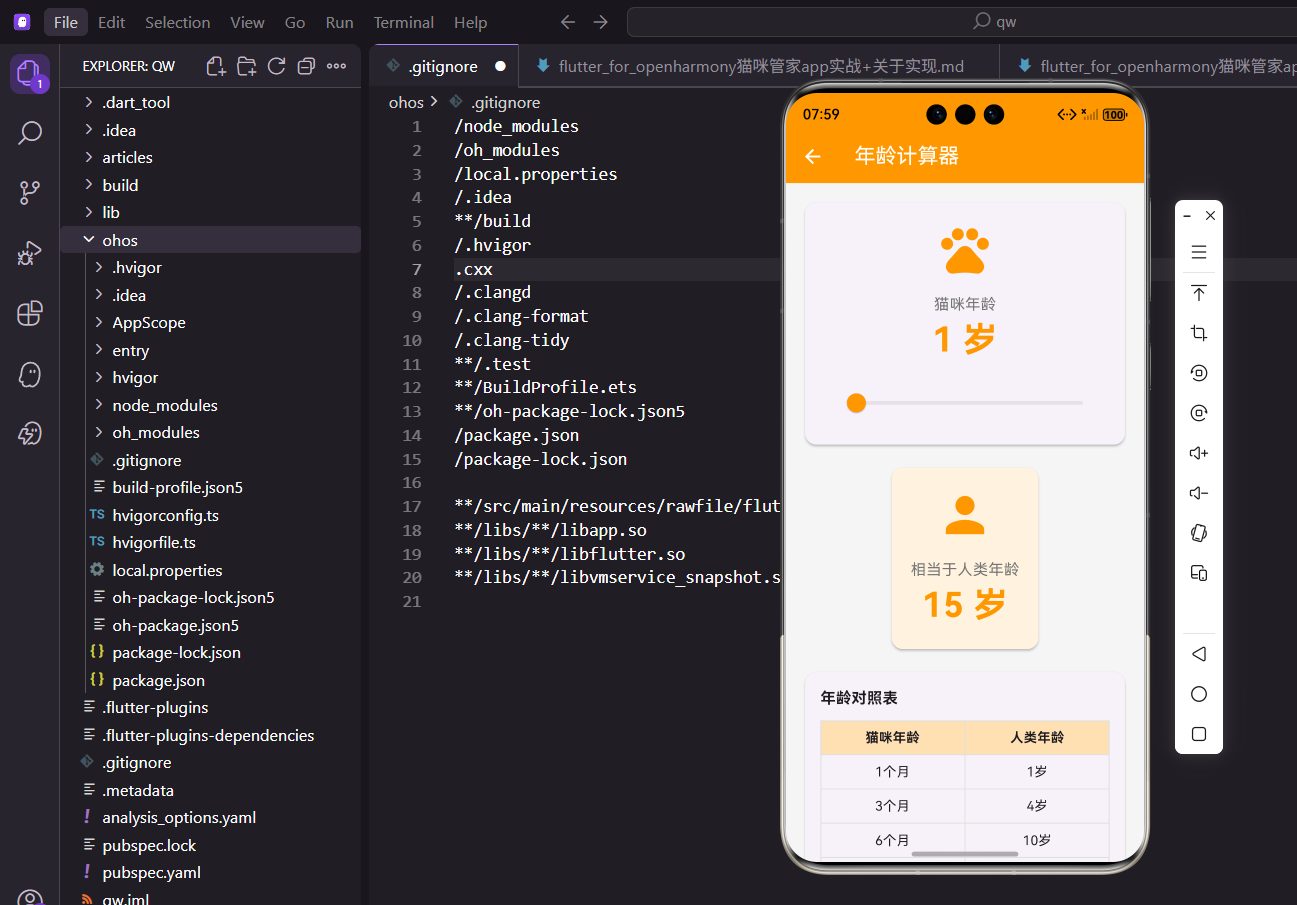
很多铲屎官都好奇,自家猫咪相当于人类多少岁?今天我们来实现一个年龄计算器,通过滑块选择猫咪年龄,实时显示对应的人类年龄,还有生命阶段的提示。
功能设计
年龄计算器需要实现这些功能:
- 滑块选择猫咪年龄
- 实时计算对应的人类年龄
- 显示年龄对照表
- 根据年龄显示生命阶段信息
这个工具虽然简单,但很实用。
依赖导入
引入需要的包:
import 'package:flutter/material.dart';
import 'package:flutter_screenutil/flutter_screenutil.dart';
这个页面不需要Provider,因为不涉及数据持久化。
screenutil用于屏幕适配。
有状态组件
需要维护滑块的状态:
class AgeCalculatorScreen extends StatefulWidget {
const AgeCalculatorScreen({super.key});
State<AgeCalculatorScreen> createState() => _AgeCalculatorScreenState();
}
滑块的值会变化,所以用StatefulWidget。
状态变化时需要重新计算人类年龄。
状态变量
State类中定义变量:
class _AgeCalculatorScreenState extends State<AgeCalculatorScreen> {
  double _catAge = 1;
  int _humanAge = 15;
_catAge是猫咪年龄,默认1岁。
_humanAge是计算出的人类年龄。
页面结构
build方法构建UI:
Widget build(BuildContext context) {
return Scaffold(
appBar: AppBar(title: const Text('年龄计算器')),
body: SingleChildScrollView(
padding: EdgeInsets.all(16.w),
child: Column(
children: [
SingleChildScrollView让内容可以滚动。
Column垂直排列各个卡片。
猫咪年龄卡片
显示猫咪年龄和滑块:
            Card(
              child: Padding(
                padding: EdgeInsets.all(20.w),
                child: Column(
                  children: [
                    Icon(Icons.pets, size: 60.sp, color: Colors.orange),
                    SizedBox(height: 16.h),
                    Text(
                      '猫咪年龄',
                      style: TextStyle(fontSize: 16.sp, color: Colors.grey[600]),
                    ),
大图标让页面更有视觉焦点。
橙色与App主题一致。
年龄数字显示:
                    Text(
                      '${_catAge.toStringAsFixed(_catAge == _catAge.roundToDouble() ? 0 : 1)} 岁',
                      style: TextStyle(fontSize: 36.sp, fontWeight: FontWeight.bold, color: Colors.orange),
                    ),
                    SizedBox(height: 16.h),
toStringAsFixed根据是否为整数决定显示几位小数。
大字号突出显示当前年龄。
滑块控件:
                    Slider(
                      value: _catAge,
                      min: 0,
                      max: 25,
                      divisions: 50,
                      activeColor: Colors.orange,
                      onChanged: (value) {
                        setState(() {
                          _catAge = value;
                          _humanAge = _calculateHumanAge(value);
                        });
                      },
                    ),
                  ],
                ),
              ),
            ),
            SizedBox(height: 16.h),
divisions: 50让滑块有50个刻度,每0.5岁一档。
onChanged中同时更新猫咪年龄和人类年龄。
人类年龄卡片
显示换算后的人类年龄:
            Card(
              color: Colors.orange[50],
              child: Padding(
                padding: EdgeInsets.all(20.w),
                child: Column(
                  children: [
                    Icon(Icons.person, size: 60.sp, color: Colors.orange),
                    SizedBox(height: 16.h),
                    Text(
                      '相当于人类年龄',
                      style: TextStyle(fontSize: 16.sp, color: Colors.grey[600]),
                    ),
                    Text(
                      '$_humanAge 岁',
                      style: TextStyle(fontSize: 36.sp, fontWeight: FontWeight.bold, color: Colors.orange),
                    ),
                  ],
                ),
              ),
            ),
            SizedBox(height: 16.h),
浅橙色背景与上面的卡片形成区分。
人类图标与猫咪图标对应。
年龄对照表
展示常见年龄的对照:
            _buildAgeChart(),
            SizedBox(height: 16.h),
            _buildLifeStageInfo(),
          ],
        ),
      ),
    );
  }
对照表让用户快速查看不同年龄的换算。
生命阶段信息提供养护建议。
年龄计算算法
猫咪年龄转人类年龄的公式:
  int _calculateHumanAge(double catAge) {
    if (catAge <= 0) return 0;
    if (catAge <= 1) return (catAge * 15).round();
    if (catAge <= 2) return 15 + ((catAge - 1) * 9).round();
    return 24 + ((catAge - 2) * 4).round();
  }
第一年相当于人类15岁。
第二年相当于再加9岁。
之后每年相当于人类4岁。
这个算法的依据:
猫咪1岁 = 人类15岁(青春期)
猫咪2岁 = 人类24岁(成年)
之后每年 = 人类4岁
这是兽医学界比较认可的换算方式。
比简单的乘以7更准确。
年龄对照表组件
构建对照表:
  Widget _buildAgeChart() {
    return Card(
      child: Padding(
        padding: EdgeInsets.all(16.w),
        child: Column(
          crossAxisAlignment: CrossAxisAlignment.start,
          children: [
            Text('年龄对照表', style: TextStyle(fontSize: 16.sp, fontWeight: FontWeight.bold)),
            SizedBox(height: 12.h),
标题用粗体突出显示。
Card包裹让内容有边界感。
表格内容:
            Table(
              border: TableBorder.all(color: Colors.grey[300]!),
              children: [
                TableRow(
                  decoration: BoxDecoration(color: Colors.orange[100]),
                  children: [
                    _buildTableCell('猫咪年龄', isHeader: true),
                    _buildTableCell('人类年龄', isHeader: true),
                  ],
                ),
                _buildTableRow('1个月', '1岁'),
                _buildTableRow('3个月', '4岁'),
                _buildTableRow('6个月', '10岁'),
                _buildTableRow('1岁', '15岁'),
                _buildTableRow('2岁', '24岁'),
                _buildTableRow('5岁', '36岁'),
                _buildTableRow('10岁', '56岁'),
                _buildTableRow('15岁', '76岁'),
                _buildTableRow('20岁', '96岁'),
              ],
            ),
          ],
        ),
      ),
    );
  }
Table组件用于展示表格数据。
表头用橙色背景区分。
表格行构建
构建表格行的方法:
  TableRow _buildTableRow(String catAge, String humanAge) {
    return TableRow(
      children: [
        _buildTableCell(catAge),
        _buildTableCell(humanAge),
      ],
    );
  }
抽取方法减少重复代码。
每行包含两个单元格。
单元格构建:
  Widget _buildTableCell(String text, {bool isHeader = false}) {
    return Padding(
      padding: EdgeInsets.all(8.w),
      child: Text(
        text,
        textAlign: TextAlign.center,
        style: TextStyle(
          fontWeight: isHeader ? FontWeight.bold : FontWeight.normal,
        ),
      ),
    );
  }
isHeader参数控制是否为表头样式。
文字居中对齐更美观。
生命阶段信息
根据年龄显示不同的阶段信息:
  Widget _buildLifeStageInfo() {
    String stage;
    String description;
    Color color;

    if (_catAge < 0.5) {
      stage = '幼猫期';
      description = '快速成长阶段,需要高蛋白高热量食物';
      color = Colors.pink;
    } else if (_catAge < 2) {
      stage = '青年期';
      description = '活泼好动,需要充足运动和社交';
      color = Colors.green;
    } else if (_catAge < 7) {
      stage = '成年期';
      description = '身体成熟稳定,注意体重管理';
      color = Colors.blue;
    } else if (_catAge < 11) {
      stage = '中年期';
      description = '开始出现老化迹象,定期体检很重要';
      color = Colors.orange;
    } else {
      stage = '老年期';
      description = '需要更多关爱和医疗关注';
      color = Colors.purple;
    }
五个生命阶段,每个阶段有不同的养护建议。
不同颜色区分不同阶段。
信息卡片的UI:
    return Card(
      color: color.withOpacity(0.1),
      child: Padding(
        padding: EdgeInsets.all(16.w),
        child: Row(
          children: [
            Container(
              padding: EdgeInsets.all(12.w),
              decoration: BoxDecoration(
                color: color.withOpacity(0.2),
                borderRadius: BorderRadius.circular(12.r),
              ),
              child: Icon(Icons.info, color: color, size: 24.sp),
            ),
            SizedBox(width: 12.w),
            Expanded(
              child: Column(
                crossAxisAlignment: CrossAxisAlignment.start,
                children: [
                  Text(stage, style: TextStyle(fontWeight: FontWeight.bold, color: color, fontSize: 16.sp)),
                  SizedBox(height: 4.h),
                  Text(description, style: TextStyle(fontSize: 13.sp, color: Colors.grey[700])),
                ],
              ),
            ),
          ],
        ),
      ),
    );
  }
}
卡片背景色与阶段颜色呼应。
Row布局让图标和文字水平排列。
Slider详解
滑块的各个属性:
Slider(
  value: _catAge,      // 当前值
  min: 0,              // 最小值
  max: 25,             // 最大值
  divisions: 50,       // 刻度数
  activeColor: Colors.orange,  // 激活颜色
  onChanged: (value) { ... },  // 值变化回调
)
divisions决定滑块的精度。
50个刻度意味着每0.5岁一档。
数字格式化
根据是否为整数决定显示格式:
_catAge.toStringAsFixed(_catAge == _catAge.roundToDouble() ? 0 : 1)
如果是整数(如1.0),显示为"1"。
如果是小数(如1.5),显示为"1.5"。
这样处理的好处:
1.0 岁 -> 1 岁
1.5 岁 -> 1.5 岁
2.0 岁 -> 2 岁
避免显示多余的小数点。
用户体验更好。
Table组件
Flutter的表格组件:
Table(
  border: TableBorder.all(color: Colors.grey[300]!),
  children: [
    TableRow(...),
    TableRow(...),
  ],
)
TableBorder.all给所有边框设置颜色。
children是TableRow的列表。
TableRow的使用:
TableRow(
  decoration: BoxDecoration(color: Colors.orange[100]),
  children: [
    Widget,
    Widget,
  ],
)
decoration可以设置行的背景色。
children是这一行的单元格。
颜色透明度
使用withOpacity调整透明度:
color.withOpacity(0.1)  // 10%不透明度
color.withOpacity(0.2)  // 20%不透明度
浅色背景不会太抢眼。
与主色调保持一致。
条件判断链
多条件判断的写法:
if (_catAge < 0.5) {
  // 幼猫期
} else if (_catAge < 2) {
  // 青年期
} else if (_catAge < 7) {
  // 成年期
} else if (_catAge < 11) {
  // 中年期
} else {
  // 老年期
}
从小到大依次判断。
else处理最后一种情况。
Card嵌套布局
卡片内的布局结构:
Card(
  child: Padding(
    padding: EdgeInsets.all(20.w),
    child: Column(
      children: [
        Icon(...),
        SizedBox(...),
        Text(...),
        Text(...),
        Slider(...),
      ],
    ),
  ),
)
Padding给内容留出边距。
Column让内容垂直排列。
小结
年龄计算器涉及的知识点:
- Slider滑块的使用
- 数字格式化显示
- Table表格组件
- 条件判断和颜色处理
这个工具虽然简单,但用到的技巧在其他场景也能用到。
欢迎加入OpenHarmony跨平台开发社区,一起交流Flutter开发经验:
https://openharmonycrossplatform.csdn.net

开源鸿蒙跨平台开发社区汇聚开发者与厂商,共建“一次开发,多端部署”的开源生态,致力于降低跨端开发门槛,推动万物智联创新。
更多推荐
 6
6 0
0- 0


 已为社区贡献10条内容

所有评论(0)